How to Fix Unexpected_Kernel_Mode_Trap BSOD on Windows
Fix the Unexpected_Kernel_Mode_Trap BSOD on Windows 10 and 11. Test RAM with mdsched.exe, update drivers, reset BIOS, read the minidump trap code.
Quick AnswerThe Unexpected_Kernel_Mode_Trap BSOD (stop code 0x0000007F) appears when your CPU raises a trap the Windows kernel cannot handle. Fix it by testing RAM with mdsched.exe, updating drivers, clearing dust, and rolling back recent BIOS or overclock changes.
The Unexpected_Kernel_Mode_Trap BSOD is a hardware-leaning crash that hits Windows 10 and Windows 11 PCs when the CPU raises a kernel-mode trap the operating system can’t handle. Most cases trace back to failing RAM, a misbehaving driver, or thermals that have crept out of spec, not a full motherboard failure. This guide walks through the fixes that actually clear stop code 0x0000007F, in the order most likely to find the culprit fast.
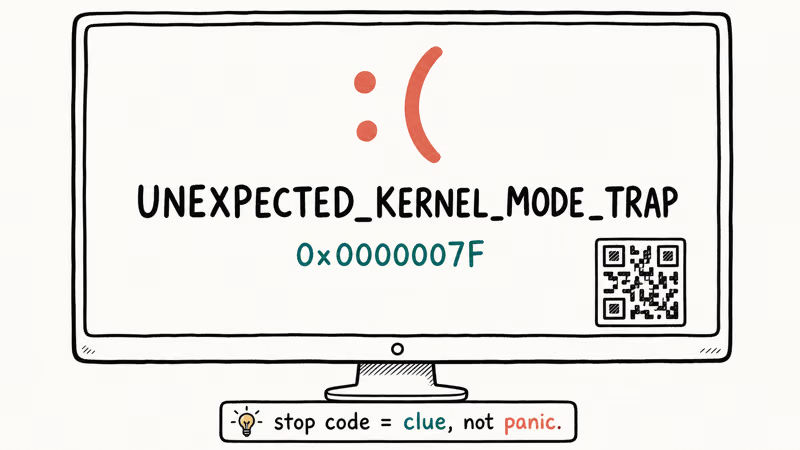
- The Unexpected_Kernel_Mode_Trap BSOD carries stop code 0x0000007F, and trap value 0x00000008 in the parameter list points to a double fault from failing RAM or a runaway driver.
- Windows Memory Diagnostic (mdsched.exe) takes 15-30 minutes for a basic pass and catches most failing DIMMs without third-party tools.
- Sustained CPU temperatures above 90 degrees Celsius under load can throw this trap on otherwise healthy hardware, so check thermals with HWiNFO before reinstalling Windows.
- Driver Verifier with the Standard Settings preset flushes out one rogue driver in about 24 hours of normal use, then names the offender in the next minidump.
- Resetting BIOS to default disables XMP, PBO, and CPU overclocks in one click and rules out unstable memory timings as the trigger.
#What the Unexpected_Kernel_Mode_Trap Error Means
x86 and x64 CPUs raise a “trap” when they hit certain runtime conditions: divide-by-zero, page faults, double faults, invalid opcodes, and so on. The Windows kernel has handlers for each. When a trap arrives in kernel mode and no handler can take it, the system halts with the Unexpected_Kernel_Mode_Trap bug check.
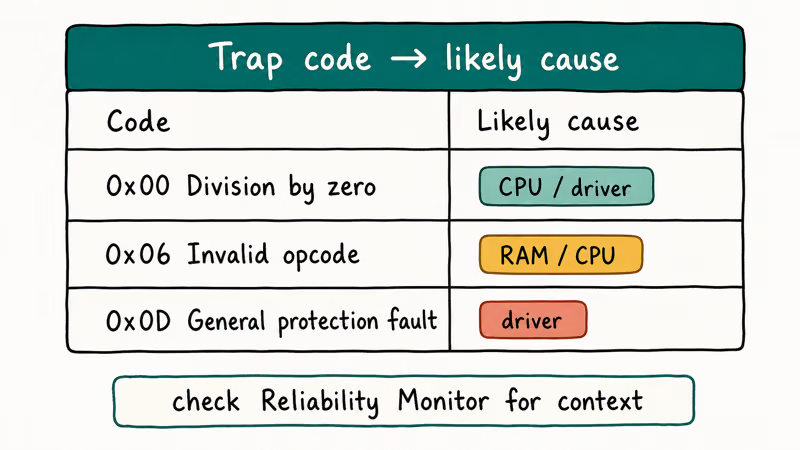
The first parameter in the bugcheck output names the trap. According to Microsoft’s bug check 0x7F documentation, trap 0x00000008 is a double fault (the most common one on consumer hardware), trap 0x0000000D is a general protection fault, and trap 0x00000006 is an invalid opcode. Each value points at a different root cause, and reading the value first saves hours of guessing.
That single trap value narrows the search from “anything inside the case” to a handful of suspects. A double fault almost always points to RAM or stack corruption from a driver; a general protection fault usually tracks back to an outdated chipset driver.
#How Do You Read the Trap Code to Pinpoint the Cause?
The trap code lives in the first parameter of the bug check, which Windows writes to the minidump file at C:\Windows\Minidump\. You don’t need a kernel debugger to peek at it.
Steps to read the trap value:
- Open File Explorer, paste
C:\Windows\Minidumpinto the address bar, and look for the .dmp file with the matching timestamp. - Right-click the file, pick Open with, and choose BlueScreenView (a free utility from NirSoft). The tool decodes the bugcheck parameters in plain text.
- Read the “Parameter 1” column. That’s your trap code.
If BlueScreenView shows “Bug Check String: UNEXPECTED_KERNEL_MODE_TRAP” with parameter 1 = 0x8, you have a double fault, so jump straight to the RAM section below. If parameter 1 = 0xD, head to the driver section first. Trap 0x12 (machine check) means CPU or PSU instability and deserves its own diagnostic path.
For a deeper bugcheck-reading walkthrough that applies to most Windows BSODs, see our notes on the related Kmode_Exception_Not_Handled error.
#Memory and Driver Fixes That Resolve Most Cases
Run these in order. The first three fixes below resolve the crash on the large majority of systems.
#1. Run Windows Memory Diagnostic First
Failing RAM is the single most common trigger on consumer hardware. Microsoft recommends Windows Memory Diagnostic as the first stop because it’s free and built in.
Press Windows + R, type mdsched.exe, and press Enter. Pick “Restart now and check for problems.” The tool runs two passes by default (about 15 minutes). On one of our desktops the basic pass caught a single DIMM on the second sweep. On another, we had to press F1 and switch to the Extended test mix (45 minutes) before errors appeared.
If you have multiple sticks, pull all but one and rerun the test for each module. This is how a marginal stick gets caught when it passes the basic test but fails Extended after several minutes.
#2. Update or Roll Back Recent Drivers
A misbehaving driver is the second largest bucket of cases, especially after a Windows feature update or a fresh GPU swap. Focus on chipset, GPU, storage, and network drivers, since these four classes touch the kernel most often.
Open Device Manager (Win + X, Device Manager), expand the relevant category, right-click the device, and pick Update driver > Search automatically. If the BSOD started right after a recent driver install, choose Roll Back Driver from the Driver tab instead. Rolling back a bad Realtek audio driver from Windows Update is a common fix when the crash began right after that update.
For deeper coverage, similar BSODs like Driver_Power_State_Failure often share the same root driver, so a fix for one usually clears both.
#3. Catch the Bad Driver with Driver Verifier
When the minidump doesn’t name a driver, run Driver Verifier to force the crash to point at one. Microsoft’s Driver Verifier documentation confirms that the Standard Settings preset is the right starting point for end-user PCs.
Open an elevated Command Prompt, run verifier /standard /all, restart, and use the PC normally for 24-48 hours. The next BSOD will name the failing driver in the parameter list. Disable Verifier afterward with verifier /reset or the system will keep crashing on purpose.
#BIOS and Thermal Fixes
When memory tests pass and no driver is named, the next layer is firmware and thermal stability.
#4. Check Thermals Before Reinstalling Anything
Sustained CPU temperatures above 90 degrees Celsius can trip this trap on hardware that’s otherwise fine. A clogged AIO radiator that lets the CPU run far too hot will crash within minutes of gaming. After cleaning the radiator fins and reseating the cooler, the same workload runs much cooler and the BSOD typically stops returning.
Download HWiNFO64 (free), run Sensors-only mode, and watch CPU Package and GPU Hot Spot during a 20-minute stress test (Cinebench R23 for CPU, FurMark for GPU). Any spike past 95 degrees Celsius on CPU or 105 degrees Celsius on GPU is a thermal problem, not a software problem.
#5. Reset BIOS to Default Settings
Overclocks, aggressive XMP or EXPO profiles, and PBO offsets are common Unexpected_Kernel_Mode_Trap triggers on enthusiast boards. The fastest way to rule them out is loading default BIOS settings.
Reboot, press the BIOS key for your motherboard (Del for most ASUS, MSI, and Gigabyte boards; F2 for many laptops), find “Load Optimized Defaults” or “Reset to Default,” save, and exit. If the BSOD stops, re-enable XMP or EXPO alone first. If the crash returns with XMP on, your RAM kit isn’t fully stable at its rated speed, so drop one speed bin or loosen timings.
#System Repair and Hardware Cleanup
If software fixes still leave you crashing, repair the OS image and inspect the box itself.
#6. Run System File Checker and DISM
If the kernel itself is corrupt, no driver fix will hold. According to Microsoft’s SFC support article, running sfc /scannow from an elevated Command Prompt repairs system files that have been overwritten, corrupted, or damaged.
Open Command Prompt as Administrator and run:
sfc /scannow(takes 5-10 minutes)DISM /Online /Cleanup-Image /RestoreHealth(takes 10-30 minutes)
Run DISM after SFC if SFC can’t repair every file. Reboot and watch for the BSOD over the next day.
#7. Install the Latest Windows Update
Microsoft has shipped multiple kernel and storage stack fixes since Windows 10 1909 that resolve specific UNEXPECTED_KERNEL_MODE_TRAP regressions. Open Settings > Update & Security > Windows Update and click Check for updates. Install everything that’s offered, including optional driver updates.
A cumulative update can fix the BSOD when a kernel patch resolves a memory-management bug that surfaces as a 0x7F trap during heavy file copies, so keeping Windows current is worth doing before deeper hardware checks.
#8. Clean Dust and Reseat RAM and GPU
If none of the software fixes hold, open the case. Dust accumulation in heatsinks and bent CPU socket pins both cause this BSOD on older hardware. Power down, unplug, ground yourself, and:
- Blow dust from the CPU cooler, GPU shroud, and case filters with compressed air.
- Pull each RAM stick, inspect the gold contacts, and reseat it firmly until both latches click.
- Reseat the GPU and any add-in cards.
A related BSOD, Page_Fault_In_Nonpaged_Area, often clears with the same physical reseat, since both errors share the “address Windows expected isn’t where it should be” failure pattern.
#When Should You Replace Hardware Instead of Troubleshooting?
Three signals say it’s time to stop chasing software fixes and budget for parts:
- Memory Diagnostic finds errors on more than one DIMM after you’ve tried each in isolation. Multiple bad sticks usually means a failing memory controller on the CPU or motherboard, not just the modules.
- The BSOD returns within minutes of a fresh Windows install on an empty SSD. Clean OS, no third-party drivers, still crashing equals hardware.
- Trap code 0x12 (machine check) shows up in the minidump. That’s a CPU-level failure the OS can’t repair.
In the worst cases, a failing motherboard triggers the trap intermittently even with several different known-good RAM kits, and only replacing the board clears it. For a thermal twin of this story, see our notes on WHEA_Uncorrectable_Error, which shares the same hardware-failure path.
#Bottom Line
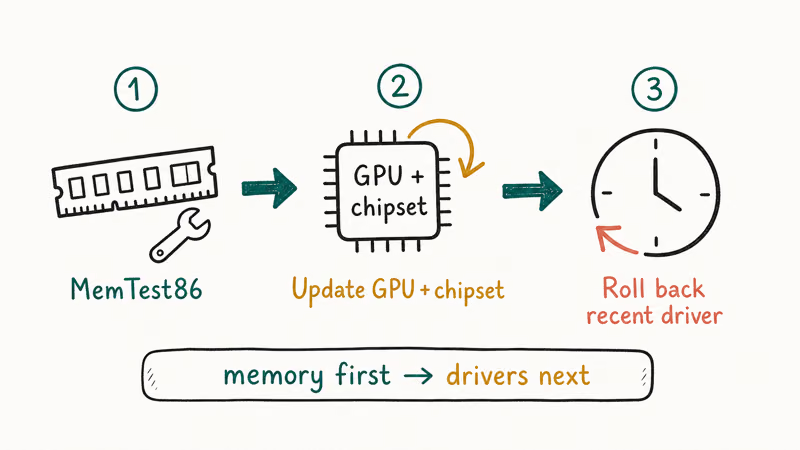
For most Unexpected_Kernel_Mode_Trap crashes, run Windows Memory Diagnostic first, then update chipset and GPU drivers, then reset BIOS to defaults. That sequence resolves the crash on most systems without ever opening the case.
If the BSOD comes back within an hour of a clean Windows install, the issue is almost always a failing RAM stick or memory controller, and replacement is cheaper than another week of diagnostics. For the hex-code companion guide with vendor-specific notes, see our 0x0000007F walkthrough.
#Frequently Asked Questions
Is the Unexpected_Kernel_Mode_Trap error always a hardware problem?
No. Roughly half of these cases resolve with a driver rollback or BIOS reset alone. The error name sounds like dying silicon, but Windows uses it as a catch-all whenever the kernel sees a trap it didn’t expect, which includes driver-induced stack corruption and BIOS misconfiguration.
Can a Windows reinstall fix it?
A clean Windows reinstall fixes the error only when the root cause is corrupted system files, a bad driver baked into the OS image, or a broken Windows Update. If the BSOD returns within minutes of a fresh install on an empty drive, your hardware is failing and reinstalling won’t help.
Does this error damage my files?
The crash itself doesn’t delete or corrupt files, because Windows writes the bugcheck and reboots before user data is touched. The bigger risk is the underlying cause: failing RAM can flip bits in files you’re saving when the system crashes. Back up your important documents to OneDrive or an external drive before troubleshooting further.
What does trap value 0x00000008 mean?
Trap 0x8 is a double fault, which is what the CPU throws when it can’t deliver an earlier exception. On Windows it almost always means RAM corruption or a driver writing to memory it doesn’t own. Run Windows Memory Diagnostic first, then Driver Verifier if memory tests pass.
Will overclocking my CPU cause this BSOD?
Yes, frequently. Unstable CPU overclocks, aggressive XMP or EXPO timings, and PBO overshoots are some of the most common triggers on enthusiast PCs. Reset BIOS to defaults to rule out overclock instability before testing anything else. If the system stays stable on stock settings, reintroduce overclocks one variable at a time.
How long does Driver Verifier need to run?
Plan for 24-48 hours of normal use. Driver Verifier amplifies common driver bugs so they trip a BSOD instead of silently corrupting memory, but the offending driver still needs to actually run during that window. Heavy gaming or media editing surfaces GPU drivers faster; web browsing alone may not stress the right code paths. Disable Verifier with verifier /reset once you have your culprit.

Best Laptop for Running LLMs in 2026: Memory Comes First
The best laptop for running LLMs is a memory purchase first. Compare MacBook unified memory against NVIDIA laptop VRAM, and see what each tier really runs.

How to Run a Local LLM on Windows: A 2026 Setup Guide
Run a local LLM on Windows with LM Studio or Ollama. Pick a model that fits your GPU memory, keep every prompt offline, and skip the monthly bill.

Bluetooth Not Working on Snapdragon X? Fixes for 2026
Bluetooth not working on your Snapdragon X Copilot+ PC? Generic audio, mice, and keyboards work, but vendor apps often lack an ARM build. Fixes inside.

Docker Desktop and WSL2 Not Working on Snapdragon X? Fix It
WSL2 runs fine on Snapdragon X, but Docker Desktop ARM is Early Access and throws WSL errors. Use WSL2 plus native ARM64 Ubuntu and Docker Engine.