Discord Overlay Not Working: 10 Fixes That Actually Work
Fix Discord overlay not working with 10 proven methods: enable game overlay, disable hardware acceleration, reset overlay location, run as admin, and more.
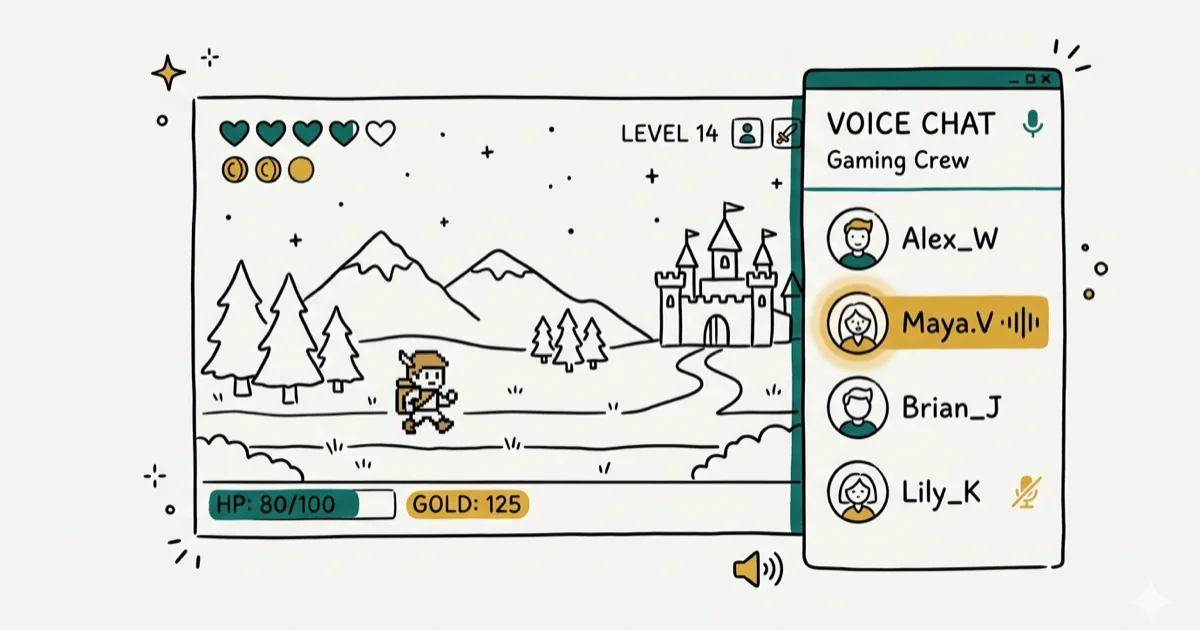
Quick AnswerEnable in-game overlay in Discord Settings > Overlay, then enable it for your specific game under Game Activity. If it still does not show, disable hardware acceleration in Discord Settings > Appearance > Advanced.
Discord’s in-game overlay lets you see who’s talking and send messages without alt-tabbing out of your game. When it stops showing, the culprit is almost always one of three things: the overlay isn’t enabled for that specific game, hardware acceleration is interfering, or the overlay position ended up off-screen.
- Discord overlay needs two toggles active: a global toggle in
Settings>Overlay anda per-game toggle in Game Activity. - Hardware acceleration conflicts with certain GPUs; disabling it in Appearance fixes most silent overlay failures.
- The overlay position drifts after monitor changes; deleting OverlayStore in Discord’s local storage resets it.
- Run Discord as administrator for full-screen games with anti-cheat protection.
- The Discord overlay is Windows-only; macOS and Linux are not supported.
#What Is Discord Overlay and Why Does It Stop Working?
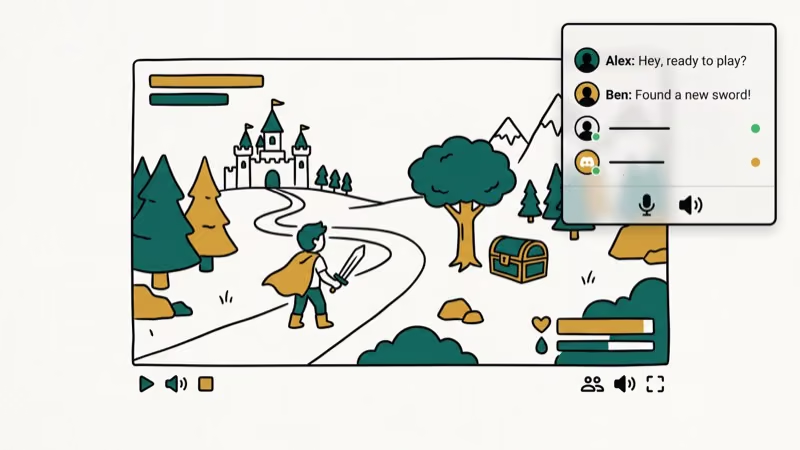
Discord overlay draws a chat and voice interface directly over your game screen, so you can see who’s talking without leaving your game. According to Discord’s support documentation, the overlay works by injecting into the game’s rendering layer, which requires specific permissions and can be blocked by antivirus tools, display scaling settings, or conflicts with other overlay applications.
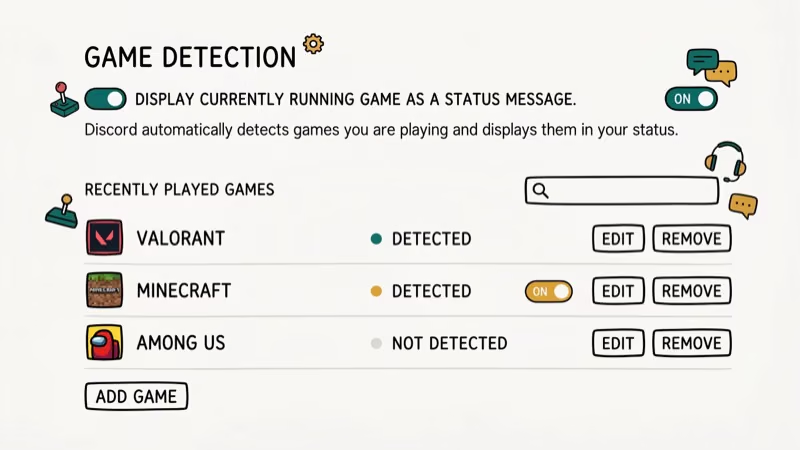
The overlay is Windows-only and requires DirectX or Vulkan rendering. Discord’s documentation notes that the overlay supports a wide range of games, but exclusive full-screen mode and certain anti-cheat engines prevent injection.
#Common Causes of Discord Overlay Failure
Discord overlay requires both the global toggle and the per-game toggle to be active. Enabling only one of them can leave the overlay hidden; both must be on simultaneously.
If you’ve been having ongoing Discord problems beyond overlay, see our guides on Discord not opening and Discord stream no sound for related fixes. Both share some root causes with overlay failures.
Common causes for Discord overlay failing:
- Overlay isn’t enabled for the specific game
- Hardware acceleration conflicting with your GPU
- Overlay positioned off-screen after resolution change
- Discord lacks administrator permissions for certain games
- Antivirus software blocking overlay injection
- Conflicting screen recording or streaming software
#Discord Overlay System Requirements
The overlay requires Windows 10 or 11, a DirectX 9 or higher GPU, and Discord version 0.0.301 or later. Vulkan games require an additional opt-in setting in Discord’s overlay configuration. If your game uses OpenGL exclusively, the overlay won’t inject regardless of your settings.
#How to Fix Discord Overlay Not Working?
#Fix 1: Turn the Game Overlay On
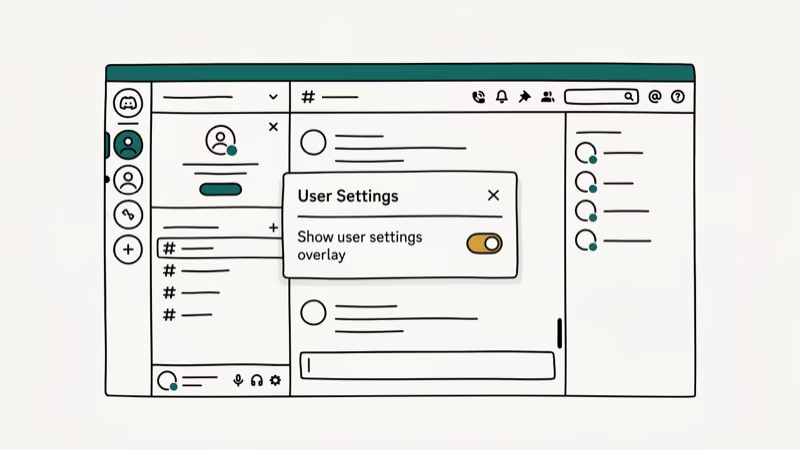
The overlay requires two separate toggles. Check both:
Step 1: Enable global overlay:
- Launch Discord and open User Settings (gear icon next to your username)
- Click Overlay in the left panel
- Toggle Enable in-game overlay to on
Step 2: Enable overlay for your specific game:
- In Discord Settings, click Game Activity in the left panel
- Find your game in the list and check that the overlay is enabled (shown by a green monitor icon)
- If your game isn’t listed, click Add it! and add it manually, then enable the overlay for it
After enabling both toggles, launch your game and check for the overlay indicator.
#Fix 2: Disable Discord Hardware Acceleration
Hardware acceleration uses your GPU to render Discord’s interface, but it conflicts with certain game engines and graphics drivers.
- Open User Settings in Discord
- Click Appearance in the left panel
- Scroll down to Advanced and find Hardware Acceleration
- Toggle Hardware Acceleration off
- Click Okay to confirm; Discord will restart
Disabling hardware acceleration can restore the overlay when GPU rendering conflicts with a game engine or graphics driver.
#Fix 3: Reset the Overlay Location
If you changed your monitor layout or screen resolution, the overlay may have moved off-screen. Reset it through Discord’s developer console:
- Close your game and open Discord
- Press Ctrl + Shift + I to open the developer console
- Click the >> arrow at the top-right of the console panel
- Select Application from the dropdown list
- Expand Local Storage in the left panel
- Click on https://discordapp.com
- Find OverlayStore or OverlayStoreV2 in the Keys column
- Right-click it and select Delete
- Restart Discord, then launch your game
The overlay will reappear at its default position (top-left corner of the screen).
#Fix 4: Run Discord as Administrator
Some games, particularly anti-cheat protected titles, require Discord to have elevated permissions to inject the overlay:
- Close Discord completely
- Right-click the Discord shortcut and select Properties
- Click the Compatibility tab
- Check Run this program as an administrator
- Click OK, then relaunch Discord
#Fix 5: Add Discord to Your Antivirus Whitelist
Antivirus software sometimes blocks Discord’s overlay injection, treating it as behavior similar to screen capture malware. Add Discord to your antivirus whitelist:
- Open your antivirus application
- Find the exclusions or whitelist section
- Add the Discord executable (typically in
C:\Users\[Username]\AppData\Local\Discord)
#Fix 6: Reinstall Discord
If other fixes haven’t worked, a clean reinstall removes any corrupted overlay files:
- Press Windows+R, type
control, and press Enter - Go to
Programs>Uninstalla program - Double-click Discord to uninstall it
- Restart your PC
- Download the latest Discord version from discord.com and install it
- After reinstalling, re-enable the overlay in Settings and add your game to Game Activity
#Fix 7: Adjust Display Scaling to 100%
Display scaling above 100% causes the overlay to render at the wrong size and sometimes disappear entirely:
- Press Windows+I to open Settings
- Click System
- Under Scale and Layout, set the scale to 100% (Recommended)
- Relaunch the game
This is a common fix for users on high-DPI monitors who set Windows scaling to 125% or 150%.
#Fix 8: Close Conflicting Overlay Applications
Other applications with overlay features can interfere with Discord: OBS Studio, GeForce Experience, MSI Afterburner, Steam overlay, and screen recording apps. Temporarily close these applications and test the Discord overlay.
According to Discord’s overlay guide, the overlay injects into the game’s rendering pipeline at a low level, and multiple applications attempting the same injection can cause conflicts. Discord recommends that only 1 overlay application be active at once for stable performance.
#Fix 9: Update Discord
Outdated Discord versions sometimes have overlay rendering bugs that were fixed in later releases:
- Close Discord
- Reopen it; Discord checks for updates automatically on startup
- If you suspect an update is available but hasn’t triggered, press Ctrl+R to force a refresh
#Fix 10: Use a VPN to Fix Voice Connection Issues
If the overlay appears but the voice indicators don’t show correctly, the underlying voice connection may have issues. Discord’s overlay requires an active voice connection to display who’s speaking.
Connect through a reliable VPN service like NordVPN, which supports UDP connections required by Discord’s voice servers. One NordVPN account covers up to 6 devices simultaneously.
Some links on this page are affiliate links, which means fone.tips may earn a commission at no extra cost to you.
If you frequently share your screen alongside the overlay, check our guide on Discord screen share for setup tips that prevent the two features from conflicting.
#Advanced Discord Overlay Configuration
For power users who need more control, Discord’s developer console and AppData storage hold overlay settings that aren’t accessible through the normal UI. Clearing the OverlayStore and OverlayStoreV2 keys resets position data, while deleting the entire Discord folder from %AppData% clears all cached device and rendering configurations.
#Discord Overlay Troubleshooting Tips
Before running through all 10 fixes, check Discord’s status page to confirm the overlay service is online. Outages are rare but affect all users simultaneously, and no local fix will help during one. Also verify you’re using a Discord version released within the past 60 days.
#Bottom Line
Start with Fix 1 (check both overlay toggles) and Fix 2 (disable hardware acceleration); these two steps resolve the majority of Discord overlay failures in under 2 minutes. If the overlay position disappeared after a monitor change, Fix 3 resets it instantly. For anti-cheat protected games, Fix 4 (run as admin) is often required. The overlay only works on Windows, so macOS and Linux users will need third-party tools as alternatives.
#Frequently Asked Questions
Why is my Discord overlay not showing up in-game?
The most common reason is that the overlay isn’t enabled for the specific game. Check both the global toggle (Settings > Overlay > Enable in-game overlay) and the per-game toggle (Settings > Game Activity). Both must be on.
Can I customize the appearance of the Discord overlay?
Yes. In Discord Settings > Overlay, you can adjust the overlay’s position, size, and opacity. You can also change the display style between text and avatar views.
Does the Discord overlay affect game performance?
The performance impact is generally minimal; Discord reports single-digit FPS decreases in most games. If you notice significant drops, try disabling hardware acceleration in Discord’s appearance settings to reduce GPU load.
Is the Discord overlay available on all platforms?
No, the Discord overlay is Windows-only. It’s not supported on macOS or Linux. Mobile Discord apps don’t support overlay either.
Are there alternatives to Discord overlay on macOS?
macOS users can use the Discord app in a small floating window using macOS’s Split View, or use third-party tools like Streamlabs Desktop which offers a cross-platform overlay solution.
Can the Discord overlay cause frame rate drops?
Usually not significantly. Discord states that the overlay causes single-digit FPS reductions in most games. On lower-end hardware, disabling hardware acceleration in Discord’s settings reduces GPU usage and typically recovers 2 to 5 FPS.

Google Messages Error 3100: Why RCS Is Broken on Galaxy
Google Messages RCS error 3100 hits Galaxy owners after phone or carrier switches. Google told 9to5Google a fix is coming. Here's what actually helps.

Is This Bank App Real? Spot a Fake App on Your Home Screen
A bank app can land on your home screen from a web page with no install warning. Learn the checks that tell a real banking app from a phishing web app.

Apps Crashing After iOS 27 Update? Fix Order (2026)
Apps crashing after the iOS 27 update? Update the app in the App Store first, then offload and reinstall to clear stale cache, then restart. The fix order.

Do AI Translation Earbuds Work Offline? What to Know
Do AI translation earbuds work offline? A few do with downloaded language packs, but most need the cloud. Here's what works offline and what you give up.