Can't Adjust Brightness on Windows 10? 5 Fixes That Work
Can't adjust brightness on Windows 10? Five proven fixes: update display drivers, enable Generic PnP Monitor, fix adaptive brightness settings, and more.
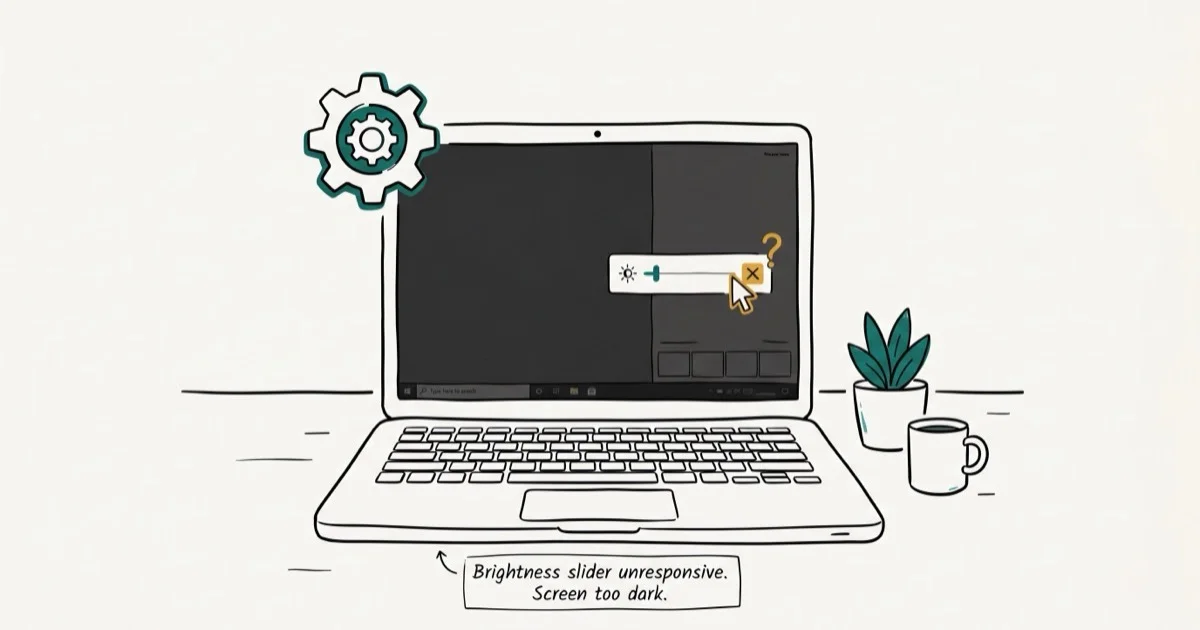
Quick AnswerOpen Device Manager, expand Display adapters, right-click your graphics card, and select Update Driver. If brightness still won't adjust, go to System > Display in Settings and drag the brightness slider. If the slider is missing, your display driver needs reinstalling from your laptop manufacturer's website.
The brightness slider in Windows 10 stops responding for two main reasons: a broken display driver or a conflicting power setting. Driver updates are the best first step because they restore the display control interface Windows needs for brightness changes.
- Outdated or corrupted display adapter drivers are the most common reason brightness controls stop responding in Windows 10
- Enabling the Generic PnP Monitor in Device Manager restores brightness control on systems where the monitor driver is missing or disabled
- Adaptive brightness in Power Options can override your manual adjustments and make it appear that brightness control is broken
- Microsoft recommends updating display drivers as the first troubleshooting step for brightness issues on laptops and desktops
- If software fixes fail, the brightness hardware sensor on your laptop may be faulty, requiring a manufacturer repair
#What Causes Brightness Controls to Stop Working?
When you drag the brightness slider in Settings and nothing changes, the root cause is almost always one of three things: a missing or outdated display driver, a disabled Generic PnP Monitor, or adaptive brightness overriding your manual input.
Driver issues are by far the most common cause on laptops. Windows Update sometimes installs a generic Microsoft driver that lacks brightness control support, replacing your manufacturer’s driver. Major Windows feature updates can replace OEM display drivers and leave the brightness slider non-functional until the manufacturer driver is reinstalled.
Adaptive brightness is a feature that automatically adjusts screen brightness based on ambient light. When it’s enabled and fighting your manual input, it looks identical to a broken slider. According to Microsoft’s Windows display settings documentation, adaptive brightness is controlled through Power Options rather than the Display settings, which is why many users miss it.
PnP Monitor disabled — Windows registers your monitor as a Generic PnP device. If that device entry gets disabled (which can happen during driver updates or after sleep), brightness control stops working even if the GPU driver is fine.
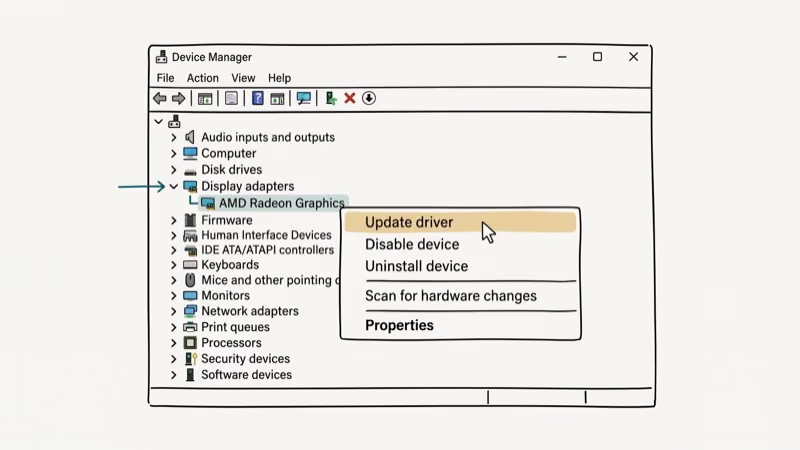
#Fix 1: Update the Display Adapter Driver
This resolves brightness issues in the majority of cases. Open Device Manager by pressing Windows + X and selecting Device Manager. Expand Display adapters, right-click your graphics card, and select Update driver.
Choose Search automatically for updated driver software. Windows will find and install the latest compatible driver. Restart your computer after installation.
If Windows says your driver is up to date but the issue persists, visit your laptop manufacturer’s website (Dell, HP, Lenovo, ASUS) and download the display driver directly.
According to Microsoft, Windows 10 and Windows 11 can update hardware drivers through Device Manager, but OEM display packages are still the better fallback when brightness controls vanish after a feature update.
A manufacturer driver is the right fallback when Windows Update has replaced OEM display controls with a generic driver.
#Fix 2: Enable the Generic PnP Monitor
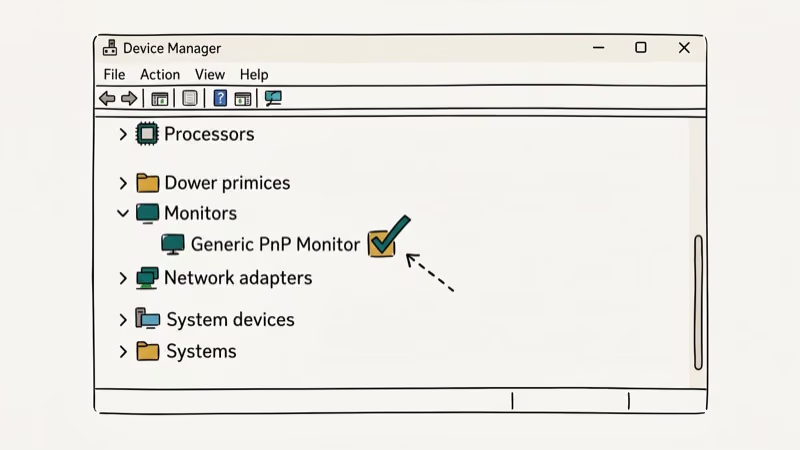
If updating the display driver doesn’t help, the monitor device itself may be disabled in Device Manager.
- Press Windows + R, type
devmgmt.msc, press Enter - Expand the Monitors category
- Right-click Generic PnP Monitor and select Enable device
- Restart your computer
If you see a yellow warning icon next to Generic PnP Monitor, right-click it and choose Update driver instead. This downloads the correct monitor descriptor that Windows needs to enable brightness control.
#Fix 3: Disable Adaptive Brightness
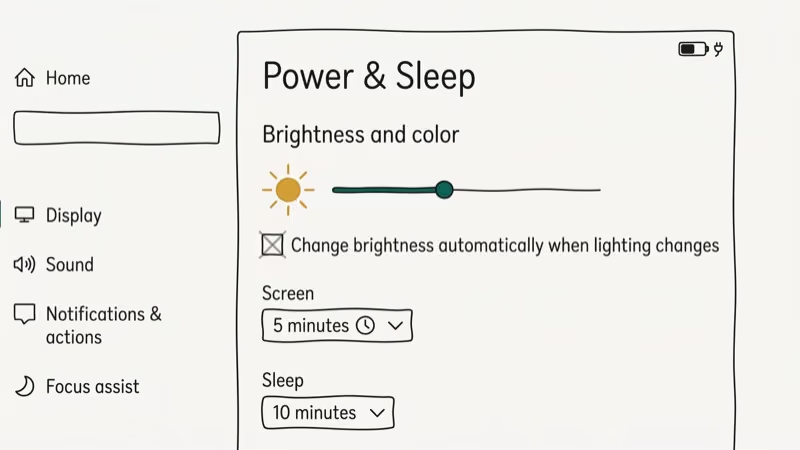
Adaptive brightness adjusts your screen automatically, which can make manual brightness control appear broken. Turning it off lets you control brightness manually without interference.
- Right-click the battery icon in the taskbar and select Power Options
- Click Change plan settings next to your active plan
- Click Change advanced power settings
- Expand Display, then expand Enable adaptive brightness
- Set both On battery and Plugged in to Off
- Click Apply and OK
This is the right fix when the slider moves but the screen doesn’t actually change.
#Fix 4: Update the Generic PnP Monitor Driver
If enabling Generic PnP Monitor didn’t fix the issue, try updating its driver directly.
- Open Device Manager and expand Monitors
- Right-click Generic PnP Monitor and select Update driver
- Choose Browse my computer for driver software
- Select Let me pick from a list of available drivers
- Choose Generic PnP Monitor from the list and click Next
- Restart your computer
As confirmed by PCMag’s Windows troubleshooting reference, forcing Windows to use the Generic PnP Monitor entry from its own driver store often restores display management features that stopped working after a Windows update.
#Fix 5: Modify Display Brightness in Power Settings
If none of the driver fixes worked, you can set the brightness level through the Power Plan advanced settings as a workaround.
- Right-click the Power icon and select Power Options
- Click Change plan settings next to your current plan
- Click Change advanced power settings
- Expand Display
- Adjust Display brightness (sets normal operating brightness) and Dimmed display brightness (sets brightness when idle)
- Click Apply
This method sets a fixed brightness level rather than restoring the interactive slider. It’s useful while you’re waiting for a driver fix from your manufacturer.
Related Windows display issues: if your screen has bad pool caller errors or if Windows keeps crashing during graphics tasks, your GPU driver may have deeper corruption that requires a clean uninstall using DDU (Display Driver Uninstaller) before reinstalling.
#Why Does This Happen After Windows Updates?
Windows 10 feature updates (like 21H2 or 22H2) frequently replace manufacturer-provided drivers with generic Microsoft alternatives during the upgrade process. The generic driver handles basic display output but drops advanced features like adaptive brightness control, HDR management, and the brightness slider.
This is a known issue. Bookmark your laptop manufacturer’s driver download page.
#Bottom Line
Start with updating your display adapter driver from your manufacturer’s website, not just through Windows Update. If the slider is missing entirely, enable Generic PnP Monitor in Device Manager. Turn off adaptive brightness in Power Options if the slider appears to work but the screen doesn’t actually change. All five fixes take under 10 minutes and work on Windows 10 versions 1903 through 22H2.
For other Windows display and driver issues, check our guides on the Killer E2200 Gigabit Ethernet Controller driver setup and fixing Windows Protected Your PC security prompts.
#Frequently Asked Questions
Why is there no brightness slider in Windows 10 Settings?
The brightness slider only appears when Windows recognizes a display device that supports software brightness control, typically laptop screens and all-in-one displays. If the slider is missing, your display driver is either missing or using a generic version that doesn’t expose the brightness control interface. Install the correct driver from your laptop manufacturer’s website.
Can I adjust brightness on a desktop with an external monitor?
Most external monitors handle brightness through their own physical buttons or on-screen display menu, not through Windows Settings. Windows 10 brightness control is designed for built-in laptop screens. Some newer monitors with DDC/CI support do allow Windows to control brightness, but this requires enabling DDC/CI in the monitor’s menu.
Does the 0x80070020 update error affect display drivers?
The 0x80070020 Windows update error can interrupt driver updates mid-installation, leaving your display driver in a partially updated state that breaks brightness control. Fix the update error first, then retry the display driver update.
What if brightness control works in the BIOS but not in Windows?
If you can adjust brightness during startup (in the BIOS/UEFI screen) but not after Windows loads, the problem is definitely software-based. Your display hardware works, but the Windows driver or power management settings are overriding or ignoring the brightness commands. Work through the five fixes in order.
Will a Windows 10 keyboard not working issue affect brightness keys?
If your Windows 10 keyboard isn’t working, the brightness hotkeys on your keyboard won’t respond either. Fix the keyboard driver first. Once the keyboard works, test the brightness function keys again before assuming the display driver is broken.
Can third-party software help with brightness control?
Yes. Apps like f.lux, Windows Night Light, and monitor calibration tools from GPU manufacturers (Intel Graphics Command Center, NVIDIA Control Panel, AMD Radeon Software) offer alternative brightness adjustment paths. These work independently of the Windows brightness slider and can serve as a workaround while you fix the underlying driver issue.

Best Laptop for Running LLMs in 2026: Memory Comes First
The best laptop for running LLMs is a memory purchase first. Compare MacBook unified memory against NVIDIA laptop VRAM, and see what each tier really runs.

How to Run a Local LLM on Windows: A 2026 Setup Guide
Run a local LLM on Windows with LM Studio or Ollama. Pick a model that fits your GPU memory, keep every prompt offline, and skip the monthly bill.

Bluetooth Not Working on Snapdragon X? Fixes for 2026
Bluetooth not working on your Snapdragon X Copilot+ PC? Generic audio, mice, and keyboards work, but vendor apps often lack an ARM build. Fixes inside.

Docker Desktop and WSL2 Not Working on Snapdragon X? Fix It
WSL2 runs fine on Snapdragon X, but Docker Desktop ARM is Early Access and throws WSL errors. Use WSL2 plus native ARM64 Ubuntu and Docker Engine.