iTunes Backup Corrupt or Not Compatible: How to Fix It
Fix the "iTunes backup was corrupt or not compatible" error: isolate the bad folder, rebuild a clean backup, and recover data from the device or iCloud.
Quick AnswerRename the broken backup folder with a .corrupt suffix in MobileSync\Backup, then run a fresh backup so iTunes or the Finder rebuilds the file. If that fails, restore directly from the source iPhone or from iCloud Backup before deleting anything.
When iTunes tells you the backup is corrupt or not compatible with your iPhone, the file on disk is salvageable more often than the dialog suggests. The problem is almost always one folder inside MobileSync\Backup, not your whole backup library, and the source data still lives on the device you backed up from.
The safest repair path is to isolate the bad folder and trigger a fresh backup so iTunes, Finder, or Apple Devices can rebuild the file.
- The “backup was corrupt or not compatible” error usually points to one folder under MobileSync\Backup, not your whole library.
- Rename the bad folder with a .corrupt suffix and run a clean backup so the Finder or iTunes rebuilds the file from the device.
- A connected iPhone is itself a complete backup source, so restoring from the device works when no backup file does.
- iCloud Backup is the second source of truth: download from iCloud.com or restore during iOS setup if local files are unrecoverable.
- Encrypted backups need the original password to read, so write it down before you start any repair work.
#What Does “iTunes Backup Was Corrupt or Not Compatible” Mean?
The dialog appears when iTunes (macOS Mojave and earlier, plus Windows) or the Finder backup tool (macOS Catalina and later) can’t parse the Manifest.db or Manifest.plist file inside one specific backup folder. Apple Support’s page on locating iPhone, iPad, and iPod touch backups confirms each device backup lives in its own hashed folder under MobileSync\Backup. That’s why a single damaged folder can fail without breaking the rest of your library.
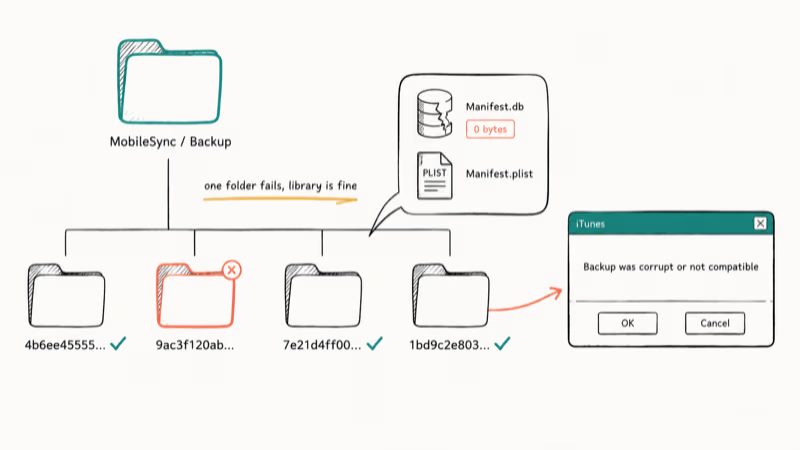
Common triggers include:
- A USB cable was unplugged or the Mac slept mid-backup, leaving the manifest half-written.
- The backup drive ran out of free space before the last write completed.
- An iOS update changed the backup format, and the file you’re trying to use was written by a much newer or older iOS version than the device you’re restoring to.
- iTunes or Finder was force-quit while the backup process was still running.
Knowing which of these caused the error matters for prevention but not for the repair: the fix is the same.
#Telltale Signs Your iTunes Backup Is Truly Corrupt
Before deleting anything, confirm corruption rather than misreading another error. Four signals point to a truly corrupt backup:
- The exact text “The backup was corrupt or not compatible with the iPhone” or “iTunes could not back up the iPhone because the backup was corrupt” appears when you click Restore Backup or run a new backup.
- The folder for that device appears in
MobileSync\Backupbut Finder or iTunes does not list it under Manage Backups. - Restore starts, runs for a few minutes, then fails with error 1, error 14, or iPhone error 4013.
- The
Manifest.dbfile inside the backup folder is 0 bytes or missing.
If only restore fails but the backup is visible and sized correctly, the issue isn’t corruption. It’s more likely the restore stalling on “estimating time remaining” or the iPhone refusing the file because of a version mismatch.
#Quick Fixes Before You Touch the Backup Folder
Run these in order before touching the backup folder.
- Force-quit iTunes or Finder, unplug the iPhone, restart your Mac or PC, then try the backup again with a different USB-C or Lightning cable.
- Update to the current version of macOS or Windows. On Windows 10 and 11, the Apple Devices app from the Microsoft Store has replaced the legacy iTunes installer, and Apple’s Apple Devices on Windows page recommends it for new installs.
- Disable any third-party security software that scans
MobileSync\Backup. Several antivirus tools quarantine partial backup files mid-write. - Check free space. iTunes needs roughly the same headroom as your iPhone’s used storage; if you have a 256 GB iPhone with 180 GB used, you need at least 180 GB free on the backup drive.
- If the iPhone shows up but iTunes refuses to talk to it, fix the connection first using our guide on iTunes not recognizing iPhone before retrying the backup.
If none clear the message, the rebuild is next.
#How to Repair a Corrupt iTunes Backup on a Mac
The Finder on macOS Catalina and later (and iTunes on Mojave and earlier) will rebuild a backup folder if you remove the broken one from its expected path. Rename rather than delete, because you’ll want the original around if the rebuild fails.
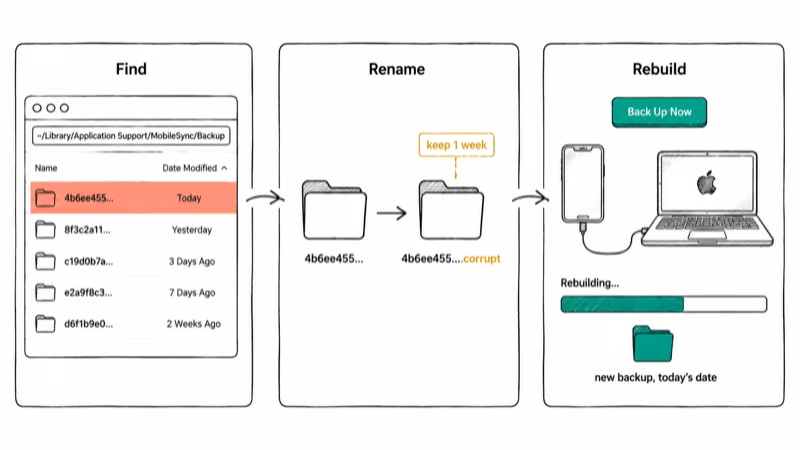
- Quit iTunes or close all Finder backup windows. Disconnect the iPhone.
- In Finder press Shift + Command + G and paste
~/Library/Application Support/MobileSync/Backup. Press Return. - Locate the folder for the device with the corrupt backup. The folder name is a 40-character hash; sort by Date Modified to find the most recent one.
- Rename that folder by adding
.corruptto the end. Example:4b6ee45555647ad896c9ba63434444f5239a4d42becomes4b6ee45555647ad896c9ba63434444f5239a4d42.corrupt. - Reopen Finder, click your iPhone in the sidebar, then click Back Up Now. Wait for the progress bar to finish.
- Click Manage Backups. The new backup should appear with today’s date and the correct device name.
If the rebuild succeeds, keep the .corrupt folder for one more week because it may still hold recoverable data.
#Repairing a Corrupt Backup on Windows
Windows doesn’t expose a Manage Backups screen as cleanly as the Finder, but the same rename trick works. Where the backup lives depends on which iTunes you installed: the legacy desktop app, or the newer Apple Devices app from the Microsoft Store.
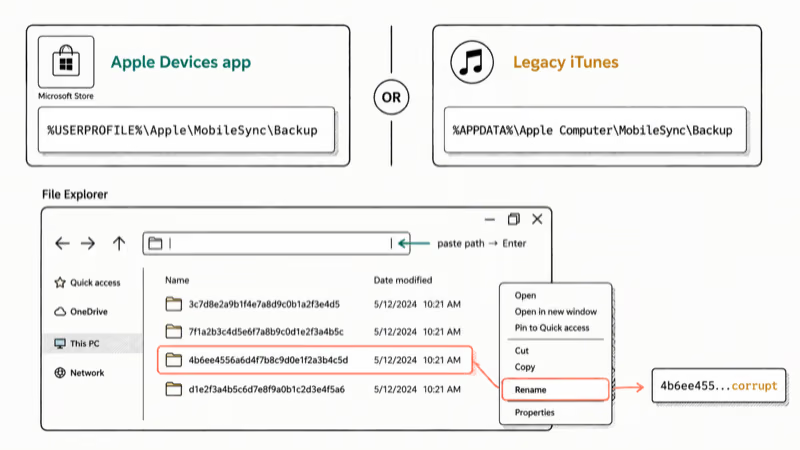
| Install type | Backup folder path |
|---|---|
| Microsoft Store iTunes / Apple Devices app | %USERPROFILE%\Apple\MobileSync\Backup |
| Legacy iTunes installer | %APPDATA%\Apple Computer\MobileSync\Backup |
Steps:
- Close iTunes or the Apple Devices app and disconnect the iPhone.
- Open File Explorer, paste the path from the table above into the address bar, and press Enter.
- Identify the corrupt backup folder by date modified, right-click it, and rename it with the
.corruptsuffix. - Reconnect the iPhone, reopen the Apple Devices app or iTunes, and click Back Up Now under your device.
- Confirm the new backup appears in
Edit>Preferences>Devices(legacy iTunes) or in the Apple Devices app’s backup list.
If the new backup also fails or refuses to start, reinstalling iTunes or switching from the legacy iTunes installer to the Apple Devices app fixes the issue more often than any folder operation.
#Why a Rebuilt Backup Can Still Refuse to Restore
A rebuilt backup can still fail at restore for one specific reason: iOS version mismatch.
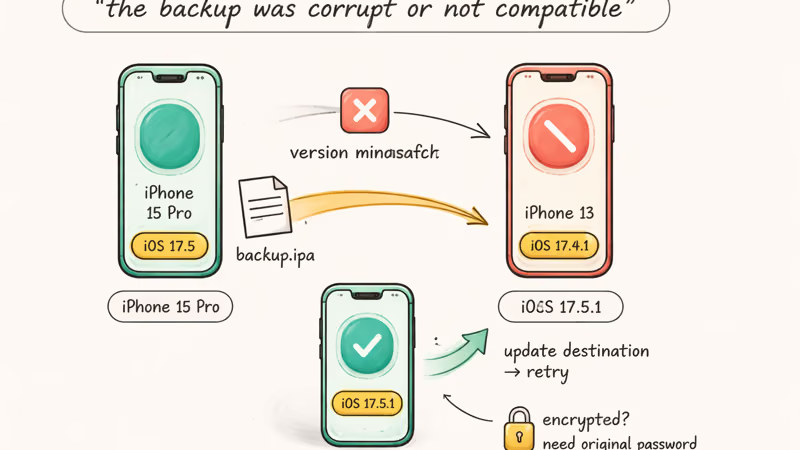
Apple’s About backups for iPhone, iPad, and iPod touch page states that you can’t restore a backup made by a newer version of iOS to a device running an older version. If your old iPhone was on iOS 17.5 and the new iPhone is still on iOS 17.4.1, the restore stops with “the backup was corrupt or not compatible” even when the file is fine.
The fix: update the destination iPhone to the same iOS version (or newer) as the source backup, then retry. If the source backup was made on a newer iOS version, matching or exceeding that version on the destination device can clear the error without touching the backup file.
The second cause is encryption. Encrypted backups won’t open without the original password. If you can’t remember it, follow our guide on what to do when you forgot the iTunes backup password before you declare the backup dead.
#How Do You Recover Data When the Backup Is Truly Corrupt?
If the rebuild fails and the .corrupt folder won’t open, your data isn’t gone. You have two more sources of truth: the iPhone itself, and iCloud.
#Restore directly from the iPhone
The iPhone itself is a full data source as long as it still boots. Plug it in and use a current iOS data extraction tool such as Tenorshare UltData or Wondershare Dr.Fone to pull contacts, messages, and photos straight from the device. This works even when the iTunes backup file is unreadable, because the extraction tool reads the live filesystem instead of the backup folder.
If the iPhone is stuck on the Apple logo, fix recovery mode first, then run the extraction.
#Restore from iCloud Backup
If iCloud Backup was on, you have a second copy. According to Apple Support, iCloud keeps your most recent backup for up to 180 days after iCloud Backup is turned off, per the iCloud Backup overview. Two ways to use it:
- During iOS setup, choose Restore from iCloud Backup, sign in to your Apple Account, and pick the most recent backup.
- For selective recovery without wiping the iPhone, use a tool that reads iCloud backups directly. We cover the workflow in how to download iCloud backup files.
If neither route works, the data on the corrupt backup is gone. The next backup you make won’t be corrupt as long as you fix the underlying cause (cable, free space, software version), so the priority shifts to prevention.
#How to Prevent Corrupt iTunes Backups Going Forward
Prevention comes down to four habits:
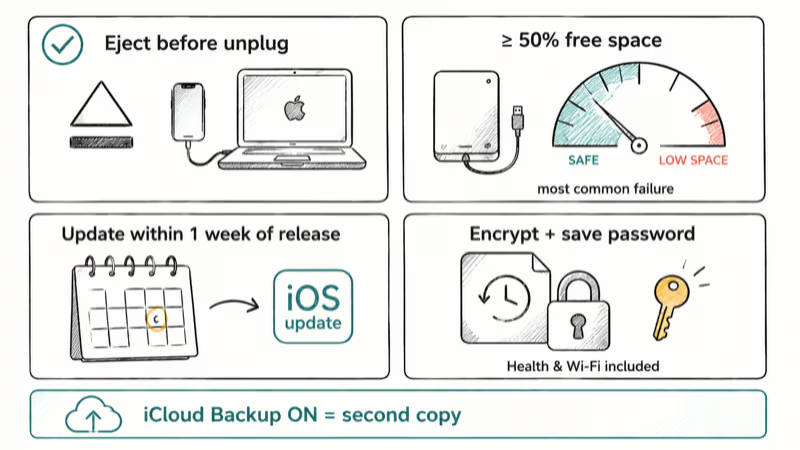
- Always click the Eject button next to the iPhone in Finder or the Apple Devices app before you unplug.
- Keep at least 50% free space on whichever drive holds
MobileSync\Backup. A backup that runs out of space mid-write is a common cause of corrupt backup files. - Update macOS or the Apple Devices app within a week of new releases. Apple ships backup-format fixes in roughly every other point release of iOS.
- Encrypt your backups and store the password somewhere reliable. Encrypted backups include Health and saved Wi-Fi data, which is worth the small extra friction.
If iCloud Backup is also on, you have two independent copies. Apple’s About backups for iPhone recommends keeping both.
#Frequently Asked Questions
Can I open a corrupt iTunes backup with another tool?
Sometimes. If the manifest is unreadable but the SQLite databases inside the folder are intact, an iTunes backup viewer can pull messages, contacts, and photos straight from those files. The workflow is covered in iTunes backup viewer. It won’t work if the actual data files are 0 bytes or missing.
Is it safe to delete the .corrupt folder once my new backup works?
Wait at least one week. A rebuilt backup can look complete in Finder but still miss app data; the .corrupt folder may be the only place left to recover it from.
Why does the backup fail with “some files were unavailable during the last backup”?
That’s a different error from corruption. It usually means iOS couldn’t capture a few photos or app files because they were still uploading or downloading. Our guide on the some files were unavailable during the last backup error covers the fix; the short version is to retry the backup after iCloud Photos finishes syncing.
Does iCloud Backup get corrupt the same way iTunes backups do?
Rarely. iCloud Backup has a different risk profile: backups older than 180 days after iCloud Backup is turned off get removed, per Apple Support.
Can I move my MobileSync\Backup folder to an external drive?
Yes. Move the entire Backup folder to an external SSD, then create a symlink at the original location pointing to the new path.
My iPhone backup keeps failing every time. Is the backup itself corrupt?
Not usually. Repeated backup failures point to a connection or storage problem, not file corruption. Work through our checklist for iPhone backup failed first; once a clean backup completes, the corruption error you saw earlier won’t return.
#Bottom Line
The “iTunes backup was corrupt or not compatible” error sounds final but rarely is. Rename the broken folder with a .corrupt suffix and let the Finder or Apple Devices app rebuild from scratch. That fixes it most of the time.
Keep the renamed folder for a week as insurance. Treat your live iPhone and iCloud Backup as the two sources of truth that the local backup file is supposed to mirror, not replace. Once a clean backup completes, set a monthly calendar reminder to open Manage Backups and confirm the latest entry is there. The next corruption event, if it ever comes, becomes something you catch in minutes instead of days.

Mac mini M6 vs M5 Pro: Which Model Should You Buy?
Mac mini M6 vs M5 Pro compared on price, memory, ports, displays, and real workloads. Find the better 2026 Mac mini for your desk and budget.

Apple Siri Settlement: Who Qualifies and How to Claim
Apple's $250 million Siri settlement covers iPhone 15 Pro and iPhone 16 models bought June 2024 to March 2025. See who qualifies and how claims work.

iOS 26.6.1 Security Update: What Apple Fixed and Who Gets It
Apple released iOS 26.6.1 on August 17 with 29 security fixes, including an IPSec interception bug. See what it patches, who gets it, and how to update.

iPhone Adaptive Power: How It Works and When to Use It
Learn how iPhone Adaptive Power works, which models support it, what it changes, and when Low Power Mode is still the better battery-saving choice.