iPhone Stuck on EDGE? How to Get 5G or LTE Back (2026)
iPhone stuck on EDGE with crawling data? Here's why the E icon appears, which settings force 5G or LTE back, and when the problem is your carrier.
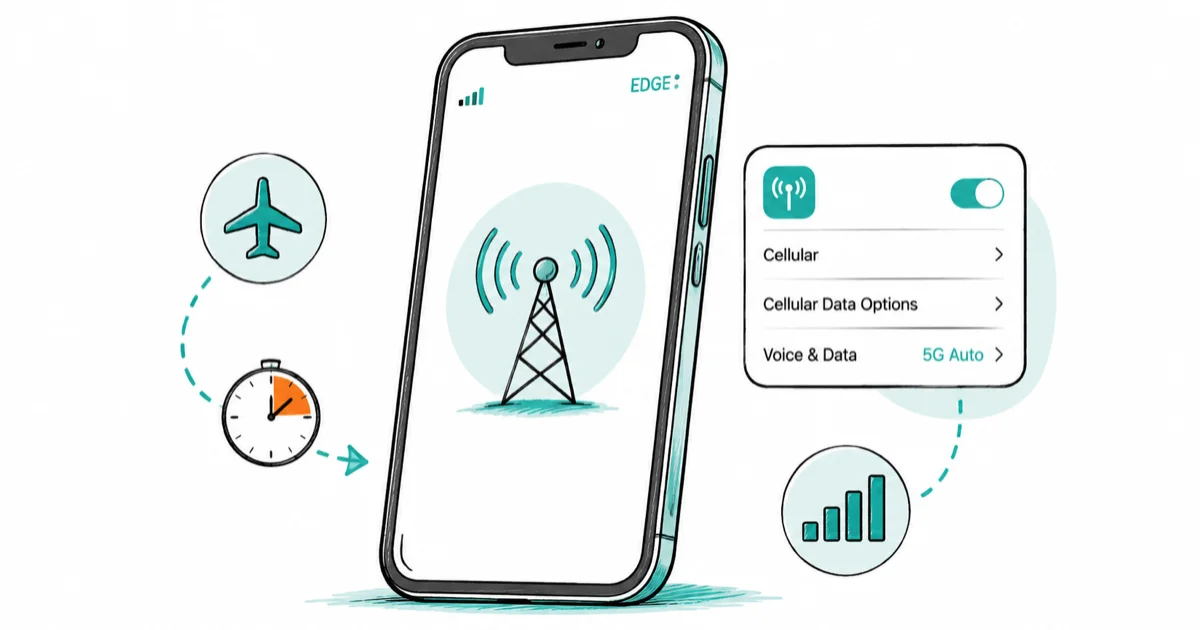
Quick AnswerTurn on Airplane Mode for 15 seconds, then set Settings > Cellular > Cellular Data Options > Voice & Data to 5G Auto or LTE. This forces the iPhone to renegotiate with the tower instead of camping on EDGE.
iPhone cellular data stuck on EDGE means your phone is riding a 2G-era network while the 5G or LTE you pay for sits unused. The E icon isn’t an error, but when it won’t go away, pages crawl and apps time out. Here’s how to force a modern network back.
Everything below assumes you’re troubleshooting your own device and the SIM or eSIM on your account.
- The E status icon means your iPhone is connected to your carrier’s EDGE (GSM) network, a 2G data tier that predates the App Store.
- Toggling Airplane Mode on for 15 seconds forces the cellular radio to renegotiate with the tower and clears most temporary EDGE camping.
Setting Settings>Cellular>Cellular Data Options>Voice & Datato 5G Auto or LTE stops an iPhone from clinging to a weak fringe connection.- Dual-SIM iPhones move data over one line at a time, so a secondary line stuck on a legacy profile can pin the status bar to E.
- T-Mobile retires its 2G GSM network on August 3, 2026, so a US iPhone showing EDGE after that date has a settings or provisioning fault.
#What Does EDGE Mean on Your iPhone?
EDGE stands for Enhanced Data rates for GSM Evolution, the data layer of 2G GSM networks. According to Apple’s status icon documentation, the E icon means your carrier’s EDGE (GSM) network is available and your iPhone can connect to the internet over that network. On the cellular ladder it sits near the bottom: GPRS, then EDGE, then 3G, then LTE, then 5G.
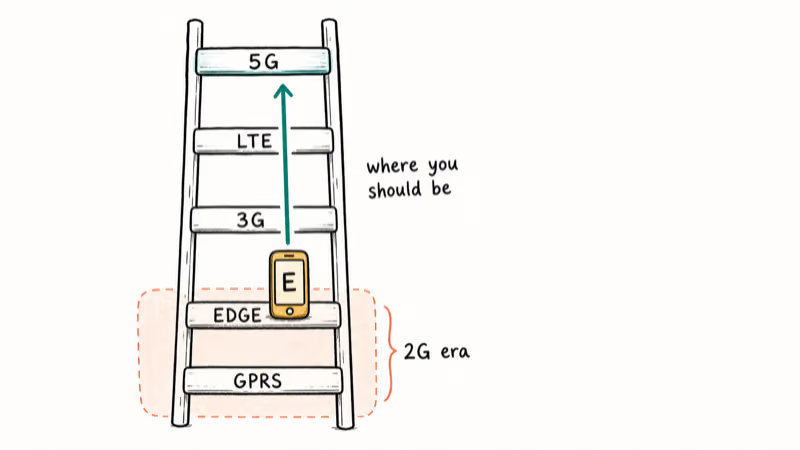
In practice, EDGE is a dead end for modern apps: feeds spin, maps turn gray, video never starts.
Don’t confuse E with the other status-bar warnings. If your iPhone shows No Service or SOS instead, you have no usable connection at all. E means you’re connected, just very slowly.
#Why Is Your iPhone Stuck on EDGE Instead of 5G or LTE?
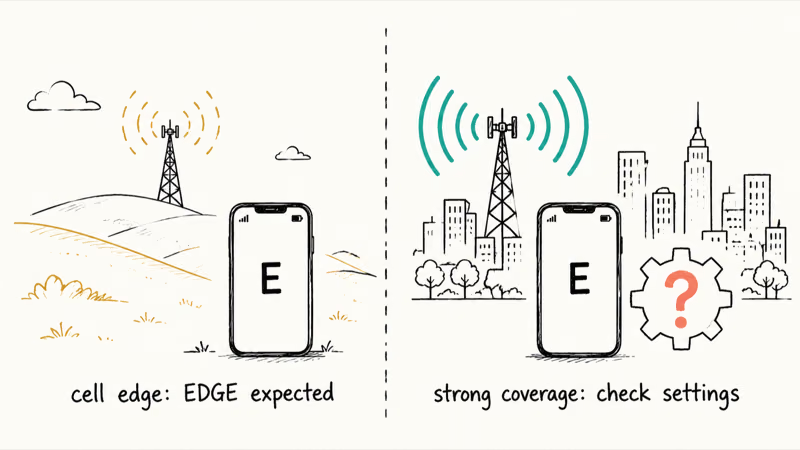
Coverage is the most common trigger. At the edge of a cell, deep inside a concrete building, or along a rural highway, the iPhone steps down to whatever signal it can hold, and EDGE is the last rung before data drops entirely.
The step back up doesn’t always happen on its own. The radio can keep camping on EDGE after you return to good coverage, and dual-SIM owners on Reddit describe data that stays stuck on EDGE and never reconnects to 5G or 4G until they force a radio reset.
Settings cause the rest: a wrong Voice & Data mode, a dual-SIM data line on a legacy profile, stale provisioning, or a slow roaming partner.
One boundary check before you start: if your data is gone completely rather than slow, that’s a different problem. Work through the cellular data not working guide instead, which covers the full fix ladder for total data loss.
#Quick Fixes That Force Your iPhone Off EDGE
Start with the radio reset ladder. It takes about two minutes and clears the temporary camping cases.
- Toggle Airplane Mode. Open Control Center, tap the airplane icon, wait 15 seconds, and tap it again. This forces the status-bar indicator to re-evaluate after the radio comes back instead of waiting for the phone to climb off EDGE on its own.
- Restart the iPhone. A full restart clears radio-state glitches that the Airplane Mode toggle can’t reach.
- Check for a carrier settings update. Go to
Settings>General>Aboutand leave the screen open for about 30 seconds. If an update is waiting, a prompt appears; install it. If the check errors out, see the fix for a cellular update failed message.
If a “Could not activate cellular data network” alert appears during any of these steps, switch to the dedicated fix for could not activate cellular data since that error has its own cause chain.
Still on E after all three? The fault lives in your settings or your SIM, so keep going.
#Check Your Network Mode and Voice & Data Settings
Go to Settings > Cellular > Cellular Data Options > Voice & Data. The menu typically lists 5G Auto, 5G On, and LTE, and a change applies without a restart.
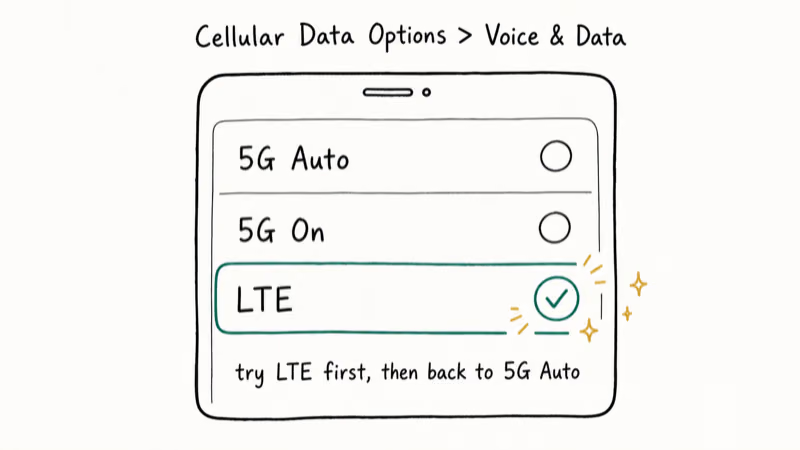
Apple’s 5G settings guide states that 5G Auto runs Smart Data mode, which shifts to LTE automatically when 5G speeds add nothing, while the LTE option uses only the LTE network even when 5G is available.
Forcing LTE sounds like a downgrade, but in fringe 5G areas it’s often the fix. The phone stops chasing a weak 5G signal it can’t hold, settles onto a stable LTE tower, and stays off the EDGE rung entirely. Try it for a day. You can switch back to 5G Auto anytime.
Some plans show a different menu here. According to Apple’s cellular data settings documentation, certain carriers and multi-SIM setups list Enable LTE, 4G, or 3G choices per line under Cellular Data Options, and the same screen holds the Data Roaming toggle.
#Fix Dual-SIM and eSIM Line Problems That Cause EDGE
Dual-SIM setups produce the most stubborn EDGE cases. Apple’s Dual SIM troubleshooting guide confirms only that your iPhone can use one cellular data network at a time.
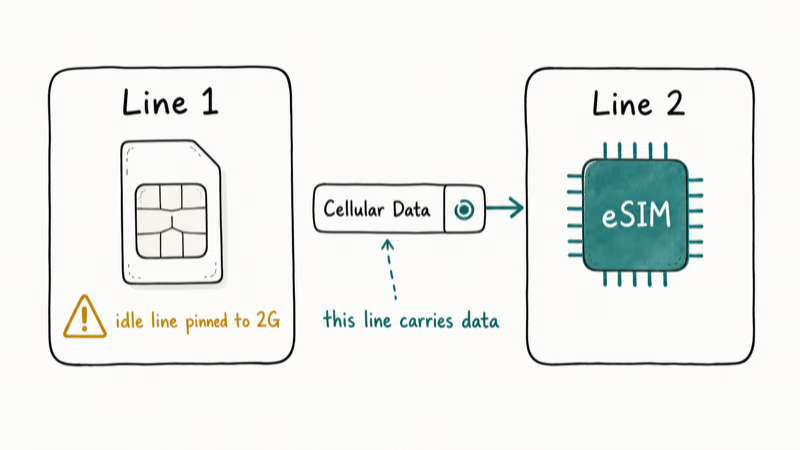
Check three things under Settings > Cellular: which line is set as Cellular Data, whether Allow Cellular Data Switching is on, and what network type each line is allowed to use. A secondary line left on a legacy or roaming-only profile drags the whole phone down to E whenever data switches to it, which is why the symptom seems to come and go.
Not sure how an eSIM profile differs from a physical card? The what an eSIM is explainer covers it, and if the phone reports a locked SIM when you juggle lines, you’ll need to unlock a SIM card first.
Persistent cases usually trace back to provisioning. Call your carrier and ask them to reprovision the SIM or eSIM, because a profile created years ago can still route your line through legacy network records. If you carry an old physical SIM, ask for a replacement at the same time. The last on-device step is Settings > General > Transfer or Reset iPhone > Reset > Reset Network Settings, which also wipes saved Wi-Fi passwords.
#When EDGE Is Expected: Coverage, Roaming, and the 2G Shutdown
Sometimes EDGE is the correct answer. Abroad, your home carrier may hand you to a partner network whose agreement only covers 2G, so data roaming on iPhone can legitimately pin you at E in parts of some countries. Rural domestic-roaming corners do the same thing.
That window is closing in the US. According to Fierce Network’s shutdown report, T-Mobile shuts down its 2G GSM network on August 3, 2026, and the carrier says it retained GSM longer than other carriers to give customers and partners additional time to migrate legacy devices. AT&T and Verizon retired their 2G and 3G networks years earlier.
That date changes the diagnosis: after it passes, a US iPhone still showing E has a provisioning or settings fault, not a live 2G connection.
Android phones fail differently at this boundary. If another device in your household throws a “cellular network not available” error, that’s a tower-registration problem with its own fix path, and it needs different steps than an iPhone: see the cellular network not available guide.
#Bottom Line
Run the location test first. If E only appears in one basement or one rural stretch and 5G returns the moment you move, that’s coverage. No reset changes tower physics.
If EDGE follows you into places where other phones on your carrier show 5G, work the ladder in this order: Airplane Mode toggle, Voice & Data set to 5G Auto or LTE, confirm the correct dual-SIM line carries data with Allow Cellular Data Switching on, Reset Network Settings, then a carrier reprovisioning call.
On T-Mobile after August 3, 2026, skip the resets and call your carrier straight away. The network the E icon points to won’t exist anymore.
#Frequently Asked Questions
Why does my iPhone say E instead of LTE or 5G?
The E icon means your iPhone is connected to your carrier’s EDGE network, a 2G-era data tier. It usually appears when the signal is too weak for faster networks, though a wrong Voice & Data setting or a dual-SIM line on a legacy profile can cause it too.
Is EDGE the same as 2G?
Close enough for troubleshooting. EDGE is the faster data layer of 2G GSM networks, one step above GPRS, so an iPhone showing E is running on a 2G connection.
Why does my iPhone stay on EDGE after I leave a dead zone?
The cellular radio sometimes keeps hold of the tower it already has instead of renegotiating for a faster one. Toggling Airplane Mode on for 15 seconds forces that renegotiation. If the fallback repeats daily in the same areas, set Voice & Data to LTE for a week and watch whether the phone stops dropping to E. Fringe 5G coverage is usually the underlying reason.
Can a dual-SIM setup force my iPhone onto EDGE?
Yes. Your iPhone moves data over one line at a time, so if the active data line sits on a legacy or roaming-only profile, the whole phone rides EDGE even when your other line supports 5G. Check which line is set as Cellular Data and turn on Allow Cellular Data Switching.
Does the T-Mobile 2G shutdown affect iPhones stuck on EDGE?
Directly. T-Mobile retires its 2G GSM network on August 3, 2026, the last major US 2G network to go. After that date an iPhone in the US can’t hold a real EDGE connection, so a persistent E icon points to a provisioning or settings fault. Call your carrier instead of cycling through resets.
Will resetting network settings fix an iPhone stuck on EDGE?
It fixes the cases caused by corrupted network configuration, which show up after iOS updates and SIM swaps. The reset also wipes every saved Wi-Fi password, so save it for after the Airplane Mode toggle and the Voice & Data check. You’ll find it under Settings > General > Transfer or Reset iPhone > Reset.
Why is EDGE too slow for modern apps?
EDGE was designed for the pre-smartphone era, before the App Store existed. Modern apps assume broadband-class speeds for images, video, and background sync, so on EDGE they time out or fail outright instead of degrading gracefully.

Apple Event September 9, 2026: Time and What We Know
Apple Event September 9, 2026: confirmed start time, global time zones, official watch options, and a clear line between facts and product rumors.

Mac mini M6 vs M5 Pro: Which Model Should You Buy?
Mac mini M6 vs M5 Pro compared on price, memory, ports, displays, and real workloads. Find the better 2026 Mac mini for your desk and budget.

Apple Siri Settlement: Who Qualifies and How to Claim
Apple's $250 million Siri settlement covers iPhone 15 Pro and iPhone 16 models bought June 2024 to March 2025. See who qualifies and how claims work.

iOS 26.6.1 Security Update: What Apple Fixed and Who Gets It
Apple released iOS 26.6.1 on August 17 with 29 security fixes, including an IPSec interception bug. See what it patches, who gets it, and how to update.