Forgot iTunes Backup Password? Here Is How to Fix It
Forgot your iTunes backup password on your own iPhone? 4 legitimate recovery methods covering Reset All Settings, Keychain, iCloud, and the legal limits.
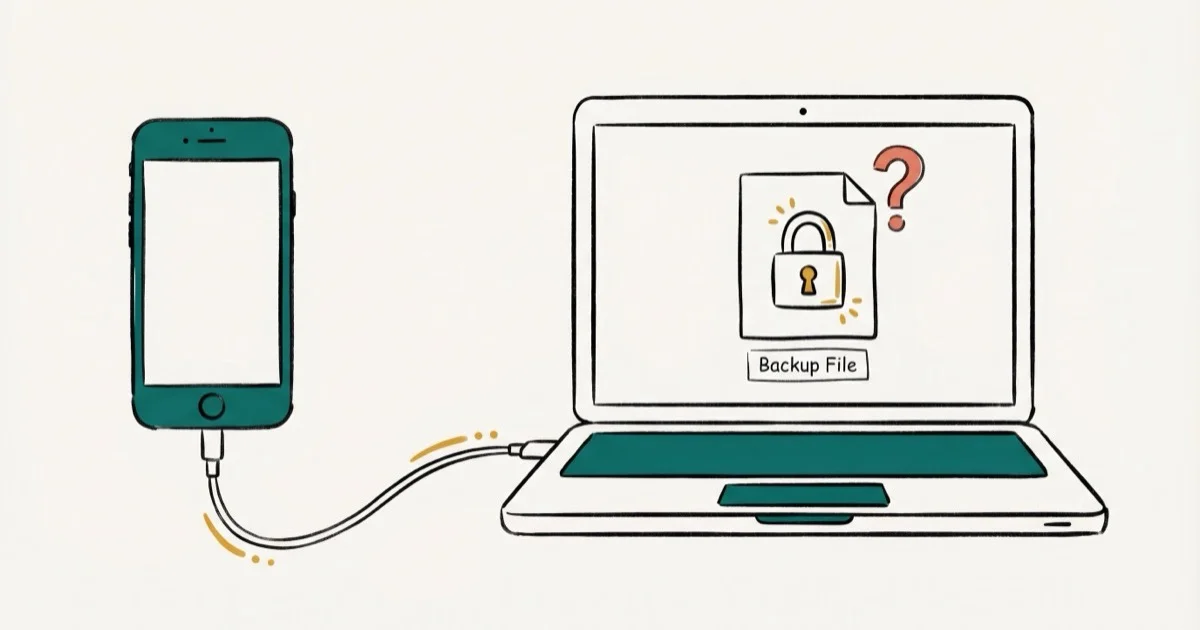
Quick AnswerIf you forgot the encryption password for an iTunes backup you made of your own iPhone, go to Settings > General > Transfer or Reset iPhone > Reset > Reset All Settings. This clears the old encryption password without erasing personal data, letting you create a fresh encrypted backup with a new password.
You forgot the encryption password for an iTunes backup you made of your own iPhone, and now you can’t restore from it. This guide covers four legitimate recovery paths that work on a current iPhone and Mac, plus where the legal line sits if the backup isn’t yours.
- Reset All Settings on iOS 11+ wipes the backup password without erasing data
- Mac users should check Keychain Access first; the password is often saved there
- Apple can’t recover the password because it’s stored on your device, not Apple servers
- Third-party tools crack short passwords fast but stall on random 10+ character strings
- Trying to crack a backup you don’t own is unauthorized access under US federal law
#Understanding iTunes Backup Encryption
When you tick the Encrypt local backup checkbox in iTunes or Finder, Apple wraps the backup with AES-256 encryption tied to a password you set. According to Apple’s encrypted backup documentation, an encrypted backup captures 4 extra categories of data that a regular backup skips:
- Saved Wi-Fi passwords and website login details stored in Safari and other browsers
- Health and Activity data from the Health app
- Call history and Safari browsing history
- Credit card info stored in Safari autofill
That extra coverage is exactly why the encryption is strict. Apple doesn’t hold a master key, and their support engineers can’t bypass it even with Apple ID verification. Once the password is gone, you have only the four options in this article: reset the encryption setting on your device, check Keychain on a Mac, try a third-party cracker on your own backup, or pivot to iCloud.
#Who This Guide Is For
Every method below assumes the iPhone, iPad, or backup file is yours and the Apple ID is your own. Using them on someone else’s device is covered in the legal note further down.
#How Can You Reset a Forgotten Backup Password?
The cleanest fix comes straight from Apple, and it works on any iPhone or iPad running iOS 11 or later. You can clear the backup encryption password from device settings without losing personal data. Apple documents this reset procedure as the official path, and it’s the first one to try.
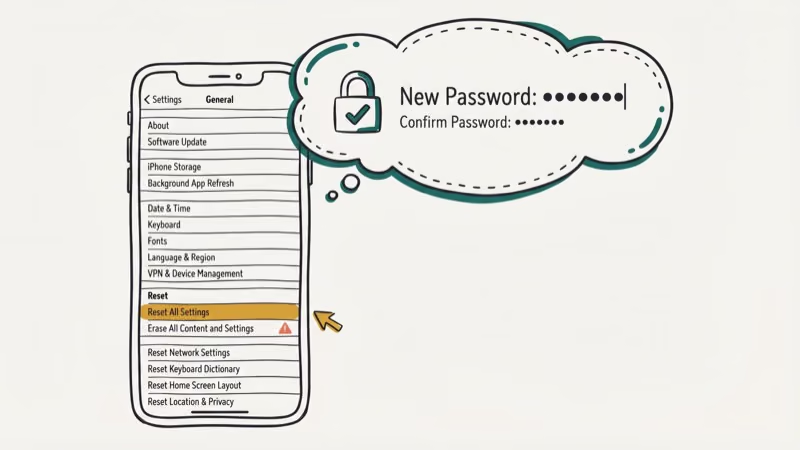
Steps to reset on your own iPhone or iPad:
- Open
Settings>General>Transferor Reset iPhone. - Tap Reset at the bottom.
- Select Reset All Settings.
- Enter your device passcode when prompted.
- Wait for the device to restart.
- Reconnect to iTunes or Finder and create a new encrypted backup.
The reset itself usually takes only a minute or two, and the device reboots once. Photos, messages, iMessage history, and installed apps stay in place. What does reset: Wi-Fi credentials, display brightness, wallpaper, keyboard dictionary, and notification preferences. You’ll need to re-enter your Wi-Fi password and sign back into a few apps afterward.
If the device throws a sync session failure when you reconnect it, restart the phone and the computer before you try again. That specific error is almost always a stale USB session.
#Checking Keychain Access on Mac
Mac users have a second shortcut that Windows users don’t. Apple’s Keychain Access app sometimes stores the iTunes backup password automatically, especially if you clicked Remember this password when you first set encryption up.
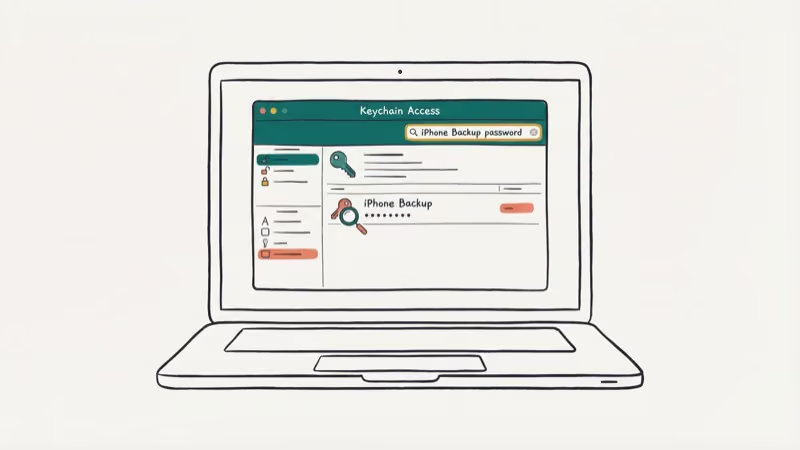
How to check Keychain Access on your own Mac:
- Open Keychain Access from
Applications>Utilities. - Type iPhone Backup in the search bar.
- Double-click the matching entry if one shows up.
- Check the box next to Show password.
- Enter your Mac admin username and password when prompted.
If Keychain saved the password, it appears almost instantly once you tick Show password and authenticate. This only works if Keychain captured the password in the first place. If you set the encryption on a different Mac or a Windows PC, or declined the save prompt, Keychain won’t have a record.
Apple’s Keychain Access support page states that login keychain items use 256-bit AES encryption. A different macOS user on the same Mac can’t read your saved backup password.
If the Keychain entry exists but won’t unlock, your Mac login keychain password may be out of sync. Our forgot Mac keychain password guide walks through resetting that before you retry the iTunes step.
#Third-Party Recovery Tools and Their Limits
When the reset path isn’t available, for example when you’re restoring from an old backup on a computer whose source device no longer exists, paid recovery tools come into play. They crack the password using dictionary, brute-force, and mask attacks against the local file.
Only use them on a backup file that belongs to you. Running them against a backup created by another person, without their authorization, is unauthorized access under the Computer Fraud and Abuse Act and similar privacy statutes elsewhere. Reputable vendors state exactly that in their licence terms and refuse to support forensic use cases without documented authorization from the device owner or a valid court order.
Tenorshare’s 4uKey iPhone Backup Unlocker is one of the more widely used options. Short, simple passwords (a 6-character alphanumeric string, for example) often fall to dictionary mode in well under an hour, while a random 10-character password with symbols can run for many hours on brute-force without ever finishing.
Some links on this page are affiliate links, which means fone.tips may earn a commission at no extra cost to you.
Practical limits to keep in mind:
- Short passwords under 8 characters crack in minutes to hours, while longer random passwords with symbols push the runtime into days or weeks.
- GPU acceleration runs noticeably faster than CPU-only setups, which matters for longer passwords.
- Stick to the official vendor site when you download. Installer bundles from forum mirrors have shipped malware in the past.
If iTunes keeps asking for a password on every reconnect after you recover or reset, sign out of your Apple ID in iTunes preferences and sign back in.
#Using iCloud as an Alternative Backup
If the encrypted iTunes file stays sealed and the data you need is still on your live iPhone, an iCloud backup is a clean alternative. According to Apple’s iCloud security overview, iCloud backups use 128-bit AES keys tied to your Apple ID, rather than a local encryption password you set in iTunes.
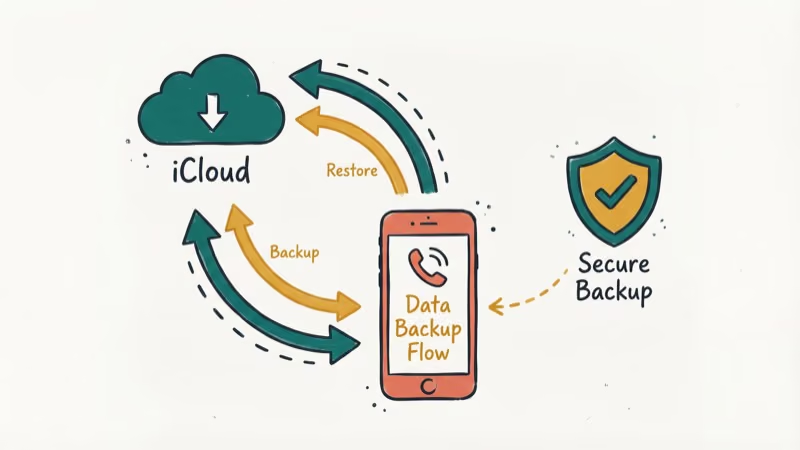
How to pivot to iCloud backup on your own iPhone:
- Confirm the latest data is backed up: Settings > [Your Name] > iCloud > i
Cloud Backup>Back Up Now. - Go to
Settings>General>Transferor Reset iPhone>Erase All Content and Settings. - Walk through the setup wizard and choose Restore from iCloud Backup.
- Sign in with your Apple ID and pick the most recent backup.
The main trade-off: an iCloud backup doesn’t include data already synced separately to iCloud (contacts, calendars, iCloud Photos, iCloud Drive). That data lives on Apple’s servers in its own encrypted stores. It also skips your Apple Watch pairing, which rebuilds after you re-pair. For most people, an iCloud restore rebuilds the practical content of a local backup without the password problem.
If iTunes error 9006 shows up during the post-restore sync, update iTunes to the latest version and retry the cable connection before you escalate.
#What If the Backup Is Not Yours?
This is the line we won’t help cross, and neither will any reputable tool vendor.
Every step in this guide assumes the iPhone and the backup file both belong to you. If you’re trying to access an encrypted backup created by someone else, for example an ex’s phone, a work device you aren’t authorized to touch, or a backup found on a shared computer, stop right here.
Attempting to bypass the encryption on a backup you don’t own is unauthorized access under US federal law (the Computer Fraud and Abuse Act) and similar privacy laws in the EU, UK, Canada, and Australia. It can also violate Apple’s terms of service.
The legitimate paths when the device isn’t yours:
- Ask the owner for the password, or have them run Reset All Settings and create a fresh backup.
- For a deceased family member’s device, Apple recommends its Digital Legacy process, which grants designated contacts access with a death certificate.
- For a work device, contact your IT or MDM administrator instead of bypassing the encryption.
- For recovered or purchased devices locked to another Apple ID, follow Apple’s Activation Lock removal steps with proof of ownership.
If iTunes itself is causing problems on your own setup, for example iTunes not opening on Windows 10 or running very slow, fix those environment issues first so the legitimate recovery paths have a clean run.
#Preventing the Problem Next Time
A few habits keep this from happening again:
- Use a password manager such as 1Password, Bitwarden, or Apple’s Passwords app to store the backup password and autofill it when iTunes prompts.
- Keep a physical note in a locked drawer or safe as a low-tech backup.
- Leave iCloud backup on so iCloud backup runs at least weekly and you always have a cloud copy.
- Don’t reuse the backup password for your Apple ID, email, or banking logins.
#Bottom Line
If the iPhone and the backup are both yours, start with Reset All Settings. It’s Apple’s official fix, takes about 90 seconds of reset time, and doesn’t touch your data. On a Mac, check Keychain Access before the reset since the password is often already saved there. Never run third-party cracking tools on a backup that isn’t yours.
#Frequently Asked Questions
Can Apple recover my forgotten iTunes backup password for me?
No. The password lives on your device, not on Apple servers, so Apple Support can’t retrieve it. The only Apple-sanctioned fix is Reset All Settings on iOS 11+.
Does Reset All Settings erase my iPhone photos, messages, or apps?
No. Reset All Settings clears preferences only: Wi-Fi credentials, display brightness, wallpaper, keyboard dictionary, and notification settings. Your photos, messages, apps, iMessage history, and Apple account stay in place, and nothing important is deleted. Apple documents this behaviour in the support article for the Reset menu.
Will older encrypted backups still need the original password after the reset?
Yes. Reset All Settings only affects future backups. Existing encrypted files on disk keep their original password, which means you can’t retroactively unlock them with a new one.
How long does a third-party tool take to crack an encrypted backup password?
It depends on length and randomness. A short 6-character alphanumeric password can crack in well under an hour with a tool like Tenorshare 4uKey, but a random 10-character password with symbols may run for many hours without completing. Serious runs against strong random passwords can stretch into days or weeks, and there’s no guarantee the attack finishes at all.
Is it legal to use a third-party recovery tool on an iTunes backup?
On your own backup, yes. On someone else’s backup, without their permission, no — that’s unauthorized access under the Computer Fraud and Abuse Act.
What data does an iCloud backup skip compared to an iTunes backup?
iCloud backups skip content already synced separately (contacts, calendars, iCloud Photos, iCloud Drive) because that data lives on Apple’s servers in its own stores. They also skip paired Apple Watch backups and the Keychain and Health data that an encrypted local iTunes backup captures.
What should I do if the encrypted backup belongs to someone else?
Stop and ask the owner for the password, or have them reset the encryption from their own device. For a deceased family member’s device, use Apple’s Digital Legacy process with the required paperwork. For a work device, contact your IT administrator. Trying to crack a backup you don’t own exposes you to criminal and civil liability.

Mac mini M6 vs M5 Pro: Which Model Should You Buy?
Mac mini M6 vs M5 Pro compared on price, memory, ports, displays, and real workloads. Find the better 2026 Mac mini for your desk and budget.

Apple Siri Settlement: Who Qualifies and How to Claim
Apple's $250 million Siri settlement covers iPhone 15 Pro and iPhone 16 models bought June 2024 to March 2025. See who qualifies and how claims work.

iOS 26.6.1 Security Update: What Apple Fixed and Who Gets It
Apple released iOS 26.6.1 on August 17 with 29 security fixes, including an IPSec interception bug. See what it patches, who gets it, and how to update.

iPhone Adaptive Power: How It Works and When to Use It
Learn how iPhone Adaptive Power works, which models support it, what it changes, and when Low Power Mode is still the better battery-saving choice.