How to Reinstall iTunes on Windows 10, 11, and Mac
Reinstall iTunes on Windows or Mac without losing your library. Step-by-step uninstall, leftover-folder cleanup, and clean reinstall in about 15 minutes.
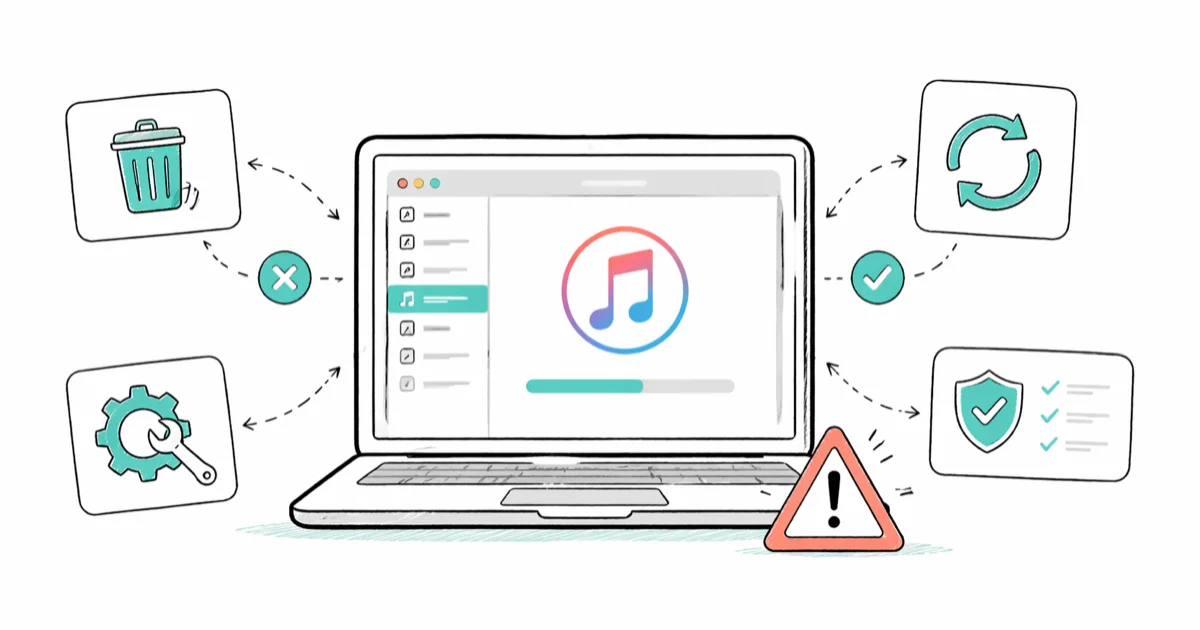
Quick AnswerUninstall iTunes and its five Apple support programs from Settings (Windows) or drag the app to Trash (Mac), restart the computer, then install a fresh copy from the Microsoft Store or apple.com. The full reset takes about 15 minutes and clears most stuck-sync and launch errors.
Reinstalling iTunes is the fastest fix when sync stalls, the app won’t launch, or installer errors pile up on Windows. A clean reinstall takes about 15 minutes and keeps your library intact if you back up one folder first.
This guide covers both Microsoft Store and Win32 versions on Windows, plus what to do on macOS Catalina and later, where iTunes no longer exists as a single app.
- Reinstalling iTunes fixes most launch, sync, and installer errors, including frozen-on-startup behavior and “Apple Mobile Device Service failed to start” alerts.
- On Windows, uninstall iTunes plus five support programs in this order: iTunes, Apple Software Update, Apple Mobile Device Support, Bonjour, then Apple Application Support 32-bit and 64-bit.
- The Microsoft Store version of iTunes auto-updates and removes cleanly through Windows Settings; the standalone Win32 installer can leave folders in Program Files that you delete by hand.
- iTunes is gone from macOS Catalina (10.15) and every macOS version after it; Apple split the features into Music, TV, Podcasts, and Finder for device sync.
- Your iTunes library files live in C:\Users[Name]\Music\iTunes on Windows and ~/Music/iTunes on Mac, so copy that folder to an external drive before uninstalling to keep playlists, ratings, and play counts.
#When Should You Reinstall iTunes?
Reinstall iTunes when symptoms point at a corrupted install, not at iCloud or your iPhone.
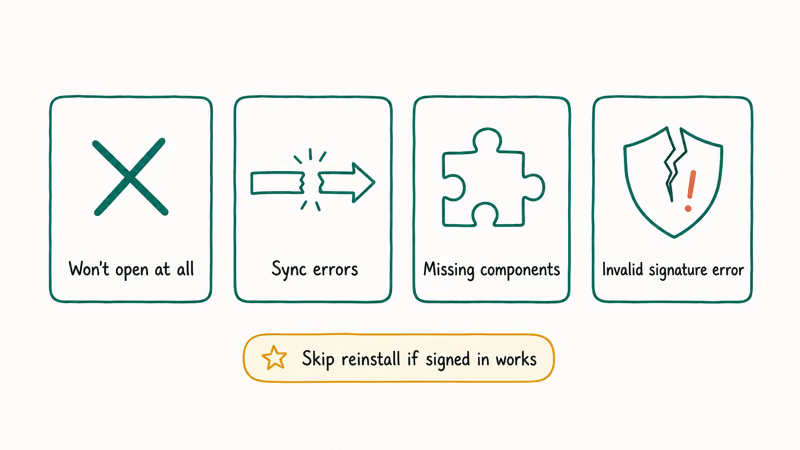
The usual triggers are familiar: iTunes won’t open on Windows 10 or 11, the app launches and immediately freezes, sync over USB or Wi-Fi keeps stopping at “Waiting for changes to be applied,” or Apple Software Update prompts you to repair iTunes and the repair fails. A reinstall also clears installer errors that block updates from completing in the first place.
If you keep hitting “There is a problem with this Windows Installer package” or iTunes error 0xe80000a every time you try to update, the support programs underneath iTunes are usually the culprit. Pulling them all out and putting them back fresh is faster than trying to patch them one at a time. The same logic applies to most error codes documented in the general iTunes error fix guide.
According to Apple’s iTunes support hub, reinstalling iTunes is the recommended next step after a failed repair from Programs & Features.
A clean reinstall is also the usual fix when Windows reports that iTunes can’t locate the CD configuration folder.
Already tried “Repair” once and the same error returned? Don’t repair again. Move to a full uninstall.
One caveat is worth saying out loud. Skip the reinstall if the problem is hardware: a bad Lightning cable, a damaged USB port, or an iPhone stuck in Recovery Mode won’t be fixed by touching iTunes. Test with a known-good cable on a different port before you spend 15 minutes uninstalling everything.
#How to Back Up Your iTunes Library Before Reinstalling
Your music, playlists, ratings, and play counts live in a folder separate from the iTunes app itself. Uninstalling iTunes does not delete this folder by default, but copying it to an external drive first is non-negotiable insurance against a botched reinstall or an accidental “Delete user data” click.
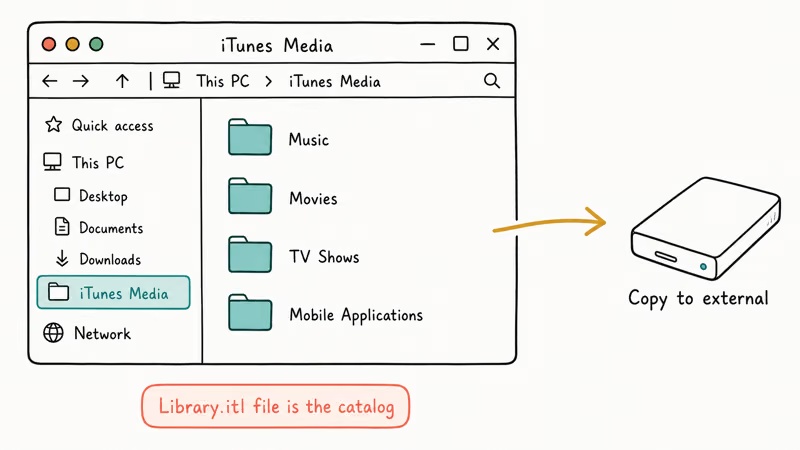
Here is where the files live.
On Windows, the library folder sits at C:\Users\[YourUsername]\Music\iTunes. Open File Explorer, paste that path into the address bar, and copy the entire iTunes folder to an external drive or a separate partition. Inside the folder are two important pieces: iTunes Library.itl (the database) and the iTunes Media subfolder (your actual song and video files).
On Mac, the path differs by macOS version.
If you’re on macOS Mojave or earlier, the library lives at ~/Music/iTunes. On macOS Catalina (10.15) and later, your music sits in ~/Music/Music/Media.localized because the Music app replaced iTunes. Either way, drag the folder to an external drive in Finder before you touch anything.
Backing up the library before reinstalling is what preserves playlists, star ratings, play counts, and media files after iTunes is installed again.
#How to Uninstall iTunes on Windows 10 and 11
The uninstall order matters. iTunes depends on five other Apple programs, and removing them in the wrong order leaves orphaned services that block a clean reinstall.
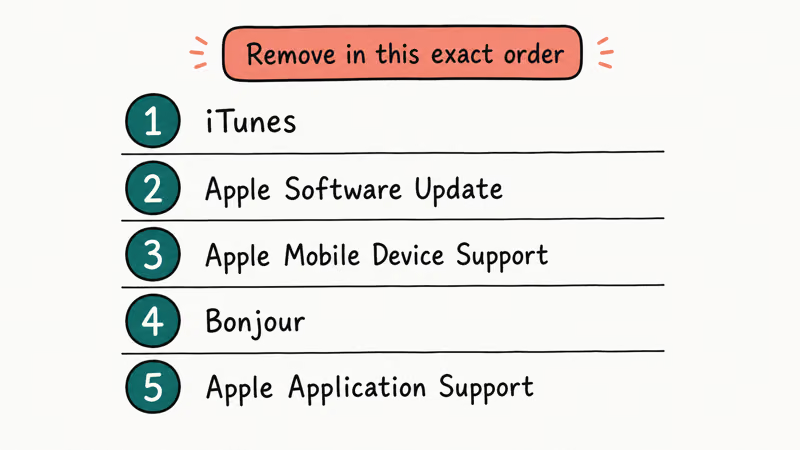
Start with which version you have.
For the Microsoft Store version of iTunes, the uninstall is one step. Open Settings > Apps > Installed apps, find iTunes, click the three-dot menu, and pick Uninstall. The Store version bundles its dependencies and removes them all together. Restart Windows after that, then jump to the reinstall section below.
The Win32 desktop version takes a different path.
If you originally downloaded iTunes as an installer file from apple.com, open Control Panel > Programs > Programs and Features and uninstall in this exact order:
- iTunes
- Apple Software Update
- Apple Mobile Device Support
- Bonjour
- Apple Application Support 32-bit
- Apple Application Support 64-bit
After every uninstaller finishes, click Yes if Windows asks to restart. Don’t restart between each one. Wait until you’ve removed all six, then restart Windows once at the end.
The Microsoft Store version usually uninstalls through Settings. The Win32 version can leave Apple support folders behind, including C:\Program Files\Bonjour and C:\Program Files (x86)\Apple Application Support. Delete leftovers manually after restart.
Apple’s installer guidance states that leftover folders are normal after a Win32 uninstall and recommends manual removal before reinstalling.
Also worth checking on a 64-bit machine: C:\Program Files\iPod, C:\Program Files\iTunes, and the matching Program Files (x86) paths. Any of those folders still present means a leftover service that will conflict with your fresh install.
#How to Reinstall iTunes on Windows
You have two clean paths to reinstall: the Microsoft Store version (recommended) or the Win32 installer from Apple. Both deliver the same iTunes 12.13 build at the time of writing, but the Store version handles future updates without your involvement.
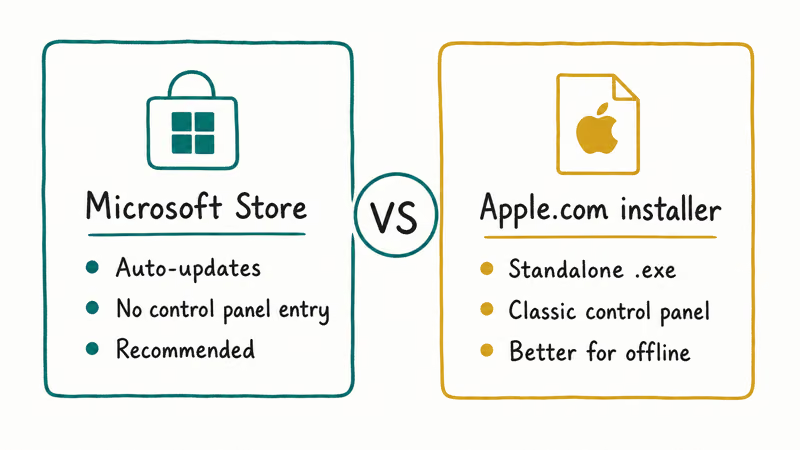
The Store version is the faster install.
For the Store version, open the Microsoft Store app, search for iTunes, and click Install on Apple’s official Microsoft Store listing. The download is about 480 MB. Installation finishes in roughly 3 minutes on a typical SSD, and the Store handles future updates automatically, so you won’t need to run Apple Software Update again.
For the Win32 desktop version, go to Apple’s iTunes download page and pick Windows at the bottom. The installer is a single iTunesSetup.exe file about 270 MB. Run it, agree to the license, leave the default destination folder, and let it finish.
The Win32 installer adds back all five support programs automatically, so you don’t have to download Bonjour or Apple Mobile Device Support separately.
Microsoft recommends the Store version on Windows 10 and Windows 11 because Store apps update silently and isolate themselves from system services. The Win32 version is still useful if you need an exact older build (for example, iTunes 12.6.5 for App Store browsing on older devices), but new installs should default to the Store.
After install, launch iTunes and let it scan your existing library folder.
If you backed up your library to an external drive earlier, copy the iTunes folder back to C:\Users\[YourUsername]\Music\ before launching, and iTunes will load it instead of creating a fresh empty library. The first launch can take a minute while the database file is verified.
Still stuck? See iTunes won’t open on Windows 10 for the next-level diagnostics, or iTunes not recognizing iPhone if sync is the problem.
#How to Reinstall iTunes on Mac (or What to Do Instead)
If you’re on macOS Mojave (10.14) or earlier, you can reinstall iTunes the same way you would any Mac app: open Applications, drag iTunes to the Trash, empty the Trash, restart, then download iTunes from Apple’s website and run the .pkg installer.
On Catalina and later, the situation is different.
On macOS Catalina (10.15) or any version after it, there is no iTunes to reinstall. Apple’s Catalina release notes confirm that iTunes was retired and its features were split into four places: the Music app for your music library, TV for movies and shows, Podcasts for subscriptions, and Finder for iPhone and iPad sync.
To “reinstall” the music side on Catalina or later, reset the Music app container instead.
Quit Music, then in Finder go to Go > Go to Folder and paste ~/Library/Containers/com.apple.Music. Move that folder to the Desktop (so you can put it back if something breaks), then relaunch Music. macOS rebuilds the container from scratch and re-imports your library on first launch.
For iPhone sync trouble on Catalina or later, the fix is in Finder, not Music. Connect your iPhone, click its name in the Finder sidebar, then click Trust on both the Mac and the phone. If sync still fails, sign out of your Apple ID under System Settings > Apple ID > Sign Out, restart, and sign back in.
A note on Sequoia.
On macOS Sequoia (15) released in fall 2024, Apple consolidated sync again into the Apple Devices app, which now handles backup and restore in place of the old Finder workflow. The app installs by default and behaves like the device pane in classic iTunes.
#Why Won’t iTunes Uninstall on Your PC?
You click Uninstall, Windows churns for a few seconds, then nothing happens, or you get an error like “iTunes could not be uninstalled. Contact your administrator.” Three causes account for most stuck-uninstall cases on Windows.
Start with the most common one.
First cause: Apple Mobile Device Service is still running. iTunes’ uninstaller can’t remove files that are in use.
Press Ctrl + Shift + Esc to open Task Manager, click the Services tab, find Apple Mobile Device Service, right-click, and pick Stop. Then re-run the iTunes uninstaller.
Second cause: third-party security software blocks the installer’s MSI engine. Temporarily disable real-time protection in Windows Security or your antivirus while you uninstall, then turn protection back on after the uninstall finishes.
Third cause: a corrupted installer cache.
Microsoft’s official troubleshooter for installer problems is the Program Install and Uninstall troubleshooter, which states that it removes broken Windows Installer entries that block uninstalls. Download it from Microsoft’s support site, run it against iTunes, and pick Uninstalling when prompted.
If all three fail, boot into Safe Mode with Networking: hold Shift while clicking Restart, then pick Troubleshoot > Advanced options > Startup Settings > Restart > F5. Safe Mode disables non-essential services, including the ones that usually block iTunes’ uninstaller.
Run the uninstall from Safe Mode, then restart normally.
If Microsoft’s troubleshooter and Safe Mode still leave a broken iTunes entry, IObit Uninstaller can remove that selected entry and check for leftover folders; back up Music\iTunes and review the deletion list first.
Some links on this page are affiliate links, which means fone.tips may earn a commission at no extra cost to you.
For installer-specific errors during uninstall, see there is a problem with this Windows Installer package for the targeted MSI fix.
#Bottom Line
Back up your Music\iTunes folder, uninstall iTunes and its five Apple support programs in order, restart, then reinstall from the Microsoft Store. That sequence fixes most launch and sync errors on Windows. On macOS Catalina and later, reset the Music app container or use Finder for iPhone sync instead. Skip the third-party “iTunes repair tools”; the manual reinstall is faster and free.
#Frequently Asked Questions
Will reinstalling iTunes delete my library and playlists?
No, as long as you don’t manually delete the iTunes folder under your Music directory. The uninstaller removes the iTunes application and its support services, but it leaves the library database and media files untouched. To be safe, copy C:\Users\[YourUsername]\Music\iTunes to an external drive before you start.
Can I install iTunes on Windows 11?
Yes. iTunes runs on Windows 11 just like on Windows 10, and the Microsoft Store version is the smoothest path.
How do I get iTunes on a new MacBook?
You don’t. Every Mac shipped since macOS Catalina in October 2019 uses Music, TV, Podcasts, and Finder instead of iTunes. The Music app is installed by default. There’s no way to install the old iTunes on Catalina or newer, because Apple removed it from the App Store and stopped offering a download from the support site as well.
Should I uninstall QuickTime when I uninstall iTunes?
Only if you don’t use QuickTime for anything else. iTunes hasn’t required QuickTime since iTunes 10.5 back in 2011, and Apple stopped supporting QuickTime for Windows the same year. Older guides that tell you to uninstall QuickTime alongside iTunes are out of date and based on the iTunes 7-era dependency chain. Leave QuickTime alone unless it’s specifically causing problems, in which case uninstall it the same way you’d remove any other program from Programs and Features.
How long does a full iTunes reinstall take?
About 15 minutes end to end on a typical machine.
Why does iTunes keep asking me to reinstall after every Windows update?
This happens when the Win32 version’s MSI registration breaks during the update. Uninstall iTunes the normal way through Programs and Features, then run Microsoft’s Program Install and Uninstall troubleshooter to clear stale installer entries from the registry. Reinstall from the Microsoft Store rather than the Win32 installer. The Store version isn’t affected by Windows feature updates because it ships as a containerized app.
Can I reinstall just iTunes without removing the Apple support programs?
Usually that fails, because iTunes shares services with Apple Mobile Device Support and Apple Application Support.

Mac mini M6 vs M5 Pro: Which Model Should You Buy?
Mac mini M6 vs M5 Pro compared on price, memory, ports, displays, and real workloads. Find the better 2026 Mac mini for your desk and budget.

Apple Siri Settlement: Who Qualifies and How to Claim
Apple's $250 million Siri settlement covers iPhone 15 Pro and iPhone 16 models bought June 2024 to March 2025. See who qualifies and how claims work.

iOS 26.6.1 Security Update: What Apple Fixed and Who Gets It
Apple released iOS 26.6.1 on August 17 with 29 security fixes, including an IPSec interception bug. See what it patches, who gets it, and how to update.

iPhone Adaptive Power: How It Works and When to Use It
Learn how iPhone Adaptive Power works, which models support it, what it changes, and when Low Power Mode is still the better battery-saving choice.