Fix iPhone eSIM Cellular Data Not Working After Transfer
Cellular data dead after moving your eSIM to a new iPhone? Work through line checks, carrier activation, data-line fixes, and safe eSIM reinstall steps.
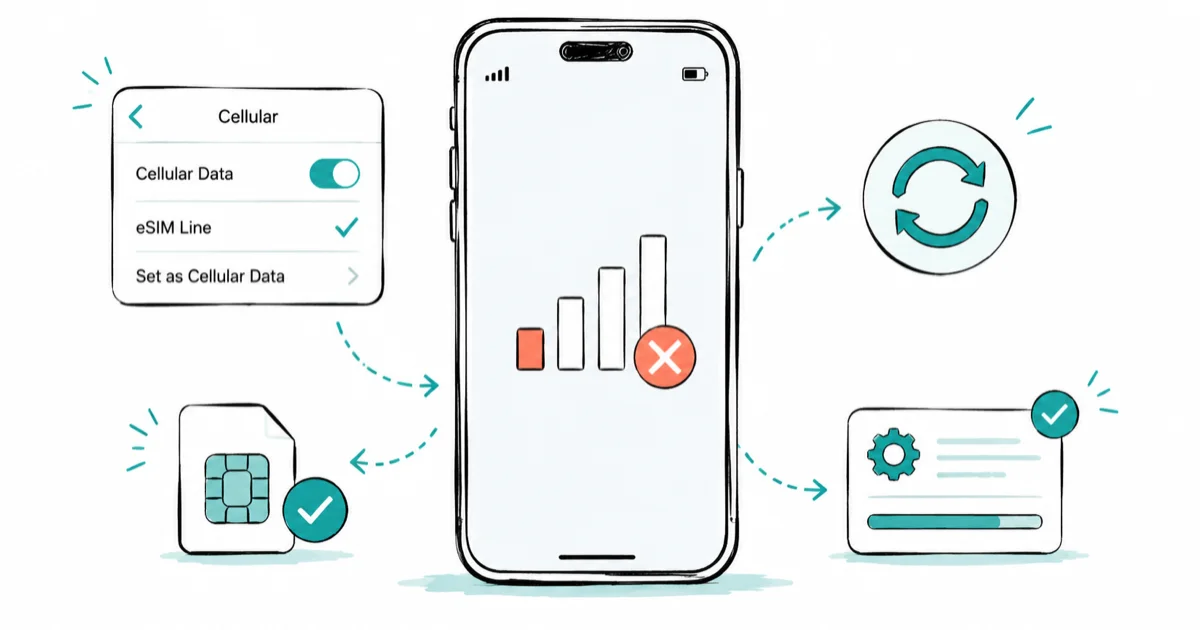
Quick AnswerOpen Settings > Cellular, confirm the transferred eSIM line is on, and set it as your cellular data line. Then restart the iPhone and install any waiting carrier settings update to finish activation.
Your eSIM made it to the new iPhone, yet cellular data died the moment the transfer finished. Everything works only on Wi-Fi. This guide fixes your own iPhone on your own carrier account, starting with Apple’s official checks.
- A transferred eSIM isn’t an activated eSIM: data flows only after your carrier provisions the plan, and activating the new iPhone deactivates the SIM in the old one
- The two most common culprits live in
Settings>Cellular: the transferred line is toggled off, or the wrong line is set as your cellular data line - eSIM Quick Transfer requires both iPhones on iOS 18.4 or later, signed into the same Apple Account, with Bluetooth turned on
- Android-to-iPhone eSIM transfers need iOS 26, Android 16, a carrier that supports peer-to-peer transfers, and Wi-Fi on both phones
- Deleting the eSIM is the last resort, not the first fix, because a deleted profile usually needs a fresh activation from your carrier
#Why Is Cellular Data Not Working After Your eSIM Transfer?
A transfer moves your plan’s profile to the new iPhone, but the plan itself lives on your carrier’s servers. Until the carrier provisions that plan against your new phone, the line can look installed while carrying zero data. According to Apple’s eSIM setup guide, the previous SIM is deactivated when the cellular plan on your new iPhone activates. Wait for that activation before treating the transfer as complete.
The transfer method matters too. eSIM Quick Transfer only works when both iPhones are signed into the same Apple Account, Bluetooth is on, and both run iOS 18.4 or later. With iOS 26 you can move more than one number at once, which doubles the chances that one line lands misconfigured. A missed requirement is the classic reason a transfer half-completes.
If you’re new to embedded SIMs entirely, the what an eSIM is primer covers how these profiles differ from a physical card. The short version: there’s no chip to reseat, so every fix here happens in software or at the carrier.
#First Checks: Line On, Data Line, and Airplane Mode
Run these four checks before calling anyone. They take about two minutes total.
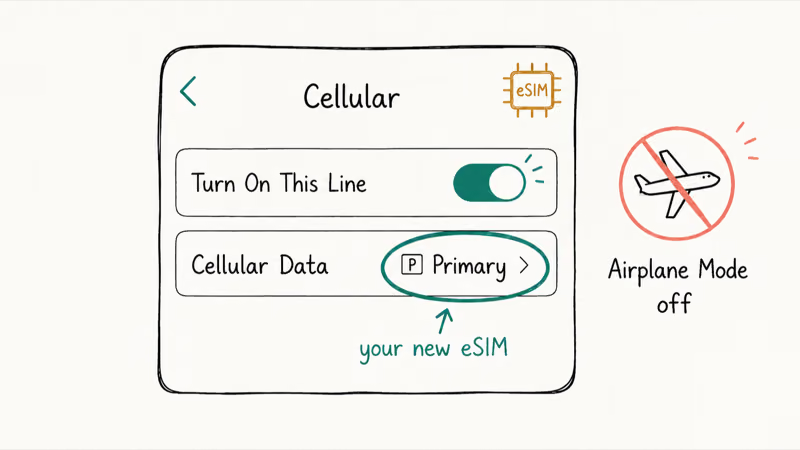
- Go to
Settings>Cellular andtap the transferred line. If you see Turn On This Line switched off, flip it on. - Still in
Settings>Cellular, tap Cellular Data and confirm the transferred eSIM is selected as your data line. After a dual-SIM transfer, this selector often points at the old line. - Turn on Airplane Mode, wait 15 seconds, then turn it off. This forces the iPhone to re-register with the carrier.
- Restart the iPhone. A surprising number of post-transfer data failures clear on the first reboot.
One more check if you’re outside your home country: open Settings > Cellular > Cellular Data Options and confirm Data Roaming is on. That’s the whole roaming story for this problem, so don’t go rebuilding APN settings yet.
Look at your status bar while you work. If it reads No Service or Searching rather than showing bars with dead data, you have a line-registration problem instead, and the iPhone says No Service guide is the better path. And if your data failure has nothing to do with a transfer, the parent walkthrough of general cellular data fixes covers resets and APN repairs this article deliberately skips.
#Did Your Carrier Finish Activating the New eSIM?
Transfers frequently stall on the carrier side, not on the iPhone. The transferred line can appear under Settings > Cellular while staying grayed out until the carrier finishes provisioning; data may not flow until the carrier’s own setup step is complete. If you dismissed any setup notification, look in Settings > Cellular for a leftover banner.
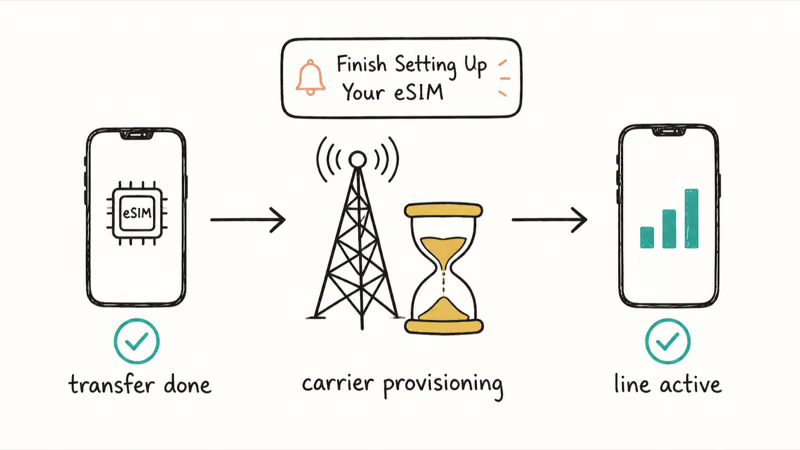
Watch for the “Finish Setting Up Your Carrier’s Cellular Plan” banner in particular. Apple’s guide states that it redirects to the carrier’s webpage, and some carriers hold data until you complete it.
Next, check for a carrier settings update. Apple’s eSIM troubleshooting steps recommend going to Settings > General > About, where the eSIM section lists your carrier and its settings version; an update prompt appears there if one is waiting. Install it, restart, and give the line a minute to re-register.
Seeing the literal words “Could Not Activate Cellular Data Network” on screen? That specific error has its own causes, and the could not activate cellular data guide handles it step by step.
#How to Fix the Dual-SIM Default Data Line
Dual-SIM setups produce the sneakiest version of this problem: the new eSIM shows as connected, yet nothing loads. Apple’s Dual SIM troubleshooting doc confirms only that the iPhone uses one cellular data network at a time. That makes the Cellular Data selector the setting to inspect next.
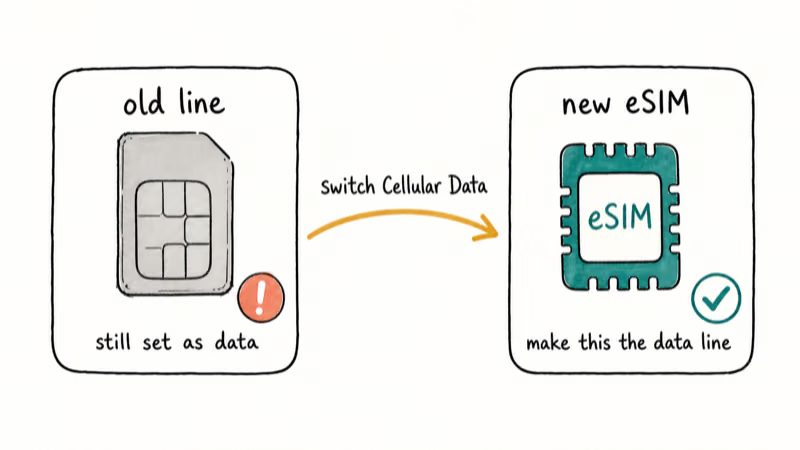
With the old physical SIM still seated and selected as the cellular data line, the new eSIM can look connected while carrying zero data. Switch Settings > Cellular > Cellular Data to the transferred line before assuming the transfer failed. Nothing may be broken; the data assignment may simply be pointing at a dying line.
Three related settings deserve a look:
- Cellular Data selector: point it at the transferred eSIM, as above
- Allow Cellular Data Switching: turning this on lets the non-default line carry data during calls, which papers over some gaps but can also mask which line is actually failing while you troubleshoot
- The old physical SIM: if its plan was deactivated by the transfer, eject it. A dead SIM left in the tray keeps its label in Settings and invites exactly this mix-up.
Apple’s policy context matters here as well. To run two plans from different carriers, your iPhone must be carrier-unlocked, or both plans must come from the same carrier. If calls on the second line fail with an error banner after the transfer, that’s the Last Line No Longer Available problem, which has its own fix list.
#Transferring From Android: Extra Steps That Matter
Cross-platform moves have stricter requirements than iPhone-to-iPhone transfers, and missing one leaves data dead on arrival. AndroidCentral’s cross-platform eSIM guide reports that transferring an eSIM between Android and iPhone requires iOS 26, Android 16, and a carrier that supports peer-to-peer transfers. Both phones also need to stay on Wi-Fi during the move, because each one briefly loses cellular data mid-transfer.
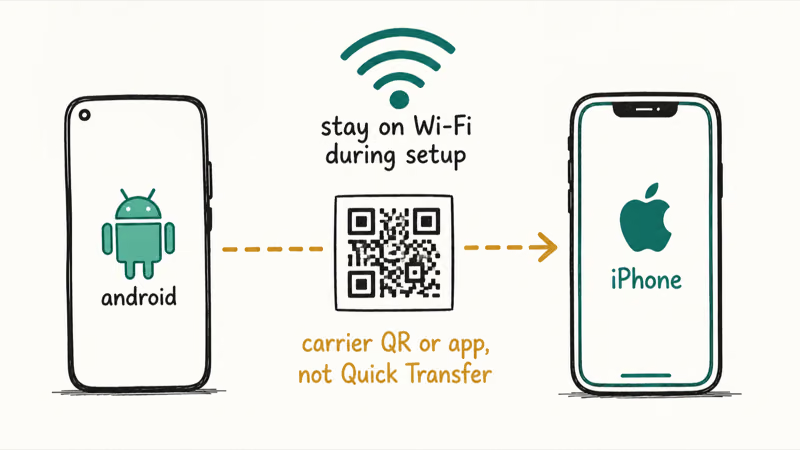
Check those requirements first when a move from a Galaxy or Pixel leaves your new iPhone dataless.
If your carrier doesn’t support the peer-to-peer flow, the reliable route is asking it to issue a QR code or push the eSIM directly to the iPhone. Older methods still work fine.
Two related guides help with the rest of the switch. The walkthrough on how to move data from Android covers photos, messages, and apps. Heading the other direction someday? You can also transfer an eSIM to Android, though the steps differ enough that you shouldn’t assume they mirror this process.
#When to Delete and Reinstall the eSIM
Reddit threads love the delete-and-reinstall fix. Resist it until everything above has failed.
Here’s why: a deleted eSIM profile usually can’t re-add itself. In most cases the carrier has to issue a fresh activation, which turns a settings problem into a support ticket. Call your carrier before touching Delete eSIM, and confirm it can reissue the profile on the spot. Apple’s same troubleshooting document recommends gathering your phone number, account PIN, and the iPhone’s IMEI and EID before you contact the carrier, and all of those live in Settings > General > About.
While you have an agent on the line, ask for three things in order:
- Confirm the plan is attached to your new iPhone’s EID, not the old device
- Check that the account isn’t blocked, barred, or flagged from the transfer
- Push a fresh eSIM profile to the phone and stay connected while it installs
Only delete the old profile when the agent confirms a replacement is ready. Done in that order, the reinstall finishes while you’re still on the call instead of leaving you phoneless overnight.
#Reactivate iMessage and RCS After the Transfer
Data can come back while messaging stays broken. Tom’s Guide found that on iOS 26, an eSIM added after initial setup doesn’t automatically activate iMessage, which produces Not Delivered errors, green bubbles, or iMessages that send from your email address instead of your number.
The fix is a toggle. Go to Settings > Apps > Messages, switch iMessage off, wait a few seconds, and switch it back on. Your number should register within a minute or two once the line has working data; RCS re-registers through the same cycle on carrier plans that support it.
If messages still misbehave after the toggle, the problem has moved past the eSIM. The iMessage not working fixes cover activation errors, Apple Account mismatches, and the rest.
#Bottom Line
Work the sequence in this order; it’s sorted by yield per minute. First, open Settings > Cellular and confirm the transferred line is toggled on and selected as your cellular data line, since those two misses cause most post-transfer failures. Second, restart the iPhone and install any carrier settings update under Settings > General > About. Third, complete the carrier’s plan-setup webpage step if the banner is present.
Still dead after all three? Call the carrier and have them verify the plan is attached to your new iPhone’s EID, then push a fresh profile. Don’t delete the eSIM on your own; that move converts a quick settings fix into a support-ticket problem, and it belongs at the end of the list with the carrier on the line.
#Frequently Asked Questions
Why does my iPhone show full bars but no data after an eSIM transfer?
Bars show voice registration, not data. Your transferred line can register for calls while the carrier is still provisioning data, or while another line holds the Cellular Data slot in Settings > Cellular. Set the transferred eSIM as your data line and give provisioning time to finish.
How long does eSIM activation take after a transfer?
There’s no fixed number: some lines activate in a few minutes, while others take considerably longer when the carrier’s provisioning queue is busy. Complete the “Finish Setting Up Your Carrier’s Cellular Plan” step if it appears, since some carriers won’t start data service until you do. If nothing changes after a restart and a reasonable wait, move to the carrier call.
Do I need to contact my carrier to fix a failed eSIM transfer?
Not usually. Most post-transfer data failures clear with the line toggle, data-line selection, a restart, or a carrier settings update. Call the carrier when the line stays grayed out, the plan seems attached to your old phone, or you’re considering deleting the profile.
Does deleting an eSIM cancel my cellular plan?
No. Your plan stays active on the carrier’s account; deleting only removes the local profile from the iPhone. The catch is that the deleted profile usually won’t reinstall by itself, so the carrier has to push a fresh activation before service returns.
Why did iMessage stop working after I transferred my eSIM?
On iOS 26, an eSIM added after initial setup doesn’t auto-activate iMessage, so texts fail or send from your email address. Toggle iMessage off and back on in Settings > Apps > Messages once cellular data works.
Why is only one of my two lines getting data after the transfer?
That’s by design: the iPhone uses one cellular data network at a time, so only the line selected under Settings > Cellular > Cellular Data carries data. Check which line holds that slot after a transfer, because the selector often stays on the old line. Turning on Allow Cellular Data Switching lets the other line carry data during calls, but it doesn’t change the default.
Will resetting network settings erase my eSIM?
No, those are separate actions. Reset Network Settings clears Wi-Fi passwords, APN, and VPN configurations but leaves eSIM profiles installed, while Erase eSIM is its own distinct option on the reset screen. Read the confirmation dialog carefully so you don’t tap the wrong one.

Apple Event September 9, 2026: Time and What We Know
Apple Event September 9, 2026: confirmed start time, global time zones, official watch options, and a clear line between facts and product rumors.

Mac mini M6 vs M5 Pro: Which Model Should You Buy?
Mac mini M6 vs M5 Pro compared on price, memory, ports, displays, and real workloads. Find the better 2026 Mac mini for your desk and budget.

Apple Siri Settlement: Who Qualifies and How to Claim
Apple's $250 million Siri settlement covers iPhone 15 Pro and iPhone 16 models bought June 2024 to March 2025. See who qualifies and how claims work.

iOS 26.6.1 Security Update: What Apple Fixed and Who Gets It
Apple released iOS 26.6.1 on August 17 with 29 security fixes, including an IPSec interception bug. See what it patches, who gets it, and how to update.