How to Download iCloud Backup Files (Full 2026 Guide)
Download iCloud backup files in 2026: web export, iCloud for Windows, and full-device restore explained, with sizes, limits, and common fixes.
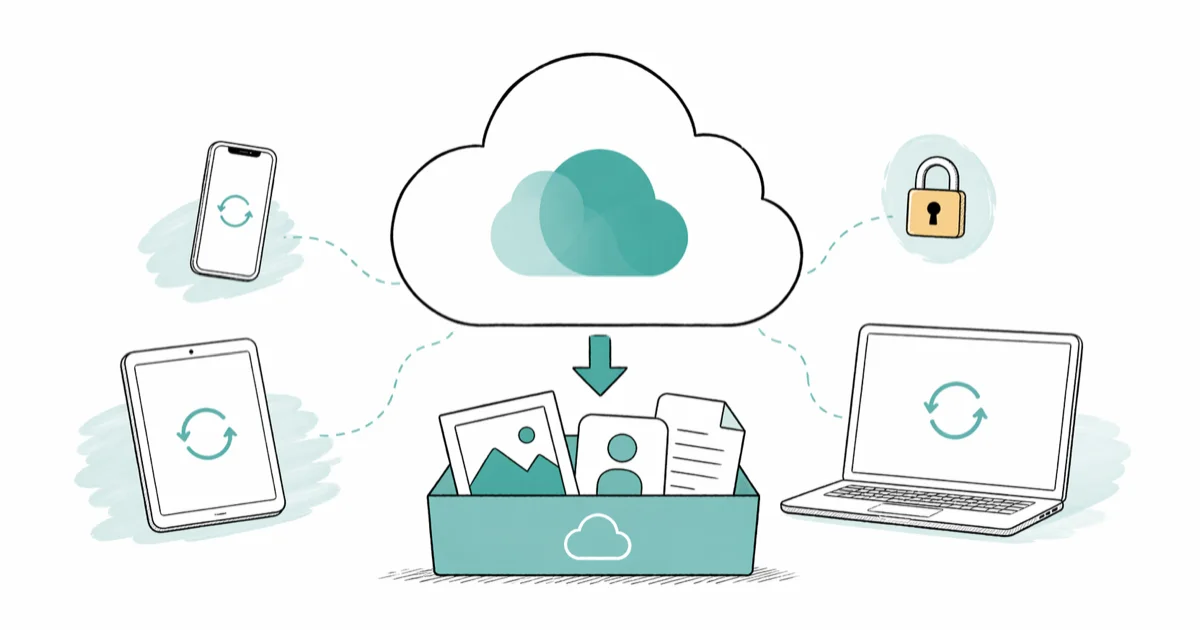
Quick AnswerYou can't download a full iCloud device backup as one file from Apple. Use iCloud.com or iCloud for Windows to export individual data types like photos, contacts, and notes, or restore the backup to an iPhone or iPad during setup.
Downloading iCloud backup files isn’t quite what most people expect on their first try. Apple doesn’t publish a single “Download backup.zip” button. The workaround you pick depends on what you actually want: photos, messages, contacts, or a complete device restore. This guide covers every public method on iPhone and Windows, and walks through what works, what doesn’t, and how to choose.
- A device backup itself can’t be downloaded as one file. Apple only lets you export specific data types (photos, mail, contacts, notes, calendar) through iCloud.com or iCloud for Windows.
- iCloud Photos can be exported in batches of 1,000 items at a time through the web interface. Larger libraries need multiple sessions or iCloud for Windows.
- Full device backups (iMessage threads, app data, settings) can only be unpacked by restoring to an iPhone or iPad during setup, not extracted to a Mac or PC.
- iCloud for Windows requires Windows 10 version 1903 or later and a 1.6 GHz Intel processor minimum, per Apple’s system requirements.
- Two-factor authentication is mandatory for downloading anything from iCloud.com, and Apple retired the legacy two-step verification path back in 2019.
#What Counts as an iCloud Backup, and Why It Matters
Four reasons usually bring people here: phone migration, hunting a specific photo or text, building a local archive, or chasing a sync bug.
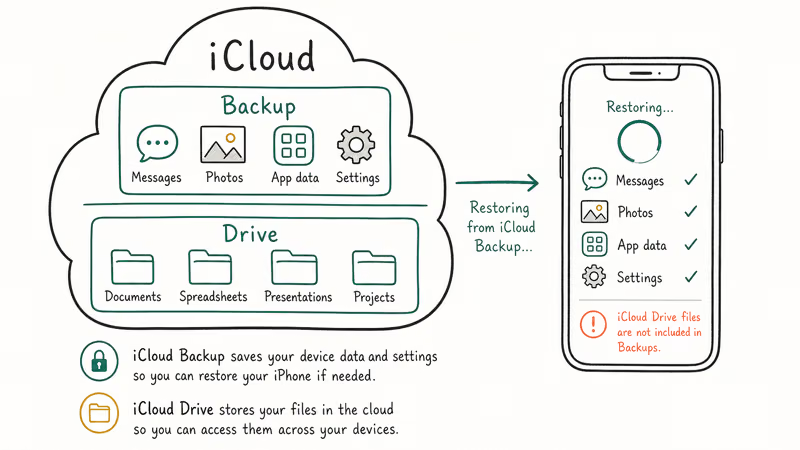
According to Apple’s iCloud storage management support page, every Apple ID gets 5 GB of free iCloud storage, which is rarely enough for a full device backup once Photos and Messages are in the mix. Apple confirms that paid iCloud+ tiers start at 50 GB and scale up to 12 TB, and that backups consume the same pool as photos, mail, and iCloud Drive documents.
Apple’s iCloud backup documentation states that iCloud backups include app data, Apple Watch data, device settings, Home screen organization, iMessage and SMS history, photos and videos (when iCloud Photos is off), purchase history, ringtones, and Visual Voicemail passwords. Backups exclude data already stored in iCloud (mail, contacts, calendars, bookmarks, notes, and iCloud Photos), Apple Pay information, Face ID or Touch ID settings, and iCloud Music Library content.
That split is the single biggest reason you can’t download “the backup” as a folder. Most of what you’d actually want is already syncing to iCloud as separate streams, and Apple’s web tools surface that data type-by-type instead of as one archive.
If you’re worried about whether your photos are even uploading, our explainer on the difference between iCloud and iCloud Drive clears up the most common confusion.
#How to Use iCloud.com to Download Backup Data
iCloud.com is the simplest entry point if you only need photos, contacts, notes, calendar events, or iCloud Drive files. It’s the most convenient path because it works from any browser without installing anything.
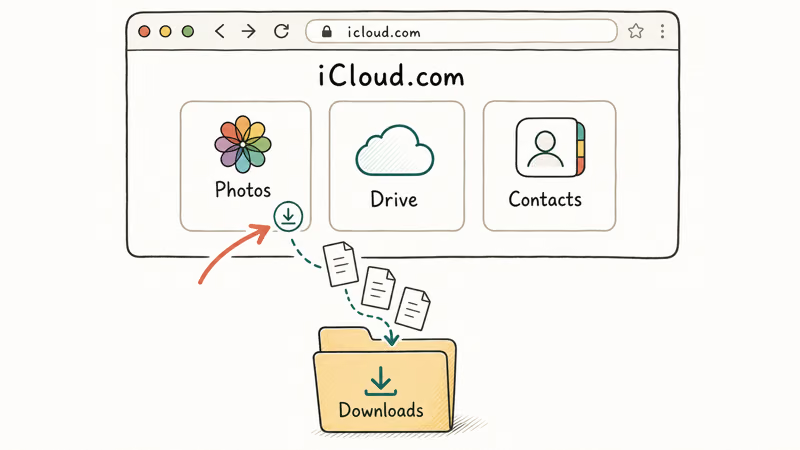
Here’s the working procedure on the current iCloud web interface:
- Open Safari, Chrome, or Edge and go to icloud.com.
- Sign in with your Apple ID and complete two-factor authentication on a trusted device.
- From the main grid, pick the data type you want (Photos, Contacts, Notes, Calendar, iCloud Drive, or Mail).
- Select the items to export. Photos and iCloud Drive support Cmd-A or Ctrl-A to select all visible items.
- Click the download icon (a cloud with a down arrow for Photos, or the three-dot menu for other apps).
- Photos download as a zipped archive in batches of up to 1,000 files. Contacts and Calendar export as
.vcfand.icsfiles. Notes export as PDFs one at a time.
On a fast connection, a large photo library downloads in a few minutes, and smaller batches complete in well under a minute. Contact exports are near-instant because each .vcf file is tiny.
What doesn’t work: there’s no way to grab iMessage history, app data, voicemails, Health data, or Safari history through the web at all. Those streams live inside the device backup itself and require a restore. None of these appear anywhere in the iCloud web menus; Apple simply doesn’t expose them over HTTPS.
If your contacts won’t load at all on the web, see our walk-through on iCloud contacts not syncing before troubleshooting downloads.
#How Do You Set Up iCloud for Windows to Pull Backup Files?
iCloud for Windows is the official desktop client. It mirrors selected iCloud data into File Explorer, which makes ongoing local copies easier than browser downloads. The app is free and installs through the Microsoft Store.
The current iCloud for Windows app (version 14.x) installs from the Microsoft Store in under a minute on a typical broadband connection. After sign-in:
- Open the iCloud panel and check the boxes for the data you want synced locally (iCloud Drive, Photos, Mail, Contacts, Calendars, Bookmarks).
- Click Apply. iCloud creates a folder under
C:\Users\YourName\iCloud Drive\and starts pulling files. - For Photos, open File Explorer and visit
C:\Users\YourName\Pictures\iCloud Photos\Downloads\to pull originals on demand. - Right-click the iCloud Photos folder and choose Always keep on this device to force a full local copy.
Apple recommends a minimum of Windows 10 version 1903 (May 2019 update). The iCloud for Windows page confirms that the new Store-based version doesn’t support Outlook calendar and contact sync the way the old Win32 installer did. If you need Outlook integration, you’ll have to stay on the legacy 12.x build, which Apple still distributes for compatibility.
iCloud for Windows is generally the fastest way to get a large photo library off Apple’s servers. A multi-gigabyte library can finish syncing in well under an hour on a fast connection, noticeably faster than serial web downloads because the desktop client uses concurrent connections.
One quirk worth flagging: hitting your iCloud storage cap stops the sync cold until you free up space, and the desktop client gives almost no warning before stalling. This behavior shows up on both iCloud for Windows 14.x and the legacy 12.x builds, so it’s not a Store-version bug. Our guide on what to do when iCloud storage is full covers the cheapest ways to clear room before kicking off a long sync.
#Restoring Directly to an iPhone or iPad
This is the only method that gets you the complete device backup: iMessage threads, app data, Home screen layout, app passwords stored in Keychain, the works. You can’t extract it to a computer because Apple encrypts the backup with hardware-bound keys.
The flow is straightforward:
- Erase the target device through
Settings>General>Transferor Reset iPhone>Erase All Content and Settings, or use a fresh device. - Power on and follow the setup screens until you reach Apps & Data.
- Tap Restore from iCloud Backup.
- Sign in with the Apple ID that owns the backup.
- Pick the backup you want. Apple shows the date, size, and source device.
- Wait for the restore. Apps reinstall in the background after the initial restore finishes.
For a large backup, the initial restore can take over an hour over Wi-Fi before the phone is usable, and app reinstalls run for several more hours in the background. The phone is usable during that second phase, but apps with large local caches (Photos library, Apple Music downloads, podcasts) take longest to repopulate.
If the restore stalls or fails partway through, our breakdown of iPhone backup failed errors applies; many of the same diagnostic steps cover failed restores too.
#How Risky Are Third-Party iCloud Recovery Tools?
Several tools market themselves as “iCloud backup downloaders” or “iCloud extractors”: Dr.Fone, iMyFone D-Back, EaseUS MobiSaver, Tenorshare UltData, and similar. They work by signing into your Apple ID and pulling data Apple normally exposes only on-device.
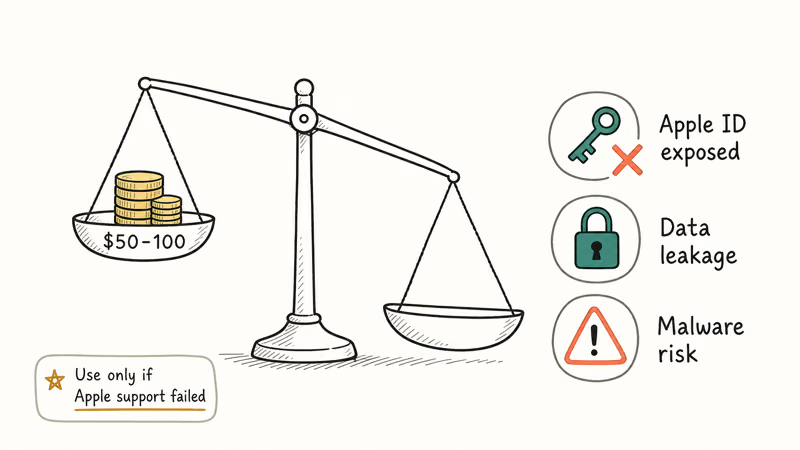
They do work. But there are three caveats worth knowing.
First, your Apple ID password goes through their servers in many cases, even if they claim end-to-end encryption. None of these tools have a publicly available security audit. Apple’s documentation states that signing into iCloud on third-party software triggers a sign-in notification and may require an app-specific password under two-factor authentication.
Second, they can’t decrypt data Apple keeps end-to-end encrypted in iCloud. Apple’s security platform documentation confirms that Health data, Home data, iCloud Keychain, Maps Favorites, Memoji, Messages in iCloud (when Advanced Data Protection is on), Safari history, Screen Time, Siri information, Wi-Fi passwords, and W1/H1 Bluetooth keys all use end-to-end encryption tied to your devices. Marketing copy that promises “recover any data” is overstating what these tools can actually do.
Third: prices run from $50 to $90 per year, and refund policies are inconsistent. A free scan from these tools often surfaces fewer photos than iCloud.com shows for the same account, so the paid upgrade may not deliver what the marketing implies.
If you do choose to use one, only download from the vendor’s official site, never reuse the same password elsewhere, and turn on two-factor authentication on your Apple ID before signing in.
#Common iCloud Download Problems and Fixes
Three issues account for most of the failed downloads reported in Apple’s support forums.
Two-factor codes not arriving. Trusted devices must be online and signed into the same Apple ID. If you’re locked out, use account recovery at iforgot.apple.com.
Web interface timing out on large selections. iCloud.com starts to choke when you try to select more than about 1,500 photos at once. Break the selection into smaller batches by year or month and download those separately. A 2,000-item selection can freeze the browser tab for over a minute before either timing out or eventually responding.
Stuck “Preparing Download” status. This usually means the server is repackaging a large archive in the background. Apple’s status page sometimes flags iCloud delays during peak hours. Waiting 15 to 20 minutes is faster than retrying immediately, because each retry restarts the packaging process from scratch. When the iCloud settings screen on your phone is stuck instead, our fix-it guide for iPhone stuck on updating iCloud settings covers the device-side path.
When you’ve lost the password for the Keychain that protects local copies of your downloads, our forgot Keychain password recovery procedure walks through the supported paths.
#Bottom Line
For most people, iCloud.com handles most of what they actually want: photos, contacts, notes, and the occasional Pages document. Use iCloud for Windows when you need a large photo library on a PC and you’re keeping it there long-term.
The full device restore is the only way to retrieve iMessage threads, app data, and Home screen layout. It’s worth doing when you’re switching phones rather than trying to extract that data to a computer. Stay away from third-party “downloaders” unless you’ve exhausted the official paths first, and never reuse your Apple ID password on those tools.
#Frequently Asked Questions
Can you download an entire iCloud backup as a single file?
No, not as one archive. Apple only lets you export specific data types through iCloud.com or iCloud for Windows, or restore the whole backup directly to an iPhone or iPad during setup. For portable copies, focus on iCloud Photos exports and iCloud Drive folders since those are the only streams Apple exposes as files.
How long does it take to download iCloud photos?
It depends on library size and connection speed. A library of a few hundred photos typically downloads through iCloud.com in several minutes on a standard home connection.
Is it safe to use third-party iCloud download tools?
It’s a calculated risk. They do work, but your Apple ID password flows through their software, and they can’t retrieve end-to-end encrypted data. Trying Apple’s own tools first is the safer default, and only turning to third-party options after you’ve ruled out the official paths.
Do iCloud backups include WhatsApp or Instagram data?
Backups include app data for apps that don’t store data in their own cloud. WhatsApp keeps a separate iCloud backup you manage from inside the app. Instagram, Snapchat, and similar social apps store data on their own servers and don’t appear in the iCloud device backup at all.
What happens to my downloads if I cancel iCloud storage?
Apple gives you 30 days after a downgrade.
Can I download an iCloud backup to a Mac?
Not the whole backup. The Mac path is the same as the PC and web path: log into iCloud.com or open System Settings > Apple ID > iCloud, then pick which data types sync to your Mac. iMessage history, app data, and device settings still require a phone restore.
Why does my iCloud download say “Preparing”?
The server is bundling files into a downloadable archive in the background, and larger selections take longer to prepare. When it sits there for over 20 minutes, refresh the page and try a smaller batch of a few hundred items instead. Apple’s system status page at apple.com/support/systemstatus confirms whether there’s a wider service issue. If everything looks green and the batch still hangs, sign out and back in to reset your session.
Are iCloud backups encrypted end-to-end?
Standard iCloud backups are encrypted in transit and at rest, but Apple holds the keys. When you turn on Advanced Data Protection (iOS 16.2 or later), backups become end-to-end encrypted and only your devices can decrypt them.

Mac mini M6 vs M5 Pro: Which Model Should You Buy?
Mac mini M6 vs M5 Pro compared on price, memory, ports, displays, and real workloads. Find the better 2026 Mac mini for your desk and budget.

Apple Siri Settlement: Who Qualifies and How to Claim
Apple's $250 million Siri settlement covers iPhone 15 Pro and iPhone 16 models bought June 2024 to March 2025. See who qualifies and how claims work.

iOS 26.6.1 Security Update: What Apple Fixed and Who Gets It
Apple released iOS 26.6.1 on August 17 with 29 security fixes, including an IPSec interception bug. See what it patches, who gets it, and how to update.

iPhone Adaptive Power: How It Works and When to Use It
Learn how iPhone Adaptive Power works, which models support it, what it changes, and when Low Power Mode is still the better battery-saving choice.