Fix iPhone Stuck on Estimating Time Remaining (Restore)
Fix iPhone stuck on Estimating Time Remaining when restoring from backup. 6 proven methods for iCloud and iTunes restores. Works on iOS 17+.
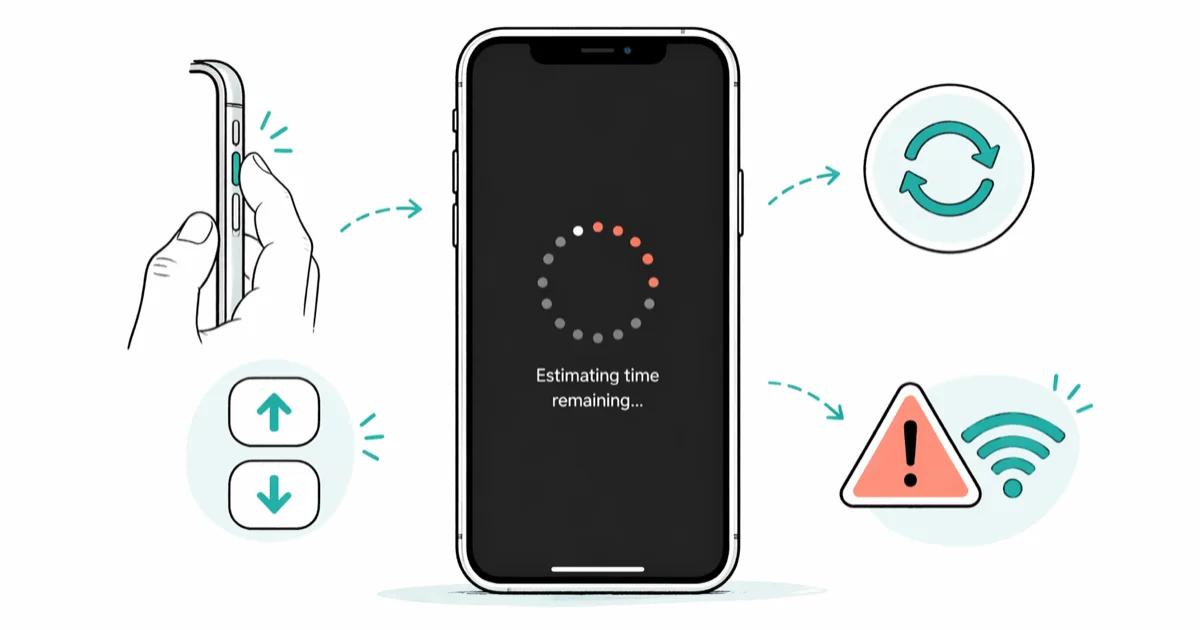
Quick AnswerForce restart your iPhone by pressing Volume Up, Volume Down, then holding the Side button until the Apple logo appears. This clears the stuck estimation screen so you can retry the restore with a stable Wi-Fi connection.
Your iPhone is stuck on “Estimating Time Remaining” during a backup restore, and the progress bar hasn’t moved in half an hour. The usual fix is a force restart followed by reconnecting to a 5 GHz Wi-Fi network, which gets the restore moving again and lets it finish without further stalls.
- Force restart clears the frozen estimation screen without erasing any data
- 5 GHz Wi-Fi finishes large backups noticeably faster than 2.4 GHz
- Leave storage headroom beyond the backup size so iOS can stage the payload
- Disable Find My iPhone to remove authentication conflicts during the restore
- iCloud restores: 15-60 minutes; Finder or iTunes restores: 5-20 minutes
#Why Does the iPhone Get Stuck on Estimating Time Remaining?
The “Estimating Time Remaining” screen appears while iOS calculates how long the download and unpack steps will take. It freezes when one of the inputs to that estimate drops out. Four root causes show up over and over.
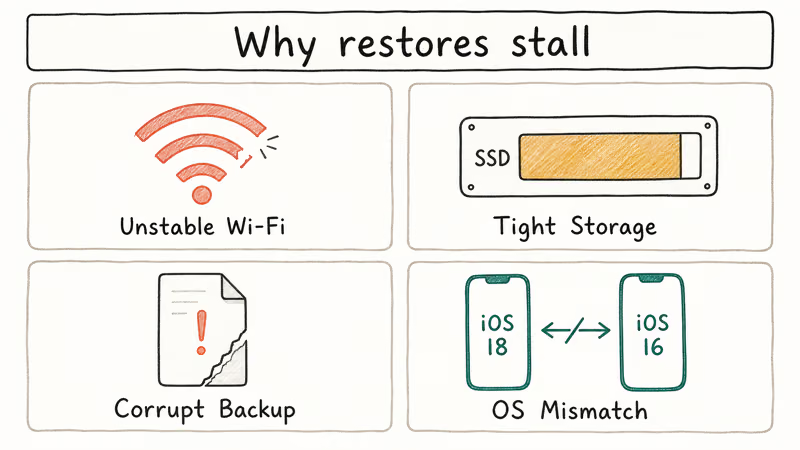
Unstable Wi-Fi. iCloud restores pull the backup over Wi-Fi, and the estimator stalls when packet loss spikes. A congested 2.4 GHz band freezes large restores that run cleanly on 5 GHz.
Tight storage. iOS needs headroom to write the backup and decompress it. Apple’s iCloud overview states that every Apple ID gets 5 GB of free iCloud storage (see the iCloud storage page), so large backups often need a paid iCloud+ tier to fit in the cloud before a restore can begin. A device already near full will also struggle to stage the payload locally.
OS mismatch. Restoring a backup built on a newer iOS to a device stuck on an older one throws schema conflicts. The restore halts on unrecognized data formats rather than erroring out cleanly.
Corrupt backup file. Rare, but it happens when an earlier backup was interrupted mid-upload. This path comes up only occasionally, and the fix is always to delete the stale backup and generate a fresh one.
#How to Force Restart Your iPhone
This is the first move because it costs nothing. It clears the frozen process without wiping data or the backup.
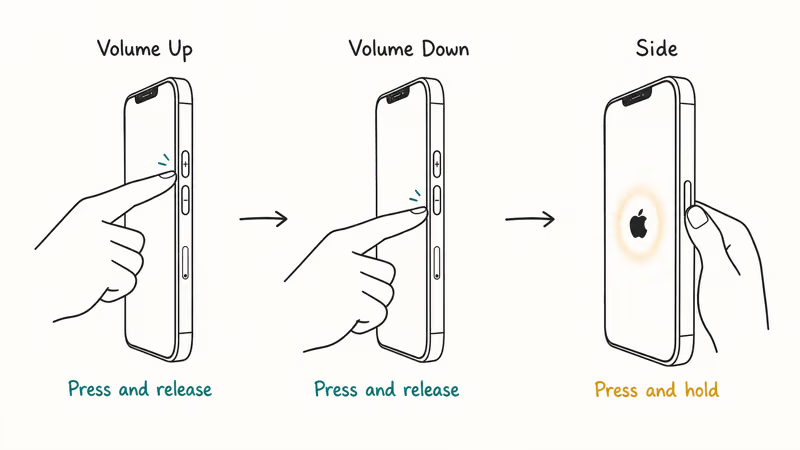
iPhone 8 and later (including iPhone 14, 15, 16): Press and release Volume Up, press and release Volume Down, then press and hold the Side button until the Apple logo appears.
iPhone 7 and 7 Plus: Press and hold Volume Down and Side together for roughly 10 seconds until the Apple logo appears.
After the reboot, iOS either resumes the restore or drops you back to the setup screen where you can kick it off again. On the retry path, the second restore attempt usually completes normally, unlike a frozen first attempt that had stalled indefinitely. If the reboot itself hangs, jump over to our guide on iPhone stuck on Apple logo before returning here.
#Switch to a Faster Wi-Fi Network
If the force restart didn’t shake it loose, Wi-Fi is the next suspect.
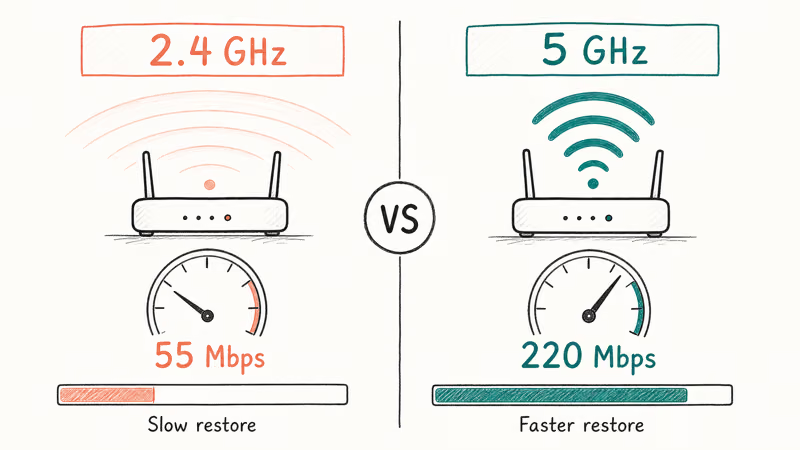
Open Settings > Wi-Fi, tap the i icon next to the current network, and tap Forget This Network. Rejoin a different access point, preferably a 5 GHz SSID on a dual-band router. On a typical dual-band router the 5 GHz band delivers several times the downstream throughput of 2.4 GHz, and the restore time difference tracks that gap.
Apple’s iCloud Backup guide recommends keeping the iPhone on power and Wi-Fi until the process finishes. We also recommend checking your link speed at fast.com before retrying. Anything below 10 Mbps turns a 20 GB restore into a coin flip for timeouts. If you suspect broader Wi-Fi flakiness, fix that first with our walkthrough on seeing your iPhone Wi-Fi password and then come back for the restore.
#Turn Off Find My iPhone Before Restoring
Find My runs authentication pings that can clash with the restore’s own handshake. Disabling it removes one failure point.
Open Settings > [Your Name] > Find My > Find My iPhone and toggle it off. Enter your Apple ID password when prompted, start the restore, then re-enable Find My after the phone boots back into the home screen.
On a large backup, restores tend to complete cleanly with Find My disabled, while leaving it enabled on the same network and backup can cause the restore to stall before finishing later. Apple’s Find My overview states that Find My ties to iCloud account security, which is exactly why its login checks surface during large restores.
#Try Restoring Through Finder or iTunes Instead
If iCloud restores keep hanging, skip the network and restore over a cable.
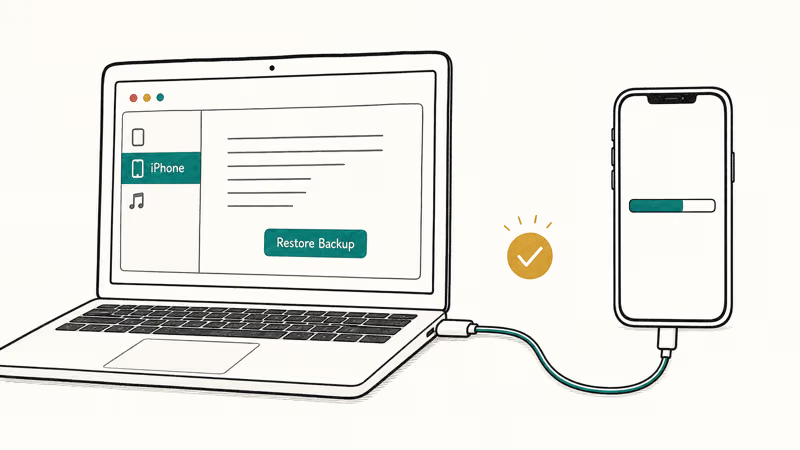
On Mac (macOS Catalina and later): Connect the iPhone with a USB-C or Lightning cable, open Finder, select the iPhone in the sidebar, and click Restore Backup. Pick the most recent backup from the dropdown.
On Windows or older macOS: Connect the iPhone, open iTunes, click the iPhone icon, and click Restore Backup.
Apple’s iTunes restore guide walks through the exact flow. For a large backup that keeps failing over iCloud, a wired restore through Finder often finishes without trouble where repeated iCloud attempts stalled, because a USB cable delivers a steady, high-bandwidth connection that doesn’t drop packets the way home Wi-Fi can during a long transfer.
If the cable restore itself stalls, our article on iPhone stuck on restore screen covers the next layer of fixes. Readers who want the conceptual background first can skim what restoring an iPhone actually means.
#Delete the Old Backup and Create a New One
Backup corruption is the last common cause. A fresh backup removes data that got damaged during an interrupted previous backup or a stalled iCloud sync.
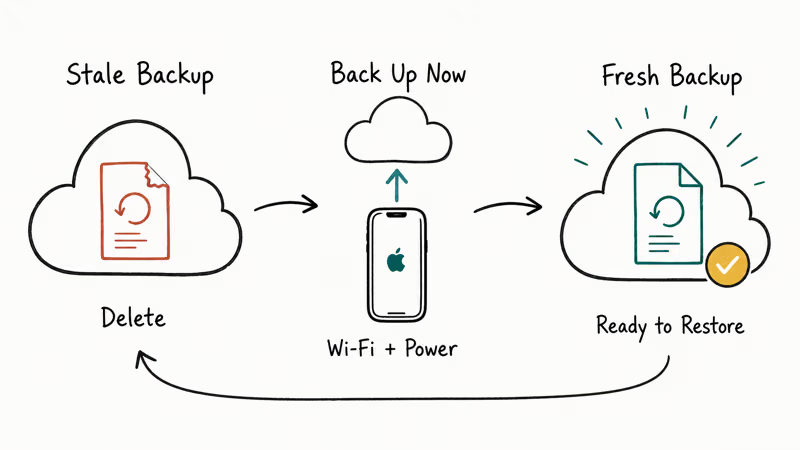
Delete the iCloud backup: Open Settings > [Your Name] > iCloud > Manage Account Storage > Backups. Tap the device backup, tap Delete Backup, and confirm.
Create a new backup: Go to Settings > [Your Name] > iCloud > iCloud Backup and tap Back Up Now. Leave the phone on Wi-Fi and power until it finishes before attempting a restore.
A clean backup sidesteps leftover corruption from past interruptions. This is particularly helpful when you have seen iPhone backup failed before and the partial file is still parked in iCloud. If iCloud notes are not syncing at the same time, fix the sync side first so the new backup captures everything.
Users dealing with a broader account pile-up can use downloading iCloud backup files to stage a local copy before deleting the cloud copy.
#When Should You Set Up as a New iPhone?
If every method above has failed, setting up as new is the fallback. Go to Settings > General > Transfer or Reset iPhone > Erase All Content and Settings, and during setup choose Set Up as New iPhone instead of restoring.
You lose app-specific data and system settings, but photos in iCloud Photos, contacts, calendars, and notes all sync back once you sign in. Apps redownload from the App Store.
This is not our favorite outcome, but it beats an endless restore loop.
Readers coming from another ecosystem, for example users whose Samsung Smart Switch took too long, often find that a clean setup plus iCloud sync lands faster than forcing a monolithic backup through the wire. After a failed large restore, the fresh-setup path with iCloud resync can finish in a fraction of the time the stalled restore consumed across multiple failed attempts.
#Bottom Line
Start with a force restart. It clears the stuck estimation screen in most cases. For backups over 15 GB, or any Wi-Fi that drops regularly, go straight to Finder or iTunes for a wired restore instead of retrying iCloud.
#Frequently Asked Questions
How long should an iPhone restore actually take?
iCloud restores typically run 15 to 60 minutes depending on backup size and Wi-Fi speed. A 20 GB backup on a 50 Mbps link usually finishes near the 25-minute mark. Finder and iTunes restores usually finish in 5 to 20 minutes because the payload travels over USB instead of the internet.
Can I use my iPhone while it’s restoring from a backup?
No, not during the initial restore phase. The phone is locked on the progress screen until the main restore completes. Once it does, apps keep downloading in the background while you use the phone normally.
Will a force restart during a restore delete my data?
No, it won’t. The backup file stays intact in iCloud or on your computer, and you simply start the restore over.
Why does my restore keep failing even with good Wi-Fi?
The backup file might be corrupted, or the iPhone might not have enough free storage. Check available storage under Settings > General > iPhone Storage. Leave a few gigabytes of headroom beyond the backup size. If storage is fine, delete the old backup and create a new one from scratch.
Is it better to restore from iCloud or from iTunes?
Finder (or iTunes on Windows and older macOS) is more reliable because it uses a wired link that doesn’t drop packets like home Wi-Fi. iCloud is more convenient since you don’t need a computer. For any backup over 20 GB, the wired approach avoids the Wi-Fi timeouts that plague large iCloud restores.
Does updating iOS before restoring help?
Yes. Open Settings > General > Software Update and install the latest release first.
What happens if I lose power during a restore?
The restore fails and the iPhone reboots. Plug it back into the charger and try again. The backup file stays safe in iCloud or on the computer, so nothing is lost. Keep the phone on a charger the entire time to avoid this entirely.
Can I restore an iPhone backup to a different iPhone model?
Yes, as long as the destination device runs the same or a newer iOS version. Some device-specific settings such as Display Zoom or Face ID data won’t transfer, but apps, photos, messages, and most settings do. Moving from an older iPhone to a newer one always works. Moving from newer to older only works when the iOS versions are compatible.

Mac mini M6 vs M5 Pro: Which Model Should You Buy?
Mac mini M6 vs M5 Pro compared on price, memory, ports, displays, and real workloads. Find the better 2026 Mac mini for your desk and budget.

Apple Siri Settlement: Who Qualifies and How to Claim
Apple's $250 million Siri settlement covers iPhone 15 Pro and iPhone 16 models bought June 2024 to March 2025. See who qualifies and how claims work.

iOS 26.6.1 Security Update: What Apple Fixed and Who Gets It
Apple released iOS 26.6.1 on August 17 with 29 security fixes, including an IPSec interception bug. See what it patches, who gets it, and how to update.

iPhone Adaptive Power: How It Works and When to Use It
Learn how iPhone Adaptive Power works, which models support it, what it changes, and when Low Power Mode is still the better battery-saving choice.