Best iTunes Backup Viewers for Mac and Windows (2026)
View and extract iPhone photos, messages, and contacts from iTunes backups without restoring. Compare the top backup viewers for Mac and Windows in 2026.
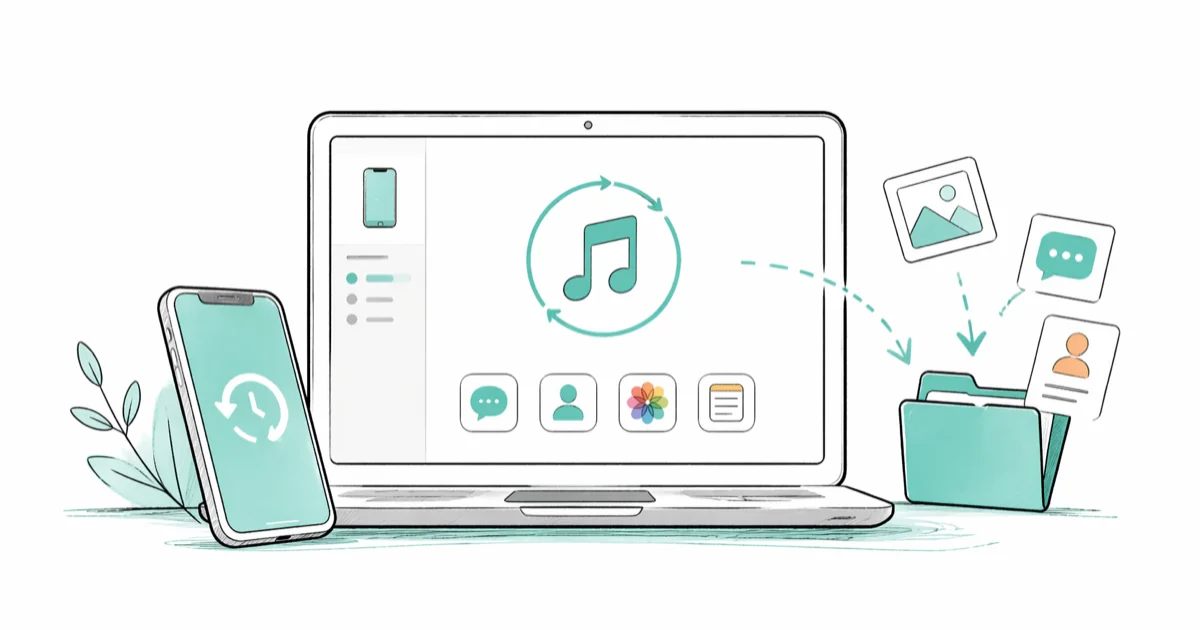
Quick AnswerAn iTunes backup viewer lets you browse and extract photos, messages, and contacts from an iPhone backup without restoring your device. iMazing is the best option for both Mac and Windows, with full support for encrypted backups from iOS 9 through iOS 18.
An iTunes backup viewer reads the encrypted, hash-named files that iTunes stores on your computer and turns them into a browsable library of photos, messages, contacts, and app data. Apple gives you no built-in way to peek inside a backup. These tools decode that structure so you can find and export exactly what you need.
- iTunes backups are stored as SHA-1 hash-named files in a flat folder on your Mac or Windows PC
- A backup viewer decodes that structure and lets you preview and export specific files without wiping your device
- Encrypted backups require your backup password before any viewer can open them
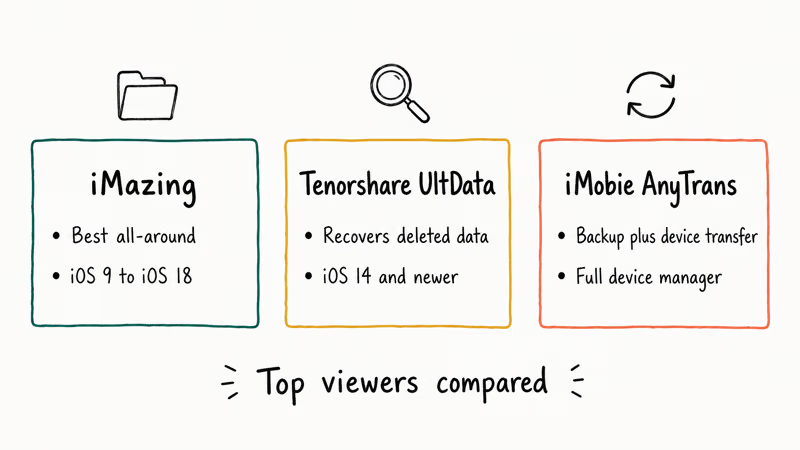
- iMazing is the best all-around viewer for browsing, exporting, and previewing backup contents on both platforms
- Tenorshare UltData adds deleted-data recovery scanning on top of standard backup viewing
#How Do iTunes Backup Viewers Work?
iTunes and Finder both create iPhone backups. Neither one lets you browse what’s inside.
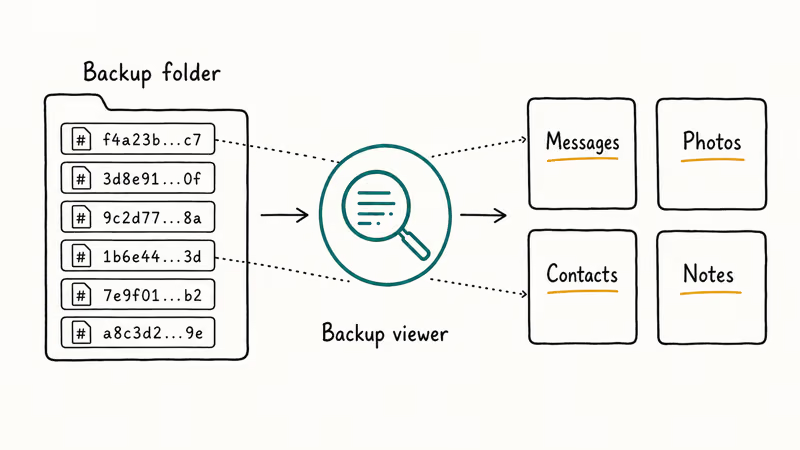
The backup is a flat folder of files with SHA-1 hash names instead of descriptive filenames like “photo-001.jpg.” Nothing is sorted by category or labeled by type, so opening the folder manually won’t help you find a specific photo or message thread.
A viewer decodes that structure and organizes it into categories: Messages, Photos, Contacts, Notes, and more. You can read full iMessage threads with timestamps, view photos at original resolution, preview contacts with phone numbers and email addresses, and export anything to your desktop.
Tools like iMazing can scan encrypted backup folders and present the content in a browsable category view.
Viewing is not the same as restoring your iPhone. A viewer operates in read-only mode on the backup copy sitting on your computer. It never pushes data to your device.
#Where iTunes Backups Are Stored
The backup folder sits in a different location depending on your operating system:
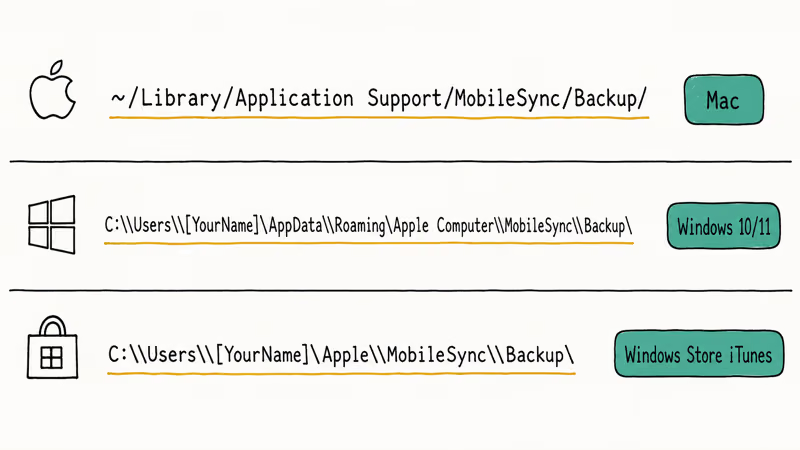
- Mac: ~/Library/Application Support/MobileSync/Backup/
- Windows 10/11: C:\Users[YourName]\AppData\Roaming\Apple Computer\MobileSync\Backup\
- Windows Store version of iTunes: C:\Users[YourName]\Apple\MobileSync\Backup\
According to Apple’s support documentation, a standard iTunes backup covers app data, device settings, messages, photos, call history, and Health data. It excludes 3 categories of sensitive content: iCloud-synced data, Apple Pay credentials, and Face ID/Touch ID settings.
Each backup gets its own subfolder named after a 40-character UDID that identifies your specific iPhone. Inside that folder are thousands of hash-named files that a viewer decodes into readable categories. If you’ve backed up multiple iPhones on the same computer, the viewer shows each as a separate dated entry.
Encrypted backups live in the same location but require your password before any tool can open them.
If your iTunes backup button is greyed out, connect via USB instead of Wi-Fi sync.
#Best iTunes Backup Viewer Options
#iMazing
iMazing is the most complete iTunes backup viewer available. It reads encrypted and unencrypted backups, exports messages as PDF, CSV, or HTML, and runs identically on Mac and Windows.
The free version lets you browse every category and preview files. Exporting requires a paid license.
iMazing can export message conversations to formats such as HTML while preserving timestamps, attachments, and contact names when those details exist in the backup.
According to iMazing’s official tech specs, the tool reads backups across a wide range of iPhone, iPad, and iPod touch models and runs on both macOS and Windows.
#Tenorshare UltData
Tenorshare UltData takes a recovery-first approach. Beyond reading current backup data, it scans the backup’s SQLite databases for deleted messages, photos, contacts, and notes that standard viewers can’t detect. This makes it the stronger choice when you’re trying to recover something you accidentally deleted weeks or months ago.
Some links on this page are affiliate links, which means fone.tips may earn a commission at no extra cost to you.
The interface walks you through selecting categories: Photos, Messages, Contacts, Notes, WhatsApp conversations, and more. The free tier shows what’s recoverable; a license unlocks the download.
UltData’s recovery scan is meant for deleted iMessage threads and other data that standard viewers may not surface.
#iMobie AnyTrans
AnyTrans combines backup viewing with full device management. It reads iTunes backups, exports specific categories, and doubles as a file transfer tool between your iPhone and computer. AnyTrans also supports incremental backups and device-to-device transfers, which makes it useful beyond viewing backup contents alone.
#Can You View Encrypted iTunes Backups?
Yes. Every major viewer handles encrypted backups.
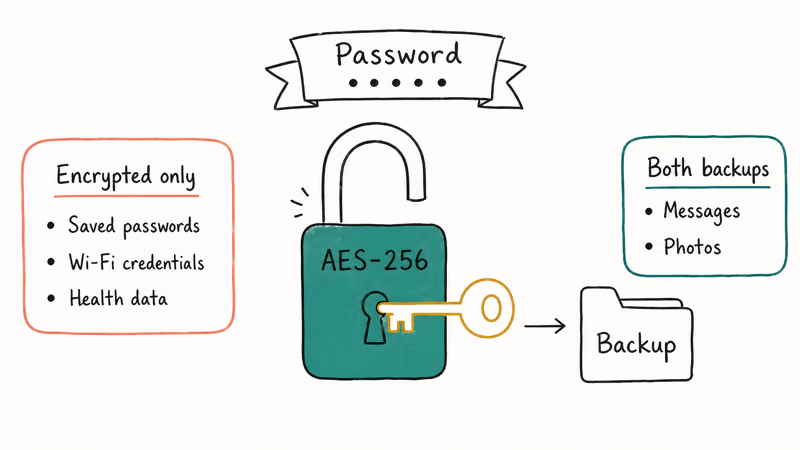
You enter your backup password when loading the file, and the app decrypts the content in memory without touching the original files on disk.
No viewer can bypass a forgotten password. Apple protects iTunes backups with AES-256 encryption, and brute-forcing that isn’t practical. The only recovery path is resetting from your iPhone: go to Settings > General > Transfer or Reset iPhone > Reset > Reset All Settings.
That clears the password without erasing your phone data or deleting previous backups.
If you’ve forgotten your iTunes backup password, handle that before opening any viewer.
Apple’s privacy overview confirms that encrypted backups add 3 protected categories that unencrypted backups skip: saved passwords, Wi-Fi credentials, and Health data. If you need keychain items or health records, your backup must be encrypted at creation time.
#Using a Backup Viewer Without iTunes
You don’t need iTunes running to view a backup. The viewer only reads the backup folder on your computer, not the iTunes application itself. iTunes or Finder needs to have created that backup at some point, but after that you can uninstall iTunes entirely and still open the backup files in any viewer without issues.
If iTunes is running slow or crashing, that has zero effect on viewing existing backups. The backup is a standalone set of files that the viewer reads independently of the iTunes process.
#Choosing Between Free and Paid Tiers
Every viewer listed above offers a free tier that lets you browse and preview backup contents without paying. The paywall hits when you export or download files.
| Feature | iMazing (Free) | iMazing (Paid) | UltData (Free) | UltData (Paid) |
|---|---|---|---|---|
| Browse categories | Yes | Yes | Yes | Yes |
| Preview files | Yes | Yes | Yes | Yes |
| Export files | No | Yes | No | Yes |
| Deleted data scan | No | No | Preview only | Full recovery |
| Selective restore | No | Yes | No | Yes |
If you only need to confirm a specific photo or message exists, the free tiers are enough.
#Types of Data You Can Extract
Most viewers give you access to these categories:
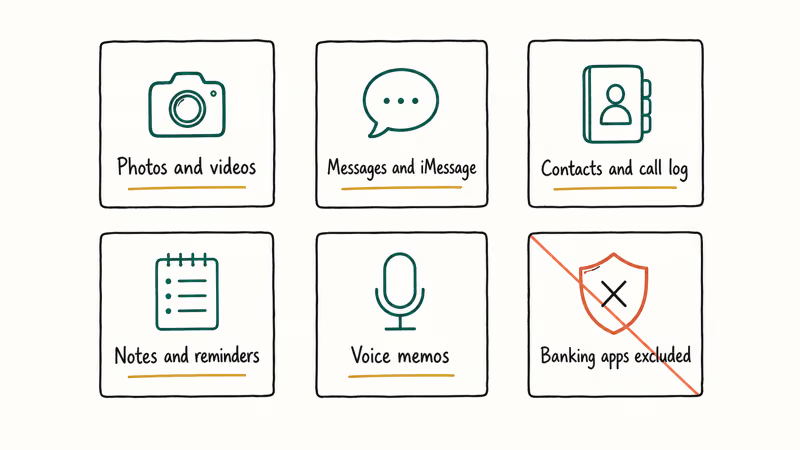
- Photos and videos from your Camera Roll (including HEIC originals)
- SMS, iMessage, and MMS conversations with attachments
- Contacts, call history, and voicemail recordings
- Notes, calendar events, and reminders
- Voice memos, Safari bookmarks, and browsing history
- App data for apps that permit backup (not all do)
Banking apps that opt out of backups won’t show up. Apps like Signal exclude their message databases from iTunes backups by design.
If your backup is incomplete or corrupted, the viewer shows whatever was captured before the error. Photos, messages, and contacts are typically intact even in partial backups because iOS prioritizes those during the backup process.
Had iTunes errors that stopped a backup midway? The viewer still reads what was saved before the failure.
#Bottom Line
Start with iMazing if you want to browse, preview, and export from any iTunes backup on Mac or Windows. It handles encrypted and unencrypted backups, supports iOS 9 through iOS 18, and offers a broader export toolkit than a basic backup browser. If your main goal is recovering deleted messages or photos, go with Tenorshare UltData instead.
Before you start, check whether your backup is encrypted and have the password ready. If your most recent backup is old, create a fresh one in iTunes or Finder first.
#Frequently Asked Questions
Can a backup viewer modify or delete my backup files?
No. Viewers open backup files in read-only mode and can’t alter, corrupt, or delete anything. Only iTunes or Finder modifies the backup folder when creating a new one.
Do I need my iPhone connected while using the viewer?
No. The viewer reads from backup files already on your computer. Your iPhone doesn’t need to be plugged in or nearby.
Will viewing a backup affect my current iPhone data?
Not at all. A viewer reads from the copy on your computer, not from your live device.
Can I restore individual items back to my iPhone?
Yes. iMazing and Tenorshare UltData both support selective restore, letting you push specific photos, messages, or contacts back without a full restore. If you need a complete backup restore instead, you can restore your iPhone without updating to keep your current iOS version.
Why are the backup files named with random characters?
iTunes names each backup file with a SHA-1 hash instead of a readable filename. Viewers translate those hashes into browsable categories.
Is it safe to use third-party backup viewers?
The established tools (iMazing, Tenorshare UltData, AnyTrans) are safe and well-documented. Download only from their official websites. Some lesser-known tools have been caught uploading backup data to external servers, so checking a tool’s privacy policy is worth the effort since your backup can contain passwords, messages, and Health records.
What should I do if the viewer can’t find my backup?
Point it manually to the backup folder: ~/Library/Application Support/MobileSync/Backup/ on Mac, or AppData\Roaming\Apple Computer\MobileSync\Backup\ on Windows. If the folder is empty, connect your iPhone via USB, open iTunes or Finder, and click Back Up Now.

Mac mini M6 vs M5 Pro: Which Model Should You Buy?
Mac mini M6 vs M5 Pro compared on price, memory, ports, displays, and real workloads. Find the better 2026 Mac mini for your desk and budget.

Apple Siri Settlement: Who Qualifies and How to Claim
Apple's $250 million Siri settlement covers iPhone 15 Pro and iPhone 16 models bought June 2024 to March 2025. See who qualifies and how claims work.

iOS 26.6.1 Security Update: What Apple Fixed and Who Gets It
Apple released iOS 26.6.1 on August 17 with 29 security fixes, including an IPSec interception bug. See what it patches, who gets it, and how to update.

iPhone Adaptive Power: How It Works and When to Use It
Learn how iPhone Adaptive Power works, which models support it, what it changes, and when Low Power Mode is still the better battery-saving choice.