iPhone Backup Failed: 8 Fixes for iCloud and iTunes (2026)
Fix iPhone backup failed errors with 8 proven methods for iCloud and iTunes. Covers storage, network, authentication, and iOS bugs. Works on iOS 16+.
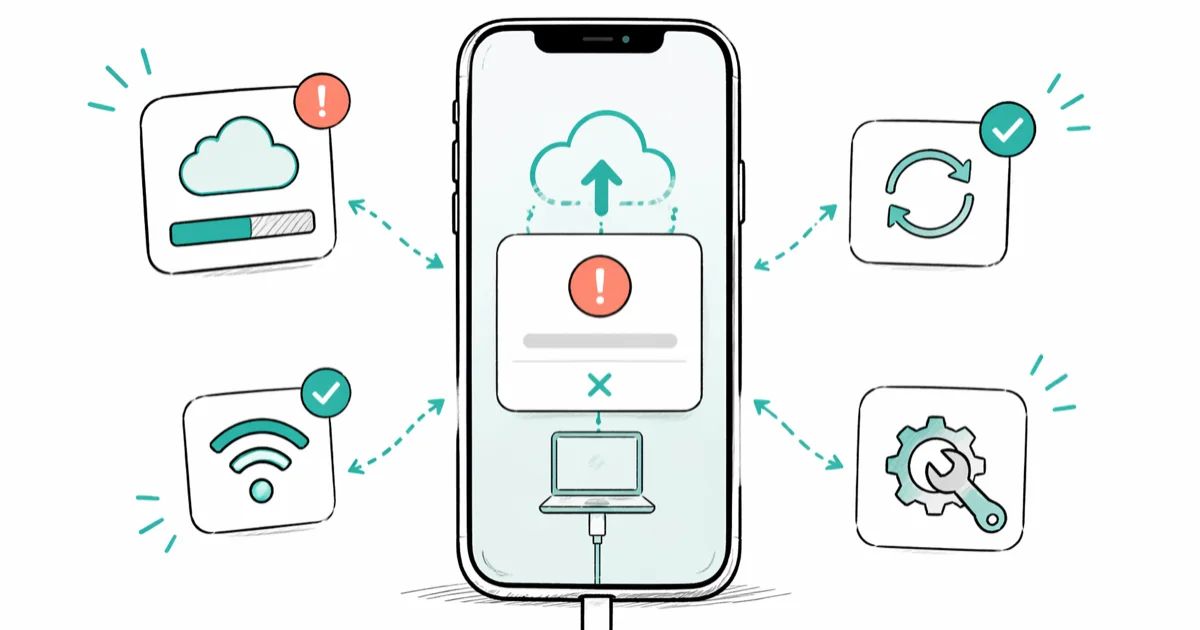
Quick AnswerCheck your iCloud storage first. If it's full, your backup won't complete. Go to Settings > [your name] > iCloud > Manage Account Storage and free up space or upgrade your plan, then try backing up again.
iPhone backup failures come down to three root causes: iCloud storage is full, the network connection dropped during the upload, or iCloud authentication tokens expired silently. All eight fixes below target one of those causes, and each still applies on current iOS versions in 2026.
- Apple’s free 5 GB iCloud tier fills up after one device backup, making storage the number-one failure trigger
- iCloud backups require Wi-Fi by default and won’t start over cellular unless you enable it manually in settings
- Signing out of your Apple ID and back in refreshes expired authentication tokens that cause silent failures
- Local backups through Finder or iTunes skip iCloud entirely and finish in 5 to 15 minutes over USB
- Deleting a corrupted backup file forces iOS to create a fresh one, clearing persistent “backup failed” loops
#Why Does iPhone Backup Keep Failing?
The backup process relies on four systems working together: network connectivity, iCloud account credentials, available cloud storage, and iOS system state. Break any one link and the backup stalls.
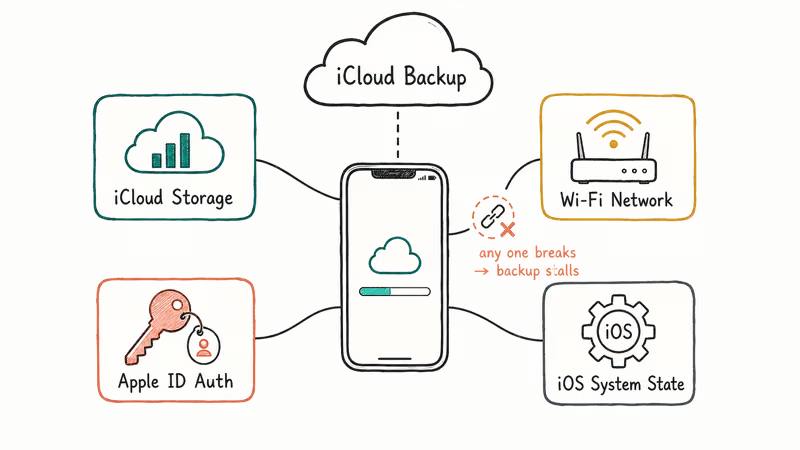
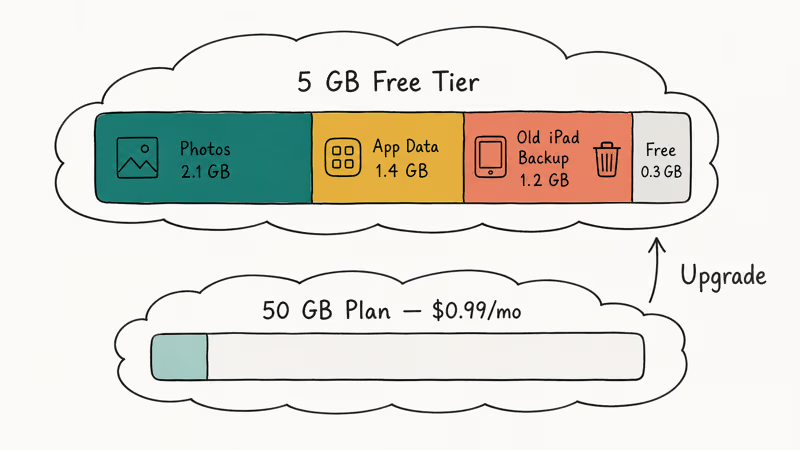
Storage is the most common culprit. Apple gives every iCloud account 5 GB free. A single iPhone backup runs 2 to 8 GB depending on app data and photo libraries. With two devices on the same Apple ID, 5 GB disappears before you notice. Apple’s iCloud storage guide confirms that 5 paid tiers are available, starting at 50 GB for $0.99/month.
Authentication errors are the sneakiest cause. They rarely show an obvious error message. Instead you get a spinning progress bar that times out or a “Last Backup: Never” label that never changes.
Network issues rank third. If your router drops the connection mid-upload, iOS doesn’t always retry cleanly.
#iCloud Storage and Account Fixes
#1. Check and Free Up iCloud Storage
Go to Settings > [your name] > iCloud > Manage Account Storage.
If usage sits at 95% or higher, the next backup won’t fit. Delete old device backups first: tap Backups, find any backups from phones you no longer own, and remove them. Each old backup can free 1 to 5 GB instantly.
Clearing an old iPad backup is often enough to free several gigabytes, and once storage drops below the full mark the stuck iPhone backup usually completes on the next attempt within a few minutes.
#2. Check Your Wi-Fi Connection
iCloud backups don’t start over cellular by default. Your iPhone needs a stable Wi-Fi connection throughout the entire upload.
Move the phone closer to your router if signal is weak. If other devices are also dropping connections, restart the router by unplugging it for 30 seconds. Check Apple’s System Status page to verify iCloud Backup shows a green dot. During an iCloud outage, backups can fail with no obvious error until Apple marks the service restored on that page.
#3. Enable iCloud Backup
The iCloud Backup toggle sometimes gets disabled after iOS updates or after restoring from a different device.
Go to Settings > [your name] > iCloud > iCloud Backup. If the slider is gray, tap to turn it green. Then tap Back Up Now and watch for a progress indicator at the top. Takes about 10 seconds to verify.
#4. Sign Out and Back Into iCloud
Authentication token expiration causes silent backup failures. Signing out and back in forces iOS to issue fresh tokens.
Go to Settings > [your name], scroll down, and tap Sign Out. Follow the prompts to keep or remove data from the device. Then sign back in with your Apple ID.
When a phone shows “Last Backup: Failed” for several days with storage and Wi-Fi both fine, an expired token is the likely cause, and signing out and back in usually lets the backup start automatically within minutes. If the sign-out button is grayed out, our guide on fixing the sign-out restriction walks through the workarounds.
#Network and iOS Fixes
#5. Reset Network Settings
If iCloud connects but the backup still fails partway through, a conflicting network configuration is the likely cause. Resetting network settings clears saved Wi-Fi passwords, VPN profiles, and cellular overrides.
Write down your Wi-Fi password first. Then go to Settings > General > Transfer or Reset iPhone > Reset > Reset Network Settings. Your phone restarts. Reconnect to Wi-Fi.
When a backup connects but then stalls partway through, a corrupted network profile is a common cause, and clearing it this way often lets the full backup complete on the next run. If your computer-based backups also stall, our guide on iTunes Wi-Fi sync not working covers the related Wi-Fi pairing fixes.
#6. Update iOS
Outdated iOS versions can lose compatibility with Apple’s current iCloud server protocols. Apple’s backup troubleshooting article recommends updating to the latest iOS version as a first step when backups fail repeatedly.
Go to Settings > General > Software Update. Install any available update. Plug in your iPhone before starting since large updates take 20 to 40 minutes. Apple’s iOS release notes confirm that backup-related bug fixes ship in most point releases.
#Can You Use Finder or iTunes Instead of iCloud?
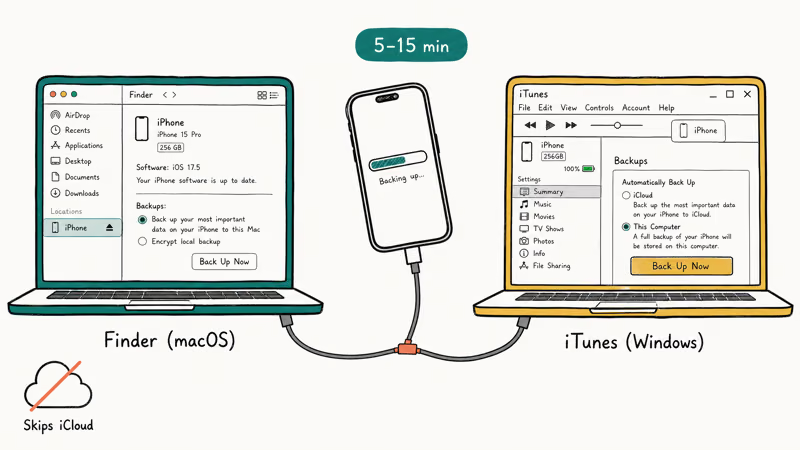
Yes. Finder on macOS Catalina and later, and iTunes on Windows, both create full local backups. They skip iCloud entirely and don’t depend on your internet speed.
#7. Create a Local Backup via USB
Connect your iPhone to your computer with a USB cable. On Mac, open Finder and click your iPhone in the sidebar. On Windows, open iTunes and select your device. Click Back Up Now.
A full USB backup typically takes 5 to 15 minutes. This option uses zero iCloud storage. It’s the go-to workaround when your plan is full and you need a backup right now.
If a trust prompt appears, tap Trust and enter your passcode. For persistent trust loops, see our guide on Trust This Computer keeps appearing. If you’ve forgotten your backup encryption password, we cover recovery steps in our guide on forgotten iTunes backup passwords.
If iCloud and Finder or iTunes still won’t create a usable backup, AnyTrans can make a local backup through a computer; verify that copy before deleting anything.
Some links on this page are affiliate links, which means fone.tips may earn a commission at no extra cost to you.
#Fixing a Corrupted Backup File
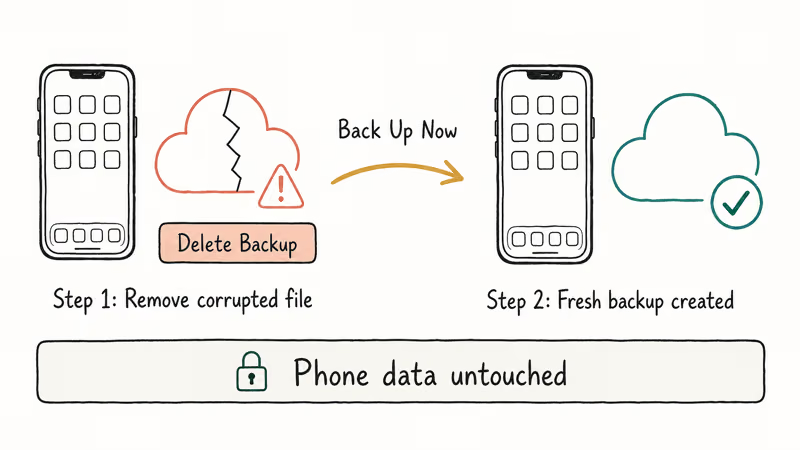
#8. Delete the Old Backup and Start Fresh
Corrupted backup files block new backups from completing. Deleting the broken file forces iOS to build a clean one from scratch.
Go to Settings > [your name] > iCloud > Manage Account Storage > Backups. Tap your iPhone, then tap Delete Backup and confirm. Head back to iCloud Backup and tap Back Up Now.
This doesn’t delete any data from your phone. It only removes the stored cloud copy. If you’re unclear on that distinction, our explainer on what Restore iPhone means breaks it down.
#When to Contact Apple Support
If all eight fixes fail, hardware or deep account-level issues are likely involved. Book a Genius Bar appointment through the Apple Support app or call Apple Support directly. Have your Apple ID credentials ready.
If iCloud notes are also failing to sync alongside backup errors, our guide on iCloud notes not syncing covers the shared account configuration steps that fix both problems at once.
#Bottom Line
Start with Fix 1 (check and free iCloud storage) and Fix 4 (sign out and sign back into iCloud). Those two resolve the majority of iPhone backup failures. If your network is unstable, Fix 5 (reset network settings) breaks the stuck state. For anyone who needs a backup right now and doesn’t want to troubleshoot iCloud, Fix 7 (local USB backup via Finder or iTunes) takes 5 to 15 minutes and avoids the cloud entirely.
#Frequently Asked Questions
Why does my iPhone backup fail every night?
Full iCloud storage is the most common cause of nightly backup failures. Go to Settings > [your name] > iCloud > Manage Account Storage and check your usage. If you’re near the 5 GB limit, delete old device backups or upgrade to the 50 GB plan for $0.99/month. That single change fixes the majority of repeat failures.
Can I back up my iPhone without Wi-Fi?
Not through iCloud by default. iOS 17 and later added a cellular backup option for 5G connections with a paid iCloud+ plan, but it’s off by default. The reliable alternative is a USB backup through Finder on Mac or iTunes on Windows.
How long should an iPhone backup take?
A first full iCloud backup takes 15 to 45 minutes over Wi-Fi depending on data size. Incremental backups finish in 2 to 5 minutes since only changed files upload. USB backups through Finder typically complete in 5 to 15 minutes regardless of total size.
Will a factory reset fix iPhone backup failed?
No. A factory reset erases all data and doesn’t address the backup issue itself. Try the eight methods in this guide first. Only consider a reset after consulting Apple Support and confirming you have a working backup.
What does the iPhone backup failed error actually mean?
The error means the backup process started but didn’t finish. Common triggers include insufficient iCloud storage, a dropped Wi-Fi connection during upload, an expired authentication token, or a corrupted backup file. iOS uses one generic error for all of these causes without distinguishing between them.
Is iCloud backup encrypted and safe?
Yes. Apple encrypts iCloud backups in transit and at rest. Apple’s data security overview states that Health data, Keychain passwords, and Messages use end-to-end encryption when you enable Advanced Data Protection. Standard backups without ADP are still encrypted but Apple holds the keys.
How do I check if my last iPhone backup worked?
Go to Settings > [your name] > iCloud > iCloud Backup. The “Last Backup” line shows the exact date and time. If it shows today’s date, your backup is current. A timestamp from days or weeks ago means backups have been failing silently.
Can I fix iPhone backup failed without losing any data?
Yes. All eight methods in this guide are non-destructive. Fix 8 removes the stored iCloud backup copy, not the data on your phone. Fix 5 resets network settings, which clears saved Wi-Fi passwords but doesn’t touch photos, messages, or apps.

Mac mini M6 vs M5 Pro: Which Model Should You Buy?
Mac mini M6 vs M5 Pro compared on price, memory, ports, displays, and real workloads. Find the better 2026 Mac mini for your desk and budget.

Apple Siri Settlement: Who Qualifies and How to Claim
Apple's $250 million Siri settlement covers iPhone 15 Pro and iPhone 16 models bought June 2024 to March 2025. See who qualifies and how claims work.

iOS 26.6.1 Security Update: What Apple Fixed and Who Gets It
Apple released iOS 26.6.1 on August 17 with 29 security fixes, including an IPSec interception bug. See what it patches, who gets it, and how to update.

iPhone Adaptive Power: How It Works and When to Use It
Learn how iPhone Adaptive Power works, which models support it, what it changes, and when Low Power Mode is still the better battery-saving choice.