iTunes Not Recognizing iPhone: 8 Fixes That Actually Work
Fix iTunes not recognizing your iPhone with 8 proven methods. Check cables, update drivers, and reset Trust settings. Works on Windows and Mac.
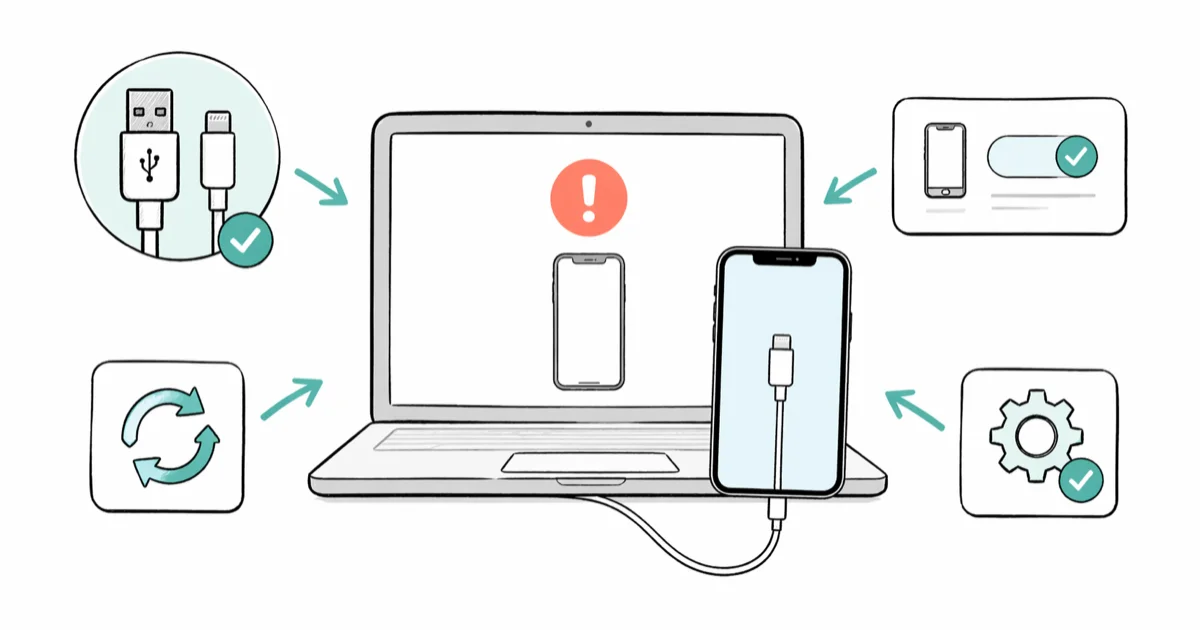
Quick AnswerSwap the USB cable, accept the Trust prompt on your iPhone, then update iTunes and the Apple Mobile Device USB Driver. Those three steps fix most iTunes recognition failures in under five minutes.
iTunes not recognizing your iPhone is almost always a cable, trust, or driver problem. Start with a cable swap and the Trust prompt, then move to driver checks on Windows or System Information on Mac.
- A damaged or non-MFi cable is the single most common cause of iTunes recognition failures
- The Trust prompt must be accepted each time you connect to a new computer or after a privacy reset
- Outdated Apple Mobile Device USB Driver causes most Windows-specific detection failures
- Lint or debris in the Lightning or USB-C port blocks data transfer even when charging works fine
- On Mac, System Information shows whether the iPhone registers at the hardware level before any software fix applies
#Why Won’t iTunes Recognize Your iPhone?
Three categories cause this problem: physical connection issues (cable, port, debris), software problems (drivers, iTunes version, iOS version), and trust state between the devices.
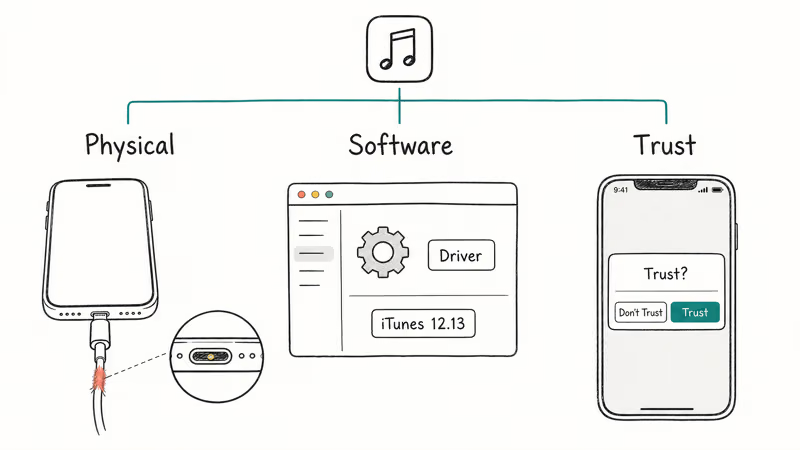
Physical problems are the fastest to rule out. A bad cable or dirty port blocks data transfer even when the iPhone charges normally, because charging and data use different pins in the Lightning and USB-C connector.
Software problems follow a predictable pattern on Windows. Outdated iTunes or a corrupted Apple Mobile Device USB Driver accounts for many detection failures when the cable works fine. According to Apple’s support article on iPhone not appearing in iTunes or Finder, updating the Apple Mobile Device USB Driver through Device Manager is the recommended fix on Windows.
Trust state is sneaky. One wrong tap on “Don’t Trust” and the computer gets blocked with zero explanation.
#Fix 1: Swap the USB Cable
Start here. A frayed, bent, or non-MFi cable causes connection failures you can’t diagnose any other way. Charging and data transfer use different pins, so a cable that powers your iPhone can still fail completely for iTunes sync.
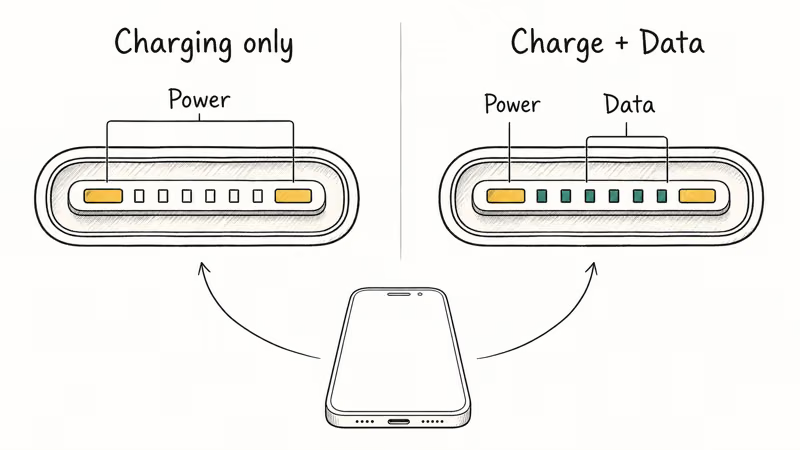
A cable can charge an iPhone but still fail data transfer if the data pins are damaged or missing. Use an Apple cable or an MFi-certified replacement before spending time on driver fixes.
Inspect both ends for damage and swap in an MFi-certified cable if you spot wear.
#Fix 2: Clean the iPhone Charging Port
Pocket lint and debris collect in the Lightning or USB-C port gradually, especially if you carry your iPhone in a pocket without a case. Even a thin layer of compressed lint blocks the data pins without affecting the charging pins, which is why the phone charges fine but iTunes sees nothing. This is one of the most overlooked causes because everything appears to work normally.
Use a dry toothbrush or wooden toothpick to clear the port. No metal tools. Apple’s guide to cleaning iPhone ports confirms that debris in the 8-pin Lightning connector or 24-pin USB-C port blocks data transfer and recommends using a soft-bristled brush for cleaning.
Reconnect after cleaning and check if iTunes detects the iPhone.
#Fix 3: Accept the Trust Prompt
When you connect an iPhone to a computer for the first time, a “Trust This Computer?” prompt appears on the phone screen. Tapping “Don’t Trust” or dismissing it blocks iTunes from seeing the device. There’s no error message on the computer side.
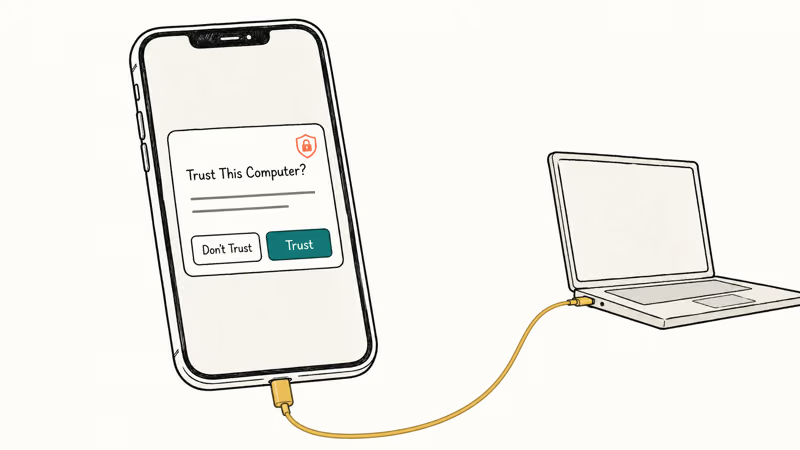
If the cable checks out but iTunes still shows nothing, treat the Trust state as the next likely block.
Reset it: go to Settings > General > Transfer or Reset iPhone > Reset > Reset Location & Privacy. Reconnect the iPhone and tap Trust when prompted. If the Trust This Computer prompt keeps appearing repeatedly, the USB port or cable has an intermittent physical connection.
#Fix 4: Restart Both Devices
A hung background process on either device can block the USB handshake. This takes 30 seconds and costs nothing.
On iPhone X or later, hold the Side button and either Volume button until the power-off slider appears. Slide to power off, wait 10 seconds, then hold the Side button to restart.
Restart the computer fully. Don’t use sleep mode. Reconnect after both devices boot up and open iTunes.
#Fix 5: Update iTunes and iOS
Outdated iTunes won’t talk to newer iOS, and vice versa.
Update iTunes on Windows: Open iTunes, go to Help > Check for Updates. If the updater itself throws an error, see our guide on how to fix iTunes errors.
Update iTunes on Mac: On macOS Mojave and earlier, open the App Store and check for updates. On macOS Catalina and later, Finder handles iPhone management and updates automatically with macOS.
Update iOS: Go to Settings > General > Software Update and install any available update. On USB-C iPhones (iPhone 15 and later), iOS 17 or newer is required for reliable data transfer to both Windows and Mac. The download takes 5 to 15 minutes depending on the update size, plus a few extra minutes for the installation restart.
#Fix 6: Reinstall the Apple Mobile Device USB Driver (Windows)
On Windows, iTunes communicates with the iPhone through the Apple Mobile Device USB Driver. This driver corrupts more often than you’d expect, especially after Windows or iTunes updates. If your computer shows a USB device not recognized error when you plug in the iPhone, the driver is almost certainly the problem.
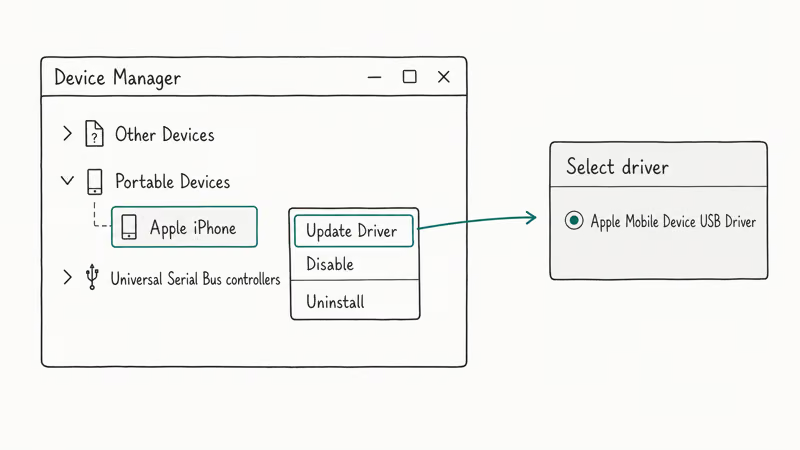
If iTunes came from Apple’s website:
- Disconnect the iPhone
- Open Device Manager (right-click
Start>Device Manager) - Find your iPhone under Portable Devices or Other Devices
- Right-click it and select
Update Driver>Browsemy computer > Let me pick from a list - Choose Apple Mobile Device USB Driver and click Next
If the driver doesn’t appear in the list, go to C:\Program Files\Common Files\Apple\Mobile Device Support\Drivers, right-click usbaapl64.inf, and select Install. Reconnect the iPhone.
If iTunes came from the Microsoft Store: Open Settings > Apps > iTunes, select Advanced Options, then Repair. If that doesn’t work, select Reset.
When none of the driver steps help, uninstall iTunes along with all Apple support software (Bonjour, Apple Mobile Device Support, Apple Application Support) and reinstall from scratch. Our guide to reinstalling iTunes covers the full process.
#Fix 7: Check System Information on Mac
On Mac, System Information separates hardware failures from software ones. This tells you whether to keep troubleshooting software or take the iPhone in for a hardware repair.
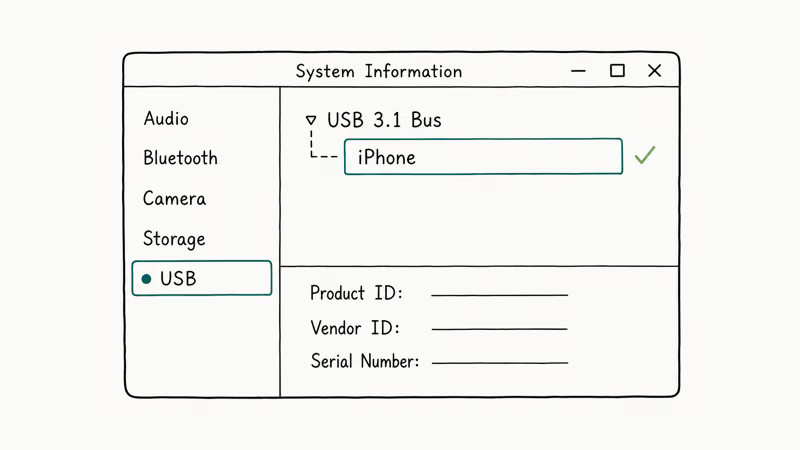
Hold the Option key and click the Apple menu. Select System Information, then click USB in the sidebar.
If your iPhone appears in the USB device tree but iTunes (or Finder on Catalina+) doesn’t show it, the physical connection works and the problem is software-side. If the iPhone doesn’t appear in the USB tree at all, the cable, USB port, or iPhone charging port has a hardware issue, and no software fix will help until you resolve the physical connection.
Apple’s system information documentation recommends resetting the SMC on Intel Macs when USB devices appear in the system report but aren’t available to apps.
#Fix 8: Repair iOS with Tenorshare ReiBoot
When every standard fix fails, a corrupted iOS system file is likely the cause. Tenorshare ReiBoot repairs the iOS system without erasing your data.
ReiBoot’s Standard Repair is meant for cases where iTunes detects the device intermittently but drops the connection before sync can complete, not for simple cable or trust failures. Treat it as a late-stage software repair after Apple’s driver and hardware checks are done. See our full Tenorshare ReiBoot review for the tool workflow.
Some links on this page are affiliate links, which means fone.tips may earn a commission at no extra cost to you.
Connect your iPhone, open ReiBoot, and select Standard Repair. Follow the on-screen prompts and wait for the process to finish.
#What Should You Do If None of These Fixes Work?
If all eight fixes fail, the iPhone’s USB hardware is likely damaged physically. Book a Genius Bar appointment. AppleCare+ covers the repair at no extra cost if you have active coverage.
Before going in, check our iTunes could not connect to this iPhone guide for that specific error.
Out-of-warranty Lightning port repairs typically run $80 to $120 at an Apple Store. USB-C port repairs on iPhone 15 and later cost more due to the redesigned internal layout.
#Bottom Line
Start with the cable swap and the Trust prompt — those two fixes cover common failures and take only a few minutes. If you’re on Windows and the physical connection checks out, reinstall the Apple Mobile Device USB Driver next. Mac users should run the System Information check to confirm the iPhone registers at the hardware level before spending time on software fixes. Save ReiBoot and Apple Support for cases where everything else has failed.
#Frequently Asked Questions
Why does my iPhone charge but iTunes won’t recognize it?
Charging and data transfer use different pins in the Lightning and USB-C connector. A partially damaged cable or dirty port can pass enough current to charge but not enough to carry data. Swap the cable for an MFi-certified one and clean the port with a dry toothbrush.
How do I reinstall the Apple Mobile Device USB Driver?
Open Device Manager, right-click your iPhone, and select Update Driver. Reinstall iTunes from apple.com if the driver is missing entirely.
Does macOS Catalina still use iTunes for iPhone management?
No. Starting with macOS Catalina (10.15), Finder replaced iTunes for syncing, backups, and software updates. Connect the iPhone and open a Finder window to find it under Locations in the sidebar. If you keep getting iTunes password prompts on an older macOS version, that’s a separate authentication issue.
Can a Windows update break iTunes iPhone detection?
Yes. Reinstall the USB driver (Fix 6) right after any major Windows update.
Will resetting my iPhone fix the recognition problem?
Only as a last resort since it erases everything on the phone. Exhaust the cable swap, Trust reset, driver reinstall, and restart fixes from this guide before you consider a factory reset. Try Tenorshare ReiBoot’s Standard Repair first because it preserves all your data and photos.
What if iTunes sees my iPhone but won’t sync?
That’s a different issue. If the device shows up but sync stalls or drops, see our guide on iTunes Wi-Fi sync not working for sync-specific fixes.
Does the USB port type matter for iPhone detection?
Use a USB-A 3.0 or USB-C port directly on the computer, not a hub. Hubs cause power and latency issues that block detection.
Is there a way to connect my iPhone to iTunes wirelessly?
Yes. Open iTunes (or Finder on macOS Catalina and later), connect the iPhone with a cable, select the device, and check “Sync with this iPhone over Wi-Fi” under Options. After you click Apply, the iPhone syncs wirelessly whenever both devices are on the same Wi-Fi network and the phone is charging. You only need this cable connection once to enable the feature.

Mac mini M6 vs M5 Pro: Which Model Should You Buy?
Mac mini M6 vs M5 Pro compared on price, memory, ports, displays, and real workloads. Find the better 2026 Mac mini for your desk and budget.

Apple Siri Settlement: Who Qualifies and How to Claim
Apple's $250 million Siri settlement covers iPhone 15 Pro and iPhone 16 models bought June 2024 to March 2025. See who qualifies and how claims work.

iOS 26.6.1 Security Update: What Apple Fixed and Who Gets It
Apple released iOS 26.6.1 on August 17 with 29 security fixes, including an IPSec interception bug. See what it patches, who gets it, and how to update.

iPhone Adaptive Power: How It Works and When to Use It
Learn how iPhone Adaptive Power works, which models support it, what it changes, and when Low Power Mode is still the better battery-saving choice.