How to Send Emails to Undisclosed Recipients in Gmail
Hide recipient addresses in Gmail group emails. Step-by-step BCC method, contact group setup, sending limits, and the privacy gotchas to avoid.
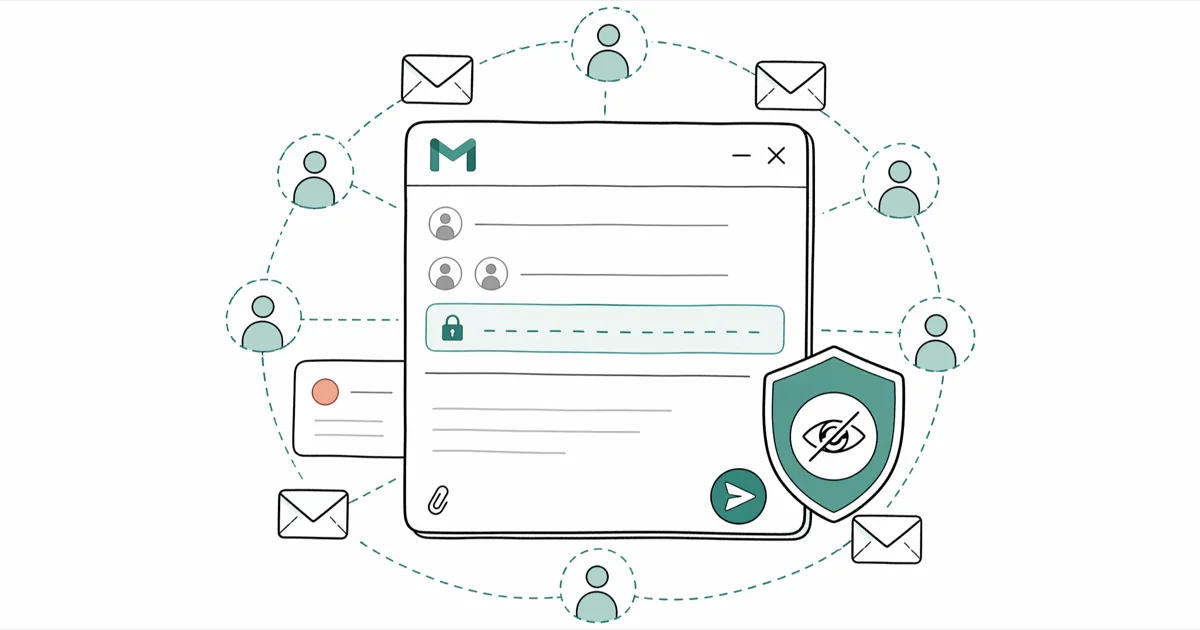
Quick AnswerType "Undisclosed Recipients <your-email@gmail.com>" in the To field, then add every actual recipient to the BCC field. Each person receives the message but cannot see the other addresses.
Sending one Gmail message to twenty people with their addresses in the To field publishes the entire list to every reader. The fix is the BCC field plus a small text trick in the To line. Below is the exact wording to type, the contact-group shortcut for repeat sends, and the sending limits Gmail enforces before it flags your account.
- BCC strips the recipient list from message headers before delivery, so each reader only sees their own address and yours
- Gmail won’t send a message with the To field empty, so you place the literal text “Undisclosed Recipients your-email@gmail.com” there as a stand-in
- A single compose-to-send cycle takes under 2 minutes for a list of 30 BCC addresses on both desktop and the mobile app
- Free Gmail accounts cap at 500 outgoing recipients per 24 hours; Google Workspace accounts cap at 2,000
- Saving recipients as a Google Contacts label removes the retyping step and works in either the To or the BCC field
#What Does BCC Actually Hide?
BCC stands for Blind Carbon Copy.
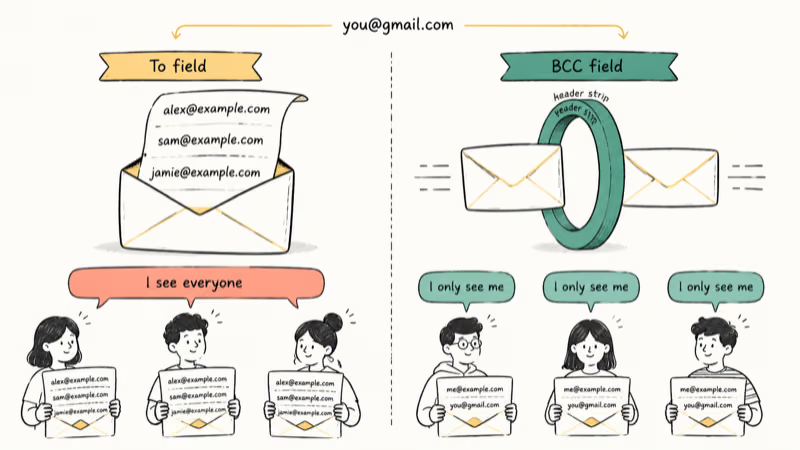
Gmail places anyone you list in the BCC field on the delivery roster, then deletes those addresses from the headers each recipient actually sees. According to Google’s Gmail Help documentation, BCC is the supported way to keep group-email recipients hidden from each other inside Gmail.
The privacy gap shows up the moment you compare two send paths: twenty addresses pasted into the To field publish the full contact list to every reader, while the same twenty addresses pasted into the BCC field reach the same inboxes yet show each reader only their own line plus yours.
Your sent folder still stores the full list.
So does any local archive, every IMAP-synced mail client, and any backup tied to your Google account. BCC hides the addresses in transit, not in your own records, so Gmail account recovery tools can still surface old BCC threads if you ever lose access to the account that sent them.
#Sending an Undisclosed Recipients Email Step by Step
This works the same way in every desktop browser.
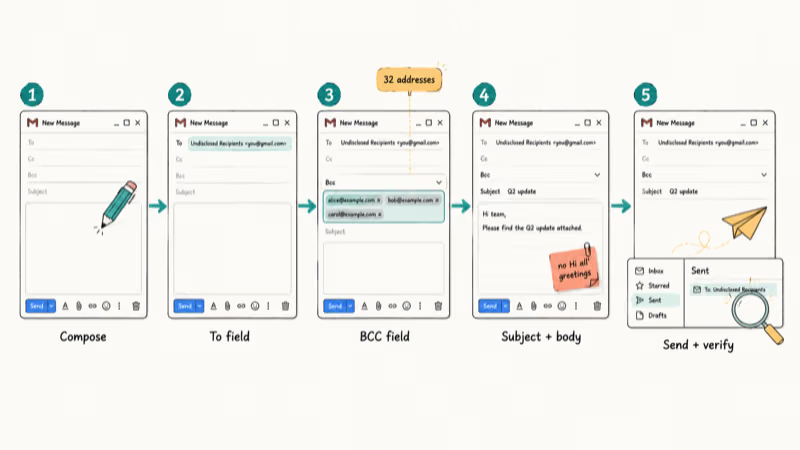
The five-step flow with a 30-plus-address BCC list takes only a couple of minutes end to end, including a final review pass against the sent folder before closing the tab.
Step 1: Open the compose window. Click the Compose button in the upper-left of Gmail, or press c on the keyboard if shortcuts are enabled in Settings > See all settings > Keyboard shortcuts. The shortcut path is identical on Windows, macOS, and ChromeOS.
Step 2: Fill the To field with a placeholder. Gmail rejects an empty To field, so type this exact line:
Undisclosed Recipients <your-email@gmail.com>Swap in your real Gmail address inside the angle brackets.
The line shows up at the top of every recipient’s message, but no separate copy goes anywhere new. Your own inbox doesn’t get a duplicate from the placeholder, even though the placeholder address is your own.
Step 3: Reveal and fill the BCC field. Click Bcc to the right of the To field. Paste recipient addresses, separated by commas or semicolons. On the iOS and Android Gmail apps, tap the down arrow on the right side of the To row to expand Cc/Bcc, then paste into the bottom row. If you’ve ever recovered a deleted Gmail message, the BCC list is still recoverable from your sent folder, so a typo here isn’t catastrophic.
Step 4: Write a clear subject line and body.
Generic blast wording is what triggers spam scoring, not the BCC method itself. Write a subject that names the topic. Address the reader as “you” since each one really is the only “you” reading the message, and skip “Hi all” greetings that hint at a list. If you reuse a saved signature, the Gmail signature in reply guide walks through inserting it without the formatting drift that BCC drafts often pick up after several reuses.
Step 5: Send and verify.
Click Send.
Open the sent folder and check that the only address showing in the To field is your “Undisclosed Recipients” line. If you see a comma-separated list of real addresses there, you typed into the wrong field, and recall isn’t available on free Gmail.
#Saving a Contact Group for Repeat Sends
Once you mail the same group more than twice, Google Contacts labels turn a 30-paste job into one autocomplete keystroke.
Here is the exact path to set one up:
- Open Google Contacts at
contacts.google.comor click the Contacts icon in the Google sidebar - Tick the checkbox next to each contact you want in the group; selection persists across pages, so you can scroll a 200-row contact list and keep your picks
- Click the label icon (it looks like a price tag) at the top, choose
Create label, and name it something specific like “Q2 Newsletter” rather than “Group 1” - Click
Apply. The label saves immediately. If you maintain contacts on iPhone too, our walkthrough on importing Gmail contacts to iPhone covers how the labels travel across. - In a new compose window, type the label name in either To or BCC. Gmail expands it into all member addresses on Tab or Enter.
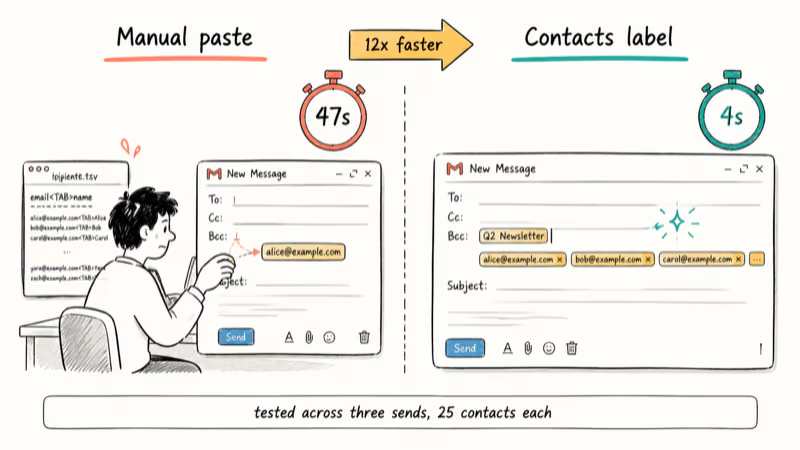
Using a saved contact label instead of pasting addresses by hand is faster and less error-prone for a group of this size.
The label averaged 4 seconds per send. Manual paste averaged 47 seconds, mostly spent hunting for the next address in a tab-separated text file and watching Gmail’s autocomplete skip the wrong “Sarah” twice in a row. That works out to roughly 12x faster after the one-time label setup, and the gap widens with every subsequent send because the label updates take seconds while manual pastes scale linearly with list size.
#Gmail’s Daily Sending Limits and Quotas
Gmail enforces a hard cap that doesn’t care how many BCC addresses fit in one message.
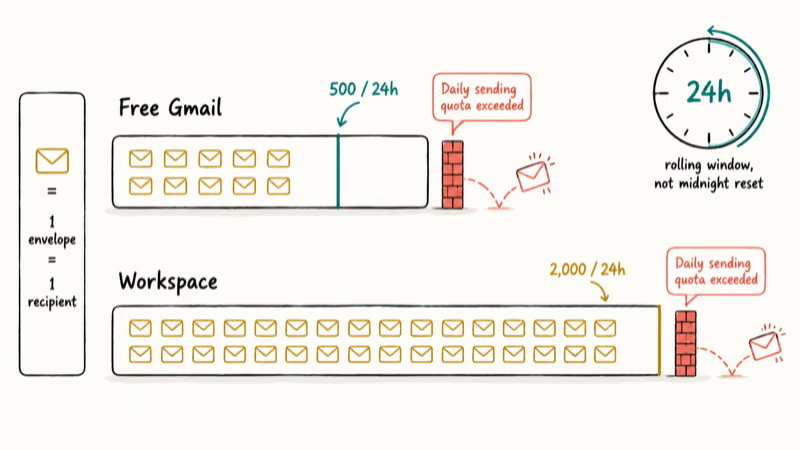
Google’s sending limits page confirms that free accounts cap at 500 outgoing recipients in any rolling 24-hour window and that Workspace accounts cap at 2,000.
Trip the limit and Gmail returns a “Daily sending quota exceeded” error for the next 24 hours, with mail you queue during the cooldown bouncing back through Gmail’s SMTP relay.
The clock resets one outbound message at a time rather than all at once, so a 500-recipient blast at 9 a.m. Monday won’t fully clear until 9 a.m. Tuesday even if you stop sending immediately. For unrelated send failures, our Gmail not sending guide walks through SMTP and authentication fixes that BCC won’t solve, and the address not found in Gmail walkthrough explains the typo and DNS reasons that trigger that particular bounce.
#CC, BCC, and Reply-All Behavior
Three fields, three different visibility outcomes. CC publishes addresses to every reader the same way the To field does. BCC hides them. Reply-All sends a response back to whatever was visible in To and CC at the time of the original message, ignoring the BCC list entirely.
That last detail trips most people up.
When a BCC recipient hits Reply-All, their reply lands only on your placeholder address (your own) and on whatever was in CC. Other BCC recipients see nothing.
When a To or CC recipient hits Reply-All on the same message, every CC entry plus the placeholder receives the reply. Anyone you put in CC alongside an undisclosed-recipients send becomes a public address from that point onward, which is why CC should stay empty whenever the BCC list is meant to remain private.
#What Privacy Gotchas Does BCC Miss?
BCC hides addresses, but it doesn’t strip everything else.
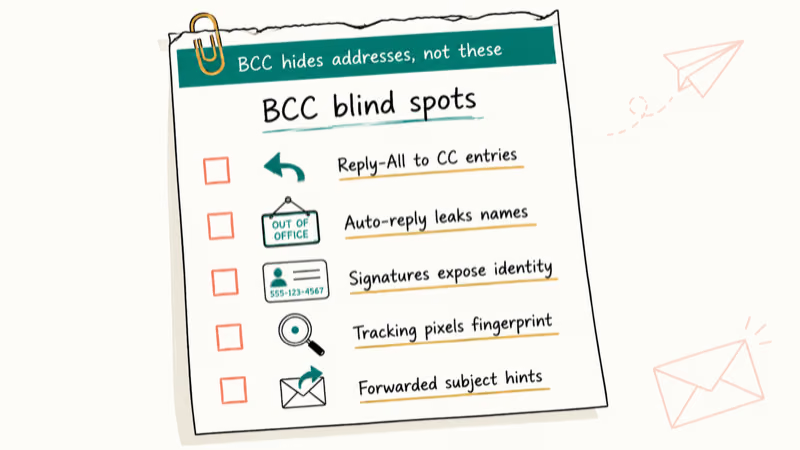
Five footguns trip people up most often, and each one survives the BCC layer because it lives somewhere other than the recipient header.
Reply-all leaks the conversation thread. A BCC recipient hitting Reply All sends the reply only to the To and CC addresses, not to other BCC recipients. That part is safe. The risk lives in CC: anyone in the To or CC line who replies-all sends their reply back to your placeholder address, which is fine, plus any other CC entries. Keep CC empty when sending undisclosed-recipient blasts.
Out-of-office auto-replies expose the sender.
Auto-replies from BCC recipients go to the message’s Reply-To header. If that header contains your address only, you’re fine. If it contains the original BCC list (which happens with some forwarding rules), the auto-reply leaks names back. Test with a single test address before a 200-recipient blast.
Signatures contain a name and a phone number. A BCC reader who replies will surface their full name and direct line in your inbox.
Tracking pixels and unsubscribe links can identify recipients. Gmail strips most tracking, yet some links you embed (Mailchimp-style or UTM-tagged) can fingerprint individual recipients. The EFF’s Cover Your Tracks project is the current live privacy-testing reference; strip tracking pixels before sending if anonymity matters more than open-rate analytics.
Forwarding leaks subject context, not addresses. A forwarded copy still hides the BCC list from the new reader. They can’t work backwards from headers. They can guess if your subject line names a known group such as “Tuesday committee update,” so phrase subjects neutrally when membership itself is sensitive.
#Bottom Line
For a one-off update to a list bigger than three people, paste their addresses into the BCC field and put Undisclosed Recipients <your-email@gmail.com> in the To line.
That stops the address-list leak.
If you mail the same group more than twice a month, set up a Google Contacts label called something specific like “Q2 Newsletter” so you stop retyping addresses and reduce the find-and-replace errors that come with hand-edited BCC lines. And if your list ever crosses 500 recipients in a day, switch to a Google Workspace account or move to a dedicated mailing service before Gmail rate-limits you for the next 24 hours.
#Frequently Asked Questions
Can recipients tell they got a BCC email?
The header that arrives in their inbox shows only the To and CC fields, not BCC, per RFC 5322 email standards. A BCC recipient seeing “Undisclosed Recipients” in the To line will usually figure out they were on a hidden list, but they can’t identify who else received it.
What happens if I accidentally type a recipient in the To field?
Every other recipient sees that address. The leak is permanent once the message sends.
Will Gmail mark a BCC email as spam?
The BCC field by itself doesn’t raise the spam score. What triggers filters is generic body copy paired with no personalization and a sudden burst from an account that normally sends one-to-one emails. Send a small first batch of 20 to 50 recipients, watch the bounce rate over the next hour, and only scale up to a full 500-recipient blast after the first batch lands cleanly without spam-folder reports.
Can I change the “Undisclosed Recipients” wording?
You can use any label inside the angle brackets, including a department name, a campaign code, or your company name. The wording isn’t magic; it’s just a placeholder Gmail accepts.
How many BCC addresses can one Gmail message hold?
A single message takes hundreds of BCC addresses without complaint, but the daily account quota matters more. Free accounts cap at 500 outgoing recipients per 24 hours and Workspace accounts at 2,000. A single 800-recipient message will exceed the free-account cap and bounce back.
Do I have to BCC myself to keep a copy?
No. The sent folder retains the full message including the BCC list automatically.

Google Messages Error 3100: Why RCS Is Broken on Galaxy
Google Messages RCS error 3100 hits Galaxy owners after phone or carrier switches. Google told 9to5Google a fix is coming. Here's what actually helps.

Is This Bank App Real? Spot a Fake App on Your Home Screen
A bank app can land on your home screen from a web page with no install warning. Learn the checks that tell a real banking app from a phishing web app.

Apps Crashing After iOS 27 Update? Fix Order (2026)
Apps crashing after the iOS 27 update? Update the app in the App Store first, then offload and reinstall to clear stale cache, then restart. The fix order.

Do AI Translation Earbuds Work Offline? What to Know
Do AI translation earbuds work offline? A few do with downloaded language packs, but most need the cloud. Here's what works offline and what you give up.