How to Add a Gmail Signature in Replies (2026 Guide)
Learn how to add a Gmail signature in replies on desktop, Android, and iPhone. We cover toggle placement, images, and fixes for missing signatures.
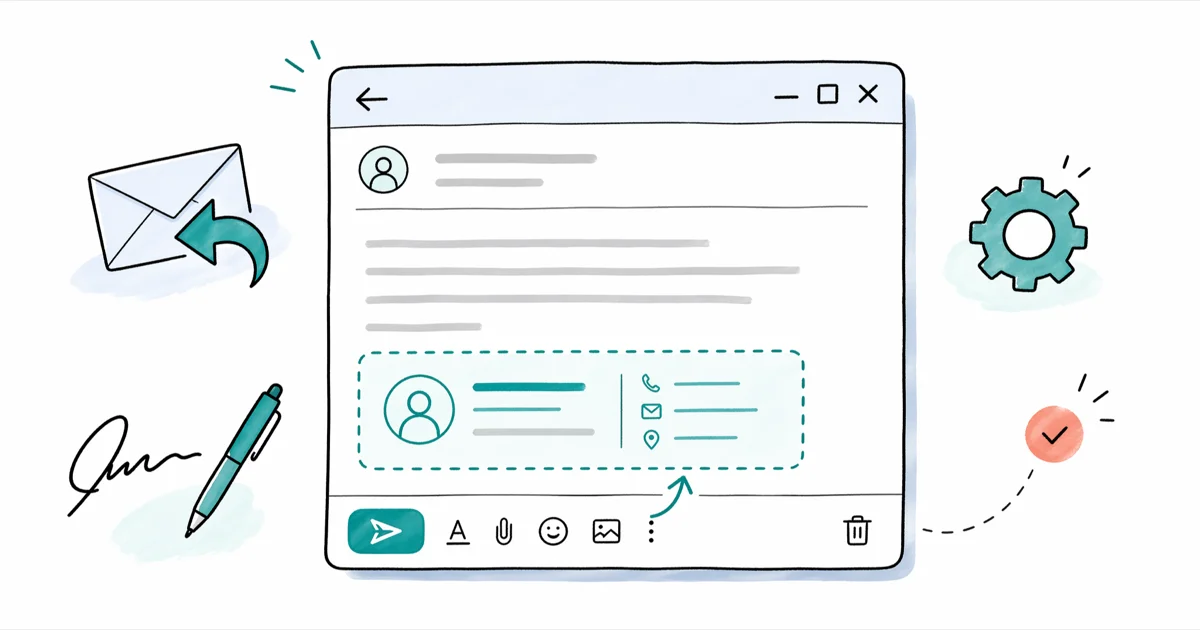
Quick AnswerTo add a Gmail signature in replies, open Settings > See all settings > General > Signature, create a signature, then tick 'Insert this signature before quoted text in replies and remove the -- line that precedes it.' Save changes and Gmail attaches it to every new email and reply.
Adding a Gmail signature in reply trips up plenty of users because Gmail hides the toggle three menus deep, then defaults to placing your signature beneath the quoted message where nobody scrolls. The fix takes about four minutes once you know where to look. This guide walks through the desktop setup, the separate workflow for the Android and iOS apps, and what to do when your signature stops showing up in replies.
- Gmail supports multiple signatures per account, so you can switch between work, personal, and promotional versions inside
Settings>General. - The signature defaults to placement below the quoted reply text; checking “Insert this signature before quoted text” moves it directly under your reply where readers actually see it.
- The Gmail mobile apps use a separate “Mobile Signature” field, so your desktop signature won’t sync to phones automatically.
- Image and logo signatures must point to a public URL or a Drive file shared as “Anyone with the link”; otherwise recipients see a broken image icon.
- Workspace admins can lock signatures organization-wide, which overrides anything users set in their personal Gmail signature settings.
#How Do You Add a Signature That Shows Up in Gmail Replies?
The signature lives in Settings > General > Signature. After you create one, the step most guides skip is checking “Insert this signature before quoted text in replies and remove the ’—’ line that precedes it.” Without that checkbox, Gmail still attaches the signature, but buries it at the bottom of the quoted thread where recipients rarely scroll.
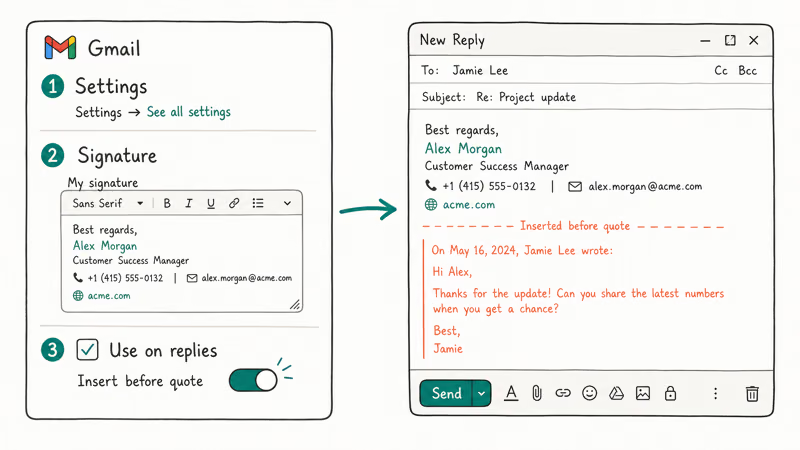
The signature appears above the quoted text only after that checkbox is ticked and the Settings page is saved. Refreshing the compose window alone doesn’t pick up the change.
Here’s the full path for first-time setup:
- Open Gmail in your browser and click the gear icon in the top right.
- Click “See all settings.”
- On the “General” tab, scroll to the “Signature” section.
- Click ”+ Create new” and give the signature a name. Gmail lets you store multiple.
- Type or paste the signature body. Use the toolbar for font, color, bullets, hyperlinks, and image insertion.
- Under “Signature defaults,” choose which signature applies to “FOR NEW EMAILS USE” and “ON REPLY/FORWARD USE.”
- Tick “Insert this signature before quoted text in replies and remove the ’—’ line that precedes it.”
- Scroll to the bottom and click “Save Changes.”
According to Google’s Gmail signature help page, each Gmail account can store multiple signatures with separate defaults for new mail and for replies or forwards. This is handy if you send from both a personal address and a work alias through the same inbox. If you’re also setting up account recovery options at the same time, the Gmail account recovery guide covers the verification steps.
#Setting Up Your Gmail Signature on Desktop
Once you reach the Signature panel, the editor behaves like a small rich-text document. Bold, italic, underline, font family, size, color, alignment, lists, indent, link, and image controls sit along a single toolbar at the top.
A few desktop rules help keep replies consistent:
- Keep your signature short. Recipients on Outlook and Apple Mail often see long signatures clipped or thrown into a “[message truncated]” warning. A compact signature is easier to read.
- The ”—” dashes that Gmail used to inject before signatures are a holdover from plain-text email conventions. Modern clients don’t rely on them, but Gmail still adds them unless you tick the checkbox above.
- Font and color choices usually stick across replies, but send yourself a sample before using a new signature with customers.
If you manage multiple addresses with Gmail’s Send mail as feature, point each address to the right signature using the “Signature defaults” dropdowns at the top of the Signature panel. Otherwise Gmail falls back to the default signature regardless of which address you send from, which can cause embarrassing mix-ups where work signatures land on personal emails or vice versa.
Wikipedia’s signature block entry confirms that the ”— ” delimiter dates back to RFC 3676 plain-text email conventions and was originally designed for Usenet newsgroup software. Modern HTML clients like Outlook 365, Apple Mail, and Yahoo Mail no longer rely on the dashes to detect a signature boundary. That’s why Gmail’s checkbox to remove the dashes is mostly visual cleanup rather than a compatibility fix.
For people wrestling with delivery issues alongside signature setup, the Gmail not sending emails troubleshooting guide covers the SMTP, DNS, and Workspace gotchas that often surface during the same configuration session.
#What If Gmail Skips the Signature in Replies?
A signature that works for new emails but vanishes from replies is almost always a toggle problem, not a bug. Three settings cause most reply-signature failures:
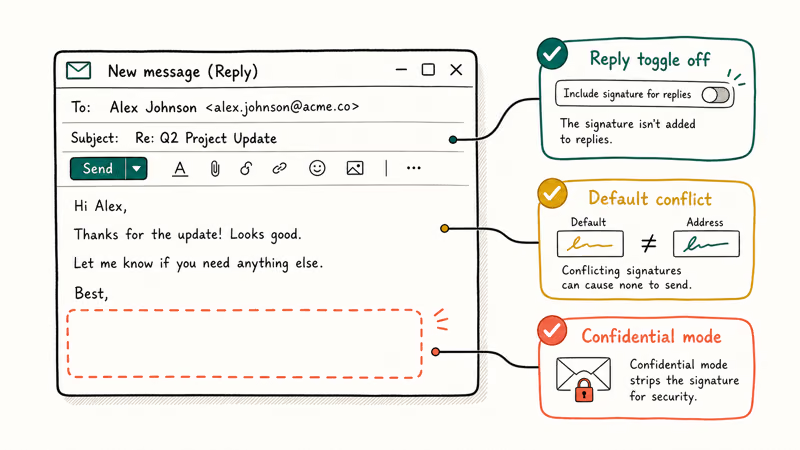
- The “Insert this signature before quoted text” checkbox is off. Gmail still applies the signature, but tucks it after the quoted thread. Recipients only see it if they expand the full message.
- The “On reply/forward use” dropdown is set to “No signature.” This dropdown is separate from the new-mail dropdown, so it’s easy to miss. Switch it to your signature name and save.
- A Workspace admin has overridden personal signatures. Google’s Workspace admin footer documentation states that administrators can append a standard footer to all outbound mail, and users can’t change or remove it. If you’re on a school or company account, ask your IT contact.
If one of these settings is wrong, change the matching toggle and click Save Changes at the bottom of the Settings page. Gmail doesn’t auto-save Settings, so if you close the tab too quickly, your edits revert without warning.
One more thing: confidential mode strips signatures from the preview, but the delivered email keeps them.
#Adding a Gmail Signature on Android
The Gmail Android app keeps a completely separate signature called Mobile Signature. It doesn’t sync from the desktop, doesn’t honor the “before quoted text” checkbox, and only supports plain text — no logos, no formatted links, no images.
Here are the steps to set it up:
- Open the Gmail app on your Android phone or tablet.
- Tap the three-line menu icon in the top left.
- Scroll down and tap “Settings.”
- Tap the Google account you want to set up.
- Tap “Mobile Signature.”
- Type your signature text and tap “OK.”
The signature now appears in every email sent from that account in the app, including replies and forwards. It doesn’t appear in the desktop Gmail interface or in the Gmail iOS app. Each platform keeps its own signature.
The change takes effect without restarting the app. Switching between work and personal accounts in the side panel loads each account’s signature, so you don’t need to swap settings manually when replying from a different inbox.
If you also use Gmail through a third-party client like Thunderbird, the Thunderbird Gmail setup walkthrough covers the IMAP and OAuth configuration where signatures get attached at the client level rather than at Google’s servers.
#Adding a Gmail Signature on iPhone or iPad
The iOS workflow mirrors Android with one extra wrinkle: the Gmail app on iOS has its own Mobile Signature field, but it also doesn’t honor HTML or images. If you want a rich signature on iPhone, your only option is to send through the desktop Gmail web interface or through Apple Mail with a Gmail account configured via IMAP.
Here’s how to set the plain-text Mobile Signature on iOS:
- Open the Gmail app on your iPhone or iPad.
- Tap the three-line menu icon in the top left.
- Scroll down and tap “Settings.”
- Tap the Gmail account you want to configure.
- Tap “Signature settings.”
- Toggle “Mobile Signature” on and type your signature.
- Tap the back arrow to save.
Signatures created in the Gmail iOS app attach to messages sent from that app. They don’t appear when forwarding through Apple Mail using the same Gmail account.
That’s because the Mobile Signature field belongs to the Gmail app, not the Google account.
If you also need to recover lost mail along the way, see the guide on recovering deleted Gmail messages.
#Adding Images, Logos, and Links to Your Signature
A text-only signature works fine, but a logo plus social icons makes the signature feel like a business card. Gmail accepts images through three sources: your Google Drive, a local file upload, or a public URL.
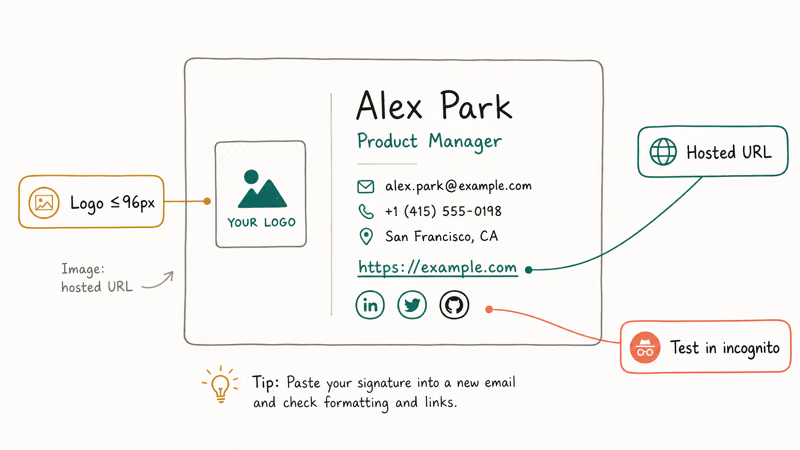
The image dimensions matter. Large logos break responsive layouts on phones and inflate the size of every email you send. Keep logos small enough to stay readable without dominating the message.
For hyperlinks:
- Highlight the text or icon you want to link.
- Click the link icon (looks like a chain link) in the signature toolbar.
- Paste the URL and click OK.
The most common image mistake is uploading from Google Drive without making the file public. If the file is set to “Restricted,” recipients see a broken image icon because their email clients can’t authenticate to your Drive. Change the sharing to “Anyone with the link can view” before saving the signature.
Stack signature blocks vertically rather than spreading them across a wide horizontal row, because mobile clients collapse multi-column layouts and rearrange elements unpredictably.
If you need to send long messages with both your signature and attachments through Gmail, the BCC and undisclosed recipients guide covers the privacy-friendly addressing setup that pairs naturally with a polished signature.
#Bottom Line
For most users, the fix for “Gmail signature not showing in replies” is two clicks: open Settings > General > Signature, tick the “Insert this signature before quoted text” checkbox, and save. The desktop change doesn’t propagate to your phone, so set the Mobile Signature separately on Android and iOS if you want consistent branding across devices.
Skip the temptation to paste a giant HTML signature with multiple columns. A short five-line text signature with a small logo renders correctly on every major mail client and looks professional without overwhelming the message.
#Frequently Asked Questions
Can I have a different signature for new emails versus replies?
Yes. Under “Signature defaults” in Settings > General, Gmail has two separate dropdowns: “FOR NEW EMAILS USE” and “ON REPLY/FORWARD USE.” You can assign different signatures to each, or pick “No signature” for one and a full signature for the other. The setting saves per Google account.
Why is my Gmail signature not showing in sent replies?
The most common reason is that the “On reply/forward use” dropdown is set to “No signature,” or the “Insert this signature before quoted text” checkbox is unchecked. Open Settings > General > Signature, fix both fields, scroll to the bottom, and click Save Changes. If you’re on a Workspace account, a domain-level admin policy may also be overriding personal signatures.
How long can a Gmail signature be?
Most receiving mail clients clip long signatures as “[message truncated].” Five lines is the sweet spot for reliable rendering.
Can I add an image to my Gmail signature on mobile?
No. The Gmail mobile apps on Android and iOS only support plain-text “Mobile Signature.” If you need a logo or formatted signature on your phone, send through the Gmail web interface in a mobile browser instead, or use Apple Mail with your Gmail account configured via IMAP.
Does the Gmail app on my phone use my desktop signature?
No, the desktop Gmail signature and the mobile signature are completely separate. You’ll need to enter the signature text on each device. There’s no way to sync them automatically.
Can I add hyperlinks and social icons to my signature?
Yes, on desktop. Highlight the text or icon in the Signature editor, click the link icon in the toolbar, and paste the URL. Social icons work the same way: insert the image, then link it. Just remember that mobile clients can’t display custom-formatted signatures, so the icons only render on desktop.
Will my signature appear when I reply from an alias address?
Yes, if you’ve assigned a signature to that alias in the “Signature defaults” dropdown. Gmail lets you map a separate signature to each address linked through “Send mail as,” which is useful for people who manage a personal and a business address from the same inbox.
Google Messages Error 3100: Why RCS Is Broken on Galaxy
Google Messages RCS error 3100 hits Galaxy owners after phone or carrier switches. Google told 9to5Google a fix is coming. Here's what actually helps.

Is This Bank App Real? Spot a Fake App on Your Home Screen
A bank app can land on your home screen from a web page with no install warning. Learn the checks that tell a real banking app from a phishing web app.
Apps Crashing After iOS 27 Update? Fix Order (2026)
Apps crashing after the iOS 27 update? Update the app in the App Store first, then offload and reinstall to clear stale cache, then restart. The fix order.
Do AI Translation Earbuds Work Offline? What to Know
Do AI translation earbuds work offline? A few do with downloaded language packs, but most need the cloud. Here's what works offline and what you give up.