How to Import Contacts From Gmail to iPhone (4 Ways)
Import contacts from Gmail to iPhone using 4 proven methods including Google account sync, iCloud vCard import, and direct file transfer. Works on iOS 16+.
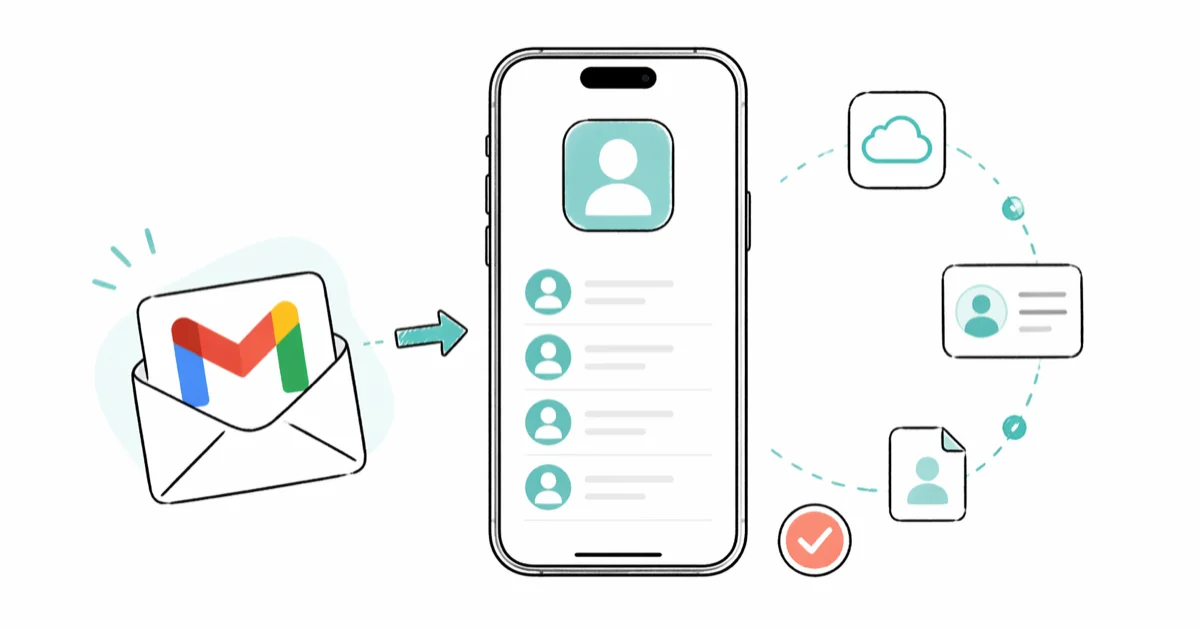
Quick AnswerOpen Settings, tap Contacts, choose Accounts, add a Google account, sign in, and turn on the Contacts toggle. Your Gmail contacts sync to the iPhone Contacts app within a few minutes.
Your Gmail contacts don’t have to stay locked inside Google. You can pull them onto an iPhone in under five minutes, and there are four ways to do it depending on whether you want ongoing sync or a one-time copy. The fastest path runs through the Settings app and uses your Google account directly.
There are four ways to do it, and the fastest, the Settings sync, takes only a couple of minutes from sign-in to the last contact appearing in the Phone app. If you’re moving everything to a new iPhone or just want your Google address book inside iMessage and the Contacts app, one of the four methods below will get you there.
- The Settings sync method (Settings, Contacts, Accounts, Google) usually imports a few hundred contacts in about two minutes.
- After the initial sync, individual contact edits replicate between Gmail and iPhone within seconds.
- The vCard export from contacts.google.com gives you per-contact control, so you can transfer a specific subset rather than the whole address book.
- Google Contacts only syncs entries from the main Contacts list; people stored in the Other Contacts group don’t transfer automatically and must be promoted first.
- Group labels don’t carry across the bridge from Gmail to the iPhone Contacts app, so you have to recreate any custom groups manually after the sync runs.
#Sync Gmail Contacts Through iPhone Settings
Start here. It opens an ongoing two-way sync between Gmail and the iPhone Contacts app.
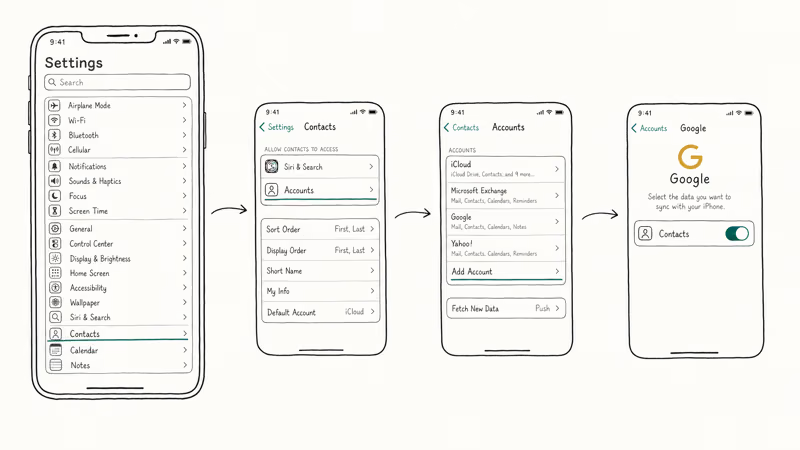
- Open the Settings app on your iPhone.
- Tap Contacts.
- Tap Accounts, then Add Account.
- Select Google.
- Sign in with your Gmail address and password.
- Toggle Contacts to on.
- Tap Save.
Your Gmail contacts begin appearing inside the Contacts app within a few minutes. According to Google’s iOS contacts setup page, the iPhone must use an SSL connection for the sync to succeed.
This is the default on iOS 16 and later, so no manual toggle is required.
The initial pull usually brings in a few hundred contacts within a couple of minutes. After that first sync settles, edits on either side reflect on the other within seconds. The job runs in the background, so you don’t need to keep the Contacts app open while it works.
One thing to watch: if you already have local contacts saved in iCloud or on the device, you may see duplicates. Open Contacts, Lists, All Contacts, find a duplicate, and tap Link Contacts to merge the entries into a single card.
#When the Settings Method Won’t Work
If your Google account uses a hardware security key for two-factor authentication, the iOS sign-in falls back to a browser prompt that you must complete in Safari before the sync will start. Some corporate Google Workspace accounts also block third-party device access by policy, which prevents the iOS Contacts toggle from saving. If your work Gmail refuses to connect, ask your IT admin to enable mobile contacts access for your account.
#Import Gmail Contacts to iCloud Through a vCard
This route is best when you want a one-time copy without leaving an active sync running between the two services. You export your Gmail address book as a vCard (.vcf) file and import that file into iCloud, which then pushes the contacts down to every Apple device tied to your Apple Account.
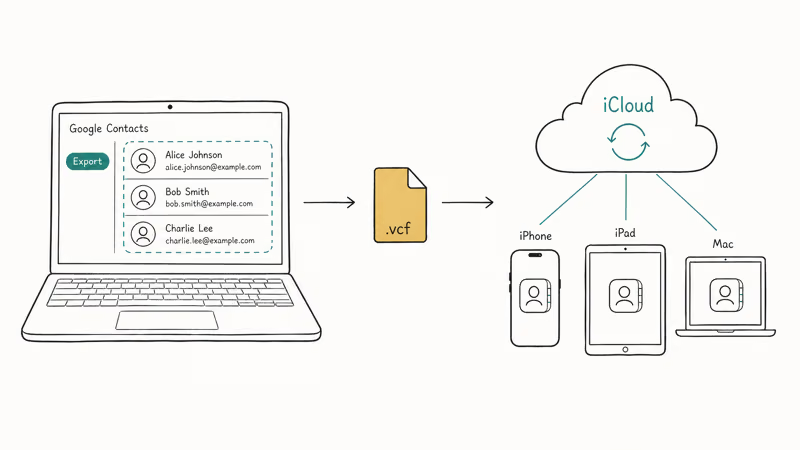
- On a computer, go to contacts.google.com and sign in.
- Click Export in the left sidebar (or select specific contacts first).
- Choose vCard (for iOS Contacts) as the format.
- Click Export to download the .vcf file.
- Go to icloud.com/contacts and sign in with your Apple Account.
- Click the settings gear icon, then choose Import vCard.
- Select the .vcf file you downloaded.
Apple’s iCloud contacts import documentation confirms that 1 vCard import propagates automatically to every device signed in to the same Apple Account, provided iCloud Contacts is on. On the iPhone, double-check this under Settings, [your name], iCloud, Contacts.
A moderately sized .vcf file imports almost instantly, and iCloud.com finishes the upload within seconds.
The vCard route gives you finer control than the Settings sync. You can hand-pick contacts to export rather than dumping the entire Gmail directory, which is useful if you only want work contacts, a specific label group, or a few entries you tagged earlier in Gmail.
#Can You Transfer Contacts Without a Computer?
Yes. You can build a vCard file directly on the phone, save it to Files, and import it without ever opening a desktop browser.
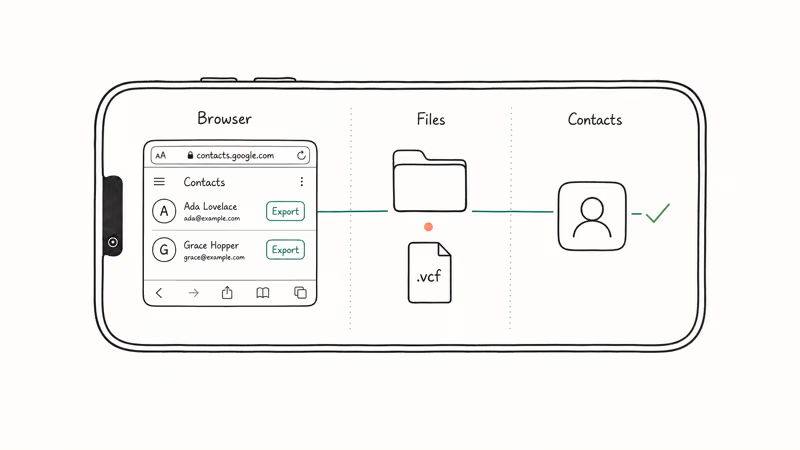
- On the phone browser, go to contacts.google.com.
- Select the contacts you want to transfer.
- Tap Export and choose vCard format.
- The .vcf file downloads to your phone.
- Open the Files app and locate the downloaded .vcf file.
- Tap the file and select Add All Contacts when prompted.
This works well for batches under 50 contacts. For larger lists, the Settings sync is more reliable because it runs in the background and won’t time out the way a mobile browser export sometimes does on slow connections.
If you’re also planning to share contacts between iPhone and Android, the vCard format is convenient because both platforms read .vcf natively.
#Do You Need a Third-Party App?
Not for most people. The built-in Settings sync and the vCard export cover almost every Gmail-to-iPhone transfer scenario you’ll hit. Third-party apps earn their place in two narrow situations.
When third-party apps make sense:
- You are merging contacts from several Google accounts at once and want to deduplicate during the import.
- You manage thousands of contacts with custom fields like notes or secondary emails that don’t always survive a vCard round-trip.
- You want to write contacts directly to the iPhone’s local store rather than into iCloud.
Apps like CopyTrans Contacts plug the iPhone into a computer and pull contacts straight from your Google account, then push them to the device’s local address book. They earn their license fee for power users juggling multiple address books, but for a vanilla single-account Gmail-to-iPhone copy they add complexity without benefit.
According to Google’s account sync documentation, the native sync through iPhone Settings preserves all 4 of the standard contact field groups: phone numbers, email addresses, postal addresses, and birthdays. Custom labels and contact photos cross over too, although photo resolution can drop slightly compared with the original Google Contacts version.
If you have ever fought with iCloud contacts not syncing, a third-party app is one way to skip iCloud entirely and keep the address book on the device’s local store.
#Troubleshooting Common Sync Problems
Contacts don’t always show up immediately. Run through this list when something looks off after the sync.
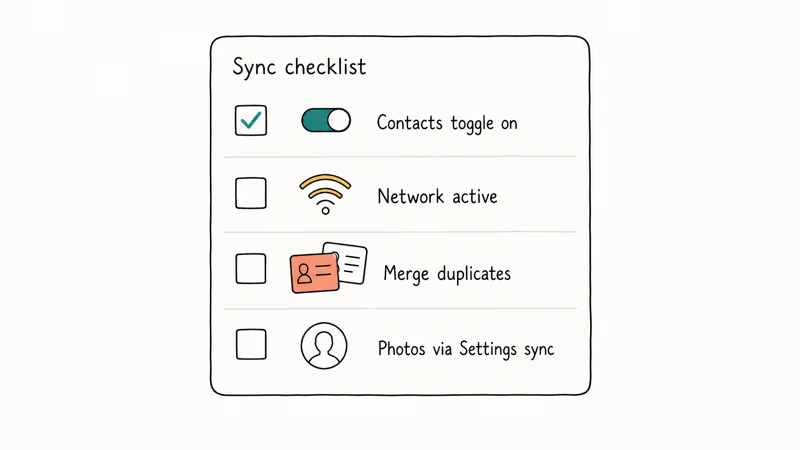
Contacts not appearing after sync:
- Open Settings, Contacts, Accounts, tap your Google account, and confirm the Contacts toggle is green.
- Pull down inside the Contacts app to force a refresh.
- Check the network. The sync needs Wi-Fi or cellular data; airplane mode kills it silently.
Duplicate contacts appearing:
- Open Contacts, find the duplicate, tap Edit, scroll down, and tap Link Contacts to merge the entries into a single record.
- Duplicates usually mean the same person exists in both your iCloud list and your Google list.
Contact photos or notes missing:
- Google Contacts and Apple Contacts use different formats for some fields. Profile photos don’t always cross over through a vCard import, so use the Settings sync if photo fidelity matters to you.
One quirk to expect is that contacts saved inside Google Groups don’t appear with their group labels intact. Individual entries sync fine, but the group structure doesn’t survive the trip. If you rely on contact groups inside Gmail, plan to recreate them on the iPhone Contacts app after the import.
If your other Gmail features are also acting up, it’s worth checking whether Gmail is failing to send emails, since a broken Google account session can stall the contacts sync at the same time.
#Keeping the Two Address Books in Sync Long-Term
After the initial import, you want changes to flow between Gmail and the iPhone for as long as the account stays connected.
If you used the Settings sync: You are done. Contacts move both ways automatically. Add a contact on the iPhone and it appears in Gmail; edit one in Gmail and the change lands on the iPhone within seconds.
If you used the vCard route: That was a one-time import. New Gmail contacts won’t appear on the iPhone unless you repeat the export.
For people who treat Gmail as their primary email but the iPhone as their main phone, the Settings sync is the better long-term choice. You can also transfer iCloud data to Google Drive if you ever need traffic going the other direction.
Set the default account for new contacts while you’re in there. Go to Settings, Contacts, Default Account, and pick either Gmail or iCloud. That choice decides where new contacts you create on the iPhone get saved going forward, so if you want everything to live inside Google, set this to your Gmail account; otherwise leave it as iCloud and let Apple keep the canonical record while Gmail mirrors it for the web side.
#Bottom Line
Start with the Settings sync. It takes about two minutes to set up on iOS 18 and keeps both address books current with no further work, which is why we recommend it as the default for almost every Gmail-to-iPhone transfer.
Use the vCard import only for one-time copies.
Skip third-party apps unless you’re juggling multiple Google accounts or thousands of contacts with custom fields. If sync still refuses to populate the Contacts app after a fresh sign-in, check whether Google Photos is also failing to back up, since both services share the same Google account session and tend to break together.
iPhone tips & tricks
#Frequently Asked Questions
How long does it take to sync Gmail contacts to iPhone?
Usually one to three minutes for an address book under 500 entries.
Lists with 1,000 or more contacts can take up to ten minutes depending on your network speed and how many of those records carry photos or notes that need to come along for the ride. Once the first run completes, individual edits typically appear on the other side inside roughly 30 seconds, fast enough that you can edit on a laptop and watch the change on the iPhone before you put the laptop down.
Will syncing Gmail contacts delete my existing iPhone contacts?
No. Adding a Google account stacks a new contact list alongside your existing iCloud or on-device contacts. Nothing gets overwritten, and the iPhone keeps both sources visible inside the Contacts app at the same time. You may see duplicates where the same person exists on both sides, but the original entries stay exactly where they were before you added the Google account, and you can merge any duplicates manually through the Edit > Link Contacts flow.
Can I sync contacts from multiple Gmail accounts to one iPhone?
Yes. Go to Settings, Contacts, Accounts, Add Account and repeat the flow for each Gmail address.
What happens if I remove my Google account from iPhone Settings?
The synced Gmail contacts disappear from the iPhone, but they remain safe inside your Google account. Re-adding the account later brings them all back. Contacts you created directly on the iPhone under iCloud are not affected.
Do contact photos sync from Gmail to iPhone?
Photos sync when you use the Settings account method, and they often don’t survive a vCard import.
Can I import Gmail contacts to iPhone without internet?
No, both the Settings sync and the iCloud vCard import need an active connection. Already-downloaded .vcf files do open offline through the Files app, but the export from Google itself needs internet.
Why are some Gmail contacts missing after the sync?
Google Contacts splits entries into two buckets. The iPhone sync pulls only from the main Contacts list, not from Other Contacts. Open contacts.google.com, jump to Other Contacts, and promote anyone important before running the sync again. This step also catches people you exchanged email with years ago and forgot to formally save.
How do I stop Gmail contacts from syncing to my iPhone?
Open Settings, Contacts, Accounts, tap your Google account, and turn off the Contacts toggle. The previously synced contacts disappear from the iPhone but stay inside your Gmail account. If you only want email from that account, leave the Mail toggle on and switch the others off.

How to Transfer Data to a New iPhone Without iCloud
Move everything to your new iPhone without iCloud: Quick Start device-to-device transfer, wired migration, and encrypted Finder or iTunes backups.
Best Wireless Earbuds for iPhone in 2026: USB-C Era Picks
Best wireless earbuds for iPhone in 2026, comparing AirPods Pro 3, Sony WF-1000XM6, Bose QC Ultra, and Anker Liberty 4 NC on the USB-C iPhone lineup.
iPhone Keyboard Lag? 7 Proven Fixes for iOS 26 (2026)
Fix iPhone keyboard lag with 7 proven fixes for iOS 26. Covers restart, storage, predictive text, third-party keyboards, and dictionary reset.
How to Block Porn on an iPhone: A Guide for Parents
Learn how to block porn on iPhone using Screen Time, DNS filtering, and safe browsers. Step-by-step guide for parents to protect kids' devices.