Fix "Address Not Found" in Gmail: 6 Proven Methods
Fix the Gmail "address not found" bounce error. Covers typos, deleted accounts, SMTP codes, server outages, client settings, and prevention steps.
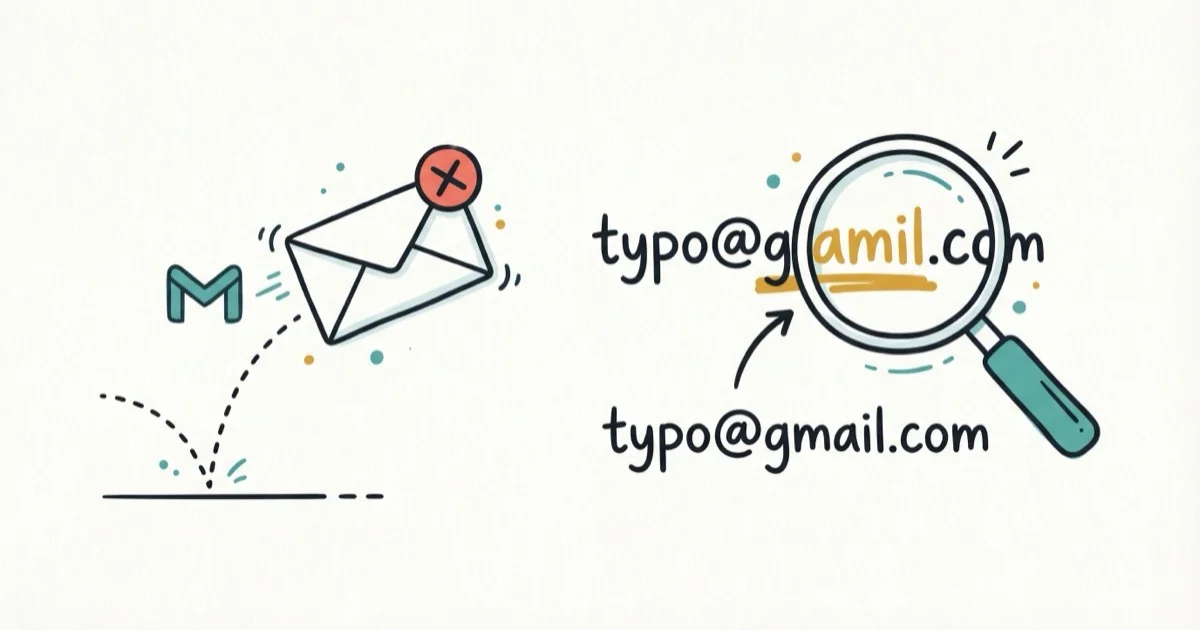
Quick AnswerThe "address not found" error in Gmail means your email bounced because the recipient address has a typo, was deleted, or never existed. Double-check every character first.
Gmail’s “address not found” error means your email bounced back undelivered. The usual causes are typos, deleted accounts, server issues, or bad mail-client settings.
- Typos in the recipient address cause most bounces because Gmail won’t autocorrect even one wrong character
- The SMTP error code 550 5.1.1 confirms the recipient account does not exist on the mail server
- Deleted Gmail accounts permanently reject all incoming email with no recovery option
- Custom domain emails bounce when DNS records are misconfigured or the mail server is offline
- Scheduling a resend 2-4 hours later fixes temporary server outages on the recipient side
#The “Address Not Found” Error Explained
When Gmail returns an “address not found” bounce-back, it means the recipient’s mail server rejected your message. The full error typically reads: “Your message wasn’t delivered because the address couldn’t be found, or is unable to receive email.”
According to Google’s bounce email guide, a rejected message of this kind means the address doesn’t exist or can’t receive mail — what email admins call a “hard bounce.” The failure is permanent, and resending the same message won’t work unless you fix the root cause first. That usually means correcting the address or confirming the recipient’s account is still active.
The bounce-back email includes an SMTP status code.
#How to Read Gmail Bounce Error Codes
Every bounce-back from Gmail includes an SMTP status code. Google’s SMTP error reference documents each code, and the one you’ll see most often is 550 5.1.1, which means “the email account you tried to reach does not exist.”
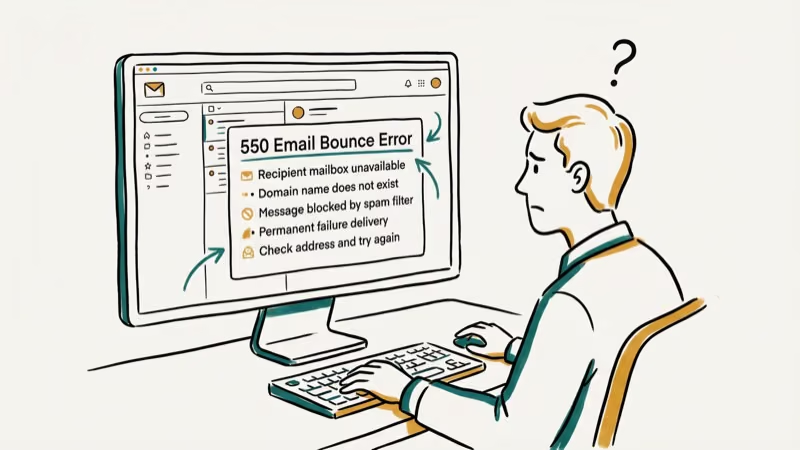
Here’s a quick reference table:
| Code | Meaning | Fix |
|---|---|---|
| 550 5.1.1 | Account does not exist | Verify every character in the address |
| 550 5.2.1 | Account disabled by Google | Reach the person through another channel |
| 550 5.1.2 | Domain not found | Check the part after the @ symbol |
| 553 5.1.3 | Invalid address format | Remove special characters or spaces |
If the bounce shows a different code, match it against the table above to narrow down your next step.
#Six Causes Behind the “Address Not Found” Error
Six issues commonly trigger this bounce.
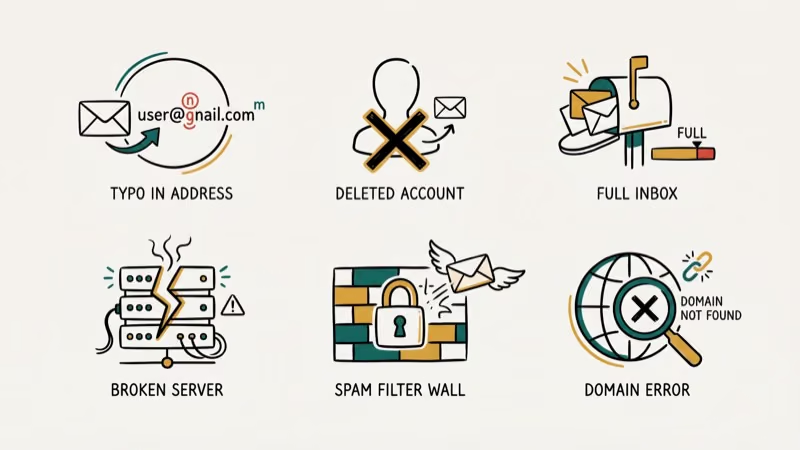
1. Typo in the email address. One wrong letter, extra space, or misspelled domain. This is the most common cause.
2. Deleted or deactivated account. The recipient’s Gmail was deleted or suspended by Google.
3. Recipient’s mailbox is full. Google gives each account 15 GB shared across Gmail, Drive, and Photos. Full storage means bounced emails.
4. Custom domain mail server issues. If you’re emailing someone@company.com, their mail server might be offline, misconfigured, or still waiting on DNS propagation. Newly registered domains and companies that recently switched email providers trigger this error frequently, and DNS changes can take up to 48 hours to fully propagate across all nameservers worldwide.
5. Gmail server outage. Rare, but it happens. According to 9to5Google’s coverage of the December 2020 outage, valid addresses were hit with false “address not found” bounces during the disruption.
6. Recipient blocked you. Blocked senders sometimes get bounce-backs instead of silent delivery failure.
#How Do You Fix “Address Not Found” in Gmail?
Start with Method 1. It resolves the problem for most people.
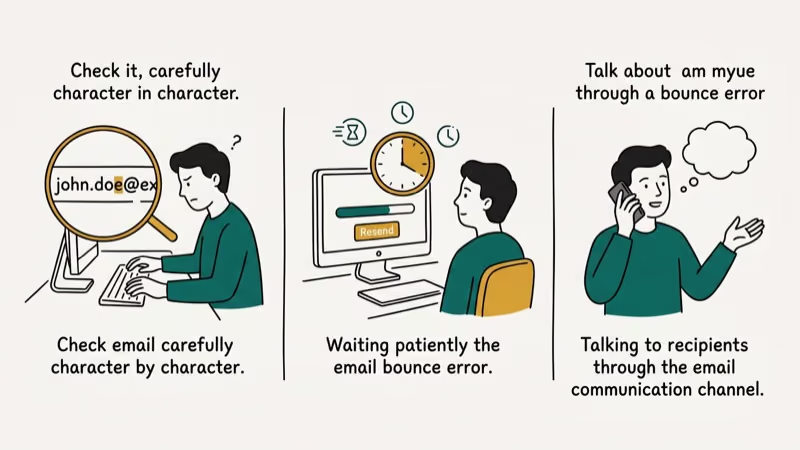
#Method 1: Double-Check the Recipient’s Email Address
Typos cause the majority of these bounces. Go through the address character by character and look for these specific issues:
- Missing or swapped letters: john.doe@gmail.com vs. john.de@gmail.com
- Wrong domain: @gmail.com vs. @gmal.com or @gmail.co
- Extra spaces: Gmail doesn’t trim spaces in the To field
- Period placement: Gmail ignores periods in the local part (j.ohndoe = johndoe), but other email providers don’t
Copy and paste the address from a reliable source instead of retyping it. If you’re sending emails to undisclosed recipients in Gmail, double-check the BCC field too since typos there produce the same bounce.
#Method 2: Verify the Account Still Exists
If the address worked last week but bounces now, the account may have been deleted. Here’s a quick way to check:
-
Open an incognito window (Ctrl+Shift+N on Windows, Cmd+Shift+N on Mac).
-
Go to Gmail’s sign-in page.
-
Type the recipient’s email address.
-
Click Next.
If you see “Couldn’t find your Google Account,” the address no longer exists. If it asks for a password, the account is still active and the problem is something else.
Google sometimes displays “This account was recently deleted” for addresses removed in the past few weeks. Either way, you’ll need to contact the person through another channel to get their new address. There’s no way to deliver email to a deleted account.
Having trouble with your own account? Check our guide on fixing the Account Action Required notification in Google.
#Method 3: Check Gmail Server Status
Sometimes the problem is on Google’s end. Gmail processes over 300 billion emails per day, and outages do happen.
Go to the Google Workspace Status Dashboard and look for any orange or red indicators next to Gmail. A green check means Google considers the service healthy, so the problem is more likely on your end or the recipient’s.
If there’s an active outage, wait it out. Most Gmail outages clear within a few hours. You can also check Downdetector’s Gmail page for real-time user reports, which often surface problems before Google’s official dashboard updates.
#Method 4: Schedule the Email for Later
If you suspect a temporary server issue on the recipient’s end, Gmail’s scheduling feature retries delivery automatically:
-
Open Gmail and click Compose.
-
Write your email and add the recipient’s address.
-
Click the small arrow next to the Send button.
-
Select Schedule send.
-
Pick a time 2-4 hours from now.
-
Click Schedule send to confirm.
Your scheduled email appears in the Scheduled folder on the left sidebar. This works well when you’re emailing someone on a custom domain and their IT team is doing maintenance. It won’t help if the address actually doesn’t exist.
#Method 5: Try an Alternative Contact Method
When Methods 1-4 don’t solve it, the recipient’s email setup likely has a deeper problem you can’t fix from your side.
Try reaching them through phone, social media, or a messaging app. If they have a secondary email address, send your message there instead. Some “address not found” errors are limited to one sender path, so an alternate email provider can help confirm whether the recipient address still works.
For contacts you email regularly, keep their phone number saved as a backup. You can import contacts from Gmail to iPhone to make sure you always have alternate ways to reach them.
#Method 6: Check Your Email Client Configuration
If you access Gmail through a third-party client like Thunderbird or Outlook, the error might come from your client’s SMTP settings rather than the address itself. The error message looks identical to a real bounce, but the address is perfectly valid.
Verify these settings:
- Outgoing SMTP server: smtp.gmail.com
- Port: 587 (TLS) or 465 (SSL)
- Authentication: your full Gmail address and an app password (required with 2-step verification)
A Gmail Community thread on this exact error found that outdated SMTP settings in third-party clients trigger false “address not found” errors, with mail flowing again once the settings were updated.
If you use Thunderbird, check our guide on setting up Thunderbird with Gmail for the correct configuration.
#Preventing “Address Not Found” Bounces
A few habits stop most bounce errors before they happen.
Keep your contacts updated. When someone shares a new email address, update it in Google Contacts immediately. Addresses that worked six months ago might be deleted now.
Use Gmail’s autocomplete. It fills in addresses as you type.
Watch for bounce patterns. If emails to a specific domain keep bouncing, that domain’s mail server likely has a recurring problem. The Google Workspace Status Dashboard tracks Gmail-side issues, but recipient-side problems won’t appear there.
Enable read receipts for important emails. Available for Google Workspace accounts.
If your Gmail isn’t sending emails at all and the problem affects every recipient, the issue is on your account’s side rather than any individual address. Check your internet connection, SMTP settings, and account storage before troubleshooting the recipient’s address.
#Why Do Valid Addresses Still Bounce?
Sometimes the address is correct and you’ve emailed it before, but Gmail still returns the “address not found” error.
Based on multiple Gmail Community reports, this happens when:
- The recipient’s storage is completely full (15 GB limit)
- Google temporarily suspended their account for unusual activity
- A DNS propagation delay is affecting their custom domain
- Gmail’s spam filters are blocking your sender address specifically
For important messages that keep bouncing, try recovering deleted emails from your computer to verify you still have the correct address from past conversations.
#Bottom Line
The “address not found” error almost always comes down to a typo or a deleted account. Start by checking every character in the recipient’s address. If that looks correct, verify the account still exists using the incognito sign-in test. For temporary server problems, schedule the email 2-4 hours out and let Gmail retry.
If nothing works, reach the person through a different channel to confirm their current address.
#Frequently Asked Questions
What does “address not found” mean in Gmail?
It means Gmail tried to deliver your email but the recipient’s mail server rejected it. The bounce-back arrives from Gmail’s Mail Delivery Subsystem and typically includes SMTP error code 550 5.1.1, which means the email account does not exist at that address.
Can a single typo really cause this error?
Yes. Even one wrong character sends your email to a nonexistent address. Typing “gmial.com” instead of “gmail.com” will always bounce. Copy and paste the address from a reliable source instead of retyping it.
How do I check if someone deleted their Gmail account?
Open an incognito window and go to Gmail’s sign-in page. Type their email and click Next. If Google says “Couldn’t find your Google Account,” it’s gone.
Does blocking someone in Gmail cause this error?
It can. Gmail doesn’t officially document this, but some blocked senders get bounce-backs instead of their emails being silently discarded.
Will scheduling an email fix the bounce?
Only if the problem is temporary, like a server outage or maintenance on the recipient’s end. Scheduling gives the server time to recover. It won’t fix a typo, a deleted account, or a permanently broken domain. Set the delivery time 2-4 hours out and check whether it goes through.
Can third-party email clients cause false “address not found” errors?
Yes. Clients like Thunderbird and Outlook with outdated SMTP settings generate this error even when the address is valid. Verify your outgoing server is set to smtp.gmail.com with port 587 for TLS. Updating these settings usually resolves the problem immediately.
How long should I wait during a Gmail server outage?
Most Gmail outages clear within a few hours. Check the Google Workspace Status Dashboard for updates. Don’t resend during an outage; queued messages deliver automatically once service resumes.
Why does Gmail bounce emails to addresses that worked before?
The recipient’s mailbox might be full (15 GB limit shared across Gmail, Drive, and Photos), their account could be temporarily suspended, or a DNS issue is affecting their custom domain. If the address belongs to a company, their IT team may be migrating email servers, which causes temporary delivery failures.

Google Messages Error 3100: Why RCS Is Broken on Galaxy
Google Messages RCS error 3100 hits Galaxy owners after phone or carrier switches. Google told 9to5Google a fix is coming. Here's what actually helps.

Is This Bank App Real? Spot a Fake App on Your Home Screen
A bank app can land on your home screen from a web page with no install warning. Learn the checks that tell a real banking app from a phishing web app.

Apps Crashing After iOS 27 Update? Fix Order (2026)
Apps crashing after the iOS 27 update? Update the app in the App Store first, then offload and reinstall to clear stale cache, then restart. The fix order.

Do AI Translation Earbuds Work Offline? What to Know
Do AI translation earbuds work offline? A few do with downloaded language packs, but most need the cloud. Here's what works offline and what you give up.