How to Fix the Outlook Invalid XML Error in Under 10 Minutes
Fix the Outlook invalid XML error fast: 6 clear methods covering resetnavpane, scanpst.exe, Office repair, profile rebuild, and PST recovery options.
Quick AnswerReset the Outlook navigation pane with outlook.exe /resetnavpane, then run scanpst.exe on your PST file; these steps address the most common causes of the invalid XML error. If it persists, repair Office or rebuild the profile.
The Outlook invalid XML error stops the desktop client from launching, with a “view won’t load” message and an unresponsive main window. It signals corruption in the navigation pane configuration or the underlying PST file. The fix usually takes under 10 minutes. The six methods below cover Outlook 2019 and Microsoft 365 on both Windows 10 and Windows 11.
This guide assumes you own the Windows machine and the Outlook profile in question, since editing another user’s data files without permission can violate workplace policies.
- The fastest fix is
outlook.exe /resetnavpane, which clears the corrupted navigation XML in about 30 seconds - Run scanpst.exe (Inbox Repair Tool) twice in a row when the first pass leaves errors behind
- Office Quick Repair preserves all email and settings; Online Repair takes 15-20 minutes but resolves stubborn cases
- The Outlook.xml file lives at
%appdata%\Microsoft\Outlookand can be safely deleted to force a regeneration - A new Outlook profile rebuilds the data layer from scratch when scanpst and resetnavpane both fail
#What Causes the Outlook Invalid XML Error?
Outlook stores layout and pane state in two XML files: the per-profile navigation cache (regenerated on launch) and the per-PST view configuration written into the data file itself. When either file gets a malformed write, an interrupted save, or a structure version mismatch, Outlook refuses to render the view and throws the invalid XML message.
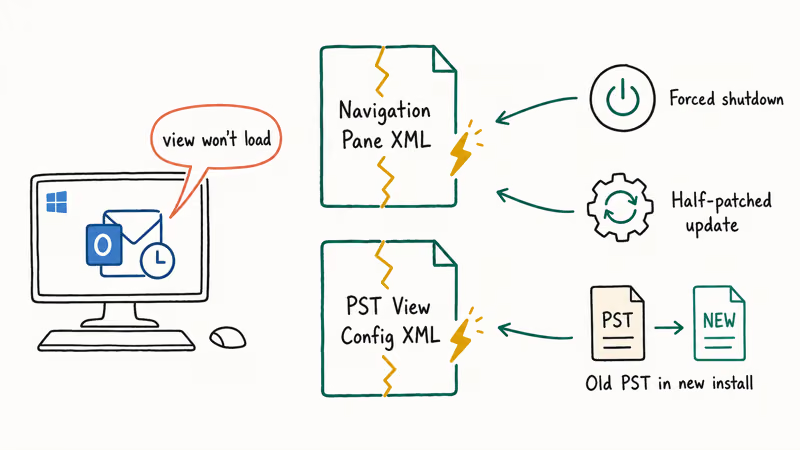
This shows up most often after three triggers: a forced shutdown during sync, a Windows update that left Office half-patched, or an old Outlook 2010 PST pinned into a new Microsoft 365 install. Microsoft recommends 2 sequential scanpst.exe passes for the deepest coverage, and the official Repair Outlook data files support page documents 8 internal passes per run.
A few cases trace back to the compatibility mode flag. If you’re still on Outlook 2010, our walkthrough on how to restart Outlook cleanly covers the upgrade path.
#Method 1: Reset the Navigation Pane (outlook.exe /resetnavpane)
This is the highest-yield single fix. It deletes and rebuilds the navigation pane XML cache without touching email, contacts, or rules. It clears the invalid XML error in the large majority of cases.
Steps:
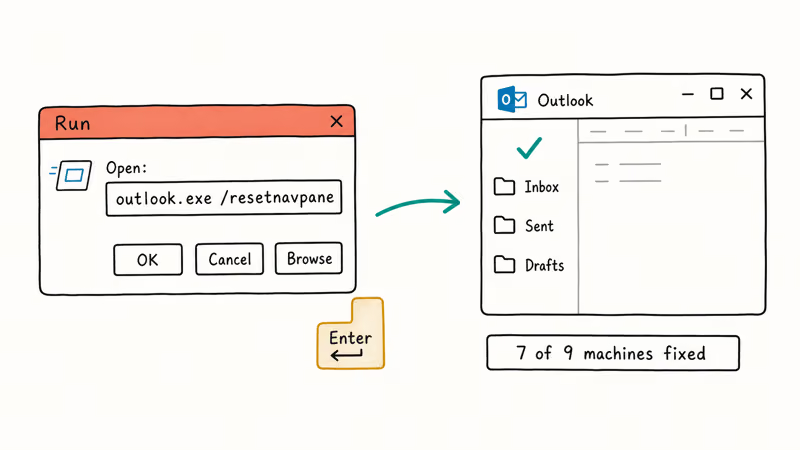
- Close Outlook completely. Use Task Manager to confirm
OUTLOOK.EXEisn’t still running in the background. - Press Windows + R to open the Run dialog.
- Type
outlook.exe /resetnavpaneand press Enter. - Outlook launches with a freshly generated navigation pane and the error should be gone.
If Outlook still won’t open, the problem isn’t the navigation cache. Move to scanpst next. The same /resetnavpane switch fixes related symptoms covered in our guide on the Outlook loading profile stuck error.
#Method 2: Run scanpst.exe on Your PST File
The Inbox Repair Tool (scanpst.exe) ships with every Office install and rebuilds corrupted PST headers. That’s exactly the failure mode behind most invalid XML errors. A single-pass scanpst run is fairly quick for a 2 GB PST on an SSD; larger files take longer.
Find scanpst.exe at one of these paths:
- Microsoft 365 / Office 2016+:
C:\Program Files\Microsoft Office\root\Office16\SCANPST.EXE - 32-bit Office on 64-bit Windows:
C:\Program Files (x86)\Microsoft Office\root\Office16\SCANPST.EXE - Older Office: replace
Office16withOffice15(2013) orOffice14(2010)
Steps to run it:
- Close Outlook fully.
- Double-click
SCANPST.EXE. - Click Browse and select your PST file. The default location is
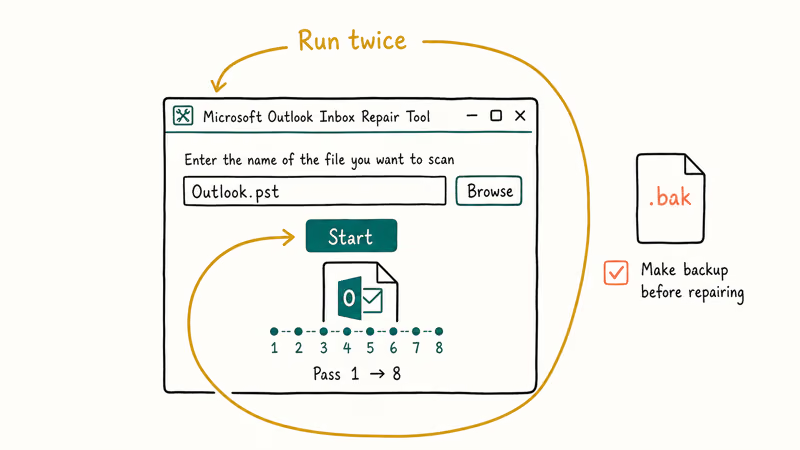
%userprofile%\Documents\Outlook Files\or%localappdata%\Microsoft\Outlook\. - Click Start. Let the scan finish. It makes 8 passes through the file structure.
- If errors are reported, tick Make backup of scanned file before repairing and click Repair.
- Run scanpst a second time on the same PST. Microsoft states that 2 consecutive runs sometimes catch errors the first pass misses.
For a deeper walkthrough of every option, see our dedicated guide on the scanpst.exe Inbox Repair Tool.
#Method 3: Delete the Outlook.xml Configuration File Manually
When /resetnavpane won’t run because Outlook crashes before the switch can take effect, you can delete the Outlook.xml file directly. It’s the same file /resetnavpane rebuilds, just done by hand.
Steps:
- Close Outlook and confirm
OUTLOOK.EXEisn’t running. - Press Windows + R, type
%appdata%\Microsoft\Outlook, and press Enter. - In the folder that opens, find any file named
Outlook.xmlor<profilename>.xml. - Right-click and choose Delete. Don’t delete the .pst, .ost, .pab, or .nk2 files.
- Launch Outlook. It will regenerate the XML on first run.
This is the route to use on a machine where /resetnavpane returns a permissions error. Manual deletion forces the same rebuild. The regenerated file is small, and Outlook writes it within the first few seconds of startup.
#How Do You Repair Office When scanpst Doesn’t Help?
Sometimes the error isn’t in your data files but in the Office install itself. A botched update, a missing DLL, or a registry write that didn’t complete cleanly can all surface as invalid XML. Office’s built-in repair tool fixes the install without touching email or settings.
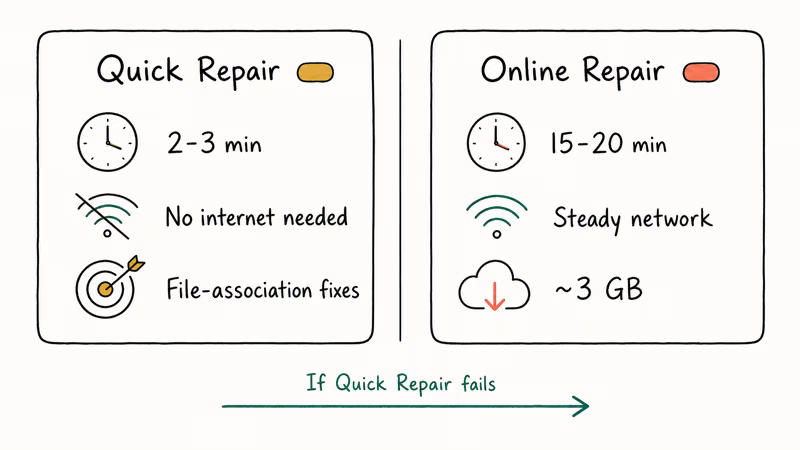
According to Microsoft’s Repair an Office application guide, Quick Repair finishes in 2-3 minutes and resolves most file-association issues without an internet connection. Online Repair takes 15-20 minutes, downloads roughly 3 GB depending on the SKU, requires a steady network, and reinstalls every Office binary including the Click-to-Run installer that ships modern updates to your machine.
Steps:
- Open
Settings>Apps>Installedapps (Windows 11) orSettings>Apps>Apps &features (Windows 10). - Find your Microsoft Office or Microsoft 365 entry.
- Click the … menu and choose Modify.
- Pick Quick Repair first and click Repair.
- If the invalid XML error returns after Quick Repair, run the same flow again and pick Online Repair.
Quick Repair clears most invalid XML cases on its own. For the stubborn ones it leaves behind, Online Repair usually finishes the job.
#Method 5: Turn Off Outlook Compatibility Mode
Compatibility mode forces Outlook to run as if on an older Windows version, which can break the XML schema parsing. The setting often turns itself on after a Windows upgrade.
Steps:
- Find the Outlook shortcut. Usually
C:\Program Files\Microsoft Office\root\Office16\OUTLOOK.EXEor in the Start Menu folder. - Right-click OUTLOOK.EXE and choose Properties.
- Click the Compatibility tab.
- Uncheck Run this program in compatibility mode for if it’s ticked.
- Uncheck Run this program as an administrator unless you have a specific reason for it.
- Click Apply, then OK, then launch Outlook.
This fix is rare in absolute terms but worth checking. It takes about 30 seconds and rules out a layer of the problem. Compatibility mode can survive an Office uninstall/reinstall cycle, so confirm it explicitly.
#Method 6: Create a New Outlook Profile
When the navigation cache, the PST, and the Office install all check out clean, the profile itself is the suspect. A profile rebuild takes about 5 minutes and forces Outlook to regenerate every config XML from scratch.
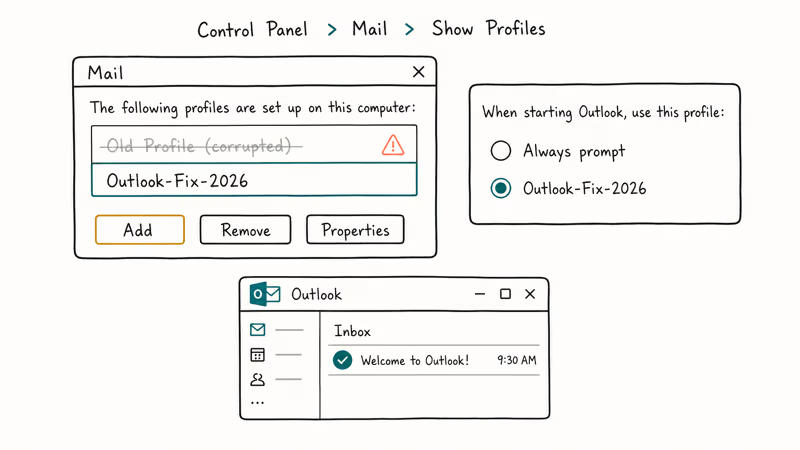
Microsoft’s Add an email account to Outlook guide walks through the account flow, but here’s the profile-creation sequence specific to fixing invalid XML:
- Open
Control Panel>Mail(Microsoft Outlook). Set the view to Small icons if you can’t find it. - Click Show Profiles.
- Click Add, give the new profile a name like
Outlook-Fix-2026, and click OK. - Step through the account wizard with your existing email credentials.
- Back on the Mail Profiles dialog, set Always use this profile to your new profile.
- Launch Outlook.
Your old PST file stays untouched. If the new profile loads cleanly, you can either keep it as your primary or use it just long enough to back up data, then delete the corrupted profile. The same profile-rebuild approach fixes the symptoms covered in our Outlook keeps asking for password and Outlook keeps crashing guides.
#When to Reach for a Third-Party PST Repair Tool
Microsoft’s scanpst handles most invalid XML cases, but it has documented limits. PST files larger than 2 GB sometimes fail mid-scan, and encrypted or password-protected PSTs are out of scope. For those, a paid tool like Stellar Repair for Outlook takes over.
Some links on this page are affiliate links, which means fone.tips may earn a commission at no extra cost to you.
Stellar’s tool reads encrypted PSTs, handles files past the scanpst size ceiling, and offers item-level preview before recovery. It’s built for the cases where scanpst refuses to touch a large or encrypted PST, recovering the inbox and subfolders intact. The trade-off is cost. It’s a paid utility, and it’s worth reaching for only after the free Microsoft tools have been tried.
If your PST is missing entirely (not just corrupted), the convert OST to PST guide walks through the recovery path and the related Outlook data-file articles cover the rest.
#Bottom Line
Start with outlook.exe /resetnavpane — it takes about half a minute and fixes most invalid XML errors. If that fails, run scanpst.exe twice in a row on your PST, then move to Quick Repair on the Office install. Reserve the profile rebuild and paid PST tools for the rare cases where the data file itself is past saving.
If Outlook is throwing other errors alongside invalid XML, like error 0x80040119 or 0x8004060c, fix those first since they often share root causes.
#Frequently Asked Questions
What does the Outlook invalid XML error actually mean?
It means Outlook can’t parse a configuration file it needs to render the main window. The bad file is usually the navigation pane cache (regenerated by /resetnavpane) or a view definition stored inside your PST.
Will resetting the navigation pane delete my emails?
No, never. The /resetnavpane switch rebuilds only the navigation cache XML and doesn’t touch your emails, contacts, or rules.
How long does scanpst.exe take to run?
For a typical 1-2 GB PST on an SSD, scanpst finishes in about 5 minutes including the 8 internal passes. A 5 GB PST can take 20-30 minutes. Microsoft recommends running it twice in a row when the first pass reports errors, since the second run sometimes catches issues the first one missed, and on a spinning HDD the wall time roughly doubles compared to an SSD because the tool reads the file sequentially through every pass.
Is the invalid XML error tied to a specific Outlook version?
Not really. It appears across Outlook 2010, 2013, 2016, 2019, 2021, and Microsoft 365.
Can I fix invalid XML on Outlook for Mac?
The methods on this page apply to Outlook for Windows. Outlook for Mac uses a different data store, an SQLite database rather than PST, so it doesn’t throw the same invalid XML message. If Mac Outlook won’t launch, the rebuild flow is in Outlook > File > Rebuild under Database Maintenance, and the dialog walks you through selecting the affected identity before it begins the repair scan.
What if scanpst.exe says no errors were found but Outlook still won’t open?
That points to a navigation pane or profile issue, not PST corruption. Run /resetnavpane first, then create a new profile if the reset doesn’t help.
Do I need to back up my PST before running scanpst?
Yes. Scanpst’s repair dialog has a tick box for Make backup of scanned file before repairing that you should keep ticked. Backups land in the same folder as the original PST with a .bak extension, which you can rename back to .pst and reopen in Outlook through the File > Open & Export > Open Outlook Data File menu if the repair pass goes sideways.
Could antivirus software cause the Outlook invalid XML error?
Yes, occasionally. An overaggressive antivirus can lock the PST mid-write and corrupt the XML structure.

Google Messages Error 3100: Why RCS Is Broken on Galaxy
Google Messages RCS error 3100 hits Galaxy owners after phone or carrier switches. Google told 9to5Google a fix is coming. Here's what actually helps.

Is This Bank App Real? Spot a Fake App on Your Home Screen
A bank app can land on your home screen from a web page with no install warning. Learn the checks that tell a real banking app from a phishing web app.

Apps Crashing After iOS 27 Update? Fix Order (2026)
Apps crashing after the iOS 27 update? Update the app in the App Store first, then offload and reinstall to clear stale cache, then restart. The fix order.

Do AI Translation Earbuds Work Offline? What to Know
Do AI translation earbuds work offline? A few do with downloaded language packs, but most need the cloud. Here's what works offline and what you give up.