Recover Deleted Messages From Huawei Phones: 8 Methods
Recover deleted SMS, MMS, and RCS messages on your own Huawei phone using Huawei Cloud, HiSuite, Phone Clone, local backup, ADB, or Android recovery tools.
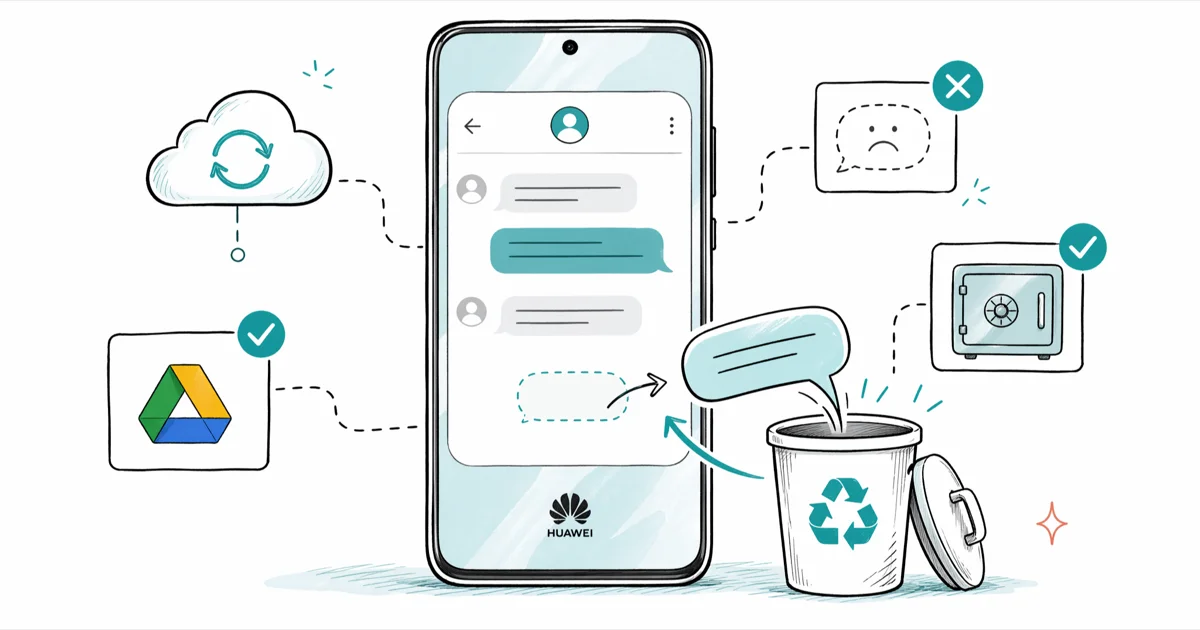
Quick AnswerRestore from Huawei Cloud backup if your own Huawei ID has a recent copy, then try HiSuite, Phone Clone, or the Messages app Recently Deleted folder. Without a backup, paid recovery tools work only if storage hasn't been overwritten on your own device.
This guide assumes you’re recovering messages on your own Huawei phone signed in to your own Huawei ID. When a recent backup exists, Huawei Cloud can restore a full SMS thread in a few minutes. The honest answer? Your odds depend almost entirely on whether you backed up before deletion.
- Huawei Cloud retains backups for 30 days after device deletion, per Huawei’s consumer support documentation
- HiSuite on Windows or macOS pulls a local SMS database that survives even after a cloud backup expires
- Phone Clone is one-shot device-to-device transfer, not a continuous backup, so the source phone matters
- Modern Huawei firmware encrypts user data with a key tied to your screen lock, and a factory reset destroys that key
- ADB backup is deprecated on Android 12 base and newer EMUI builds, so don’t rely on it for recent devices
Modern Huawei devices split into two firmware lines: EMUI on older hardware and HarmonyOS on newer flagships. The recovery menus differ slightly, the cloud-backup scope differs slightly, and HiSuite support is being phased out for HarmonyOS NEXT.
We flag where the path you take depends on which firmware you have. Read the method that matches your phone first, not the one that sounds easiest.
#Method 1: Restore From Huawei Cloud Backup
Huawei Cloud is the fastest legitimate recovery path on your own device. Look there first.
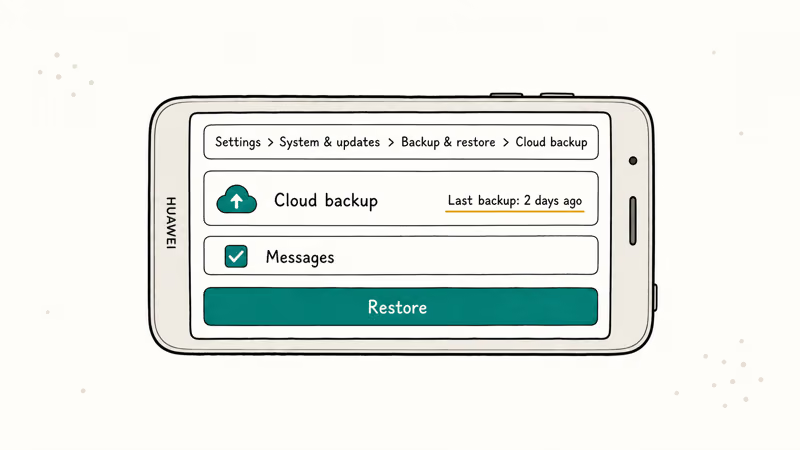
Open Settings, tap your Huawei ID banner at the top, then Cloud. On EMUI 11 and below the path is Settings > Cloud & Accounts > HUAWEI Cloud. Tap Cloud Backup, sign in if prompted, and look at the most recent backup date. If that backup predates the deletion, you have a recovery window.
To restore, go to Settings > System & updates > Backup & restore > Cloud backup. Select the backup, check Messages, and tap Restore.
Two limits to know. Huawei Cloud keeps device backups for 30 days after you delete them locally, according to Huawei’s consumer cloud backup support article, and after that the server-side copy is gone. The backup also only includes SMS and MMS by default. RCS messages routed through Google Messages don’t back up to Huawei Cloud unless you’ve explicitly opted into Google Messages cloud backup separately.
#Method 2: Restore From HiSuite (Windows or macOS)
HiSuite is Huawei’s PC sync tool. It stores a full SMS database in the local backup file on your computer, so if you ever ran HiSuite to back up your own phone, that file likely still has your messages.
Open HiSuite on the same computer you used for previous backups. Connect your Huawei phone with the original USB cable, accept the HDB authorization prompt on the phone, and let HiSuite recognize it. Click Backup / Restore, then Restore. Browse to your backup folder, pick the file dated before the deletion, check Messages, and confirm.
Two practical points to keep in mind. The HiSuite backup file is encrypted with the password you set when you first ran the backup, so if you forgot that password the file is unreadable and there’s no recovery path through Huawei. HiSuite is also being retired for HarmonyOS NEXT devices, so verify on your specific model before assuming it’ll connect. Huawei lists model support on the HiSuite product page.
#Method 3: Check the Messages App Recently Deleted Folder
Huawei’s Messages app on EMUI 12 and HarmonyOS keeps a Recently Deleted folder for SMS, similar to the Photos app trash. Many users miss it.
Check the trash first. Open Messages, tap the three-dot menu in the top right, and look for Recently Deleted or Trash. Items stay there for 30 days. Tap the message, then Restore, and it returns to the inbox.
This folder only catches messages you deleted using the swipe gesture inside the Messages app. Messages wiped by Clear all conversations, by an app update, or by a factory reset aren’t in this folder. Swipe-deletes are typically recoverable for 30 days, while bulk wipes are not.
#How Do You Know Which Backups You Actually Have?
Stop and check before running anything else. The most common reason recovery fails is that the user assumes a backup exists when nothing was ever scheduled.
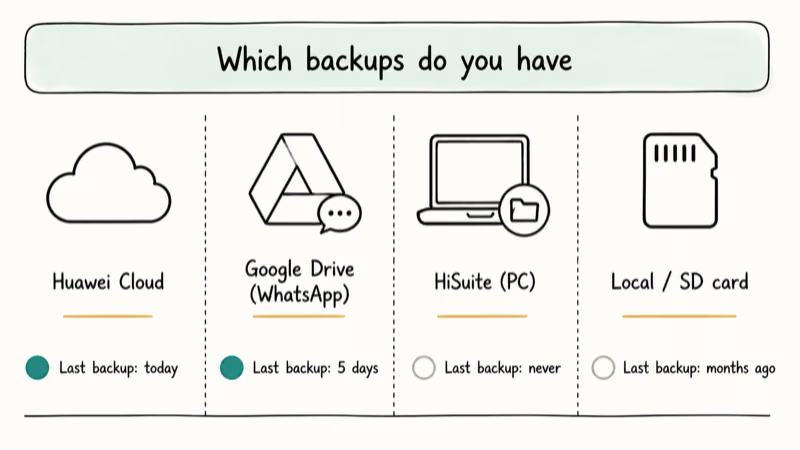
In Huawei Cloud, go to Settings > Huawei ID > Cloud > Cloud Backup. The last backup timestamp appears at the top. If the field reads “Never,” your phone never wrote a server-side copy. Check Google Drive next on the same path your messaging app uses: WhatsApp lists its Drive backup under Settings > Chats > Chat Backup, and Google Messages shows its RCS backup status under Settings > Backup & restore.
If the only backup is older than the deletion, skip ahead to Method 7. If you find a fresh backup, restore it before doing anything else with the phone. Every photo, every received message, every app update writes new data and shrinks your recovery window.
#Method 4: Restore WhatsApp From Google Drive
If your own Huawei phone has Google services installed (most pre-2019 models do; post-2019 EMUI 10+ phones generally don’t), WhatsApp backs up chats to Google Drive on a schedule you set inside the app.
Reinstall WhatsApp from the Play Store or AppGallery, sign in with the same phone number you used originally, and tap Restore when WhatsApp detects an existing Google Drive backup. The restore pulls chat history, media, and voice notes back to the device. According to Google’s Drive backup support documentation, WhatsApp chat backups are stored as a separate object from device backups and don’t count against your Google account storage.
For Huawei phones without Google services, this path doesn’t exist. WhatsApp on those devices backs up locally to internal storage at /sdcard/WhatsApp/Databases/, and you’d restore by copying that file to a new install rather than pulling from Drive. If you’re missing WhatsApp specifically, our guide to WhatsApp backup not working covers the exact restore steps when the in-app prompt fails to appear.
#Method 5: Phone Clone (Source Device Still Available)
Phone Clone is Huawei’s app for transferring data when you migrate to a new phone. It isn’t a backup tool, but it can rescue messages if you still have access to the source device.
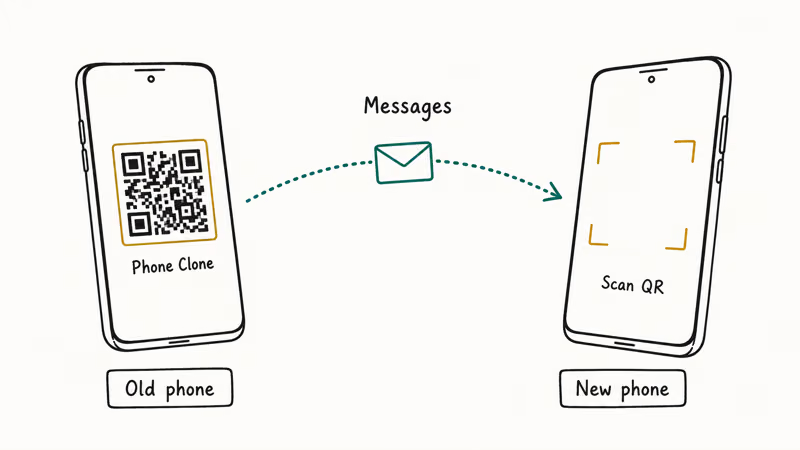
Open Phone Clone on both phones and set the receiving phone as the new device with the source phone as the old device. Scan the QR code, choose Messages, and confirm. The transfer pulls SMS and MMS from the source phone into the destination. Our walkthrough on moving data from Huawei to Android covers a related Phone Clone migration end-to-end.
The catch is that Phone Clone copies what’s currently on the source phone. If the messages were already deleted on the source, Phone Clone doesn’t resurrect them, and you’ll need a backup-based method instead. The Phone Clone app guide explains supported data types in detail.
#Method 6: Local Backup (Internal Storage or SD Card)
Older EMUI builds (EMUI 9 and earlier) include a Backup app that creates .bak archives on internal storage or SD card.
Open the Backup app on your phone. Tap Restore, choose the storage location (internal or SD), pick the backup file dated before deletion, check Messages, and confirm. The decryption password is whatever you set when the backup was created.
If your phone is on EMUI 10+ or HarmonyOS, the Backup app may not exist, or it may have been replaced by the Cloud Backup flow in Method 1. Some users keep an older .bak file on a microSD card from an EMUI 9 device. That file can still be opened by the same Backup app on a compatible EMUI 9 phone. HiSuite (Method 2) is the cross-version equivalent for newer firmware.
#Method 7: Paid Recovery Software (Last Resort, No Backup)
When no backup exists, third-party Android data recovery software scans your phone’s internal storage for SMS database fragments. Be honest with yourself about the odds. Modern Huawei devices use file-based encryption with a key tied to your screen lock, and recovery without a backup works on a small slice of cases.
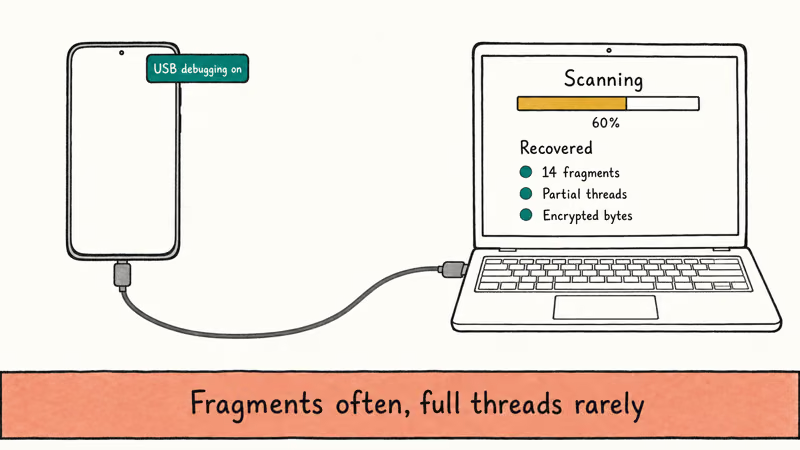
The general flow on your own device:
- Enable USB debugging at
Settings>System &updates > Developer options > USB debugging - Connect the phone to a Windows or Mac computer with the original USB cable
- Install one of the major recovery tools, run a scan, preview the recoverable items, and export to the computer
After Huawei Cloud, HiSuite, Phone Clone, and local backup checks, DroidKit is another desktop scan option for messages on your own phone; preview the results before paying because recovery isn’t guaranteed.
Some links on this page are affiliate links, which means fone.tips may earn a commission at no extra cost to you.
Tools that consistently support Huawei in their device matrix include Wondershare Dr.Fone for Android and Tenorshare UltData for Android. Both list current EMUI and HarmonyOS builds in their device matrices and run a free preview scan before asking for payment.
Two more options round out the category. EaseUS MobiSaver for Android and FonePaw Android Data Recovery are the second tier, less polished than the first two but sometimes cheaper for a one-time license. Pricing, scan speed, preview quality, and how many SMS fragments each tool surfaces on the same device all vary widely, so we recommend running the free scan on at least two tools before paying for any of them.
For a side-by-side breakdown of what each tool actually surfaces on a Huawei device, our Android SMS recovery software comparison is the starting point. The Dr.Fone Android data recovery review covers one option in depth.
What to actually expect. On Android 10 and newer (which includes most EMUI 10+ and HarmonyOS devices), file-based encryption means recovery tools usually surface only fragments of the SMS database, not full conversations. According to Wondershare’s Dr.Fone product documentation, success rates depend heavily on whether the storage sectors holding the deleted database have been overwritten. The faster you stop using the phone after deletion, the more likely it’s that the tool finds something usable.
#Method 8: ADB Backup (Older EMUI Devices Only)
On EMUI 9 and Android 9 base or earlier, the adb backup command can pull an SMS-inclusive archive over USB.
adb backup -shared -all -f huawei.ab
adb restore huawei.ab
This was Google’s official Android backup mechanism through Android 11. Google deprecated it in Android 12, and modern Huawei firmware on Android 12 base and newer rejects the command or writes an empty archive. On a recent EMUI build, adb backup typically produces a 0-byte file. So this method only helps if your own phone is on an older EMUI build.
If you do have an older device, run the command from a computer with Android Platform Tools installed, accept the prompt on the phone (set a password, since modern adb refuses backups without one), and wait for the archive to write. Restore from the same archive on a compatible device.
#What to Do Before Attempting Recovery
Three steps protect what little chance you have left.
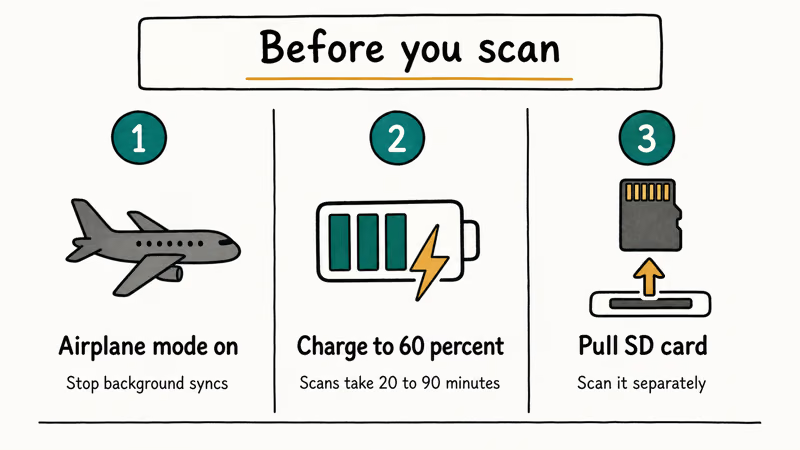
Stop using the phone. Every photo, every incoming message, every background sync rewrites flash storage and shrinks the window where deleted data is still recoverable. Put the phone in airplane mode immediately.
Charge to at least 60%. Recovery scans on USB debugging take 20 to 90 minutes depending on storage size, and an interrupted scan corrupts the working state on some tools.
Pull the SD card if you have one and stop writing to it from any device. SD card recovery is a separate tool category from internal storage recovery, and the same “don’t write” rule applies. Our guide to recovering data from a dead phone covers card extraction with a USB reader.
#Can You Recover Messages After a Factory Reset on a Huawei Phone?
Realistically no, on any device made in the last five years.
Huawei phones running EMUI 10 or newer use file-based encryption with a key derived from your screen lock and stored in a hardware security module. A factory reset wipes that key, which makes the encrypted user-data partition unreadable even with forensic tools. Recovery software can scan the raw partition, but what it finds is encrypted bytes that can’t be turned back into messages without the key.
If you’re about to factory reset and want to keep messages, run Phone Clone to a second device first, or back up to Huawei Cloud and confirm the timestamp updated before pulling the trigger. Our guide on unlocking a Huawei phone without resetting walks through the cases where you don’t need to reset at all.
#Legal and Privacy Scope
This guide is for recovering messages on your own phone signed in to your own Huawei ID. Don’t use these methods to access someone else’s device, bypass another user’s screen lock, or pull data from a phone you don’t have explicit consent to use.
Forensic message extraction from someone else’s phone implicates the U.S. Computer Fraud and Abuse Act, the Electronic Communications Privacy Act, and several state-level wiretap statutes. The legal exposure is real even when the device is in your physical possession. If you’re looking at a phone that isn’t yours, the right path is to ask the owner to perform recovery themselves with these instructions, not to do it without their knowledge.
If you’ve lost access to your own Huawei ID, Huawei’s account recovery flow is the official channel. Account-level lockout isn’t the same problem as deleted messages, and account recovery is what unlocks legitimate access to a backup you own.
#Bottom Line
If you have a backup, restore from Huawei Cloud, HiSuite, or Phone Clone before doing anything else with the phone. These paths take 5 to 20 minutes and have predictable outcomes.
If you have no backup and your device is on EMUI 10 or newer, set realistic expectations: paid recovery tools find fragments more often than full conversations, and a factory reset closes the door entirely. Set up automatic Huawei Cloud backups today so the next deletion is a five-minute fix.
#Frequently Asked Questions
Can I recover permanently deleted messages on my own Huawei phone without a computer?
Yes, if Huawei Cloud Backup was on. Restore from Settings > System & updates > Backup & restore > Cloud backup without connecting to a computer.
How long does Huawei Cloud keep deleted backup data?
30 days after you delete the backup locally, per Huawei’s consumer cloud backup documentation. After that the server copy is gone, and there’s no extension you can request.
Does Huawei Cloud back up WhatsApp messages?
Only if WhatsApp is configured to back up to local storage first. The cleaner path on Huawei phones with Google services is to use WhatsApp’s own Google Drive backup at WhatsApp > Settings > Chats > Chat Backup. On post-2019 flagships without Google services, WhatsApp backs up to /sdcard/WhatsApp/Databases/, and you restore by copying that file to a new install on the same phone number.
Why can’t I recover deleted messages from my SD card?
Every write rewrites entire blocks on a card, so deleted data overwrites fast. Pull the card and use a reader-attached recovery tool. Our recover data from broken Android devices walkthrough covers card extraction.
What is the most reliable Android data recovery app for Huawei devices?
Dr.Fone, UltData, and MobiSaver all list current Huawei firmware. There’s no single winner across every Huawei model and Android version, so run the free preview scan on two or three tools and compare what each one surfaces before paying.
How do I enable automatic backups on my Huawei phone so this never happens again?
Go to Settings > System & updates > Backup & restore > Data backup and switch on Back up data. Pick Cloud backup as the destination, set the schedule to daily, and check Messages. The first backup runs over Wi-Fi when the phone charges. Our Android app backup and restore guide covers the full hygiene routine.
Can I recover messages from my own Huawei phone with a broken screen?
Yes, if USB debugging was on before the screen broke. Connect to a computer, accept the HDB prompt, and run a recovery tool. If USB debugging was off, the only path is a Huawei service center repair first.
Can I recover messages from a Huawei ID I’m locked out of?
Not directly. You have to recover the Huawei ID first through Huawei’s official account recovery flow, then download the backup. There is no third-party shortcut, and any tool that claims to bypass Huawei ID authentication is either fraudulent or a security risk. Our guide on syncing Huawei data with iPhone covers a related case where account access is the gating step.

Pixel 11 vs Pixel 10: What Changed and Who Should Upgrade
Pixel 11 vs Pixel 10: same screen and camera resolution, new Tensor G6, 25W wireless, and Gemini Intelligence. Here is who should actually upgrade.

Verizon Not Receiving Texts? How to Fix It in 9 Steps
Verizon not receiving texts? Fix it in 9 steps: check Message Blocking in My Verizon, reset network settings, deregister iMessage, and call support.
Pixel Battery Drain: What Google's July Fix Really Covers
Google marked the Pixel idle battery drain bug fixed in July, but only some phones got the patch. Here is who is covered, who is not, and what to try.
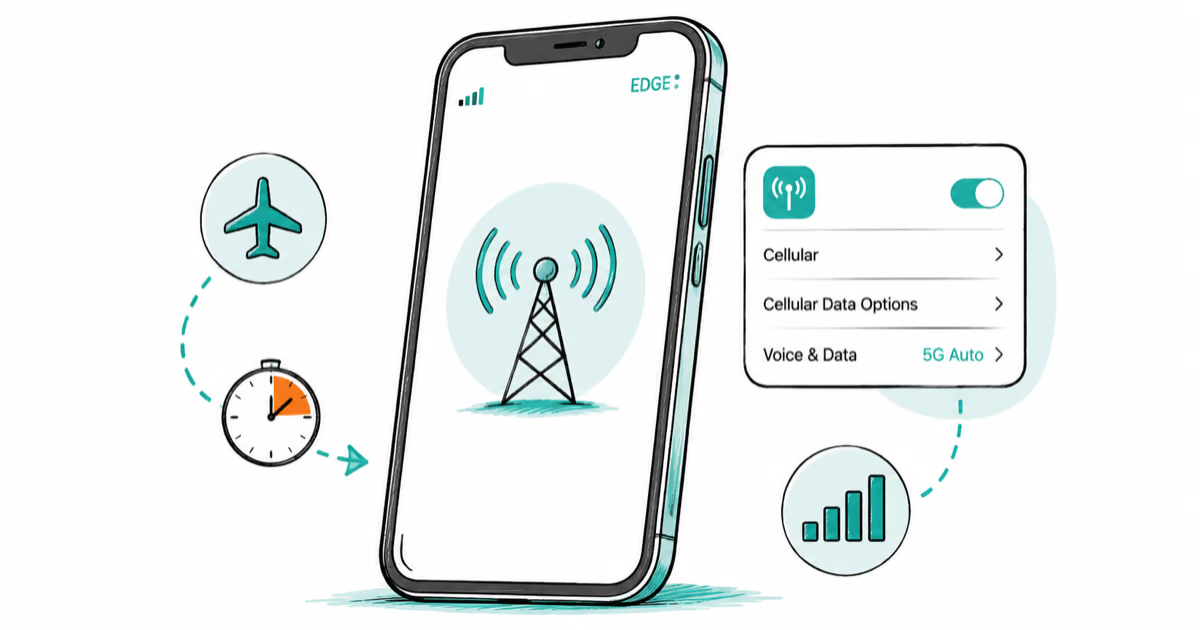
iPhone Stuck on EDGE? How to Get 5G or LTE Back (2026)
iPhone stuck on EDGE with crawling data? Here's why the E icon appears, which settings force 5G or LTE back, and when the problem is your carrier.