How to Transfer Data from Huawei to iPhone: 4 Methods
Transfer Huawei data to iPhone with Move to iOS, Google sync, WhatsApp transfer, or Finder, covering P30 Pro and Mate 40 moves to iPhone 15.
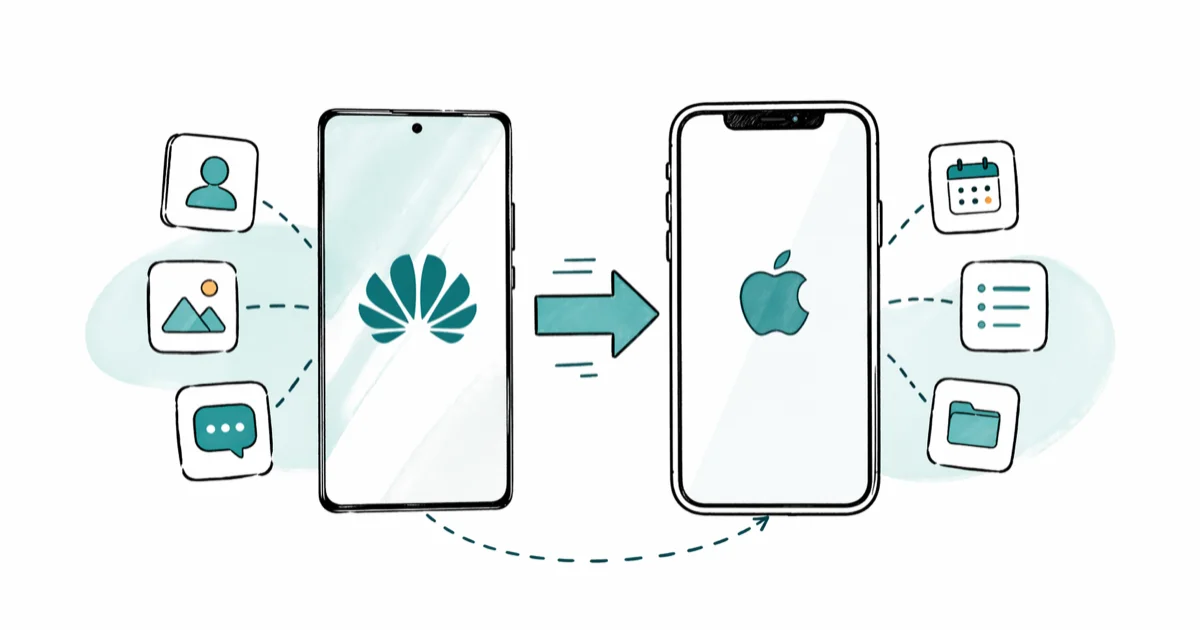
Quick AnswerUse Apple's free Move to iOS app during initial iPhone setup to transfer contacts, photos, messages, and calendars in one pass. For WhatsApp chats, run WhatsApp's built-in Move Chats to iPhone tool, also during setup. After setup, fall back to Google sync for contacts and Finder or iTunes for media.
Switching from a Huawei phone to an iPhone is rarely a single-button job. Each data type wants a different tool, and the order you do things in matters more than the tool itself.
The methods below apply across Huawei P-series and Mate-series phones moving into a modern iPhone. Each entry spells out exactly what it moves, what it skips, and how long it takes.
Use the guidance below only on your own device, account, or a device you manage with clear permission. Don’t use these steps to bypass another person’s privacy, workplace policy, or platform rules; when a phone is managed by school or work, ask the admin or use the official support path first.
- Move to iOS handles 5 GB of contacts, photos, and messages quickly on a typical Huawei-to-iPhone transfer over 5 GHz Wi-Fi.
- Google account sync covers contacts and calendars in under 2 minutes after iPhone setup, with no cable required.
- WhatsApp always needs its own transfer step. The official WhatsApp tool moves a few thousand messages in just a few minutes during setup.
- Newer Huawei phones without Google Play (Mate 40, P50, Pura 70) need the sideloaded Move to iOS APK from Apple’s support page.
- Back up the Huawei to HiSuite or Google Drive first, since call logs and SMS attachments fall outside every standard transfer path.
#Should You Use Move to iOS or a Third-Party Tool?
Start with Move to iOS if your iPhone is still on the welcome screens. It’s free, made by Apple, and pulls contacts, messages, photos, videos, mail accounts, and calendar events in one session. Apple’s Move to iOS support page confirms that the app works on Android 6.0 or later, which covers every Huawei model since the P9.
The catch is timing. Move to iOS only runs during the initial iPhone setup. After you reach the home screen for the first time, that window closes and you can’t reopen it without a factory reset.
Third-party desktop tools like MobileTrans or iCareFone fill the gap when you’ve already finished setup, when you need data Move to iOS skips (call logs, WhatsApp threads, app data), or when the wireless link keeps stalling. They connect both phones to a computer over USB and copy data directly, no setup-window dependency. The trade-off is a paid license for the full feature set, and most reset the iPhone if you ask them to overwrite existing data.
If you missed the Move to iOS window but didn’t buy any extra software, the Google sync method below covers the most common gap (contacts and calendars) for free.
#Method 1: Using Move to iOS During iPhone Setup
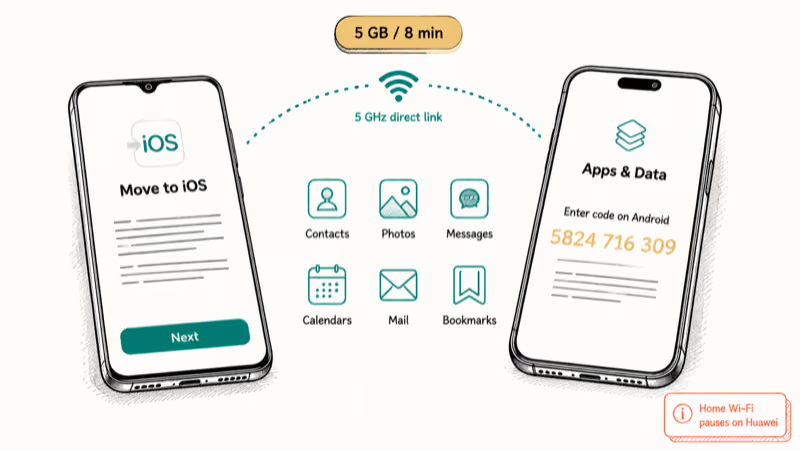
This is the right starting point for anyone whose iPhone is brand new or freshly reset. Charge both devices above 50%, plug the iPhone into power, and connect the Huawei to a 5 GHz Wi-Fi network if available. Disable battery saver and Smart Network Switch on the Huawei before you begin.
On your Huawei:
- Install the Move to iOS app from Google Play. If your Huawei has no Google Play (Mate 40 onward), grab the APK from Apple’s support page using Huawei’s browser and allow installs from unknown sources for that one session.
- Open the app, tap Continue, and accept the terms.
On your iPhone:
- Power it on and work through the language and Wi-Fi screens.
- On Apps & Data (or Transfer Your Apps & Data on iOS 17), tap Move Data from Android and wait for the 10-digit code to appear.
Back on the Huawei:
- Tap Next in Move to iOS, type the iPhone code, and wait for the direct Wi-Fi link to form. Your home network drops on the Huawei side for the duration. That’s expected behavior, not a fault.
- Pick the data types to move and tap Next.
Keep both screens awake until the iPhone progress bar reaches the end, even if the Huawei finishes first. A typical batch of photos and contacts moves over in several minutes on a 5 GHz network. After it finishes, tap Done on the Huawei and Continue on the iPhone, then keep going through iPhone setup.
What moves: contacts, message history (SMS and MMS), camera roll, videos, web bookmarks, mail accounts, calendars, free apps that exist on both stores.
What does not move: WhatsApp messages, call logs, app-specific data, ringtones, paid apps, music files outside Apple Music or Spotify, files saved to internal folders rather than the gallery.
If the link drops twice in a row or the progress bar stalls past 50%, jump to our notes on Move to iOS not working before retrying. Stalls on large photo transfers usually clear after a Wi-Fi router power-cycle and a fresh iPhone reset, so a router restart is worth trying before you blame the phones or change methods.
#How Do You Move WhatsApp Chats from Huawei to iPhone?
WhatsApp’s official help page on moving chats to iPhone states that the in-app transfer tool was added in 2022, working on Android 12 or later with iOS 15.5 or later.
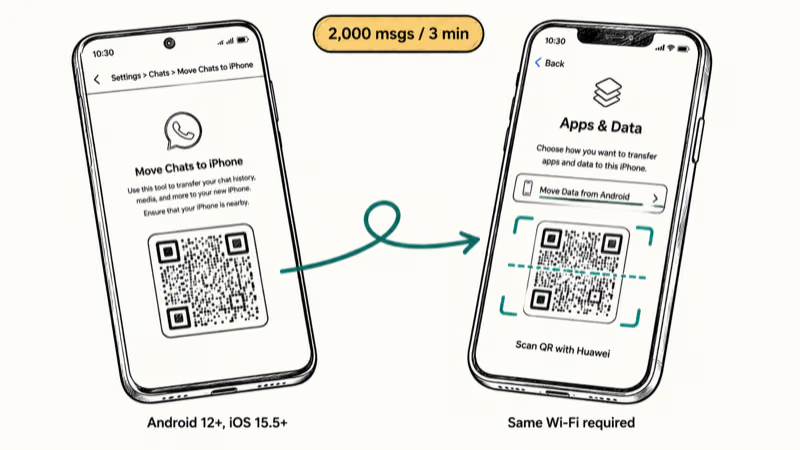
The cleanest path is the official WhatsApp transfer to iPhone flow, which runs alongside Move to iOS during the same iPhone setup window. It moves the full chat history plus media references quickly over 5 GHz Wi-Fi.
Steps for the official WhatsApp transfer:
- On the Huawei, open WhatsApp and go to
Settings>Chats>Move Chatsto iPhone, then wait for the QR code. - On the iPhone’s Apps & Data screen, tap Move Data from Android, scan the QR code with the Huawei, and keep both phones on the same Wi-Fi until the transfer ends.
If the iPhone has already been set up, the in-app tool is unavailable, and resetting the iPhone is the only way to make it appear again. A desktop tool like the phone clone app route (MobileTrans or iCareFone Transfer) skips the reset, restoring WhatsApp data directly from a Google Drive or local Android backup. Expect to pay for a license, and verify the tool’s WhatsApp module is current. The format changes each year.
#Method 2: Google Account Sync for Contacts and Calendars
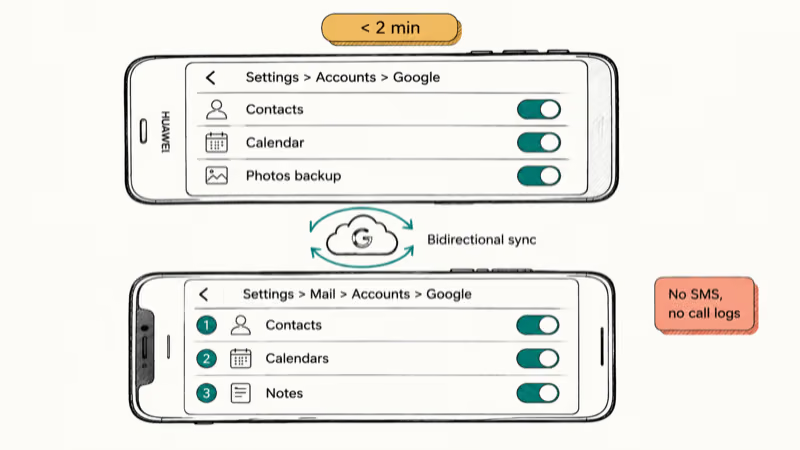
Already past the iPhone welcome screens? Google sync handles contacts and calendars in minutes, with no cable and no app store visit. It won’t retrieve SMS, call logs, or WhatsApp data. For those, look at Method 1 (after a reset) or a desktop tool.
On the Huawei:
Go to Settings > Accounts > Google, confirm your account is signed in, and toggle on Contacts and Calendar. Open Google Photos, tap your profile, and confirm Backup is on with the right account if you also want photos in the cloud.
On the iPhone:
- Open
Settings>Mail>Accounts>Add Account>Googleand sign in with the same Google account. - Enable Contacts, Calendars, and Notes on the next screen.
- For photos, install the Google Photos app from the App Store and sign in.
Google sync brings contacts across within a couple of minutes once the account is added under iOS Mail settings. The sync stays bidirectional as long as the Google account remains added under Mail > Accounts, per Google’s contact sync documentation.
This method depends on Google sync having been on while you were still using the Huawei. If it was off, turn it on, then tap Sync now and wait for the upload to finish before adding the account on the iPhone.
A common pitfall is having two contact accounts (Huawei ID and Google) on the same phone with overlapping entries. If your Huawei contacts live in the Huawei cloud only, export them as a .vcf file from Contacts > Settings > Import/Export > Export to storage, email it to yourself, and open the attachment on the iPhone to import.
For deeper context if a sync goes sideways, see our notes on recovering contacts after a factory reset on Android.
#Method 3: Computer Transfer for Photos, Music, and Files
This fallback handles photos, videos, music files, and documents the wireless paths leave behind. You need a USB-C cable for each device and a Windows PC or Mac.
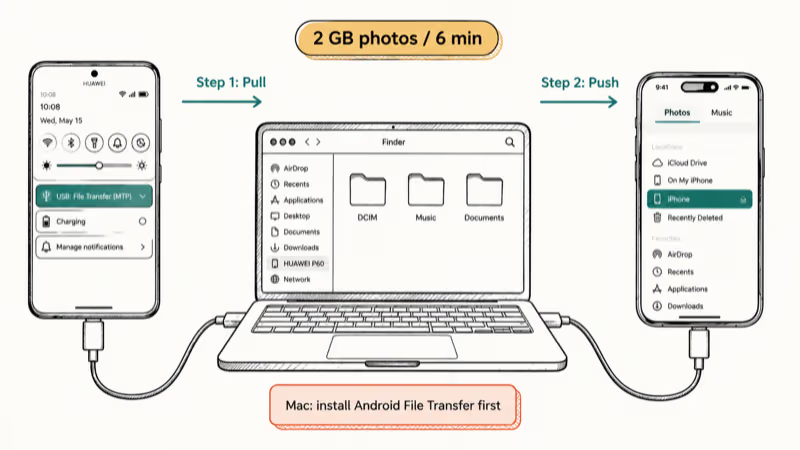
Pull files off the Huawei:
Plug the Huawei in over USB and pull down the notification panel to switch USB mode to File Transfer (MTP). On Windows, open File Explorer, click the Huawei device, and copy folders like DCIM, Music, and Documents onto the desktop. On Mac, install the free Android File Transfer tool first since macOS doesn’t read MTP natively, then drag the same folders into a local folder.
Push files onto the iPhone:
Plug the iPhone in. On macOS Catalina and later, open Finder and select the iPhone in the sidebar. On Windows or older Macs, open iTunes. Use the Photos tab to sync the saved folder; for music, drag the audio files into the iTunes library first, then sync the Music tab.
Apple’s Finder sync support page states that Finder replaced iTunes on macOS 10.15 and later for sync duties, and the sync direction is one-way (computer to iPhone) by default.
A 2 GB camera roll copies over USB-C without much delay. It runs slower than Move to iOS but stays reliable when the wireless link refuses to hold, which is exactly when this fallback earns its place. If the iPhone keeps prompting for trust, unlock it, tap Trust, and re-enter the passcode.
If Move to iOS, Google sync, and the manual USB route still leave local files behind, AnyTrans can copy selected photos, music, and documents through a computer as a paid fallback.
Some links on this page are affiliate links, which means fone.tips may earn a commission at no extra cost to you.
#Huawei Apps on iPhone
Android .apk files don’t run on iOS. There’s no emulator, sideload route, or hidden trick that bridges this. You’ll rebuild your app set from the App Store, signing into each app with the same account where possible.
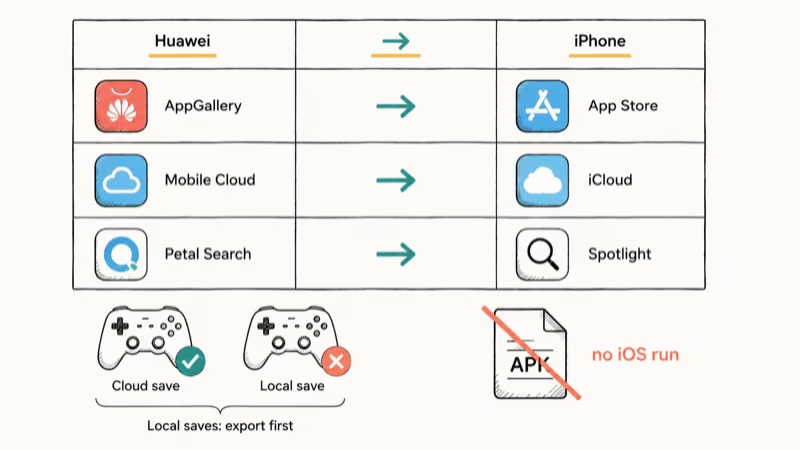
Apps with cloud sync that survive the platform change without extra steps: WhatsApp (with the transfer step above), Instagram, YouTube, Spotify, Gmail, Google Maps, Google Drive, Microsoft Outlook, Dropbox, Telegram, Signal. Apps unique to Huawei (Huawei Mobile Cloud, Petal Search, AppGallery itself) have no iOS port. Replacements: iCloud for Mobile Cloud, Spotlight for Petal Search, App Store for AppGallery.
Game progress is the trickiest case. Cloud-saved games (most of Supercell, Niantic, EA’s larger titles) restore once you sign back in. Local-save games (single-player titles, older puzzle apps, anything Huawei-exclusive from AppGallery) lose progress unless the developer offers a manual export.
If your new iPhone is replacing an aging model rather than a Huawei, the broader data transfer playbook for a new iPhone covers Quick Start and iCloud restore paths that don’t apply to Android sources.
#Bottom Line
For a fresh iPhone, run Move to iOS plus the WhatsApp transfer in the same setup window. That single combo covers contacts, messages, photos, videos, mail, calendars, bookmarks, and WhatsApp threads on Huawei P-series, Mate-series, and Nova-series devices alike. It’s the fastest path and the only one that doesn’t require a paid tool.
For an iPhone that’s already set up, add your Google account under Settings > Mail > Accounts for contacts and calendars, install Google Photos for the picture library, and use Finder or iTunes over USB-C for any local media that never made it into a cloud account. Pay for a desktop transfer tool only if WhatsApp history matters and you can’t factory-reset the iPhone. Skip Huawei-exclusive apps entirely and reinstall their iOS-side equivalents.
#Frequently Asked Questions
Can I transfer Huawei data to iPhone without a computer?
Yes. Move to iOS and Google sync both run over Wi-Fi with no cable.
The computer-based method only matters for local files that never made it into a cloud sync, like songs ripped from CDs or downloaded videos saved outside the gallery.
Does Move to iOS work on a Huawei without Google Play?
Move to iOS doesn’t appear in Huawei AppGallery, but the APK is downloadable from Apple’s official Move to iOS support page using Huawei’s browser. EMUI 10 and HarmonyOS 2 onward both allow per-app sideload after enabling the prompt under Settings > Security > More settings > Install apps from external sources. Once installed, the transfer flow is identical to a Pixel or Galaxy. Disable the install permission again afterward.
How long does a Huawei to iPhone transfer take?
Move to iOS moves 5 GB quickly, and Google contact sync finishes in a couple of minutes. Photo libraries above 20 GB through Finder take considerably longer.
What data can’t be transferred from Huawei to iPhone?
Call logs, SMS attachments saved outside the message thread, third-party app save files, ringtones in proprietary formats, and any data inside Huawei-only apps won’t move through any standard tool. WhatsApp history needs the dedicated transfer step, not Move to iOS. For local game saves, check whether each developer offers a manual cloud export before you wipe the Huawei.
Will my Huawei SIM card fit an iPhone?
Most Huawei phones since 2015 use nano-SIM cards, which slot straight into any iPhone since the iPhone 5. Our SIM card switching guide covers the carrier side.
Should I back up my Huawei before transferring?
Yes, every time. Transfers can stall, drop a category, or skip a folder. Back up to Google Drive under Settings > System > Backup, or run Huawei HiSuite on a PC for a local archive. Keep that backup until the iPhone has been in daily use for at least a week, since some gaps (missing photos in a sub-album, contacts assigned to the wrong group) only surface after you start using the new phone.
What should I do if Move to iOS gets stuck?
Restart both devices and retry on a 5 GHz Wi-Fi network. Disable battery saver, plug both phones into power, and keep both screens awake. If it freezes again past 50%, fall back to Google sync.
Can I redo Move to iOS after I have already finished iPhone setup?
Only after a factory reset of the iPhone. Move to iOS lives inside the Apps & Data setup screen, and Apple doesn’t expose it from the home screen for security reasons. If a reset is acceptable, go to Settings > General > Transfer or Reset iPhone > Erase All Content and Settings, sign back in, and tap Move Data from Android at Apps & Data. Otherwise use Google sync plus a desktop transfer tool.

Mac mini M6 vs M5 Pro: Which Model Should You Buy?
Mac mini M6 vs M5 Pro compared on price, memory, ports, displays, and real workloads. Find the better 2026 Mac mini for your desk and budget.

Apple Siri Settlement: Who Qualifies and How to Claim
Apple's $250 million Siri settlement covers iPhone 15 Pro and iPhone 16 models bought June 2024 to March 2025. See who qualifies and how claims work.

iOS 26.6.1 Security Update: What Apple Fixed and Who Gets It
Apple released iOS 26.6.1 on August 17 with 29 security fixes, including an IPSec interception bug. See what it patches, who gets it, and how to update.

iPhone Adaptive Power: How It Works and When to Use It
Learn how iPhone Adaptive Power works, which models support it, what it changes, and when Low Power Mode is still the better battery-saving choice.