How to Transfer Data From Huawei to Another Android Phone
Move Huawei data to a new Android phone with Phone Clone, Google Drive, USB cable, or wireless apps. Step-by-step methods and a comparison table.
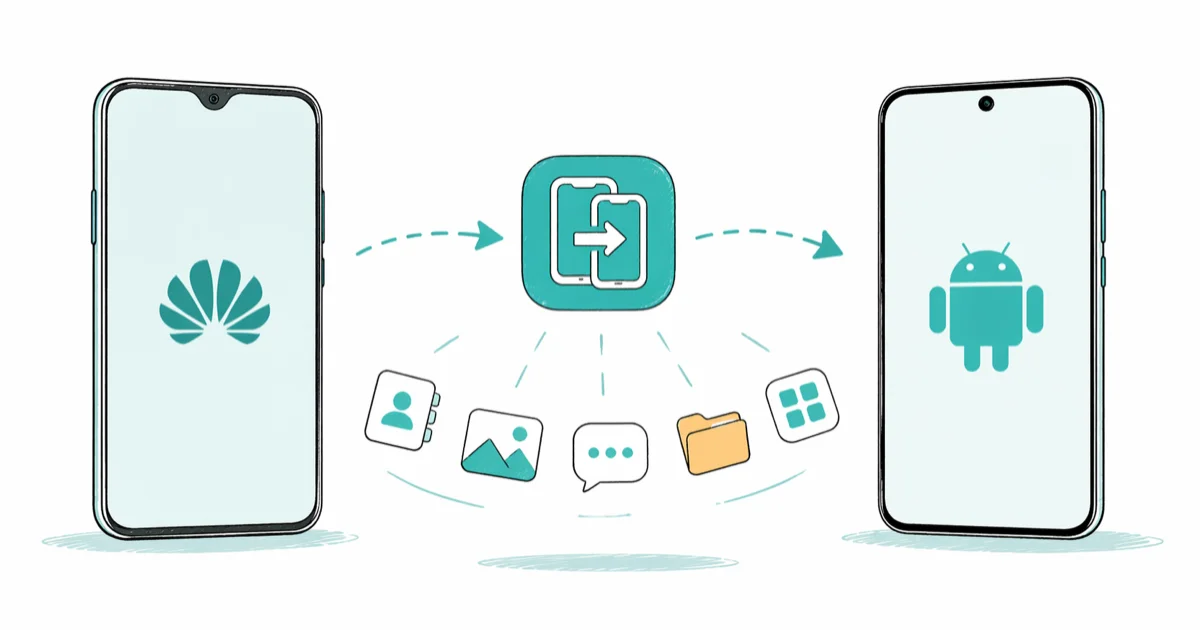
Quick AnswerUse Huawei Phone Clone to move contacts, photos, messages, and apps wirelessly between your Huawei and the new Android phone. Connect both devices to the same Wi-Fi network, scan the QR code, choose your data, and tap Start. The transfer takes 10 to 30 minutes depending on data size.
Switching from a Huawei phone to another Android device is straightforward when you pick the right tool for the data you care about most. Contacts, photos, messages, and most apps move smoothly with built-in tools or free apps. This guide ranks the four main methods by speed, coverage, and how much setup they need, and it covers what to do with WhatsApp before you wipe the old phone.
Use this guide only on your own phone or with explicit consent; copying someone else’s data can be illegal.
- Phone Clone is the all-in-one option. It moves contacts, photos, messages, and apps between a Huawei and another Android phone over a direct Wi-Fi hotspot, with no internet required.
- Google Account sync is the safety net. Contacts and calendar entries appear within seconds once both phones sign in to the same account, and photos sync in the background through Google Photos.
- USB transfer is fastest for large media folders but it doesn’t move contacts, messages, or app data, so it’s best as a supplement.
- Phone Clone copies APK files but not login state. You’ll sign back into each banking, social, and messaging app once on the new phone.
- WhatsApp needs its own backup. Phone Clone and Google Backup don’t carry WhatsApp messages between brands, so trigger a Google Drive chat backup before you start.
#Method 1: Huawei Phone Clone (Fastest)
Huawei’s own Phone Clone app is the fastest way to move everything at once. It transfers contacts, messages, photos, videos, music, calendar entries, apps as APK files, and many system settings in a single session.
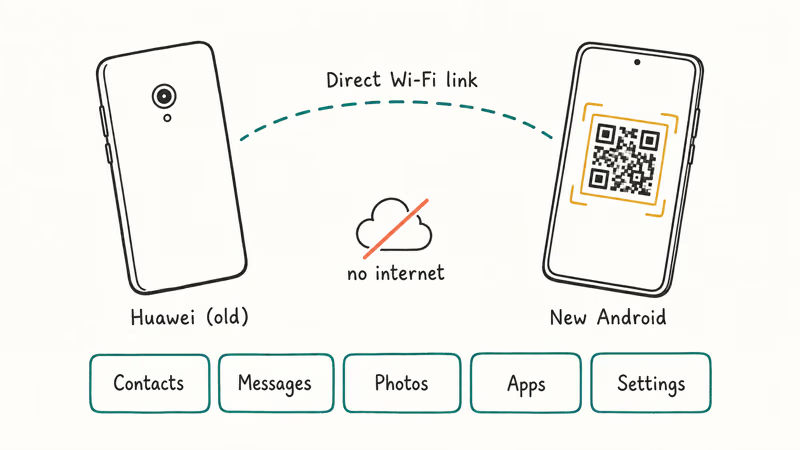
- Install Phone Clone on both phones from the Play Store or AppGallery
- Open the app on each device and grant the requested permissions
- On your Huawei, tap “This is the old phone”
- On the new Android, tap “This is the new phone”
- Use the Huawei to scan the QR code displayed on the new phone
- Pick the data categories you want and tap Start
According to Huawei’s Phone Clone support page, the app builds a direct Wi-Fi hotspot between the two phones, so you don’t need internet access during the transfer. Because the link is direct rather than routed through the internet, a full phone’s worth of mixed data moves quickly, and keeping both phones on chargers avoids a mid-transfer battery cutoff.
Phone Clone copies the app binaries but not the saved login state.
You’ll sign back into each banking, social, and messaging app on the new phone. Game progress and chat history that lives only on the device (not in cloud sync) won’t survive the move, so it’s worth checking each important app’s own backup option before starting. Cloud-synced apps like Gmail, Google Photos, and most password managers will pick up where they left off automatically once you sign in, which makes the sign-in step less painful than it sounds.
#Method 2: Google Account Backup and Restore
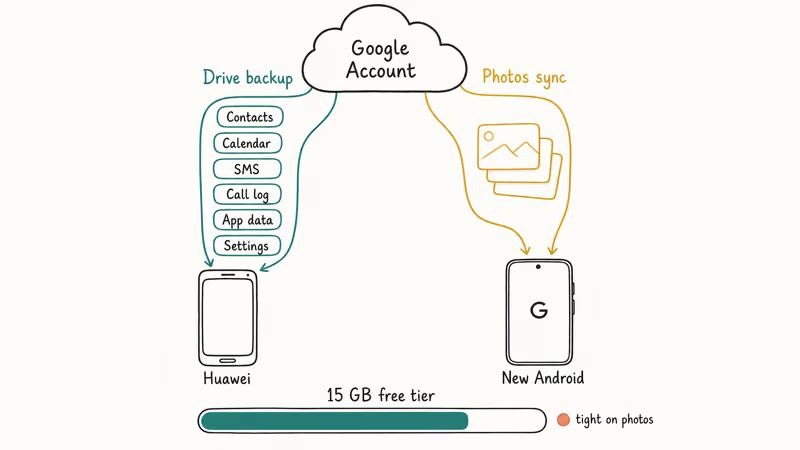
If both phones share a Google account, most personal data syncs through the cloud without any extra app.
- On your Huawei, open Settings, then Accounts, then Google
- Make sure sync is on for Contacts, Calendar, Drive, and Keep
- Open Settings, then System, then Backup, and turn on “Back up to Google Drive”
- Wait for the most recent backup timestamp to appear before you put the phone down
- On the new Android, sign in with the same Google account during initial setup
- Tap “Restore from backup” when the setup wizard offers it
According to Google’s Android backup documentation, Drive backups include app data, call history, contacts, device settings, and SMS messages, while photos and videos sync separately through Google Photos. Contacts and calendar events typically appear almost immediately after you finish setup, while a large photo library finishes syncing through Google Photos a while later, depending on your connection speed.
The main constraint is Drive storage.
A free Google account ships with 15 GB shared across Drive, Gmail, and Photos, which is tight if your photo library is large. If Google Photos isn’t backing up on the Huawei, fix that before you attempt the restore. Otherwise the new phone will start with an incomplete library, and the backup timestamp on the source phone won’t reflect the actual photo state.
#Method 3: USB Cable Transfer via Computer
A USB cable plugged into your computer is the simplest path when you want full control over which folders move and which stay behind.
- Connect the Huawei to the computer with a USB cable rated for data (not charge-only)
- Pull down the Huawei notification shade and switch the USB mode to “File Transfer” or “MTP”
- Open the phone’s storage in File Explorer on Windows, or Android File Transfer on Mac
- Copy the folders you want (DCIM for camera photos, Music, Documents, Download, WhatsApp media) to the computer
- Disconnect the Huawei and plug in the new Android phone with the same data-rated cable
- Paste each folder into the matching location on the new phone
This method covers photos, videos, music, and documents, but it doesn’t move contacts, messages, or app data. A large folder of photos copies from a Huawei to a desktop PC over USB 3.0 quickly, and the same files copy back to the new Android phone in roughly the same time.
If the connection drops or the computer never sees the storage, our guides on Android File Transfer not working and Android File Transfer not working on Mac walk through cable, driver, and permission fixes that resolve most cases.
#What About Wireless File Transfer Apps?
Wireless transfer apps like ShareIt, Xender, and Send Anywhere move files directly between phones over a Wi-Fi Direct link without a computer or internet connection.
- Install the same app on both phones from the Play Store
- On the Huawei, open the app and tap Send
- On the new Android, open the app and tap Receive
- Pair the two phones by scanning the on-screen QR code
- Pick the files you want and tap Send
- Approve the incoming transfer on the receiving phone
These apps are good for media files and documents but they don’t move contacts, messages, or app data. They also tend to bundle ads and request broad permissions, so it’s worth uninstalling them once the transfer finishes. If you want a tool with a lighter footprint, the Files by Google app supports Nearby Share file transfers and is built into most modern Android phones already, including the Pixel and most Samsung Galaxy models.
#Which Method Should You Choose?
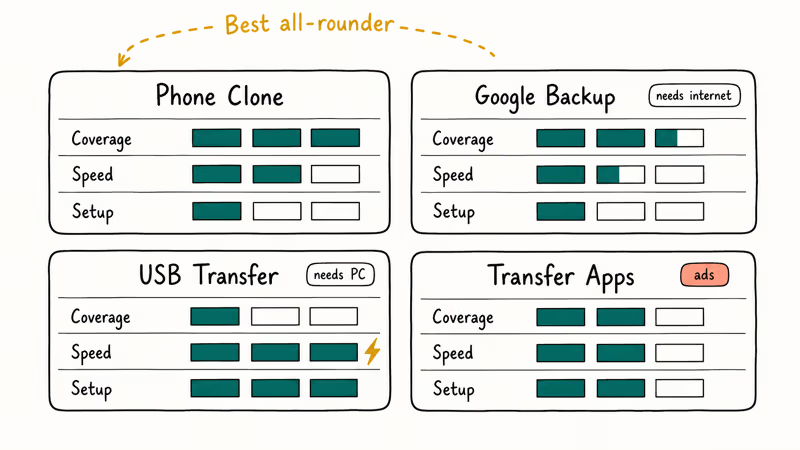
Here is a side-by-side comparison so you can match the method to the data you need to move.
| Method | Data Types | Speed | Needs Computer | Needs Internet |
|---|---|---|---|---|
| Phone Clone | Contacts, messages, photos, apps, files | Fast | No | No |
| Google Backup | Most personal data, photos, app data | Medium | No | Yes |
| USB Transfer | Photos, videos, music, documents | Very fast | Yes | No |
| Transfer Apps | Photos, videos, documents | Fast | No | No |
For most people, Phone Clone covers the widest range of data with the least effort and works well between any two Android brands, not just Huawei. Pair it with Google Account sync as the safety net so contacts and calendar entries stay current across devices. Reach for USB transfer when you have a large photo library to organise into specific folders.
#Pre-Transfer Checklist for a Clean Move
A few minutes of prep prevents most failed transfers. Run through this checklist on the Huawei before you tap Start:
- Charge both phones to at least 50 percent or keep them on a charger during the move
- Connect both phones to the same Wi-Fi network, ideally a 5 GHz network for faster local transfer
- Sign in to your Google account on the Huawei and confirm sync is on
- Open WhatsApp and trigger a fresh Google Drive chat backup (see the WhatsApp section below)
- Sign in to any password manager and confirm your vault is synced to the cloud
- Make a note of two-factor authentication codes for banking and email apps so you can sign back in on the new phone
Skip any of these and you’ll likely be back here troubleshooting.
If your Huawei battery shuts the phone off before the transfer is complete, our guide on why a Huawei phone won’t turn on covers the recovery steps to wake it up long enough to finish the move. For phones that are already broken, our guide on how to recover data from a broken Android device shows what is salvageable through a computer or Google account before you replace the device.
#How to Transfer WhatsApp Messages Separately
WhatsApp chat history doesn’t transfer through Phone Clone or Google Backup when you cross between phone brands. WhatsApp’s own Google Drive backup is the supported path for keeping your messages.
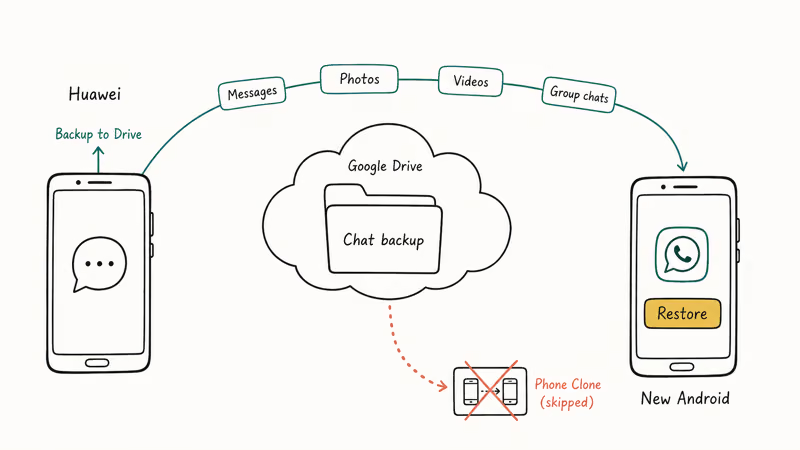
- Open WhatsApp on the Huawei and tap the menu, then Settings
- Open Chats, then Chat backup
- Tap “Back up to Google Drive” and pick the Google account you’ll use on the new phone
- Wait for the latest backup timestamp to update before moving on
- On the new Android, install WhatsApp and sign in with the same phone number
- When prompted, tap Restore to pull your chat history from Google Drive
According to WhatsApp’s Android-to-Android transfer guide, this method moves messages, photos, and videos, and group chats and call history come along with the restore. If the backup gets stuck or never completes, our guide on WhatsApp backup not working covers the most common Drive permission and storage issues that block the restore.
#Bottom Line
Run Phone Clone first because it covers the broadest range of data in a single session. Then sign in to your Google account on the new phone so contacts, calendar, and Photos stay in sync going forward. Trigger a WhatsApp Google Drive backup before you start the transfer, otherwise chat history won’t survive the move.
Most readers finish the entire migration in 30 to 60 minutes. The old Huawei keeps a copy of all data, so you can verify the new phone is complete before factory resetting the source device.
#Frequently Asked Questions
Can I transfer data from a Huawei to Android without a computer?
Yes. Phone Clone, Google Backup, and wireless transfer apps all work without a computer. Phone Clone is the strongest choice because it moves the widest range of data directly between the two phones over a Wi-Fi hotspot. The only time a computer becomes necessary is when you want to copy a large media folder very quickly, since USB 3.0 is faster than any wireless option.
Will my apps and app data transfer from Huawei to Android?
Phone Clone copies app APK files so the apps reinstall on the new phone, but it doesn’t carry login credentials. Cloud-synced apps like Gmail and Spotify restore automatically once you sign back in. Single-player games and offline notes apps may not bring saves across without their own export option, so check each important app’s backup settings first.
How long does the transfer take?
Phone Clone moves data over a direct Wi-Fi connection, and large media folders take longer to finish. USB transfer is faster for large media folders, and Google Backup depends on internet speed.
Is Phone Clone safe to use?
Yes. Phone Clone builds a direct Wi-Fi link between the two phones and doesn’t route your data through the internet, so files stay local during the move. The app is published by Huawei on both the Google Play Store and the Huawei AppGallery. It requests only the permissions it needs to read contacts, messages, and storage on the source phone.
What do I do if the transfer gets stuck or fails?
Confirm both phones are on the same Wi-Fi network for Phone Clone, or that the cable is data-rated for USB transfers. Restart both devices and try again with a smaller selection of data. Phone Clone has a known habit of stalling on very large WhatsApp media folders; clearing the WhatsApp cache before the transfer fixes it in most cases. If a single category keeps failing, deselect it and run the rest, then move that category manually.
Can I keep data on the old Huawei?
Yes. Every method here copies data rather than moving it, so the Huawei keeps a complete copy until you factory reset it.
What if I’m switching from Huawei to an iPhone instead?
Use the official Move to iOS app on the iPhone setup screen. It pulls contacts, messages, photos, and calendar from any Android phone. For full coverage and what needs a manual export, see our guide on how to sync Huawei data with an iPhone.

Pixel 11 vs Pixel 10: What Changed and Who Should Upgrade
Pixel 11 vs Pixel 10: same screen and camera resolution, new Tensor G6, 25W wireless, and Gemini Intelligence. Here is who should actually upgrade.

Verizon Not Receiving Texts? How to Fix It in 9 Steps
Verizon not receiving texts? Fix it in 9 steps: check Message Blocking in My Verizon, reset network settings, deregister iMessage, and call support.

Pixel Battery Drain: What Google's July Fix Really Covers
Google marked the Pixel idle battery drain bug fixed in July, but only some phones got the patch. Here is who is covered, who is not, and what to try.

iPhone Stuck on EDGE? How to Get 5G or LTE Back (2026)
iPhone stuck on EDGE with crawling data? Here's why the E icon appears, which settings force 5G or LTE back, and when the problem is your carrier.