Phone Clone App: Move Your Own Data to a New Phone (2026)
Move supported data from your old phone to your new one with Phone Clone, Smart Switch, Move to iOS, or Quick Start, plus category and safety checks.
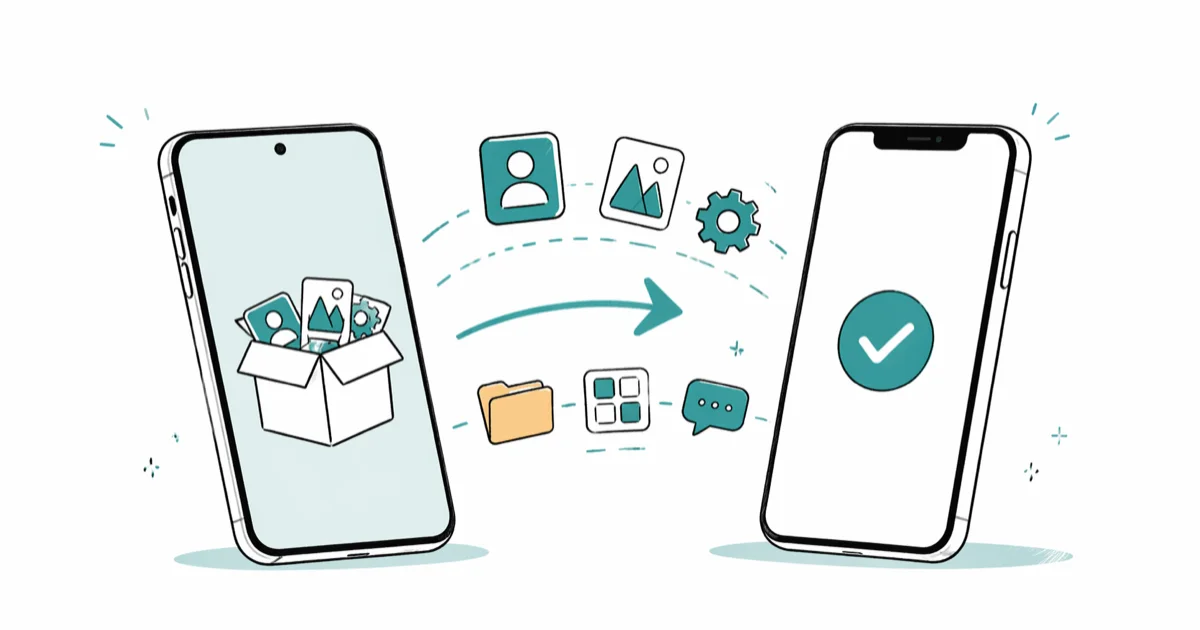
Quick AnswerA phone clone app moves supported data from your old phone to your new one. Start with the receiving phone maker’s official tool: Phone Clone, Smart Switch, Quick Start, or Move to iOS.
Phone migration tools copy supported data to a new device. The receiving phone determines the available method.
- Device-to-device transfer normally requires access to both unlocked phones and an on-screen confirmation
- Same-brand transfers can include more settings than cross-brand transfers
- Cross-platform category support varies, so review the tool’s selection screen before erasing the old phone
- Use a supported cable when the receiving phone offers that option for a large library
- Moving someone else’s data without consent may violate computer-misuse and privacy laws
#What Is a Phone Clone App, Really?
Official maker migration utilities copy selected categories between your old and new phones.
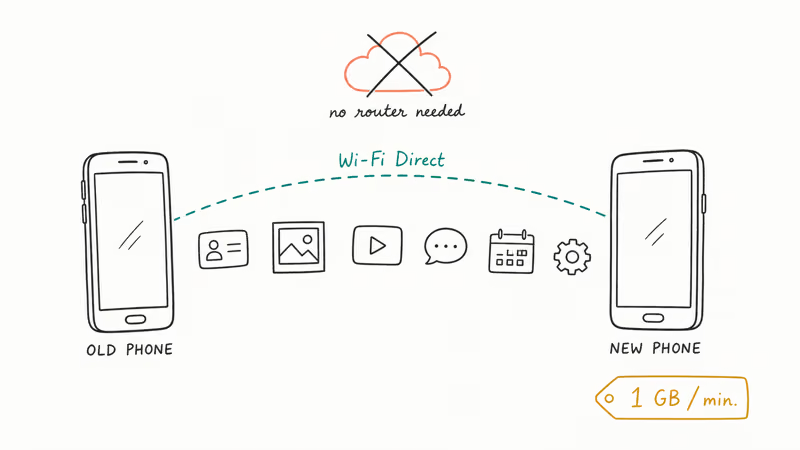
Some migration paths transfer data directly between the phones, while others also use an account backup or internet connection. According to Huawei’s Phone Clone support page, users should follow the prompts shown on the old and new phones.
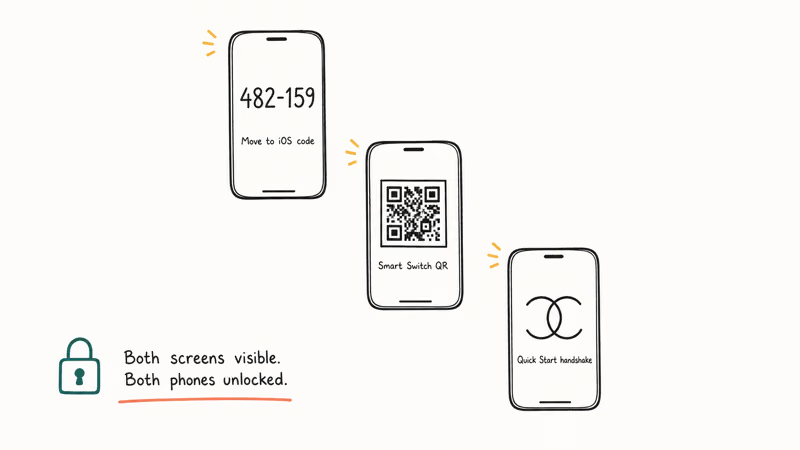
The tool may show a code, QR pattern, nearby-device animation, or cable prompt. Keep both devices unlocked and reject unexpected transfer requests.
Examples include Smart Switch, Quick Start, Move to iOS, and the transfer flow offered during Android setup.
#Use Your Own Phone Only: the Legal Boundary
This article is strictly about moving data from your own old phone to your own new phone. Moving someone else’s data without permission may violate computer-misuse, privacy, or access laws in your jurisdiction.
In the US, unauthorized access to another person’s phone can fall under the Computer Fraud and Abuse Act, 18 USC § 1030. The UK’s Computer Misuse Act 1990 also covers unauthorized access. Laws and exceptions vary by jurisdiction.
Official migration tools use an on-screen confirmation flow: Move to iOS displays a code on the iPhone for the Android device, while Quick Start displays an animation that the old iPhone scans. Samsung’s prompts vary by cable or wireless transfer. These checks support authorized migration, but they don’t make misuse impossible.
Lost-phone case? Different playbook.
If you can’t unlock your own old phone, first recover access to the relevant account. Apple’s account recovery guide and Google’s account recovery guide explain that process; restoring data to a fresh device still depends on an available backup or another supported transfer path.
SIM cloning is a separate topic with its own scams. If that’s your concern, our writeup on phone cloning fraud covers detection and reporting.
#Best Phone Clone Apps for Your Own Migration
Pick the official tool from the maker of your new phone first. Cross-brand and cross-platform tools sit underneath that.
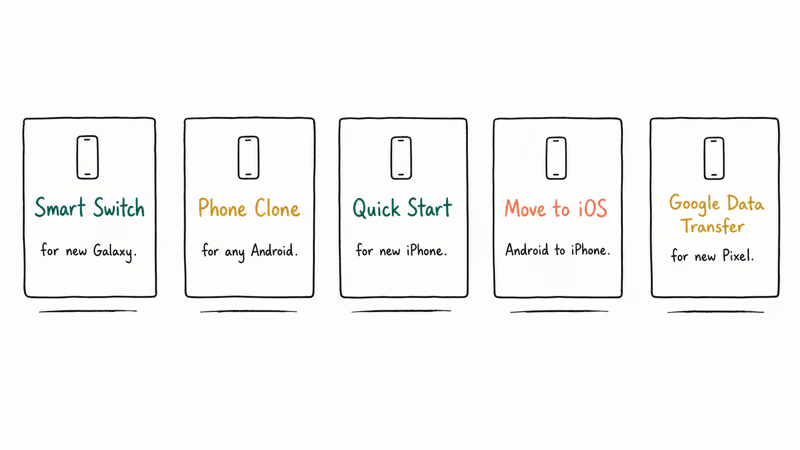
Huawei Phone Clone is Huawei’s migration tool for a receiving Huawei phone. The categories offered depend on the source phone and software versions; review the selection screen before starting.
Samsung Smart Switch is Samsung’s migration tool for a receiving Galaxy. Supported source devices, connection methods, and data categories vary by Galaxy model and app version, so use Samsung’s current Smart Switch support page instead of an old compatibility matrix.
Now the iPhone tools.
Apple Quick Start is the iPhone-to-iPhone direct method, documented on Apple’s Quick Start support article. Stuck pairing? See our Quick Start troubleshooting guide.
Move to iOS is Apple’s free Android-to-iPhone tool, published on the Play Store under Apple’s developer account. It runs during the iPhone setup flow, so a phone that’s already set up must be erased before you can use it.
Apple’s current Move to iOS guide says it can transfer contacts, message history, camera photos and videos, albums, files and folders, bookmarks, mail accounts, WhatsApp messages and media, voice memos, call history, and calendars.
If the app stalls mid-transfer, our writeup on Move to iOS not working covers the common fixes.
Android setup transfer is the flow shown on a supported receiving Android phone. The available source devices, cable or wireless options, and categories depend on the destination device and Android version; Google’s Android transfer guide provides the current paths.
Other Android makers may offer their own receiving-device migration tool. Check the destination maker’s current support page and selection screen rather than assuming an older utility or every settings category is still supported. Our Motorola migration guide covers Motorola-specific options.
#How Do You Run the Transfer Step by Step?
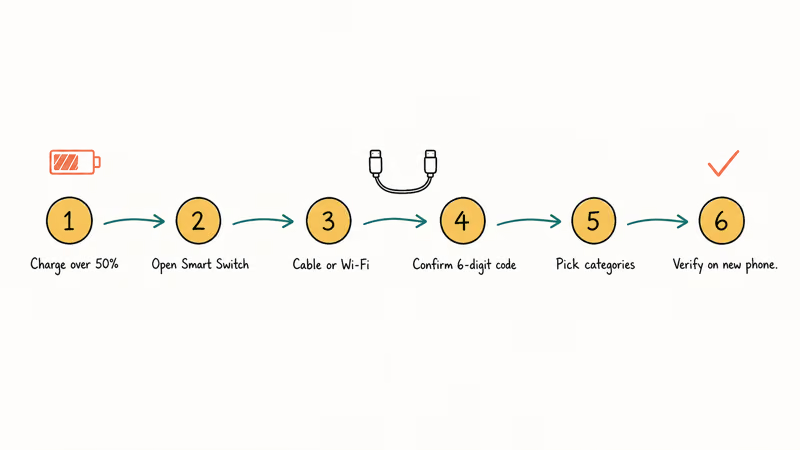
Here is the process for a Galaxy S22 to S24 transfer.
#Step 1: Charge Both Phones
Connect both phones to power or make sure they have enough charge to finish the transfer. An interrupted migration may need to be restarted.
#Step 2: Open Smart Switch on Both Devices
Tap “Send data” on the old Galaxy and “From a Galaxy or Android device” on the new one.
#Step 3: Choose Cable or Wireless
If you have a cable supported by both phones, use it. Wireless transfer is also available; keep the phones near each other and connected to power.
Both phones plugged in beats either on battery.
#Step 4: Confirm the Connection on Both Screens
Follow the confirmation shown on both phones. Smart Switch may use a cable prompt, nearby-device confirmation, or QR flow depending on the devices and connection method. Samsung’s Smart Switch support page provides the current options.
#Step 5: Pick What to Copy
Select the categories you want and review the estimated transfer before starting. Some apps may need to be downloaded or configured again on the new phone.
#Step 6: Verify on the New Phone
When the transfer finishes, open Contacts, Gallery, Messages, and Calendar in turn on the new device. According to Google’s account-transfer documentation, some data does not copy during Android setup, so verify important apps and sign-ins before erasing the old phone.
#What Actually Transfers Across Brands
Not everything copies, especially when you cross brands or platforms. Here is how the categories break down.
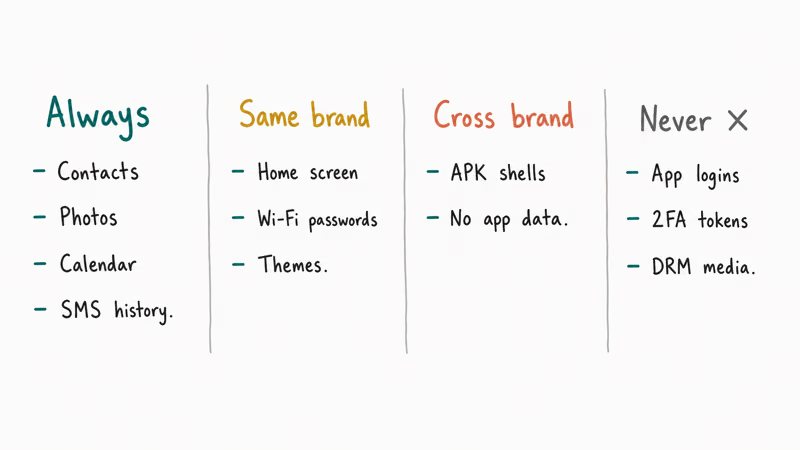
Common categories: contacts, photos, videos, calendar events, and messages. The exact list varies by source phone, destination, connection method, and tool.
Same-brand transfers: these may also offer home screen layout, device settings, or maker-app data. Check the category list shown by Smart Switch, Quick Start, or the receiving phone before assuming a setting will copy.
Cross-brand Android: app and app-data handling varies. Plan to verify each important app and sign in again where required.
Android to iPhone with Move to iOS: Apple says the transfer includes contacts, message history, camera media, albums, files and folders, bookmarks, mail accounts, WhatsApp messages and media, voice memos, call history, and calendars. Apple’s Move to iOS guide also says some free apps transfer when they have matches in both app stores. App logins, app-specific data, and Android-only apps still need manual setup. For WhatsApp details, follow our WhatsApp Android-to-iPhone migration guide.
iPhone to Android: use the destination maker’s transfer tool. Contacts, photos, videos, calendars, and messages can move, but the exact list depends on the receiving phone and whether you use a cable.
Verify separately: app sessions, passwords, authenticator accounts, protected media, and bank or payment credentials. Don’t erase the old phone until each critical item works on the new one.
#Prep Both Phones
A small amount of cleanup pays off in the transfer time and the cleanup time afterward.
Sign in to the accounts requested by your chosen transfer path. Delete files you no longer need so the migration doesn’t spend time copying them; use our iPhone storage cleanup steps if you’re starting fresh on iOS.
Transfer or re-enroll authenticator accounts before wiping the old phone. Confirm that you can generate working codes on the new device.
If the phones can’t connect, a VPN or organization-managed profile may affect the transfer. Follow your employer’s instructions for managed data rather than removing a work profile without approval.
#When the Transfer Stalls
Keep the phones near each other, connected to power, and undisturbed during a wireless transfer. If the receiving phone offers a cable method, that is a useful fallback when the wireless connection stalls.
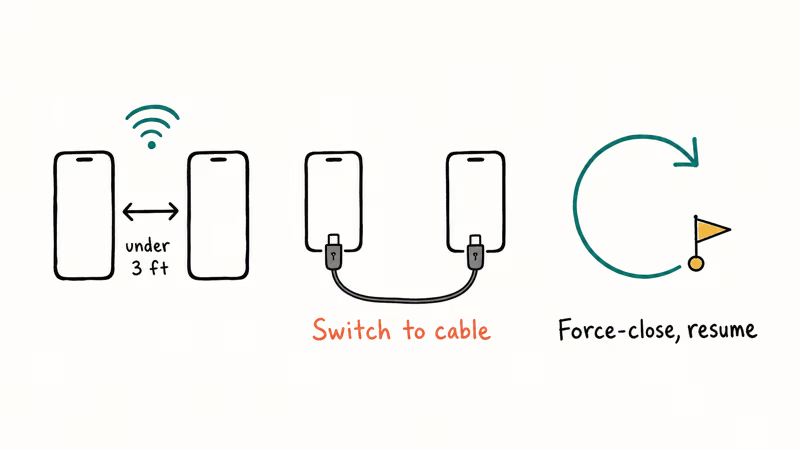
If progress stops changing, follow the tool’s cancel or retry prompt and keep the old phone intact. On the next attempt, use a supported cable if one is available; don’t assume every tool will resume from a saved checkpoint. For Smart Switch specifically, our Smart Switch stuck guide walks through the troubleshooting sequence.
If the source phone can’t run the current migration app, use the backup or transfer method recommended by the destination maker. Avoid downloading an old APK from an unofficial archive.
#Bottom Line
Match the tool to the new phone’s maker first. For a Galaxy, start with Smart Switch; for a new iPhone, use Quick Start; for Android-to-iPhone, run Move to iOS during the setup wizard. Verify app sign-ins, authenticator accounts, and saved credentials separately before erasing the old phone. If the old phone won’t unlock, use the maker’s backup or account-recovery path instead.
#Frequently Asked Questions
Can you run a phone clone app after you have already set up the new phone?
It depends on the receiving phone and tool. Some Android makers let you open their migration utility after initial setup, but the available categories can differ. Apple’s Move to iOS runs during the iPhone setup flow, so an already configured iPhone must be erased before that specific transfer path can be used.
How long does a typical phone clone take?
Transfer time varies with the amount and type of data, the phones, and the connection method. Keep both phones powered and don’t erase the source until the destination reports completion and you have checked the important categories.
Is it legal to clone someone else’s phone with these apps?
Use these tools only for a phone you own or have explicit permission to migrate. Unauthorized use may violate computer-misuse and privacy laws, and the exact rules vary by jurisdiction.
Can you clone an Android phone to an iPhone with all your apps?
Partially. Move to iOS can copy the categories listed in Apple’s current guide and can match some free apps in both stores. App-specific data, login sessions, and Android-only apps may still need manual setup.
Do these tools transfer saved Wi-Fi passwords?
It depends on the transfer pair and tool. Check the category list during setup and confirm the saved networks on the new phone before erasing the old one.
What if my old phone’s screen is broken?
If you can’t operate the old screen, check whether you have a usable cloud backup and whether the phone supports an accessibility accessory, external display, or repair path. According to Google’s backup documentation, the available restored data depends on the device and backup. Keep the damaged phone until you verify the recovery.
Do I need internet for a phone clone app?
Some direct phone-to-phone methods can copy data without a router, while cloud-assisted setup, app downloads, activation, and account sync need internet access. Follow the connection requirements shown by the receiving phone.
Can I transfer between two phones of different brands and operating systems?
Yes, with limits. The supported categories depend on the source, destination, and migration tool, and app data often needs separate handling. For more complex cases, our guide on transferring data from iPhone to Android on Windows covers a desktop-mediated path.

Google Messages Error 3100: Why RCS Is Broken on Galaxy
Google Messages RCS error 3100 hits Galaxy owners after phone or carrier switches. Google told 9to5Google a fix is coming. Here's what actually helps.

Is This Bank App Real? Spot a Fake App on Your Home Screen
A bank app can land on your home screen from a web page with no install warning. Learn the checks that tell a real banking app from a phishing web app.

Apps Crashing After iOS 27 Update? Fix Order (2026)
Apps crashing after the iOS 27 update? Update the app in the App Store first, then offload and reinstall to clear stale cache, then restart. The fix order.

Do AI Translation Earbuds Work Offline? What to Know
Do AI translation earbuds work offline? A few do with downloaded language packs, but most need the cloud. Here's what works offline and what you give up.