Input Not Supported on Monitor: 7 Quick Fixes (2026)
Input Not Supported on monitor means the signal is out of range. Use Safe Mode, lower resolution, refresh rate, or driver fixes to clear the black screen.
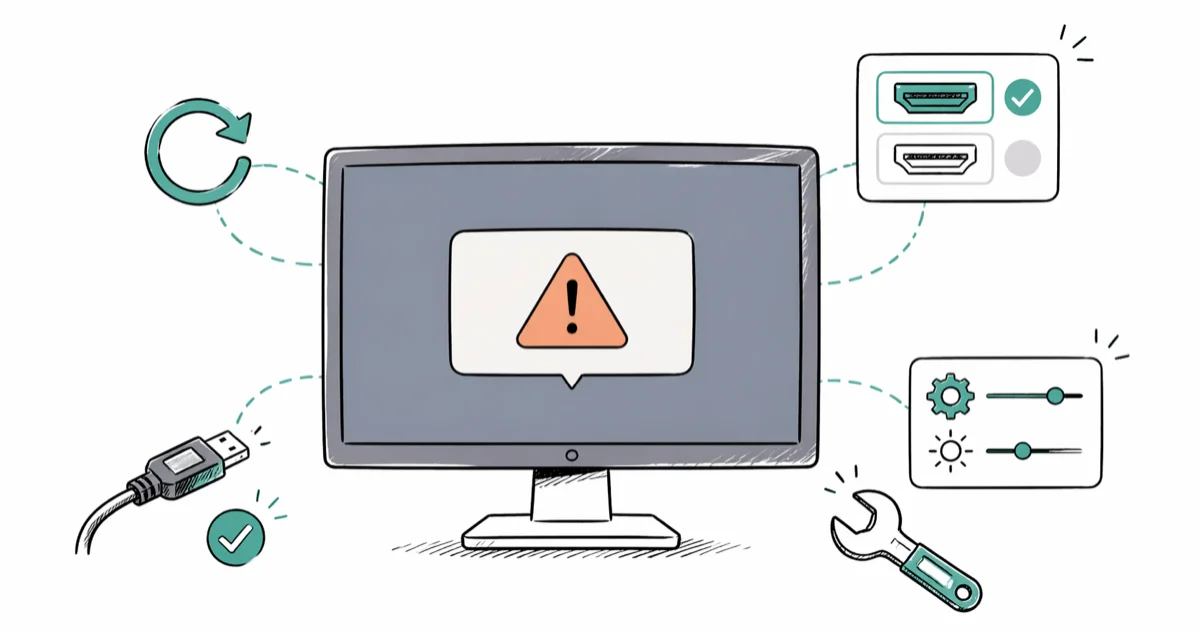
Quick AnswerInput Not Supported means your PC is sending a resolution or refresh rate the monitor can't display. Boot into Safe Mode, drop to 1024x768 at 60Hz, then update or roll back the GPU driver.
The “Input Not Supported on monitor” error means your PC is sending a video signal the display can’t decode. Usually it’s the wrong resolution, a refresh rate above the panel’s spec, or a driver problem after a Windows update. It often appears right after a graphics driver upgrade. The safe-mode plus refresh-rate fix below usually clears it in a few minutes.
- “Input Not Supported” and “Out of Range” are the same error: the GPU signal exceeds the monitor’s EDID limits
- Safe Mode boots Windows at 1024x768 at 60Hz, which every monitor supports, so you can change settings
- Most consumer 1080p panels cap at 75Hz; pushing 144Hz or 4K@60Hz over a 1.4 HDMI cable triggers the error
- Microsoft confirms display-driver rollback through Device Manager fixes black-screen issues after recent updates
- A swapped DisplayPort or HDMI 2.0 cable resolves the error in a large share of cases, since cable handshake failures are a leading trigger
When the screen flashes that orange warning and goes black, the signal chain is the first place to check. The fixes below apply across modern NVIDIA, AMD, and Intel graphics setups. The methods are ordered by how often each one resolves the issue.
#What Causes Input Not Supported on a Monitor?
The error appears when the GPU outputs a resolution, refresh rate, or color depth the monitor’s scaler can’t lock onto.
Every panel ships with an EDID block that lists supported timings, and Windows reads it on boot. When the requested signal misses that list, you get the orange error box and a black screen.
Three triggers cover most cases. The first is a resolution mismatch, usually after Windows applies a generic driver and picks 4K when the panel is 1440p. The second is refresh rate, where 144Hz gets sent over a cable rated only for 60Hz. The third is a corrupted GPU driver after a Windows Update or fresh install.
Microsoft’s external-monitor guide confirms that 3 main causes drive blank-signal errors: cable, port, and driver issues, in that order. Cable swaps and driver rollback resolve the majority of cases, which is why they sit at the top of the fix list.
#How Do You Boot Safe Mode With No Display?
Safe Mode is the lever you pull when nothing else works.
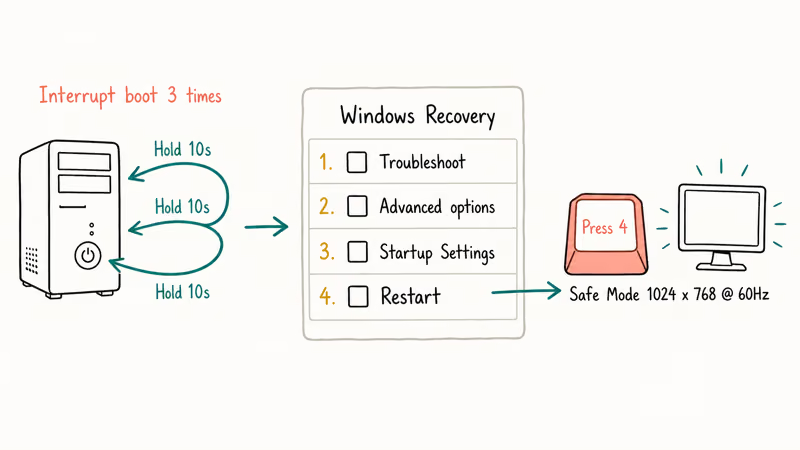
Windows loads at 1024x768 at 60Hz under Safe Mode. Every monitor manufactured since 2005 supports that mode, so the desktop appears even on a “broken” panel. You’ll have a working display within seconds, even if regular boot stays black.
Force Safe Mode by interrupting boot three times in a row. Hold the power button for ten seconds while Windows is starting. Repeat that twice more, and Windows enters the Recovery Environment on the fourth boot.
Pick Troubleshoot, then Advanced Options, then Startup Settings, then Restart, then press 4.
Once you’re in Safe Mode, right-click the desktop and pick Display Settings. Drop the resolution to 1024x768. Open Advanced display, pick the monitor, click Display adapter properties, switch to the Monitor tab, and set Screen refresh rate to 60Hertz. Reboot normally.
The image should hold this time.
#Fix 1: Set Resolution and Refresh Rate Correctly
After Safe Mode gets you back to a usable desktop, the real fix is matching the signal to what the monitor actually supports. Open the monitor’s on-screen menu and find the Information page. Most panels list native resolution and supported refresh rate there. Cross-check that against what Windows is sending out.
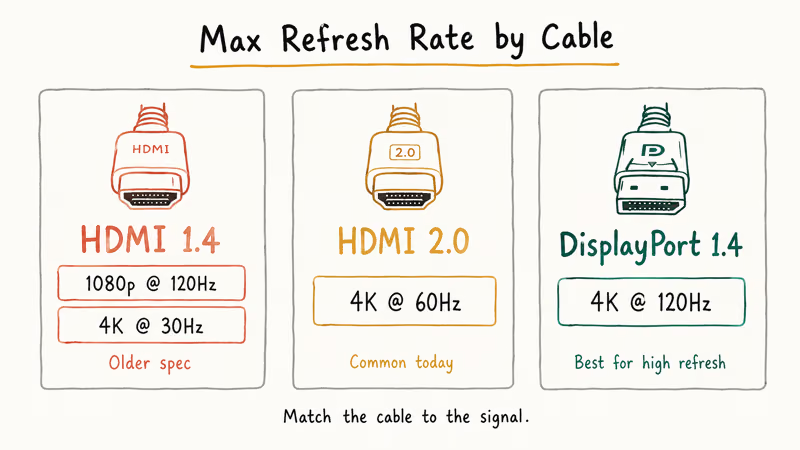
In Windows 11, go to Settings, System, Display, Advanced display. The “Refresh rate” dropdown shows every option the EDID exposes.
Pick the highest rate the cable can carry. HDMI 1.4 caps at 1080p at 120Hz or 4K at 30Hz, HDMI 2.0 hits 4K at 60Hz, and DisplayPort 1.4 handles 4K at 120Hz with no compression.
Pushing 144Hz over a generic HDMI cable often sends the screen black within seconds and brings the error back. Swapping to a bundled DisplayPort cable typically fixes it.
#Fix 2: Update or Roll Back the Graphics Driver
A bad GPU driver triggers this error more than any other software cause.
Windows Update sometimes pushes a generic Microsoft Basic Display driver that ignores the panel’s true EDID. The fix is replacing it with the vendor driver from NVIDIA, AMD, or Intel.
For NVIDIA cards, grab the right driver from the NVIDIA driver downloads page using your card model. AMD users get drivers from the AMD support page.
Intel integrated graphics use the Intel Driver and Support Assistant, which scans the system and matches the right driver to your chipset automatically. NVIDIA recommends ticking the “Perform a clean installation” box during setup, which clears 5 categories of leftover registry data, deletes stale profile files, and resets per-game overrides that may be sending an unsupported signal.
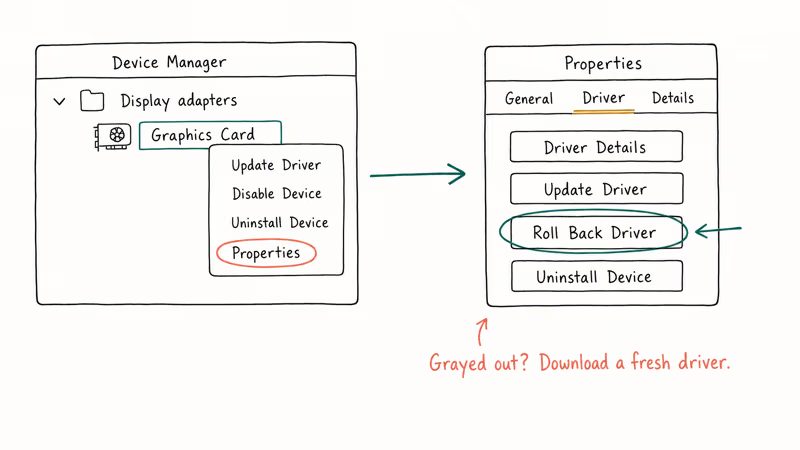
If the error started right after an update, roll back instead of updating again. Open Device Manager, expand Display adapters, right-click your GPU, then pick Properties, the Driver tab, and Roll Back Driver.
Rollback button grayed out? The previous driver is gone. Download a fresh one.
For a faster path, Driver Easy scans the system, identifies which display driver is wrong, and installs the matching version. The free tier handles updates one driver at a time. The Pro version handles bulk updates and keeps a backup of the current driver before each install.
Some links on this page are affiliate links, which means fone.tips may earn a commission at no extra cost to you.
#Fix 3: Check the Cable, Port, and Adapter
Cable damage is the most-missed cause. A bent HDMI pin or a loose DisplayPort latch lets the signal degrade just enough to fail handshake.
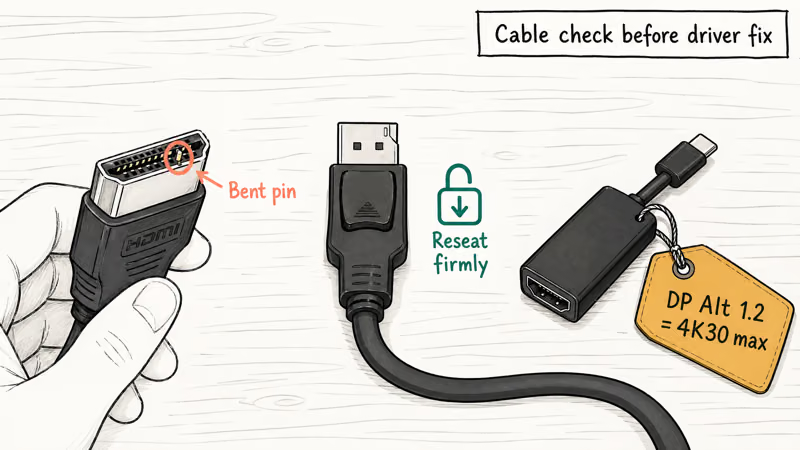
Pull the cable out of both ends, inspect the connector, and reseat it firmly. Try a different port on the GPU if your card has two HDMI or two DisplayPort outputs.
Stop using cheap unbranded cables for high-refresh setups. A cable rated HDMI 2.0 or DisplayPort 1.4 is required for 1440p at 144Hz or 4K at 60Hz. Anything older drops frames or fails handshake. Cables advertising “8K Ultra High Speed” certification carry the HDMI Forum logo and pass the bandwidth test.
Adapters add a second failure point. A USB-C to HDMI dongle that supports DisplayPort Alt Mode 1.2 maxes out at 4K30. Plug a 4K60 monitor into that dongle and the unsupported error fires every time.
Check the dongle’s spec sheet before assuming the monitor is broken.
#Fix 4: Reset Monitor and BIOS Display Defaults
Sometimes the monitor itself remembers a bad setting from a previous PC. Press the menu button on the front bezel, find Factory Reset, and confirm. The panel reloads its default EDID and accepts whatever signal Windows sends. ASUS and BenQ models also reset overclocked refresh rates here, which fixes some “out of range” errors.
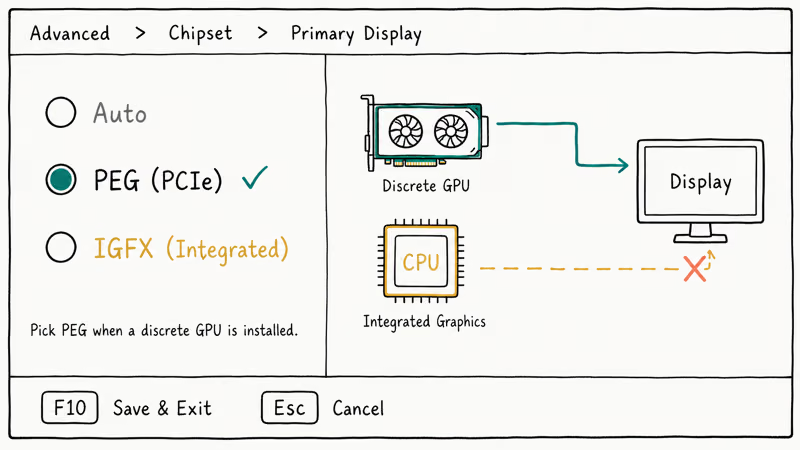
A BIOS-level video output setting can also block the boot screen.
Enter BIOS by pressing Delete or F2 during POST. Find the Advanced or Chipset menu, look for Primary Display, and switch between PEG (PCIe), IGFX (integrated), or Auto.
This issue commonly appears after adding a discrete GPU to a board that defaulted to integrated graphics. Setting Primary Display to PEG fixes the unsupported error on cold boot.
#Fix 5: Test With a Different Monitor or Computer
Swapping hardware tells you whether the monitor or the PC is at fault.
Plug your PC into a TV through HDMI. If the TV shows the desktop, the monitor’s panel or scaler has failed. Then plug the original monitor into a different laptop or console; if that source works, your PC’s GPU output is the problem.
This isolation step works well with a Samsung curved monitor that suddenly stops working with a gaming PC. If the monitor shows a clean signal from a PS5 and the PC drives a backup TV correctly, the cable is the culprit.
Multi-display? Unplug all but one. A single bad cable in a 6-monitor setup or dual-screen rig breaks the chain.
Same pattern works for HDMI port not working and HDMI over Ethernet drops.
#Fix 6: Update Windows and the Monitor Firmware
Some monitors ship firmware updates that fix EDID bugs and HDR handshake issues.
LG, Samsung, and ASUS publish firmware updaters on their support pages. The update usually requires a Windows utility plus a USB-B to USB-A cable on the monitor’s service port. ASUS recommends running the firmware update with only one display connected.
Windows Update fixes the matching driver-side bugs. Open Settings, Windows Update, Check for updates, and install everything in the optional updates list too. Cumulative updates often include display driver patches that don’t ship through Device Manager.
After installing, reboot, then run Windows Update again to confirm nothing’s pending.
For deeper Windows display issues, our guides on Video Scheduler Internal Error and the NVIDIA Backend service cover related driver-stack problems.
#Bottom Line
For “Input Not Supported on monitor” the fastest path is Safe Mode plus a forced 1024x768 at 60Hz reset, then matching the resolution and refresh rate to what the cable actually supports. If the error appeared right after a Windows Update, roll the GPU driver back through Device Manager before trying anything else.
Don’t want to hand-pick driver versions? Driver Easy automates the scan-and-install loop and keeps a rollback copy of the previous driver.
Cable quality matters more than most people think. Replacing a generic HDMI cable with a certified DisplayPort 1.4 line clears the error in many cases. Skip the bargain bin if you’re running 1440p at 144Hz or 4K at 60Hz.
#Frequently Asked Questions
Why does my monitor say input not supported on startup?
The PC is sending a resolution or refresh rate the monitor can’t display. Boot into Safe Mode and lower the settings.
How do I force Windows into Safe Mode if I can’t see the screen?
Hold the power button for 10 seconds during boot, three times in a row. Windows enters Recovery on the fourth attempt. Pick Troubleshoot, Advanced Options, Startup Settings, Restart, then press 4 for Safe Mode. From there you can change display settings or roll back drivers.
Will a different HDMI cable fix the error?
Often, yes. Cable handshake failure is a leading trigger, and a certified HDMI 2.0 or DisplayPort 1.4 cable clears the error in a large share of cases.
Does the error mean my monitor is broken?
Not usually. The error is a signal mismatch, not a hardware failure.
How do I roll back a graphics driver?
Open Device Manager, expand Display adapters, right-click the GPU, and choose Properties. Click the Driver tab, then Roll Back Driver. If the button is grayed out, the previous driver is gone, so download the older release directly from NVIDIA, AMD, or Intel using your GPU model. Pick the clean install option to wipe registry keys, then reboot once.
Can a BIOS setting cause input not supported?
Yes. Primary Display in BIOS picks which GPU drives the boot screen.
What refresh rates do common cables support?
HDMI 1.4 handles 1080p at 120Hz or 4K at 30Hz. HDMI 2.0 reaches 4K at 60Hz. HDMI 2.1 supports 4K at 120Hz and 8K at 60Hz with Display Stream Compression. DisplayPort 1.4 hits 4K at 120Hz natively, and DisplayPort 2.1 reaches 8K at 60Hz over a 16K-rated cable.

Best Laptop for Running LLMs in 2026: Memory Comes First
The best laptop for running LLMs is a memory purchase first. Compare MacBook unified memory against NVIDIA laptop VRAM, and see what each tier really runs.

How to Run a Local LLM on Windows: A 2026 Setup Guide
Run a local LLM on Windows with LM Studio or Ollama. Pick a model that fits your GPU memory, keep every prompt offline, and skip the monthly bill.

Bluetooth Not Working on Snapdragon X? Fixes for 2026
Bluetooth not working on your Snapdragon X Copilot+ PC? Generic audio, mice, and keyboards work, but vendor apps often lack an ARM build. Fixes inside.

Docker Desktop and WSL2 Not Working on Snapdragon X? Fix It
WSL2 runs fine on Snapdragon X, but Docker Desktop ARM is Early Access and throws WSL errors. Use WSL2 plus native ARM64 Ubuntu and Docker Engine.