How to Transfer Contacts from OneDrive Backup to iPhone
Transfer contacts from OneDrive to iPhone. Export as VCF, import via email or AirDrop, or sync through Outlook with clear step-by-step help.
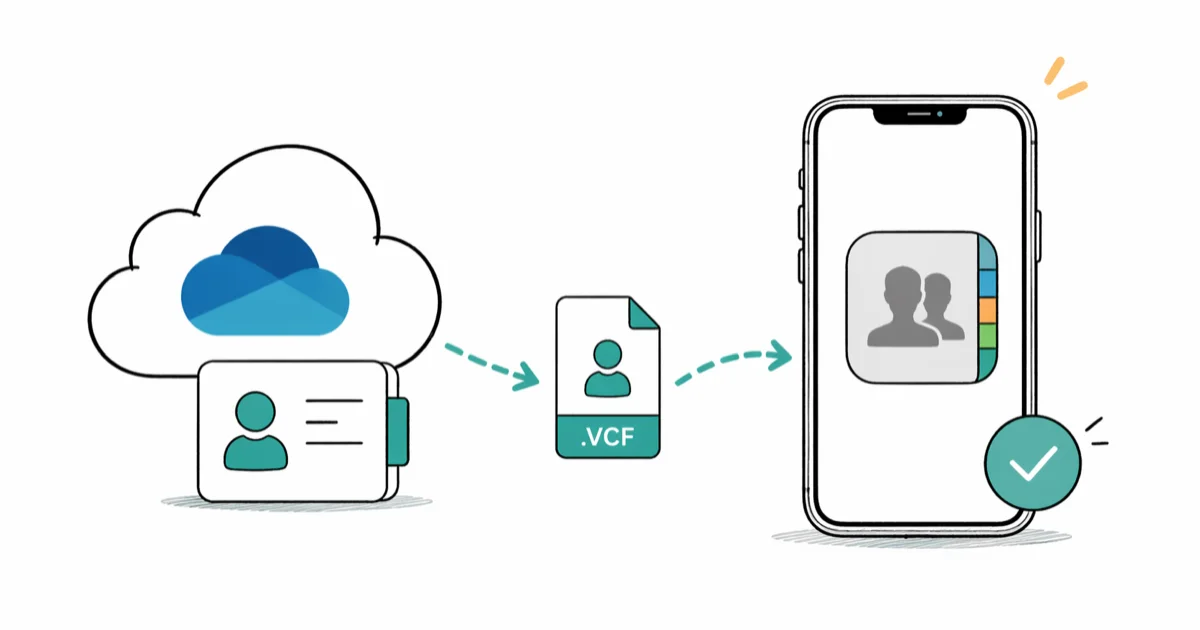
Quick AnswerExport your contacts from OneDrive as a VCF file, send it to your iPhone via email or AirDrop, then tap the file to import all contacts into the iPhone Contacts app. The whole process takes about 5 minutes.
Transferring contacts from a OneDrive backup to your iPhone takes about 5 minutes, and you don’t need any extra software. The key is getting your contacts into VCF format, the only file type iPhone’s Contacts app can import directly.
-
iPhone imports contacts only via VCF, not CSV.
-
OneDrive stores contacts as CSV by default. Free online converters like CloudHQ handle the conversion in under 2 minutes with no signup required.
-
Three delivery options: email, AirDrop from Mac, or the OneDrive iOS app.
-
Outlook users can skip the VCF step entirely and sync contacts automatically through
Settings>Mail>Accountson their iPhone. -
Duplicates happen. They’re not a sign of failure. Use iPhone’s Merge Contacts to fix them.
#What Format Does OneDrive Use for Contacts?
OneDrive backs up iPhone contacts through the Microsoft 365 ecosystem, and it stores them as a CSV (Comma Separated Values) file. That’s a problem because iPhone can only read VCF (vCard) format for direct contact imports.
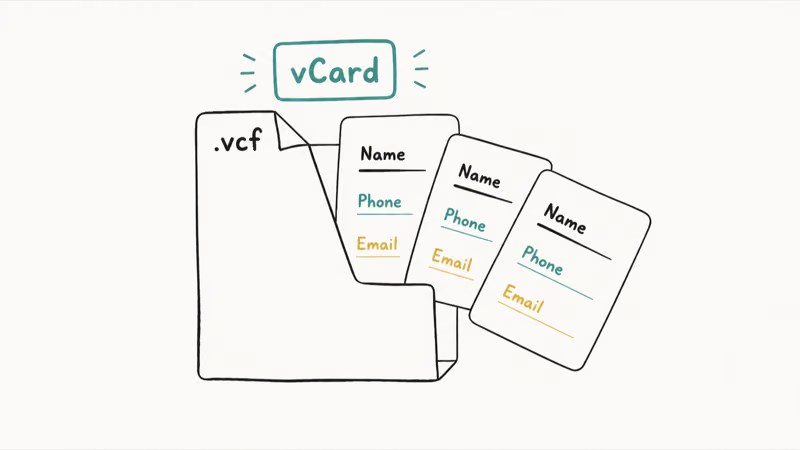
CSV backups must be converted before iPhone Contacts will accept them.
CloudHQ’s CSV-to-vCard tool is a straightforward free converter for turning CSV contacts into an iPhone-readable VCF file. Alternatively, if you have Outlook installed on your computer, it can both import the CSV and re-export as VCF in just a few clicks.
Already have a VCF? Skip conversion.
#How to Transfer Contacts from OneDrive to iPhone
Once you have a VCF file, there are three ways to get it onto your iPhone. We’ll cover the fastest first.
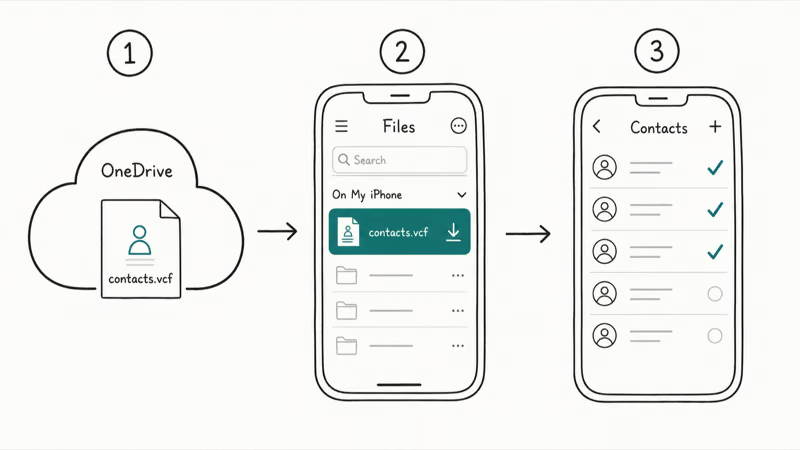
#Method 1: Send the VCF via Email
Email is the quickest method for small VCF files.
- Download the VCF file from OneDrive on your computer and email it to yourself
- On your iPhone, open that email and tap the VCF attachment to preview your contacts
- Tap Add All Contacts to import everything, or Review to pick specific ones
The import runs in the background. Small VCF files usually appear in Contacts quickly, while larger address books may take longer to finish indexing.
#Method 2: Use AirDrop from a Mac
AirDrop is direct.
- Download the VCF file from OneDrive to your Mac, right-click it in Finder, and choose
Share>AirDrop - Select your iPhone and accept the incoming file when the prompt appears
- Tap Add All Contacts to import
Make sure both devices are on the same Wi-Fi network and have Bluetooth enabled. The file transfer usually finishes quickly.
#Method 3: Open the VCF via the OneDrive iOS App
This method works entirely from your iPhone with no computer required.
- Install the Microsoft OneDrive app and sign in with your Microsoft account
- Find your VCF file in OneDrive, tap to open it, then tap the Share button
- Choose Copy to Contacts or tap Add All Contacts
This method is most useful when you’re setting up a new iPhone and don’t have a computer nearby. You can complete the entire transfer directly on your phone, which is convenient at a store or when traveling. The only limitation: if your backup is still in CSV format, you’ll need a computer for the conversion step first, since there’s no reliable iOS-native CSV-to-VCF tool.
#Can You Sync OneDrive Contacts Through Outlook?
Yes. For most people with a Microsoft 365 account, Outlook is actually the better long-term solution. Instead of one-time VCF imports, your iPhone contacts stay in sync automatically.
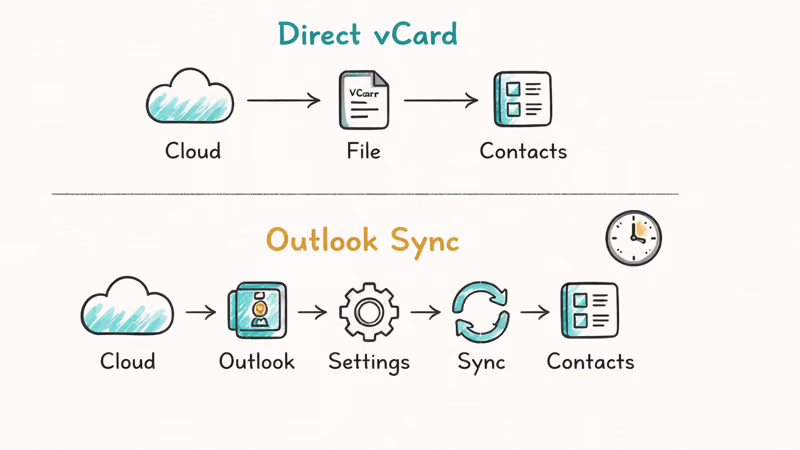
Here’s how to set it up:
- Go to
Settings>Mail>Accounts, tap Add Account, then select Outlook.com (or Exchange for Microsoft 365) - Sign in and toggle Contacts to on in the account settings
- Tap Save
Your iPhone will now sync contacts bidirectionally with Outlook. Changes you make on your iPhone appear in Outlook within a few minutes, and vice versa.
According to Microsoft’s support documentation, this sync method supports iOS 14 and later.
#Fixing Missing or Duplicate Contacts After Transfer
Two common issues after transfer: missing contacts and duplicates. Both fix easily.
#Missing Contacts After Transfer
First, confirm whether your VCF file actually has all the contacts. Open it in a text editor and count the BEGIN:VCARD entries against what you expect.
If contacts are missing from the VCF itself, re-export from the original source before importing again. The iPhone can only import the contact cards that are present in the file.
If the missing contacts came from an old Android phone that was factory reset before the OneDrive backup was complete, you may be able to recover them from Google’s servers. The guide on recovering contacts after a factory reset walks through that process step by step, including how to re-export from Google Contacts once they’re recovered.
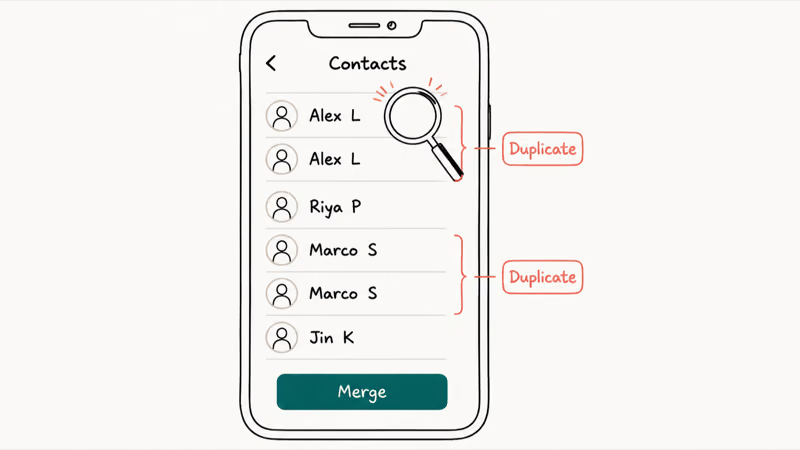
#Duplicate Contacts After Transfer
Duplicates happen when your iPhone already has some contacts, and the VCF import adds copies of the same person. Your iPhone has a built-in fix.
- Open the Phone app, tap Contacts, then tap your name at the top
- Scroll down and tap Merge Contacts
- Review the suggested merges and tap Merge to confirm
According to Apple’s support page on merging contacts, this tool combines cards that share the same name or phone number. Some duplicates may still need manual attention when names are spelled differently or phone numbers use different formats.
#How to Back Up iPhone Contacts to OneDrive
Backing up is easy. The Microsoft OneDrive app handles iPhone contact backup automatically once you enable it.
- Open the OneDrive app, tap your profile icon at the top left, then tap Settings
- Tap Backup (or Camera Upload depending on app version)
- Toggle Contacts Backup to on
Once enabled, OneDrive backs up contacts automatically each time you open the app over Wi-Fi, with no manual trigger needed. According to Microsoft’s OneDrive backup documentation, the backup covers native device contacts and iCloud contacts alike, and files are accessible from any browser at onedrive.live.com.
Keep OneDrive as a secondary backup. If iCloud contacts fail to sync after a major iOS update, having a OneDrive copy gives you another restore path without waiting for Apple Support.
#Transferring Everything to a New iPhone at Once
The VCF method works well for contacts alone. But if you need to move photos, apps, messages, and settings all at once, use Apple’s Quick Start instead.
Apple’s Quick Start transfer can move contacts, iCloud data, apps, Safari bookmarks, and device settings without a manual VCF import. You just hold both iPhones near each other and follow the on-screen prompts; the total transfer time depends on backup size and Wi-Fi speed.
Quick Start requires both phones to run iOS 12.4 or later and stay physically close during the transfer.
If the VCF, Outlook, and Quick Start routes don’t complete the transfer, AnyTrans can import selected contact files through a computer; confirm the contact count before deleting the backup.
Some links on this page are affiliate links, which means fone.tips may earn a commission at no extra cost to you.
#Bottom Line
The fastest path: download from OneDrive, convert to VCF if needed, email it to yourself, tap to import. Five minutes, done. Outlook users should set up Exchange sync for ongoing contact updates with no manual steps. For duplicates, run Merge Contacts right after import.
If you’re also managing contacts across Android devices, our guide on sharing contacts between iPhone and Android covers those workflows in detail. And if you ever need to move your entire OneDrive contents elsewhere, our guide on migrating from OneDrive to Google Drive walks through the steps.
iPhone tips & tricks
#Frequently Asked Questions
Can I transfer OneDrive contacts to iPhone without a computer?
Yes, if your backup is already in VCF format. Install the OneDrive app on your iPhone, sign in with your Microsoft account, find the VCF file in your OneDrive storage, and tap to open it. Your iPhone will immediately offer to import. The only case where you’d still need a computer is if your backup is a CSV file — there’s no reliable iOS-native tool for CSV-to-VCF conversion, so that step still needs a desktop browser or app.
How long does it take to transfer 500 contacts from OneDrive to iPhone?
It usually takes only a few minutes when your file is already in VCF format. The VCF file itself is tiny: 500 contacts typically weighs under 500 KB. Add extra time if you also need to convert from CSV to VCF first or wait for email delivery.
Why is my iPhone not recognizing the VCF file from OneDrive?
The file extension must be vcf — not vcard or csv. If OneDrive downloaded it without an extension, rename it to add .vcf before sending to your iPhone. Also open the file in a text editor and confirm the first line reads BEGIN
. If it shows something different, it’s still a CSV and needs conversion first.Will transferring OneDrive contacts overwrite my existing iPhone contacts?
No. Imports add contacts, they don’t replace them. Duplicates are common. Use Merge Contacts to clean up.
Does OneDrive contacts backup include contact photos?
It depends on the export format. VCF files can include embedded photos, but OneDrive’s automatic contact backup often strips photos to reduce file size. If contact photos matter to you, a direct phone-to-phone transfer using Quick Start or a third-party tool like CopyTrans will preserve them more reliably.
What should I do if the OneDrive contacts sync through Outlook stops working?
Go to Settings > Mail > Accounts, tap your Outlook account, toggle Contacts off, wait 30 seconds, then toggle it back on. This forces a re-sync and fixes most Outlook-to-iOS contact failures. If it doesn’t help, remove the Outlook account and re-add it.
Can I use the same VCF file to add contacts to a second iPhone?
Yes. Send the same VCF to any iPhone and run the import. Each device handles it independently.

How to Transfer Data to a New iPhone Without iCloud
Move everything to your new iPhone without iCloud: Quick Start device-to-device transfer, wired migration, and encrypted Finder or iTunes backups.
Best Wireless Earbuds for iPhone in 2026: USB-C Era Picks
Best wireless earbuds for iPhone in 2026, comparing AirPods Pro 3, Sony WF-1000XM6, Bose QC Ultra, and Anker Liberty 4 NC on the USB-C iPhone lineup.
iPhone Keyboard Lag? 7 Proven Fixes for iOS 26 (2026)
Fix iPhone keyboard lag with 7 proven fixes for iOS 26. Covers restart, storage, predictive text, third-party keyboards, and dictionary reset.
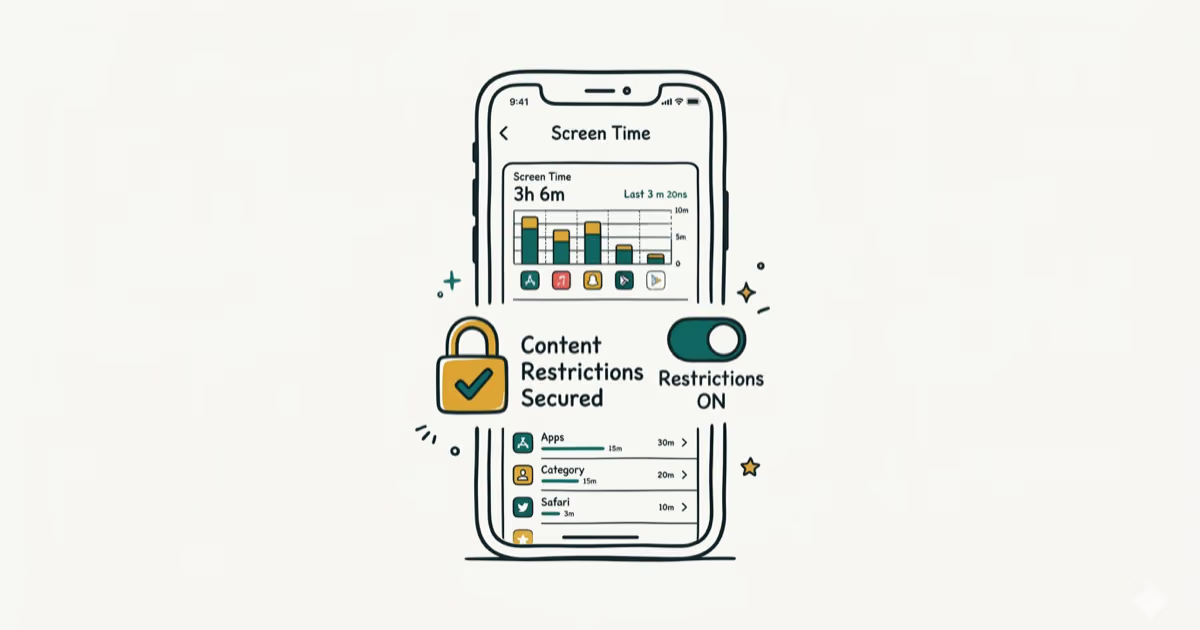
How to Block Porn on an iPhone: A Guide for Parents
Learn how to block porn on iPhone using Screen Time, DNS filtering, and safe browsers. Step-by-step guide for parents to protect kids' devices.