File Explorer Not Responding in Windows 11? 8 Fixes
Fix Windows 11 File Explorer not responding by restarting Explorer, clearing Quick Access, isolating shell extensions, then running SFC and DISM last.
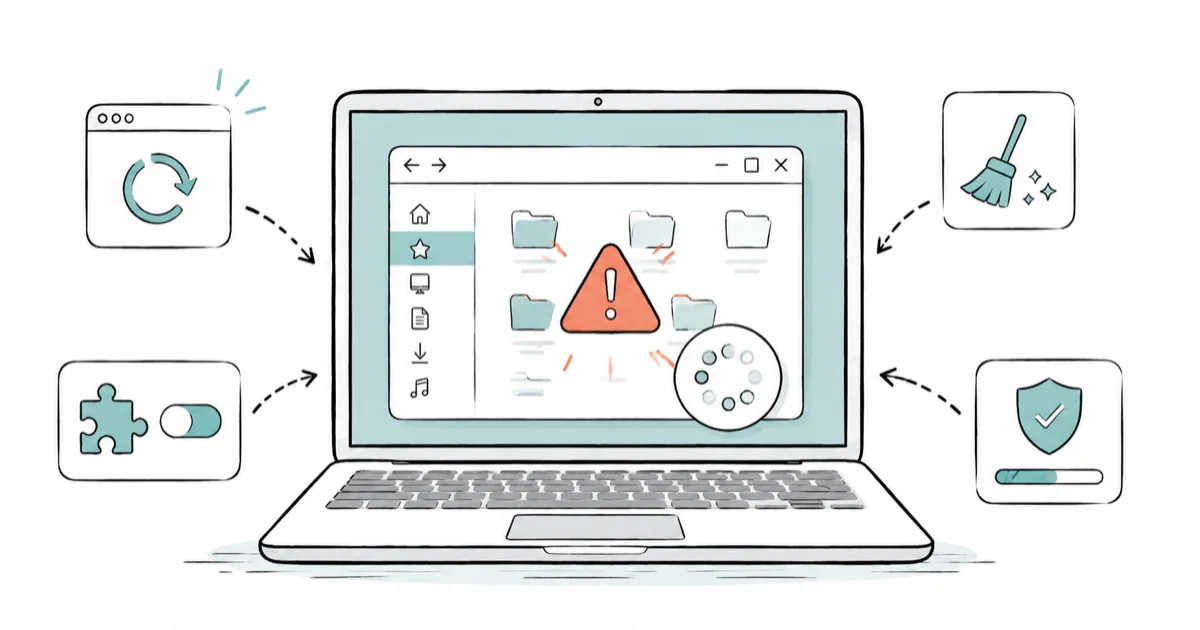
Quick AnswerRestart Windows Explorer first, since it's fast and reversible. If it only hangs in Quick Access, previews, or network folders, isolate that pattern before you run any system-repair commands.
Windows 11 File Explorer not responding has one fast fix and several slow ones, and the order matters. Restart Windows Explorer first, since it clears many freezes without a reboot. Only if the hang keeps coming back do you isolate the pattern and reach for repair commands.
- Restarting Windows Explorer in Task Manager clears many freezes with no reboot
- A hang in only one folder, like Quick Access or Downloads, points at cache or previews, not the whole shell
- The Preview and Details panes load file contents, so a bad file there can freeze the window
- Third-party shell extensions are the most common cause of repeatable freezes, and a clean boot exposes them
- Run SFC and DISM last, after you’ve ruled out the faster cache, preview, and extension causes
#Why Is File Explorer Not Responding in Windows 11?
File Explorer is the desktop shell, not just a file browser, so when it hangs it can take the taskbar and Start menu with it. The freeze usually traces to one of a few triggers: a stuck process, a corrupt Quick Access cache, a bad preview, a shell extension, a slow network folder, or truly damaged system files. Each has a different fix.
The single most useful question is where it hangs. If Explorer freezes everywhere, suspect the process or a shell extension. If it only freezes in one place, the cause is local to that folder, its previews, or its sync.
| Symptom | Likely cause | First action |
|---|---|---|
| Freezes everywhere, taskbar too | Stuck Explorer process | Restart Windows Explorer |
| Hangs opening Quick Access | Corrupt Quick Access cache | Clear file history, change default |
| Hangs on certain files | Preview or Details pane | Disable the preview pane |
| Freezes in one network folder | Slow or dead network path | Test a local folder |
| Repeatable freeze after right-click | Shell extension conflict | Clean boot to isolate |
Start at the top. The first row fixes most cases on its own.
#Restart Windows Explorer Without Rebooting
Press Ctrl + Shift + Esc to open Task Manager. Find Windows Explorer in the Processes list, right-click it, and choose Restart. The taskbar and any open windows blink and reload, and the freeze usually clears.
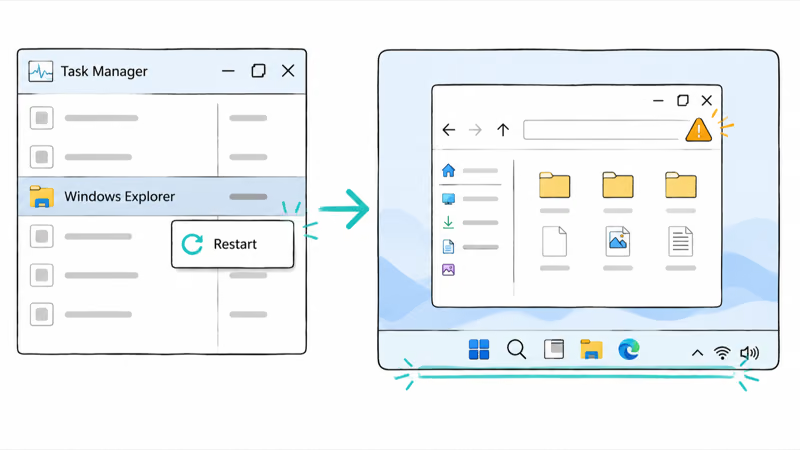
This restarts only the shell, so nothing you have open in other apps is lost. It’s the fastest, safest first move, which is why it sits ahead of everything else.
A restart that doesn’t hold cleanly separates a transient stall, which it can cure, from a repeating conflict that needs the isolation steps further down this page.
If the whole shell is unstable, not just Explorer, the underlying problem may be wider. Persistent shell and search trouble overlaps with the issues in the windows 11 search not guide, and a frozen taskbar that travels with the freeze gets its own treatment in the windows 11 taskbar not walkthrough.
#Clear Quick Access and Disable Preview Pane
When Explorer hangs the moment it opens, Quick Access is a prime suspect. It loads recent files and pinned folders on launch, so a corrupt history or a dead network pin stalls the whole window before you can do anything.
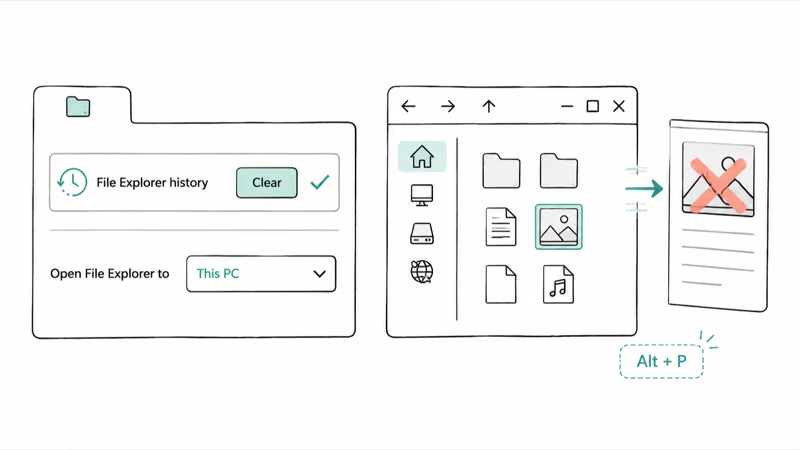
Open File Explorer Options from Start search, go to the General tab, and click Clear next to File Explorer history. Also switch “Open File Explorer to” from Quick Access to This PC.
The Preview and Details panes are the other frequent culprit. They read each selected file to render a thumbnail or metadata, so one corrupt video, PDF, or RAW image can freeze the window the instant you click it. Press Alt + P to toggle the preview pane off, then see if the hang stops.
Turning off the preview pane can stop freezes that happen when a selected file triggers a bad preview renderer. The file may be fine; the preview renderer may be the part that hangs.
#What If Explorer Freezes Only in One Folder?
A freeze confined to a single folder is good news. It rules out the whole shell, so the cause is local to that folder.
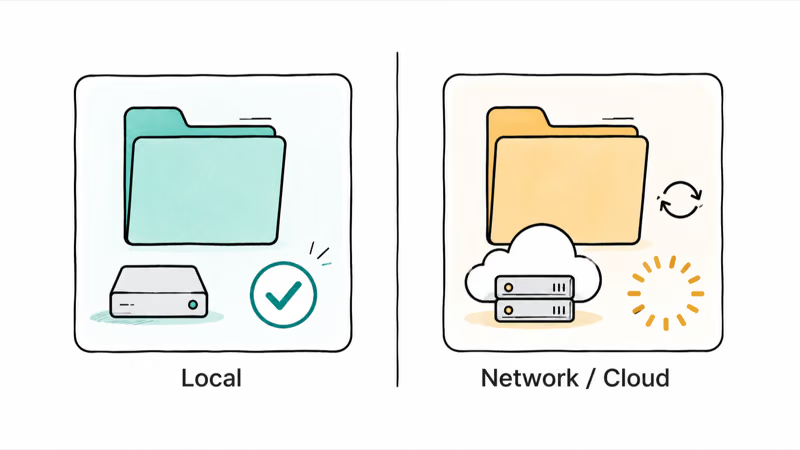
Test the pattern directly. Open a plain local folder like C:\Windows and watch. If local folders behave but a network share or cloud-synced folder hangs, the problem is the path itself, not Explorer, and that distinction saves you from running repair commands against a perfectly healthy shell that’s simply waiting on a slow or offline remote location.
Network and cloud folders fail in a specific way. A mapped drive whose server is offline, or a OneDrive folder mid-sync, makes Explorer wait on a timeout that looks exactly like a crash. Disconnect the dead mapped drive, or pause cloud sync, and the freeze clears.
Thumbnails are the other local cause. A folder packed with photos or videos forces Explorer to generate previews for every item, which can stall a slow drive. Switching that folder’s view to Details or List stops the thumbnail load.
#Check Shell Extensions, Network Drives, and Cloud Sync
Repeatable freezes, especially right after a right-click, usually mean a misbehaving third-party shell extension. Cloud apps, archive tools, and antivirus suites all add these context-menu and overlay hooks, and any one of them can wedge the entire window the instant Explorer tries to draw a menu, which is why the symptom feels so random until you trace it.
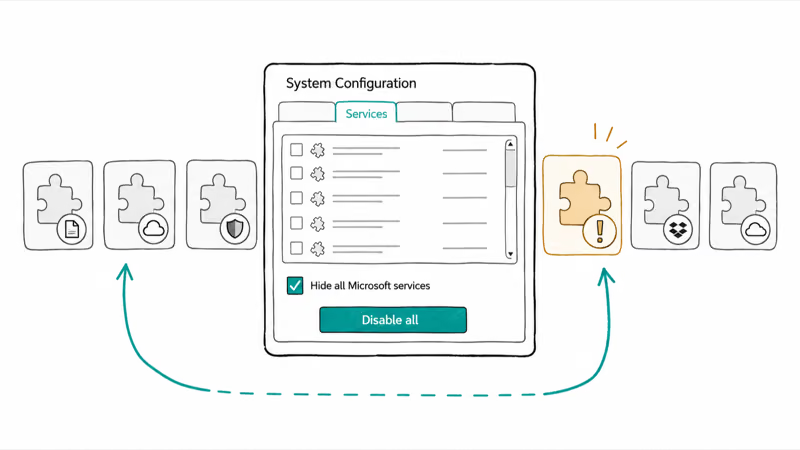
The clean way to confirm it’s a shell-extension problem is a clean boot. According to Microsoft’s guide to how to perform a clean boot in Windows, a clean boot starts Windows with only essential drivers and startup programs, which makes it easier to identify background software conflicts. Type msconfig, open System Configuration, check Hide all Microsoft services on the Services tab, click Disable all, then disable startup items in Task Manager and restart.
If Explorer is stable in a clean boot, a third-party extension is your culprit. Re-enable services and startup items in small groups until the freeze returns and names the offender. A blue-screen crash instead is a different problem, covered in the windows 11 bsod fix guide.
Sometimes the trigger is an update that landed badly rather than a third-party tool. A stalled or half-applied update can destabilize the shell, which the windows 11 update stuck guide walks through, and display-driver hangs that look like Explorer freezes show up in the windows 11 second monitor guide.
#Run SFC and DISM After You Isolate the Pattern
If the faster causes are ruled out and Explorer still freezes broadly, corrupt system files are a fair suspect. This is where SFC and DISM belong, last, not first.
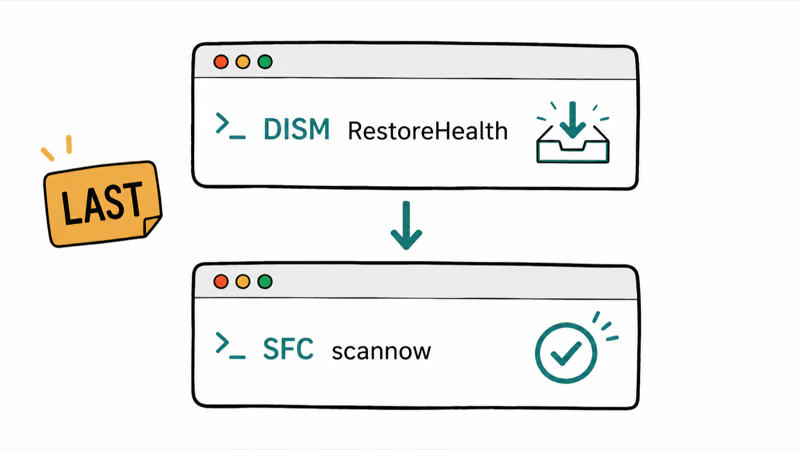
Open Command Prompt or Terminal as administrator. According to Microsoft’s support page, 2 commands handle this repair when you run them in order:
DISM /Online /Cleanup-Image /RestoreHealthsfc /scannow
Microsoft’s support page states that DISM provides the files required to repair corrupted files, and that SFC scans all protected system files and replaces corrupted ones with a cached copy. Running DISM first gives SFC a healthy source to pull from.
If those finish clean but the freeze persists, boot into Safe Mode to confirm whether a driver or service is involved. As Microsoft describes, Safe Mode starts Windows in a basic state using a limited set of files and drivers. A problem that vanishes there points at something Windows loads normally.
You can follow the official steps for how to start your PC in Safe Mode in Windows, and the full System File Checker walkthrough covers the repair commands in detail.
#Bottom Line
Restart Windows Explorer first, because it’s fast and reversible and clears most freezes outright. If Explorer only hangs in Quick Access, previews, or network and cloud folders, isolate that exact pattern before running anything heavier. SFC and DISM are useful, but they should be the last software step, not the reflex you reach for while the more common cache, preview, and shell-extension causes go unchecked.
#Frequently Asked Questions
Why is File Explorer not responding in Windows 11?
It usually comes down to a stuck Explorer process, a corrupt Quick Access cache, a bad preview, a third-party shell extension, or a slow network folder. Genuine system-file damage is possible but far less common. The fix depends entirely on where and when the freeze happens.
What should I check first?
Restart Windows Explorer in Task Manager first. It takes about ten seconds and clears most one-off freezes. If the freeze returns immediately, isolate the pattern instead.
Can a Windows update cause this?
Yes. A bad or half-applied update can destabilize the shell or swap a display driver that Explorer relies on. If freezes started right after an update, that timing is a strong lead, and rolling back the update or its driver often settles it.
Will any of these fixes delete my files?
No, none of them delete files. Restarting Explorer, clearing Quick Access history, toggling the preview pane, and running SFC or DISM all leave your personal files untouched, and clearing Quick Access only wipes the recent-files list and pins rather than the files. Nothing in your actual folders disappears, so you can run every step in this guide without backing up first, though a backup is always good general practice.
When should I contact official support?
Reach out when SFC and DISM both come back clean, a clean boot still freezes, and Safe Mode shows the same hang. At that point the cause is likely a deeper hardware or driver fault, such as a failing drive, and Microsoft support or a repair shop is the right next step.
How do I prevent this from happening again?
Keep Explorer set to open to This PC rather than Quick Access, uninstall shell-extension tools you don’t actually use, and pause cloud sync before working in large folders. Keeping a folder’s view on Details for photo-heavy directories also stops the thumbnail load that triggers many freezes.

Best Laptop for Running LLMs in 2026: Memory Comes First
The best laptop for running LLMs is a memory purchase first. Compare MacBook unified memory against NVIDIA laptop VRAM, and see what each tier really runs.

How to Run a Local LLM on Windows: A 2026 Setup Guide
Run a local LLM on Windows with LM Studio or Ollama. Pick a model that fits your GPU memory, keep every prompt offline, and skip the monthly bill.

Bluetooth Not Working on Snapdragon X? Fixes for 2026
Bluetooth not working on your Snapdragon X Copilot+ PC? Generic audio, mice, and keyboards work, but vendor apps often lack an ARM build. Fixes inside.

Docker Desktop and WSL2 Not Working on Snapdragon X? Fix It
WSL2 runs fine on Snapdragon X, but Docker Desktop ARM is Early Access and throws WSL errors. Use WSL2 plus native ARM64 Ubuntu and Docker Engine.