Dropbox Not Syncing? 8 Fixes That Actually Work (2026)
Fix Dropbox not syncing with 8 proven methods: restart the app, clear the cache, check storage limits, fix selective sync. Covers Windows and Mac.

Quick AnswerRestart the Dropbox desktop app and check your internet connection first. If that does not help, clear the Dropbox cache, check your selective sync settings, or reinstall the app. Most syncing problems fix themselves after a restart or cache clear.
Dropbox stops syncing for a handful of predictable reasons, and most common fixes start with the desktop app, storage limits, cache files, selective sync, and network access.
- Restarting the Dropbox process fixes the majority of one-off syncing failures without any other changes needed.
- Dropbox free accounts have a 2 GB storage cap; hitting that limit silently stops all new uploads from syncing.
- The selective sync feature can hide folders from your local device, making it look like files are missing even though they’re safely in the cloud.
- Clearing the Dropbox cache folder at
C:\Users\[Name]\AppData\Roaming\Dropbox\cacheremoves corrupted temporary files that block syncing. - Firewall or antivirus software blocking port 443 (HTTPS) or port 17500 is a common cause of syncing failures on corporate networks.
#Why Is Dropbox Not Syncing?
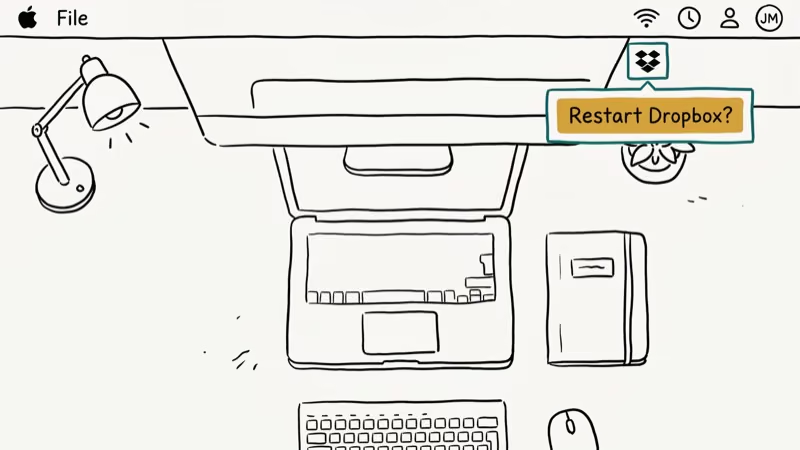
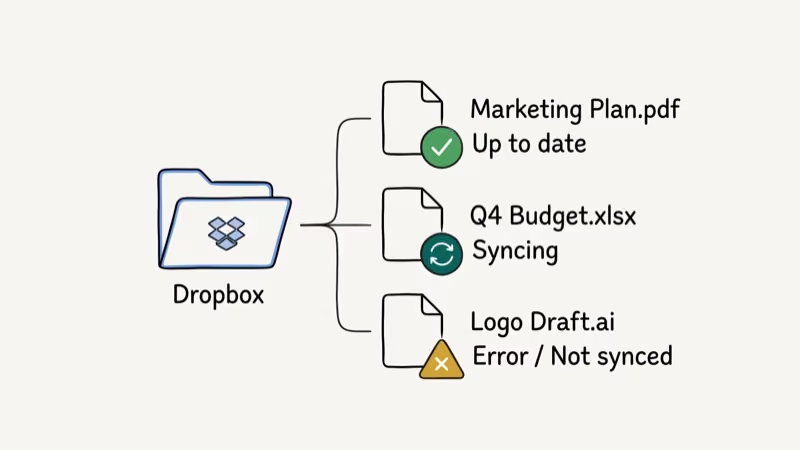
Before trying any fix, hover your mouse over the Dropbox icon in the taskbar (Windows) or menu bar (Mac). A spinning blue circle means it’s actively syncing. A red X means there’s an error. A checkmark means sync is working fine, and the issue may be with a specific file rather than Dropbox itself.
The most common causes of Dropbox not syncing:
- Storage full: Free accounts get 2 GB; paid Plus accounts get 2 TB. Dropbox silently pauses uploads when the limit is reached.
- Internet connection issues: Dropbox requires a stable connection. Even a brief drop can interrupt a sync.
- App needs restarting: The Dropbox process sometimes gets into a bad state after long uptime.
- Selective sync: Folders excluded from selective sync don’t appear locally, which can look like missing files.
- Firewall blocking: Security software may block Dropbox’s required ports.
#Fix 1: Restart the Dropbox App
Restarting the app resets the local sync process. Quit Dropbox from the menu, wait briefly, then relaunch it.
A simple restart can clear a temporary “syncing paused” state after a brief Wi-Fi dropout. If you’re dealing with other file sync issues, our iTunes Wi-Fi sync troubleshooting guide covers a similar process for Apple devices.
#Fix 2: Check Your Storage Space
If Dropbox is full, it stops uploading new files immediately. Open dropbox.com/account/plan to see your current storage usage. According to Dropbox’s official help documentation, free accounts are limited to 2 GB total across all devices.
Delete files you no longer need, or upgrade your plan. After freeing up space, Dropbox should resume syncing within a few minutes automatically.
#Specific File Issues That Block Syncing
Sometimes syncing fails because of the file itself, not Dropbox. Check for these issues:
- File is open: A Word document or Excel spreadsheet that’s currently open can’t be synced because the file is locked.
- Special characters in filename: Characters like
/ \ : * ? " < > |break syncing. Rename the file without them. - File path too long: Windows has a 260-character path limit. Files nested deeply in subfolders can exceed it.
- Corrupted file: Delete the file from your Dropbox folder and re-add a clean copy.
#Fix 3: Clear the Dropbox Cache
Corrupted cache files can block syncing. Here’s how to clear them:
On Windows:
- Close Dropbox completely (Quit from the taskbar icon).
- Open File Explorer and go to
C:\Users\[YourName]\AppData\Roaming\Dropbox\cache. - Select all files (Ctrl+A) and delete them.
- Restart Dropbox.
On Mac:
- Quit Dropbox from the menu bar icon.
- Open Finder and go to
~/Library/Application Support/Dropbox/cache. - Delete all files inside the cache folder.
- Restart Dropbox.
If Dropbox is stuck on a corrupted temporary file from a failed upload, clearing the cache removes the stale local data and lets Dropbox rebuild its sync state.
#How to Fix Selective Sync Issues?
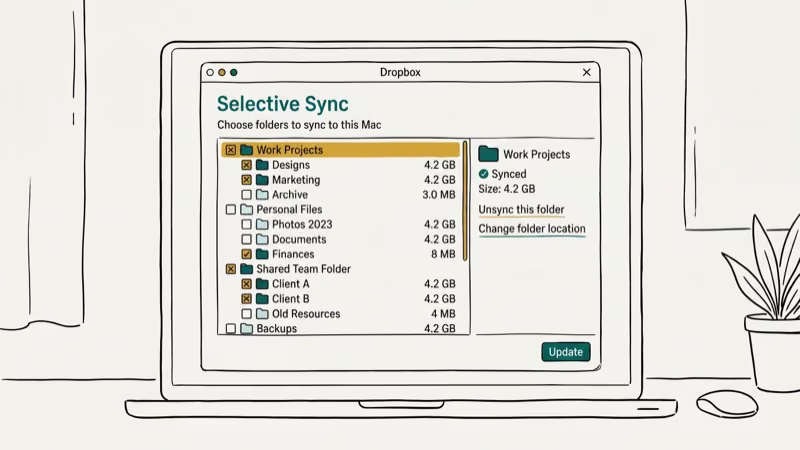
Selective sync lets you choose which folders sync to your local device. If you’ve accidentally excluded a folder, its files stay in the cloud but don’t appear locally. This is a common source of confusion that looks like Dropbox not syncing.
- Click the Dropbox icon and open Preferences (or Settings).
- Go to the Sync tab.
- Click Selective Sync and check that your target folders are selected.
- Click Update and let Dropbox re-download excluded folders.
You can also check selective sync settings from the Dropbox website at dropbox.com to see all folders, even ones not currently synced to your device. If you want to transfer your Dropbox files to iCloud or recover deleted Dropbox files, make sure selective sync isn’t hiding the files you’re looking for first.
#Fix 5: Disable Firewall and Antivirus Temporarily
Security software sometimes blocks Dropbox’s connection to its servers. According to Dropbox’s network connectivity requirements, Dropbox requires outbound access on ports 80, 443, and 17500.
Third-party firewall rules can block cloud sync clients silently, with no visible error in the app itself. To test if your firewall is the cause:
- Temporarily disable your antivirus or firewall.
- Wait 60 seconds and check if Dropbox starts syncing.
- If it does, add Dropbox as an exception in your security software settings.
- Re-enable your firewall.
#Fix 6: Update or Reinstall Dropbox
An outdated Dropbox version can develop syncing bugs. Click the Dropbox icon, go to Preferences > Account, and look for an update option. Dropbox usually updates automatically, but sometimes it gets stuck on an older version.
If updates don’t help, uninstall Dropbox completely and download the latest version from dropbox.com/install. Your files stay in the cloud; only the local app gets removed.
#Fix 7: Check Dropbox Server Status
Check status.dropbox.com for outages. If Dropbox is down, wait for service recovery.
#Fix 8: Use a Professional Alternative
If Dropbox keeps having syncing issues and you need reliable cloud storage, consider switching to Google Drive or Microsoft OneDrive. Both offer free storage tiers and strong desktop sync clients.
For moving your existing files, our guide on transferring Dropbox to Google Drive covers the process step by step. Google Drive offers 15 GB of free storage according to Google’s support page, shared across Gmail, Drive, and Photos.
If you’re on an iPhone and dealing with related cloud headaches, our guide on iCloud notes not syncing covers similar troubleshooting steps for Apple’s cloud service.
#Bottom Line
Most Dropbox syncing problems fix with a simple restart or cache clear. If those don’t work, check your storage space and selective sync settings before uninstalling. Firewall issues are the most common cause of persistent syncing failures on work computers. Keep Dropbox updated to avoid running into bugs that were patched months ago.
#Frequently Asked Questions
Why is Dropbox syncing so slowly?
Dropbox throttles upload and download speeds. Right-click the Dropbox icon, go to Preferences > Bandwidth, and check your sync speed limits. Dropbox also slows down if your internet connection is congested or if you’re uploading large video files.
Can I sync Dropbox files offline?
Yes. Dropbox keeps a local copy of all synced files on your device, so you can access them without internet. Changes you make offline sync automatically once you reconnect.
Is there a file size limit for Dropbox syncing?
Dropbox supports files up to 50 GB for paid accounts and files up to 2 GB when uploading through the website. The desktop app has no per-file size limit, but your total storage limit still applies.
Why are some files not syncing even though I have space?
Check for unsupported characters in filenames, files that are currently open, or path lengths exceeding 260 characters on Windows. Also check selective sync to make sure those specific folders are included.
Does Dropbox sync automatically on all devices?
Yes, once Dropbox is installed and you’re signed in, it syncs automatically in the background. Changes on one device appear on all others within seconds, assuming a stable internet connection.
How do I stop Dropbox from syncing a specific folder?
Use selective sync. Click the Dropbox icon, go to Preferences > Sync > Selective Sync, and uncheck any folders you don’t want on your local device. Those folders stay in the cloud but won’t download to that machine.

Google Messages Error 3100: Why RCS Is Broken on Galaxy
Google Messages RCS error 3100 hits Galaxy owners after phone or carrier switches. Google told 9to5Google a fix is coming. Here's what actually helps.

Is This Bank App Real? Spot a Fake App on Your Home Screen
A bank app can land on your home screen from a web page with no install warning. Learn the checks that tell a real banking app from a phishing web app.

Apps Crashing After iOS 27 Update? Fix Order (2026)
Apps crashing after the iOS 27 update? Update the app in the App Store first, then offload and reinstall to clear stale cache, then restart. The fix order.

Do AI Translation Earbuds Work Offline? What to Know
Do AI translation earbuds work offline? A few do with downloaded language packs, but most need the cloud. Here's what works offline and what you give up.