NisSrv.exe: Is It Safe and How to Fix High CPU Usage?
NisSrv.exe is Windows Defender's network inspection service. Learn what it does, whether it's safe, and how to fix sustained high CPU usage.

Quick AnswerNisSrv.exe is the Windows Defender Network Realtime Inspection Service, a built-in Windows security tool that scans incoming network packets for malware. It is not a virus.
NisSrv.exe is a legitimate Windows process from Microsoft, not malware. It runs as part of Windows Defender and inspects every incoming network packet in the background. If you spotted it in Task Manager and started wondering whether to kill it, this guide covers what it does, how to verify yours is genuine, and what to do if it’s eating CPU.
- NisSrv.exe is the Network Realtime Inspection Service, part of Windows Defender since 2012
- The genuine file lives at
C:\ProgramData\Microsoft\Windows Defender\Platform\and nowhere else - Idle CPU stays under 1% and RAM under 20 MB on typical Windows 10 and Windows 11 setups
- Sustained CPU above 10% at rest usually points to a stalled definition update, not active malware
- A manual definition refresh in Windows Security clears most high-CPU spikes within a few minutes
#What NisSrv.exe Does on Windows
NisSrv.exe runs Microsoft’s Network Realtime Inspection Service (NIS).
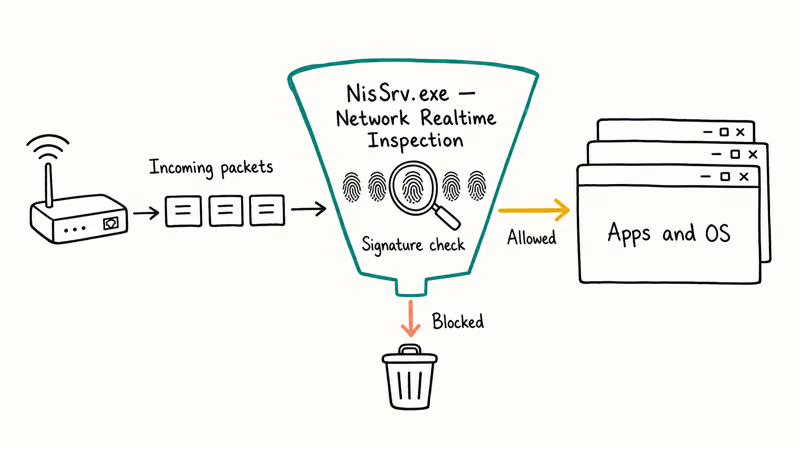
According to Microsoft, NIS has been built into Windows Defender since 2012 to block network-borne attacks, the kind that don’t need a file download to land on your machine. Microsoft’s reference for Defender Antivirus on Windows describes how the engine pulls signature updates through Windows Update and stays active alongside any compatible third-party security software. That keeps the inspection service current without daily user effort.
When your PC connects to any network, NisSrv.exe sits between the network adapter and your apps. Each incoming packet runs through a signature check, and anything matching a known exploit or malware fingerprint gets dropped before any application can process it.
NisSrv.exe is separate from Windows Defender’s on-disk file scanner, MsMpEng.exe.
MsMpEng watches files at rest and on access. NisSrv handles only live packets. Both run in parallel without overlapping what they inspect or how they react to threats.
#Is NisSrv.exe Safe or a Virus?
It’s safe. The real NisSrv.exe is a signed Microsoft binary that ships with every Windows 10 and Windows 11 install. The catch: some malware families adopt the same filename to hide in Task Manager, so a 30-second sanity check is worth your time.
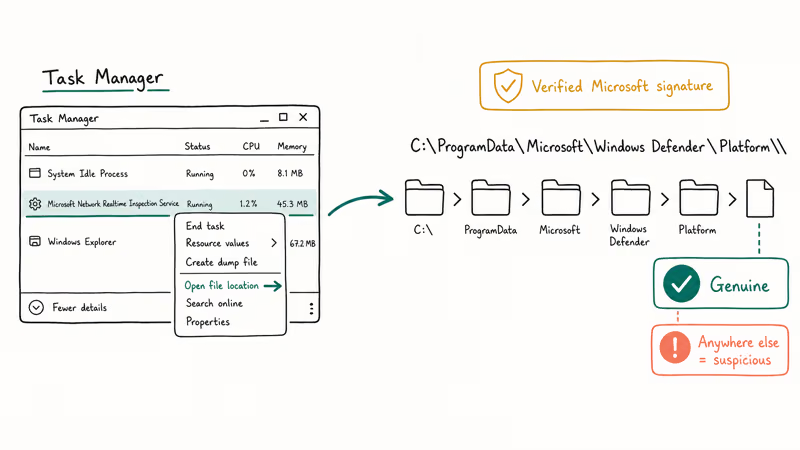
Open Task Manager with Ctrl + Shift + Esc and click More details. Find Microsoft Network Realtime Inspection Service under Windows Processes, right-click it, and choose Open file location. The path must be inside C:\ProgramData\Microsoft\Windows Defender\Platform\. Anything outside that directory is suspicious.
Right-click the file itself, choose Properties, and open the Digital Signatures tab. The signer should read Microsoft Corporation with a valid timestamp.
On a genuine install, the path resolves to a versioned subfolder such as C:\ProgramData\Microsoft\Windows Defender\Platform\{version}\NisSrv.exe with a valid Microsoft signature. The whole verification takes only a minute or two end to end.
If the file path doesn’t match, run a Full Defender scan immediately.
Our walkthrough on win32
false positives and real detections covers what to do when Defender flags something suspicious that you weren’t expecting. For a broader look at which background processes are safe to leave alone, see our overview of igfxtray.exe and Intel graphics processes.#Normal CPU and Memory Use for NisSrv.exe
At idle, NisSrv.exe holds under 1% CPU and under 20 MB of RAM on a typical desktop. It stays low because the service is event-driven, processing a packet only when one arrives.
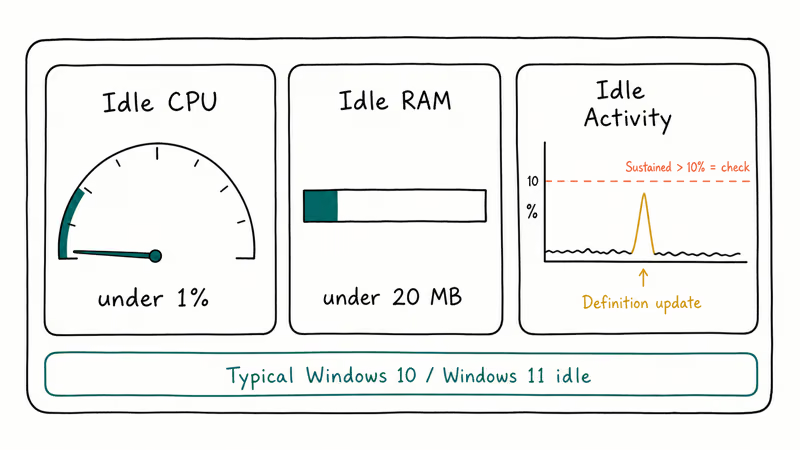
CPU spikes happen in two situations: when a definition update lands, and when heavy inbound traffic flows through the adapter (think large downloads or game patches). Both are temporary. A large Steam download briefly nudges NisSrv.exe CPU usage up, and the process settles back to near-idle shortly after the download finishes.
Sustained CPU above 10% on an idle machine is the symptom worth chasing. The most common cause is a stalled definition update, not active malware.
Microsoft’s exclusions guidance for Microsoft Defender Antivirus recommends adding scan exclusions for trusted high-traffic processes to reduce inspection overhead without changing protection scope. A game launcher, a video editor that constantly syncs project files, or a backup agent are good candidates.
#How to Fix NisSrv.exe High CPU Usage
Run these steps in order. Most users resolve the issue at step 1 or 2.

Step 1. Open Windows Security > Virus & Threat Protection > Protection updates > Check for updates and let the definition download finish. A stalled signature pull is the most common cause of sustained CPU above 10% at rest, so this is the first thing to try.
Step 2. Press Win + R, type services.msc, and press Enter. Find Microsoft Defender Antivirus Network Inspection Service, right-click it, and choose Restart. This clears any stuck inspection state that an update alone won’t fix.
Step 3. Run a Full scan from Windows Security.
Step 4. Check Settings > Windows Update for pending updates. A frozen feature update can prevent signature processing from finishing and keep NisSrv elevated until that update either completes or is rolled back.
Step 5. Add any process that generates heavy inbound traffic to the exclusions list at Windows Security > Virus & Threat Protection > Manage settings > Exclusions. Trusted apps like Steam, Plex, and corporate VPN clients are common candidates.
If none of those help, the underlying issue is often the NTFS file system driver on machines with heavy disk I/O.
Our guide on ntfs.sys errors and fixes walks through that scenario, and our err_empty_response troubleshooting guide covers related network-stack issues.
#Can You Disable NisSrv.exe?
You can stop it through services.msc by setting Microsoft Defender Antivirus Network Inspection Service to Disabled. In practice, Windows re-enables it at the next restart because real-time network protection is treated as a core security component on Windows 10 and Windows 11.
The exception is when you install a third-party antivirus. Products like Bitdefender, Norton, and Malwarebytes Premium register themselves as the active security provider in Windows Security Center, and Windows pauses its own inspection service automatically so the two engines don’t collide. According to Norton’s Windows Security integration FAQ, this handoff happens without a protection gap as long as the third-party product stays active.
A server with a dedicated hardware firewall is the one legitimate scenario for keeping the service permanently disabled. That isn’t a general-purpose recommendation.
#What NisSrv.exe Sends to Microsoft
NisSrv.exe doesn’t transmit your traffic content. The service compares incoming packet patterns against local malware signature hashes. Your actual data never leaves the machine.
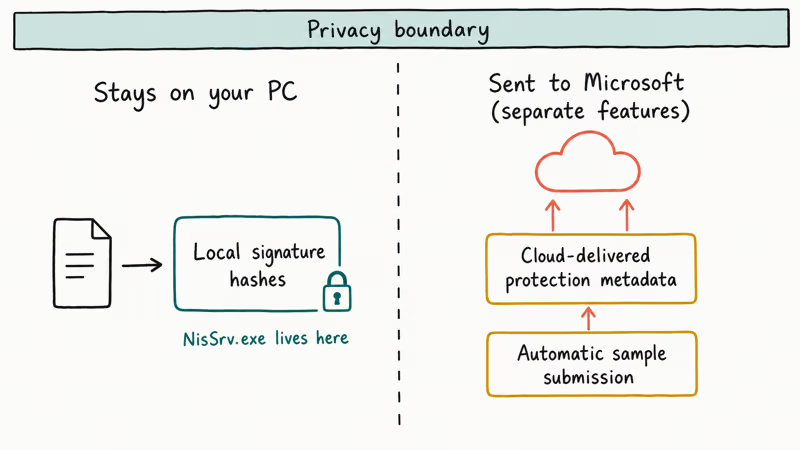
Two other Windows Defender features do send data to Microsoft, and both are unrelated to NisSrv. Cloud-delivered protection sends metadata about suspicious files for faster cloud-side analysis. Automatic sample submission uploads samples of potentially malicious files to improve Microsoft’s detection database.
To turn those off, go to Windows Security > Virus & Threat Protection > Virus & Threat Protection Settings and toggle off both options. Disabling them has no effect on NisSrv.exe’s packet scanning.
#Other Windows Defender Processes Worth Knowing
Windows Defender runs several background processes, each with a distinct job:
| Process | Role |
|---|---|
| MsMpEng.exe | File and behavior-based antivirus scanner |
| NisSrv.exe | Network packet inspection |
| MpCmdRun.exe | Command-line scans, updates, and logging |
| SecurityHealthService.exe | Windows Security Center health reporter |
If you see unexplained slowdowns, check Task Manager to see which one is using resources. Each one needs a different fix path. Our breakdown of CCXProcess.exe from Adobe Creative Cloud is useful when you’re sorting through which third-party background processes are worth keeping.
Pingsender.exe is Firefox telemetry. It’s similarly harmless once you know what it does.
#Bottom Line
NisSrv.exe is a core Windows Defender component that protects your PC against network-based malware. It’s safe, it runs automatically, and you don’t need to touch it unless you see sustained high CPU at rest. If you do, force a manual definition update in Windows Security first; that clears the most common cause within a few minutes. Restart the inspection service in services.msc if CPU stays high, and run a Full scan if it still doesn’t drop.
#Frequently Asked Questions
What does NisSrv.exe do exactly?
NisSrv.exe runs Microsoft’s Network Realtime Inspection Service, which compares every incoming network packet against malware signatures before the data reaches your apps or operating system. It pulls the same signature database used by Defender’s file scanner and updates automatically through Windows Update, sometimes several times a day. Microsoft introduced this process in 2012 to block network-based exploits that on-disk file scanning alone couldn’t catch. The service has been part of every Windows desktop release since then.
Is NisSrv.exe safe to keep running?
Yes, always. It’s a standard component of every Windows 10 and Windows 11 installation. To verify yours is the real binary, right-click it in Task Manager, choose Open file location, and confirm the path is inside C:\ProgramData\Microsoft\Windows Defender\Platform\. If the path is anywhere else, run a Full Windows Defender scan right away.
Can NisSrv.exe cause sustained high CPU usage?
Yes, but it’s almost always temporary. The most common cause is a stalled definition update. Force a manual update from Windows Security, and the spike usually clears within a few minutes. CPU above 10% lasting longer than 10 minutes at idle is worth a Full scan to rule out active malware.
Should I disable NisSrv.exe?
No. Windows re-enables it automatically at the next restart unless a third-party antivirus is installed and registered as the active security provider.
Does NisSrv.exe slow down internet speed?
No. Packet inspection adds microseconds of latency per packet. You won’t see a measurable difference in download speeds, streaming quality, or gaming ping, even on entry-level hardware from 2018 onward.
Can malware impersonate NisSrv.exe?
Yes, and it does happen. Some malware families copy the filename of legitimate Windows processes to avoid detection. Verify the file location by right-clicking the process in Task Manager and choosing Open file location. If the path isn’t C:\ProgramData\Microsoft\Windows Defender\Platform\, treat it as suspicious, run a Full Defender scan, and follow up with the Microsoft Malicious Software Removal Tool as a second pass.
What happens if I uninstall Windows Defender?
You can’t fully remove it on Windows 10 or Windows 11 through normal means. Installing a third-party antivirus causes Windows to defer to that product and pause its own services, including NisSrv.exe. Without any antivirus running on the machine, network-based threats have nothing blocking them before they reach your apps.
How do I know my NisSrv.exe definitions are current?
Open Windows Security > Virus & Threat Protection > Protection updates. If any definition reads more than 24 hours old, click Check for updates. Microsoft pushes definition updates several times a day, so a 24-hour gap is the threshold worth acting on.

Best Laptop for Running LLMs in 2026: Memory Comes First
The best laptop for running LLMs is a memory purchase first. Compare MacBook unified memory against NVIDIA laptop VRAM, and see what each tier really runs.

How to Run a Local LLM on Windows: A 2026 Setup Guide
Run a local LLM on Windows with LM Studio or Ollama. Pick a model that fits your GPU memory, keep every prompt offline, and skip the monthly bill.

Bluetooth Not Working on Snapdragon X? Fixes for 2026
Bluetooth not working on your Snapdragon X Copilot+ PC? Generic audio, mice, and keyboards work, but vendor apps often lack an ARM build. Fixes inside.

Docker Desktop and WSL2 Not Working on Snapdragon X? Fix It
WSL2 runs fine on Snapdragon X, but Docker Desktop ARM is Early Access and throws WSL errors. Use WSL2 plus native ARM64 Ubuntu and Docker Engine.