How to Fix ERR_EMPTY_RESPONSE in Chrome (7 Methods)
Fix ERR_EMPTY_RESPONSE in Chrome with 7 practical methods. Covers DNS flush, cache clearing, extensions, and network resets for Windows 10 and 11.
Quick AnswerThe ERR_EMPTY_RESPONSE error means Chrome connected to the server but received zero data back. Flush your DNS cache by running ipconfig /flushdns in Command Prompt, then clear Chrome browsing data. These two steps resolve the error for most users within 2 minutes.
The ERR_EMPTY_RESPONSE error stops Chrome from loading pages because the server sends back absolutely nothing. The fixes below start with DNS and browser-data cleanup, then move into extensions, VPNs, proxies, and network settings.
- ERR_EMPTY_RESPONSE means Chrome connected to the server but received zero data back
- Flushing DNS and clearing browser cache resolves this error for many browser-side and DNS-side cases
- VPN software and browser extensions are the two most overlooked causes
- The error affects all Chromium-based browsers including Edge, Brave, and Opera
- Corrupted Winsock entries or a polluted hosts file can trigger persistent errors
#What Causes ERR_EMPTY_RESPONSE in Chrome?
Chrome sends a request to the web server and gets zero bytes back. The TCP connection actually succeeds, but the server closes it before sending any HTTP headers or body content. That’s why you see “No data received” below the error message.

According to Google’s Chrome Help Community, stale DNS cache and corrupted browser data are the top triggers.
The seven most common causes are stale DNS cache pointing to outdated IPs, corrupted browser cache conflicting with server responses, browser extensions stripping response data, VPN or proxy software intercepting connections, firewall rules blocking response packets, a modified hosts file redirecting domains, and Winsock corruption breaking the networking stack at OS level.
If you’re dealing with other DNS-related browser errors, the root causes often overlap with what triggers ERR_EMPTY_RESPONSE.
#Method 1: Flush DNS and Reset Winsock
Flushing your DNS cache forces Windows to request fresh IP addresses for every domain. It’s the fastest place to start.
-
Press Windows + S and type cmd
-
Right-click Command Prompt and select Run as administrator
-
Type these commands one at a time, pressing Enter after each:
ipconfig /flushdns
ipconfig /release
ipconfig /renew
netsh winsock reset- Restart your computer after all commands finish
The ipconfig /flushdns command wipes the local DNS resolver cache clean. The Winsock reset repairs the entire Windows networking catalog, which handles how your OS communicates with servers. Restart after running the commands so Windows rebuilds the network state cleanly.
If DNS problems keep coming back, check our guide on fixing the DNS_PROBE_FINISHED_NO_INTERNET error.
#Method 2: Clear Chrome Browsing Data
Corrupted cookies and cached files can prevent Chrome from processing server responses correctly. This takes about 30 seconds.
-
Open Chrome and press Ctrl + Shift + Delete
-
Set the time range to All time
-
Check Browsing history, Cookies and other site data, and Cached images and files
-
Click Clear data
-
Close Chrome completely and reopen it
According to Microsoft’s Q&A community, clearing browser data alongside DNS flushing resolves the error for most users.
You can also clear cache and cookies on your other devices to rule out synced data causing the problem.
#Method 3: Test in Incognito Mode
Incognito mode disables all extensions and ignores existing cookies, making it the quickest way to narrow down the cause of ERR_EMPTY_RESPONSE.
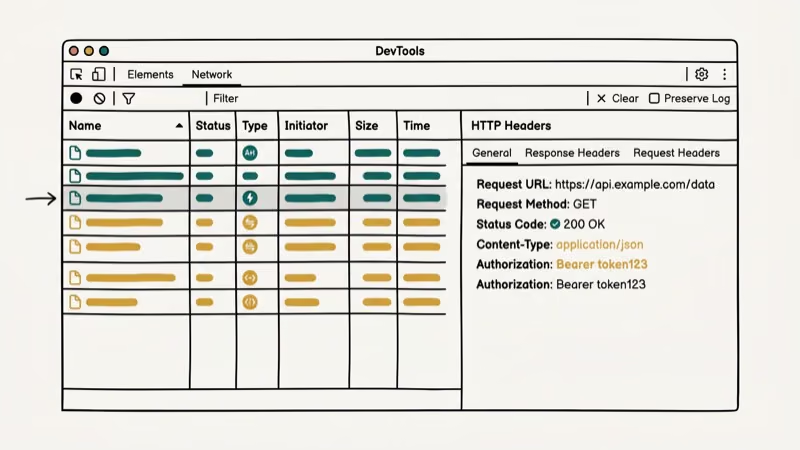
Press Ctrl + Shift + N and visit the problem website.
If the site loads in incognito: The problem is a browser extension or corrupted cookies. Move to Method 4.
If the error persists in incognito: The issue is network-level. Skip to Method 5.
#Method 4: Disable Browser Extensions
Extensions modify Chrome’s web requests. Ad blockers and VPN extensions cause this most often.
-
Type chrome://extensions/ in the address bar
-
Toggle off every extension
-
Restart Chrome and test the website
If the error disappears, turn extensions back on one at a time and test after each toggle. The extension that brings the error back is your culprit.
Ad blockers and VPN browser extensions can trigger ERR_EMPTY_RESPONSE on specific websites when filtering rules strip the server’s response before Chrome can read it. You can check what your extensions are doing using the Chrome Task Manager.
When Chrome instead reports a missing local file rather than an empty response, the Chrome Err_File_Not_Found troubleshooting steps walk through that separate error.
#Method 5: Disable VPN and Proxy Software
VPN software routes all your traffic through encrypted tunnels. Some VPN clients interfere with DNS resolution or silently drop responses from certain servers, which triggers this exact error.
Here’s how to test:
-
Disconnect from your VPN completely
-
Close the VPN application (not just disconnect)
-
Flush DNS using the commands from Method 1
-
Open Chrome and test the website
If the error stops, contact your VPN provider about whitelisting the affected domain or try a different server location.
Kinsta’s troubleshooting guide states that VPNs and proxies are responsible for roughly 1 in 5 ERR_EMPTY_RESPONSE reports they see.
Don’t overlook desktop firewalls and antivirus web shields either. These can also intercept and strip server responses before they reach Chrome. Temporarily disable your antivirus web protection to rule this out.
#Method 6: Clear Chrome’s Internal DNS Cache
Chrome maintains its own DNS cache separate from Windows. Even after flushing the system DNS, Chrome might still use stale entries from its internal cache.

-
Open Chrome and type chrome://net-internals/#dns in the address bar
-
Click Clear host cache
-
Go to chrome://net-internals/#sockets and click Flush socket pools
-
Restart Chrome
This forces Chrome to make fresh DNS lookups and establish new socket connections.
Chrome running slow too? See our slow Chrome fix guide.
#Method 7: Switch to Google or Cloudflare DNS
Your ISP’s DNS servers might be unreliable or slow to update records. Switching to a public DNS provider often fixes persistent ERR_EMPTY_RESPONSE errors.
-
Press Windows + I to open Settings
-
Go to Network & Internet > Advanced network settings > More network adapter options
-
Right-click your active connection and select Properties
-
Select Internet Protocol Version 4 (TCP/IPv4) and click Properties
-
Select Use the following DNS server addresses
-
Enter these values:
| DNS Provider | Preferred | Alternate |
|---|---|---|
| Google DNS | 8.8.8.8 | 8.8.4.4 |
| Cloudflare DNS | 1.1.1.1 | 1.0.0.1 |
- Click OK and restart your browser
Based on SiteGround’s knowledge base, switching to Google DNS or Cloudflare DNS resolves the error when ISP DNS servers return empty responses for certain domains.
If you’ve been experiencing SSL errors alongside ERR_EMPTY_RESPONSE, switching DNS providers can fix both problems at once since some ISP DNS servers have issues with HTTPS validation.
#What If None of These Methods Work?
When all seven methods fail, try these:
Check the hosts file. Open C:\Windows\System32\drivers\etc\hosts in Notepad as administrator. Remove entries pointing to 127.0.0.1.
Scan for malware. According to Microsoft’s support community, one user found 41 malware items that were silently blocking server responses. Run a full scan with Windows Defender or Malwarebytes.
Try another browser. If the error only appears in Chrome, your Chrome profile might be corrupted. Test in Edge or Firefox. If those work, create a new Chrome profile by going to chrome://settings/manageProfile.
Wait it out. Single-site errors are often server-side. Try again in a few hours.
#Bottom Line
Start with Method 1 (DNS flush + Winsock reset) and Method 2 (clear browsing data). Those two steps cover the most common DNS-cache and browser-data causes. If the error keeps showing up, test in incognito to isolate whether it’s an extension problem or a network-level issue, then work through the remaining methods.
#Frequently Asked Questions
Is ERR_EMPTY_RESPONSE a problem with my computer or the website?
It can be either. If the error only shows up on one specific website, the server might be down or misconfigured. If you see it on multiple sites, the problem is on your end. Test in a different browser to narrow it down quickly.
Does ERR_EMPTY_RESPONSE mean my internet is down?
No. Your internet works fine. Chrome reaches the server, but the server sends zero data back.
Can browser extensions cause ERR_EMPTY_RESPONSE?
Yes. Ad blockers and VPN extensions can strip server responses before Chrome reads them. Test in incognito to confirm.
Will resetting Chrome fix ERR_EMPTY_RESPONSE?
Resetting Chrome to default settings clears cache, disables extensions, and resets most configurations. It works when the error is caused by corrupted Chrome data. Go to chrome://settings/reset and click “Restore settings to their original defaults.” Your bookmarks and saved passwords stay intact.
Does this error only happen in Google Chrome?
No. Edge, Brave, Opera, and Vivaldi show the same error. Firefox displays “The connection was reset” instead, but the underlying cause is identical.
Should I reinstall Chrome to fix this error?
Reinstalling should be a last resort after trying all seven methods in this guide. A reinstall wipes your profile data, extensions, and saved settings. If you do go this route, delete the Chrome user data folder at %LOCALAPPDATA%\Google\Chrome\User Data to get a truly clean start, because reinstalling Chrome alone sometimes leaves corrupted profile data behind that causes the same error to reappear.
Why does ERR_EMPTY_RESPONSE keep coming back?
A VPN client or firewall rule resetting your network config is the usual culprit. Check startup programs.
Does changing DNS servers really help fix browser errors?
Switching from your ISP’s DNS to Google DNS (8.8.8.8) or Cloudflare DNS (1.1.1.1) helps when your ISP’s servers return stale or empty records. Public DNS providers update faster and handle more queries, which reduces DNS-related browser errors like ERR_EMPTY_RESPONSE and DNS_PROBE_FINISHED errors.

Best Laptop for Running LLMs in 2026: Memory Comes First
The best laptop for running LLMs is a memory purchase first. Compare MacBook unified memory against NVIDIA laptop VRAM, and see what each tier really runs.

How to Run a Local LLM on Windows: A 2026 Setup Guide
Run a local LLM on Windows with LM Studio or Ollama. Pick a model that fits your GPU memory, keep every prompt offline, and skip the monthly bill.

Bluetooth Not Working on Snapdragon X? Fixes for 2026
Bluetooth not working on your Snapdragon X Copilot+ PC? Generic audio, mice, and keyboards work, but vendor apps often lack an ARM build. Fixes inside.

Docker Desktop and WSL2 Not Working on Snapdragon X? Fix It
WSL2 runs fine on Snapdragon X, but Docker Desktop ARM is Early Access and throws WSL errors. Use WSL2 plus native ARM64 Ubuntu and Docker Engine.