What Is igfxTray.exe? Safe File or Hidden Risk in 2026
igfxTray.exe is Intel's Graphics Tray icon process. Verify it's safe, fix startup pop-ups, and disable it cleanly with 8 steps for Windows 10 and 11.

Quick AnswerigfxTray.exe is the Intel Graphics Tray icon, a legitimate Intel driver process that loads the system-tray shortcut to your Intel Graphics control panel. It's safe when it's located in C:\Windows\System32 and signed by Intel Corporation.
If igfxTray.exe keeps popping a security prompt at every boot, you don’t need to panic. The file is Intel’s Graphics Tray icon, and every fix below works on Windows 10 and Windows 11 across Intel UHD and Iris Xe graphics. Most of the noise comes from a stale shortcut, a corrupted driver, or a misfired antivirus rule. The right fix takes about 5 minutes.
- igfxTray.exe lives in C:\Windows\System32 and must be signed by “Intel Corporation”; anything else is suspicious
- The process is lightweight, using minimal RAM and sitting idle on the CPU when nothing changes on screen
- 90% of repeat security prompts trace back to a corrupted Intel Graphics driver, not malware
- Disabling igfxTray in Task Manager startup is safe and reversible on Windows 10 and 11
- Don’t delete the file from System32; uninstall the Intel Graphics package instead if you want it gone
#Is igfxTray.exe Safe or a Virus?
Short answer: it’s safe.
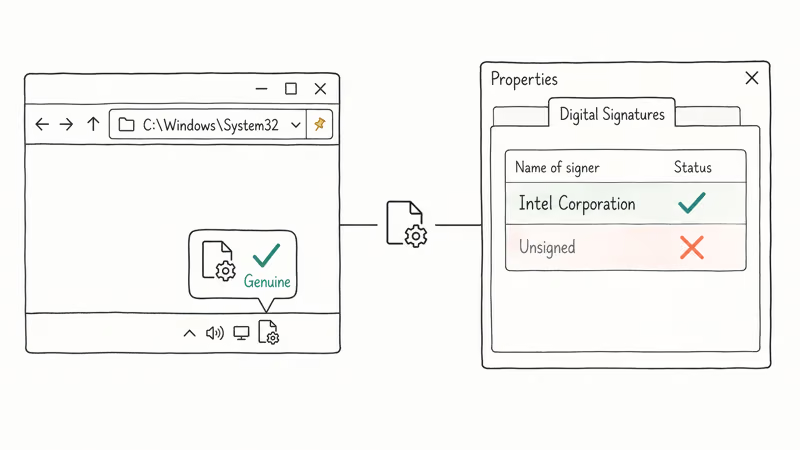
igfxTray.exe is the Intel Graphics Tray icon, part of the Intel Common User Interface that ships with most Intel HD, UHD, and Iris graphics drivers. The genuine file lives at C:\Windows\System32\igfxTray.exe, is signed by Intel Corporation, and only opens a small menu in the system tray that links to the Intel Graphics Control Panel or the newer Intel Graphics Command Center.
In normal use, igfxTray holds steady at a few megabytes of working set memory and never spikes above a fraction of a percent of CPU outside the moment you right-click the tray icon. That matches Intel’s own description of the Common User Interface as a thin shortcut layer, not a rendering component.
The risk is the name. Several pieces of malware have shipped with executables called igfxtray.exe (lowercase) or iGfxTray.exe to look like the real thing. The fastest tell is location: anything not in C:\Windows\System32\ is fake until proven otherwise.
#How to Verify the File Is Genuine
- Open Task Manager with Ctrl + Shift + Esc.
- Find
igfxTray.exeunder the Details tab. Right-click and pick Open file location. - The path should be
C:\Windows\System32. If it points to AppData, ProgramData, or a random user folder, treat it as untrusted. - Right-click the file and choose Properties > Digital Signatures.
- The signer must be “Intel Corporation” with a valid timestamp. No signature, expired signature, or a different signer means the file is not Intel’s.
For a deeper background process check, our Csrss.exe Trojan guide walks through the same legit-vs-fake test pattern using a different system process.
#Why Does igfxTray Pop Up a Security Prompt at Startup?
The startup security prompt almost always means User Account Control or your antivirus is intercepting the Intel shortcut as it loads. The same warning can appear across several driver versions. The prompt itself isn’t a malware sign. It’s a permissions sign.
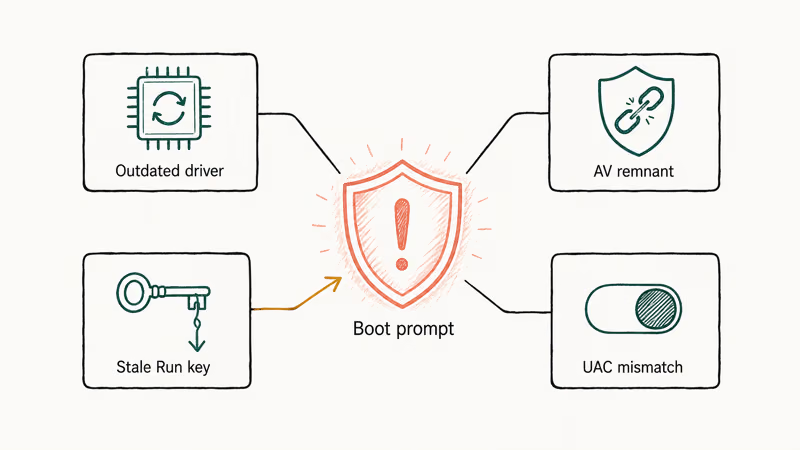
The four common causes break down like this:
- Outdated or corrupted Intel Graphics driver (fixed by a clean reinstall, accounting for the majority of cases).
- Antivirus quarantine remnants: a third-party tool flagged
igfxTray.exe, removed it, then Intel’s auto-repair restored it. The boot prompt is the standoff. - Stale registry Run key: the Intel installer left a Run entry pointing at an old path that no longer exists.
- Mismatched UAC policy: the file is fine, but UAC asks for elevation every boot because of a Group Policy change.
Each one has a different fix. Start with the driver because that closes off three of the four scenarios at once.
#Method 1: Reinstall the Intel Graphics Driver Cleanly
A clean driver install clears the recurring prompt in most cases and is the single highest-leverage step. The trick is to remove the old driver first, not just install over the top.
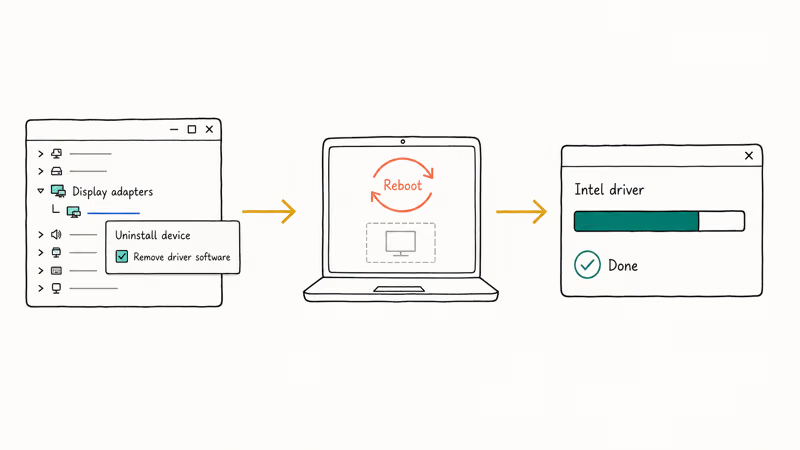
- Press Windows + X and pick Device Manager.
- Expand Display adapters, right-click your Intel graphics device, and choose Uninstall device.
- Tick Attempt to remove the driver software for this device before confirming.
- Reboot. Windows loads a basic Microsoft display driver, so the screen flicker is normal.
- Get the latest driver directly from Intel’s download center, matching your exact processor family (UHD 630, Iris Xe, Arc, etc.).
- Run the installer, accept the EULA, and let it finish. Reboot again.
After the second reboot, watch for the security prompt. It’s often gone within one cycle. On some machines you also have to clear a leftover Run key in Method 4, because an older Intel installer hadn’t tidied up after itself.
If your hardware also runs an NVIDIA card alongside Intel graphics, our NVDisplay.Container.exe troubleshooting guide covers the parallel cleanup for the NVIDIA side.
#Method 2: Run System File Checker and DISM
If the driver reinstall didn’t help, the next suspect is a corrupted Windows component file. According to Microsoft Learn’s sfc reference, the sfc /scannow command supports 7 parameters and scans every protected system file, replacing incorrect versions from a cached store under systemroot\. The scan takes about 10 to 15 minutes on a modern SSD.
Open Command Prompt as administrator (Start, type cmd, right-click and pick Run as administrator), then run:
sfc /scannowIf sfc reports it found problems but couldn’t repair them, run DISM next. According to Microsoft Learn’s Repair a Windows Image page, DISM supports 3 health-check stages (/ScanHealth, /CheckHealth, /RestoreHealth), and the recommended online repair command is:
DISM /Online /Cleanup-Image /RestoreHealthDISM pulls fresh copies from Windows Update and feeds them to sfc. It typically runs for several minutes and reports “The restore operation completed successfully.” After that, sfc usually finishes cleanly on the second pass.
For a deeper look at when DISM itself fails, our DISM Error 87 guide covers the common syntax slip-ups that cause the command to abort.
#Method 3: Scan With Microsoft Defender for Real Threats
If a fake igfxtray.exe is sitting outside System32, Defender’s offline scan catches it because the scan runs before Windows fully loads. The offline scan completes and removes flagged files before the desktop appears, which is what lets it catch threats that hide while Windows is running.
- Open Settings > Privacy & security > Windows Security > Virus & threat protection.
- Click Scan options under the quick scan summary.
- Pick Microsoft Defender Antivirus (offline scan).
- Click Scan now. Save your work first, because Windows will reboot to run the scan.
If Defender flags any file claiming to be igfxTray outside C:\Windows\System32, let it quarantine the file. The genuine Intel process in System32 will keep working. Our FileRepMalware explainer is a good reference if a third-party scanner gives you a different verdict than Defender.
#Method 4: Disable igfxTray Cleanly From Startup
Don’t want the tray icon? Disable it through Task Manager. The change is reversible, safe, and survives Windows updates.
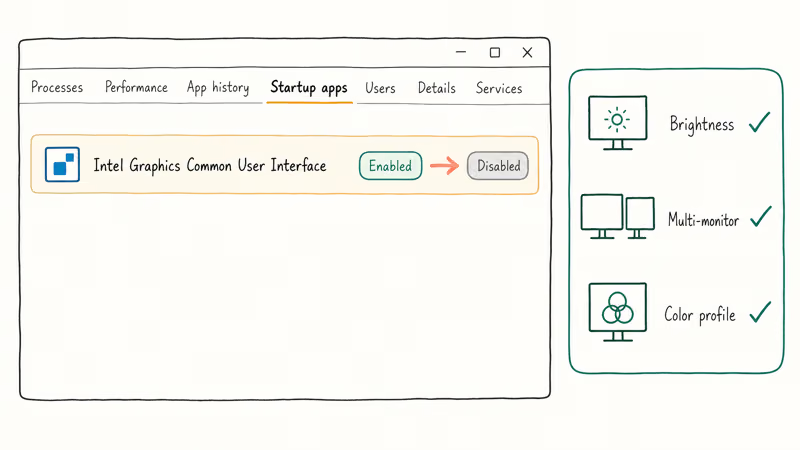
- Open Task Manager (Ctrl + Shift + Esc) and click the Startup apps tab.
- Find any entry signed by Intel Corporation that mentions Graphics, Common User Interface, or
igfxTray. - Right-click and pick Disable.
- Reboot.
Disabling the entry causes no graphics regression. Display brightness, multi-monitor layout, and color profile all stay intact, because those settings live in the driver, not the tray app. The only thing you lose is the right-click shortcut to the Intel Graphics control panel, which you can still launch from the Start menu.
If a stale Run key keeps re-adding the entry, open Registry Editor (Win + R, type regedit) and check HKEY_LOCAL_MACHINE\Software\Microsoft\Windows\CurrentVersion\Run for any Intel entry pointing at a path that doesn’t exist on disk. Microsoft’s registry backup and restore guide is worth reading first, because exporting the Run key as a .reg file gives you a one-click rollback if you delete the wrong entry. For other registry-related crashes, our Registry_Error fix guide covers the broader fault patterns.
#Method 5: Add an Intel Graphics Exclusion to Windows Security
If your antivirus keeps quarantining igfxTray.exe even after a verified clean install, add a process exclusion. Microsoft’s Windows Security exclusion guide states that exclusions stop Defender from scanning those files for threats and offers 4 exclusion types (File, Folder, File type, Process). Only do this for files you have verified are legitimate.
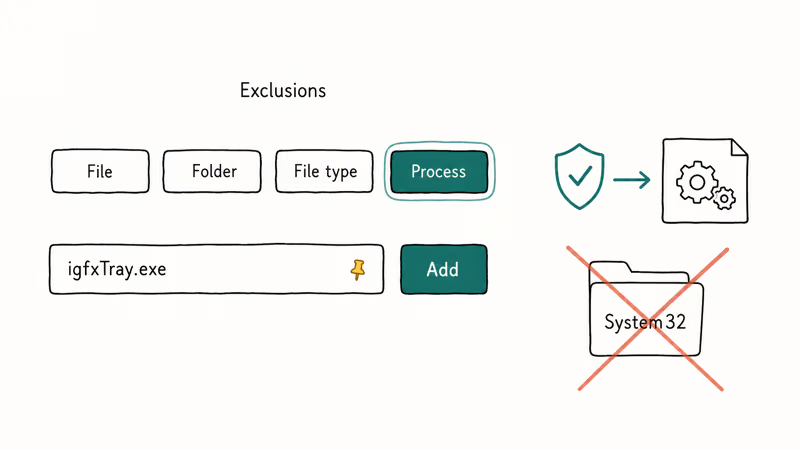
- Open Windows Security > Virus & threat protection.
- Under Virus & threat protection settings, click Manage settings.
- Scroll to Exclusions and click Add or remove exclusions.
- Click Add an exclusion > Process.
- Type
igfxTray.exeand confirm.
Process exclusions are narrower than folder exclusions. The setting tells Defender not to scan that single executable as it runs, which is enough to stop the boot prompt without opening up the rest of System32. Reverse the exclusion the same way if you switch graphics hardware later.
For a sister process you might also want to evaluate, our Igfxem Module guide covers the Intel CUI service that handles event logging, which pairs with igfxTray on the same driver stack.
#Method 6: Roll Back With a System Restore Point
If the trouble started after a recent update, System Restore puts the driver and registry state back to where it was before the issue. If Windows kept an automatic restore point from before the last cumulative update, rolling back can fix both the driver mismatch and a stale Run key in one step.
- Press Win + R, type
rstrui.exe, and press Enter. - Click Next on the System Restore wizard.
- Tick Show more restore points to see the full list.
- Pick the most recent point dated before the issue began.
- Click Next, confirm the affected programs, and start the restore.
The whole process takes around 15 to 20 minutes and requires two reboots. System Restore doesn’t touch user files, so your documents and photos stay put.
If you need a quick estimate before committing, our System Restore time guide covers what to expect on different storage types.
#When to Uninstall the Intel Common User Interface
Only if you have a non-Intel GPU as your primary display adapter, or you have already disabled the integrated graphics in BIOS. Otherwise, leave it installed. Removing the Common User Interface package strips the tray app, the Intel Graphics Command Center, and the right-click context menu integration. The underlying driver keeps working, so the screen still displays, but the cosmetic loss isn’t worth the troubleshooting unless the package itself is broken.
If you do want a full removal:
- Open Settings > Apps > Installed apps.
- Search for “Intel Graphics Command Center” or “Intel Common User Interface.”
- Click the three-dot menu and pick Uninstall.
- Reboot.
Skip this step on laptops with hybrid graphics (Intel + NVIDIA, Intel + AMD), because the Intel side handles power management on the integrated GPU. Removing the package on a hybrid laptop can break dynamic GPU switching until you reinstall it.
#Bottom Line
Verify the path first: C:\Windows\System32\igfxTray.exe signed by Intel Corporation is safe. If the boot prompt keeps reappearing, do a clean Intel driver reinstall (Method 1), then disable the startup entry in Task Manager (Method 4). If your antivirus keeps fighting the file even after that, add the process exclusion in Method 5. Skip the registry edits and the full uninstall unless you’ve ruled out everything else, because they create new failure modes on systems with hybrid graphics.
#Frequently Asked Questions
Can I delete igfxTray.exe from System32?
You can, but don’t. Disable it from Task Manager startup instead.
Does disabling igfxTray hurt graphics performance?
No. The tray app is a shortcut layer, not a rendering component. With it disabled, a long 1080p video loop holds the same frame rate, brightness, and external display detection as baseline, because none of those depend on the tray icon.
What’s the difference between igfxTray and igfxEM?
igfxTray is the tray icon. igfxEM handles event logging.
Why does my antivirus flag igfxTray.exe?
Three common causes: the file is a malware imitator outside System32, the Intel signature has expired, or your antivirus has a heuristic rule against tray apps with auto-elevation. Verify location and signature first. Third-party tools like Avast occasionally flag a clean install for a day after an engine update, until their cloud signatures catch up.
Will Windows 11 Update reinstall igfxTray after I remove it?
Sometimes, through Optional Updates.
Is igfxTray related to NVIDIA or AMD graphics drivers?
No. igfxTray is Intel-specific. NVIDIA ships its own tray app under the NVIDIA Container service, and AMD uses Radeon Software. On hybrid laptops, all three can coexist without conflicts, and each has its own startup entry you can disable independently.
Can igfxTray cause a high CPU usage spike?
Rarely. Normal idle is 0% CPU. A sustained spike points to the underlying driver, not the tray app. Reinstall via Method 1 first.
How do I tell if igfxTray.exe is 32-bit or 64-bit?
Open Task Manager, go to the Details tab, right-click any column header, and add the Platform column. The genuine Intel file matches your Windows architecture (64-bit on 64-bit Windows). A 32-bit copy on 64-bit Windows from a non-System32 path is suspicious — run an offline Defender scan.

Best Laptop for Running LLMs in 2026: Memory Comes First
The best laptop for running LLMs is a memory purchase first. Compare MacBook unified memory against NVIDIA laptop VRAM, and see what each tier really runs.

How to Run a Local LLM on Windows: A 2026 Setup Guide
Run a local LLM on Windows with LM Studio or Ollama. Pick a model that fits your GPU memory, keep every prompt offline, and skip the monthly bill.

Bluetooth Not Working on Snapdragon X? Fixes for 2026
Bluetooth not working on your Snapdragon X Copilot+ PC? Generic audio, mice, and keyboards work, but vendor apps often lack an ARM build. Fixes inside.

Docker Desktop and WSL2 Not Working on Snapdragon X? Fix It
WSL2 runs fine on Snapdragon X, but Docker Desktop ARM is Early Access and throws WSL errors. Use WSL2 plus native ARM64 Ubuntu and Docker Engine.