Win32:Bogent – Is It a Virus? How to Get Rid of It?
Win32:Bogent is a file that grabbed the attention of many Windows users. That is particularly because many antivirus tools detect this file to be suspiciou
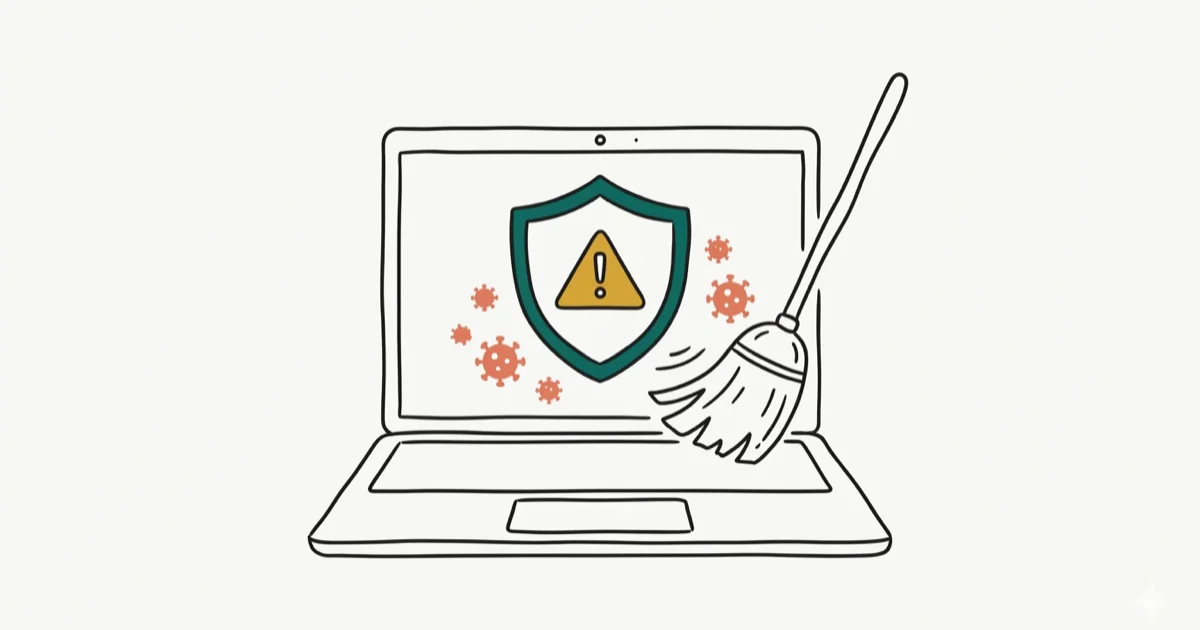
Quick AnswerWin32:Bogent is often a false positive triggered by antivirus tools like AVG and Avast, especially when launching Steam. Run a scan with Windows Defender or Malwarebytes to confirm whether it is a real threat.
Win32
is a file that grabbed the attention of many Windows users. Antivirus tools frequently detect this file as suspicious and remove it from the machine, but it’s often a false positive rather than an actual threat. Using these methods on devices or accounts you don’t own may violate applicable laws and platform terms.- Win32 is most commonly a false positive triggered by AVG and Avast antivirus software
- Steam client launches and updates are the number one cause of Win32 false-positive alerts
- Running a secondary scan with Windows Defender or Malwarebytes confirms whether the threat is real
- Real Win32 infections can steal personal data, display adware, and corrupt system files
- Windows Firewall filters inbound and outbound network traffic, but it doesn’t replace an antivirus scan
#Should You Consider Win32 Bogent as a Security Threat?
Virus guards such as AVG and McAfee often detect Win32
as a suspicious element. According to Microsoft’s Malware Protection Center, heuristic detection flags like “Bogent” indicate behavior-based analysis rather than a known malware signature, which explains why false positives are so common.This issue isn’t unique to a particular Windows version. It’s reported on Windows 10, Windows 8, and even Windows 7 systems. In most cases, virus guards detect Win32
as a virus, even if it’s completely innocent.It’s more common with AVG and McAfee. If you use Avast, our Avast Cleanup review covers what the software does well and where it falls short. Nevertheless, that doesn’t mean you should completely ignore the possibility of the same file being a virus.
So, you must be smart enough to pay attention to it and identify the file without compromising your system’s safety.
In other words, claiming Win32
as a false-positive straightaway is not the most appropriate move. Instead, you should take the necessary actions to identify it properly.User reports point to several common reasons behind this issue.
So, it’s important to look at those reasons to get a good idea about the situation.
#● Win32 False Positive with Steam
Did you get the error message when you tried to launch a Steam client or update it? If so, the chances are that it might be a false positive. If you’re having other Steam problems, check our guide on fixing disk write errors on Steam. If the above scenario describes your situation, you should try to use a different AV client.
Then, you should see if the respective issue is still bothering you. This case is common among Steam users.
#● A Real Treat
If you suspect the virus infection is real, you’ll have to take serious action against it. There are steps for you to follow and resolve the issue.
Otherwise, the safety of your PC will be at great risk. The steps below can help track down and eliminate potential threats.
If you’re dealing with other Windows errors, check our guide on the DPC watchdog violation in Windows 10.
#Scanning for Win32 Bogent With a Third-Party AV Client
A false positive can trigger when you try to launch Steam, particularly if you’ve installed AVG in your system. Steam updates can look suspicious to behavior-based antivirus tools even when the client is legitimate.
Even AVG officials don’t have an explanation for this scenario. The truth is that this has happened with Avast and AVG for a long time. If you have encountered such an issue, performing a scan using a different third-party antivirus program is best.
Recently, Avast had an explanation about this scenario. They said the respective false-positive emerges due to their thorough analysis.
You should use a good third-party antivirus tool to verify if it’s a false positive. Then, you should perform a full scan of the computer and find any malware.
After that, if required, you can even use Windows Defender (the default AV tool) to scan the computer. When you scan the computer with an existing AV tool, you must update it beforehand. Otherwise, the antivirus might not be able to find the latest security threats on the system.
Once you have done the scanning and removed the potential threats from the computer, give it a restart. That will complete the virus scan process.
After the restarting is completed, you should also follow the steps mentioned below and scan the PC using Windows Defender.
#Below are the steps you should take to scan the computer using Windows Defender.
-
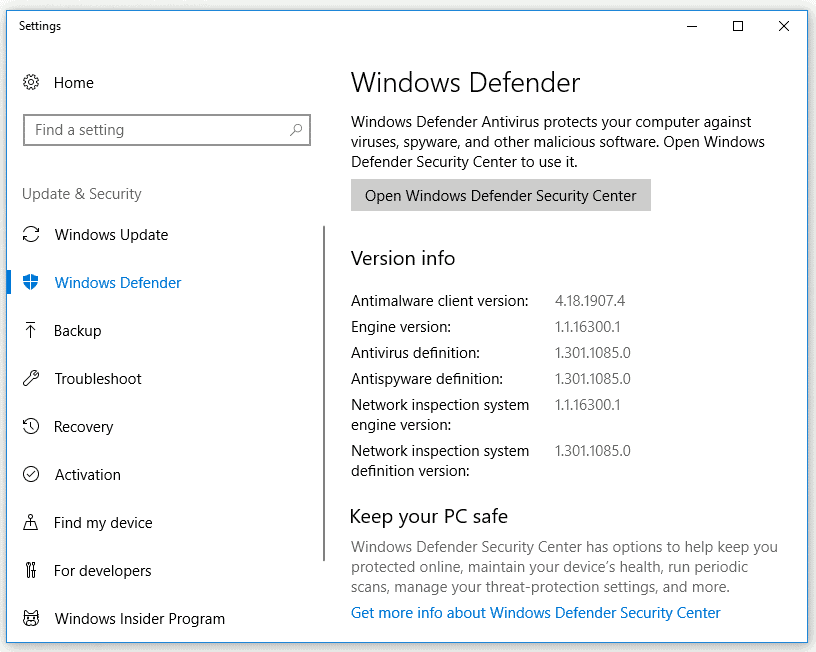
First, press the “Windows” key and “R” key together to open the “Run” utility. Enter the text “ms-settings
” and hit “Enter.” -
A new window titled Windows Security will open with several tabs.
-
Now, you should see a button labeled “Open Windows Security.” You should click on that to open the options related to it.
-
When you see the main Window Security menu, you should click on the option “Virus & Threat Protection.” It’s located on the right-hand side of the Window. Then, on the “Virus & Threat Protection” window, you should click “Scan Options.”
-
After clicking on the option labeled “Scan Options,” you should go for a “Full Scan.” Then, click on the option labeled “Scan Now” to start the scanning process.
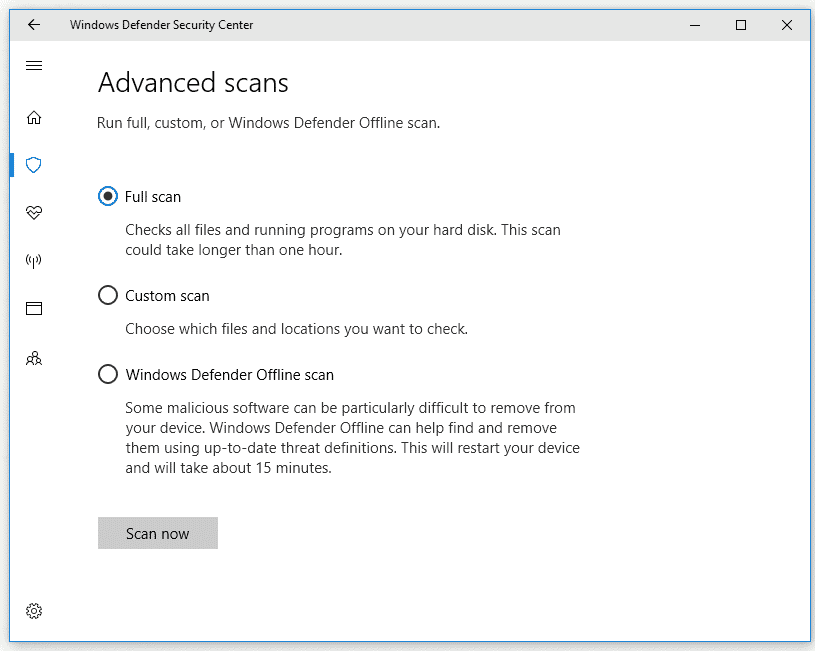
- Be sure that you wait until the scanning procedure is completed. Just check if you still get the Win32 alert. If you get the alert, you should consider it a real virus threat on your computer.
Please note that you’ll have to continue with the following method if Windows Defender triggers the same alert.
#Can Malwarebytes Remove a Real Win32 Bogent Infection?
If you can’t find an answer to the issue using the first method, let’s move to the next. You might also encounter similar heuristic flags with FileRepMalware detections. We assume that you’ve verified it as NOT A FALSE POSITIVE.
So, you should take the necessary actions to remove the respective malware threat from the PC. Malware can harm any system. If the system is confirmed to be real, Win32
is likely to be volatile malware.You should know that Win32
can come in various forms. AV-TEST Institute confirms that over 450,000 new malware variants are registered daily, and behavior-based detections like Bogent help catch zero-day threats that signature databases miss. The most innocent versions of Win32 can only display some annoying adware.Also, they may show some annoying popups on your browsers and other applications you use. However, when it comes to powerful versions, they can steal your information and may even corrupt the files. So, addressing malware-related issues as soon as you identify them is critical.
A secondary malware scanner can help confirm and quarantine a real infection. So, you should do some research before choosing an antivirus program.
As PCMag’s antivirus reviews recommend, choose a tool with a considerable amount of positive reviews and excellent feedback. The tool you choose must have great reliability and the ability to remove security threats. So, you should download and install a good antivirus on your computer as the first step.
Then, you should perform a deep scan on the PC. It’s highly recommended to leave the computer alone while the scan is happening. That will speed up the scan and help you find the viruses more accurately.
So, wait for the process to be completed and see if it has any security threats. If you see any threats, you should follow the onscreen instructions provided by the virus guard. The method of elimination of the virus may vary depending on the type of virus guard you use.
#Preventing Future Win32 Bogent Alerts
Don’t exclude the entire Steam installation folder. First leave the flagged file in quarantine, confirm that it came from an official Steam install or update, check its digital signature, and scan the exact file with an updated second scanner. If those checks confirm a false positive, add an exception only for that specific file and remove the exception after Avast corrects the detection.
Avast’s exception guidance says exclusions are generally not recommended and should be set only when you know the file is safe. If you’re still unsure, keep the file quarantined and submit it to Avast Threat Labs instead of creating an exception.
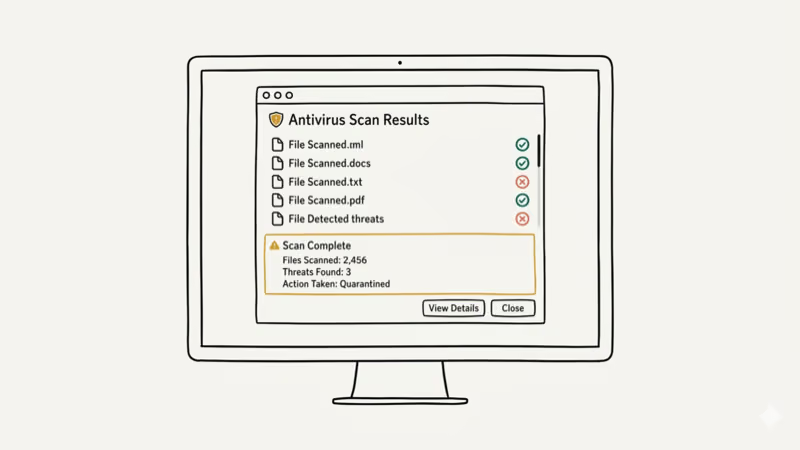
You should also keep your antivirus definitions current. Outdated heuristic engines are more likely to flag safe programs incorrectly because they lack the latest exclusion data from the vendor.
#Use Windows Firewall to Protect Your Computer
Windows Firewall adds a network-level layer of protection. It allows or blocks inbound and outbound traffic according to rules for applications, services, addresses, protocols, and ports.
According to Microsoft’s Windows Firewall overview, the default rules block unsolicited inbound traffic and allow outbound traffic unless another rule blocks it. This reduces network exposure, but it doesn’t scan a local file to decide whether that file is malware.
Windows Firewall evaluates network traffic against its configured rules. A program can be blocked from communicating because no rule allows its traffic, not because the firewall identified the program as suspicious. If you need to factory reset Windows 10 without a password, that’s a separate built-in recovery option.
If Windows asks whether to allow an app through the firewall, verify the app and publisher before allowing access. Grant only the network access the app needs.
Keep Windows Firewall enabled as one part of layered protection, and use Windows Security or another reputable antivirus to scan questionable files.
If a verified app is blocked, create the narrowest firewall rule needed for that app and network profile. Don’t treat a firewall allowance as proof that the file itself is safe.
#Keeping Your System Clean After Removal
After you’ve removed a Win32
infection, run a follow-up scan 48 hours later to confirm the threat hasn’t reinstalled itself. Some malware variants create scheduled tasks or registry entries that trigger a re-download.Clear your browser cache and reset any browser extensions that were installed around the time of infection. Check your startup programs via Task Manager > Startup tab and disable anything unfamiliar.
#Bottom Line
Win32
is most often a false positive, especially if it appears after launching or updating Steam with AVG or Avast installed. Run a secondary scan with Windows Defender or Malwarebytes to confirm. If the alert persists across multiple scanners, treat it as a real threat and remove it immediately using a dedicated malware removal tool.#Frequently Asked Questions
Can Win32 steal personal information from my computer?
Yes, a real Win32
infection can collect sensitive data including login credentials and browsing history. The more dangerous variants can also log keystrokes. That’s why confirming whether the detection is a false positive matters before you dismiss it.Is it possible to remove Win32 manually?
Manual removal is possible but risky. You’d need to identify and delete the infected files from System32 or AppData directories, then clean the registry entries. Using reputable antivirus software like Malwarebytes is far safer and more thorough.
Why does Steam trigger Win32 false positives?
Steam updates can replace or modify executable files, which may trigger behavior-based antivirus checks. Verify the flagged file with an updated second scanner first. If it is confirmed safe, exclude only that file temporarily rather than adding the entire Steam folder to the exclusion list.
Can Win32 infect phones or tablets?
No. Win32
targets Windows-based systems exclusively and can’t run on Android or iOS. The “Win32” prefix in the name refers to the 32-bit Windows API, so mobile devices running different operating systems aren’t at risk.How often should I update my antivirus definitions?
You should enable automatic updates so your antivirus refreshes its threat database daily. Manual updates at least once a week are the bare minimum. Outdated definitions miss new variants entirely.
Does Windows Defender catch Win32 infections?
Windows Defender detects most Win32
variants when its definitions are current. Microsoft updates Defender’s database multiple times per day. For stubborn infections, pair Defender with a secondary scanner like Malwarebytes for the most complete coverage.
Best Laptop for Running LLMs in 2026: Memory Comes First
The best laptop for running LLMs is a memory purchase first. Compare MacBook unified memory against NVIDIA laptop VRAM, and see what each tier really runs.

How to Run a Local LLM on Windows: A 2026 Setup Guide
Run a local LLM on Windows with LM Studio or Ollama. Pick a model that fits your GPU memory, keep every prompt offline, and skip the monthly bill.

Bluetooth Not Working on Snapdragon X? Fixes for 2026
Bluetooth not working on your Snapdragon X Copilot+ PC? Generic audio, mice, and keyboards work, but vendor apps often lack an ARM build. Fixes inside.

Docker Desktop and WSL2 Not Working on Snapdragon X? Fix It
WSL2 runs fine on Snapdragon X, but Docker Desktop ARM is Early Access and throws WSL errors. Use WSL2 plus native ARM64 Ubuntu and Docker Engine.