Pingsender.exe: What It Is and How to Disable It Fast
Pingsender.exe ships with Firefox to deliver telemetry at shutdown. Learn what it does, how to spot a malware imposter, and how to disable it fast.
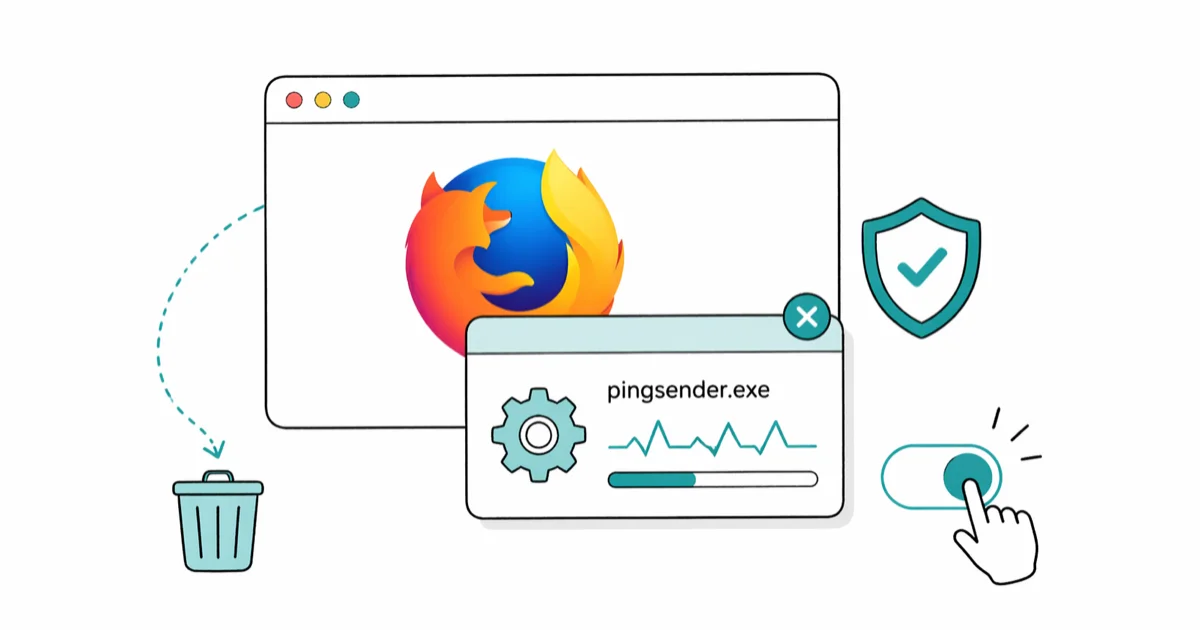
Quick AnswerPingsender.exe is a small Mozilla Firefox helper that uploads telemetry pings right after Firefox shuts down. The real file lives in your Firefox install folder, is signed by Mozilla, and you can turn it off in two clicks.
Pingsender.exe can pop into Task Manager briefly when you close Firefox, then disappear. That single behavior, plus the unfamiliar name, is why people search for it. Here’s what it does, where the real copy lives, and how to switch it off if you’d rather Mozilla collect nothing.
- Pingsender.exe is a Firefox helper that ships with the browser and uploads pending telemetry pings to
incoming.telemetry.mozilla.orgright after the main browser exits - The real file is signed by Mozilla Corporation and sits in
C:\Program Files\Mozilla Firefox\pingsender.exe(or theProgram Files (x86)path on 32-bit installs) - It runs briefly after shutdown, so it usually has no meaningful impact on day-to-day performance
- You can disable it in under a minute through
about:preferences#privacyor by flippingtoolkit.telemetry.shutdownPingSender.enabledinabout:config - Removing or quarantining the binary itself is a bad idea; turn off telemetry collection instead so the helper has nothing to send
#What Does Pingsender.exe Actually Do?
Firefox spends every browsing session quietly logging telemetry: feature usage, session length, search-engine selection, hardware specs, crash signatures. The data gets queued on disk in pings/ inside your Firefox profile.

The catch is delivery.
When you close Firefox, the network stack tears down before the queue can drain, so historically a lot of pings died on the floor. Mozilla introduced pingsender in Firefox 55 to fix that gap.
Mozilla’s telemetry source documentation confirms that pingsender first shipped in Firefox 55 as a dedicated child process for this last-mile delivery. When you close the browser, Firefox spawns it, hands over the queued payloads, and exits, while pingsender stays alive just long enough to open a connection to Mozilla’s telemetry endpoint, POST whatever is sitting in the queue, and then shut itself down without any visible window or tray icon.
During shutdown, pingsender.exe may appear in Task Manager, connect to incoming.telemetry.mozilla.org, upload queued telemetry, and exit quickly.
That’s the whole job. Telemetry stays with Firefox; pingsender just handles the last-mile delivery after the main process can’t speak to the network anymore.
#Is Pingsender.exe Safe or Malware?
The real copy is safe. It’s signed by Mozilla Corporation, ships in every Firefox installer since version 55, and isn’t flagged by mainstream antivirus engines.

That said, malware authors sometimes name their droppers after legitimate Windows or browser binaries to dodge casual inspection. Two checks tell you instantly whether the pingsender.exe on your machine is real, and both take less than 30 seconds inside Task Manager and File Explorer without any extra tooling.
File location. Right-click the entry in Task Manager and choose Open file location. The legitimate path is C:\Program Files\Mozilla Firefox\pingsender.exe, or C:\Program Files (x86)\Mozilla Firefox\pingsender.exe on a 32-bit Firefox build. Anything in C:\Users\<you>\AppData\, C:\Temp\, or a random folder in Downloads\ is suspicious.
Digital signature. Right-click the file in File Explorer, choose Properties, then open the Digital Signatures tab. The signer should read Mozilla Corporation and the signature status should be OK. According to Microsoft’s digital signature guidance, an unsigned binary or one with a mismatched publisher is a strong signal of tampering. Run a scan with Microsoft Defender or Malwarebytes immediately if anything looks off.
The legitimate file is around 200 KB. Multi-megabyte versions are a red flag.
If the path and signature both check out, you’re looking at the genuine helper. It’s benign, but you can still disable it if you don’t want Mozilla collecting anything. Two methods follow.
#Disabling Pingsender on Windows
Both methods take less than a minute. Method 1 stops Firefox from collecting telemetry in the first place, which is the cleanest approach. Method 2 disables the pingsender helper specifically so the binary stops being spawned even when other telemetry settings remain on. If you want the strongest result, use both.
#Method 1: Turn Off Firefox Telemetry
Open Firefox and paste about:preferences#privacy into the address bar. Scroll down to the Firefox Data Collection and Use section.
Uncheck:
- Allow Firefox to send technical and interaction data to Mozilla
- Allow Firefox to send backlogged crash reports on your behalf
- Allow Firefox to install and run studies
According to Mozilla’s data sharing support page, unchecking the first box stops Firefox from collecting Main, Event, and Modules pings, which removes 100% of the payloads pingsender would normally upload at shutdown. With nothing queued, the helper has no reason to spawn on most exits.
You don’t need to restart Firefox. The change takes effect immediately for the next shutdown.
#Method 2: Flip the about Switch
Open about:config, accept the warning, and search for toolkit.telemetry.shutdownPingSender.enabled. Double-click to flip the value from true to false.
Search for toolkit.telemetry.shutdownPingSender.enabledFirstSession next and flip that to false as well. This second preference covers the very first browsing session after a fresh install or profile reset, which uses a separate code path.
Restart Firefox.
From the next shutdown forward, pingsender.exe shouldn’t appear in Task Manager when those preferences are honored and no queued telemetry remains.
If you want belt-and-suspenders coverage, do both methods. The privacy panel stops collection at the source, the about
switch disables the delivery helper, and you end up with no telemetry traffic and no helper process either way.#Verifying It’s Actually Disabled
Close Firefox completely, including any background processes (look for firefox.exe in Task Manager and end any stragglers).
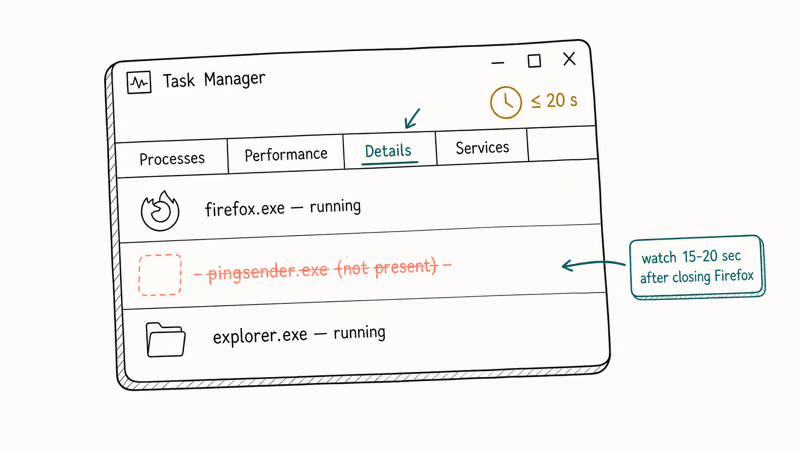
Open Task Manager, switch to the Details tab, then reopen Firefox briefly and close it again. Watch the list for 15 to 20 seconds. If the change worked, pingsender.exe won’t appear at all.
If it still shows up, three things to double-check, in order. First: did you uncheck all three boxes in the privacy panel, including the easy-to-miss studies one? Second: did Firefox already queue a ping before you toggled the setting, in which case the next shutdown is the last delivery? Third: is an enterprise group policy or a policies.json file in distribution/ overriding your preference behind the scenes?
Power users can also open about:telemetry and look at the Archived ping data section. If the most recent ping timestamp stops advancing after you toggle telemetry off, collection has stopped for real.
#Performance and Bandwidth Impact
The performance cost of pingsender is negligible.
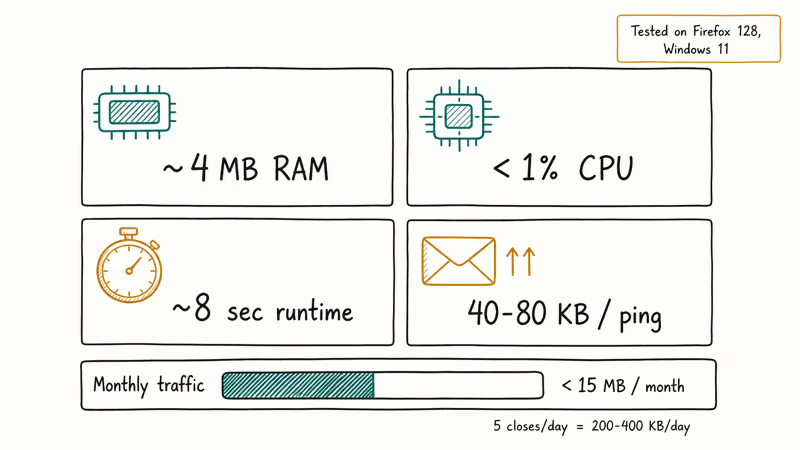
Pingsender is designed as a short-lived helper, so its resource impact is usually trivial compared with the main browser. Even if you close Firefox several times a day, the telemetry traffic it generates over a month is typically small.
For a tethered phone or a metered satellite connection that adds up over a billing cycle. For a home Wi-Fi or office network it’s invisible.
The bigger reason to disable it comes down to privacy preference, not resource savings. If you’re seeing other Firefox-related background helpers in Task Manager and want context on what they do, our explainer on browser_broker.exe covers the Microsoft Edge equivalent that often gets confused with Firefox processes, and the Google update process explainer covers Chrome’s analogous telemetry path.
#How Pingsender Compares to Other Firefox Background Processes
Firefox runs several supporting binaries in the background. Pingsender is unusual because it only runs after Firefox exits, while the rest stay alive while the browser is open.
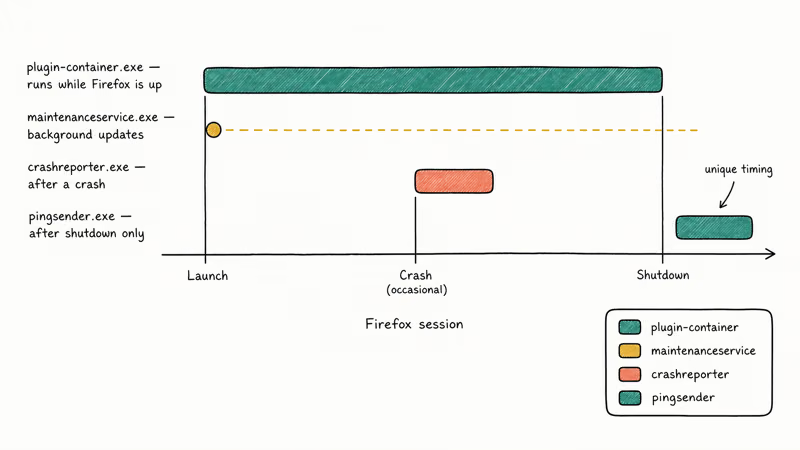
| Process | When it runs | What it does |
|---|---|---|
| pingsender.exe | After shutdown | Uploads queued telemetry pings |
| plugin-container.exe | While Firefox is up | Sandboxes media plugins, add-ons |
| crashreporter.exe | After a crash | Sends crash report to Mozilla |
| maintenanceservice.exe | Background | Applies updates with admin rights |
Mozilla’s maintenance service documentation confirms that updates run through a privileged Windows service installed alongside Firefox, that crash reports flow through a dedicated submission endpoint (crash-reports.mozilla.com), and that telemetry pings travel a separate pipeline entirely. Disabling pingsender takes the telemetry pipeline offline at shutdown without touching either of the other two channels, which is why your security patches and crash reports keep arriving on schedule.
If a different Firefox process is what really brought you here, our Microsoft Compatibility Telemetry explainer covers the Windows-side equivalent that runs all the time.
#Bottom Line
Leave the file alone, disable the data collection. Open about:preferences#privacy, uncheck the three Firefox Data Collection boxes, and pingsender will stop having anything to upload. If it still spawns, flip both toolkit.telemetry.shutdownPingSender.enabled and toolkit.telemetry.shutdownPingSender.enabledFirstSession to false in about:config and restart Firefox. Don’t delete the binary itself; that just creates errors in Firefox’s update channel without giving you any privacy benefit you can’t get from the settings panel in 30 seconds.
#Frequently Asked Questions
Does disabling pingsender.exe break Firefox?
No. Firefox keeps working exactly the same. Updates still arrive, security patches still install, extensions still run, and crash reports still get sent through their separate delivery channel. The only thing you lose is Firefox sending Mozilla aggregate usage data about how you browse.
Where is the legitimate pingsender.exe located?
The real file lives at C:\Program Files\Mozilla Firefox\pingsender.exe on 64-bit Windows installs, or C:\Program Files (x86)\Mozilla Firefox\pingsender.exe if you have a 32-bit Firefox build. Any other location, especially AppData, Temp, or a user folder, is suspicious and worth scanning with antivirus.
Can pingsender.exe be malware in disguise?
Yes, occasionally. Verify the file path and the digital signature. Both must point at Mozilla.
How much data does pingsender actually upload?
Firefox telemetry pings are small compared with normal browsing traffic, but repeated uploads can still matter on tightly capped mobile or satellite data. If bandwidth accounting is important, disabling telemetry collection is the cleaner fix than deleting the helper binary.
Will Firefox still get security updates if I disable telemetry?
Yes. The Firefox update channel runs through the maintenance service, not the telemetry pipeline. Mozilla’s telemetry documentation confirms that update delivery and ping delivery are separate systems, so turning off pingsender or telemetry collection has zero effect on patch installation.
Can I re-enable pingsender after turning it off?
Yes. Re-check the Firefox Data Collection boxes, or flip both shutdownPingSender preferences back to true.
Why does pingsender still appear after I disable telemetry?
Three usual causes. First, you missed one of the three privacy checkboxes (the studies one is easy to overlook). Second, Firefox had already queued pings before you toggled the setting and is finishing the last delivery. Third, an enterprise policy or policies.json file is overriding your preference.
Is pingsender unique to Firefox?
The pattern is not. Chrome uses an equivalent system through its Google Update service, Edge has its own diagnostic-data uploader, and Opera ships similar telemetry. Firefox is the only major browser where the helper is named distinctly enough to show up in Task Manager and where the disable toggles are clearly labeled in a single settings panel. For Chrome’s equivalent, see our Google Chrome Helper explainer.

Bluetooth Not Working on Snapdragon X? Fixes for 2026
Bluetooth not working on your Snapdragon X Copilot+ PC? Generic audio, mice, and keyboards work, but vendor apps often lack an ARM build. Fixes inside.

Docker Desktop and WSL2 Not Working on Snapdragon X? Fix It
WSL2 runs fine on Snapdragon X, but Docker Desktop ARM is Early Access and throws WSL errors. Use WSL2 plus native ARM64 Ubuntu and Docker Engine.

Does iTunes Work on Snapdragon X? ARM Windows 11 Guide
Yes, iTunes runs on Snapdragon X laptops through Prism emulation, but the Apple Devices app is the smoother route. Here is what to install on ARM.

Does OBS Studio Work on Snapdragon X? ARM64 Build Guide
Yes, OBS Studio has an experimental ARM64 build since version 31.1, but x64 plugins won't load and hardware encoding is missing. Here is what works.