Newdev.dll Missing on Windows: 6 Safe Fixes That Work
Fix the newdev.dll missing error on Windows 10 and 11 with 6 safe built-in methods like SFC, DISM, and System Restore. No DLL downloads needed.
Quick AnswerRun System File Checker first. Open an elevated Command Prompt, type sfc /scannow, then DISM /Online /Cleanup-Image /RestoreHealth. These two built-in Windows tools repair newdev.dll without downloading anything from third-party sites.
The “newdev.dll is missing” error pops up when Windows tries to load a hardware-related system file and finds it gone, corrupted, or unregistered. The fix is almost always built into Windows itself, not a download from a random DLL repository.
- Newdev.dll is part of the Windows Hardware Device Library and ships with every Windows 10 and 11 install
- Downloading newdev.dll from third-party sites is the leading cause of malware infections tied to DLL errors
- System File Checker (sfc /scannow) repairs the file in about 5 to 15 minutes on most systems
- DISM /RestoreHealth fixes the underlying component store when SFC reports unfixable corruption
- A clean Windows in-place upgrade refreshes every system DLL while keeping your apps and personal files
Newdev.dll errors often appear after a driver install, failed update, malware cleanup, or corrupted system-file entry. The methods below are ordered from safest and fastest to most invasive, so start at Method 1.
#What Is Newdev.dll and Why Does It Go Missing?
Newdev.dll is the Hardware Device Library that Windows uses to install and update device drivers. On 64-bit systems it lives in two places: C:\Windows\System32\ for 64-bit code and C:\Windows\SysWOW64\ for the 32-bit fallback that older installers still call into. The file is signed by Microsoft and ships as part of the operating system itself, so a clean install always has it.
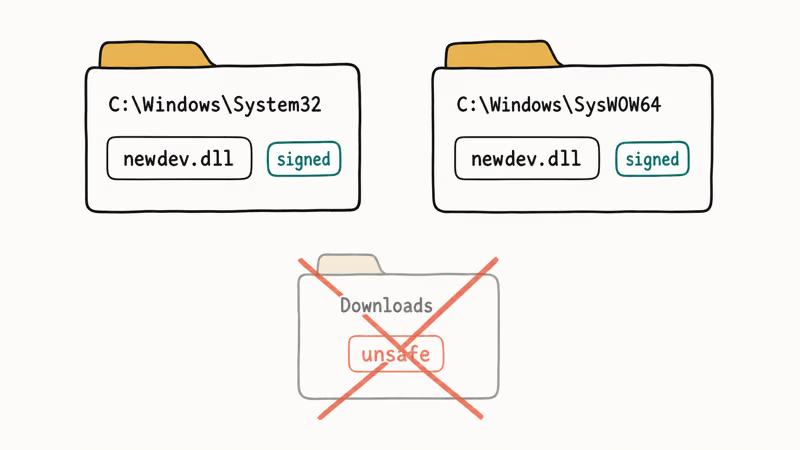
When the file goes missing, you typically see one of these errors:
- “newdev.dll is missing”
- “newdev.dll not found”
- “Failed to register newdev.dll”
- “The procedure entry point newdev.dll error”
- “newdev.dll Access Violation”
The most common causes are an interrupted Windows Update, a malware infection that quarantined the file, an aggressive registry cleaner that removed a valid entry, or a third-party driver installer that overwrote the system copy with an older version. According to Microsoft, sfc /scannow takes 5 to 15 minutes and replaces any system DLL whose signature doesn’t match the trusted copy in the component store, which is exactly what newdev.dll needs (SFC reference).
#Should You Download Newdev.dll From a Third-Party Site?
No. The risk is much higher than the convenience.
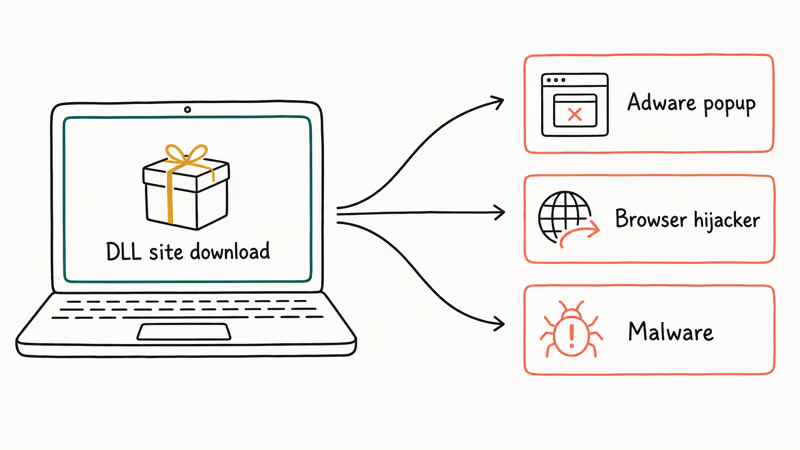
DLL repository sites bundle their downloads with adware, browser hijackers, and occasionally outright malware. According to Microsoft’s secure DLL loading guidance, Windows can load a hijacked DLL from any unsafe path, which is exactly what these sites set you up for. Even a clean copy can mismatch your Windows build and trigger fresh errors.
Every method below uses tools that already ship with Windows or sources files directly from Microsoft. If you’ve already downloaded newdev.dll from a third-party site, don’t place it in System32 yet. Run a full malware scan first, then delete the downloaded copy and use Method 1.
#Method 1: Run System File Checker (sfc /scannow)
This is the fix Microsoft recommends for any missing or corrupted system DLL, including newdev.dll. It takes 5 to 15 minutes and requires no downloads.
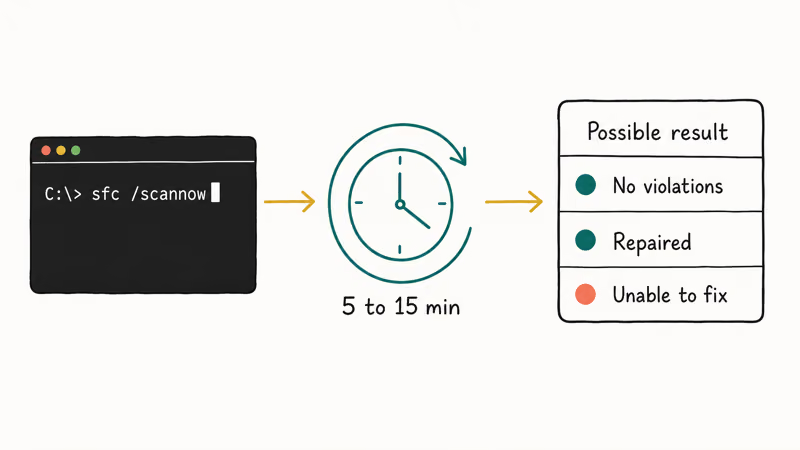
- Press the Windows key, type
cmd, right-click Command Prompt, and choose Run as administrator. - Type
sfc /scannowand press Enter. - Wait for the verification to reach 100%. Don’t close the window.
- When the scan finishes, you’ll see one of three messages:
- “Windows Resource Protection did not find any integrity violations” means the file is fine, so your error has another cause; skip to Method 2.
- “Windows Resource Protection found corrupt files and successfully repaired them” means the fix worked. Restart your PC.
- “Windows Resource Protection found corrupt files but was unable to fix some of them” means you should go to Method 2 to repair the component store first.
SFC restores protected files from the WinSxS component store. Restart, then check Device Manager.
If SFC can’t run because the system files it needs are themselves damaged, see our rundll error guide for the offline SFC procedure that runs from Windows Recovery Environment.
#Method 2: Repair the Component Store With DISM
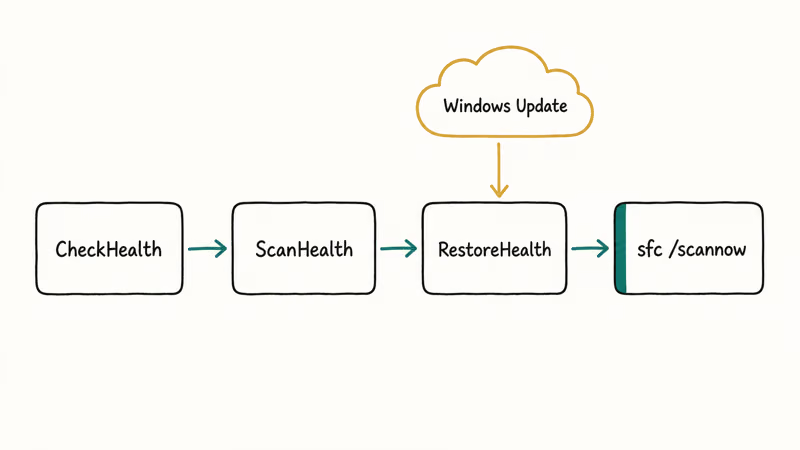
When SFC reports that it could not fix every corrupt file, the component store it pulls replacements from is also damaged. Deployment Image Servicing and Management (DISM) downloads fresh copies from Windows Update.
- Open Command Prompt as administrator.
- Type
DISM /Online /Cleanup-Image /CheckHealthand press Enter to see if corruption exists. - Type
DISM /Online /Cleanup-Image /ScanHealthand press Enter for a deeper scan (5 to 10 minutes). - If issues are found, run
DISM /Online /Cleanup-Image /RestoreHealth(15 to 30 minutes, needs internet). - After DISM finishes, run
sfc /scannowagain.
Microsoft’s DISM documentation confirms that the RestoreHealth flag pulls clean files from Windows Update servers, so the replacement DLLs are signed and matched to your build. Run SFC again after DISM finishes, because SFC depends on a healthy component store when replacing protected DLLs. If the DISM-then-SFC chain still fails, move to a full in-place upgrade (Method 6).
#Method 3: Reinstall the Driver That Triggered the Error
If newdev.dll errors only show up when you plug in a specific device or open a specific application, the driver bundled with that device is probably calling an older copy of the DLL.
- Open Device Manager (Windows + X, then Device Manager).
- Find the device that triggers the error.
- Right-click and choose Uninstall device, then check Delete the driver software for this device.
- Restart your PC. Windows will reinstall a clean driver from its driver store.
- If Windows doesn’t have a driver, download the latest version from the manufacturer’s website, never from a generic driver-update utility.
Microsoft’s Update drivers manually in Windows guide recommends Windows Update or the device manufacturer’s official download page. Skip the third-party “driver booster” or “driver updater” tools, since most bundle adware and several have been flagged as potentially unwanted programs by Microsoft Defender. Hardware vendor utilities like NVIDIA GeForce Experience, AMD Adrenalin, and Intel Driver & Support Assistant are the safe exception, since they pull signed drivers straight from the manufacturer.
#Method 4: Run a Full Malware Scan With Windows Security
Real malware sometimes deletes or replaces newdev.dll to evade detection or to break security software that depends on it. The built-in Microsoft Defender catches most of these.
- Open Windows Security (Windows + I, then Privacy & security → Windows Security on Windows 11, or Update & Security → Windows Security on Windows 10).
- Click Virus & threat protection.
- Click Scan options, then choose Full scan.
- Click Scan now. This takes 1 to 4 hours depending on disk size.
- For deeper coverage, also run Microsoft Defender Antivirus (offline scan) from the same menu. The offline scan reboots into a minimal environment where rootkits can’t hide.
According to Microsoft’s Defender offline scan documentation, the offline scan reboots into a special recovery environment in about 15 minutes and removes threats that block themselves from being deleted while Windows is running. If a scan finds something and quarantines it, follow up with Method 1 (sfc /scannow) to restore any system files the malware modified on the way out.
#Method 5: Roll Back With System Restore
If the error started after a recent Windows update, driver install, or software install, System Restore can roll the system back to a point before the change.
- Press Windows + R, type
rstrui, and press Enter. - Click Next on the welcome screen.
- Check Show more restore points to see all available dates.
- Pick a restore point dated before the error started. Click Scan for affected programs to see what will be removed.
- Click Next, then Finish. Confirm and let your PC restart and apply the rollback (10 to 30 minutes).
System Restore won’t touch your personal files (documents, photos, downloads), but it will remove apps and updates installed after the chosen date. You’ll need to reinstall those if you still want them. If no restore points exist, System Restore was disabled. Turn it on now under System Properties → System Protection so you have a fallback for next time.
For other Windows DLL errors that respond well to System Restore, see our msvbvm50.dll missing guide and the openal32.dll fix.
#Method 6: Run an In-Place Upgrade Repair Install
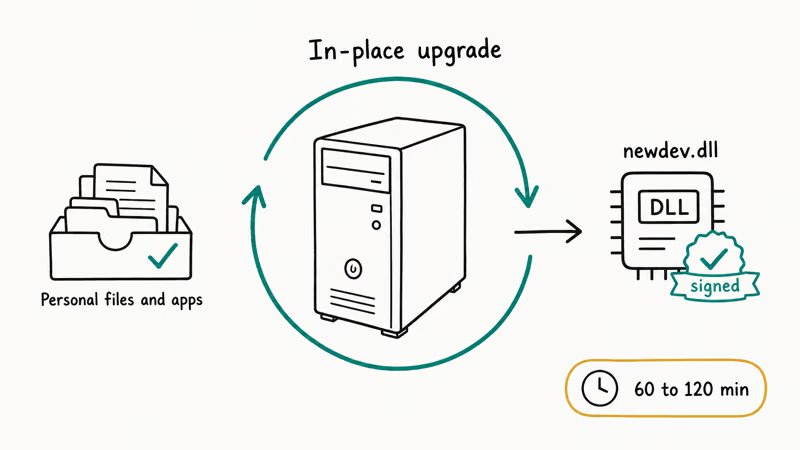
When SFC, DISM, and System Restore all fail, an in-place upgrade reinstalls Windows over itself while keeping your files, apps, and most settings. This refreshes every system DLL, including newdev.dll.
- Download the Windows 11 Installation Assistant (or Windows 10 Media Creation Tool for Windows 10) from Microsoft directly.
- Run the tool and choose Upgrade this PC now.
- When asked what to keep, select Keep personal files and apps.
- Let it download and install (60 to 120 minutes depending on internet speed).
Microsoft’s repair install guide confirms this is the supported way to refresh Windows without losing data. The process works on Windows 10 22H2 and Windows 11 22H2 or newer, and it’s the clean fallback when built-in repair commands can’t restore the system DLL set.
If this step also fails, suspect the disk itself.
#Recovering Files If the Fix Process Loses Data
If a malware scan, System Restore, or repair install ends up deleting files you needed, Wondershare Recoverit can scan your drive for recoverable data. Recovery odds depend on the drive type, how much new data has been written, and whether the deleted files were overwritten.
Some links on this page are affiliate links, which means fone.tips may earn a commission at no extra cost to you.
Run the scan from a different drive than the one you’re recovering from to avoid overwriting the data you’re trying to get back. Free recovery tools like the Windows File Recovery utility from the Microsoft Store also work for simple cases, though the command-line interface is rougher.
For other Windows error guides that cover similar recovery flows, see the bad pool caller fix.
Two more system file guides worth bookmarking when newer crashes pile on: the ntfs.sys error guide walks through the storage-driver side, and the wldcore.dll fix covers a similar missing-DLL pattern.
#Bottom Line
Start with sfc /scannow, since it’s the safest built-in repair for a missing or corrupted protected DLL. If SFC can’t repair the file, chain DISM /RestoreHealth and then SFC again. Above all, skip every “free DLL download” site you find on Google, because those are the single most common way malware gets onto a Windows machine that started with nothing worse than a missing system file.
#Frequently Asked Questions
Is newdev.dll a virus?
No. Newdev.dll is a legitimate Microsoft-signed file that ships with Windows and handles device driver installation. The file in C:\Windows\System32\ and C:\Windows\SysWOW64\ is safe. A copy of newdev.dll found in any other folder is suspicious and should be scanned with Windows Security before you do anything else.
Can I download newdev.dll from a DLL site safely?
No. Use sfc /scannow instead.
Why does sfc /scannow say it can’t fix some files?
The component store that SFC pulls replacement files from is itself damaged. Run DISM /Online /Cleanup-Image /RestoreHealth first to repair the store, then run sfc /scannow again. This combination fixes nearly every case where SFC alone fails.
How long should sfc /scannow take?
Most scans finish in 5 to 15 minutes on an SSD and 15 to 45 minutes on an older hard drive. If the scan is stuck at the same percentage for over an hour, force a reboot and try again in Safe Mode. A scan that finishes in under a minute usually means the command was blocked by permissions, so make sure Command Prompt is running as administrator.
Will System Restore delete my photos and documents?
No. System Restore only rolls back system files, drivers, and installed programs. Your personal files in Documents, Pictures, Downloads, and your user profile are untouched. Software installed after the restore point will be removed and need to be reinstalled, but the data those apps created stays put.
What if newdev.dll errors return after every restart?
Something is recreating the broken state on each boot. Suspect malware or a scheduled task.
Do I need an antivirus other than Microsoft Defender?
Not for most home users. Microsoft Defender has matched or beaten most paid antivirus products in independent AV-TEST and AV-Comparatives lab results for the past several years. Stick with the built-in option unless you have a specific reason (compliance, business policy) to install something else, and avoid stacking two real-time antivirus engines, since they conflict and slow down the system.
Can I just copy newdev.dll from another Windows PC?
Only if both PCs run the exact same Windows build (run winver to check). Even then, sfc /scannow is safer because it verifies the file’s signature against the component store before installing. Cross-build DLL copies cause subtle bugs that can be harder to diagnose than the original missing-file error.

Best Laptop for Running LLMs in 2026: Memory Comes First
The best laptop for running LLMs is a memory purchase first. Compare MacBook unified memory against NVIDIA laptop VRAM, and see what each tier really runs.

How to Run a Local LLM on Windows: A 2026 Setup Guide
Run a local LLM on Windows with LM Studio or Ollama. Pick a model that fits your GPU memory, keep every prompt offline, and skip the monthly bill.

Bluetooth Not Working on Snapdragon X? Fixes for 2026
Bluetooth not working on your Snapdragon X Copilot+ PC? Generic audio, mice, and keyboards work, but vendor apps often lack an ARM build. Fixes inside.

Docker Desktop and WSL2 Not Working on Snapdragon X? Fix It
WSL2 runs fine on Snapdragon X, but Docker Desktop ARM is Early Access and throws WSL errors. Use WSL2 plus native ARM64 Ubuntu and Docker Engine.