Amazon Prime Video Error Code 5004: 7 Fixes That Work
Fix Amazon Prime Video error code 5004 with seven practical steps for browser, Android, iOS, and Fire TV, including cache, VPN, and account checks.
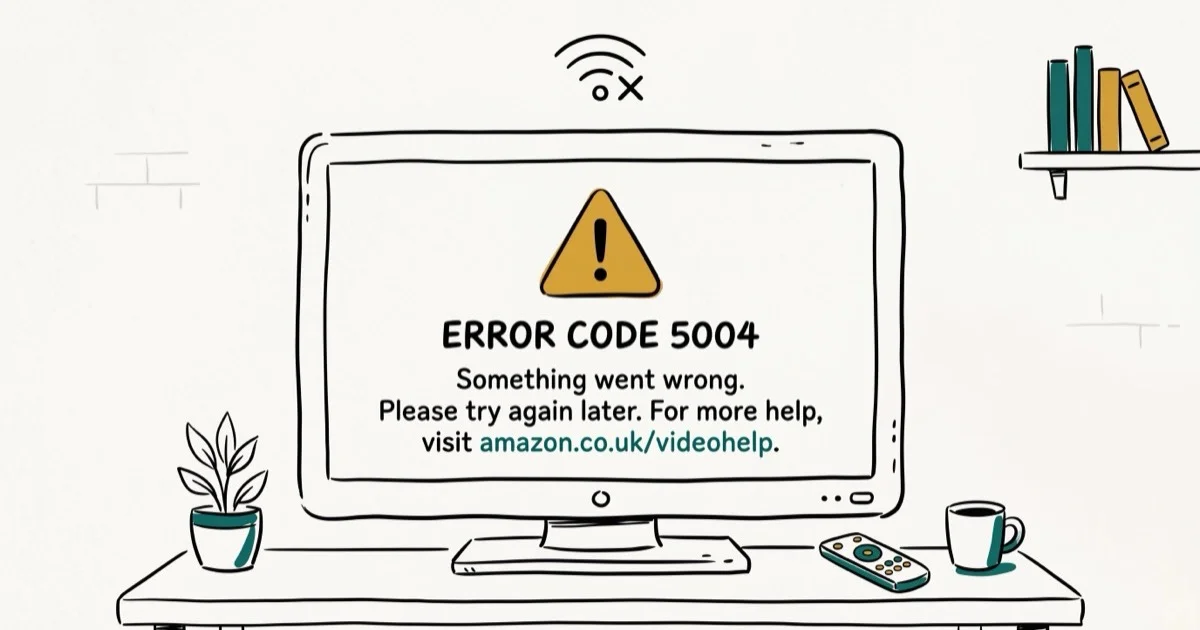
Quick AnswerError code 5004 on Amazon Prime Video is a sign-in authentication failure. Clear your browser cache and cookies, then sign out and back into your Amazon account to fix it.
Amazon Prime Video error code 5004 means the app can’t authenticate your account with Amazon’s servers. The most useful first steps are clearing browser cookies, signing out and back in, disabling VPN or proxy connections, and checking your Prime membership status.
- Error 5004 is an authentication failure, not a playback or content licensing problem
- Clearing browser cookies and cache resolves the majority of browser-based cases
- VPN and proxy connections trigger this error because Amazon blocks sign-in attempts from proxy IPs
- An expired or paused Prime membership causes the same error code, so verify your subscription status early
- If the error appears on only one device, the fix is local and doesn’t require Amazon support
#What Causes Error Code 5004 on Prime Video?
Error 5004 fires when Prime Video’s authentication handshake with Amazon’s servers breaks down.
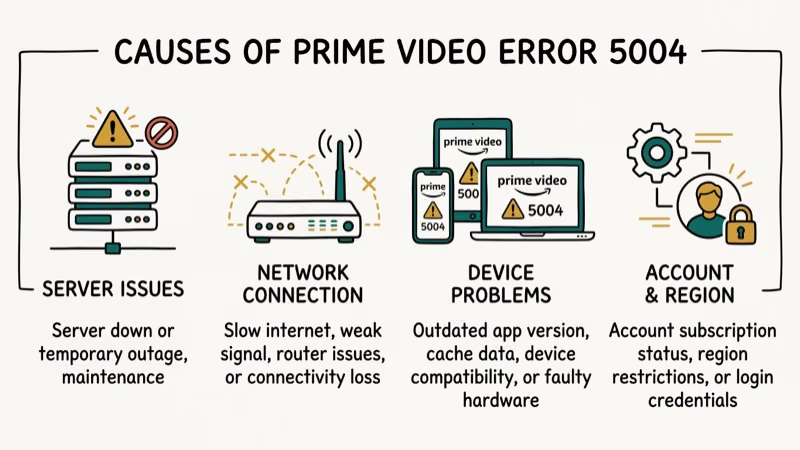 According to Amazon’s error code 5004 help page, the first thing to check is whether you’re using the correct email and password. But wrong credentials are only one possibility.
Corrupted browser cookies are the most common trigger. Every time you sign into Amazon, your browser stores session tokens and cookies. When those files get corrupted or go stale, the authentication request fails and throws error 5004.
VPN and proxy connections rank second. Amazon’s servers actively reject sign-in requests from known proxy IP addresses as part of regional licensing enforcement.
Other triggers: a lapsed Prime membership with a failed auto-renewal, an outdated Prime Video app holding a broken session token, firewall rules blocking Amazon’s CDN domains, and antivirus software intercepting streaming traffic on ports that Prime Video needs.
#How Do You Fix Error Code 5004?
Start with Method 1. Corrupted browser cookies are one of the most common causes of this authentication error.
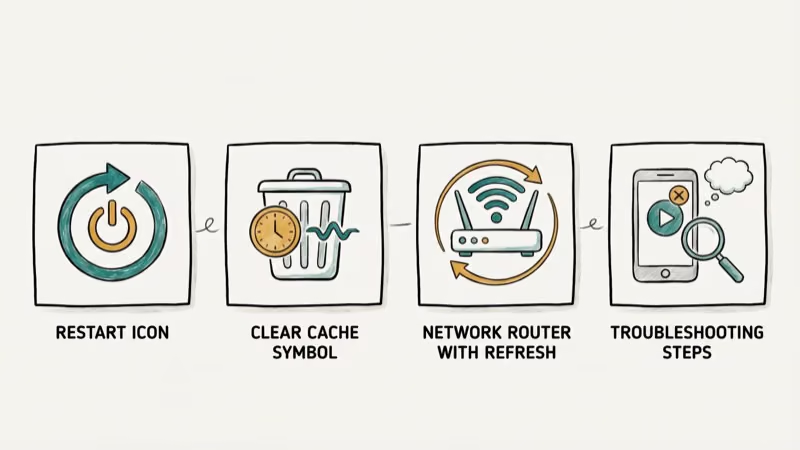
#Method 1: Clear Browser Cookies and Cache
Open Chrome and press Ctrl + Shift + Delete (Windows) or Cmd + Shift + Delete (Mac). Set the time range to All time. Check Cookies and other site data and Cached images and files, then click Clear data.
Close Chrome completely. Reopen it and sign back into Prime Video.
The whole thing takes a minute or two. On Firefox, go to Settings > Privacy and Security > Clear Data and check both boxes. If you’re on a phone, our Android cache clearing guide walks through the mobile steps. Mac users can follow the how to clear cache on Mac guide for Safari and Chrome.
#Method 2: Sign Out and Sign Back In
A fresh sign-in forces Amazon to generate a new session token, which bypasses corrupted tokens that survive a cache clear.
On the Prime Video website, click your profile icon and select Sign Out. On mobile, go to My Stuff > Settings and tap Sign Out. On Fire TV, go to Settings > My Account > Deregister.
Wait about 30 seconds before signing back in. That pause gives Amazon’s servers time to invalidate the old session. This step is especially useful after a recent password change, because old session tokens can remain invalid across devices.
#Method 3: Disable VPN or Proxy
Turn off any VPN or proxy before opening Prime Video.
On Windows, go to Settings > Network and Internet > VPN and disconnect. On Mac, open System Settings > Network, select the VPN profile, and click Disconnect. On Android or iPhone, toggle the VPN off from quick settings.
If you need a VPN for other apps, most providers support split tunneling. That lets you route Prime Video traffic outside the VPN while keeping everything else protected. Check our guide on what is VPN on iPhone for a deeper explanation of how VPN routing works on iOS.
#Method 4: Verify Your Prime Membership Status
A lapsed subscription throws the same error 5004. This catches people off guard when a credit card expires and the auto-renewal silently fails without any notification on the Prime Video screen itself.
Sign into amazon.com and go to Account and Lists > Prime Membership. Look at your membership status and renewal date. If it shows “inactive” or “on hold,” update your payment method first.
Failed auto-renewals can put an Amazon account on hold rather than cancelling it outright, while video playback still throws error 5004 with no mention of billing. If your account shows a payment hold, our guide on payment revision needed on Amazon covers the recovery steps.
#Method 5: Update or Reinstall the Prime Video App
Outdated app versions sometimes hold broken authentication tokens that survive sign-outs and cache clears.
On Android, open the Play Store, search for Prime Video, and tap Update. On iOS, check the App Store Updates tab. On Fire TV, highlight the app, press the Menu button, and select More Info > Update.
If updating doesn’t help, uninstall and reinstall. Amazon’s troubleshooting page states that a clean reinstall is their recommended next step after sign-out and cache clearing fail. Uninstalling wipes all local data including cached tokens that a regular update preserves. If Prime Video still won’t load after reinstalling on Android, our Amazon app not working guide has additional Android-specific recovery steps.
#Method 6: Disable Firewall or Antivirus Temporarily
Security software on Windows sometimes blocks the network connections Prime Video needs. This is more common with third-party suites like Norton, McAfee, and Bitdefender.
On Windows, go to Settings > Windows Security > Firewall and network protection > Allow an app through firewall and add your browser and Prime Video to the list.
For third-party antivirus, add primevideo.com and *.akamaized.net to the web protection allow list. Amazon uses Akamai’s CDN for video delivery, and some security tools flag that CDN traffic as suspicious. If disabling your firewall resolves the error, re-enable it right away and create a specific exception instead of leaving it off.
#Method 7: Check Your Internet Connection
Amazon Prime Video needs at least 1 Mbps for SD, 5 Mbps for HD, and 25 Mbps for 4K Ultra HD. A connection that drops below those thresholds can cause the authentication request to time out, which triggers error 5004 instead of a normal buffering warning.
Run a speed test at fast.com. If your speed is low, restart your router and wait 2 minutes.
Weak Wi-Fi can make a streaming device fail authentication before playback even starts. If your Wi-Fi isn’t working reliably, fixing the connection first saves time on everything else.
#Browser vs. App: Where the Error Shows Up Matters
According to Amazon Prime Video background, authentication errors like 5004 are common Prime Video issues, and clearing browser cookies often resolves browser-based cases without requiring any account-level changes.
The error behaves differently depending on where you’re watching. Knowing which platform is affected narrows down the fix fast.
If the browser throws the error but the app works fine, the problem is almost always corrupted cookies or a browser extension routing traffic through a hidden proxy. Clear your cache and check extensions before trying anything else.
If the app fails but the browser works, that points to a corrupted local token. Reinstall the app.
Both failing at once? Check VPN status and Prime membership before contacting Amazon support.
#Checking Amazon’s Service Status
Before running through device-side fixes, confirm the service itself is up. Amazon outages occasionally trigger error 5004 across every device at once, and no local fix can help when the problem is on their end.
According to Amazon’s Prime Video help center, support and troubleshooting options are available when playback problems continue. You can also search “Prime Video down” on X (formerly Twitter). Outages surface within minutes on social media.
For server-side patterns, our Netflix not working guide explains when waiting is the right move.
#Fixing Error 5004 on a Single Device
Each device stores its own session token independently. A corrupted token on your Fire TV has zero effect on your phone, which explains why one device can fail while others stream fine.
Reinstall the app on the affected device. That’s the fastest path.
On Android, you can also try clearing app data without a full reinstall: go to Settings > Apps > Prime Video > Storage > Clear Data. This wipes session data and signs you out but keeps the app installed. If you use Prime Video on a Fire TV Stick for PPV events, our PPV on Firestick guide covers additional Fire TV troubleshooting steps and common errors.
The single-device pattern is your best diagnostic signal. One device failing while others work means the problem is local. Skip support and fix that device directly.
#When Error 5004 Hits Every Device at Once
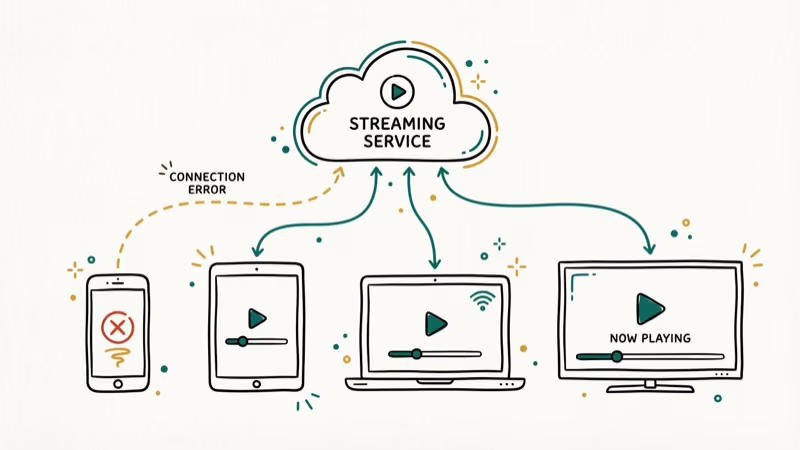
If the error shows on every device and Amazon’s service status page confirms no outage, contact Amazon support through live chat. Have your account email and the device names ready.
Amazon support can force-reset your authentication session from their end. That server-side reset clears issues that no amount of client-side troubleshooting can reach. They can also check for billing holds or region restrictions that don’t show in your account dashboard. Amazon’s customer service page confirms that live chat connects within about 2 minutes and is available 24/7.
Tell them upfront that you’ve already cleared cache, disabled VPN, and signed back in. That skips the scripted troubleshooting and moves directly to account-level investigation.
#Bottom Line
Clear your browser cache and sign back in. Those two steps fix error 5004 for most people in under 5 minutes. Disable your VPN if you have one active. Check your membership status if the error persists.
#Frequently Asked Questions
What does error code 5004 mean on Amazon Prime Video?
Error 5004 is an authentication failure. Prime Video can’t verify your account or create a secure session with Amazon’s servers. The most common causes are corrupted browser cookies, an active VPN, an expired session token, or a lapsed Prime subscription. Clearing cache and signing back in wipes corrupted data, forces a fresh token, and re-runs authentication all at once.
Does error 5004 mean my Prime membership expired?
Not always. Go to Account and Lists > Prime Membership on amazon.com to check. If your payment method failed recently, Amazon places the account on hold rather than cancelling it, and that hold triggers error 5004 with no billing-specific message on screen.
How do I fix error 5004 on Fire TV?
Go to Settings > Applications > Manage Installed Applications > Prime Video, select Clear Cache and then Clear Data, then go to Settings > My Account > Deregister and sign back in. If the error comes back after deregistering, uninstall the Prime Video app entirely and reinstall it from the Amazon Appstore.
Does a VPN cause error 5004?
Yes. Amazon blocks authentication from VPN and proxy IPs. Turn off your VPN before opening Prime Video, or use split tunneling.
Can I fix error 5004 by resetting my Amazon password?
Sometimes. If the error started after a password change on another device, the old session tokens on your other devices become invalid immediately. Resetting your password through Amazon’s “Forgot Your Password” page and then signing in fresh on every device can resolve token mismatches that a simple cache clear won’t fix.
Why does error 5004 appear on one device but not others?
Each device stores its own independent session token. A device with an outdated app, a corrupted token, or a weak network connection can throw error 5004 while your other devices work fine. Reinstall the app on the failing device.
What internet speed does Prime Video need?
At least 1 Mbps for SD, 5 Mbps for HD, and 25 Mbps for 4K Ultra HD. Drop below those minimums and the authentication handshake can time out, producing error 5004 instead of a buffering indicator.
When should I contact Amazon support about error 5004?
Contact support after you’ve tried clearing cache, signing out, disabling VPN, and reinstalling the app. If the error persists across every device and Amazon’s service isn’t down, their support team can force-reset your session from the server side and investigate hidden billing holds or region restrictions that you can’t see in your dashboard.

Google Messages Error 3100: Why RCS Is Broken on Galaxy
Google Messages RCS error 3100 hits Galaxy owners after phone or carrier switches. Google told 9to5Google a fix is coming. Here's what actually helps.

Is This Bank App Real? Spot a Fake App on Your Home Screen
A bank app can land on your home screen from a web page with no install warning. Learn the checks that tell a real banking app from a phishing web app.

Apps Crashing After iOS 27 Update? Fix Order (2026)
Apps crashing after the iOS 27 update? Update the app in the App Store first, then offload and reinstall to clear stale cache, then restart. The fix order.

Do AI Translation Earbuds Work Offline? What to Know
Do AI translation earbuds work offline? A few do with downloaded language packs, but most need the cloud. Here's what works offline and what you give up.