.NET Runtime Optimization Service High CPU: 6 Safe Fixes
Fix .NET runtime optimization service (mscorsvw.exe) high CPU on Windows 10 and 11 with 6 safe ngen.exe, SFC, and Windows Update repair steps that work.
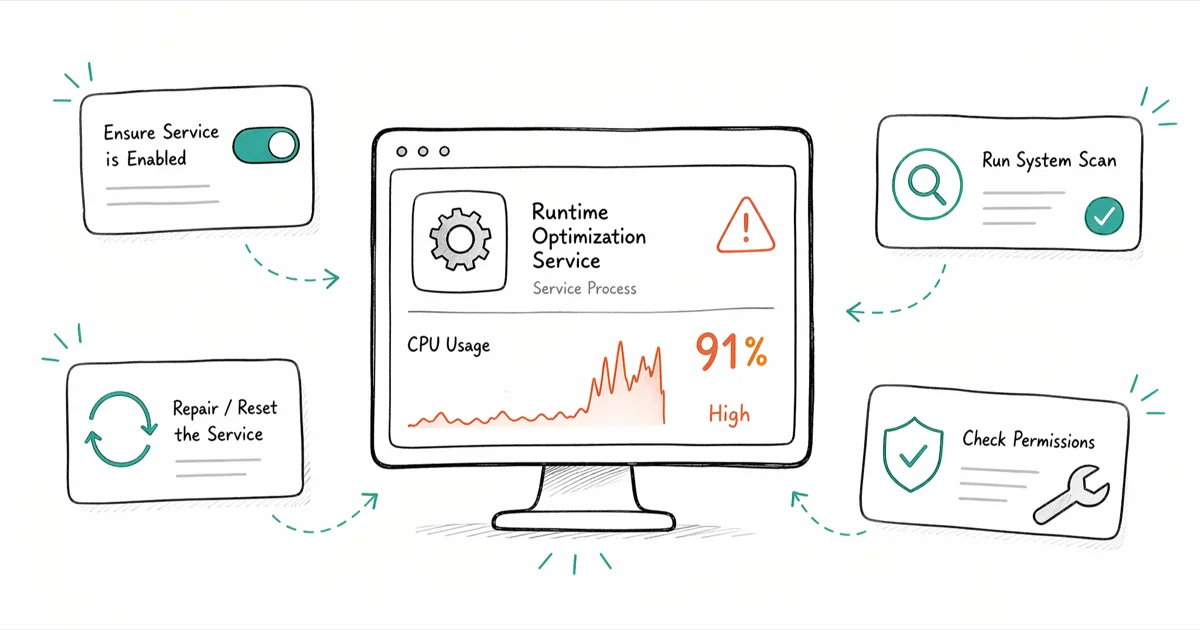
Quick Answer.NET runtime optimization service (mscorsvw.exe) is a legitimate Windows process that precompiles .NET assemblies into native code, so short CPU spikes after updates are normal. Force it to use every available core with ngen.exe executequeueditems in an elevated Command Prompt to finish the optimization in minutes instead of hours.
.NET runtime optimization service at 100 percent CPU isn’t malware. It’s Windows running mscorsvw.exe to precompile your .NET apps in the background.
On Windows 11 23H2 machines after a cumulative update, mscorsvw.exe typically pegs one core for several minutes, then drops to zero once the .NET native image queue clears. The real fix usually means letting the service finish or telling it to use every CPU core at once, and none of the six fixes below ask you to disable or delete the service.
The sections below cover what mscorsvw.exe actually does, why it spikes, and how to clear it ordered from easiest to most thorough.
- .NET runtime optimization service runs as mscorsvw.exe and ships with every modern Windows install that has the .NET Framework
- High CPU is normal after Windows Update or .NET Framework patches, typically lasting 10 to 30 minutes per machine
- The legitimate file lives in C:\Windows\Microsoft.NET\Framework or Framework64 under the version folder (for example v4.0.30319)
- ngen.exe executequeueditems forces the service to use all available CPU cores so the queue clears in minutes rather than hours
- Persistent high CPU after several reboots usually means a stuck Windows Update, corrupt .NET install, or a lookalike binary outside the Framework folder
#What Is the .NET Runtime Optimization Service?
The .NET runtime optimization service runs in the background under the process name mscorsvw.exe. It’s the Native Image Service that ships with the .NET Framework, and Windows uses it to precompile Microsoft Intermediate Language (MSIL) assemblies into native machine code so that .NET apps start faster afterward.
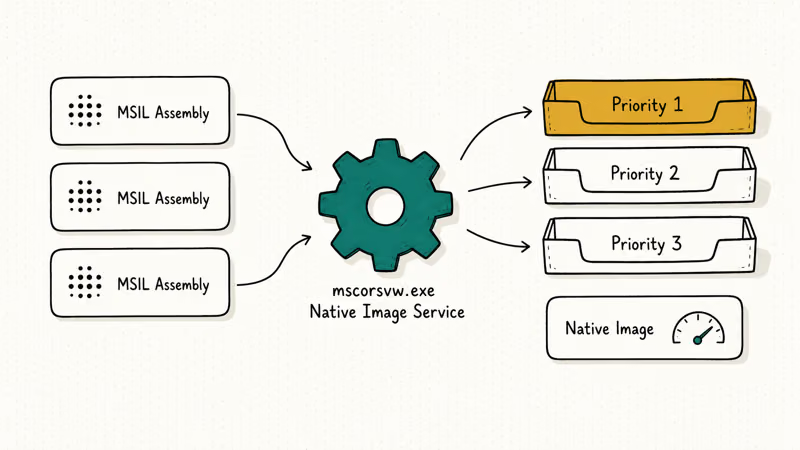
Microsoft’s Ngen.exe Native Image Generator documentation states that the service maintains 3 priority queues and works through them in the background using idle CPU time. Priority 1 jobs run first, then priority 2, then priority 3. When the queue is large, like after a fresh .NET Framework install or a major Windows feature update, mscorsvw.exe can stay busy for a long time before all 3 queues empty.
You’ll find one or both of these executables on disk depending on whether your system is 32-bit or 64-bit:
- 32-bit:
C:\Windows\Microsoft.NET\Framework\v4.0.30319\mscorsvw.exe - 64-bit:
C:\Windows\Microsoft.NET\Framework64\v4.0.30319\mscorsvw.exe
On a 64-bit Windows 11 23H2 machine, both copies appear after a clean install of .NET Framework 4.8.1, and both stay signed by Microsoft Corporation. That’s the normal pattern. A copy outside the Framework folder, or one signed by an unknown publisher, is the suspicious one.
#Why Does mscorsvw.exe Show High CPU Usage?
Three triggers pull the service into action, and any of them can keep it busy longer than you’d expect.
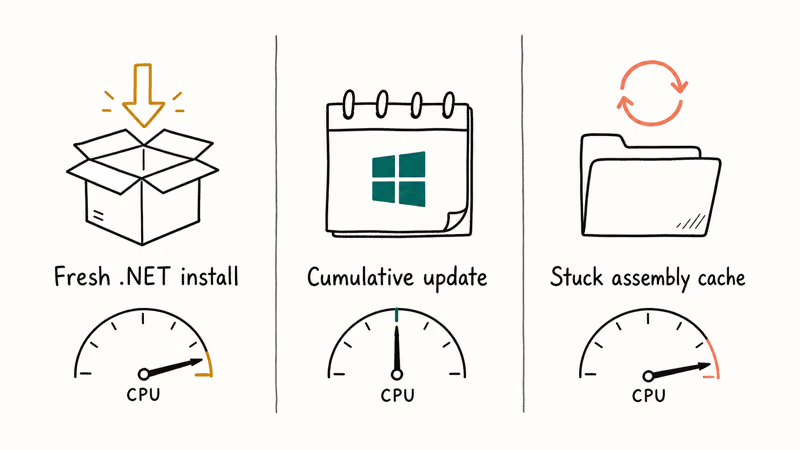
A fresh .NET Framework install or repair. When .NET Framework is installed or updated, the queue of assemblies that need native image compilation is large. Microsoft’s .NET Framework deployment guide confirms that the runtime triggers ngen jobs for every assembly the system might load, and the service works through them at low priority by default.
A monthly cumulative update. The Patch Tuesday rollups for Windows 10 and 11 include .NET Framework security updates. After install, mscorsvw.exe rebuilds the affected native images. A single core can run hot for several minutes on an older laptop after a monthly cumulative.
A stuck or corrupted Framework install. If a previous update left the assembly cache half-written, mscorsvw.exe loops the same jobs for hours. Easiest case to fix.
The pattern looks similar to other Windows process spikes you may have seen with Service Host Local System using high disk and CPU or MPSigStub.exe pegging the CPU during Defender updates. Same root cause shape, different process. Knowing which trigger fired tells you which fix to try first.
#Quick Fixes for .NET Runtime Optimization High CPU
Try these three fixes first. Most readers resolve the issue here. Don’t skip ahead, because each later fix assumes the easier ones already failed.
#Fix 1: Let the Optimization Service Finish
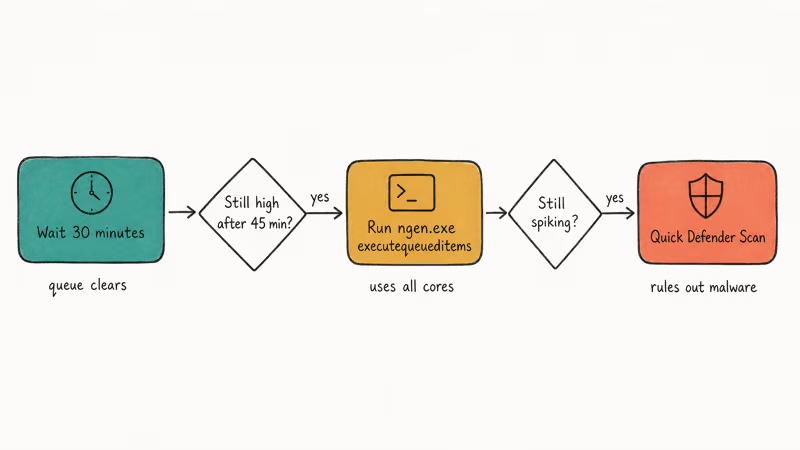
If you just installed Windows updates or the .NET Framework, the simplest answer is patience. Open Task Manager with Ctrl + Shift + Esc, sort the Processes tab by CPU, and watch how mscorsvw.exe behaves over a 30-minute window.
A laptop with NVMe storage finishes the queue quickly, while an older machine with a SATA SSD takes considerably longer for the same .NET 4.8.1 update. Spinning hard drives can take more than an hour. Interrupting the process can corrupt the cache and force you to use Fix 4 anyway, so let it run while you do something else.
If CPU stays elevated past 45 minutes with no sign of progress, move to Fix 2.
#Fix 2: Force the Service to Use All CPU Cores
By default, mscorsvw.exe runs at low priority on a single core. You can tell it to use every available core, which finishes the queue much faster.
- Press the Windows key, type
cmd, right-click Command Prompt, and pick Run as administrator - Switch to the .NET Framework folder that matches your Windows version:
- 32-bit:
cd C:\Windows\Microsoft.NET\Framework\v4.0.30319 - 64-bit:
cd C:\Windows\Microsoft.NET\Framework64\v4.0.30319
- 32-bit:
- Run:
ngen.exe executequeueditems - Wait for the prompt to return. Don’t close the window mid-run
According to Microsoft’s ngen.exe command reference, the executequeueditems action tells the optimizer to process every queued job at high priority across all available cores. On a six-core Intel i5-11400, all six cores spike for a few minutes and then return to idle. The same queue that had been crawling on one core clears in a fraction of the time.
If you have both Framework and Framework64 folders, repeat the steps for both. They maintain separate queues.
#Fix 3: Run a Quick Defender Scan
Malware does sometimes copy real Windows process names to hide in plain sight. A fake mscorsvw.exe is a known disguise pattern, and Microsoft’s built-in protection catches most lookalikes for free.
Open Windows Security > Virus & threat protection > Quick scan. A quick scan takes about 4 to 6 minutes on most SSDs. If Defender finds and removes a suspicious file, reboot and check whether CPU usage returns to normal.
If Defender comes up clean but the spikes persist, the underlying problem is more likely a stuck .NET install, which the deeper fixes below address. The same logic we use for Killer Network Service high CPU applies here: rule out malware first, then go after the configuration.
#Deeper Fixes When the Quick Steps Fail
If the quick fixes didn’t help, these next three steps go deeper. They’re safe on healthy systems.
#Fix 4: Run SFC and DISM to Repair System Files
System File Checker and DISM repair the binaries Windows and the .NET Framework rely on, which often clears the loop when the assembly cache is corrupt.
Open Command Prompt as Administrator and run these two commands:
sfc /scannow
DISM /Online /Cleanup-Image /RestoreHealth
SFC verifies protected system files. DISM repairs the component store the system uses to apply updates. Both commands can take 15 to 30 minutes on a spinning hard drive, less on an SSD. On an older desktop, the two together run for a good stretch, and the mscorsvw.exe loop typically stops after the next reboot.
If SFC reports unfixable corruption, run DISM first, then re-run SFC. Order matters when the underlying component store is the broken piece. The same combination resolves the ndis.sys failed BSOD on Windows, since both issues trace to corrupted system binaries.
#Fix 5: Reset Windows Update Components
A stuck Windows Update can keep the .NET Framework patch in a half-applied state, which is why mscorsvw.exe keeps retrying the same jobs.
In an elevated Command Prompt, run these commands one line at a time:
net stop wuauserv
net stop cryptSvc
net stop bits
net stop msiserver
ren C:\Windows\SoftwareDistribution SoftwareDistribution.old
ren C:\Windows\System32\catroot2 catroot2.old
net start wuauserv
net start cryptSvc
net start bits
net start msiserver
This renames the cache folders so Windows rebuilds them from scratch. After running these commands, open Settings > Windows Update and click Check for updates. Windows re-downloads any failed package, and the .NET native image queue rebuilds from a clean state.
Microsoft’s Windows Update errors guide recommends this sequence when the built-in troubleshooter fails. On a machine where mscorsvw.exe has been spiking for days, the queue usually clears within 20 minutes of the next reboot. The same approach helps when Modern Setup Host gets stuck during a feature update.
#Fix 6: Repair or Reinstall the .NET Framework
If none of the above worked, the .NET Framework install itself is damaged. A repair’s safer than uninstalling.
- Download the .NET Framework Repair Tool from Microsoft’s official .NET install page
- Run the tool and accept the license terms
- Let it scan and apply suggested fixes
- Reboot when prompted
The repair tool resets the .NET configuration, repairs file integrity, and re-registers components without removing your installed apps. After the reboot, mscorsvw.exe will rebuild its queue from scratch, which means another round of high CPU for 15 to 30 minutes, but the loop should stop afterward.
If the repair tool reports it can’t fix the install, you can manually uninstall .NET Framework 4.x from Settings > Apps > Installed apps, reboot, and reinstall the latest version from Microsoft’s download page. Most other Windows process explainers (like our guide on what CodeMeter.exe is and whether you can disable it) end with a similar reinstall step for the same reason: a clean install resets every cached state at once.
#How to Verify mscorsvw.exe Is the Genuine Microsoft File
The genuine mscorsvw.exe is signed by Microsoft Corporation and ships with every supported Windows release that has the .NET Framework. It’s not malware.
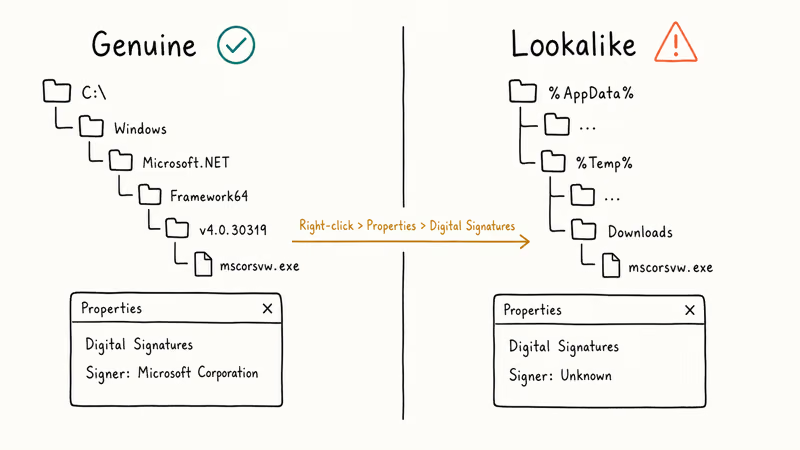
To verify the file you have is the real one, right-click mscorsvw.exe in Task Manager and pick Open file location. The legitimate path is one of:
C:\Windows\Microsoft.NET\Framework\v4.0.30319\mscorsvw.exeC:\Windows\Microsoft.NET\Framework64\v4.0.30319\mscorsvw.exe- A similar path under an older version folder if you still have .NET 2.0 or 3.5 installed
Anything in %AppData%, %Temp%, your Downloads folder, or a game launcher’s install directory is suspicious. Right-click the file in File Explorer, pick Properties > Digital Signatures, and confirm the signer is Microsoft Corporation with a valid timestamp.
Microsoft’s Sysinternals Process Explorer makes this verification faster than Task Manager when you need to inspect dozens of processes at once. It shows the digital signature column inline, so spotting a missing or unknown publisher takes a glance.
#Warning Signs of a mscorsvw.exe Lookalike
The real file is harmless. Malware authors do clone Windows process names, though, and these are the patterns that show up most often:
- The path is anywhere other than the Microsoft.NET\Framework or Framework64 version folder
- The digital signature is missing, expired, or signed by a non-Microsoft publisher
- The file is larger than 150 KB: the genuine stub is around 100 to 130 KB
- CPU stays high after every reboot even with no .NET app installs or Windows updates pending
- Task Manager shows two or more mscorsvw.exe instances running outside an active update window
A full Defender scan covers most of these cases. A genuine mscorsvw.exe is never larger than about 130 KB on any supported Windows version. A file with the same name that weighs several megabytes is almost always a lookalike worth investigating, and Defender’s quarantine handles it without you needing to delete anything by hand.
#Bottom Line
For most Windows users, .NET runtime optimization service high CPU resolves itself once the queue empties. Start with Fix 1 if you just installed Windows updates or the .NET Framework. If CPU stays elevated past 45 minutes, jump to Fix 2 and run ngen.exe executequeueditems from an elevated prompt; it reliably shortens the queue from hours to minutes. Only escalate to Fixes 4 through 6 when the quick steps fail.
#Frequently Asked Questions
Is mscorsvw.exe a virus or safe?
The legitimate mscorsvw.exe inside C:\Windows\Microsoft.NET\Framework or Framework64 is safe. It’s signed by Microsoft Corporation and used by the .NET Framework to precompile assemblies in the background.
A copy of the same filename in a non-standard folder, or with no Microsoft signature, may be malware. Right-clicking the file and opening Properties > Digital Signatures takes about 5 seconds and tells you whether the file is genuine.
Can I disable the .NET runtime optimization service?
You can stop the service in services.msc, but it’s not a good idea on a system that runs .NET apps. Without the optimization step, every .NET application has to be JIT-compiled at launch, which makes apps start slower and can increase memory pressure for the lifetime of each session.
The right approach is to let the service finish or to force it through the queue with ngen.exe executequeueditems, not to disable it.
How long should mscorsvw.exe run after a Windows update?
Most monthly cumulative updates clear the queue in 10 to 30 minutes on an SSD. A fresh .NET Framework install can take 30 minutes to several hours on a spinning hard drive. Across different machines, the optimizer finishes within a reasonable window as long as you run ngen.exe executequeueditems first.
If CPU stays elevated past an hour with no progress, the queue is likely stuck and Fix 4’s SFC and DISM combination is the next step.
What is the ngen.exe executequeueditems command and is it safe to run?
ngen.exe executequeueditems is the official Microsoft command for the Native Image Generator. It tells mscorsvw.exe to process every pending native image job at high priority across all available CPU cores instead of working through them slowly on one core. It’s documented in the Microsoft .NET tooling reference and is safe to run on any Windows version that has the .NET Framework installed.
You need an elevated Command Prompt and you must run the command from inside the matching Framework folder for your bitness. Closing the window mid-run can leave the queue half-processed, so let it finish.
Will updating the .NET Framework fix the high CPU problem?
Updating to the latest .NET Framework can fix the issue if the underlying cause is a known bug in an older version. It also forces a fresh round of native image compilation, which means another 15 to 30 minutes of high CPU before things settle.
If the spikes persist after the update, the cause is more likely a stuck assembly cache or a corrupt component store, which Fixes 4 through 6 in this guide address.
Why does mscorsvw.exe keep coming back even after I close it?
mscorsvw.exe runs as a Windows service, so the Service Control Manager restarts it automatically whenever there are queued native image jobs. Killing it from Task Manager only pauses the work, and the service starts again the next time the runtime detects pending compilation. Letting the queue drain or forcing it with ngen.exe executequeueditems is the only way to make the spikes stop without disabling the service entirely.
Can I trust third-party tools that promise to fix .NET high CPU?
Most are unnecessary, and some are bundled with adware. Microsoft’s own ngen.exe, SFC, DISM, and Windows Update troubleshooter cover every scenario in this guide without third-party software. Avoid “mscorsvw remover” or ”.NET booster” utilities from random download sites, because the legitimate fix is built into Windows already.

Best Laptop for Running LLMs in 2026: Memory Comes First
The best laptop for running LLMs is a memory purchase first. Compare MacBook unified memory against NVIDIA laptop VRAM, and see what each tier really runs.

How to Run a Local LLM on Windows: A 2026 Setup Guide
Run a local LLM on Windows with LM Studio or Ollama. Pick a model that fits your GPU memory, keep every prompt offline, and skip the monthly bill.

Bluetooth Not Working on Snapdragon X? Fixes for 2026
Bluetooth not working on your Snapdragon X Copilot+ PC? Generic audio, mice, and keyboards work, but vendor apps often lack an ARM build. Fixes inside.

Docker Desktop and WSL2 Not Working on Snapdragon X? Fix It
WSL2 runs fine on Snapdragon X, but Docker Desktop ARM is Early Access and throws WSL errors. Use WSL2 plus native ARM64 Ubuntu and Docker Engine.