How to Lock Your Mac Screen: 5 Quick and Easy Methods
Learn five ways to lock your Mac screen fast. We cover keyboard shortcuts, Hot Corners, Apple menu, Touch ID, and Terminal for every macOS version.
Quick AnswerPress Control + Command + Q to lock your Mac screen instantly. The shortcut works on macOS High Sierra and later, and unlocking requires your login password or Touch ID.
Locking your Mac screen takes one shortcut and keeps your data safe when you walk away. Every method below applies to your own Mac or a computer you have permission to administer, and each one finishes almost instantly on current macOS releases.
- Control + Command + Q locks the screen on every Mac running macOS High Sierra (10.13) or later
- Hot Corners trigger the lock screen with a single mouse flick to any chosen corner
- Touch ID locks and unlocks instantly on every MacBook Pro and MacBook Air with the sensor
- Setting “Require password Immediately” in System Settings closes the auto-unlock window completely
- Closing the lid locks the screen only after you turn on the password requirement in Lock Screen settings
#Why Lock Your Mac Screen at All?
A logged-in Mac is an open Mac.
Anyone within reach of the keyboard can read iMessage threads, copy files to a USB stick, or install background software while you grab coffee. Coffee shops, shared offices, and university libraries are the worst spots, but the same risk applies at home if visitors or kids touch your machine without supervision, and even a five-minute break is enough for someone to drop a launch agent that survives a reboot.
Locking is not the same as sleep. Sleep saves power and pauses background tasks; the screen lock just hides your display behind a password prompt while downloads, backups, and Time Machine snapshots keep running. According to Apple’s Mac security guide, turning on automatic screen lock with a strong login password is the first protective step Apple recommends before enabling FileVault or iCloud Keychain.
Of all the options, the keyboard shortcut method beats every menu-driven path for speed. If your MacBook isn’t turning on at all, that’s a separate hardware problem and the lock screen won’t appear regardless of what shortcut you press.
#How Do You Lock a Mac With a Keyboard Shortcut?
Keyboard shortcuts are the fastest way to lock your Mac. Three combinations cover every macOS release from Mojave onward.
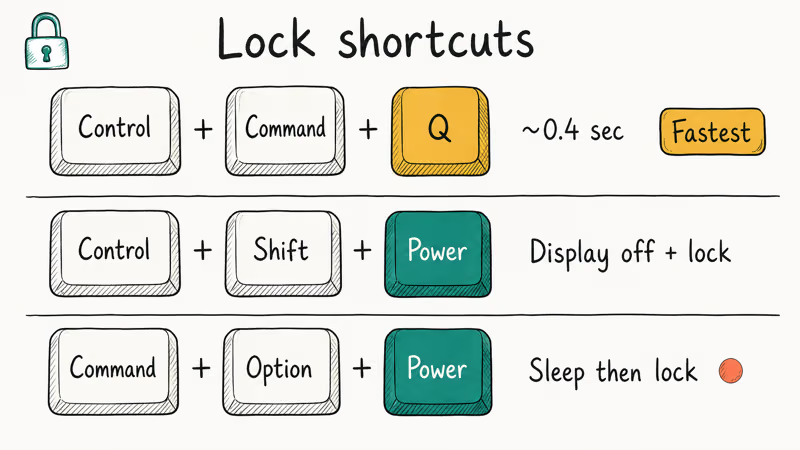
Control + Command + Q (macOS High Sierra and later): Press the three keys together and the lock screen appears immediately. The response is near-instant on Apple silicon Macs and only slightly slower on older Intel models. Background work continues without interruption.
Control + Shift + Power (or Eject on disc-drive Macs): Turns the display off and locks the Mac when a password requirement is on.
Command + Option + Power: Puts the Mac to sleep. Slower than the lock shortcut because the system has to suspend RAM, but it triggers the lock screen on wake and is the right choice when you want to conserve battery during a long break.
For routine privacy moments, Control + Command + Q is the right choice. Apple states that the lock shortcut has been part of macOS for 8+ years, dating back to the High Sierra release in 2017, and Apple’s Lock the screen of your Mac guide confirms the same combination still works on current macOS today.
If your Mac is stuck on the Apple logo instead, hold the power button for 10 seconds and retry.
#Method 1: Lock From the Apple Menu
The Apple menu is the click-only path that works without memorizing a key combination.
- Click the Apple logo in the top-left corner of the menu bar.
- Select Lock Screen.
The display switches to the login window in under a second. Your password or Touch ID brings the session back exactly where you left it.
On macOS Monterey, Ventura, Sonoma, and Sequoia, “Lock Screen” sits near the top of the Apple menu, just above “Sleep.” On older releases (Mojave and earlier) you only see “Sleep,” which still locks if the password requirement is enabled. The menu path is slower than the shortcut, but it’s the option a new user finds first when nothing else has been configured.
#Method 2: Set Up Hot Corners for One-Move Locking
Hot Corners turn one of the four screen corners into a lock trigger.
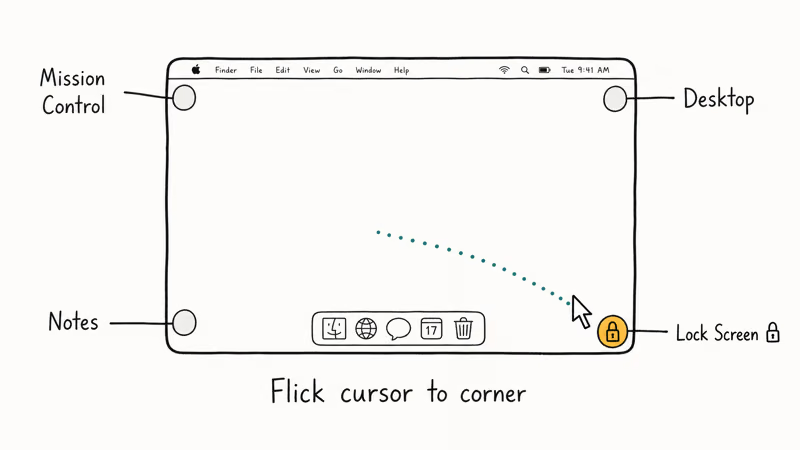
Move the cursor to that corner and the screen locks instantly:
- Open
System Settings>Desktop & Dockand scroll to Hot Corners. - Click the corner you want to use and pick Lock Screen from the dropdown.
- Click Done.
Setting the bottom-right corner to Lock Screen is convenient, though it can trigger accidentally when the cursor sweeps toward the Dock. Apple’s Hot Corners support page recommends holding a modifier key (Command, Shift, Option, or Control) while picking the action so the corner only fires when you press that key plus the cursor flick. That tradeoff cuts accidental locks to near zero.
If your Mac is running slow and the corner takes a moment to register, give the cursor a fuller sweep into the corner instead of brushing the edge. Sluggish input often points to memory pressure, not a Hot Corners bug.
#Method 3: Lock and Unlock With Touch ID
MacBook Pro and MacBook Air models with Touch ID build the fastest unlock right into the keyboard. Closing the lid or running any other lock method here secures the screen, and a single fingerprint touch brings the desktop back.
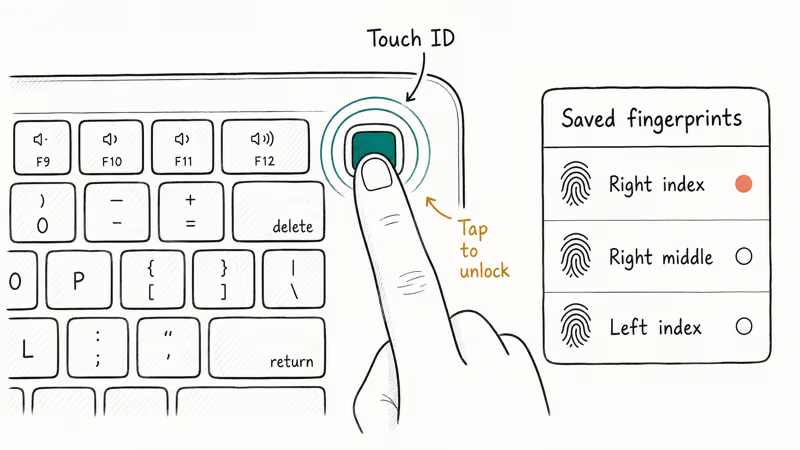
Set up Touch ID at System Settings > Touch ID & Password > Add Fingerprint. The system supports up to three saved fingerprints per user account on Apple Silicon Macs and up to five on Intel Macs with the T2 chip. According to Apple’s platform security guide, the fingerprint data never leaves the Secure Enclave and isn’t synced to iCloud or backed up.
Register two fingers from each hand if you can.
Registering only one finger means reaching across the keyboard whenever the other hand is free. Two fingers per hand removes that friction, so a fingerprint is always within reach no matter which hand is on the keys.
#Method 4: Lock From Terminal
Terminal works on every macOS version and is handy if you already have a command-line session open.
Open Terminal from Applications > Utilities and run:
pmset displaysleepnowThis puts the display to sleep instantly and triggers the lock when a password is required. For a forced session suspend that always shows the login window, run:
/System/Library/CoreServices/Menu\ Extras/User.menu/Contents/Resources/CGSession -suspendBoth commands work on current macOS releases, including Sequoia and Ventura.
The pmset version is gentler on running apps, while CGSession reliably forces the login screen even when the password-requirement timer hasn’t elapsed yet. If your Mac keeps crashing right after locking, Terminal-based locking is the cleanest way to test password prompts without touching the GUI, and you can chain it into a shell function so a single keystroke locks every Mac on your local network.
#Force a Password After Every Screen Lock
Locking the screen is pointless if the Mac unlocks automatically a moment later.
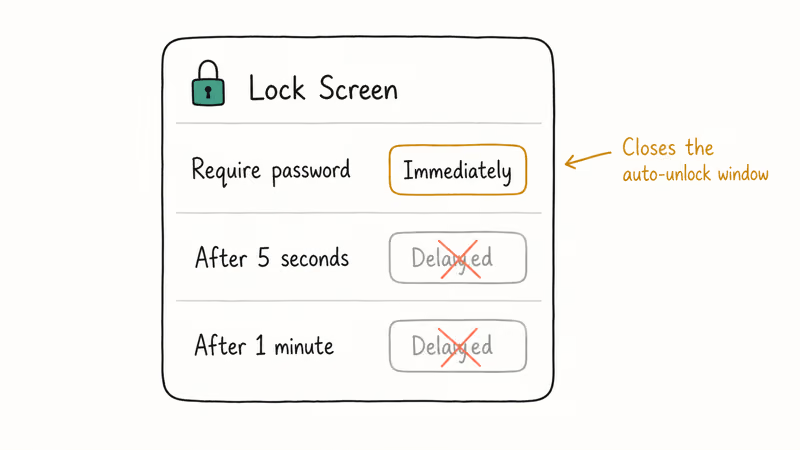
The password requirement in System Settings closes that window:
macOS Ventura and later (Settings app): Go to System Settings > Lock Screen. Set “Require password after screen saver begins or display is turned off” to Immediately.
macOS Monterey and earlier (System Preferences): Go to System Preferences > Security & Privacy > General. Check “Require password” and pick Immediately from the dropdown.
We recommend Immediately for any Mac that travels. Any delay (even five seconds) gives a stranger a window to wake the screen during a lid-flip and access your session.
If you wear an Apple Watch and your Mac wakes itself when you sit down, that’s the auto-unlock feature in action. Turn it off at System Settings > Touch ID & Password > Use Apple Watch to unlock your Mac when you’re working in public. If your MacBook Pro screen is flickering instead of showing the lock screen cleanly, that’s a display issue worth investigating before you trust the lock visually.
#Method 5: Fast User Switching
Fast User Switching kicks you back to the login window without logging out, which is the right call on a Mac shared by family members or roommates.
- Open
System Settings>Control Center. - Find Fast User Switching and set it to show in the menu bar.
- Click the user icon in the menu bar and choose Login Window.
Your session keeps running in the background while a different user logs in.
It’s reliable for long-term use on a shared household Mac without session corruption. If accountsd asks for the login keychain when you switch back, type your login password once and macOS stops asking for the rest of that session.
#When the Lock Screen Won’t Cooperate
Most lock-screen problems trace back to one of four causes:
- Caffeine, Amphetamine, or another wake-blocker is running. Quit the app and try again.
- “Require password” is set to Never. Re-check Lock Screen settings.
- An external display is set as the primary screen. macOS sometimes parks the lock prompt on a secondary monitor.
- A stuck modifier key. A jammed Control or Command key prevents the shortcut from registering.
If your MacBook Pro trackpad isn’t working, use the keyboard shortcut path until you sort the input issue. Avoid running aggressive third-party “uninstaller” or “cleaner” apps that promise to fix lock-screen bugs; they rarely help and often delete launchd entries that macOS needs to manage the login window properly.
For sluggishness around lock and unlock, clearing the cache on your Mac clears out user-level launch service entries that occasionally slow down the login transition.
#Bottom Line
Control + Command + Q is the lock method worth making habitual.
It’s fast, available on every modern macOS release, and doesn’t interrupt downloads or backups. Pair it with “Require password Immediately” in System Settings > Lock Screen and your sessions stay private the second you stand up.
Add a Hot Corner with a modifier key as a backup for moments when both hands are off the keyboard, register two Touch ID fingers on each hand, and turn off Apple Watch auto-unlock whenever you take the laptop into a public space.
If your macOS installation won’t complete and you can’t reach the lock screen at all, that’s a recovery-mode situation rather than a lock-method problem.
Mac Tips & Tricks
#Frequently Asked Questions
Can you change the lock screen wallpaper on Mac?
Yes. On macOS Sonoma and Sequoia, go to System Settings > Wallpaper. The wallpaper you set for the desktop also shows on the lock screen. Older macOS versions display a default gradient with no customization option.
What should you do if you forget your Mac password?
Restart the Mac and hold Command + R to enter Recovery Mode, then reset your password through Recovery Assistant or your Apple ID. The reset doesn’t erase your data, but a recent backup is still smart insurance. If your keychain password is forgotten too, macOS may prompt you to create a new keychain on the next login.
Does locking the screen stop downloads on Mac?
No. Locking only hides your display. Downloads, Time Machine backups, Spotlight indexing, and background uploads keep running normally until the Mac actually goes to sleep.
Is there a way to auto-lock your Mac after a set time?
Yes. Open System Settings > Lock Screen and set “Turn display off on battery when inactive” or “Turn display off on power adapter” to a value between 1 minute and 3 hours. Combine that with “Require password Immediately” so the lock fires the moment the display turns off.
Can you lock your Mac remotely?
Yes. Sign in to iCloud.com or open the Find My app on another Apple device, pick your Mac from the device list, and tap or click Lock. The Mac receives a remote lock command over its internet connection and refuses any login until you enter the unlock code you set during the remote lock.
How do you disable the lock screen on Mac?
Open System Settings > Lock Screen and set “Require password” to Never. The Mac will still allow Control + Command + Q to lock manually, but it won’t enforce the password automatically when the screen turns off. Disabling the lock is risky on any portable Mac and is only sensible on a stationary machine in a controlled space, ideally one with FileVault on, behind a locked door, and wiped before being handed to a new user.
Does closing the MacBook lid lock the screen?
Yes, provided the password requirement is on. Closing the lid puts the Mac to sleep, and reopening the lid shows the lock screen. Confirm “Require password Immediately” is enabled in Lock Screen settings, otherwise a quick lid-flip can land directly on the desktop.
Why does the Mac lock screen keep failing to appear?
Check first for a wake-blocking app such as Amphetamine, Caffeine, or KeepingYouAwake; quitting the app usually restores normal behavior. Verify that “Require password” isn’t set to Never and that no external display has stolen focus. As a last resort, reboot in Safe Mode by holding Shift on Intel Macs (or holding the power button on Apple Silicon and choosing Safe Mode) to rule out a third-party launch agent interfering with the login window.
macOS 27 Golden Gate: Release Date and Compatible Macs
macOS 27 Golden Gate was announced at WWDC 2026. Here is the release date, the Apple Silicon-only compatible Mac list, and every confirmed new feature.
How to Copy and Paste on a Mac: Shortcuts and Fixes
Copy and paste on a Mac with Command-C and Command-V. Learn the cut shortcut, paste without formatting, Universal Clipboard, and fixes when it breaks.
How to Use the Phone App on Mac: macOS Tahoe Setup Guide
Set up the Phone app on macOS Tahoe to relay iPhone cellular calls. Covers requirements, FaceTime setup, Call Screening, and common firewall fixes.
How to Use iPhone Mirroring on Mac: Full 2026 Setup Guide
Set up iPhone Mirroring on macOS Sequoia with iOS 18. Covers hardware requirements, the six common error messages, EU limits, and a shared-Mac privacy fix.