MacBook Pro Trackpad Not Working: 9 Proven Fixes (2026)
MacBook Pro trackpad won't click, tap, or scroll? Reset SMC and NVRAM, delete plist files, check Safe Mode, and inspect battery damage safely.
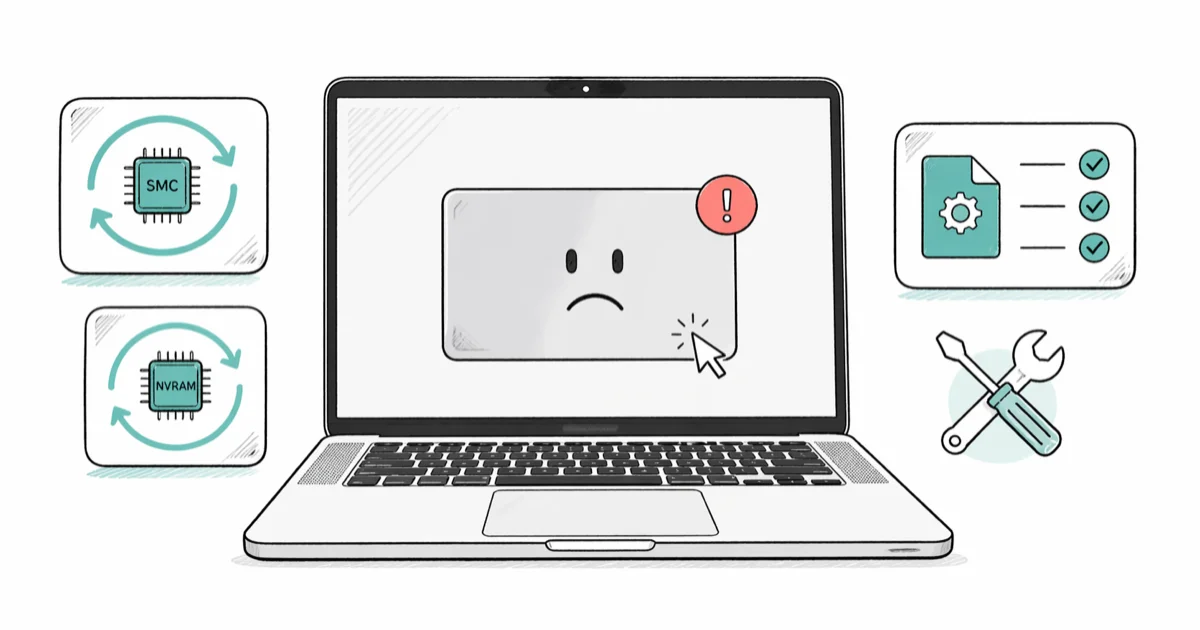
Quick AnswerReset the SMC and NVRAM on your MacBook Pro to fix most trackpad issues. If clicks still don't register, delete the trackpad plist files and restart so macOS rebuilds them from defaults.
Your MacBook Pro trackpad stopped clicking. Or the cursor moves but taps go nowhere, and Force Click does nothing.
The fixes below start with reversible software checks before moving to hardware diagnostics and repair decisions. Run a Time Machine backup first if you haven’t in a while, then start with Fix 1 and work down.
- An SMC reset plus NVRAM reset clears the low-level input state on Intel MacBooks and is the fastest first move
- Apple silicon Macs (M1, M2, M3, M4) have no manual SMC reset, so a full shutdown plus a 30-second wait does the same job
- Deleting com.apple.AppleMultitouchTrackpad.plist and com.apple.preference.trackpad.plist forces macOS to rebuild trackpad settings from defaults
- A swollen battery pushes the trackpad up from underneath and blocks the click mechanism, which is a safety issue that needs Apple service
- Apple Diagnostics surfaces VFD codes for trackpad faults and PPF codes for battery damage so the Genius Bar can confirm warranty coverage on the spot
#Why Won’t Your MacBook Pro Trackpad Click or Tap?
Trackpad failures fall into two camps: software and hardware. Separate them before you book service.
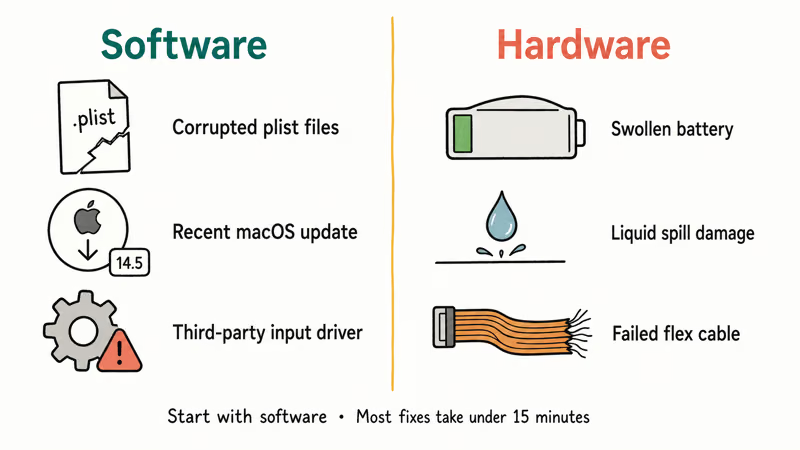
Software causes include corrupted trackpad preference files, a macOS bug introduced by a recent update, and conflicts with third-party input apps like BetterTouchTool, Karabiner, or older Logitech drivers. They’re fixable at home in under 15 minutes.
Hardware causes are trickier. The most common is a swollen battery. According to Apple’s battery service page, lithium-ion batteries can expand as they age, pressing the trackpad upward from beneath the chassis and blocking the click mechanism. Liquid spills, drop damage, and a failed flex cable behind the trackpad fall into the same bucket.
Start with the software fixes before you reach Apple Diagnostics. They’re reversible, free, and cover the settings and controller state problems that commonly make a healthy trackpad feel broken.
#Check Your Trackpad Settings First
Before doing anything technical, open the trackpad pane and rule out a setting change. System Settings can revert preferences after a macOS point update, and a wrong Tracking Speed value alone can make a healthy trackpad feel broken.
-
Click the Apple menu and choose System Settings
-
Click Trackpad in the sidebar
-
Under Point & Click, confirm Tap to Click is on if you expect taps to register
-
Drag the Tracking Speed slider away from the slowest position
-
Try toggling Force Click and haptic feedback off if your clicks register at first then go dead after a few seconds
The Force Click toggle is worth checking because settings drift can mimic hardware failure after a macOS point update.
While you are here, disconnect any external mouse, USB hub, or Bluetooth peripheral. Older Logitech and Microsoft input drivers install kernel extensions that can stomp on built-in trackpad input. If you suspect a stuck Bluetooth connection is part of the picture, our guide on Bluetooth not available on Mac walks through the controller reset that often clears it.
#Wipe the Trackpad Surface
Hand oils, sunscreen residue, and crumbs build up on the trackpad over months and produce inconsistent tap detection. This step sounds too basic to matter. It often does.
Shut the MacBook down, unplug the charger, and dampen a lint-free cloth with water or 70% isopropyl alcohol. Wipe the surface in straight passes. Don’t spray liquid directly on the trackpad and keep moisture away from the seam where the trackpad meets the palm rest, since liquid can wick into the click mechanism and the battery beneath it.
Restart and test. If general housekeeping is overdue, doing this alongside clearing your Mac’s cache takes less than ten minutes and rules out a few other quiet causes at the same time.
#How Do You Reset the SMC on a MacBook Pro?
The System Management Controller handles low-level hardware functions including trackpad input, battery management, and thermal control. Resetting it clears stuck state that no software prompt can reach.
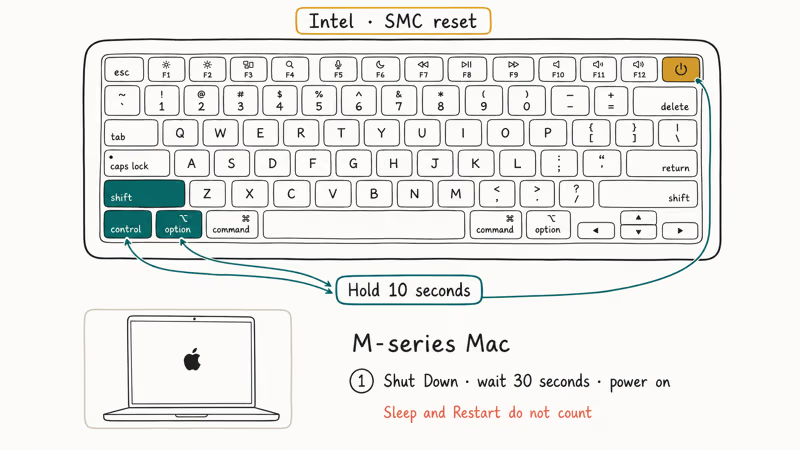
For Intel MacBook Pros (2019 and earlier, T2 chip and prior):
-
Shut the MacBook down completely
-
Press and hold Shift + Control + Option on the left side of the keyboard, then press the power button at the same time
-
Hold all four keys for 10 seconds
-
Release every key, then press the power button alone to start the Mac
For Apple silicon MacBook Pros (M1, M2, M3, M4):
There is no manual SMC reset on Apple silicon. According to Apple’s restart guide, a full shutdown clears the equivalent low-level hardware state on M-series chips. Click Apple menu > Shut Down, wait at least 30 seconds, then power on again.
Sleep and Restart don’t count. Both keep the relevant controllers warm, so the stuck input state survives.
An SMC reset on Intel Macs, or a full shutdown on Apple silicon, clears low-level controller state that normal restarts can leave behind.
#Reset NVRAM to Clear Stale Input Settings
NVRAM stores settings the Mac reads at startup, including some input device configuration. Corrupted NVRAM data can produce erratic trackpad behavior even when the hardware is fine.
-
Shut the MacBook down
-
Press the power button, then immediately press and hold Option + Command + P + R
-
Keep holding for about 20 seconds, releasing after the second startup chime on Intel models that have one
-
Let the Mac boot normally
Intel only. M-series Macs reset NVRAM during any normal restart.
An NVRAM reset can also clear MacBook Pro screen flickering at the same time, since both symptoms share the startup chip.
#Delete the Trackpad Property List Files
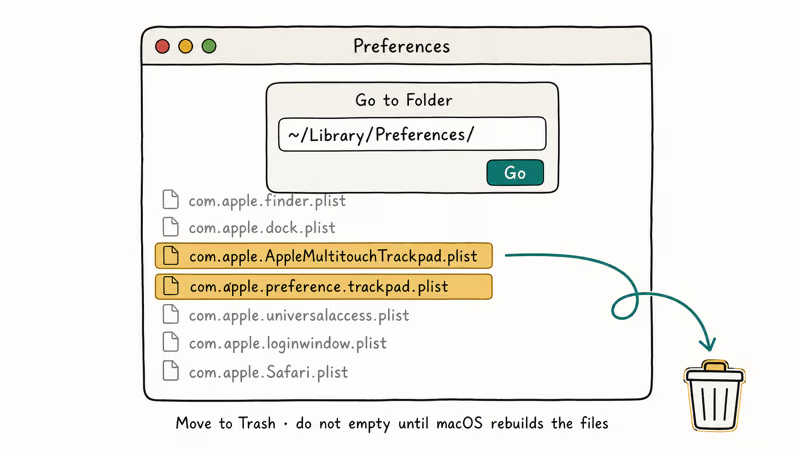
macOS keeps trackpad configuration in two property list files. When one becomes corrupt, specific gestures break while basic cursor movement keeps working, which is exactly the pattern most readers describe.
-
Open Finder
-
Click
Go>Goto Folder in the menu bar -
Type
~/Library/Preferences/and press Return -
Move these two files to the Trash:
com.apple.AppleMultitouchTrackpad.plistandcom.apple.preference.trackpad.plist -
Restart the Mac
macOS rebuilds both files at the next login with default trackpad settings, so plan to reconfigure custom gestures, scroll direction, and three-finger drag afterward. Move the files to the Trash rather than deleting them outright. If anything else breaks, drag them back from the Trash before emptying it.
Deleting both plists and restarting forces macOS to rebuild gesture settings on the next login. Use this when basic pointer movement works but gestures or click behavior are inconsistent.
#Run Apple Diagnostics to Check for Hardware Damage
Software fixes didn’t work? It’s time to confirm whether the trackpad, the battery, or the flex cable behind them has actually failed. Apple Diagnostics is the built-in tool that runs the same hardware tests a Genius Bar technician uses at the counter, including a dedicated input scan and a battery cell health check, and the reference codes it produces save real time at check-in.
For Intel Macs: Shut down, press the power button, and immediately hold D until the diagnostics screen appears.
For Apple silicon Macs: Shut down, press and hold the power button until “Loading Startup Options” appears, then press Command + D.
When Apple Diagnostics finishes, write down any reference code it shows. Apple’s diagnostics guide says to provide that code when taking the Mac to an Apple Authorized Service Provider, Apple Store, or Independent Repair Provider. It doesn’t promise a fixed scan time or confirm warranty coverage.
Write any code down. Codes that start with VFD point to the trackpad assembly. Codes that start with PPF point to the battery, which has been bonded to the trackpad assembly on every MacBook Pro since 2016, so a single hardware fault often shows up as both a trackpad and a battery flag in the same scan.
#Check for a Swollen Battery Before Anything Else
If Apple Diagnostics flags a PPF code or the trackpad surface feels physically raised compared to the palm rest, stop using the MacBook for daily work. A swollen battery is a safety issue, not a cosmetic one. Continued charging stresses the cell further and can damage the keyboard, the speaker grilles, and the bottom case.
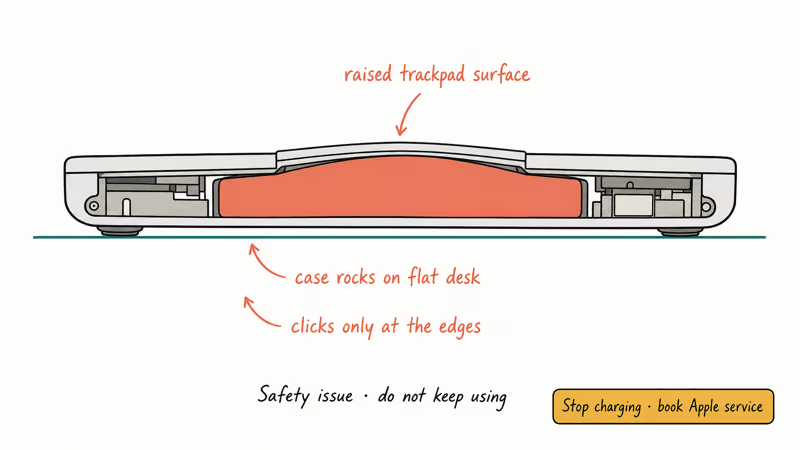
Signs that point to a swollen battery instead of a software fault:
- The trackpad feels dome-shaped or springy rather than flat when you press the corners
- The bottom case rocks on a flat desk where it used to sit flush
- Clicks register near the edges but not the center, or vice versa
- A separate MacBook Pro that won’t charge symptom appeared in the same week
Power the Mac down, leave it on a hard surface (not the bed or a couch cushion), and book service. Apple’s battery service page confirms that AppleCare+ covers a replacement once capacity drops below 80% of the original spec, and out-of-warranty service runs $199 to $249 on most recent MacBook Pros.
#When to Book an Apple Repair
Get professional help if Apple Diagnostics flagged a hardware error, the trackpad surface is raised, or you spilled liquid recently. Apple charges $199-$249 for an out-of-warranty battery replacement on most recent MacBook Pros and $299-$349 when the trackpad and battery have to be replaced as a unit, since they share a flex cable on the 14-inch and 16-inch models from 2021 onward.
Run a Time Machine backup before the appointment. Apple’s standard flow doesn’t erase the SSD, but service triage occasionally swaps the logic board.
When the Genius Bar checks the machine in, mention every related symptom on the same ticket. If the trackpad failure landed alongside your Mac stuck on the Apple logo or the camera not working, the technician can chase a single shared cause like a failing trackpad-and-battery flex cable, instead of opening the laptop twice.
#Bottom Line
Run an SMC reset on Intel or a 30-second full shutdown on Apple silicon, follow with an NVRAM reset, then delete the two trackpad plist files. That sequence clears the most common MacBook Pro trackpad failures in under 10 minutes and costs nothing. If the trackpad still won’t click or the surface feels raised, run Apple Diagnostics, copy any VFD or PPF code, back up your data, and book the Genius Bar.
#Frequently Asked Questions
Can a swollen battery cause MacBook Pro trackpad problems?
Yes. A swollen battery pushes the underside of the trackpad upward and blocks the click mechanism. If the surface is raised or the laptop rocks on a flat desk, stop charging the Mac and book service. Continued use is a safety risk, not just a click problem.
Does resetting the SMC erase any data on my MacBook?
No. SMC and NVRAM resets only clear hardware controller state. Your files, apps, and macOS preferences stay intact, so you don’t need a backup.
Why does my MacBook Pro trackpad work in Safe Mode but not normally?
Safe Mode disables third-party kernel extensions and login items, so a healthy trackpad in Safe Mode but a broken one in normal mode points squarely at a third-party input app. BetterTouchTool, Karabiner, MagicPrefs, and old Logitech Options drivers are common offenders. Remove them one at a time, restart between each, and the failing app reveals itself.
How much does it cost to replace a MacBook Pro trackpad?
Apple charges between $199 and $349 depending on model and whether the battery has to be swapped at the same time. The trackpad and battery are bonded on every MacBook Pro since 2016, so a single damaged corner can pull the cost into the higher band. AppleCare+ usually covers the labor.
Will an external mouse work if my built-in trackpad is broken?
Yes. Plug in a USB or Bluetooth mouse and macOS recognizes it instantly without any setup, regardless of the trackpad state. This is the cleanest workaround while you wait for a service appointment.
Can I disable the built-in trackpad and only use a mouse?
Open System Settings > Accessibility > Pointer Control and turn on Ignore built-in trackpad when mouse or wireless trackpad is present. macOS stops processing internal trackpad input while the external pointer is connected, which is enough to keep the laptop usable until the repair, even if ghost touches were jumping the cursor before.
Should I open the MacBook Pro myself to inspect the trackpad?
No. The trackpad sits directly above the battery cells on every recent MacBook Pro, and a slip with a screwdriver can puncture a cell and start a thermal runaway. Even Apple-authorized repair shops follow a specific tooling and discharge procedure for this assembly. Book service instead.

Mac mini M6 vs M5 Pro: Which Model Should You Buy?
Mac mini M6 vs M5 Pro compared on price, memory, ports, displays, and real workloads. Find the better 2026 Mac mini for your desk and budget.

macOS 27 Compatible Macs: Every Supported Model (2026)
macOS 27 Golden Gate runs only on Apple Silicon Macs. Here is the full list of supported M-series models and the four Intel Macs that lose support.

macOS 27 Golden Gate: Every Major New Feature Confirmed
macOS 27 Golden Gate goes Apple Silicon only, adds a Gemini-powered Siri, refines Liquid Glass, and rebuilds Spotlight. Here is every confirmed change.

macOS 27 Liquid Glass: Every Readability Fix Explained
macOS 27 Golden Gate refines Liquid Glass with an intensity slider, better contrast, cleaner window corners, and edge-to-edge sidebars to fix readability.