Laptop Won't Power On: 9 Fixes That Actually Work (2026)
Laptop won't power on? Start with a 30-second power drain. Work through 9 fixes covering charger, battery, RAM, and BIOS issues. Step-by-step guide.
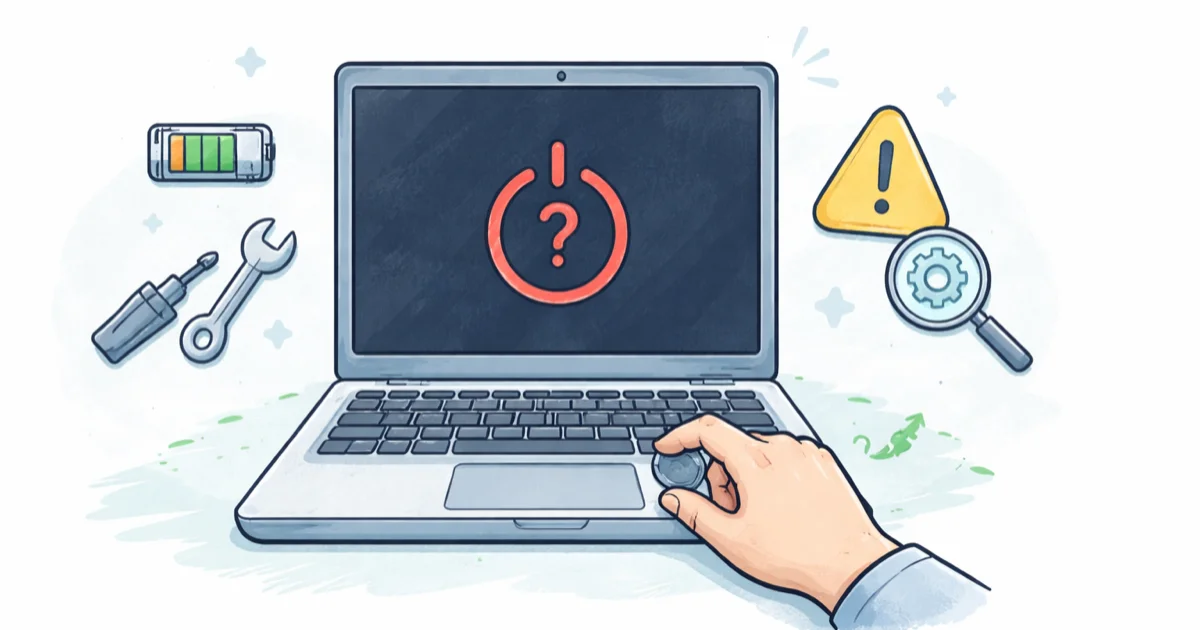
Quick AnswerIf your laptop won't power on, unplug everything, hold the power button for 30 seconds to drain residual charge, then plug only the charger back in and try again. This power-drain reset clears stuck firmware in most no-boot cases.
A laptop that won’t power on is almost never as dead as it looks. The usual causes are a stuck firmware state, a tired charger, a swollen battery, loose RAM, or a stuck BIOS. Work the list below in order, since each step rules out the cheaper causes first.
- A 30-second power-button drain restarts firmware on most laptops without opening the case or removing the battery.
- Charger LEDs that don’t light up point to a dead adapter, a frayed cable, or a bad outlet, not your laptop.
- Reseating one RAM stick at a time can fix post-drop and post-upgrade no-boot cases caused by a loose module or bad slot.
- A blinking caps-lock or numlock light during power-on is a manufacturer beep code that maps to RAM, GPU, or motherboard failure.
- If the laptop is older than 5 years and the motherboard is dead, a replacement usually beats the repair quote on cost.
#How Do You Tell the Difference Between No Power and a Black Screen?
Press the power button and watch for any sign of life: a fan spinning up for a second, a charging LED blinking, a faint hard-drive click, the keyboard backlight flashing. If you see or hear any of those, the laptop is getting power but failing to drive the display. Skip down to the display and overheating sections.
If nothing happens at all, no LED, no fan twitch, no sound, the laptop has no power flowing. Start with the hard reset and charger checks, since those fix the no-power cases most often.
The middle scenario is partial power: the LED comes on, the fan spins, but the screen stays black and the laptop never posts. That points to RAM, the CMOS battery, or the GPU.
#Hard Reset to Drain Residual Charge
This is the single fix that resolves the most cases, and it costs nothing.
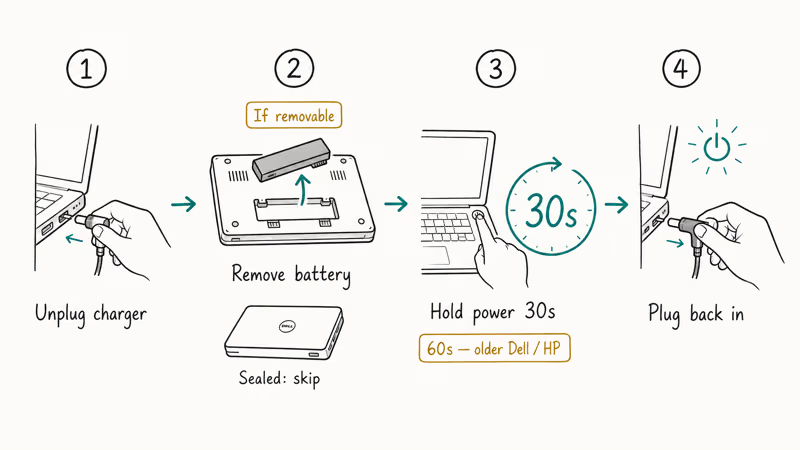
- Unplug the charger from the laptop.
- If your battery is removable, take it out.
- Hold the power button down for 30 seconds. On older Dell and HP business laptops, hold for 60 seconds instead.
- Reattach the battery if you removed it, plug only the charger back in, and press power.
According to Dell’s power-on troubleshooting guide, a 60-second flea-power drain with the AC adapter and battery removed clears residual capacitor charge that can lock the system in a stuck state. The same drain is a standard first step when a laptop refuses to wake after sitting unplugged.
For sealed-battery models like most modern MacBooks, Microsoft Surface, and slim ultrabooks, the press-and-hold drain still works through the case. Just press the power button for 10 to 30 seconds without unplugging anything.
#Check the Charger, Cable, and Outlet
A surprising share of “dead laptop” calls are dead chargers.
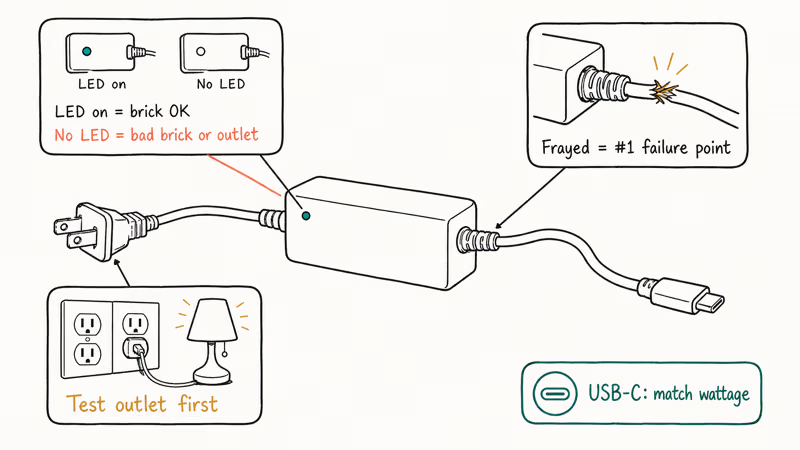
- Look at the charger brick. Most have a small LED that lights when the brick is getting wall power. No LED means the brick or the wall outlet is dead.
- Wiggle the cable where it enters the brick and where it enters the laptop. Frayed strain-relief is the number-one charger failure point.
- Plug the charger into a different outlet, ideally one you know works. Test it with a phone charger or a lamp first.
- If you have a second compatible charger, swap it in. Borrow one from a coworker or family member with the same brand if you can.
USB-C charging adds another wrinkle. Some USB-C laptops only charge from specific ports, and a charger rated under 60W may not deliver enough wattage to boot a gaming or workstation laptop even though it lights up the charge LED. Match the wattage on your original adapter when you swap.
If you see power but other features have failed, like the screen brightness controls, that’s a separate bug, not a power issue. Our guide on laptop brightness not changing covers that path.
#Test the Battery
Battery problems can block boot in two directions: a dead cell that won’t hold any charge, or a swollen battery pressing on the motherboard.
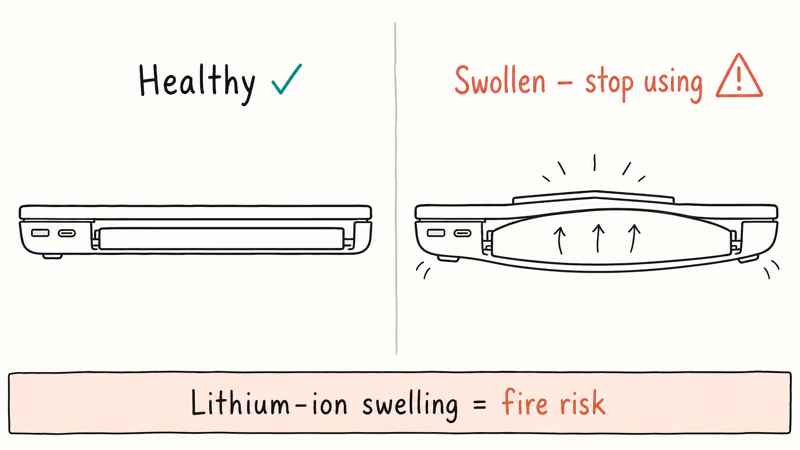
If your battery is removable, pull it out and try to power on with only the charger plugged in. If the laptop comes alive, the battery is the culprit. Replace it with an OEM or reputable third-party pack.
For sealed batteries, look at the bottom of the laptop. A battery that has bulged enough to flex the chassis or the trackpad is unsafe. Stop using it, don’t charge it, and book a repair appointment. Lithium-ion swelling is a real fire risk, not a minor cosmetic issue.
Leave a flat battery on the charger for at least 60 minutes before testing.
Some laptops with deeply discharged batteries refuse to boot until they have a small minimum charge, even on AC power. The charge controller wants to see a non-zero cell voltage before it will allow the system board to draw enough current to post, so a brand-new pack out of the box that ships at 0% can look identically dead until you give it that warm-up window.
#Why Won’t My Laptop Boot Even With the Charger Plugged In?
Past the power-supply layer, the most common culprits fall into four buckets:
- Loose RAM after a drop, an upgrade, or shipping vibration.
- A drained CMOS battery that needs a BIOS reset.
- An external monitor cable, USB device, or SD card hanging the boot.
- A failed display backlight or cable, where the laptop is on but the screen looks dead.
Connect an external monitor through HDMI or USB-C. If the external screen shows the BIOS logo or the Windows lock screen, your laptop is alive and the internal display is the problem. If the external monitor stays black too, work through the steps below.
#Disconnect Every External Device
Before opening the laptop, unplug everything you can: USB drives, hubs, docking stations, external GPUs, SD cards, headphones, second monitors. A bad USB drive or a stuck SD card can hang the BIOS for minutes or block boot entirely.
Power on with nothing connected except the charger. If the laptop boots, plug devices back in one at a time and find the troublemaker.
#Reseat RAM and Internal Components
Open the laptop only if you’re comfortable doing so and the warranty status allows it. Most laptops sold since 2020 use captive screws. You’ll want a Phillips #00 screwdriver and an iFixit-style spudger.
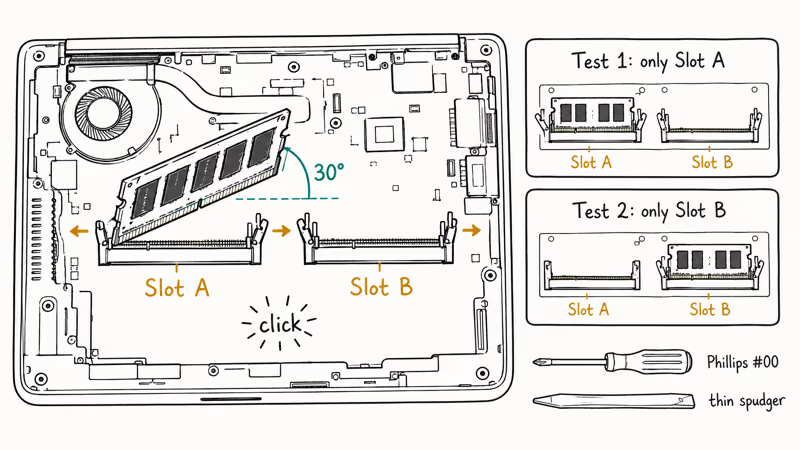
Once inside:
- Unclip each RAM stick by spreading the side latches. Pull the stick out at the angle it pops up at.
- Look at the gold contacts. Light dust is fine. Visible corrosion or burn marks need a light clean with a pencil eraser.
- Reseat the stick at a 30-degree angle, then press it flat until both latches click.
- If you have two sticks, try booting with only one in slot A. Then swap to test the other stick and the other slot.
The one-stick-at-a-time test isolates a bad slot, a loose module, or a stick that popped partly out of the latches after a drop.
While the bottom is open, also reseat the SSD, the Wi-Fi card, and any visible ribbon cables to the keyboard or display.
#Reset the BIOS or CMOS
A drained CMOS battery (the silver coin cell on the motherboard) can prevent boot by losing the time, fan curve, and boot-device settings. Most laptop CMOS batteries last 4 to 7 years.
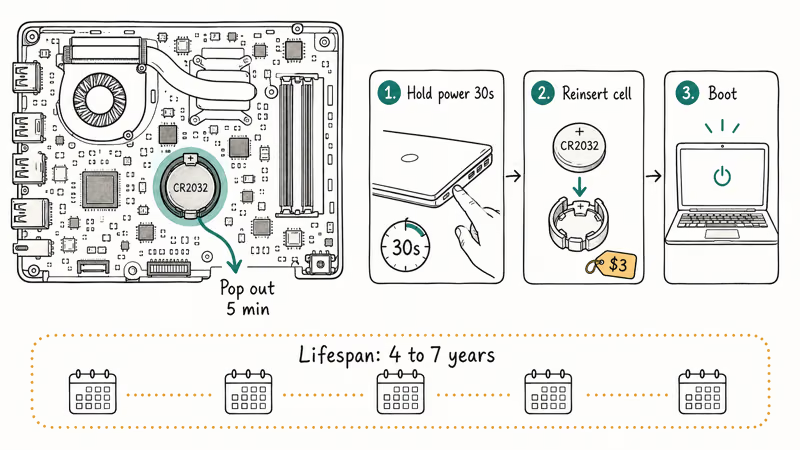
If you have access to the motherboard:
- Locate the CMOS battery. CR2032 is the most common cell. Pop it out for 5 minutes.
- Hold the power button for 30 seconds while it’s out, to drain remaining charge.
- Reinsert the CMOS battery (or a fresh CR2032), reassemble, plug in, and try to boot.
According to Apple’s no-boot guide, a 10-second power-button hold resets the SMC on Intel-based MacBooks and triggers an internal reset on Apple silicon Macs. The same press-and-hold can wake a system that has stalled on the firmware splash screen.
If you can’t open the laptop, look in your manual or on the manufacturer’s site for a BIOS recovery key combo. Lenovo ThinkPads often respond to a paperclip in the emergency reset hole on the bottom of the chassis.
#Address Overheating Shutdowns
Laptops that ran fine until they suddenly cut out and now refuse to start often have thermal damage or a clogged cooling system.
- Check the vents and fan grilles for visible dust. Use compressed air in short bursts, never a vacuum (static risk).
- Listen for the fan when you press power. If you hear nothing where you used to hear a whoosh, the fan may be seized.
- Try powering on after the laptop has been off and cool for at least an hour. Some laptops refuse to start until they drop below a thermal threshold.
If overheating took the laptop down once, it will keep doing it until you fix the airflow. Our guide on laptop overheating while gaming covers cleaning, repaste, and cooling-pad picks.
#When the Display Is the Real Problem
If the laptop is clearly running (lights, fans, hard-drive activity) but the screen stays black:
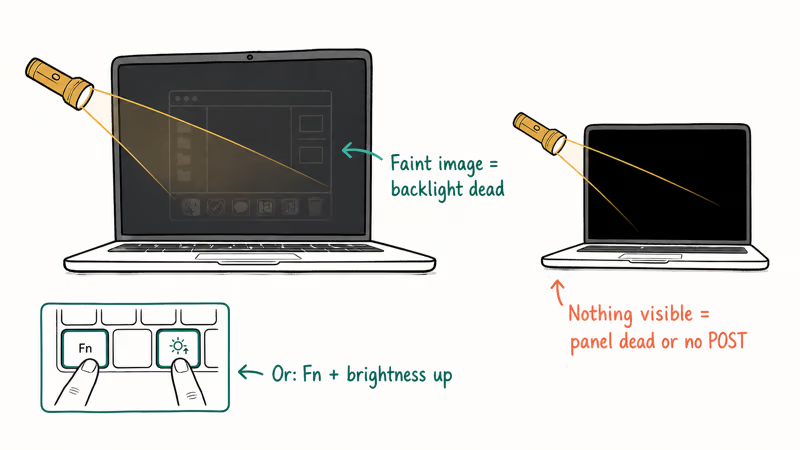
- Shine a flashlight at the screen at an angle. If you can faintly see the desktop, the backlight has failed but the panel is alive. That’s a $40 to $120 backlight inverter or LED strip repair.
- Toggle Fn + the brightness-up key several times. Some laptops boot with brightness at zero after a sleep glitch.
- Connect an external monitor. If the external works and the laptop runs full speed there, you can use it as a desktop while you decide whether to repair the panel.
#Send for Repair or Replace
After every step above, if the laptop still shows zero life on a known-good charger and no external monitor, the next decision is repair versus replace.
Get a written diagnostic quote first. Most repair shops charge $40 to $80 to diagnose, with a credit toward repair if you go ahead. Compare the quote to a refurbished replacement.
As a rule of thumb, if the repair runs more than half the price of a comparable refurb, replace. The same rule applies to MacBooks, where Apple’s flat-rate logic-board repair often costs a large fraction of a refurb’s price.
If you’re shopping for a replacement that won’t choke on basic work, our best i5 laptops roundup lists current picks with reasonable battery and thermal headroom.
For users on the edge of giving up, copy your data first. A laptop that won’t power on but has an intact SSD can have its drive pulled and read with a $15 USB enclosure on another computer. That side trip alone is worth the half-hour before scrapping the machine.
#Prevent the Next Failure
Once the laptop is back up, change a few habits to make the next no-boot less likely:
- Plug into a surge protector, not a bare wall outlet, so a spike doesn’t kill the charger or motherboard.
- Clean the vents every 6 to 12 months with compressed air. Pet hair and carpet dust block airflow fast.
- Don’t run the laptop on a bed, couch, or your lap for long sessions. Soft surfaces choke the bottom intake.
- Replace the charger before it fails. A frayed strain-relief is the warning sign.
- Back up to an external drive or cloud weekly. If you do hit a hardware failure later, your data isn’t on the broken machine.
If you also need to capture the boot screen or an error code for a repair tech, our guide on how to screenshot on a Lenovo Yoga shows the keyboard combos by model.
#Bottom Line
Start with the 30-second power-button drain on a known-good outlet and a known-good charger. That single step often clears stuck firmware before any internal repair, and it takes under a minute.
According to Microsoft’s Surface force-shutdown guide, that forced-restart hold runs about 20 seconds, not 30, and you keep going until the Windows logo appears.
If the drain doesn’t bring the laptop back, work down through charger swap, battery test, external monitor, RAM reseat, and CMOS reset in that order. Stop and price out a replacement only after a paid shop diagnostic, since pulling the SSD to recover your data is almost always worth the small detour.
If the laptop boots but Windows itself won’t recover cleanly, our guide on there was a problem resetting your PC covers the next fork in the road. And if the device that won’t turn on is actually a phone, the playbook is similar. See my iPhone won’t turn on for the iOS-side equivalent.
#Frequently Asked Questions
How long should I hold the power button to drain a laptop?
Thirty seconds is the standard. Older Dell and HP business laptops want 60 seconds to fully clear residual flea power. Hold straight through without pumping the button, and don’t hold longer than 90 seconds.
Can a dead CMOS battery stop my laptop from booting?
Yes. When the CMOS coin cell drops below about 2.5 volts, the BIOS may lose its boot-device list and refuse to post past the manufacturer logo. Most laptops show a clock-reset error when this happens, but some just hang. A fresh CR2032 (about $3) brings them back.
Why does my laptop have lights on but a black screen?
Either the display backlight is dead, the laptop hasn’t actually finished POST, or sleep mode is hung after a bad wake. Shine a flashlight at the screen to test the backlight, plug an external monitor in to test POST, and hold power for 30 seconds to clear sleep state if neither finds the issue. If the external monitor works and the internal one doesn’t, it’s a panel or backlight repair, not a power issue.
Is it safe to use a swollen laptop battery?
No. A bulging lithium-ion battery is a fire risk and can damage the motherboard from below.
Will the wrong charger damage my laptop?
A lower-wattage charger usually won’t damage anything. The laptop just charges slowly or refuses to power on under load. A wrong-voltage or wrong-polarity charger can fry the charging circuit. Match voltage, polarity, and connector before plugging anything in.
How much does it cost to fix a laptop that won’t power on?
Diagnostic fees run $40 to $80. Repairs range from $25 for a charger to over $400 for a logic board.
Can I recover my data from a laptop that won’t power on?
In most cases, yes. Pull the SSD or hard drive out of the dead laptop and connect it to a working computer with a $15 USB-to-SATA or USB-to-NVMe enclosure. The drive shows up as external storage and you can copy your files off before deciding the laptop’s fate.

Best Laptop for Running LLMs in 2026: Memory Comes First
The best laptop for running LLMs is a memory purchase first. Compare MacBook unified memory against NVIDIA laptop VRAM, and see what each tier really runs.

How to Run a Local LLM on Windows: A 2026 Setup Guide
Run a local LLM on Windows with LM Studio or Ollama. Pick a model that fits your GPU memory, keep every prompt offline, and skip the monthly bill.

Bluetooth Not Working on Snapdragon X? Fixes for 2026
Bluetooth not working on your Snapdragon X Copilot+ PC? Generic audio, mice, and keyboards work, but vendor apps often lack an ARM build. Fixes inside.

Docker Desktop and WSL2 Not Working on Snapdragon X? Fix It
WSL2 runs fine on Snapdragon X, but Docker Desktop ARM is Early Access and throws WSL errors. Use WSL2 plus native ARM64 Ubuntu and Docker Engine.