iPhone Won't Turn On After iOS Update? 6 Fixes (2026)
iPhone won't turn on after an iOS update? Try 6 proven fixes including force restart, recovery mode, and ReiBoot. Works on iPhone 8 through 16.
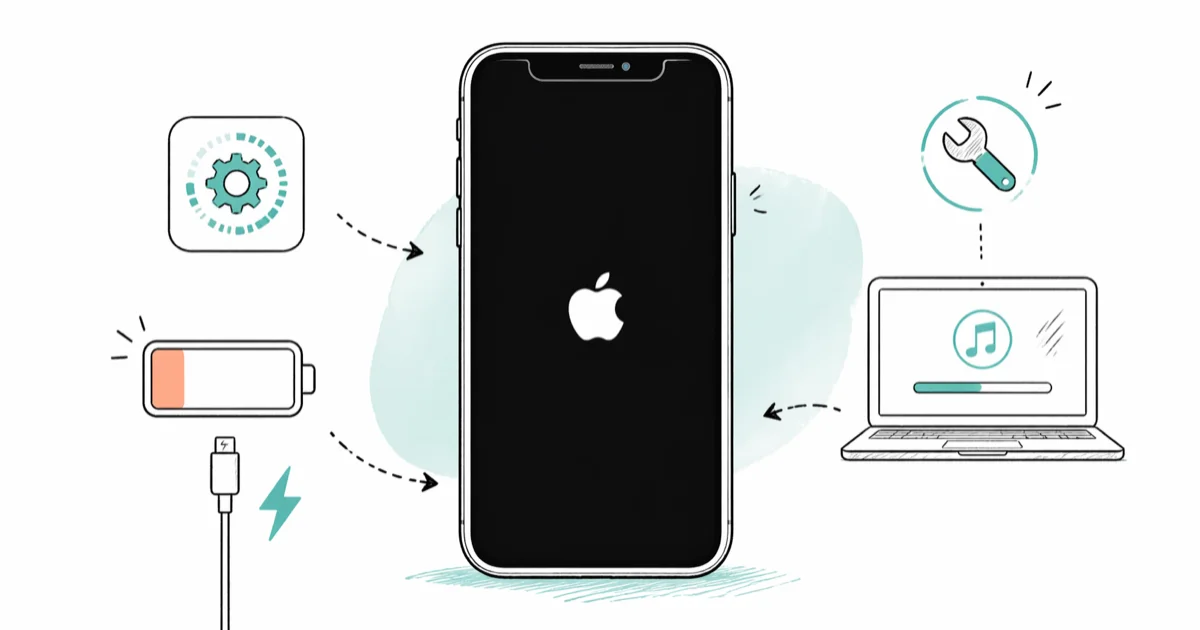
Quick AnswerForce restart your iPhone by pressing Volume Up, Volume Down, then holding the Side button until the Apple logo appears. If the battery drained during the update, charge for 30 minutes before retrying.
Your iPhone won’t turn on after an iOS update, and the screen stays black no matter which buttons you press. Start with a force restart, then move through charging, Recovery Mode, and repair-tool options if the phone still won’t boot.
- Force restart works on iPhone 8 through 16 and never erases data on the device
- Charge for 30 minutes before retrying because iOS installs deplete battery below the boot threshold
- Recovery Mode reinstalls iOS while keeping photos, messages, and apps when you select Update
- Tenorshare ReiBoot Standard Repair is the non-erasing option to try before Deep Repair or a full Restore
- Apple Support runs free remote diagnostics at (800) 275-2273 before any paid hardware repair
#Why Won’t Your iPhone Boot After an iOS Update?
iOS updates are battery hogs. A larger point release like iOS 18.3 can drain a significant portion of your charge during install, and if you started below half battery, the phone may shut off mid-write and refuse to boot. According to Apple’s guide on restarting an iPhone that is unresponsive, interrupted updates can leave the device in a state where iOS fails to load on the next startup and the screen stays dark.
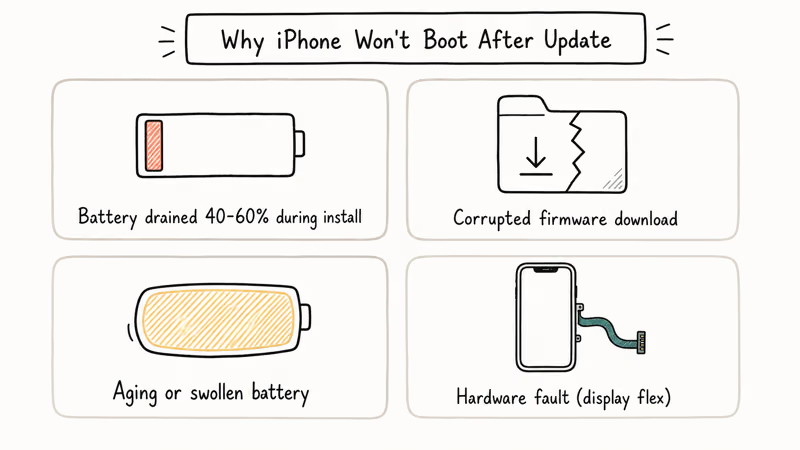
Three other causes show up regularly: a corrupted firmware download iOS rejects on first boot, a swollen or aging battery that cuts out under load, and a coincidental hardware fault like a dead iPhone battery or damaged display flex cable that lines up with the update by accident.
Software is often the cause, so the home fixes below are worth trying before you book a repair.
#Force Restart Your iPhone First
A force restart cuts power to the chip and triggers a clean boot. Nothing is touched on the storage, no data is erased, and the whole process runs in about 15 seconds.
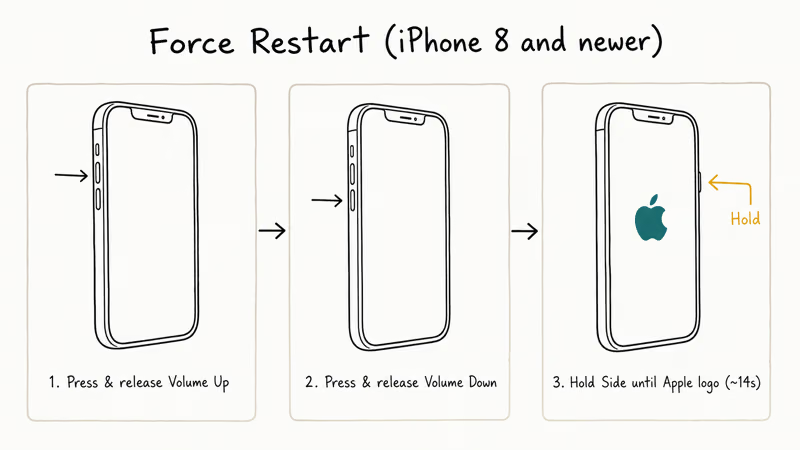
iPhone 8 and newer (including SE 2nd/3rd gen and iPhone 16): Press and quickly release Volume Up, then quickly release Volume Down, then press and hold the Side button until the Apple logo appears.
iPhone 7 and 7 Plus: Hold Side and Volume Down together until the Apple logo shows.
iPhone 6s and earlier: Hold Home and Top (or Side) together until the Apple logo shows.
After the Apple logo appears, release the button and let the phone finish booting on its own. If you see no logo after 30 seconds of holding, the battery may be too low to boot, and you need to charge first.
If your iPhone is flashing the Apple logo instead of staying black, that’s a slightly different boot failure that responds better to Recovery Mode than to a plain force restart.
#Charge the Battery for 30 Minutes
Plug the iPhone into the wall using a known-good Apple cable and a USB power adapter that delivers at least 12W. Don’t use a laptop USB port for the first attempt because the trickle current is often too low to wake a fully drained battery on a modern iPhone.
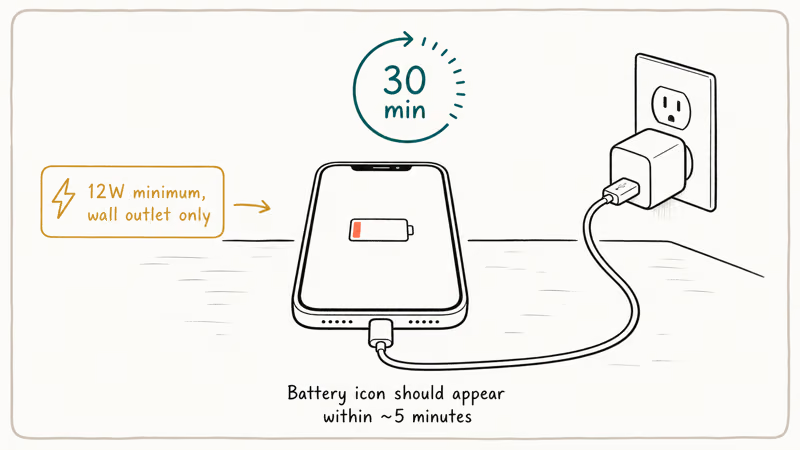
Set a timer for 30 minutes and leave the phone alone. A small battery icon should appear on the screen within about 5 minutes if the cable, adapter, and outlet are working. If nothing shows after 15 minutes, swap the cable first, then the adapter, then the outlet.
A deeply drained iPhone may need a longer charge before force restart responds. For alternatives, see how to charge an iPhone without a charger.
#How Do You Use Recovery Mode to Reinstall iOS?
Recovery Mode connects the iPhone to a computer and lets you reinstall iOS without erasing the device. Apple’s Recovery Mode guide states that the process needs macOS 10.15 or later on Mac, or the latest version of iTunes on Windows, and the Update option downloads a fresh copy of iOS over the broken install while preserving photos, messages, apps, and settings on the phone.
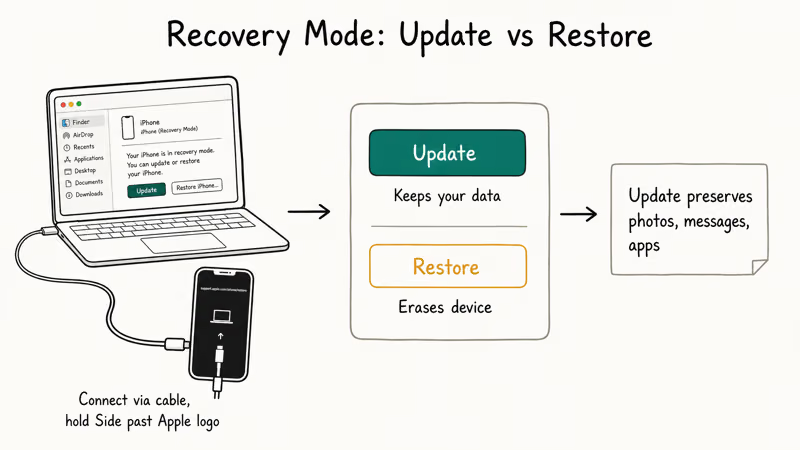
You’ll need a Mac running macOS Catalina (10.15) or later for Finder, or a Windows 10/11 PC with the Apple Devices app or the latest iTunes. A Lightning or USB-C cable comes next, depending on your iPhone model.
- Connect the iPhone to the computer with the cable. Open Finder on Mac or Apple Devices/iTunes on Windows.
- Force restart using the button combo for your model, but keep holding the Side button past the Apple logo until you see a recovery cable graphic on the screen.
- In Finder or iTunes, click Update when the Restore or Update dialog appears. The download takes 15 to 25 minutes depending on internet speed.
- Wait for the phone to reboot. Don’t unplug it during the install.
Update preserves your data. If Update fails after two attempts, repeat the steps and click Restore instead. Restore wipes the iPhone and installs a clean copy of iOS, so make sure you have an iCloud or computer backup before going that route. If your iPhone gets stuck in Recovery Mode afterward, that is a separate boot loop with its own fix.
#Repair iOS with Tenorshare ReiBoot
When Recovery Mode keeps failing or you want to avoid a Restore, a third-party repair tool can rebuild the iOS partition without wiping data. Tenorshare ReiBoot’s Standard Repair downloads the matching firmware for your model and patches the broken install while keeping your files in place.
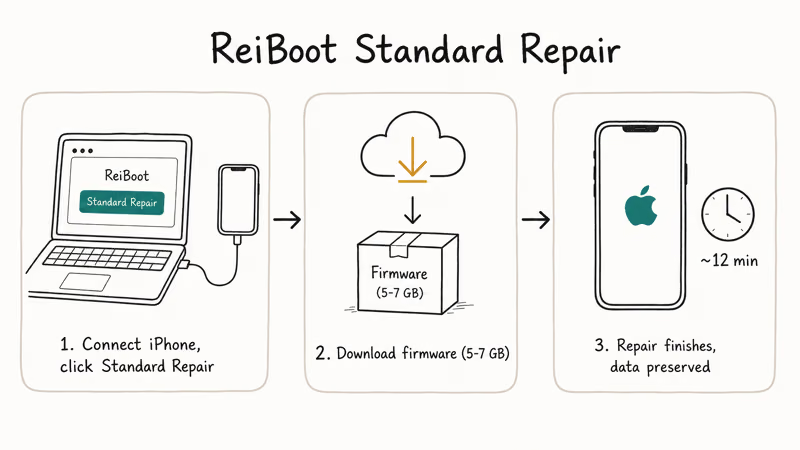
The flow looks like this:
- Install ReiBoot on your Mac or Windows PC, connect the iPhone with USB, and click Standard Repair.
- Let ReiBoot detect the model and download the correct iOS firmware package, which is usually 5 to 7 GB.
- Click Start Standard Repair. Keep the phone connected for the entire process.
Standard Repair preserves data on supported iPhones, while Tenorshare’s Deep Repair option is the data-erasing fallback for severe boot loops.
Some links on this page are affiliate links, which means fone.tips may earn a commission at no extra cost to you.
#Contact Apple Support for Hardware Issues
If force restart, charging, Recovery Mode, and ReiBoot all fail, the cause is usually hardware rather than software. A failed power management chip, a swollen battery, a damaged display flex, or moisture on the logic board can each stop the iPhone from booting and none of them are fixable with a software pass.
Apple Support runs free remote diagnostics over the phone at (800) 275-2273 in the US, or via chat at Apple’s support site. For hands-on inspection, book a Genius Bar appointment at the nearest Apple Store. According to Apple’s iPhone repair information page, out-of-warranty service fees vary by model and repair type, with battery service, screen replacement, and full-device service each priced separately.
AppleCare+ owners pay a flat service fee instead of out-of-warranty pricing. Check coverage in Settings > General > About > Coverage before paying full price.
#Preventing Future Update Boot Failures
A few habits keep this from repeating.
- Charge to 80% or higher before installing any iOS update. The 50% Apple lists as a minimum is too close to the edge for major releases.
- Use stable Wi-Fi during downloads. Cellular interruptions corrupt firmware more often than Wi-Fi drops do.
- Keep at least 5 GB of free storage on the device. Check at
Settings>General> iPhone Storage. iOS will refuse to install if it can’t unpack the firmware. - Don’t force restart during an active update. A normal install can sit on the same progress mark for 15 minutes without being frozen.
If your iPhone gets caught in a boot loop or keeps restarting, the underlying issue is different from a single failed update and those guides cover the right troubleshooting paths for each case.
#Bottom Line
Start with a force restart on whatever model you have. That single step recovers most iPhones that won’t turn on after an iOS update, and it costs nothing if it fails. If the screen stays black after 30 seconds of holding, charge on a wall adapter for 30 minutes and try again. If those two don’t fix it, run Recovery Mode in Finder or iTunes and choose Update first to keep your data.
Tenorshare ReiBoot is the right call when Recovery Mode either fails or risks a Restore you can’t afford. Book a Genius Bar appointment if nothing software-side works because that confirms hardware is the cause and gives you the exact repair cost before you commit.
#Frequently Asked Questions
How long should I charge my iPhone before trying again?
Charge for at least 30 minutes on a wall adapter rated 12W or higher. Batteries drained during a failed iOS install sometimes need 45 minutes before the phone can boot. Use the cable that came with the device or an MFi-certified replacement, and avoid laptop USB ports for the first attempt because the trickle current is often too low to wake a fully drained battery on a modern iPhone.
Will a force restart erase my photos or apps?
No. Force restart only cuts power to the processor and triggers a clean boot. Photos, messages, apps, settings, and Apple ID stay exactly as they were before the reboot.
Can I fix my iPhone without a computer?
Yes for the basic two steps. Charging and force restarting both work without a computer, and together they recover most post-update boot failures on their own. Recovery Mode and ReiBoot need a Mac or Windows PC and a USB cable. If you don’t own a computer, an Apple Store technician can run the recovery for you on Apple’s equipment, and the diagnostic step is free even if the device is out of warranty.
Does Apple’s warranty cover iPhones that won’t turn on after an update?
Apple’s standard 1-year limited warranty covers software issues caused by failed iOS installs, and AppleCare+ extends that coverage. Liquid damage, accidental drops, and unauthorized repairs are not covered under the standard warranty, though AppleCare+ does cover accidental damage with a service fee.
What is the difference between Update and Restore in Recovery Mode?
Update reinstalls iOS while keeping data, apps, and settings intact, which is the right first choice. Restore wipes the device and installs a clean copy of iOS from scratch, so you’ll need to recover from an iCloud or computer backup afterward.
You only need Restore if Update fails after two attempts or the corruption is too deep for an in-place reinstall.
Why does my iPhone keep restarting instead of staying on?
A repeating restart loop is usually deeper system corruption than a single failed update. The phone hits a broken file during boot, panics, and reboots before iOS can fully load. Recovery Mode with Update is the first thing to try, Restore is the fallback, and ReiBoot’s Standard Repair handles the same case without erasing data.
Can a bad iOS update permanently damage my iPhone hardware?
No. iOS can corrupt the install partition and block boot, but it can’t physically harm the chip, battery, or display through software alone.
Should I take my iPhone to a third-party repair shop?
Third-party shops often charge less than Apple for out-of-warranty repairs, and good ones do quality work. The trade-off is that unauthorized repairs can void any remaining Apple warranty or AppleCare+ coverage on the device, so weigh the cost difference against losing manufacturer support before booking. For software-only issues, Recovery Mode and ReiBoot at home should be tried before any paid repair.

Mac mini M6 vs M5 Pro: Which Model Should You Buy?
Mac mini M6 vs M5 Pro compared on price, memory, ports, displays, and real workloads. Find the better 2026 Mac mini for your desk and budget.

Apple Siri Settlement: Who Qualifies and How to Claim
Apple's $250 million Siri settlement covers iPhone 15 Pro and iPhone 16 models bought June 2024 to March 2025. See who qualifies and how claims work.

iOS 26.6.1 Security Update: What Apple Fixed and Who Gets It
Apple released iOS 26.6.1 on August 17 with 29 security fixes, including an IPSec interception bug. See what it patches, who gets it, and how to update.

iPhone Adaptive Power: How It Works and When to Use It
Learn how iPhone Adaptive Power works, which models support it, what it changes, and when Low Power Mode is still the better battery-saving choice.