How to Fix Laptop Brightness Not Changing on Windows
Laptop brightness stuck on Windows? Fix the slider with display driver updates, Generic PnP Monitor reinstall, power plan resets, and OEM driver checks.
Quick AnswerMost laptop brightness issues on Windows trace back to display drivers, not hardware. Update your graphics driver through Device Manager, then reinstall the Generic PnP Monitor entry if the slider still won't respond.
Your laptop brightness slider won’t move, the Fn keys don’t help, and the screen is stuck. Windows display issues like this are often software problems, especially when the display driver or Generic PnP Monitor entry is broken.
- Display drivers cause most stuck brightness sliders on Windows; update or roll back the GPU driver through Device Manager before anything else.
- Generic PnP Monitor is a hidden driver layer that often blocks brightness changes; reinstall it after any GPU driver swap.
- Adaptive brightness in Power Plan can override manual slider input on AC vs battery; turn it off if your screen keeps changing on its own.
- Fn key combinations (Fn+F5/F6 on most laptops, F11/F12 on Lenovo, F1/F2 on Dell) skip the Windows software layer; working Fn keys point to a software bug rather than hardware failure.
- Hardware faults like a damaged backlight inverter cause stuck brightness in rare cases; software fixes resolve almost every instance before a service visit is needed.
#Why Won’t Windows Let You Adjust Brightness?
The brightness slider in Windows talks to your display through a chain of three components: the graphics driver, a virtual driver called Generic PnP Monitor, and the manufacturer’s display software. When any link in that chain breaks, the slider goes dead. The most common culprit is the graphics driver, especially after a Windows Update silently swaps it for a generic Microsoft Basic Display Adapter that doesn’t support brightness control.
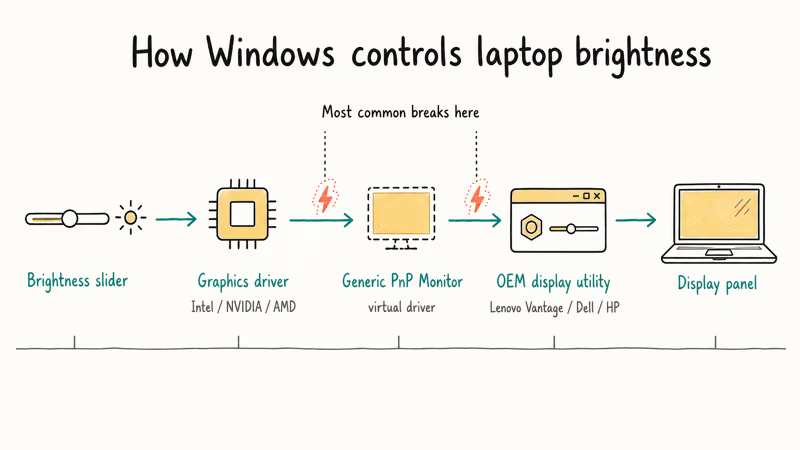
A second cause is the Generic PnP Monitor entry in Device Manager. This driver tells Windows what brightness range your panel supports. After a major Windows feature update, the entry sometimes loses its configuration and reports the panel as a fixed-brightness display, which disables the slider.
According to Microsoft’s display brightness documentation, if the brightness slider doesn’t appear or work, the fix is to update the display driver rather than blame the panel itself.
#Quick Fixes Before Deep Troubleshooting
Run these checks first. They take under a minute each and resolve a surprising share of cases.
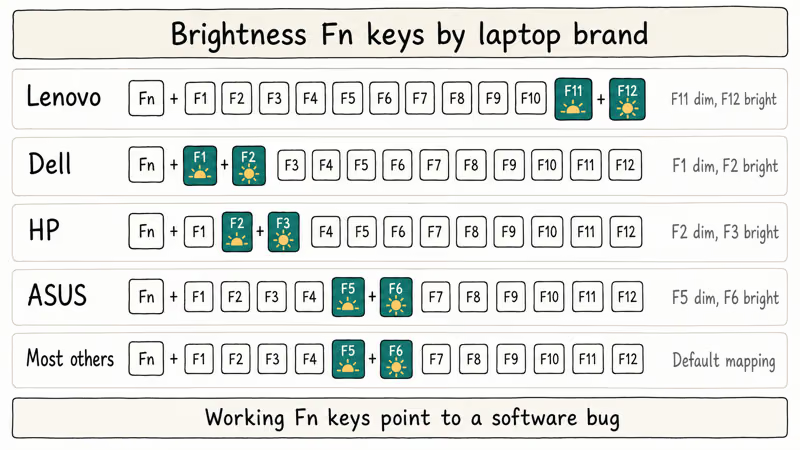
- Press Fn + F5 or Fn + F6 (Lenovo: F11/F12, Dell: F1/F2, HP: F2/F3, ASUS: F5/F6). If the on-screen indicator moves but the screen stays the same, your Fn keys work and the bug is in Windows software.
- Restart the laptop. A clean reboot reloads the display stack and can restore the slider when the driver state is stuck.
- Open Settings → System → Display and drag the brightness slider. If it greys out, your software stack is broken. If it moves but nothing happens, the panel-side driver layer is the problem.
- Unplug and replug the AC adapter. On laptops that auto-dim when running on battery, a stuck adapter signal can lock the brightness at battery level.
If none of those four work, head to Device Manager.
#How Do You Update or Roll Back the Display Driver?
Bad drivers work in both directions. A new buggy driver from Windows Update can break a slider that worked yesterday, and an older driver that hasn’t been updated in two years can stop talking to a freshly patched Windows build. Try updating first, then roll back if the update made things worse.
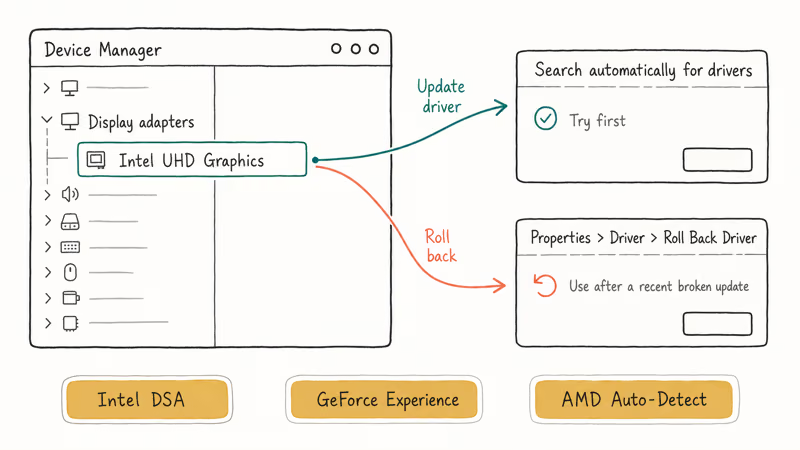
To update through Device Manager:
- Right-click the Start button, choose Device Manager.
- Expand Display adapters.
- Right-click your GPU (Intel UHD/Iris, NVIDIA GeForce, or AMD Radeon) and choose Update driver.
- Pick Search automatically for drivers.
- Reboot when Windows finishes.
If Windows says you already have the latest driver, that’s often wrong. Download directly from your GPU vendor:
- Intel: Intel Driver & Support Assistant auto-detects your chipset.
- NVIDIA: GeForce Experience or the manual driver search.
- AMD: AMD Auto-Detect Tool.
Check the laptop manufacturer’s support page for your exact model before changing driver versions. For example, Lenovo HT516841 documents a brightness failure on listed 2024 ThinkPad models with specific Intel graphics drivers and directs owners to install a model-specific minimum BIOS version, not downgrade to a forum-recommended driver.
Lenovo’s current page is inconsistent about the lower end of the affected range: the Symptom section says v31.0.101.5445 through v31.0.101.5595, while System Is Configured With says v31.0.101.5545 through v31.0.101.5595. Check the model and BIOS table on HT516841 itself rather than applying either range to a different laptop.
Use Windows’s Roll Back Driver only after checking the OEM notice.
For people who’d rather skip OEM driver hunts, Driver Easy automates the search. Free for detection; paid for one-click install.
Some links on this page are affiliate links, which means fone.tips may earn a commission at no extra cost to you.
#Reinstall the Generic PnP Monitor Driver
This is the fix that rescues sliders the GPU driver alone can’t. The Generic PnP Monitor is a virtual device sitting between Windows and your display panel. When it loses its configuration, the slider goes dead even with a perfectly working graphics driver.
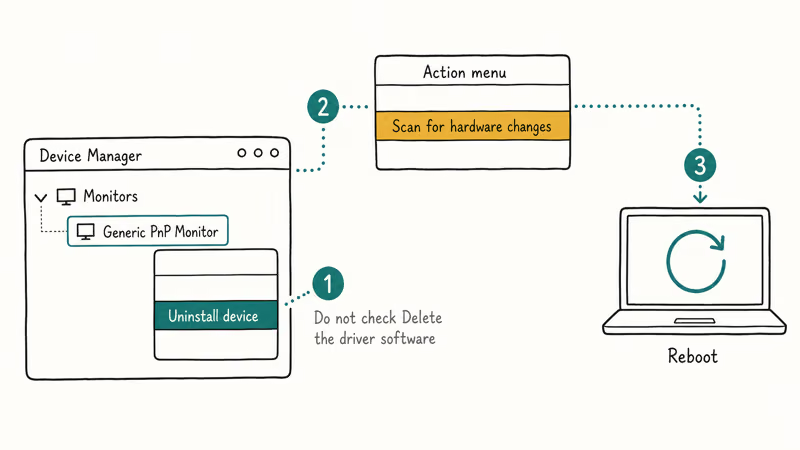
- Open Device Manager.
- Expand Monitors. You’ll see one or more Generic PnP Monitor entries.
- Right-click each entry and choose Uninstall device. Don’t check “Delete the driver software for this device.”
- Click the Action menu at the top, then Scan for hardware changes.
- Windows reinstalls the Generic PnP Monitor automatically.
- Reboot.
If the entry appears as Monitor with a warning triangle, update it manually to Generic PnP Monitor from Device Manager’s driver list.
After the reinstall, open Settings → System → Display and drag the slider. If it moves but the screen still won’t change, your panel needs the OEM display utility. Lenovo Vantage, Dell Display Manager, and HP Display Control are common ones, all free from the manufacturer’s support site.
#Disable Adaptive Brightness in Power Plan
Adaptive brightness is the feature that auto-dims your screen based on ambient light or battery level. When it works, it saves battery. When it misbehaves, it locks the slider or fights against your manual changes.
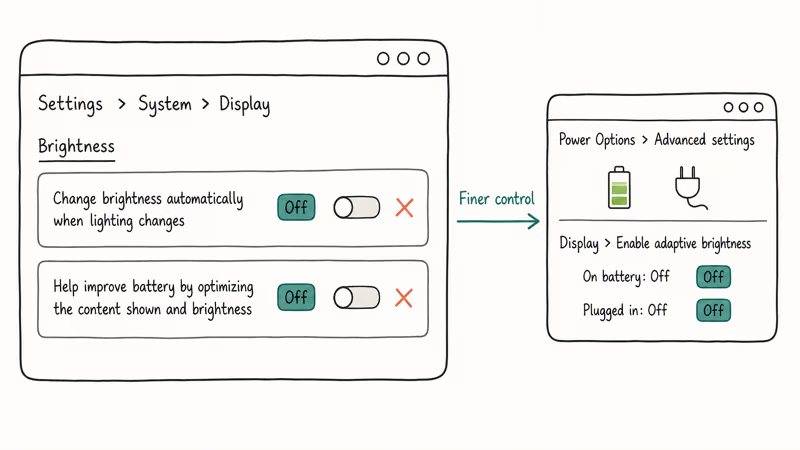
Turn it off:
- Open Settings → System → Display.
- Scroll to Brightness.
- Uncheck Change brightness automatically when lighting changes.
- Uncheck Help improve battery by optimizing the content shown and brightness (Windows 11 only).
For finer control, edit the active power plan:
- Open Control Panel → Power Options → Change plan settings → Change advanced power settings.
- Expand Display.
- Set Enable adaptive brightness to Off for both On battery and Plugged in.
- Click Apply.
Microsoft’s adaptive brightness support article confirms that Windows can change brightness automatically when the lighting around you changes, overriding the manual slider on hardware with an ambient light sensor. If you have an older laptop with no light sensor, this option may not appear, which means adaptive brightness isn’t your problem.
#When Hardware Is the Real Cause
Software fixes resolve almost every stuck-slider case, but hardware does fail. Watch for these signs:
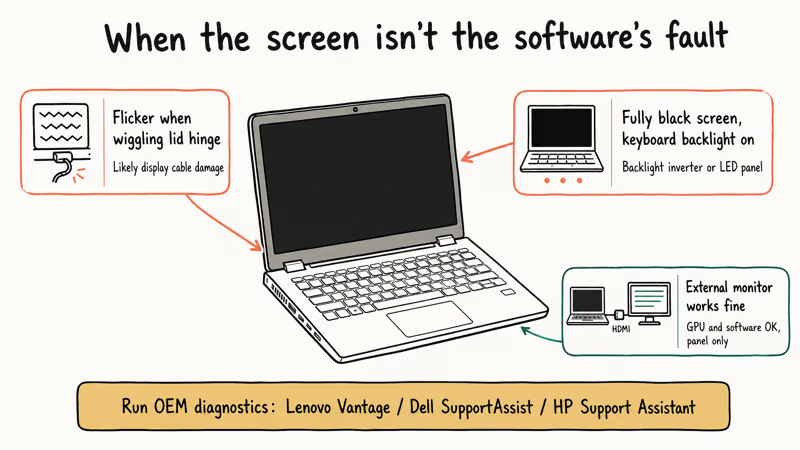
- The screen flickers or shows visible bands when you wiggle the lid hinge. This points to a damaged display cable, a $30-50 part for most laptops.
- The screen is fully black with the laptop running and the keyboard backlight on. The backlight inverter or LED panel itself has died.
- Brightness changes on an external monitor when you plug one in. This means the GPU and software stack work; the laptop panel is the broken part.
Lenovo’s hardware diagnostics page recommends running the built-in display test through Lenovo Vantage before booking service, since a passing test rules out the panel and points back to software. Dell’s SupportAssist and HP Support Assistant offer the same kind of test.
If your laptop is over five years old and the screen has dimmed gradually rather than locked at one level, the LED backlight is reaching the end of its rated life. Most laptop LEDs are spec’d for 30,000 to 50,000 hours of use; daily 8-hour use puts you at the lower end of that range after about ten years. A panel replacement runs $80 to $200 for parts, plus labor.
Related Windows display fixes: the can’t adjust brightness on Windows 10 guide and the no AMD graphics driver is installed fix cover separate root causes worth checking.
If NVIDIA Control Panel won’t open at all, the NVIDIA display settings not available fix walks through that specific failure. For sluggish display performance on top of brightness issues, see our Windows 10 slow guide.
#Bottom Line
Start with the Generic PnP Monitor reinstall before any GPU driver work. It takes 90 seconds, fixes the most cases per minute spent, and won’t break anything else. Move to a GPU driver update or rollback only if that doesn’t restore the slider. If Fn keys still light the on-screen indicator after both fixes fail, the OEM display utility from your laptop maker is usually the answer.
#Frequently Asked Questions
Why is my laptop brightness slider greyed out?
A greyed-out slider means Windows is using the Microsoft Basic Display Adapter instead of your real GPU driver. Install the OEM display driver from your laptop maker’s support site. The slider returns within one reboot.
Can a Windows Update break my brightness control?
Yes, this happens often. Microsoft ships generic graphics drivers through Windows Update that sometimes overwrite the OEM-tuned driver your laptop shipped with. After a feature update like 22H2 or 23H2, the brightness slider commonly goes dead until you reinstall the OEM display driver from Lenovo, Dell, or HP support. Roll back the Windows Update itself only as a last resort, since rollbacks pull security patches you’d want to keep.
Will resetting Windows fix brightness not changing?
A reset works in roughly one in five cases. It’s the slowest fix and erases your settings. Try the Generic PnP Monitor reinstall and the GPU driver update first. Save the Windows reset for situations where multiple driver layers are corrupted.
Does adaptive brightness work without a light sensor?
No. Adaptive brightness needs an ambient light sensor on the laptop bezel to function, and most laptops under $700 ship without one. If your power plan shows the option but it doesn’t visibly do anything, your laptop probably lacks the sensor. The setting is harmless to leave off in that case, and turning it off helps rule out a software conflict if your slider has been acting up.
How do I check if my Fn keys are working?
Press Fn together with the brightness keys and watch for an on-screen indicator overlay. If the overlay appears but the screen brightness doesn’t change, your Fn keys work and the bug is in Windows.
Should I buy Driver Easy or update drivers manually?
Manual updates from the OEM support page are free and give you the exact build intended for your laptop model, which is the safest path. Driver Easy saves time if you’re updating several drivers on a fresh Windows install or if you don’t know which GPU brand you have. The free version is enough to identify outdated drivers; the paid version is worth it only if you manage multiple machines.
Can a virus or malware cause brightness issues?
Rarely, but it happens. Some screen-locker malware variants disable brightness controls along with other display features to keep users from interacting normally. If your slider died alongside other strange behavior, run a full Windows Defender Offline scan before troubleshooting drivers.
Why does my brightness change on its own at night?
This is almost always Windows Night Light or a third-party blue-light filter like f.lux or Iris. Open Settings → System → Display → Night light and turn it off, or schedule it to fit your hours. If you don’t have those apps and the screen still dims at night, check whether adaptive brightness is enabled and whether your laptop has a light sensor responding to ambient changes in your room.

Best Laptop for Running LLMs in 2026: Memory Comes First
The best laptop for running LLMs is a memory purchase first. Compare MacBook unified memory against NVIDIA laptop VRAM, and see what each tier really runs.

How to Run a Local LLM on Windows: A 2026 Setup Guide
Run a local LLM on Windows with LM Studio or Ollama. Pick a model that fits your GPU memory, keep every prompt offline, and skip the monthly bill.

Bluetooth Not Working on Snapdragon X? Fixes for 2026
Bluetooth not working on your Snapdragon X Copilot+ PC? Generic audio, mice, and keyboards work, but vendor apps often lack an ARM build. Fixes inside.

Docker Desktop and WSL2 Not Working on Snapdragon X? Fix It
WSL2 runs fine on Snapdragon X, but Docker Desktop ARM is Early Access and throws WSL errors. Use WSL2 plus native ARM64 Ubuntu and Docker Engine.