Kodi on PS4: Why It's Not Available + 4 Best Alternatives
Kodi isn't on the PlayStation Store because Sony hasn't approved it. Plex, the PS4 Media Player, and Kodi's UPnP server cover the same use cases.
Quick AnswerKodi isn't available as a native PS4 app because Sony hasn't approved it on the PlayStation Store. The closest substitutes are Plex's native PS4 client, the PS4 Media Player browsing Kodi's UPnP server, or a USB drive of MP4 files.
Kodi on PS4 isn’t an option from the PlayStation Store. Sony has never approved a Kodi build, and that’s been the case since Team Kodi shipped the Xbox One version in 2017. Three workarounds replace what you’d use Kodi for: Plex’s native PS4 app, Kodi running as a UPnP server, or a USB drive plugged into the PS4 Media Player.
- Kodi has no official PS4 app, and Team Kodi has never announced an active port for the PlayStation platform.
- Plex is the closest substitute, with a free native PS4 app in the PlayStation Store and direct play for H.264 video in MP4 containers.
- Kodi can act as a UPnP server, which the PS4 Media Player browses without any extra software on the console.
- The PS4 Media Player handles MP4, MKV, AVI, and FLAC over USB or DLNA, which covers most Kodi use cases for free.
- Sideloading or jailbreaking to install Kodi voids the warranty and exposes the account to PSN bans, so it’s not recommended.
#Why Can’t You Install Kodi on PS4?
Short answer: Sony said no.
Sony’s PlayStation Store requires every app to pass Sony’s review process, and Team Kodi has never had that approval. The team’s Xbox One release announcement made it clear the Xbox build was a one-off because Microsoft offered the UWP path, and Sony has no equivalent open route for media-center apps that’s available to small projects.
According to Wikipedia’s Kodi article, Kodi started as XBMC for the original Xbox in 2002 before becoming a cross-platform project, so the legacy is on Microsoft hardware.
The PS4 also runs Orbis OS, a heavily modified FreeBSD that doesn’t boot Linux without a console exploit. Kodi for Linux exists, but installing it that way voids your warranty and locks you to a specific firmware. None of the workarounds in this guide require touching the OS.
Kodi on Xbox One is still the cleanest console install if you have one. The walkthrough on how to install Kodi on Xbox One takes about 10 minutes from store to first playback, and you get the full Kodi UI with skins, add-ons, and library scraping the way you’d use it on a desktop PC. For PS4 owners, the rest of this guide covers the three workarounds that work without jailbreaking.
#Plex on PS4: The Closest Kodi Alternative
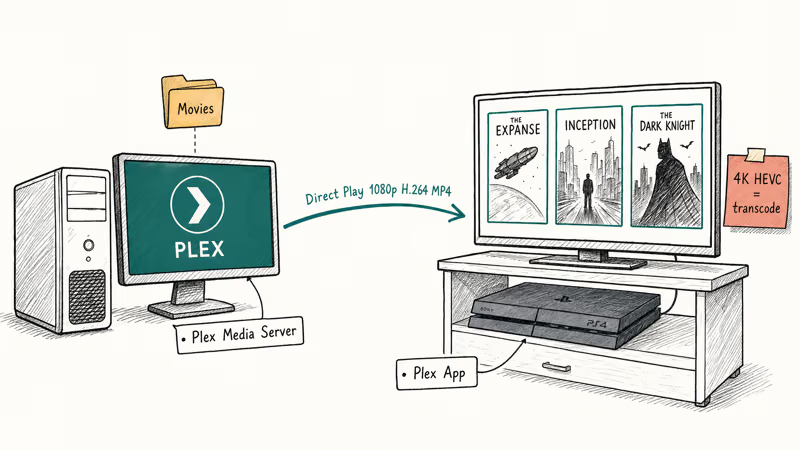
Plex is the only Kodi-style media center with a native PS4 app. Plex’s PlayStation settings documentation confirms that the PS4 client supports direct play for H.264 video in MP4 containers with AAC audio, which covers most movies ripped at standard quality.
To set it up:
- On a PC or Mac, install Plex Media Server from plex.tv and point it at your video folder.
- On the PS4, open the PlayStation Store, search “Plex”, and download the free Plex app.
- Launch Plex on the PS4 and enter the 4-digit linking code at plex.tv/link.
- Sign in with the Plex account that owns your media server, and your library appears.
With Plex on a PS4 over a wired connection, 1080p MKVs in H.264 typically play in direct play with no transcoding. A 4K HEVC file has to transcode, because the PS4 client can’t decode HEVC, so a reasonably modern desktop CPU running the server keeps playback smooth.
Plex Pass adds DVR, offline downloads, and skip-intro detection at a paid tier. It’s not required. The free tier replaces Kodi for local playback, full stop.
Same library, more screens. The Plex on Roku guide covers the channel install for Roku.
#How Do You Stream Kodi’s Library to PS4 Without an App?
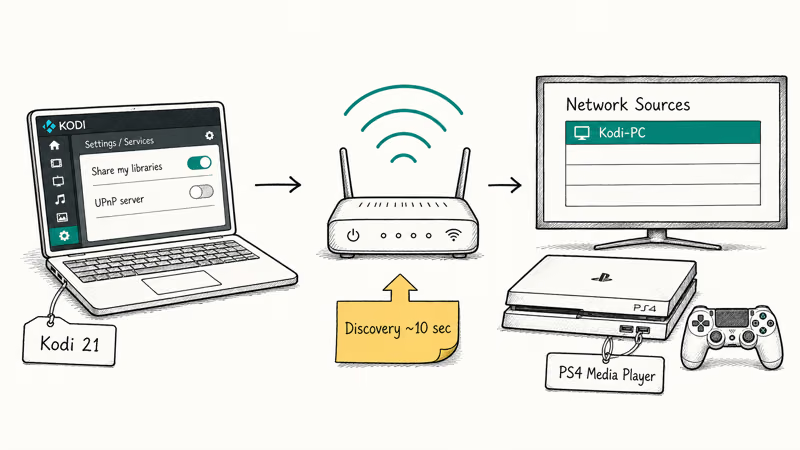
This is the closest you’ll get to running Kodi itself on the PS4. Kodi has a built-in UPnP server, and the PS4 Media Player browses DLNA shares natively without any extra app on the console.
Steps on the PC running Kodi:
- Open Kodi → Settings → Services → UPnP/DLNA.
- Toggle on “Share my libraries” and “Allow remote control via UPnP”.
- Restart Kodi so the server announces itself on your network.
Steps on the PS4:
- Open the PS4 Media Player (free in the PS Store under Apps).
- After a few seconds, your Kodi machine appears under the network sources list.
- Open it and your Movies, TV Shows, and Music libraries are browseable.
It works in seconds.
Once you toggle the UPnP server on in Kodi on the same local network, the PS4 Media Player picks it up quickly, file browsing stays responsive, and 1080p H.264 MKVs play without buffering. The Kodi Wiki states that UPnP server mode is enabled per-instance, so each Kodi install on your network exposes its library separately.
This route gives you Kodi’s metadata scraping (posters, descriptions, ratings) along with PS4 playback. The trade-off is the PS4 Media Player’s interface: no skins, no add-ons, and resume points don’t sync back to Kodi.
According to Sony’s PS4 Media Player launch announcement, the app plays MP4, MKV, AVI, MP3, and AAC files over USB or DLNA. That covers almost every container Kodi exposes, with the exception of MPEG-2 Transport Streams, which the PS4 Media Player skips on some firmware versions.
#Emby and Jellyfin as DLNA Servers
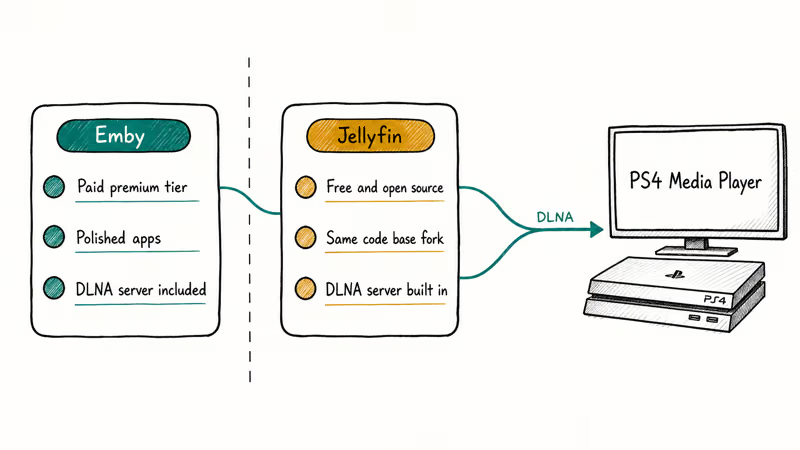
Both are forks of the same code base. Neither has a native PS4 app, but both can act as a DLNA server, which the PS4 Media Player picks up. Emby has a paid premium tier; Jellyfin is free and open source. Setup mirrors the Kodi UPnP route: enable DLNA on the server, browse from the PS4 Media Player.
If you’ve used Kodi’s Trakt and TMDb scraper add-ons, Emby and Jellyfin replicate that automatically without configuration. Same database, same artwork.
#USB Drive Playback With the PS4 Media Player
The simplest route. Format a USB drive as FAT32 or exFAT, drop video files in a folder, and plug it into the PS4. The PS4 Media Player picks it up under USB sources with no network or app installs. Sony’s media format support confirms that MP4, MKV, and AVI all play this way.
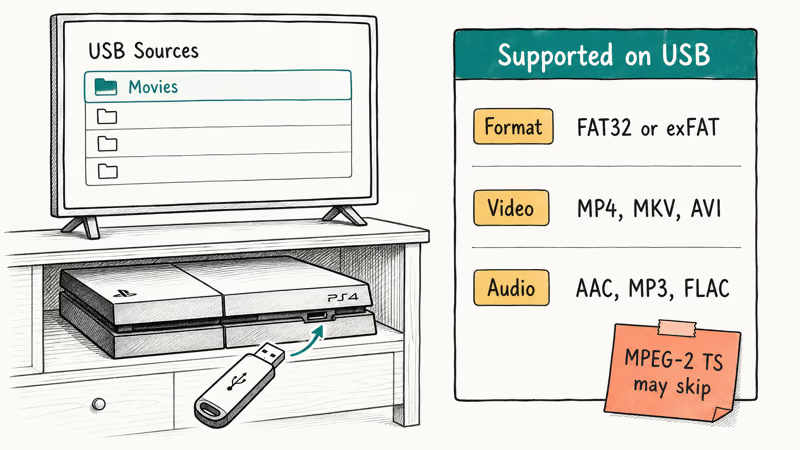
USB playback is the best fit for travel or when your PS4 is on a guest Wi-Fi network that blocks UPnP traffic and DLNA discovery.
#Mirroring Kodi From an Xbox One
If you own both consoles, run Kodi on the Xbox One and feed the output through an HDMI matrix or capture card. Honestly, this is overkill — most people in this situation use the Xbox directly. The route is occasionally useful for setups with only one TV input free. Pair it with a 4K-capable HDMI matrix so the picture quality survives the hop.
If you’re already troubleshooting Kodi specifically, the guides on the Kodi playback failed error and installing the Titanium build for Kodi are worth bookmarking.
#Bottom Line
Use Plex if you want one click to a Kodi-style library on the PS4. Install from the PS Store, set up Plex Media Server on your PC, and you’re done in under 15 minutes. Skip every other option unless Plex’s transcoding hits your CPU too hard, in which case run Kodi as a UPnP server and browse it through the PS4 Media Player.
Got connection problems on the PS4 first? Fix the NAT type failed error on PS4 before you start, otherwise Plex linking will time out at the 4-digit code step.
#Frequently Asked Questions
Will there ever be an official Kodi app for PS4?
Probably not. Sony’s PlayStation Store doesn’t accept third-party media center apps the way Microsoft’s UWP store does, and Team Kodi has not announced any active port effort for the PS5 either. Plex has been Sony’s de-facto Kodi replacement since 2014, and a reversal would be surprising given how much overlap Plex already covers in the same store.
Can I sideload Kodi on PS4?
No, not without jailbreaking. Sideloading needs a homebrew-enabled firmware on PS4, which voids your warranty, locks you to that firmware, and exposes your account to bans. It’s not recommended for anyone who wants their PS4 online.
Does the PS4 Media Player support 4K and HDR video?
Up to 4K H.264 plays. HEVC is hit-or-miss. HDR isn’t passed through to the TV.
Can I install Kodi on PS5 instead?
The same restriction applies. The PS5 store doesn’t list Kodi, and the PS5’s media app is functionally identical to the PS4 Media Player. Plex and the UPnP server route both work on PS5 the same way they do on PS4.
Why does Plex on PS4 look blurry compared to my PC?
Plex transcodes anything the PS4 client can’t direct play. Common triggers are HEVC video, DTS audio, or container types other than MP4 or MKV. Check Plex’s “Now Playing” panel on the server; if it says “Transcoding video”, that’s why the quality dropped. Force original quality in Plex client settings, or re-encode the source file to H.264 in MP4 to skip transcoding entirely.
Do I need a Plex Pass to watch my own files on PS4?
No. Plex’s free tier streams local libraries to all client apps including the PS4 app. Plex Pass adds DVR, offline downloads, and skin themes, but the core library functionality is free forever.
What about Roku or Fire TV instead of the PS4?
Both are cheaper and lighter than running media off a console. A Fire TV Stick 4K or Roku Express plugs into a spare HDMI input on the same TV, runs Kodi natively (Fire TV) or Plex (both), and uses 5W versus the PS4’s 90W. If you’re not already using the PS4 for the screen, a dedicated stick is the better tool.
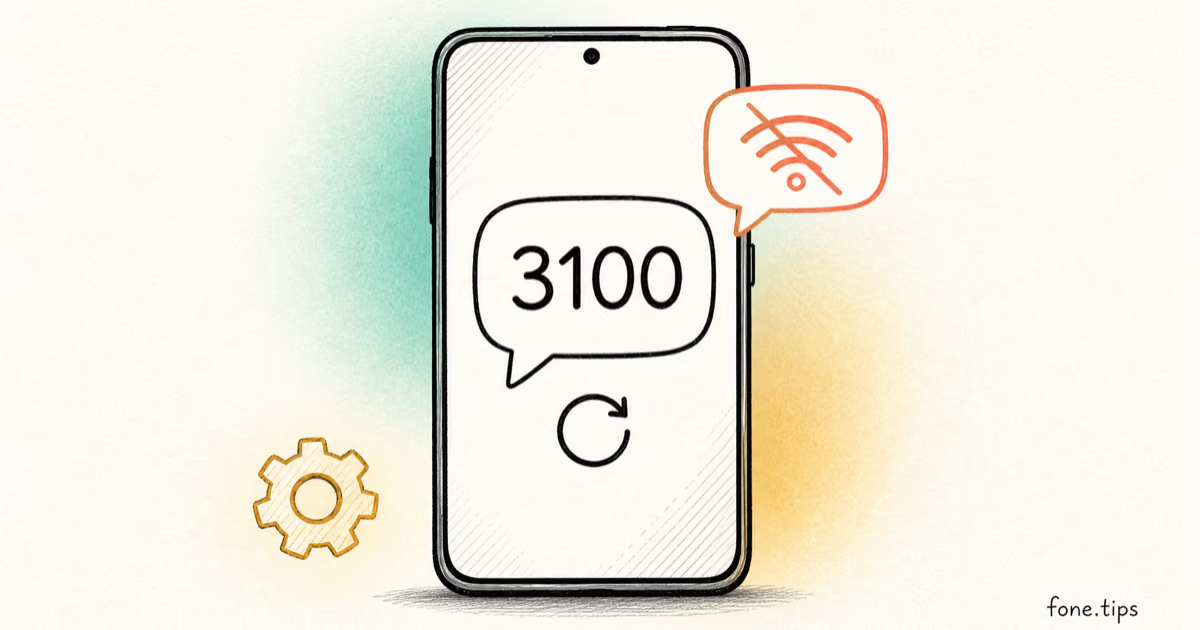
Google Messages Error 3100: Why RCS Is Broken on Galaxy
Google Messages RCS error 3100 hits Galaxy owners after phone or carrier switches. Google told 9to5Google a fix is coming. Here's what actually helps.

Is This Bank App Real? Spot a Fake App on Your Home Screen
A bank app can land on your home screen from a web page with no install warning. Learn the checks that tell a real banking app from a phishing web app.
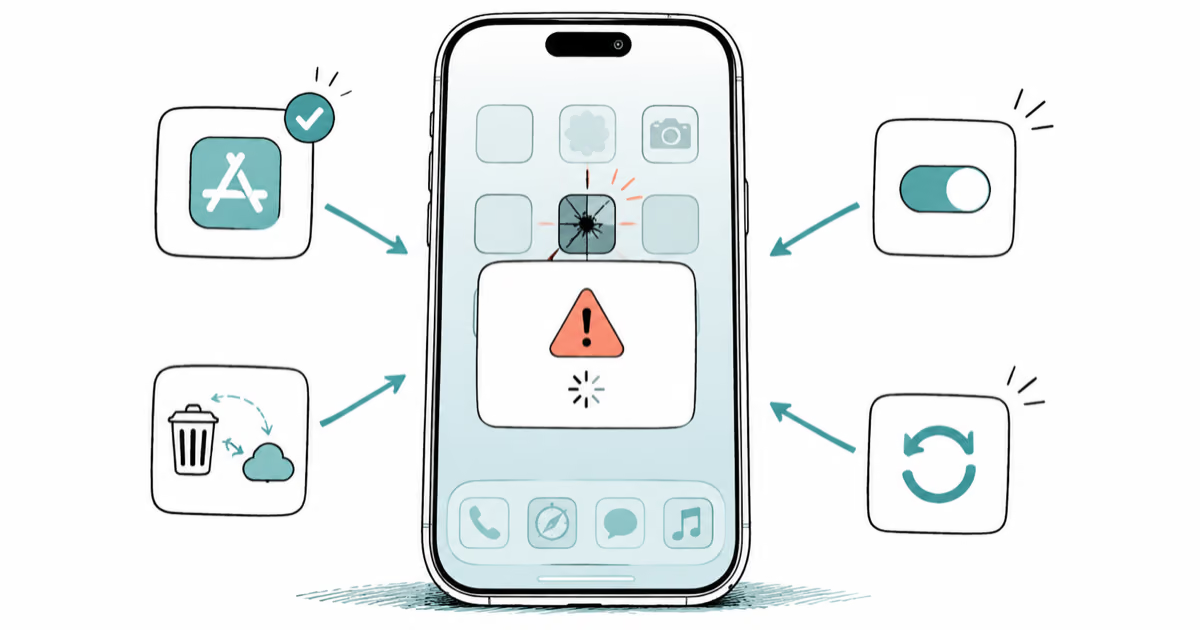
Apps Crashing After iOS 27 Update? Fix Order (2026)
Apps crashing after the iOS 27 update? Update the app in the App Store first, then offload and reinstall to clear stale cache, then restart. The fix order.
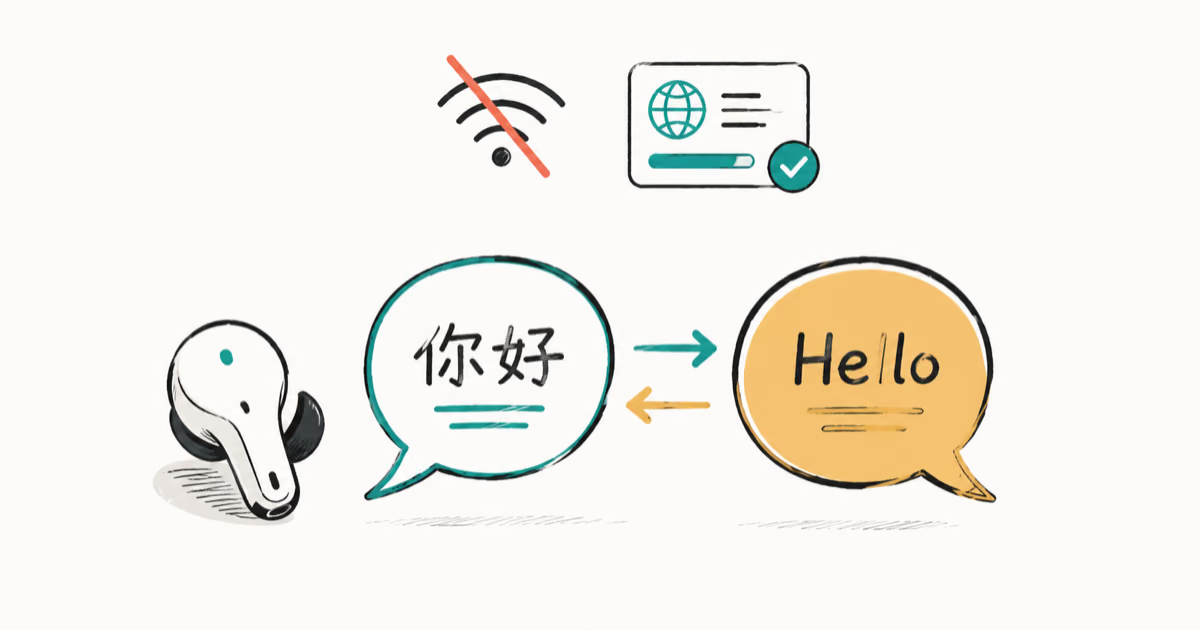
Do AI Translation Earbuds Work Offline? What to Know
Do AI translation earbuds work offline? A few do with downloaded language packs, but most need the cloud. Here's what works offline and what you give up.