How to Fix the Kodi Playback Failed Error: 7 Methods
Fix Kodi playback failed safely: clear cache, update add-ons, repair the database, check codecs, and start with official support paths first.
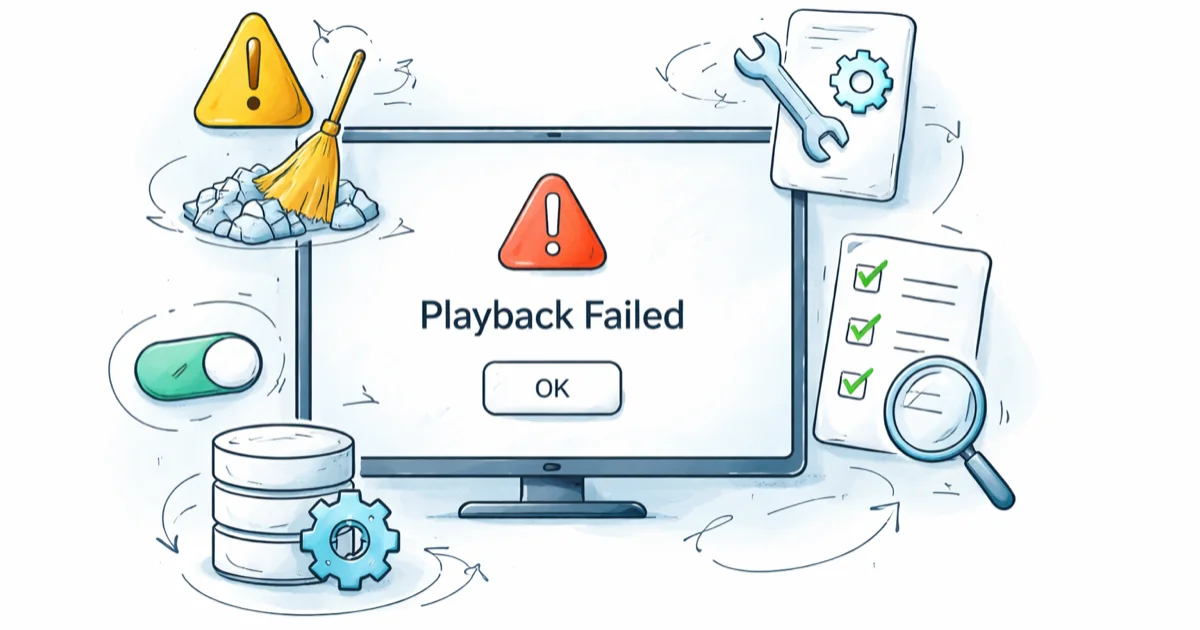
Quick AnswerClear the video cache first, then update every installed add-on. Those two steps resolve the Kodi playback failed error in most cases. If playback still fails, delete Addons.db to force a clean database rebuild.
The Kodi “Playback Failed” error blocks a video from starting. This guide sorts 7 common fixes by the usual failure path: cache, add-ons, database, codecs, app version, source URL, and device-specific setup.
Before changing these settings, use the steps only on your own device, computer, or account, or with explicit permission from the owner. Unauthorized access can violate law, privacy rights, and platform terms, so don’t use this guide to bypass someone else’s controls. When available, start with the official support option, built-in settings menu, or vendor documentation before trying manual fixes, especially if the device or account belongs to work, school, or another person.
- Clearing a stale cache resolves most playback failures in under 2 minutes.
- Update every add-on next since dead feed URLs are the second most common cause.
- Delete Addons.db to force Kodi to rebuild the database from scratch.
- Toggle MediaCodec hardware acceleration when one codec fails while others play fine.
- Use a VPN for privacy or travel, never to bypass regional licensing.
#Why Does Kodi Say “Playback Failed”?
The message appears for a simple reason. Kodi starts a file or stream, then can’t finish loading it. According to the 2-step playback handshake described in Kodi’s Basic Controls wiki, the player opens the source first and matches a codec second, so any break in that chain triggers the generic failure notice.
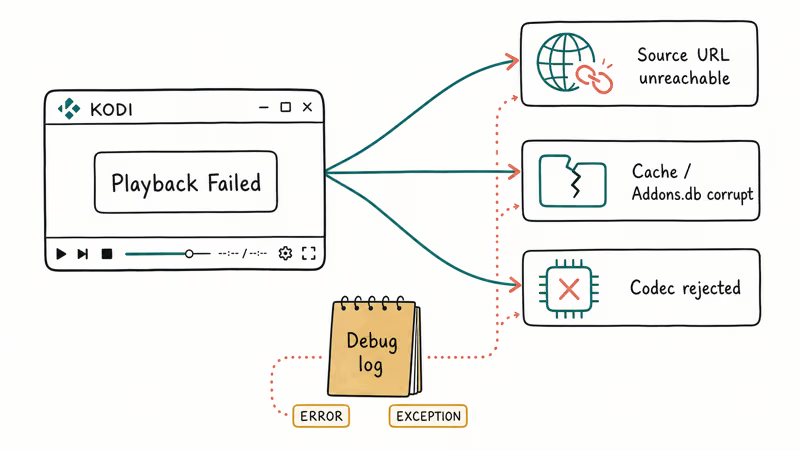
Three root causes cover many occurrences. The source URL is unreachable, Kodi’s video cache or Addons.db file is corrupt, or your hardware decoder rejects the file’s codec. Enable the debug log before running any fix so you can see which of the three applies to your case, because the fix order differs for each.
Log first, fix second.
Go to Settings > System > Logging and toggle Enable debug logging. Replay the video, then open Settings > System > Log file. Lines marked ERROR or EXCEPTION name the add-on, file path, or codec that failed.
#Cache and Database Fixes
#Method 1: Clear the Video Cache
Start here. A cache that has grown since installation is one of the most common causes across Kodi builds.
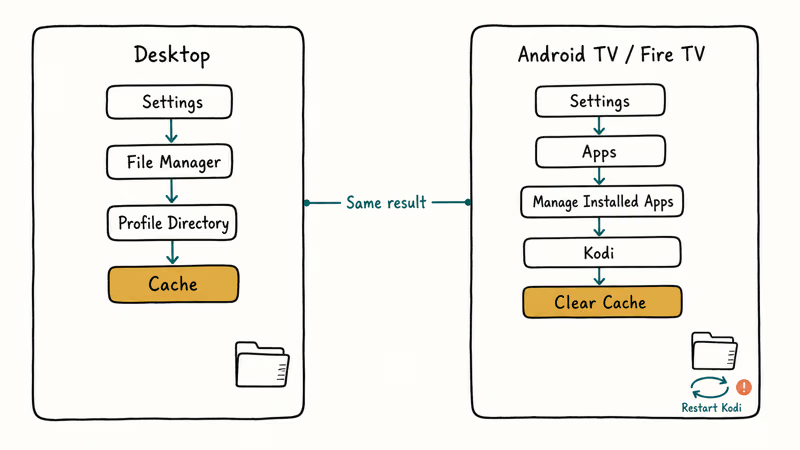
On desktop, go to Settings > File Manager > Profile Directory > Cache and delete everything inside the folder, but keep the folder itself. Restart Kodi.
On Android TV and Fire TV, an alternative route works too. Open Settings > Apps > Manage Installed Apps > Kodi > Clear Cache from the system launcher. Either path produces the same result, because Kodi stores cache files at both locations and the app rebuilds them cleanly on the next launch with fresh uncorrupted entries that match the currently installed add-on versions.
After a cache clear, restart Kodi and replay the same file or stream.
The Kodi video cache configuration wiki confirms that an oversized cache can stall playback until it’s cleared or the advancedsettings.xml limit is raised above the 20 MB default buffer.
#Method 2: Delete the Addons.db Database
If clearing the cache fails, the Addons.db file may be corrupt. This SQLite database tracks every installed add-on, so a single broken row can block the player from loading anything an add-on returns.
- On Windows: open File Explorer and go to
%APPDATA%\Kodi\userdata\Database. DeleteAddons##.db(the two digits are the schema version). - On Android or Fire TV: go to
Settings>File Manager>Profile Directory>Databaseinside Kodi, select the Addons database, and delete it. - On macOS: the file lives at
~/Library/Application Support/Kodi/userdata/Database/.
Close Kodi first. According to Kodi’s Userdata documentation, a missing Addons database rebuilds itself on the next launch.
#Add-on Updates and Replacements
#Method 3: Update Every Installed Add-on
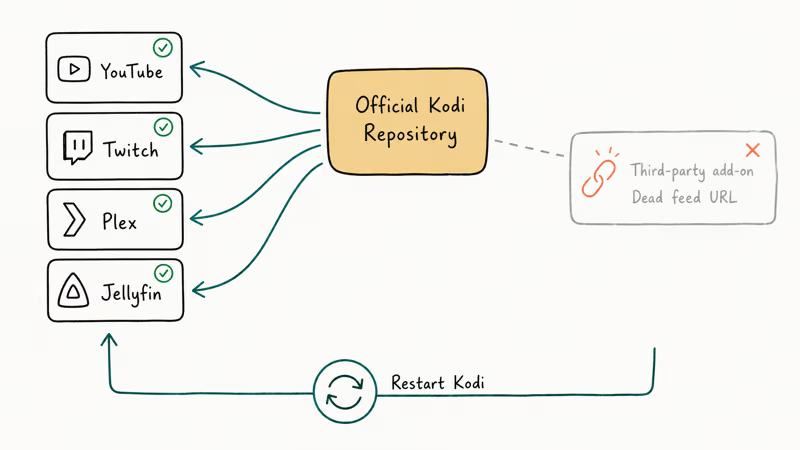
Dead sources are the second most common cause. A feed URL can go offline overnight, and an out-of-date add-on keeps retrying the dead endpoint instead of switching to the new one that replaced it.
Go to Settings > Add-ons > My add-ons. Open each installed add-on and tap Update. Kodi sometimes shows “up to date” when a pending update exists, so trigger the button even if it looks grayed out. Restart Kodi afterward.
Stick to add-ons from the official Kodi repository. The Kodi Add-ons page on kodi.tv lists supported add-ons such as YouTube, Twitch, Plex, Jellyfin, PBS, and Internet Archive, all of which receive updates through the same channel Kodi uses for its own release cycle. Official add-ons are easier to troubleshoot because their source URLs and support threads are tied to maintainers rather than anonymous mirrors.
#Method 4: Reinstall the Add-on That Fails
If only one add-on fails and the rest work, that single add-on is usually the problem. Uninstall it, restart Kodi, reinstall from the same repository, and then reconfigure. This bypasses the cached configuration that may have pointed to a stale URL.
#Hardware and Software Adjustments
#Method 5: Toggle Hardware Acceleration
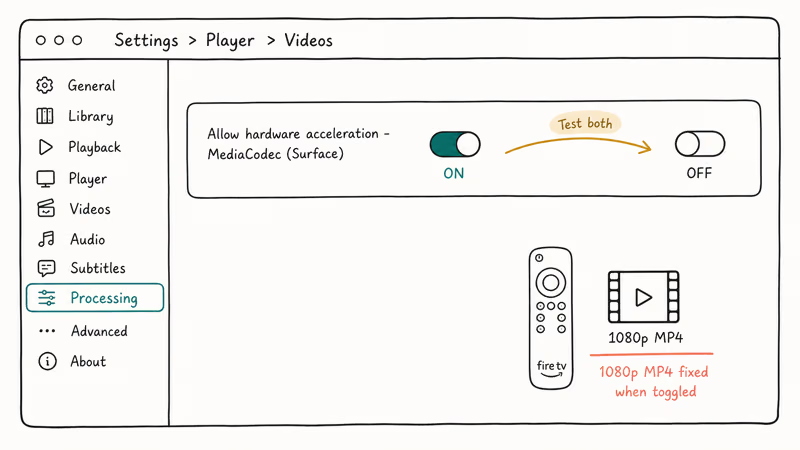
On some Android devices, the MediaCodec decoder conflicts with a specific codec the file uses. Playback fails on one format while others work, which is a signature of a hardware acceleration mismatch.
Go to Settings > Player > Videos and find the Processing section. Toggle Allow hardware acceleration - MediaCodec (Surface) off. If it’s already off, turn it on. Test both states with the same file that triggered the original playback failed error, because one direction of the toggle will usually resolve the conflict.
As XDA’s guide to the best Kodi settings and tips reports, MediaCodec issues are especially common on mid-range Android TV boxes and older Fire TV hardware that ship with partial codec support. Disabling MediaCodec can help when one file type fails while others still play normally.
Restart Kodi after changing the setting so the player reloads the decoder chain.
#Method 6: Roll Back to the Previous Kodi Version
Major Kodi upgrades occasionally break compatibility with add-on frameworks. If playback failed right after you upgraded, reverting is a clean isolation test.
Open the Kodi downloads page on kodi.tv and scroll to the Older Releases section. Pick the ARM build for Android and Fire TV, or the matching installer for Windows, macOS, or Linux. Install over the existing version without uninstalling first so your settings survive the swap. If the downgrade fixes playback, report the regression on the Kodi Support forum so maintainers can track it and ship a patch in the next point release.
Don’t stay on an outdated build for long. Security and codec fixes only land in current releases.
#Stream and File Troubleshooting
If the first 5 methods did not work, the problem is almost certainly the source itself. Shift focus away from Kodi’s settings.
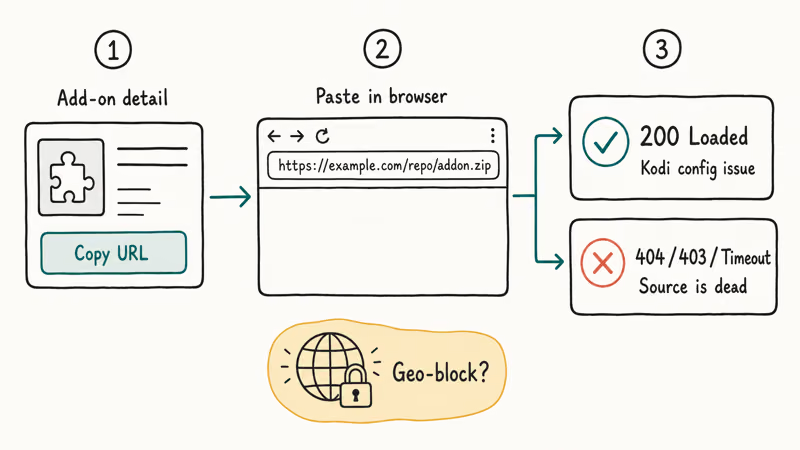
Play a different file from the same add-on or library. If other items play, the specific source is dead. For internet-based sources, copy the URL from the add-on’s detail screen and paste it into a browser. A 404, 403, or timeout means no Kodi setting will rescue it.
According to Kodi’s playback troubleshooting wiki, offline source URLs are the leading cause of playback failures that survive cache and database fixes. For add-ons that stream licensed content you pay for, such as Hulu, also confirm your subscription is active and signed in.
Geo-blocking can also make one stream fail while others still work.
A VPN that routes through your home country can restore access when you travel legitimately. NordVPN and ExpressVPN are common privacy-focused options for streaming devices. Use a VPN for privacy or home access while traveling, not to evade regional licensing.
Some links on this page are affiliate links, which means fone.tips may earn a commission at no extra cost to you.
Need a fallback? If Kodi keeps failing across every source, our best video players for Windows roundup covers well-maintained alternatives such as VLC and PotPlayer. You can also check our VLC alternatives guide if you need a second option on another platform.
For file-open errors on VLC itself, the VLC “unable to open the MRL” fix walks through related codec and permission issues.
#Platform-Specific Fixes
#Method 7: Try a Device-Tuned Kodi Build
A fresh Kodi install on certain devices ships with generic settings that don’t match the hardware. Our guide to the Kodi Titanium build covers an alternative interface preset that is tuned for Fire TV remotes and lower-RAM Android TV boxes. It bundles no third-party streaming add-ons by default, so pair it with official add-ons from the Kodi repository.
Device-specific walkthroughs live in separate guides. Start with Kodi on PS4 for PlayStation hardware or Kodi on Xbox One for Microsoft consoles.
For other platforms, the Kodi on Chromebook guide covers ChromeOS, and the Hulu on Kodi walkthrough handles that specific add-on. Each guide covers platform quirks that generic fixes miss.
For HTPC users on bare-metal hardware, the LibreELEC vs OpenELEC comparison explains which JeOS distribution handles current codecs better in 2026.
#Why Do Kodi Add-ons Stop Working?
Add-ons break for 3 reasons: upstream APIs change, hosting providers shut down, or a Kodi upgrade changes the Python version used by the framework. Kodi 21 “Omega” moved to Python 3.11, which broke add-ons that hadn’t been updated for the new interpreter.
Official repository add-ons get updated in step with Kodi releases. Third-party repositories often don’t. That gap is why we recommend sticking to the official repo, and why many long-time users swap out abandoned third-party add-ons for the official YouTube, Twitch, Plex, or Jellyfin builds. The Kodi forum add-on support section is where maintainers confirm whether an add-on is still being maintained.
If an add-on has no posts in the last 3 months, assume it’s abandoned and look for a replacement. An abandoned add-on can still install cleanly and still fail on playback, because the install process only verifies that its manifest is valid.
#Bottom Line
Clear the cache first. It’s the lowest-risk first step and takes only a short visit to Kodi’s settings or the device app settings. If the error returns, update every add-on (Method 3), then delete Addons.db (Method 2) to force a clean rebuild.
For codec-specific failures on Fire TV or Android TV, the MediaCodec toggle (Method 5) is the highest-value adjustment. When the source itself is the problem, switch to an official repository add-on or a personal media server such as Plex or Jellyfin. Use a VPN for privacy or travel, not to sidestep regional licensing on paid services.
#Frequently Asked Questions
Why does Kodi say “playback failed” even with a fast internet connection?
A fast connection doesn’t prevent failures caused by a corrupt cache, a broken database, or a dead source URL. Kodi’s playback failed error is almost always a software or source problem rather than a bandwidth one. Clear the cache and update add-ons first, then look at your network only if those two steps don’t help, because the underlying handshake between the player and the source happens regardless of how fast your link is.
Does clearing the Kodi cache delete my add-ons or settings?
No, nothing important goes away. The cache folder only stores temporary files Kodi used to speed up recent playback, while your add-ons, credentials, and library stay in a separate folder inside the userdata directory.
How do I find the Kodi log file to see what caused the error?
Enable debug logging at Settings > System > Logging, then reproduce the error. Open Settings > System > Log file to view the log inside Kodi, or copy kodi.log from the userdata folder to read it on a PC. Search for ERROR or EXCEPTION lines to find the specific failure.
Can a correctly installed Kodi add-on still cause playback failures?
Yes. An add-on can install cleanly and still fail at playback if its upstream source has changed or gone offline. This is common with older add-ons whose feed URLs rotate without notice. Check the add-on’s support thread on the Kodi forum to confirm whether others see the same failure, and swap to an official YouTube, Twitch, Plex, or Jellyfin add-on if the abandoned one still breaks after a reinstall.
Should I reinstall Kodi to fix the playback failed error?
Rarely. Delete Addons.db first. A full reinstall erases every setting, add-on, and watch history, and a database rebuild usually does the job without that damage.
Does the playback failed error affect all add-ons or just one?
That answer tells you where to look. If only one add-on fails, the problem is with that add-on’s source URL or configuration. If the error shows up across every add-on and your local library, the issue is in Kodi’s shared cache, Addons.db, or a hardware decoder setting that affects the entire player.
Is there a way to test whether a Kodi stream URL is still active?
Copy the URL from the add-on’s detail screen, paste it into a browser, and see whether it loads or starts a download. A live URL confirms the stream is reachable and shifts the problem back to Kodi’s configuration. A 404, 403, or timeout means the source is dead, and no Kodi fix will bring it back. If the URL needs a specific user agent or cookie, the browser test can still mislead, so also check the add-on’s support thread.
What does the Kodi error “One or more items failed to play” actually mean?
That’s Kodi’s generic message for any failure during playback start. The log file records the specific cause for every occurrence.

Google Messages Error 3100: Why RCS Is Broken on Galaxy
Google Messages RCS error 3100 hits Galaxy owners after phone or carrier switches. Google told 9to5Google a fix is coming. Here's what actually helps.

Is This Bank App Real? Spot a Fake App on Your Home Screen
A bank app can land on your home screen from a web page with no install warning. Learn the checks that tell a real banking app from a phishing web app.

Apps Crashing After iOS 27 Update? Fix Order (2026)
Apps crashing after the iOS 27 update? Update the app in the App Store first, then offload and reinstall to clear stale cache, then restart. The fix order.

Do AI Translation Earbuds Work Offline? What to Know
Do AI translation earbuds work offline? A few do with downloaded language packs, but most need the cloud. Here's what works offline and what you give up.