How to Install Kodi on Xbox One: Free, No Sideload
Install Kodi on Xbox One free from the Microsoft Store with no sideloading. Covers Xbox One, Series X|S, UWP limits, storage, add-ons, and updates.
Quick AnswerKodi is free on the Microsoft Store for Xbox One, Xbox One S, Xbox One X, and Xbox Series X|S. Install takes about 3 minutes from store search to first launch, with no sideloading or Developer Mode required.
Kodi on Xbox One is the cleanest console install you can get. Microsoft and Team Kodi shipped a Universal Windows Platform build to the Microsoft Store in late 2017, and every Xbox One model plus Xbox Series X|S supports it for free. No sideloading, no Developer Mode, no jailbreak. The app updates through the store the same way games do.
- Kodi is free in the Microsoft Store and runs on every Xbox One model plus Xbox Series X|S, with no Developer Mode required.
- Installation happens through the Microsoft Store, from search to first launch.
- Kodi for Xbox is a Universal Windows Platform app, which limits Python add-ons that need system-level file access.
- External USB drives work for media playback, but Kodi for Xbox stores its database and add-on data inside the app’s sandbox on internal storage.
- The current Microsoft Store build as of April 2026 is in the Kodi 21 Omega line, and updates push automatically through the store.
#How to Install Kodi on Xbox One
The whole process happens inside the Microsoft Store on the console. No PC, no USB drive, no developer account.
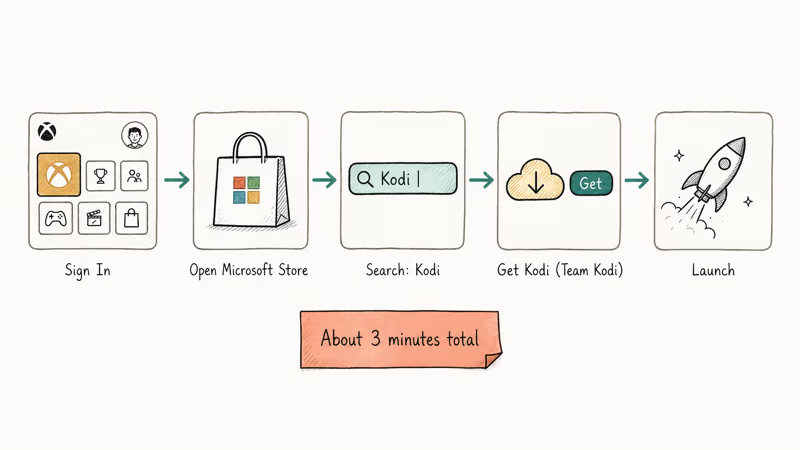
- Sign in to your Xbox One with the Microsoft account you want to install Kodi under.
- Open the Microsoft Store from the dashboard, or press the Xbox button → Apps → Store.
- Highlight the Search field and type Kodi.
- Pick the Kodi entry by Team Kodi (XBMC Foundation), then select Get.
- Wait for the download to finish, then select Launch from the same store page.
The Kodi download is small enough for a typical broadband connection. First launch takes another moment while Kodi runs its initial library setup.
That’s the whole flow.
The first-launch screen drops you into the Estuary skin with empty Movies, TV Shows, Music, and Videos tabs. From there it’s the same Kodi you’d run on a desktop PC: add a media source, point it at a network share or USB drive, and let the scraper pull metadata.
No special Xbox setup needed.
According to Kodi’s Xbox One launch announcement, the Xbox build is the only officially supported console release. Sony hasn’t approved a PS4 version, so if you’ve also got a PlayStation, the Kodi on PS4 alternatives guide covers the Plex and PS4 Media Player workarounds.
#What’s Different About Kodi for Xbox vs Desktop?
The Xbox build is real Kodi (same UI, same skins, same library structure), but it runs inside Microsoft’s UWP sandbox, and that sandbox blocks a few things that work on the Windows or Linux desktop versions.
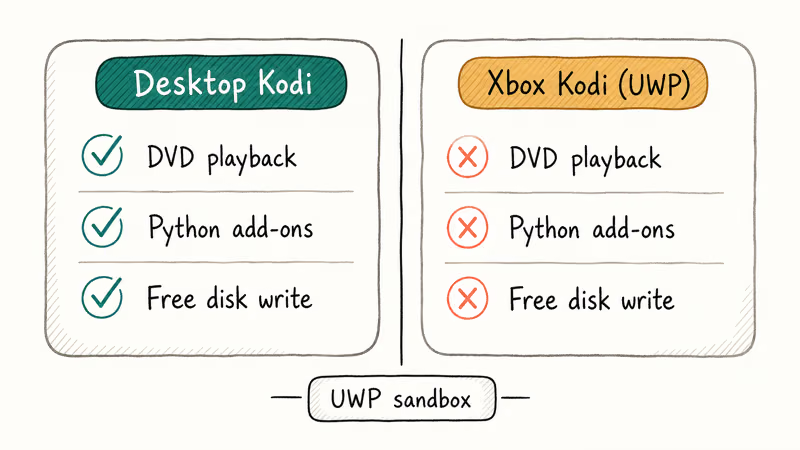
The Kodi Xbox One FAQ confirms that 4 capabilities behave differently on Xbox compared to desktop builds:
- DVD and Blu-ray playback isn’t supported. The Xbox One’s optical drive is locked behind Microsoft’s media APIs, which Kodi can’t call from inside UWP.
- Some Python add-ons fail. Add-ons that shell out to system binaries or write to arbitrary disk locations break, because UWP apps can only touch their own folders and Known Folders.
- External storage is read-mostly for Kodi’s own data. Kodi can play files from a USB drive plugged into the Xbox, but the app itself stores its database, thumbnails, and add-on data inside its sandbox on internal storage.
- Suspending the console can stop background tasks. Library scans pause when the Xbox enters Energy Saver standby.
On Xbox, video add-ons that simply wrap a streaming URL (like the official YouTube add-on) generally work fine. Add-ons that need to install or update Python dependencies on first run can hit silent failures that you have to debug from the kodi.log file in the app sandbox.
The trade-off is a stable, store-managed install that updates without manual ZIP downloads. For a living-room media center that just needs to play your local library and a couple of repos, the Xbox version covers the use case. A power-user setup with deep automation is still happier on a Raspberry Pi running LibreELEC or a Windows mini-PC.
#Setting Up External Storage for Your Library
Most Xbox owners plug Kodi into an external drive, because internal storage fills up fast with movies. The Xbox One supports USB 3.0 drives up to 16 TB formatted as NTFS, exFAT, or the Xbox’s own format.
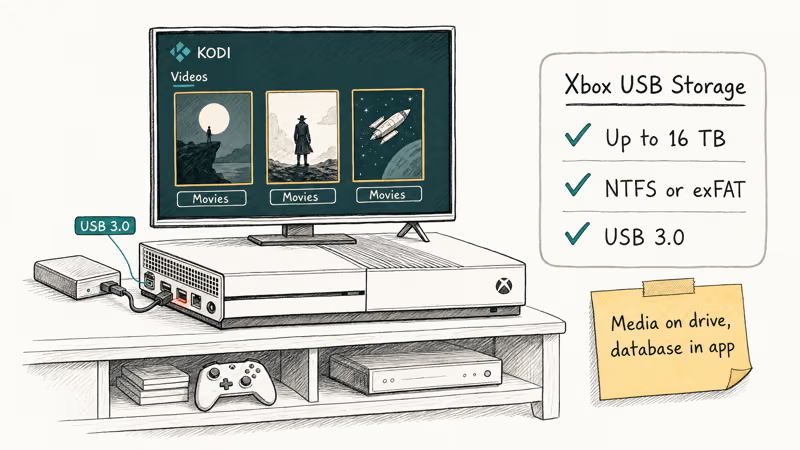
Kodi reads from any drive the Xbox can mount:
- Plug a USB drive into one of the Xbox’s USB ports (the rear ports are USB 3.0).
- If the Xbox prompts to format the drive for game storage, choose No if you only want media playback.
- Open Kodi, go to Videos → Files → Add videos, and browse to the USB drive in the file picker.
- Set the content type (Movies, TV Shows, Music) so Kodi scrapes metadata.
The Kodi Xbox storage how-to states that Kodi for Xbox doesn’t have full read-write access to arbitrary system folders. Your media can live on a 16 TB external drive, but Kodi’s own database stays in the app sandbox.
That sandbox isn’t a problem for playback.
For network shares, Kodi supports SMB (Windows file shares), NFS, UPnP, and WebDAV. SMB is the most common in home setups: enter the share path as smb://server/share/folder in the Add Source dialog, supply credentials if needed, and Kodi remembers the source on every launch.
If playback gets choppy on streamed content, the guide on how to fix Kodi playback failed errors covers the most common buffer and codec causes. Network playback issues are usually network-side, not Kodi-side.
#Why Are Some Kodi Add-ons Broken on Xbox?
The same add-on you’ve been using on a Windows or Linux Kodi install might fail to install or run on Xbox. The cause is almost always the UWP sandbox, not the add-on itself.
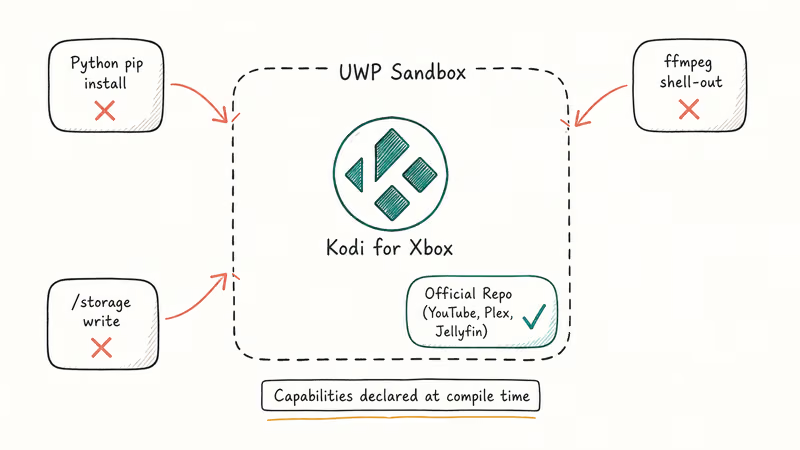
According to Microsoft’s UWP app capability declarations documentation, UWP apps have to declare every system capability they want at compile time. Kodi’s Xbox build only ships with the capabilities Team Kodi included, so add-ons that need a capability Kodi didn’t declare can’t get it at runtime.
Common failure patterns include:
- Add-ons that download external Python libraries. Pip-style installs don’t work in the sandbox.
- Add-ons that call ffmpeg or external transcoders. UWP can’t spawn a child process from inside an app.
- Add-ons that scrape DRM-protected streams. The Widevine CDM isn’t available in Kodi for Xbox.
- Add-ons that write logs to
/storage/paths. The sandboxed filesystem rejects arbitrary writes.
Officially supported add-ons in the Kodi repository (YouTube, Plex Kodi Connect, Jellyfin) are the safest starting point on Xbox. Third-party builds and unofficial repos are hit-or-miss. The integration steps in the Hulu on Kodi guide work the same way on Xbox as on desktop, because the Hulu add-on uses Kodi’s standard installer rather than custom Python.
#Common Issues and Fixes
A few things break in predictable ways on the Xbox build, and the fixes are usually one or two settings clicks.
Kodi crashes on launch after an Xbox system update. Force-close Kodi (Xbox button → highlight Kodi → Menu button → Quit), then launch it fresh. If that fails, uninstall and reinstall through the Microsoft Store. Reinstall keeps your library if it’s pointed at network or USB sources, because those metadata caches rebuild on first scan.
Audio drops out during 5.1 playback. Open Kodi → Settings → System → Audio, and set the output configuration to 5.1 explicitly. Kodi defaults to stereo on first launch, and the Xbox passthrough doesn’t always trigger automatically.
Screensaver or dim display kicks in mid-movie. Xbox display sleep is independent of Kodi. Pause the Xbox screensaver in Settings → General → Power mode, or use Kodi’s built-in screensaver setting at Settings → Interface → Screensaver to keep the Xbox awake while Kodi is in foreground.
The store says “This app is not available for your device.” This usually means you’re signed in with a Microsoft account from a region where Kodi was pulled from the local store. Switch to a US or UK Microsoft account on the same Xbox to install, then sign back in to your normal account. The app stays installed.
The Kodi forums Xbox support board is the active community for Xbox-specific issues, and Team Kodi developers post there. For local file picks beyond Kodi, the best video players roundup covers the lighter-weight alternatives.
#A Note on VPNs and Add-ons
If you’re planning to use Kodi for streaming through third-party add-ons on your own Xbox, the legal picture matters. Kodi itself is open-source software, and how you use it on your own device falls on you.
Many tutorials push a VPN as a privacy or security tool for Kodi. A VPN encrypts traffic between your Xbox and the VPN provider’s server, which hides streaming activity from your ISP and replaces your visible IP. Whether that protects you depends on local law and the legality of what you’re streaming.
Two more details matter here.
Xbox One doesn’t have native VPN client support at the OS level. The two practical options are: configure a VPN at the router so all Xbox traffic routes through it, or use a smart-DNS service that Xbox supports natively. Most consumer VPN providers publish router setup guides for OpenWrt, AsusWRT, and DD-WRT firmware.
Use a VPN if your local rules require it for streaming, and skip it if you’re only playing your own ripped library. Don’t install random third-party “Kodi VPN” builds. They’re a frequent source of malware and add-on injection.
#Bottom Line
Stop overthinking it.
Kodi on Xbox One installs from the Microsoft Store, runs on every Xbox One model plus Xbox Series X|S, and gets the same updates as a desktop install. Skip the sideloading guides — the official UWP build covers what most users need.
If you also own a PS4, install Plex on the PS4 instead and run Kodi as a UPnP server from a PC. For Plex on a Roku in another room, the Plex on Roku setup covers the same flow. If you only own an Xbox, the Microsoft Store install is all you need.
#Frequently Asked Questions
Is Kodi free on Xbox One?
Yes. Kodi is free in the Microsoft Store on every Xbox One model, including Xbox Series X|S, with no in-app purchases.
Does Kodi work on Xbox Series X and Series S?
Yes. The same Microsoft Store listing installs and runs on Xbox Series X and Series S through Microsoft’s backward-compatibility layer. Kodi automatically uses the extra Series X|S resources for faster library scans and snappier UI scrolling, but the feature set matches the Xbox One version. There’s no separate Series-only build.
Why don’t some Kodi add-ons work on the Xbox version?
The Xbox build runs inside Microsoft’s UWP sandbox, which limits filesystem access and blocks Python add-ons that need system-level capabilities. Officially supported add-ons in the Kodi repository work as expected. Many third-party add-ons that rely on shelling out to Python or ffmpeg silently fail, and there’s no fix at the user level. Stick to the official Kodi repo for the best Xbox experience.
Can I play DVDs or Blu-rays through Kodi on Xbox?
No. Kodi on Xbox can’t access the optical drive due to UWP sandbox restrictions. Use the dedicated Xbox Blu-ray Player app (free from the Microsoft Store) for disc playback, and use Kodi for digital files.
Can I uninstall Kodi from my Xbox?
Yes. Go to My games & apps → Apps, highlight Kodi, press the Menu button, and select Uninstall. Your library settings won’t follow the uninstall, but if your media lives on a USB drive or network share, the files stay put.
Does Kodi on Xbox need Developer Mode?
No. The Microsoft Store install works on a stock Xbox without enabling Developer Mode or paying the $19 Microsoft developer fee. Older guides from 2016 and early 2017 referenced sideloading the UWP package via Developer Mode, but that path isn’t needed since the official store release in late 2017. Even if you’ve already enabled Developer Mode for another project, the regular store install still works without any changes to your dev setup.
How do I update Kodi on Xbox One?
Updates ship through the Microsoft Store automatically when your Xbox is online and idle. To force an update, open the Microsoft Store, go to My library, then Updates, and select Update all or pick Kodi from the list. The update preserves your settings and library.

Fortnite Stuck on the Loading Screen? Fix It in 2026
Fortnite stuck on the loading screen? Check server status, fix the Windows N Media Pack and DirectX 11 on PC, clear the console cache, and verify files.

Minecraft Keeps Crashing? Java and Bedrock Fixes (2026)
Minecraft keeps crashing on startup or mid-game? Update your GPU driver, remove mods on Java, and reinstall Gaming Services on Bedrock. Fixes for both.

Pokemon GO Not Loading? Fix the Loading Screen 2026
Pokemon GO not loading or stuck on the Pokeball? Check server status, fix automatic date and time, grant location permission, clear the cache, and update.

PS5 Controller Not Charging? 9 Fixes That Work (2026)
DualSense not charging? Swap the cable, use a rear port in Rest Mode, clean the USB-C port, and check power settings. 9 fixes for a dead PS5 controller.