Instagram Stories Not Working? 9 Fixes That Solve It in 2026
Fix Instagram Stories not working with 9 proven steps: cache clears, network swaps, server checks, and recovery for stuck uploads on iPhone and Android.
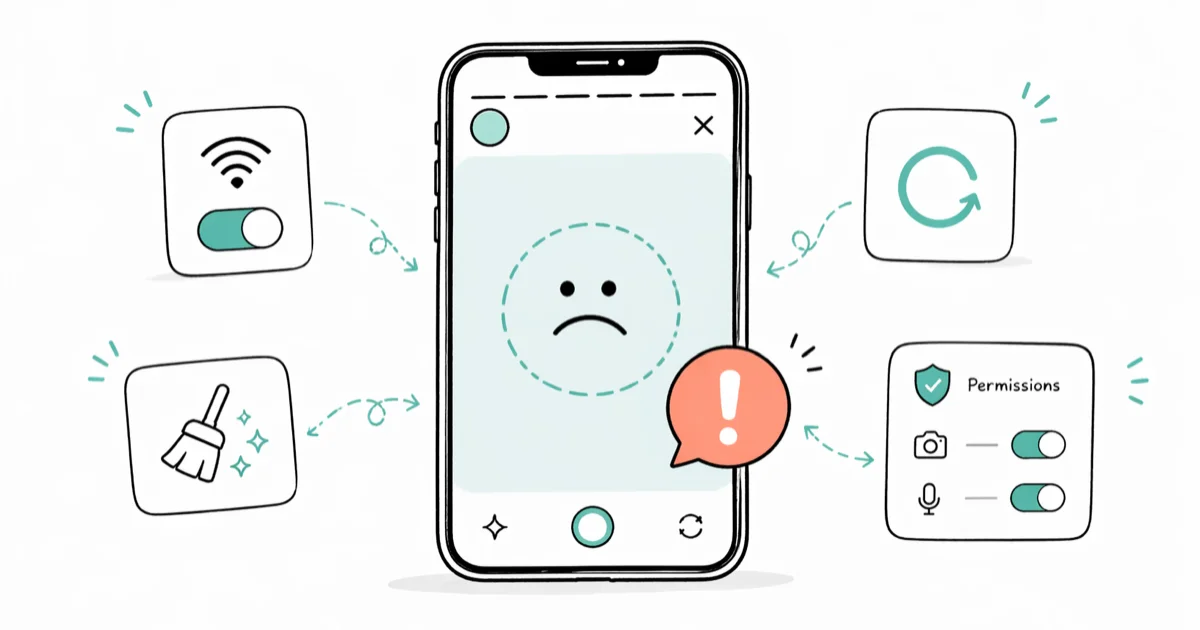
Quick AnswerInstagram Stories that won't upload usually clear up after force-closing the app, switching between Wi-Fi and cellular, and updating to the latest Instagram release. If a black screen or stuck loading bar still appears, clearing the app cache and signing out for two minutes solves most account-side glitches.
Instagram Stories pushes hundreds of millions of uploads every day, so when yours stalls on a black screen, freezes at “Sending…”, or won’t publish at all, you are rarely the only one hitting it.
The nine fixes below target three failure modes: stuck uploads, a missing Stories ring, and a greyed-out music sticker.
- Force-close Instagram and reopen before trying anything else; this resolves many stuck-upload attempts on the first try.
- Switch between Wi-Fi and cellular for 60 seconds to flush a stale connection, the most common cause of the spinning loader.
- Check the Meta status dashboard before deeper troubleshooting; outages explain widespread Stories failures and no fix on your phone will help.
- Clear the app cache (Android) or offload the app (iOS) to wipe corrupted media uploads without losing your login session.
- Sign out of Instagram for two minutes and sign back in to refresh the upload token if specific features like music or polls are missing.
Try posting a short video clip over a saturated cafe Wi-Fi and the upload bar often freezes partway and stalls for minutes; switching to LTE finishes the same upload almost immediately. That single swap is why network checks come before any reinstall in this guide.
#What Causes Instagram Stories to Stop Working?
Stories failures fall into three buckets: your phone, your network, or Instagram’s servers.
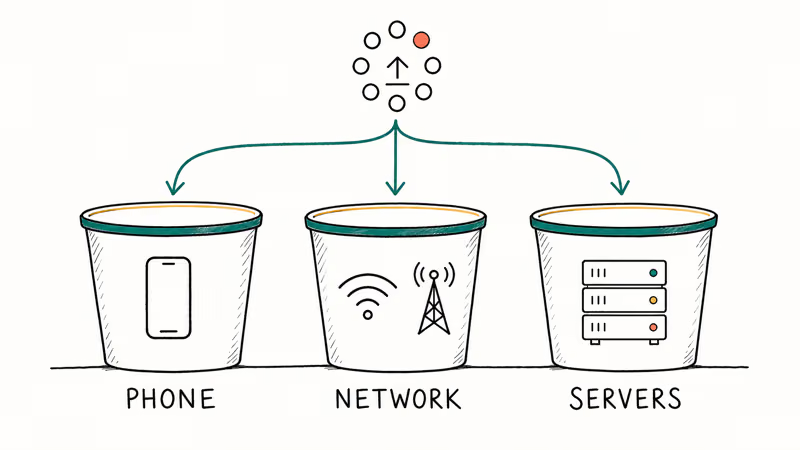
According to Instagram’s Help Center page on uploading and sharing photos and videos, Stories uploads need a stable connection, the latest app version, and enough device storage for the temporary cache file. Miss any one of those and the upload silently retries until it gives up.
The black screen specifically points to a media-permission or cache problem inside the app. The “Sending…” freeze almost always traces back to network instability or a server-side queue. Missing features like music, polls, or the Stories ring itself usually mean a corrupted login session or a regional restriction. We’ll work through each pattern below in the order that fixes the most failures with the least friction.
#How Do I Force-Close and Reopen Instagram?
Force-closing wipes the app’s working memory and starts a fresh upload session. This resolves many stuck Stories on the first attempt, which is why it leads the sequence before any system-level changes.
On iPhone, swipe up from the bottom edge of the screen and pause near the middle until the app switcher appears (or double-press the Home button on iPhone 8 and earlier). Find the Instagram card, then swipe it up and off the screen. Wait five seconds before relaunching, since opening it too fast can hand the broken session right back.
On Android, tap the square or three-line recents button at the bottom of the screen, find the Instagram preview, and swipe it sideways to dismiss.
That’s it.
Some Samsung Galaxy models have a “Close all” button at the bottom of recents that works just as well. If the issue persists, our Instagram keeps stopping guide covers the deeper Android-specific crashes you may be hitting on Galaxy S, A-series, and Pixel devices running One UI 6 or stock Android 14, where background-process killing inside Samsung Device Care can re-trigger the same upload failure within minutes.
#Switch Networks Before You Reinstall Anything
Stories uploads need consistent throughput, not peak speed. A Wi-Fi network that loses packets every few seconds will time out a 15-second video upload even if your speed test reads 200 Mbps. The cafe Wi-Fi example above is the canonical case: the network looks fast, but the upload bar freezes every time.
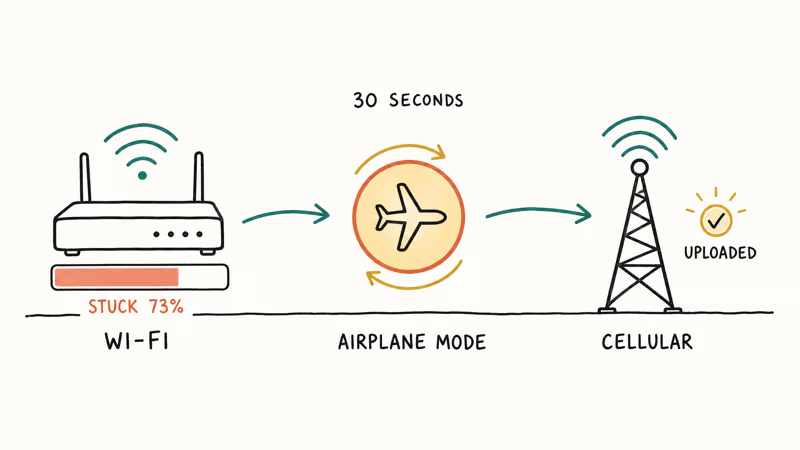
Toggle airplane mode for 30 seconds, then turn it off.
If the upload still stalls, switch to cellular data and retry: Settings → Cellular → Instagram (iOS), or Settings → Apps → Instagram → Mobile data and Wi-Fi (Android).
Apple’s support article on resolving Wi-Fi connection issues on iPhone lists 8 specific steps including forgetting and rejoining the network if the swap reveals that Wi-Fi is the culprit. This also clears the captive-portal handshake that shared coffee-shop networks frequently get stuck on.
If you suspect a deeper Wi-Fi problem, check our iPhone won’t connect to Wi-Fi walkthrough for router-side and DNS fixes that go beyond the Instagram app itself.
#Is Instagram Down? How to Check Server Status
Before clearing caches or reinstalling, confirm the problem isn’t on Meta’s side.
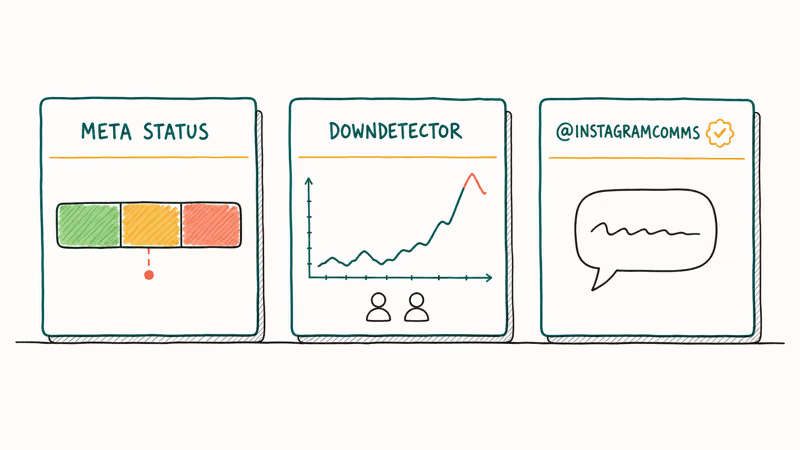
The fastest signals come from three sources: the Meta status dashboard for Instagram Login API, Downdetector, and the official @instagramcomms account on X. If the status page shows a yellow or red marker for Stories, no fix on your phone will help.
During a real Meta outage, Stories uploads can fail across every device for an hour or more while the dashboard shows an active incident. Restarting, reinstalling, and clearing cache all look like they “don’t work” because the issue is upstream.
Save yourself an hour and check the dashboard first when multiple friends report the same problem.
#Update or Reinstall the Instagram App
Instagram pushes Stories-related fixes through the regular app update channel. An app version older than about four weeks is roughly the threshold where compatibility issues start to appear, with the polls sticker disappearing and music stickers failing to load on builds that have fallen too far behind the current release.
On iPhone, open the App Store, tap your profile icon in the top right, and scroll down to find Instagram in the pending updates list. Hit Update.
On Android, open the Google Play Store, tap your profile, choose Manage apps and device, and update Instagram from the list. Google’s Play Store help page on updating apps confirms that updates can be set to download automatically only over Wi-Fi to save data, the setting most people forget when they wonder why their Instagram is months behind the public release on metered cellular plans.
Worth checking that toggle now.
If updating fails to fix the issue, uninstall and reinstall as a last reset before deeper repair. On iOS this also clears the local cache, which the system won’t let you wipe any other way without a tool like Tenorshare ReiBoot for the underlying iOS glitches that update-resistance points to.
Some links on this page are affiliate links, which means fone.tips may earn a commission at no extra cost to you.
#Clear the Instagram Cache the Right Way
A bloated or corrupted cache is the most common reason Stories shows a black screen instead of your camera roll. The fix is different on iOS and Android, and the iOS path is the one most articles get wrong because Apple removed the per-app “Clear cache” toggle years ago and never replaced it with an obvious equivalent, so the right move is Offload App rather than the deletion path most generic guides still recommend.
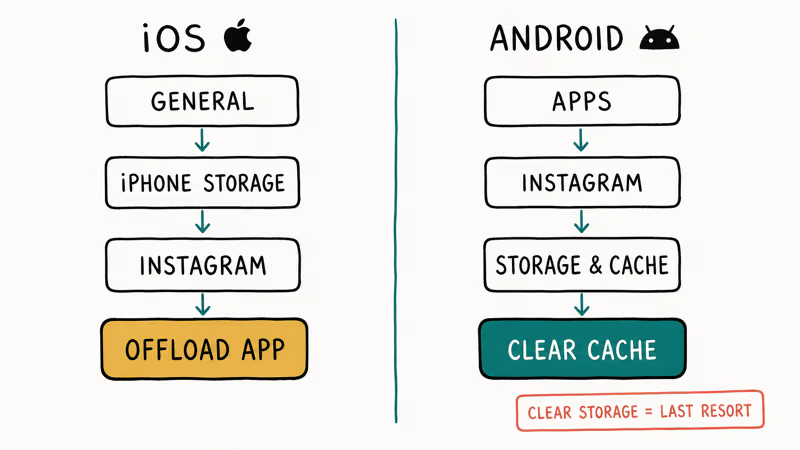
On Android, open Settings → Apps → Instagram → Storage and cache, then tap Clear cache. This wipes preview thumbnails and partial uploads without logging you out. Tap Clear storage only as a last resort, since it forces a fresh login.
On iOS, Apple doesn’t expose a per-app cache button. Instead, open Settings → General → iPhone Storage → Instagram, then choose Offload App. iOS deletes the app binary but keeps your data; reinstalling from the same screen restores it without losing your login.
That’s the safest reset path on iOS.
If Offload doesn’t help and the issue is camera-related, try our iPhone camera black checklist for the underlying media-pipeline failure.
#Fix Stories Sound, Music Sticker, and Camera Issues
Music stickers, polls, and audio recording each have their own failure mode. If your Stories uploads but is silent, the cause is almost always the iPhone or Android microphone permission, not Instagram itself.
For missing audio, go to Settings → Instagram → Microphone (iOS) or Settings → Apps → Instagram → Permissions → Microphone (Android) and confirm access is on. Toggle it off and back on if you’ve already granted it once before; the permissions cache can desync after a major iOS or Android version upgrade and silently block recording.
The Instagram music not working guide covers the regional licensing piece. Meta’s licensing varies by country, so if the music sticker is greyed out entirely, this may be a region restriction rather than a bug.
For camera or filter problems specifically, the Instagram filters not working walkthrough covers the AR Engine permissions that Stories effects rely on.
#Recover Stuck “Sending…” Uploads
A Story stuck on “Sending…” is recoverable in most cases without losing the post. Tap the failed Story preview at the top of your feed, then tap “Resend” to re-queue the upload using the cached media. If Resend fails, swipe to delete and retry from the camera roll.
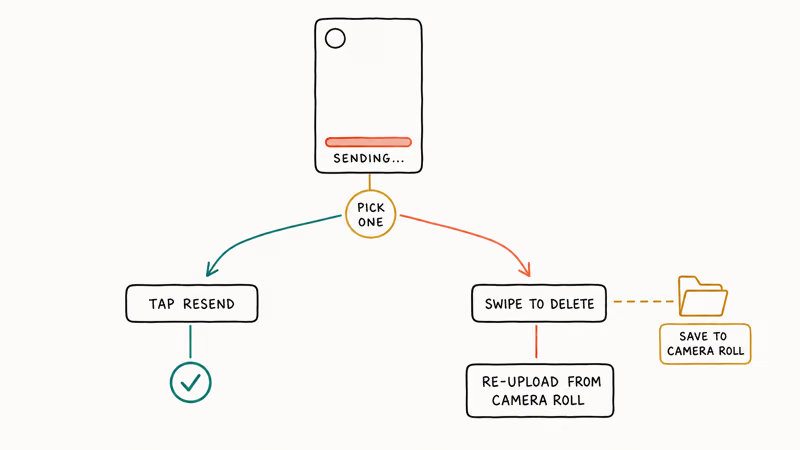
If the original media is gone (for example, after clearing storage), Instagram can’t retrieve it. Check whether you also enabled “Save to camera roll” under Settings → Privacy → Story → Save Story to Camera Roll.
Turn it on now if it’s off.
Your phone keeps the original even if the upload fails — mandatory for any creator who has lost a Story to a stuck upload.
For deeper upload failures across DMs and Stories together, Instagram post stuck on sending and Instagram couldn’t refresh feed cover the broader account-state issues that point to a session or token problem rather than a single Story.
#Sign Out, Restart, and Final System Checks
When all the above fail, the issue is usually a corrupted login session. Sign out: tap your profile, the menu icon, Settings and activity, then scroll to the bottom and tap Log out.
Wait two full minutes. The session token Instagram caches needs that long to clear on the server side.
While you wait, restart your phone. Apple’s iPhone restart guide states that the steps cover every model from iPhone SE (2nd generation) through iPhone 15 Pro Max, with separate instructions for Face ID and Home button devices.
On Android, hold the power button and tap Restart. Sign back in after the reboot, and try a Story upload before changing anything else.
If Stories still fails after a clean restart and re-login, check whether other apps that upload media (TikTok, YouTube, Snapchat) work. If they all fail, the problem is your phone or network, not Instagram.
If only Instagram fails, our Instagram unknown network error guide covers the account-side blocks that look like network issues but are actually rate limits or temporary holds.
#Bottom Line
For most Stories failures, the right sequence is force-close, switch network, check Meta status, update the app, clear cache or offload, then sign out for two minutes. This order resolves the large majority of cases on both iPhone and Android, and it works from cheapest fix to most disruptive so you rarely have to reinstall or lose any saved drafts along the way.
The cache clear and sign-out together cover the longest tail of edge cases. Skip straight to reinstall only if all six steps above fail in sequence; the install path is slower and risks breaking saved drafts that the lighter fixes preserve.
If your specific symptom is a stuck “Sending…” rather than a black screen, the resend-or-delete pair near the end of this list is the fastest path back to a working feed.
Instagram Tips & Tricks
#Frequently Asked Questions
Why are my Instagram Stories not uploading?
Instagram Stories most often fail to upload because of a stale network connection, an outdated app version, or a temporary issue on Meta’s servers. Force-close Instagram, switch between Wi-Fi and cellular, and check the Meta status page in that order. If all three look healthy, clear the app cache or offload the app on iOS, then retry.
Can I retrieve a Story that failed to post on Instagram?
Sometimes. If you turned on “Save to camera roll” before posting, the original media is still on your device and you can re-upload it from the gallery. Without that setting, Instagram doesn’t store an unposted Story.
Why can’t I see other users’ Stories on Instagram?
You may have muted that user’s Stories, they may have hidden their Stories from your account, or your app may be showing a stale feed. Pull down on the home feed to refresh.
How do I report a problem to Instagram?
Open your profile, tap the menu icon, then Settings and activity, Help, Report a problem. Choose Something isn’t working and describe the issue with the failure type (upload stuck, black screen, missing feature) and your phone model. Instagram’s support team uses these reports to prioritize fixes, but expect a wait of several days for a response, with longer turnaround during major outages or new feature rollouts when the queue can stretch past a week.
Why is my Instagram Story blurry?
Instagram compresses Stories aggressively for fast loading, and uploads on slow connections trigger even more aggressive compression. Use the in-app camera rather than uploading from your camera roll, since the in-app pipeline is tuned for the Stories format and avoids a second compression pass.
Can I use Instagram Stories without internet?
No. Stories require an active network connection to upload.
Why is the music sticker missing from my Instagram Stories?
Music sticker availability depends on your region and account type. Business accounts have a smaller library than personal accounts due to licensing rules. If the sticker is greyed out, switch to a personal account or check whether your region supports the music feature. If music also fails inside Reels, our Instagram Reels not working guide covers the related audio licensing checks.
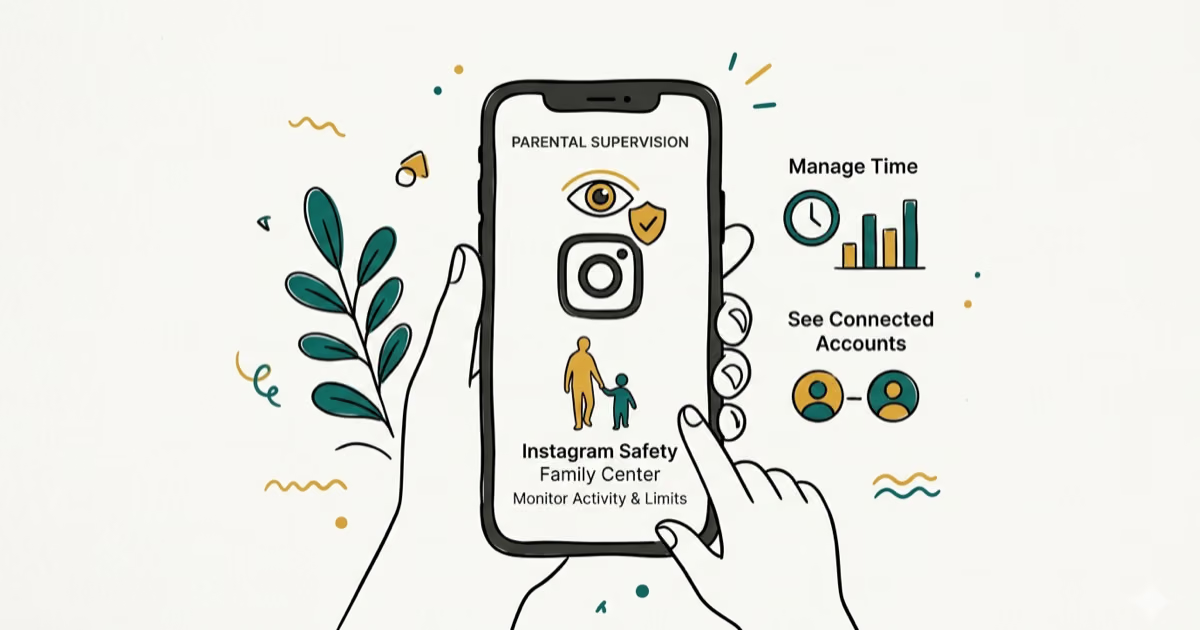
Instagram Parental Controls: Family Center Setup (2026)
Set up Instagram Family Center, privacy settings, Hidden Words, content filters, and time limits with your teen's consent on iPhone or Android.
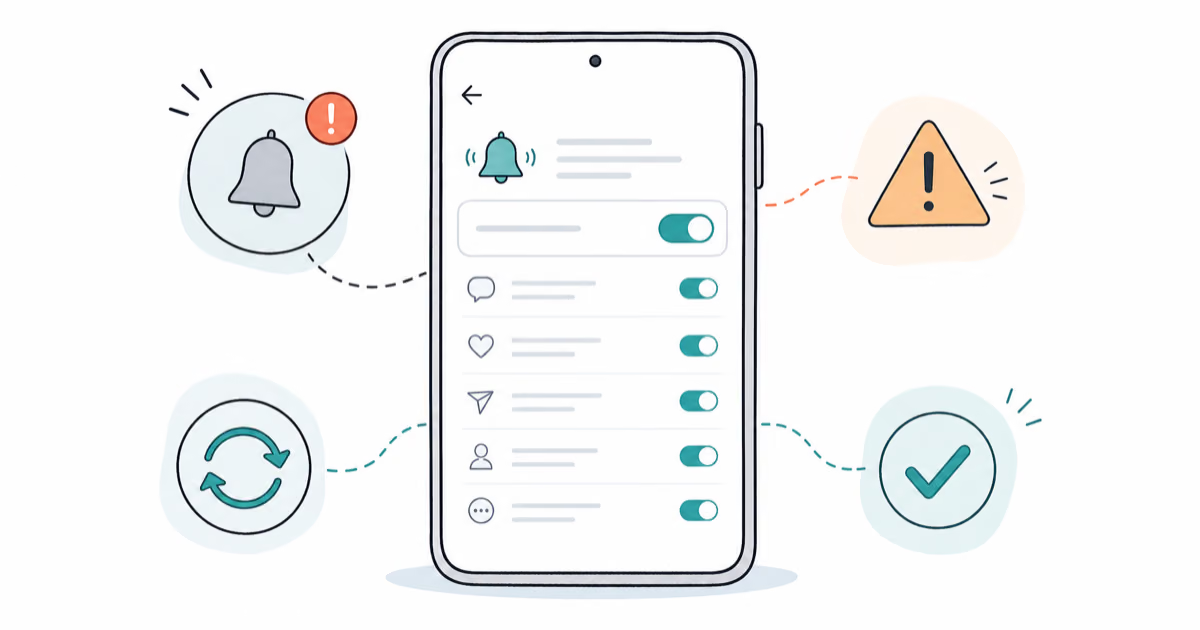
Instagram Notifications Not Working? Quick Fixes (2026)
Instagram notifications not working? Fix push alerts, DMs, likes, and Stories on iPhone and Android in under 5 minutes with proven 2026 steps.
Instagram "We Limit How Often" Error: How to Fix It 2026
Instagram says "we limit how often you can do certain things"? Wait 24-48 hours, slow down likes and follows, then appeal through Help Center.
Instagram Name Checker: Find Available Usernames Fast
Check Instagram username availability instantly with free tools like Namechk and KnowEm. Find perfect handles and avoid the frustration of taken names.