Instagram Keeps Stopping on Android: 9 Fixes (2026)
Instagram keeps stopping on Android? Force stop, clear cache, update, then reinstall. 9 step-by-step fixes that resolve the crash on Samsung and Pixel.
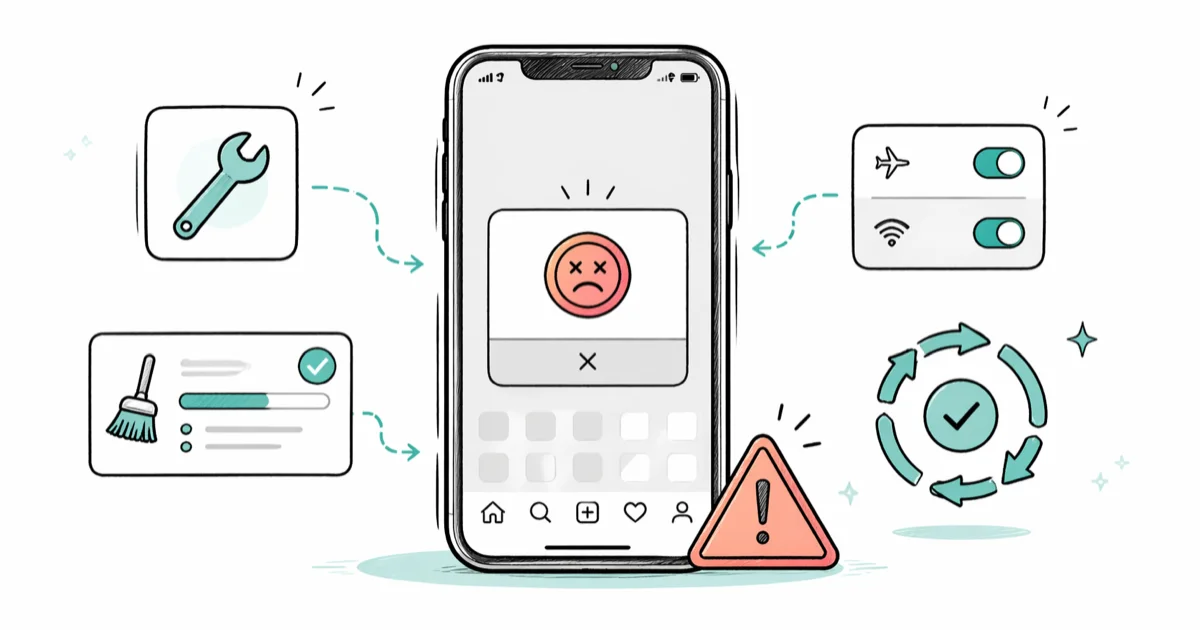
Quick AnswerWhen Instagram keeps stopping on Android, force stop the app and clear its cache from Settings, then update Instagram in the Play Store. If crashes continue, reinstall the app and reboot.
Instagram keeps stopping on Android usually means the app cache is corrupted, the version is out of date, or Android is starving the app of memory. The fix is almost always one of three things: clear cache, update, or reinstall. For the common “Unfortunately, Instagram has stopped” message on a Samsung or Pixel phone, a cache wipe alone often restores the app in under two minutes.
This guide walks through every fix in the order you should try them. Start with the easy ones at the top. Most people never need to scroll past Method 3.
- Most “Instagram keeps stopping” crashes resolve after a simple force stop plus clear cache, which is why it’s the first step to try
- Cache and data wipes don’t log you out or delete posts because Instagram stores account data on its servers, not in the local app cache
- Android System WebView updates fix a recurring class of Instagram crashes when the app loads stories or in-app browser content
- Reinstalling Instagram pulls the latest version even if Play Store auto-update is paused or stuck
- Persistent crashes on a single device usually point to low storage below 1 GB free or an Android security patch older than six months
#Why Does Instagram Keep Stopping on Android?
Short answer: corrupted cache.
Instagram is a heavy app. The Android version is around 70 MB at install time and balloons past 500 MB once the cache fills with photos, Reels, and Stories you’ve scrolled. When something inside that cache gets corrupted, the app force-closes the moment it tries to read the bad file. Rarely a virus or hardware.
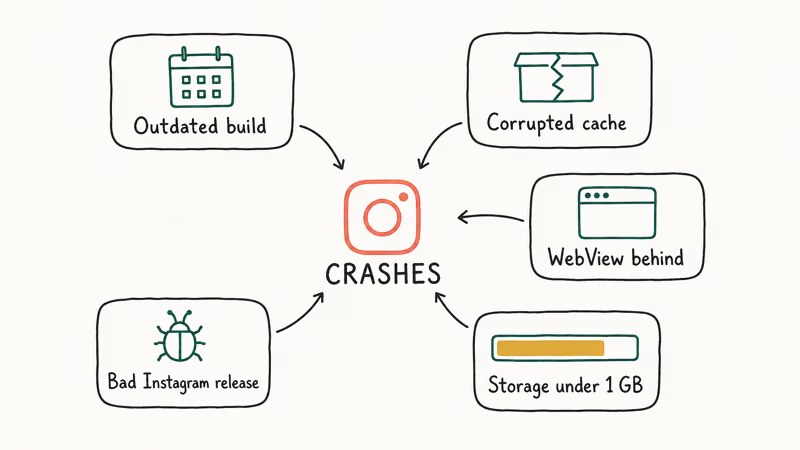
Five conditions cause most crashes in 2026:
- An outdated build of Instagram that’s missing a server-side fix Meta has already pushed
- A corrupted local cache, often after a botched download or a sudden battery cut-off
- Android System WebView falling behind, since Instagram uses it to render Stories and the in-app browser
- Free storage below 1 GB, which forces Android to kill background processes the app needs
- A bug in a specific Instagram release, where everyone on that version crashes until Meta ships a patch
According to Meta’s Help Center crash troubleshooting page, updating to the latest version is step 1 when the app keeps closing, because most crash bugs are fixed within 1 or 2 releases. When a release-specific Reels crash hits Android, Meta typically pushes a follow-up patch within days.
#Force Stop and Clear Cache First
Try this first.
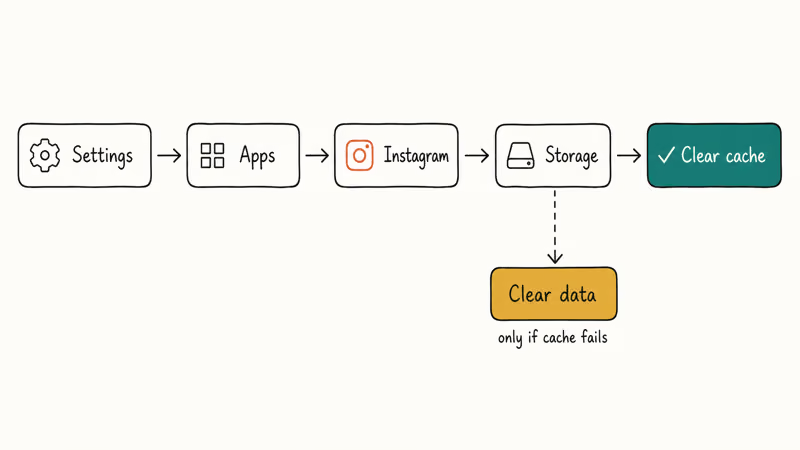
This is the fix that resolves the most cases. On both Samsung and Pixel phones, clearing the cache usually stops the crash immediately without logging you out of the app.
- Open Settings on your phone
- Tap Apps, then All apps
- Scroll to Instagram and tap it
- Tap Force stop and confirm
- Tap Storage
- Tap Clear cache (don’t tap Clear data yet)
- Reopen Instagram
Still crashing within 30 seconds? Repeat steps 1 to 5, then tap Clear data. You’ll need to log back in.
Samsung’s Galaxy support page on managing app cache confirms that clearing cache removes only temporary files and doesn’t delete the app or its account data. The same is true on Pixel and most Android skins.
#How Do You Update Instagram on Android?
Old builds crash. Meta ships Instagram updates roughly weekly, and when a crash bug slips into production it usually gets a hotfix within a few days. If you have auto-update turned off in the Play Store, you’re probably running a version that’s already known broken.
To force the update on Android:
- Open the Google Play Store
- Tap your profile icon in the top right
- Tap Manage apps and device
- Tap Updates available
- Find Instagram in the list and tap Update
- If Instagram isn’t in the list, search for it manually and tap Update on the listing page
If the Play Store says “App installed” but you suspect it’s stale, force a refresh by going to Settings > Apps > Google Play Store > Storage > Clear cache, then reopening the Play Store. Google’s Android Help article on updating apps confirms this clears the local Play Store state without affecting your account or installed apps.
#Update Android System WebView
This is the fix most troubleshooting articles miss. Instagram uses Android System WebView to render in-app links, Stories overlays, and parts of the Reels player. When WebView is two or three versions behind, Instagram can crash the moment it tries to open one of those surfaces.
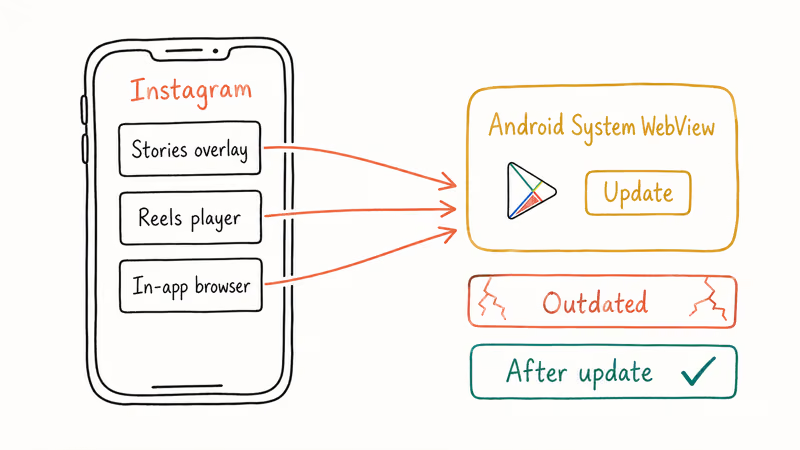
To update WebView:
- Open the Google Play Store
- Search for Android System WebView
- Tap Update if the button is visible
- Restart your phone after the update completes
A WebView update alone can stop Reels from crashing even when Instagram itself is already on the latest version. A WebView-related crash wave in March 2021 caused popular Android apps to start force-closing for many users. The fix was the same: update WebView.
#Free Up Storage and RAM
Instagram needs roughly 200 MB of free RAM to launch and at least 1 GB of free storage to write its cache. When either is under that threshold, Android quietly kills the app, and to the user that looks like Instagram keeps stopping.
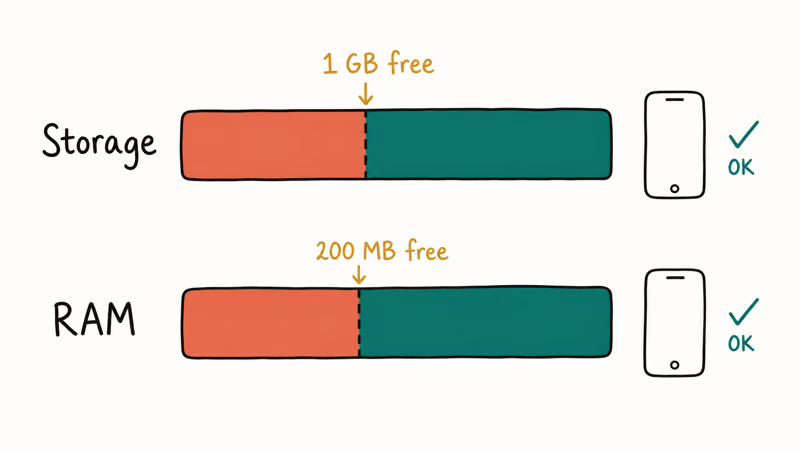
Check storage:
- Open Settings
- Tap Battery and device care, or Device care, or Storage (the path varies by skin)
- Read the free space indicator
If you’re under 2 GB free, delete a few large videos or move photos to Google Photos cloud backup. Samsung’s built-in Device Care storage cleanup can recover cache files across all apps in one tap, and on Pixel and stock Android the same job lives under Settings, then Storage, where the Free up space tool clears cached files without touching your photos or saved messages.
For RAM, restart the phone. Even on a mid-range 6 GB phone, Instagram launches reliably once enough free RAM is available.
#Reinstall Instagram When Cache Wipes Fail
If clear cache, clear data, and updating WebView all leave you with the same crash, the install itself is broken. Reinstalling pulls a clean copy of the latest version and resets every internal flag at once.
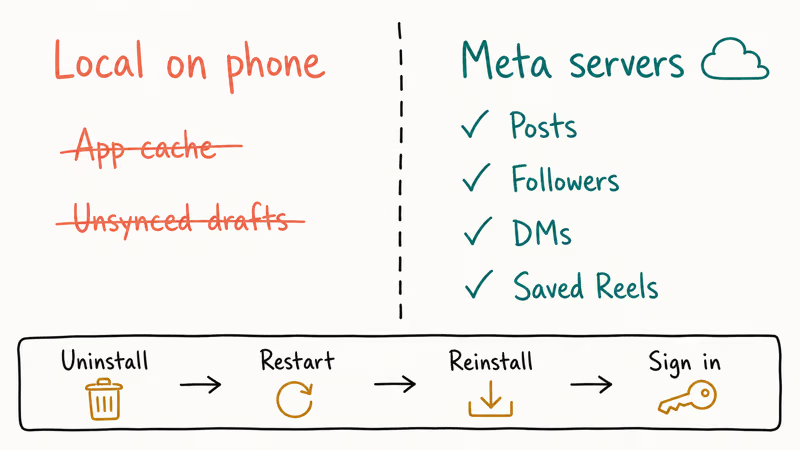
- Long-press the Instagram icon on your home screen
- Tap Uninstall and confirm
- Restart your phone
- Open the Play Store and install Instagram again
- Sign in with your username and password
The reinstall takes about three minutes on a typical 4G connection. You won’t lose posts, followers, DMs, or saved drafts that were synced before the crash, because Instagram stores all of that on Meta’s servers. Local-only items like an unsent draft Story you never published will be lost.
#Update Android and Apply Security Patches
A phone that hasn’t received an Android security update in six months is at higher risk of app crashes, because newer Instagram builds depend on libraries shipped in those updates.
To check your patch level:
- Open Settings
- Tap About phone
- Tap Software information
- Read the Android security patch level
If the date is older than six months, tap System update (or Software update on Samsung) and install whatever is offered. Google’s Android security bulletins page states that patches ship monthly for supported devices, and Pixel and Samsung flagships typically get them within the first two weeks of each month.
Phone older than five years and abandoned by the maker? The patch level won’t move.
#Try Instagram Lite as a Workaround
When the main Instagram app is in a bad state on a low-end or older Android phone, Instagram Lite often runs smoothly when the regular app crashes on launch. It’s a stripped-down build under 2 MB that uses a fraction of the RAM.
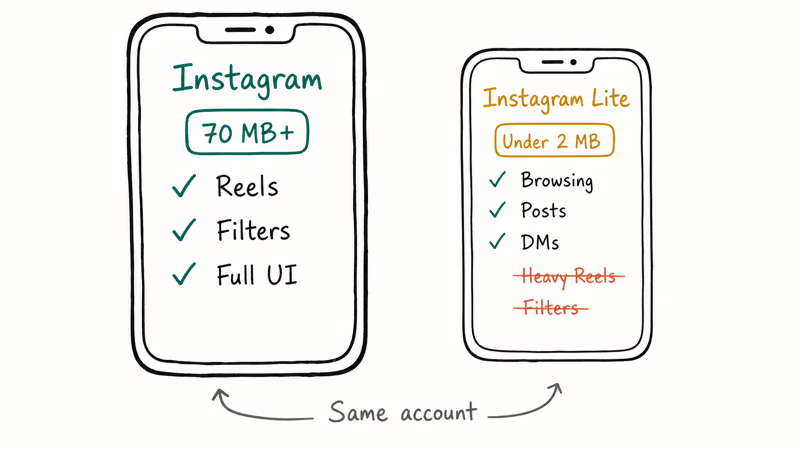
To install:
- Open the Play Store
- Search for Instagram Lite
- Tap Install
- Sign in with the same account
You won’t get every feature. Reels playback is more limited and some camera filters are missing, but for browsing, posting, and DMs it’s a workable fallback. Meta’s Instagram Lite product page confirms it’s built specifically for devices with limited storage and slower networks. It coexists with the regular app, so you don’t need to uninstall the main version first.
#Rule Out an Instagram Outage
Sometimes the app is fine and Meta is broken. When Instagram’s servers go down, the Android app can repeatedly crash because it can’t reach the API. Two minutes on Downdetector or Twitter usually tells you whether you’re alone or part of a global outage.
Check before doing anything destructive:
- Visit Downdetector’s Instagram status page and look at the live problem chart
- Search “Instagram down” on X (Twitter) and sort by Latest
- Check Meta’s Platform Status page for the official notice
If it’s an outage, no amount of reinstalling will help. The only fix is to wait, usually under an hour. Outage reports historically spike on Mondays around 9 AM US Eastern, based on Downdetector’s public outage history for the app.
#Bottom Line
Start at Method 1.
For most people whose Instagram crashes on Android, the fix is the first 90 seconds of this guide: force stop the app, clear cache, then update from the Play Store. If the crash survives that, jump to reinstall and Android System WebView before touching anything else. On a phone older than five years with no recent security patches, Instagram Lite or a newer device is the realistic path forward.
Instagram Tips & Tricks
#Frequently Asked Questions
Why does Instagram keep stopping when I open it?
The most common cause is a corrupted app cache after an update or a sudden shutdown. Force stop Instagram, clear the cache from Settings > Apps > Instagram > Storage, and reopen.
Will clearing data delete my Instagram account?
No.
Clearing data only wipes the local app state on your phone, and your account, posts, followers, DMs, saved Stories, and even your Reels drafts that finished syncing before the crash all stay on Meta’s servers and reappear the moment you sign back in on the same handset or any other Android phone.
Why does Instagram crash on Reels but not on the feed?
WebView mismatch. Update WebView, clear cache.
Is “Instagram keeps stopping” caused by a virus?
Almost never. Android sandboxes apps, and a virus would not cause that specific error. The phrase “Unfortunately, Instagram has stopped” is the standard Android force-close message, which fires when the app’s own process throws an unhandled exception.
How long does an Instagram outage usually last?
Under an hour, almost always.
Does Instagram Lite use less data and battery?
Yes. Instagram Lite is under 2 MB at install, ships fewer animated UI elements, and skips heavyweight Reels rendering, so it draws noticeably less battery than the full app over the same hour of browsing. It also works better on slower networks.
Should I reinstall Instagram if only one feature is broken?
No. Try clearing the cache first.
Why does Instagram crash right after an Android update?
A new Android version sometimes ships with library changes that older Instagram builds were not compiled against. The fix is to update Instagram from the Play Store as soon as the new Android version installs. Meta typically pushes an Instagram compatibility update within a week of a major Android release.
#Related Reading on fone.tips
If Instagram is causing other problems on top of crashing, these guides cover the most common follow-ups:
- Instagram couldn’t refresh feed when the app opens but no content loads
- Instagram unknown network error for sign-in failures and DM send errors
- Instagram Reels not working when only the Reels tab misbehaves
- Instagram Stories not working for upload and view issues
- Instagram notifications not working if pushes stopped after the crash fix
- Instagram music not working when audio is missing on Reels and Stories
- Forgot Instagram password if a reinstall locked you out of your account
Instagram Parental Controls: Family Center Setup (2026)
Set up Instagram Family Center, privacy settings, Hidden Words, content filters, and time limits with your teen's consent on iPhone or Android.
Instagram Notifications Not Working? Quick Fixes (2026)
Instagram notifications not working? Fix push alerts, DMs, likes, and Stories on iPhone and Android in under 5 minutes with proven 2026 steps.
Instagram "We Limit How Often" Error: How to Fix It 2026
Instagram says "we limit how often you can do certain things"? Wait 24-48 hours, slow down likes and follows, then appeal through Help Center.
Instagram Name Checker: Find Available Usernames Fast
Check Instagram username availability instantly with free tools like Namechk and KnowEm. Find perfect handles and avoid the frustration of taken names.