Instagram Parental Controls: Family Center Setup (2026)
Set up Instagram Family Center, privacy settings, Hidden Words, content filters, and time limits with your teen's consent on iPhone or Android.
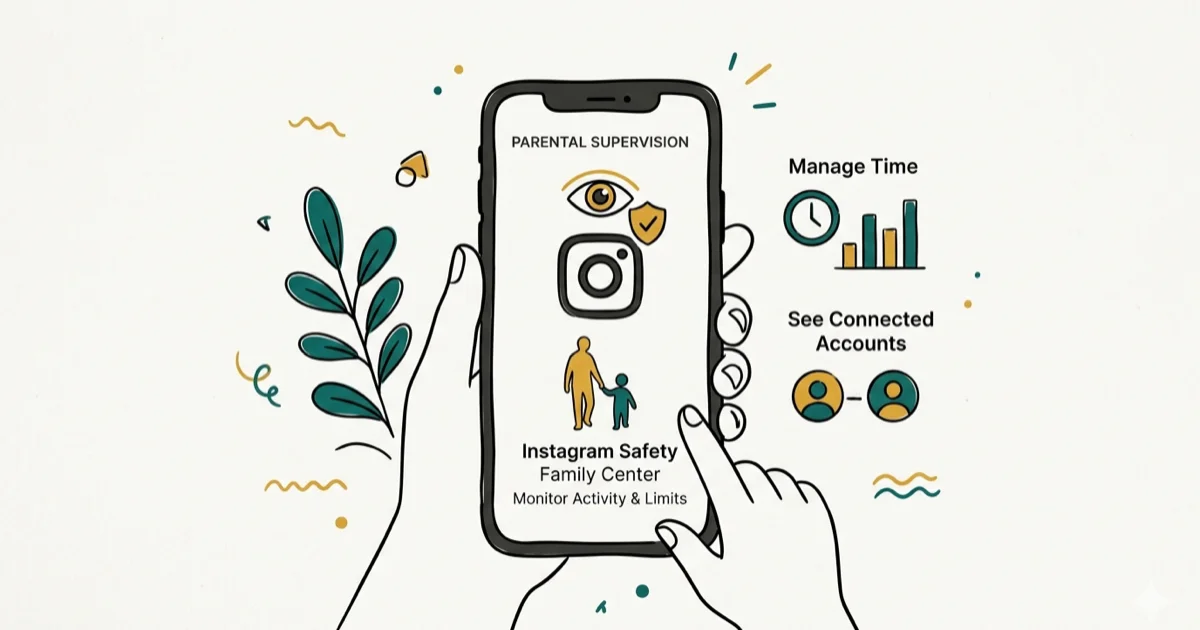
Quick AnswerHave your teen open Instagram, go to Settings and privacy then Supervision, and send you a Family Center invitation. After they accept, you can see follower lists, set time limits, and review their privacy settings together. Pair Family Center with a private account, follower-only comments, and Sensitive Content Control set to Less.
Instagram Family Center is the only sanctioned way to supervise a teen’s account, and it needs your teen’s consent. The setup works through Instagram’s Supervision flow on the teen’s account and the parent’s own Instagram account.
- Family Center linking only works after the teen accepts your invitation; there is no covert setup path
- A private account blocks strangers from seeing posts and from sending direct message requests
- Hidden Words filters offensive comments before your teen ever sees the notification
- Sensitive Content Control set to Less reduces mature posts in Explore, Search, Reels, and suggestions
- Device-level Screen Time or Family Link caps are harder to bypass than Instagram’s in-app daily reminder
#How Does Instagram Family Center Actually Work?
Instagram Family Center, also called Supervision, is Meta’s official tool for parents and guardians of teens aged 13 to 17. It lives at Settings and privacy > Supervision inside the Instagram app. The flow always starts with the teen sending the invitation; you can’t install or activate it without their participation.
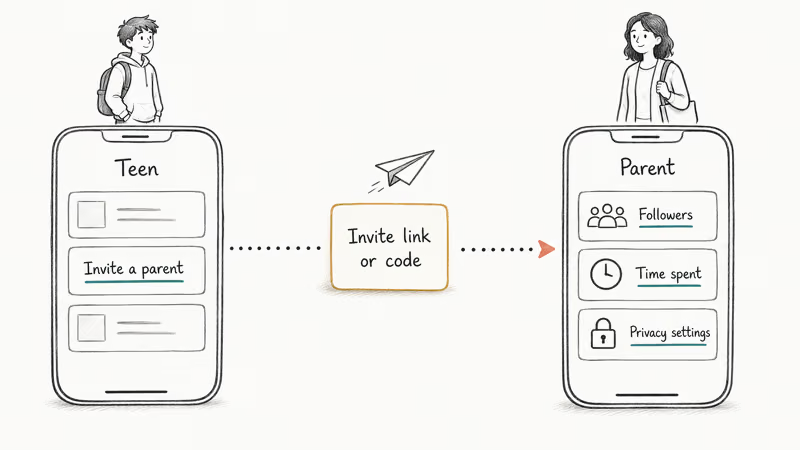
Your teen taps Settings and privacy > Supervision > Invite a parent or guardian. Instagram generates a link or code they share with you. You open the link on your own Instagram account, accept, and the two accounts are linked. According to Instagram’s Family Center help page, parents can then see who follows their teen, who their teen follows, daily time spent, and the privacy settings on the teen’s account.
Family Center is a settings dashboard, not a surveillance tool. You won’t see DMs, Explore activity, or a live feed.
Once linked, the dashboard shows supervision details from the teen’s account and updates as Instagram syncs account settings.
#Why Consent and the Law Matter Here
Family Center requires the teen’s consent because of how Meta built the product, but also because of US law. The Children’s Online Privacy Protection Act (COPPA) restricts data collection from users under 13, and Instagram bans accounts under that age outright. For teens 13 to 17, Instagram’s Teen Accounts policy explains that supervision must be opt-in by the teen, not imposed silently.
Skipping consent puts you in a worse spot than not setting up controls at all. If your teen feels surveilled without warning, they often create a second hidden account, called a finsta, where none of your settings reach. A 2024 Pew Research study on teens and social media found that roughly half of teens 13 to 17 are on Instagram every day, and the secondary-account workaround is common.
Make the setup a joint conversation. Explain what Family Center shows you, what it doesn’t show, and why you want to use it.
#Setting the Account to Private
A private account is the single most useful change you and your teen can make. With it on, only approved followers see posts, Stories, and Reels. Strangers can’t send direct message requests, and Reels don’t surface in Explore for non-followers.
Open Instagram on your teen’s phone, tap their profile, then the three-line menu, then Settings and privacy > Account privacy. Toggle Private account on. Existing followers stay; new requests must be approved one by one.
Walk through the existing follower list together. Look for accounts with no profile photo, almost no posts, or zero mutual connections. Those are usually spam or fake. A short follower review once a month catches most of the obvious problem accounts before they cause trouble.
#Configuring Comment and Message Filters
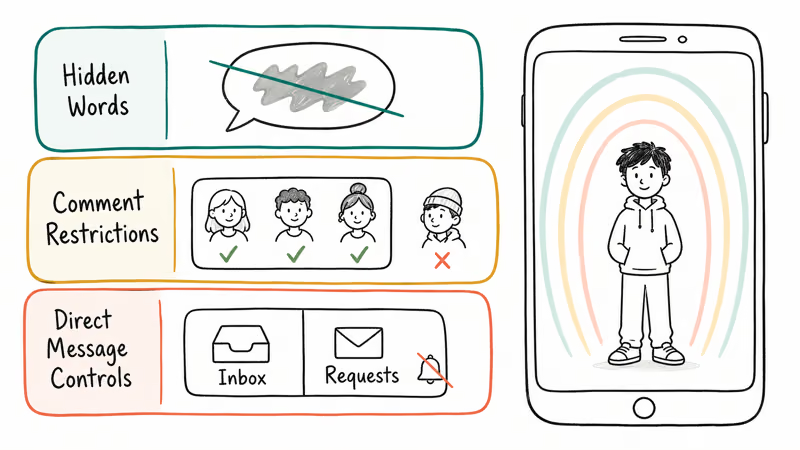
Comments and direct messages are where most cyberbullying and unwanted contact happens. Instagram has three layers of filters that work together.
#Hidden Words
Open Settings and privacy > Hidden Words. Toggle on Hide comments and Hide message requests. Instagram applies its built-in offensive-language filter automatically. It’s not perfect, but it can reduce clearly hostile comments before your teen sees them.
Add a custom word list. Focus on slurs, threats, and phrases tied to your teen’s specific situation.
#Comment Restrictions
Open Settings and privacy > Comments. Choose who can comment on your teen’s posts. Your followers and People you follow are the safest options for teens. This blocks strangers from leaving public comments even if they somehow find a private profile through a shared post.
#Direct Message Controls
Open Settings and privacy > Messages and Story replies. Set message requests from people your teen doesn’t follow to go to a separate folder that doesn’t trigger a notification. For younger teens, restrict direct messages to people they follow only.
Instagram’s safer messaging documentation confirms that for teens under 16, adults they don’t follow can’t DM them.
#What Is Sensitive Content Control?
Sensitive Content Control adjusts how much potentially mature content appears in Explore, Search, Reels, and suggested accounts. It doesn’t affect posts from accounts your teen already follows, and it doesn’t block content that already passes Community Guidelines.
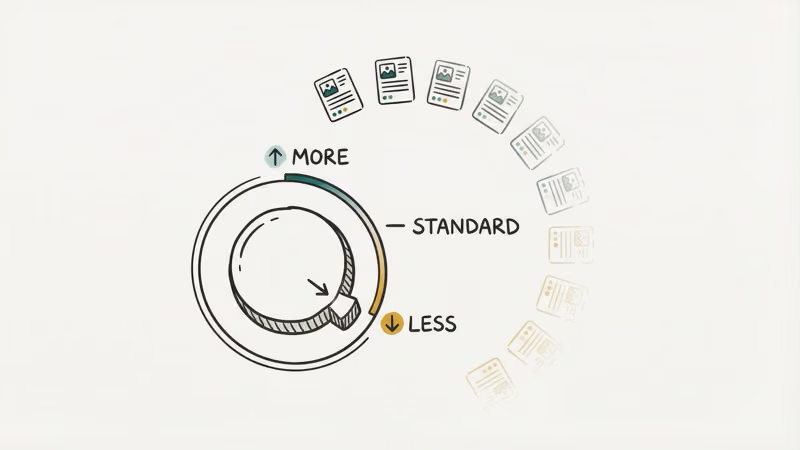
Open Settings and privacy > Content Preferences > Sensitive Content Control. Pick Less. According to Instagram’s Sensitive Content Control page, this reduces visibility of posts that may be sexually suggestive, contain graphic violence, or sit close to other community-standards lines without crossing them.
Some borderline posts can still make it through. Treat this as a sensitivity dial, not an absolute filter, and keep talking with your teen about what they’re still seeing so you can layer Hidden Words or follower changes on top when something specific keeps surfacing.
#Adding Device-Level Time Limits
Instagram has its own daily reminder, but a teen can dismiss it and keep scrolling. Device-level limits are harder to override.
On iPhone, open Settings > Screen Time > App Limits. Tap Add Limit, find Instagram under Social Networking, and pick a daily cap. When time is up, Instagram locks until the next day or until you enter your Screen Time passcode.
On Android, use Google Family Link at Controls > App Limits to set a per-app cap your teen can’t disable on a supervised device. Our Android screen time guide explains how Digital Wellbeing and Family Link sit side by side.
Our recommendation: 30 to 60 minutes a day for teens new to Instagram, with room to negotiate up or down based on age and how the platform is affecting them. If your teen also uses TikTok, set a separate cap there using our TikTok parental controls walkthrough; kids tend to migrate scrolling time to whichever app isn’t capped, so caps need to cover both.
#Responding to Problems on Instagram
Cyberbullying, inappropriate adult contact, and disturbing content are the three most common issues parents see. Each one has a different response.
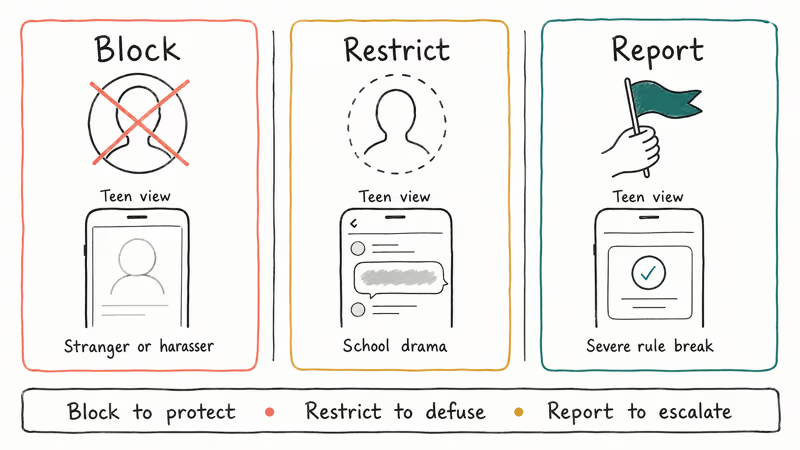
For repeated harassment, block the account from your teen’s profile. Tap the three-dot menu on the account, then Block. The blocked person can’t see anything from your teen, and your teen no longer sees their content either.
For severe behavior, tap the three-dot menu on the offending post or comment and choose Report. Instagram reviews reports against Community Guidelines and removes content that violates them.
For lower-stakes friction, the Restrict feature is gentler. The restricted person’s comments are visible only to them unless your teen approves, their direct messages route to a filtered inbox, and they get no notification. Restrict is useful for school drama where a full block would escalate the situation.
If an adult contacted your minor teen sexually or asked for intimate content, that’s a US crime. Screenshot, report the account, call local police. The CyberTipline takes online-exploitation reports.
Talk to your teen before you escalate. Ask what happened and how they feel. Frame the response as protection, not punishment; teens who think they’ll lose their phone for reporting trouble often hide the next incident instead of telling you. For TikTok-specific harassment, the reporting flow is similar but lives in a different menu.
#Bottom Line
Set up Family Center together, switch the account to private, restrict comments to followers, turn on Hidden Words, set Sensitive Content Control to Less, and add a 30 to 60 minute Screen Time or Family Link cap. If your teen also uses TikTok, mirror the time cap there so scrolling doesn’t just shift sideways.
Instagram Tips & Tricks
#Frequently Asked Questions
What age should my child be to use Instagram?
Instagram requires a minimum age of 13. Many child-development specialists suggest 15 or 16. If you allow earlier use, configure Family Center, a private account, filters, and a time cap first.
Can I see my teen’s Instagram direct messages through Family Center?
No. Family Center doesn’t expose direct message content. Meta designed the product that way intentionally, and the limit is documented on the Family Center help page. If you have a specific safety concern, talk with your teen and review the relevant conversation together on their phone rather than reaching for a third-party tool.
Will my teen know I am using Family Center?
Yes. Your teen sends the invitation, and the linked status stays visible in Settings and privacy on their account. There is no hidden mode.
Can my teen disconnect Family Center without me knowing?
No. Disconnecting Family Center sends you an immediate notification. Instagram also limits some account features for a short period after the teen disconnects to discourage doing it without a conversation.
Does making the account private affect Reels?
A private account can still create Reels, but only approved followers see them. The Reels don’t appear in the public Explore feed, don’t get suggested to non-followers, and don’t show up in remix collections from strangers. It’s one of the highest-impact toggles for reducing exposure.
Are third-party Instagram parental tracker apps safe to use?
Third-party tracker apps aren’t recommended. Two camps exist: legitimate ones like Bark scan with the teen’s knowledge, the rest are stalkerware that violates Meta’s terms and, in many US states, wiretap laws.
How do I block Instagram entirely on my child’s phone?
On iPhone, open Settings > Screen Time > Content and Privacy Restrictions > Allowed Apps, then toggle Instagram off, or restrict all 12-plus apps if you want a wider net. On Android, block Instagram through Family Link at Controls > App Limits, set the daily cap to zero. Our guide on blocking inappropriate websites on phones covers broader content-restriction approaches.
What is the difference between blocking and restricting someone?
Blocking hides your teen’s profile from that person completely and removes the account from their feed. Restricting is subtler: comments from the restricted person are visible only to them by default, their direct messages go to a filtered folder, and they don’t get notified. Use Restrict for school drama where you want to defuse a situation; use Block for harassment, strangers, and anyone posing a real safety concern.
Instagram Notifications Not Working? Quick Fixes (2026)
Instagram notifications not working? Fix push alerts, DMs, likes, and Stories on iPhone and Android in under 5 minutes with proven 2026 steps.
Instagram "We Limit How Often" Error: How to Fix It 2026
Instagram says "we limit how often you can do certain things"? Wait 24-48 hours, slow down likes and follows, then appeal through Help Center.
Instagram Name Checker: Find Available Usernames Fast
Check Instagram username availability instantly with free tools like Namechk and KnowEm. Find perfect handles and avoid the frustration of taken names.
Instagram Music Not Working: 10 Proven Fixes (2026)
Instagram Music not working? Fix the missing music sticker, blank library, and Reels audio with 10 proven steps for personal, business, and pro accounts.