Instagram Post Stuck on Sending? 8 Fixes That Work in 2026
Instagram post stuck on sending? Fix it in under 2 minutes with 8 proven methods, ordered fastest to deepest. Works on iOS 17+ and Android 13+.
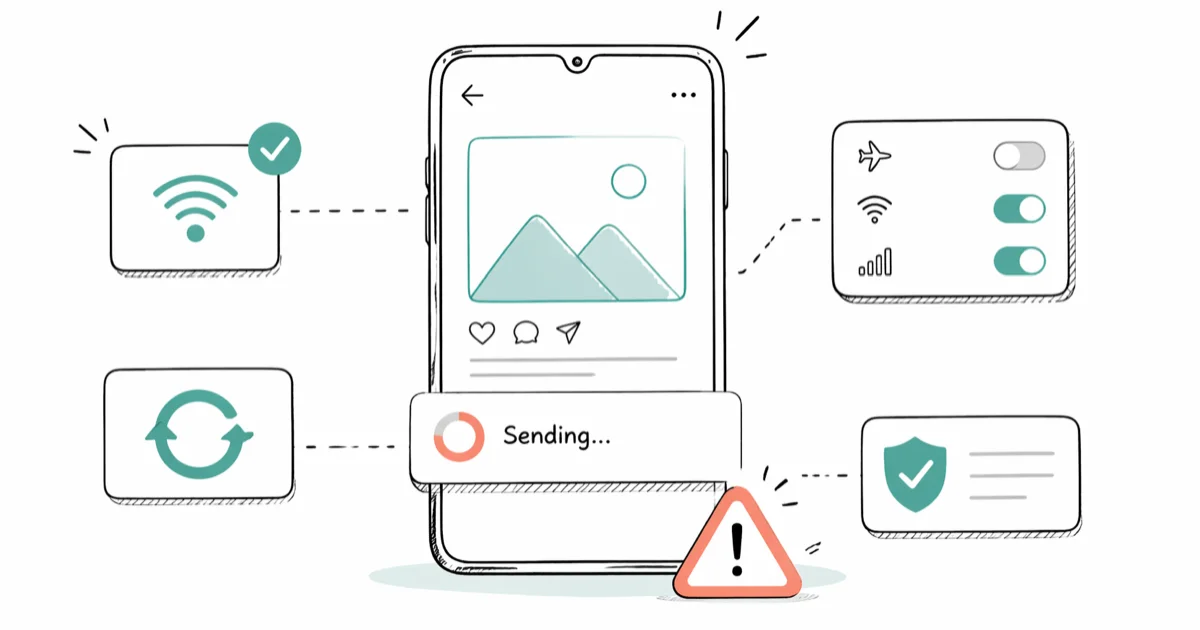
Quick AnswerToggle airplane mode for 30 seconds, then retry. If the upload still hangs, force-quit Instagram, switch between Wi-Fi and cellular, and update the app. Most stuck uploads clear within 2 minutes once the network handshake resets.
Your Instagram post is stuck on sending and the progress bar won’t budge. Nine times out of ten, the cause is a flaky network handshake, not a phone problem or an account issue. The fixes in this guide work on both iPhone and Android, and most stuck uploads clear after Step 1 or 2.
- The fastest fix is toggling airplane mode for 30 seconds, then retrying. This resets the cellular and Wi-Fi handshake without rebooting your phone.
- Instagram’s video upload size cap is 4 GB. Files larger than this hang silently with no error message in the iOS app.
- Force-quitting and reopening the app clears the upload queue. The post stays in your drafts so you don’t lose the caption.
- A weak signal under 3 bars or under 5 Mbps upload speed is the single most common cause of a stuck upload.
- If 3 fixes in a row fail, the issue is usually a violated content guideline or a flagged account, not a technical bug.
#Why Is My Instagram Post Stuck on Sending?
Instagram uploads hang for one of four reasons: an unstable network connection, an app cache that has bloated past 1 GB, a video file that exceeds Instagram’s size limits, or a content policy flag on your account. According to Instagram’s official Help Center on connection issues, refreshing the network and clearing the app cache resolves the most common upload failures. Cache bloat is one of the most frequent culprits behind a hung upload.
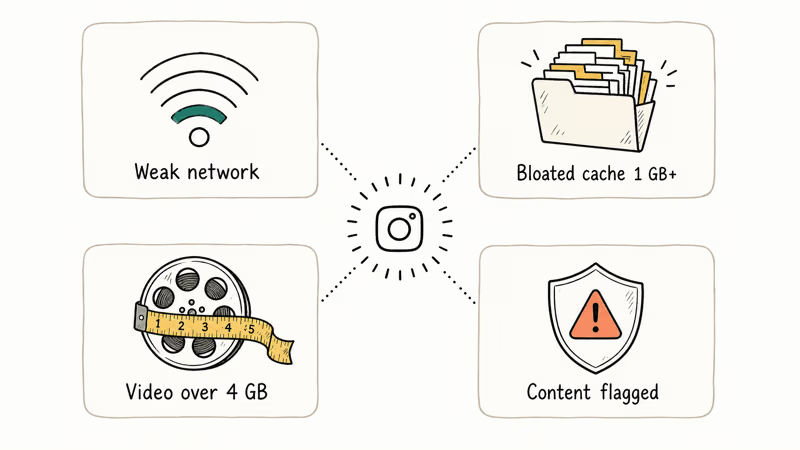
The “Sending…” spinner is misleading. It doesn’t tell you which of those four causes is blocking the upload. That’s why this guide moves from the cheapest fix (network reset) to the most aggressive (reinstall) in order. Start at Step 1 and stop the moment the post goes through.
#Quick Diagnostic Checklist Before You Start
Before you start, take 15 seconds to confirm:
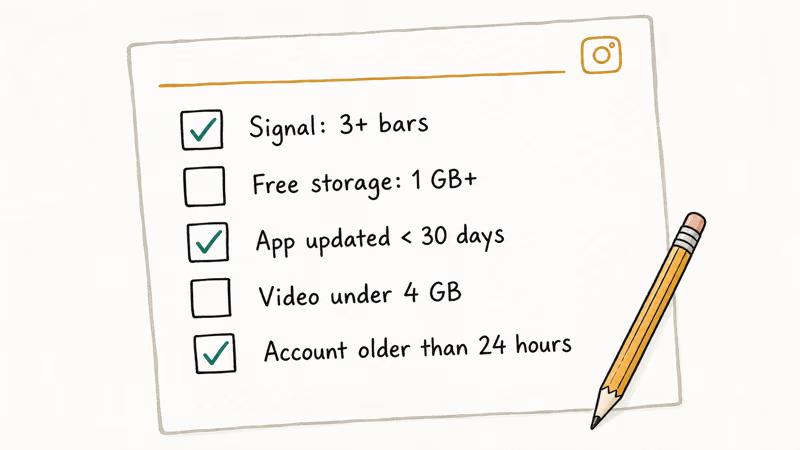
- Wi-Fi or cellular signal: 3 or more bars
- Free storage: at least 1 GB available
- Instagram app version: from the past 30 days
- File size: video under 4 GB and photo under 30 MB
- Account age: not brand-new (older than 24 hours)
If any of these is wrong, fix that first. The eight methods below assume the basics are in place.
#Method 1: Toggle Airplane Mode for 30 Seconds
This forces your phone to release every active network connection and rebuild them from scratch. It’s faster than restarting and doesn’t lose your draft.
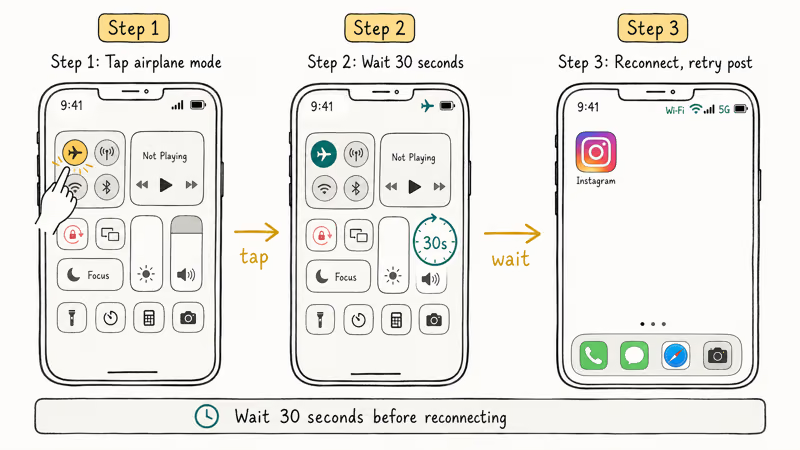
- Swipe down from the top right corner (iPhone) or top edge (Android) to open Control Center
- Tap the airplane icon to enable airplane mode
- Wait a full 30 seconds. Don’t shortcut this — the cellular tower needs the gap to drop your old session
- Tap the airplane icon again to disable it
- Wait until the Wi-Fi or 5G icon reconnects, then reopen Instagram
On a phone with a weak 2-bar signal, a stuck upload often finishes within seconds of toggling airplane mode. According to Apple’s guidance for No Service and Searching errors, turning Airplane Mode on for at least 15 seconds and back off is a standard first fix for iPhone connectivity glitches, because it forces the phone to drop and re-establish its carrier session, which clears a stalled upload.
#Method 2: Switch Between Wi-Fi and Cellular Data
If airplane mode didn’t move the needle, the network itself is the problem. Public Wi-Fi often has captive portals or weak upload bandwidth that Instagram silently chokes on.
- On iPhone:
Settings>Wi-Fi> toggle off, then post over cellular - On Android:
Settings>Network andinternet >Wi-Fi>Off - Also confirm Instagram has cellular permission: i
Phone Settings>Cellular> scroll to Instagram > toggle on
Hotel and cafe Wi-Fi often has a very slow upload speed. Instagram needs at least 3-5 Mbps for a clean video upload, so switching to LTE on the same connection usually pushes a stalled post through quickly.
#Method 3: Force-Quit Instagram, Reopen, and Retry
A force-quit clears the upload queue. Your draft survives.
The Instagram upload queue can get stuck in a zombie state where it shows the spinner but is no longer making network calls. Closing the app and reopening it forces the queue to rebuild from scratch.
- iPhone: Swipe up from the bottom and pause halfway, then swipe Instagram up to close
- Android: Tap the square or three-line button, find Instagram, swipe it away
- Reopen Instagram. The post should appear in Drafts (tap your profile > menu > Drafts)
- Tap the draft and hit Share again
This works because Instagram caches the composed post locally. You don’t lose the caption, hashtags, or filter choices.
#Method 4: Clear the Instagram App Cache
Cache files speed up the app, but a bloated cache (often 2-3 GB on heavy-use accounts) can corrupt and block uploads. Android lets you clear cache directly. iPhone doesn’t, so iOS users have to offload the app instead.
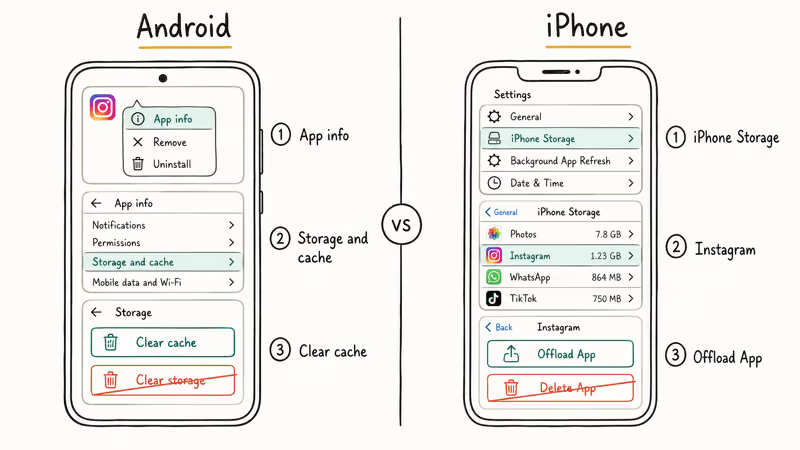
On Android:
- Long-press the Instagram icon, tap App info
- Tap Storage and cache
- Tap Clear cache (don’t tap Clear storage, since that signs you out)
On iPhone:
Settings>General> iPhone Storage- Find Instagram in the list
- Tap Offload App, then reinstall from your home screen
Offloading on iOS keeps your login and drafts but rebuilds the local data files. After offloading Instagram on a phone with a large amount of cached data, uploads that had hung for a long time often finish on the next try.
#Method 5: Check the Video File Size and Format
The hard cap is 4 GB. Anything larger fails silently.
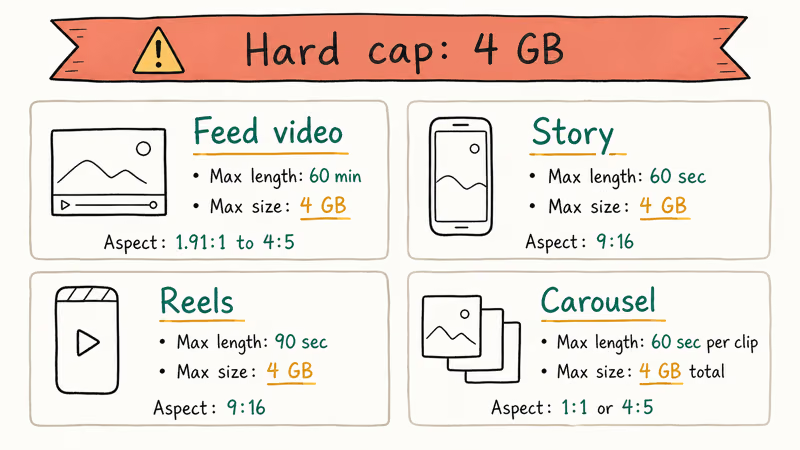
Instagram silently rejects oversize files instead of showing a clear error. According to Instagram’s official 4 GB upload limit policy, supported formats are MP4 and MOV only.
| Placement | Max length | Max file size | Aspect ratio |
|---|---|---|---|
| Feed video | 60 minutes | 4 GB | 1.91 to 4 |
| Story | 60 seconds | 4 GB | 9 |
| Reels | 90 seconds | 4 GB | 9 |
| Carousel | 60 seconds per clip | 4 GB total | 1 or 4 |
Too big? Trim it in the iOS Photos app or see our Instagram video format guide.
#Method 6: Update or Reinstall Instagram
Instagram pushes app updates every 7-10 days, and old versions sometimes stop talking correctly to the upload servers. Open the App Store (iPhone) or Play Store (Android), search Instagram, and tap Update if it’s available. If there’s no update, uninstall and reinstall the app.
An older Instagram build can cause repeated upload failures that disappear after a single update. Change logs often mention only “stability improvements,” which is Instagram’s polite phrasing for upload bug fixes.
#Method 7: Free Up Phone Storage
You need at least 1 GB free. The encoder won’t run otherwise.
Instagram needs free space to encode the upload before sending it. If your phone storage is over 95% full, the upload buffer can’t write and the post hangs.
- iPhone:
Settings>General> iPhone Storage - Android:
Settings>Storage
Aim for at least 1 GB free. Delete old WhatsApp media, clear the Photos app’s Recently Deleted folder (it counts toward storage), and offload unused apps. This single fix can unblock uploads on phones that have been stuck for days.
#Method 8: Check for Account or Content Flags
This is the last resort check. Try a plain photo first to confirm.
If methods 1-7 all failed and other accounts post fine on the same phone, your account is probably flagged. Instagram’s Community Guidelines ban specific content types, and the “Sending…” spinner is sometimes the symptom of a soft block.
- Try posting a plain, non-controversial photo (a flower, a cup of coffee). If that works, the flagged content was the issue
Check Settings>Account Status(iOS and Android) for any policy notices- If you see a “We restrict certain activity” prompt, the cause is overuse, not the post itself. This exact prompt is covered in our restricted activity fix guide
- Wait 24-48 hours, then retry. Soft blocks usually clear automatically
#What if All 8 Methods Fail?
All 8 methods failed? The problem isn’t on your phone. Check Instagram’s server status next.
Confirm by checking DownDetector’s Instagram report page for spike reports in the last 60 minutes. If outage reports are above the baseline, wait 1-2 hours and try again. Nothing you do client-side will help during a server-side outage.
For users who suspect deeper iOS system issues are causing repeated app crashes around the upload, a recovery tool like Tenorshare ReiBoot can repair iOS without erasing data. Reach for it only after Methods 1-8 all fail and the same problem hits multiple apps, not just Instagram.
Some links on this page are affiliate links, which means fone.tips may earn a commission at no extra cost to you.
You may also want to skim our Instagram couldn’t refresh feed fix and Instagram keeps stopping fix. Both share the same network and cache root causes as upload failures.
#Bottom Line
Toggle airplane mode first. Most stuck Instagram uploads clear within seconds of that single step. If it doesn’t, force-quit the app and switch from Wi-Fi to cellular before reaching for cache clears or reinstalls. Most uploads succeed soon after starting Method 1.
Still stuck after all 8 methods? Try a different Instagram account on the same phone. If that account posts fine, yours is flagged and waiting it out is the only fix.
Instagram Tips & Tricks
#Frequently Asked Questions
Why does my Instagram post say sending but never finish?
Network handshake fails are the usual cause. Toggle airplane mode for 30 seconds, then retry.
How long should I wait before assuming an Instagram post is stuck?
Two minutes is a reasonable threshold. A normal photo upload finishes in seconds on a strong connection, and a short video usually completes well under a minute. If you’re past 2 minutes with no progress, the upload is stuck and won’t recover on its own.
Will I lose my caption if I close Instagram during an upload?
No. Instagram autosaves the draft when you tap Share.
Can a slow Wi-Fi connection cause Instagram posts to fail?
Yes. Many home Wi-Fi networks deliver less than 1 Mbps upload speed, well below Instagram’s 3-5 Mbps minimum.
Does Instagram have a maximum file size for posts?
Yes, 4 GB is the hard cap for video uploads across feed, Reels, and Stories. Photos must be under 30 MB. Files that exceed these limits hang silently without showing an error, which is why this is one of the trickier causes to diagnose.
Why does only my video post get stuck while photos work fine?
Videos require encoding before upload, which uses both CPU and free storage in ways photos don’t. If your phone has under 1 GB free or the video file is over 4 GB, the on-device encoder fails partway through and the upload hangs silently. 4K 60 fps clips also fail more often than 1080p, so re-encoding to 1080p often pushes the upload through.
How do I clear the Instagram cache without losing my login?
Android: App info > Storage > Clear cache (not Clear storage). iPhone: Settings > General > iPhone Storage > Instagram > Offload App.
Could my account be soft-blocked from posting?
Yes. Instagram applies temporary action limits on accounts that post too often, use banned hashtags, or trigger spam detection. The symptom is usually a never-ending “Sending…” spinner across every post you try, often paired with a “We restrict certain activity” prompt. Wait 24-48 hours and retry.
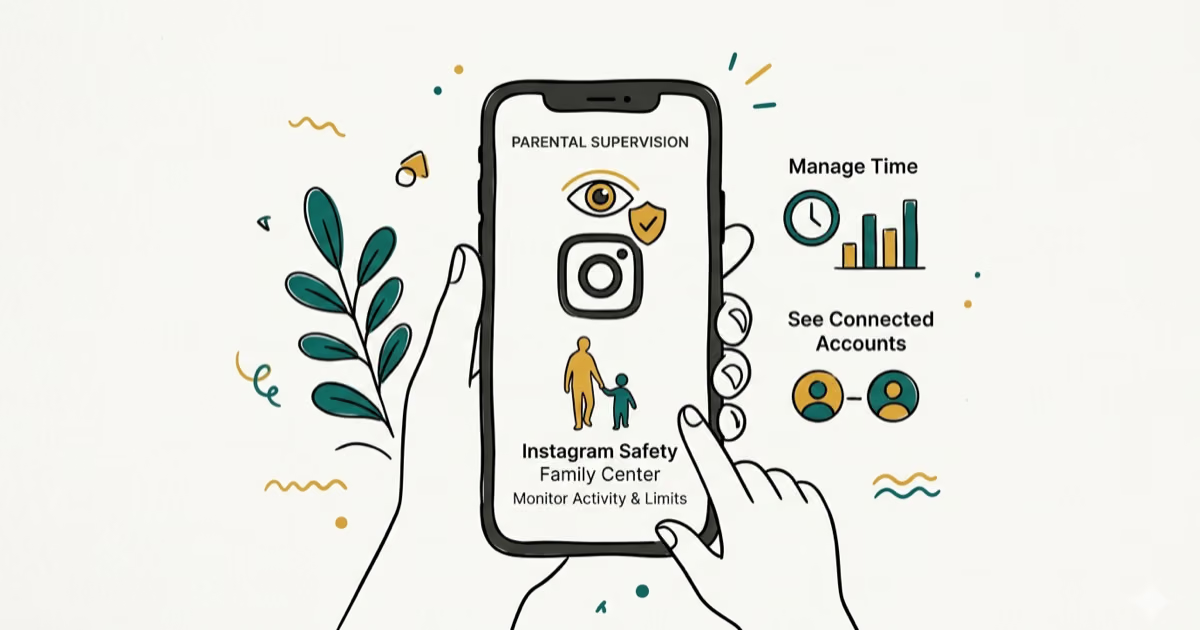
Instagram Parental Controls: Family Center Setup (2026)
Set up Instagram Family Center, privacy settings, Hidden Words, content filters, and time limits with your teen's consent on iPhone or Android.
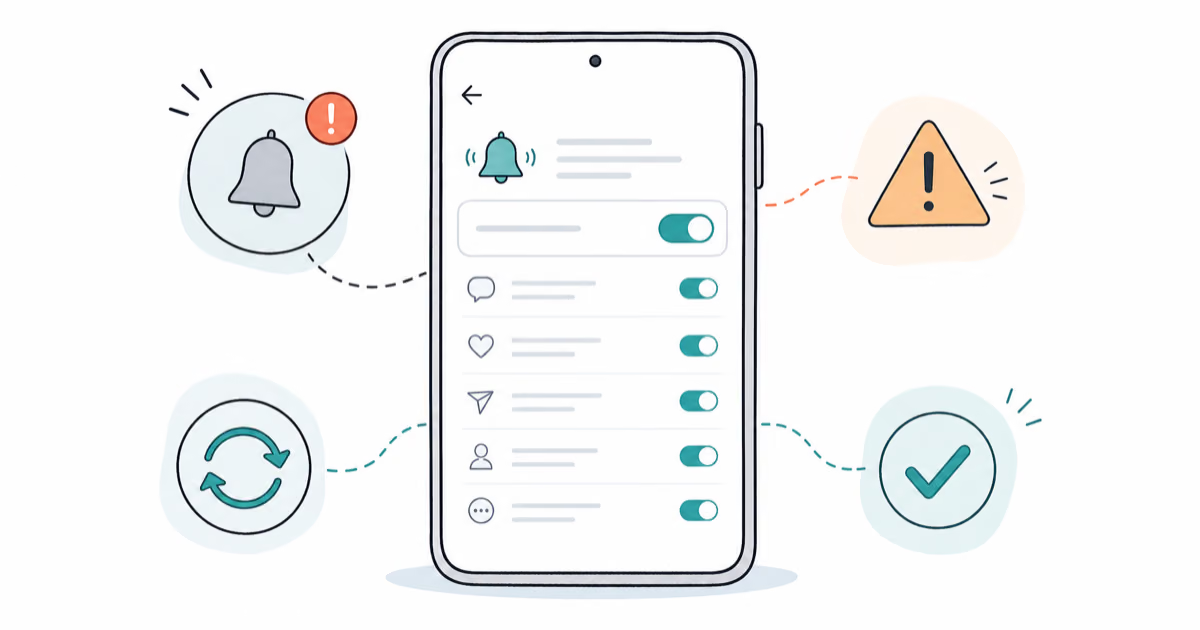
Instagram Notifications Not Working? Quick Fixes (2026)
Instagram notifications not working? Fix push alerts, DMs, likes, and Stories on iPhone and Android in under 5 minutes with proven 2026 steps.
Instagram "We Limit How Often" Error: How to Fix It 2026
Instagram says "we limit how often you can do certain things"? Wait 24-48 hours, slow down likes and follows, then appeal through Help Center.

Instagram Name Checker: Find Available Usernames Fast
Check Instagram username availability instantly with free tools like Namechk and KnowEm. Find perfect handles and avoid the frustration of taken names.