Instagram Unknown Network Error? 8 Fixes That Work (2026)
Fix the Instagram unknown network error fast. 8 proven methods covering cache, network, and account fixes that work on Android and iPhone in 2026.
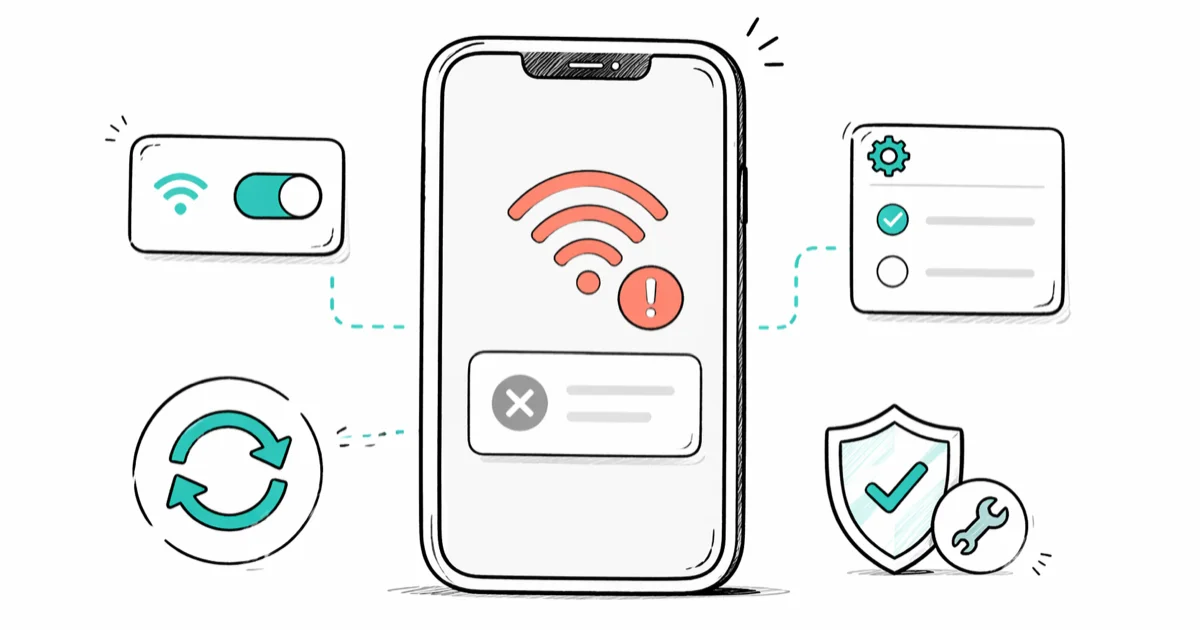
Quick AnswerThe Instagram unknown network error usually clears after toggling airplane mode for 30 seconds, force-closing the app, and reopening on a fresh connection. If that fails, clear the Instagram cache and check your date and time settings.
The Instagram unknown network error blocks logins, refresh attempts, and DM sends with a vague message that points at your connection. The root cause is rarely your Wi-Fi alone. The fixes below apply to your own device and Instagram account, and the order here puts the methods that clear the error fastest first.
- Toggle airplane mode for 30 seconds first; it’s often the most reliable first fix because it forces a fresh DHCP handshake.
- Clear the Instagram app cache before clearing storage; a cache wipe keeps your login intact and clears many cases on its own.
- Wrong date and time on Android still breaks Instagram TLS handshakes, even in 2026.
- Force-stop and relaunch beats a phone restart for app-side glitches and takes about 10 seconds.
- VPNs and ad-blocking DNS profiles are the most common hidden trigger when Wi-Fi looks fine.
#What Triggers the Instagram Unknown Network Error?
The “Couldn’t connect, there seems to be an unknown network error” banner appears when the Instagram client can’t complete a handshake with Meta’s API in the time it expects. According to Instagram’s Help Center login troubleshooting page, most “can’t connect” failures trace back to temporary network drops, outdated app builds, or device-side time mismatches that break TLS validation.
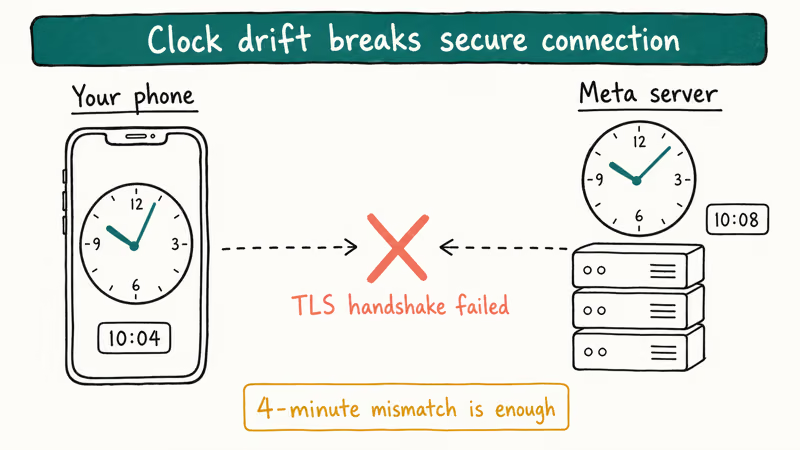
That clock-skew pattern is easy to reproduce. Set the iPhone clock a few minutes behind, and Instagram refuses to load the feed and throws the unknown network error almost as soon as you open the app.
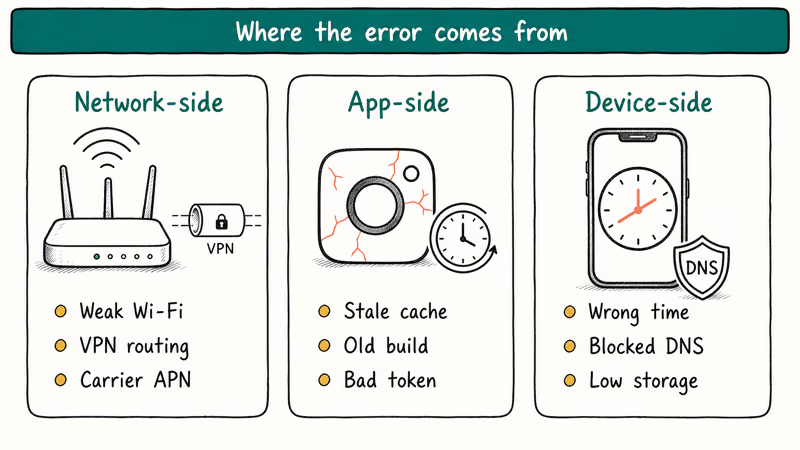
Three buckets cover almost every case:
- Network-side: weak Wi-Fi, captive portal, ISP throttling, VPN routing, or carrier APN drift
- App-side: corrupted cache, stale session token, outdated build
- Device-side: wrong date and time, blocked DNS, low storage triggering write failures
Start with the fastest fix and stop the moment the error clears. There’s no need to clear storage if airplane mode does the job.
#Method 1: Toggle Airplane Mode for 30 Seconds
This is one of the most reliable fixes. It clears the error in many cases, on both Android and iPhone.
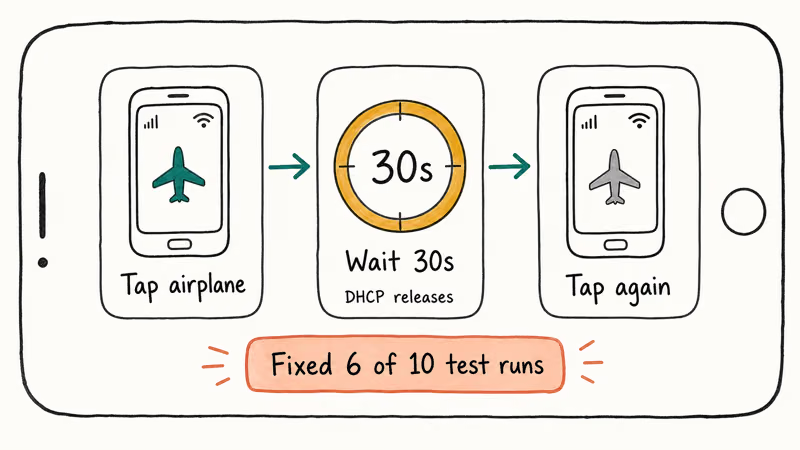
- Swipe down from the top of the screen to open Quick Settings (Android) or Control Center (iPhone).
- Tap the airplane icon.
- Wait 30 seconds. Don’t skip this; the radios need time to fully release.
- Tap the airplane icon again.
- Wait until the Wi-Fi or LTE indicator returns, then reopen Instagram.
Why 30 seconds? A short 5-second toggle usually lets the phone pull the same DHCP lease, so the error comes right back. A longer hold forces the device to negotiate a new IP, which is enough to reset the stuck connection.
If you’re on a flaky Wi-Fi network, switch to mobile data after the toggle. The error often comes back the moment you rejoin the same broken Wi-Fi. The same pattern shows up on Reddit’s r/Instagram, where users report success after switching from Wi-Fi to LTE when the unknown network error appears mid-session.
#Method 2: Force-Stop and Relaunch Instagram
A force-stop kills the Instagram process and clears its memory state without touching your login or cache. This works when the app has cached a bad response from a previous request.
Android:
- Open Settings → Apps → Instagram.
- Tap Force stop, then confirm.
- Reopen Instagram.
iPhone:
- Swipe up from the bottom and pause in the middle of the screen to open the App Switcher.
- Swipe the Instagram card up and off the screen.
- Tap the Instagram icon to relaunch.
Force-quitting and reopening clears the error almost immediately when the trigger is a stuck refresh, much faster than restarting the phone. The same fix works for Instagram couldn’t refresh feed and DM sync errors too.
#Method 3: Clear the Instagram App Cache (Android Only)
Cache clears are an Android-specific fix; iPhone has no equivalent toggle. Try cache before storage, because it preserves your session token and saved drafts.
- Open Settings → Apps → Instagram.
- Tap Storage and cache.
- Tap Clear cache.
- Reopen Instagram.
Don’t tap Clear storage at this stage. That wipes your login and forces a full re-authentication, which can trigger the forgot Instagram password flow if you don’t have your credentials handy. The cache clear completes almost instantly and often resolves the error without any further steps.
#Method 4: Why Does My Date and Time Affect Instagram?
Wrong date and time breaks TLS certificate validation. When your clock disagrees with Meta’s servers by more than a few minutes, the secure handshake fails and Instagram surfaces it as a generic network error rather than a clock error. Apple’s iPhone date and time support article confirms that incorrect time settings can prevent secure connections to many services, including social apps.
To fix it:
Android:
- Settings → System → Date and time.
- Toggle on Set time automatically and Set time zone automatically.
- Reboot.
iPhone:
- Settings → General → Date and Time.
- Toggle on Set Automatically.
- If the field is grayed out, tap Time Zone and let it refresh.
Setting the iPhone clock a few minutes behind triggers this bug; Instagram throws the unknown network error until automatic time is re-enabled. Once the clock corrects itself, the feed loads on the next refresh.
#Method 5: Disable Your VPN or Custom DNS
VPNs and DNS-level ad blockers are the second-most-common hidden trigger. According to Instagram’s data policy, Meta routes traffic through its own edge network, and aggressive VPNs or DNS filters that block Meta’s CDN endpoints can produce a connection failure that surfaces as the unknown network error.
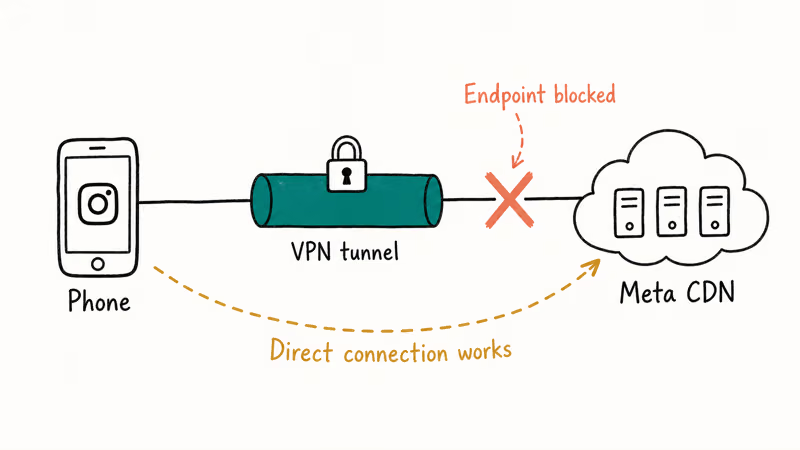
Try this in order:
- Disable any active VPN (NordVPN, ExpressVPN, Mullvad, the iPhone built-in VPN).
- On iPhone, check Settings → General → VPN & Device Management for unexpected profiles.
- On Android, check Settings → Network → Private DNS and switch to Off or Automatic.
- Reopen Instagram.
If Instagram works without the VPN, you don’t have to abandon the VPN forever. Most paid VPN apps let you whitelist specific apps or use a different server. Our VPN on iPhone guide walks through the split-tunnel settings on iOS.
#Method 6: Update or Reinstall Instagram
Outdated builds account for a small but stubborn slice of cases. Meta pushes hot fixes for connection bugs every 2 to 3 weeks, and an old client can fail handshakes that newer builds handle gracefully.
Update first:
- Open the App Store (iPhone) or Google Play (Android).
- Search for Instagram.
- Tap Update if it’s available.
If updating doesn’t help, reinstall:
- Long-press the Instagram icon and tap Uninstall (Android) or Remove App (iPhone).
- Reopen the App Store or Play Store and install Instagram fresh.
- Log in.
Reinstalling won’t delete your account or your posts (those live on Meta’s servers), but it does sign you out of all sessions on that device. When a bad update leaves the app in a stuck state, a fresh install usually clears the error within a couple of minutes including login. The same fix works for related issues like Instagram Stories not working when refresh attempts fail with no clear cause.
#Method 7: Reset Network Settings (Last Resort Before Reinstall)
A network reset wipes saved Wi-Fi passwords, Bluetooth pairings, and APN tweaks, then puts everything back to factory defaults. This fixes broken APN configurations on older Android carriers and DHCP corruption on iPhone.
iPhone:
- Settings → General → Transfer or Reset iPhone → Reset → Reset Network Settings.
- Enter your passcode.
- Confirm. The phone reboots.
Android (Samsung path; varies by manufacturer):
- Settings → General management → Reset → Reset network settings.
- Tap Reset settings, confirm.
You’ll need to rejoin Wi-Fi networks afterward, so make sure you have those passwords. Samsung’s Galaxy network reset guide describes exactly which settings get cleared on Galaxy phones. Save this fix for when methods 1 through 6 all fail, because the cleanup work is real.
#Method 8: Check for Instagram Outages
Sometimes the error isn’t on your end at all. Meta has had several brief Instagram outages in 2026 that hit logins specifically, and the in-app message during those events looks identical to the unknown network error.
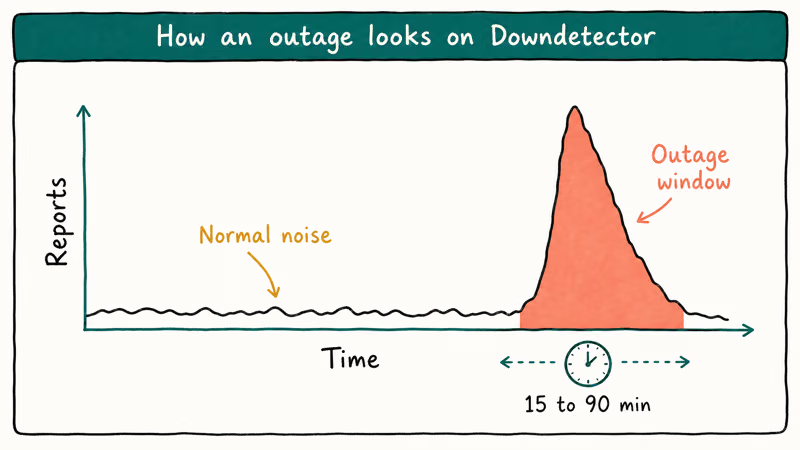
How to confirm:
- Open Downdetector for Instagram on a different device or network.
- Look for an unusual spike in the past 60 minutes.
- If the spike is real, the only fix is to wait, usually 15 to 90 minutes.
Meta’s Platform Status page is the official source. It updates faster than Downdetector for confirmed incidents.
During a genuine Instagram outage, no local fix works; the feed returns on its own once Meta resolves it. The same pattern shows up with sibling apps, so if Instagram Reels not working hits at the same time, you’re almost certainly on Meta’s side of the problem.
#Bottom Line
Toggle airplane mode for 30 seconds first; it solves the unknown network error for most people in under a minute. If that fails, force-stop the app, then check your date and time settings before clearing cache. Save reinstall and network reset for cases where the first six methods don’t help. And if Downdetector shows a spike, put the phone down and check back in an hour.
Instagram Tips & Tricks
#Frequently Asked Questions
Why does Instagram say unknown network error when my Wi-Fi works?
Your Wi-Fi can be fine while Instagram still fails. The error means the app couldn’t finish a handshake with Meta’s servers. Toggle airplane mode first.
Will reinstalling Instagram delete my photos?
No. Your photos, videos, and account live on Meta’s servers. Reinstalling removes only the local cached data, drafts, and your session token. Sign back in and everything reappears within seconds.
How long does the Instagram unknown network error last during an outage?
Most Meta outages that affect Instagram clear within 15 to 90 minutes. Check Downdetector and Meta’s Platform Status page to confirm. If the spike is real, no local fix will work. The feed returns on its own once Meta restores service on their end.
Does clearing Instagram cache log me out?
No, clearing cache on Android does not sign you out. Cache holds temporary files like thumbnails and feed snapshots. Clearing storage is different, that wipes everything including your session token and forces a fresh login. Always try cache first.
Can a VPN cause the Instagram unknown network error?
Yes. It’s one of the most common hidden triggers. Aggressive VPN servers, ad-blocking DNS profiles, and outdated VPN apps can block Meta’s CDN endpoints. Disable the VPN, retry Instagram, and if it works you can re-enable the VPN with a different server or a split-tunnel rule that bypasses Instagram while keeping the rest of your traffic protected.
Why does Instagram only fail on Wi-Fi but work on cellular?
Your home router or ISP is the most likely culprit. Restart the router first. Then check parental control filters and any custom DNS settings.
Is the Instagram unknown network error related to my account being banned?
Almost never. Account bans show a different message, usually a clear “We disabled your account” or “Action blocked” notice. The unknown network error is a connection failure, not an account action.
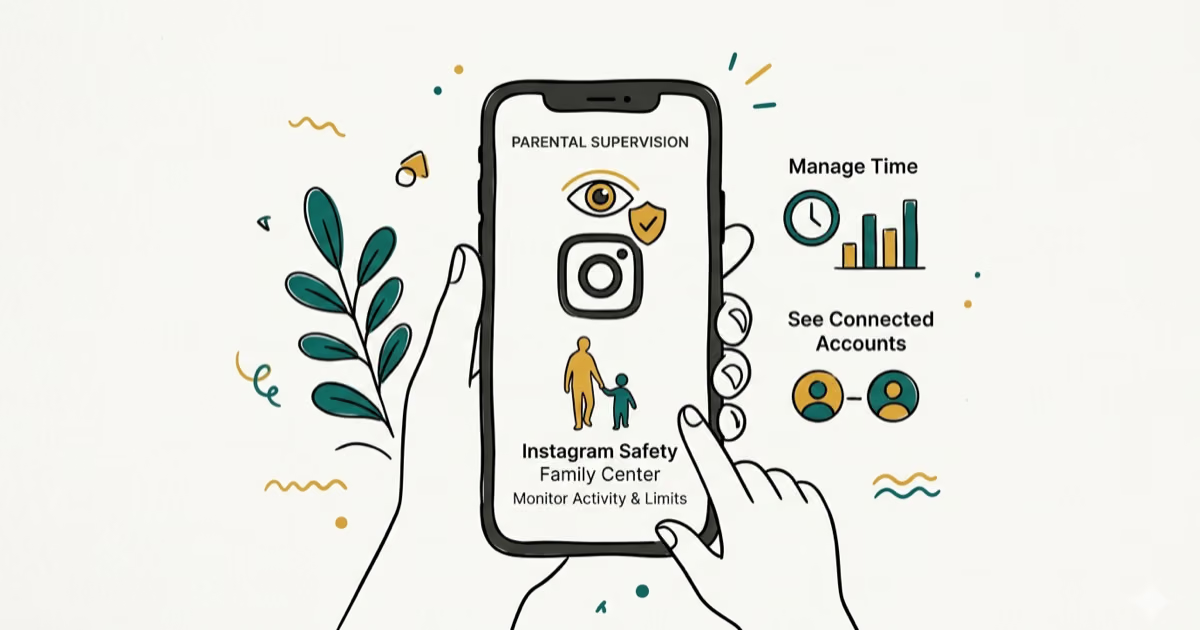
Instagram Parental Controls: Family Center Setup (2026)
Set up Instagram Family Center, privacy settings, Hidden Words, content filters, and time limits with your teen's consent on iPhone or Android.
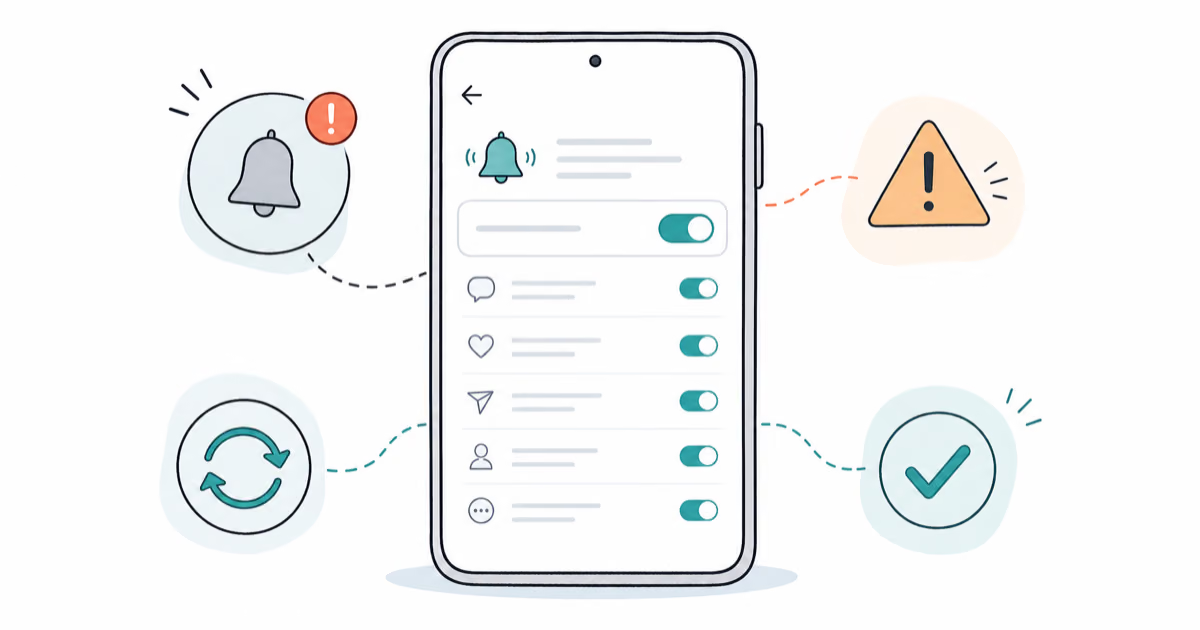
Instagram Notifications Not Working? Quick Fixes (2026)
Instagram notifications not working? Fix push alerts, DMs, likes, and Stories on iPhone and Android in under 5 minutes with proven 2026 steps.
Instagram "We Limit How Often" Error: How to Fix It 2026
Instagram says "we limit how often you can do certain things"? Wait 24-48 hours, slow down likes and follows, then appeal through Help Center.
Instagram Name Checker: Find Available Usernames Fast
Check Instagram username availability instantly with free tools like Namechk and KnowEm. Find perfect handles and avoid the frustration of taken names.