How to Use Windows God Mode: The Hidden Settings Hub
Windows God Mode puts every Control Panel setting in one folder. Here's the exact rename string to create it, what it shows, and what it really does.

Quick AnswerGod Mode is a special Windows folder that lists every Control Panel setting in one searchable place. Create it by making a new folder and renaming it to GodMode followed by a specific code string, then open it to reach hundreds of settings without hunting through menus.
Windows God Mode sounds like a cheat code, and the name oversells it a little. What it really does is collapse every scattered Control Panel setting into one tidy, searchable folder. The known rename string points Windows to that settings hub without adding new settings.
- God Mode is a shell folder that aggregates every Control Panel applet into one searchable list
- Create it by making a new folder and renaming it to GodMode plus a specific code string
- The text before the dot can be anything, but the code after the dot must be exact
- It only surfaces settings you already have, so it grants no hidden powers and is safe to delete
- It works on both Windows 10 and Windows 11, and deleting the folder changes nothing
#What Is Windows God Mode, Really?
The flashy name hides a mundane truth. God Mode is just a shell folder, officially called “All Tasks,” that gathers links to nearly every Control Panel setting in one place.
It isn’t a secret operating-system mode. It doesn’t unlock anything. Think of it as a master index of settings you already had, sorted and searchable.
That framing matters because people expect it to do something dangerous. It can’t. According to Microsoft’s shell folder documentation, these special folders are identified by registered GUIDs that “represent standard folders registered with the system,” and God Mode simply points to one of them.
#Creating the God Mode Folder
Here’s the whole trick. Right-click an empty spot on your desktop, choose New, then Folder.
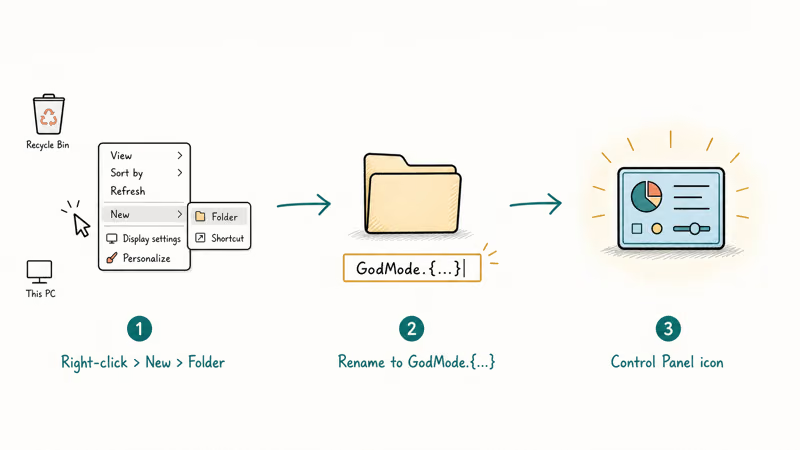
Now rename that folder to exactly this string:
GodMode.{ED7BA470-8E54-465E-825C-99712043E01C}
Press Enter and the magic happens. The name vanishes and the icon flips to a Control Panel icon. The part before the dot is cosmetic, so MySettings would work just as well, but everything after the dot must be character-perfect. Double-click the folder to open your settings hub.
Prefer not to leave a folder on the desktop? Press Windows + R, type shell:::{ED7BA470-8E54-465E-825C-99712043E01C}, and hit Enter to open the same hub once without creating anything.
#What Settings Does God Mode Give You?
Open the folder and you’ll see a long, grouped list. Everything sits under plain category headers like Administrative Tools, Devices and Printers, Power Options, and User Accounts.
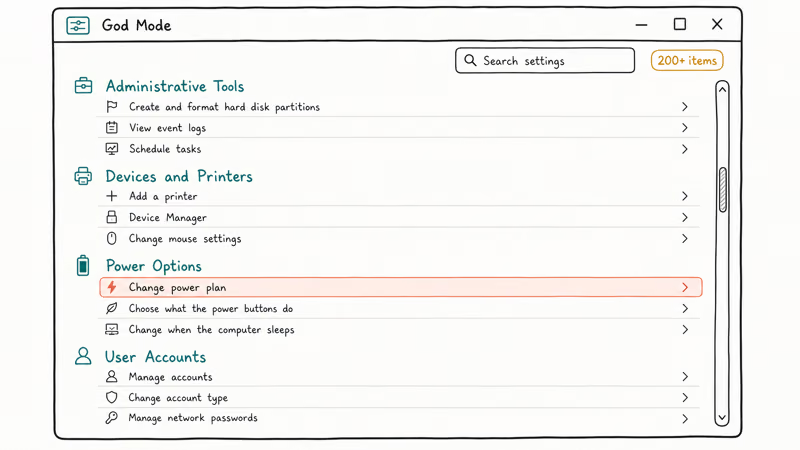
The exact count varies by machine. According to XDA, 1 example PC listed over 200 separate items, though the number depends on your Windows version and hardware. XDA’s God Mode guide notes yours may list more or fewer.
The real win is search. Type a few letters in the folder’s search box and the matching setting surfaces instantly, which beats remembering which Control Panel category buries the toggle you want. It’s a fast way to reach things like startup behavior before you dig into managing startup programs in Windows 11 the long way.
#Why God Mode Is Completely Safe
This is the most common worry, and it’s misplaced.
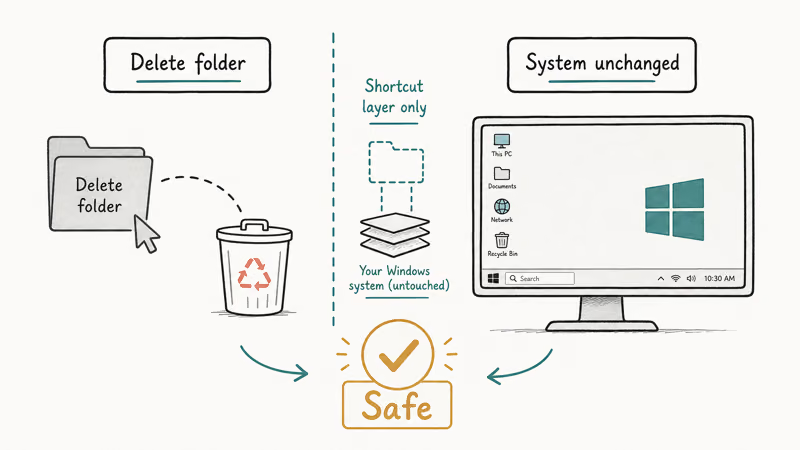
God Mode only displays shortcuts to settings that already exist on your PC. It adds nothing, removes nothing, and grants no elevated access. Every link inside opens the same Control Panel page you could have reached through the normal menus.
Deleting the folder is just as harmless. It’s a view, not a system change, so dragging it to the Recycle Bin removes the shortcut and leaves Windows exactly as it was. That makes it safer than registry edits like the ones behind an NVIDIA Control Panel that keeps closing, which actually touch system state.
#God Mode vs the Settings App and Control Panel
Windows now spreads its options across two places: the modern Settings app and the classic Control Panel. God Mode mostly mirrors the Control Panel side.
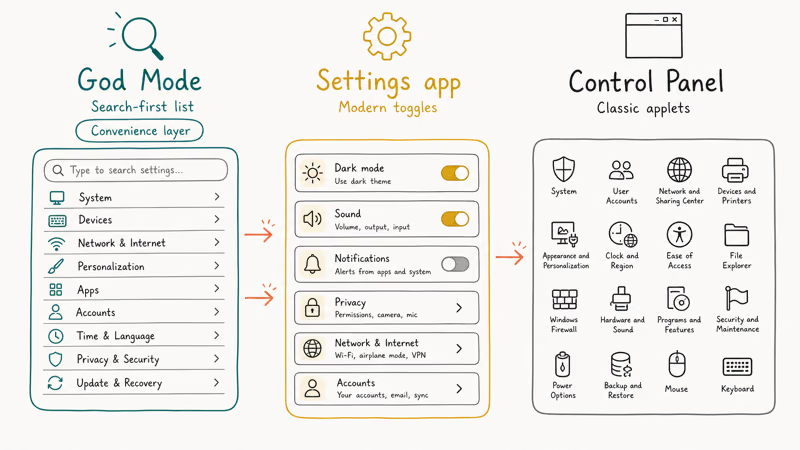
That overlap is shrinking. Microsoft’s system-configuration documentation confirms that many Control Panel settings are in the process of being migrated to the Settings app, and that Control Panel now survives mainly for compatibility. A God Mode link to one of the relocated settings will sometimes just open Settings instead. So it’s a convenience layer, not a separate set of controls.
Still, for power users it earns its place. It puts the classic applets one search away, which pairs well with other tweaks such as checking whether your PC can run Windows 11 or freeing space by deleting old Windows update files. Treat it as a shortcut hub, and it’s a real time-saver.
#Other Ways to Open the Settings Hub
The desktop folder isn’t your only option. If you’d rather keep your desktop clean, two alternatives reach the same place.
The fastest is the Run dialog: press Windows + R, paste the shell::: command, and the hub opens with no folder left behind. The Run dialog can open the same settings list without creating a desktop folder. You can also tuck the folder into a deeper directory and make a named shortcut to it, which sidesteps the blank-name quirk that the live folder shows.
These tricks pair nicely with other recovery shortcuts. When something goes wrong, knowing how to boot Windows 11 into Safe Mode matters more than any settings folder, but God Mode keeps the everyday tweaks within easy reach.
#Bottom Line
God Mode is a handy shortcut, not a secret power-up. Create the folder once and you get every Control Panel setting in one searchable list, which beats bouncing between the Settings app and Control Panel. Use the exact rename string, because a single wrong character means the folder just stays a plain folder. Don’t expect it to unlock anything hidden, and rest easy that deleting it later changes nothing about your system.
#Frequently Asked Questions
What does God Mode do in Windows?
It collects nearly every Control Panel setting into a single folder you can search. Instead of clicking through separate menus for power options, user accounts, or backup tools, you open one folder and find them all in a grouped, searchable list.
What is the exact God Mode folder name?
Rename a new folder to GodMode.{ED7BA470-8E54-465E-825C-99712043E01C} and press Enter. The text before the dot can be anything you like, but the code in braces after the dot has to be copied exactly or it won’t work.
Does God Mode work on Windows 11?
Yes, on both Windows 10 and Windows 11 with the identical code string. The folder icon changes to a Control Panel icon once you create it correctly on either version, and nothing about the steps differs between them, which is part of why this trick has stuck around through so many Windows releases.
Is God Mode safe, or will it break my PC?
It’s completely safe. God Mode only shows shortcuts to settings that already exist, so it can’t damage anything. Deleting the folder later removes the shortcut and leaves your system untouched.
No. Despite the dramatic name, it doesn’t reveal anything new or grant extra permissions. Every entry it lists is a normal Control Panel setting you could reach the long way through menus.
How do I delete the God Mode folder?
Right-click it and choose Delete. Because it’s only a view onto existing settings, removing it changes nothing.

Best Laptop for Running LLMs in 2026: Memory Comes First
The best laptop for running LLMs is a memory purchase first. Compare MacBook unified memory against NVIDIA laptop VRAM, and see what each tier really runs.

How to Run a Local LLM on Windows: A 2026 Setup Guide
Run a local LLM on Windows with LM Studio or Ollama. Pick a model that fits your GPU memory, keep every prompt offline, and skip the monthly bill.

Bluetooth Not Working on Snapdragon X? Fixes for 2026
Bluetooth not working on your Snapdragon X Copilot+ PC? Generic audio, mice, and keyboards work, but vendor apps often lack an ARM build. Fixes inside.

Docker Desktop and WSL2 Not Working on Snapdragon X? Fix It
WSL2 runs fine on Snapdragon X, but Docker Desktop ARM is Early Access and throws WSL errors. Use WSL2 plus native ARM64 Ubuntu and Docker Engine.