NVIDIA Control Panel Keeps Closing? Fix It Fast in 2026
NVIDIA Control Panel keeps closing on Windows? Use these proven fixes to stop crashes, clear driver conflicts, and restore full GPU control today.
Quick AnswerNVIDIA Control Panel keeps closing usually because of corrupted Drs configuration files, an outdated GeForce driver, or a third-party tool fighting the graphics service. Delete the nvdrsdb files in C:\ProgramData\NVIDIA Corporation\Drs, run the panel as administrator, then reinstall the latest Game Ready or Studio driver to stop the crash on Windows 10 and 11.
When the NVIDIA Control Panel keeps closing the second you click an option, you lose access to G-Sync, color profile, refresh-rate, and PhysX settings that the standard Windows Display panel can’t reach. The crash is almost always one of three things: a corrupted Drs configuration file, a stale GeForce driver, or a background tool that fights NVIDIA for GPU access. Here’s how to clear each cause cleanly on Windows 10 and Windows 11.
- The two configuration files NVDRSDB0.bin and NVDRSDB1.bin in
C:\ProgramData\NVIDIA Corporation\Drscause most close-on-click crashes when they get corrupted - Running
nvcplui.exewith administrator rights can resolve the crash, especially after a Windows feature update - The Microsoft Store version of NVIDIA Control Panel (v8.1.x) replaces the legacy installer and is the only supported install path on Windows 11
- Display Driver Uninstaller followed by a fresh Game Ready or Studio driver is the cleanest fix for crashes that survive the first three steps
- Third-party overlays like MSI Afterburner, RivaTuner, and Razer Synapse are the most common conflict source on systems with two or more GPU utilities running at once
#Why Does the NVIDIA Control Panel Keep Closing?
The control panel itself is a thin UI wrapper around nvcplui.exe and the NVIDIA Display Container service. When it crashes silently or closes the moment you click a setting, the binary is failing to read or write its config files, or it’s being denied access by the GPU driver underneath. Five causes explain most close-on-click reports:
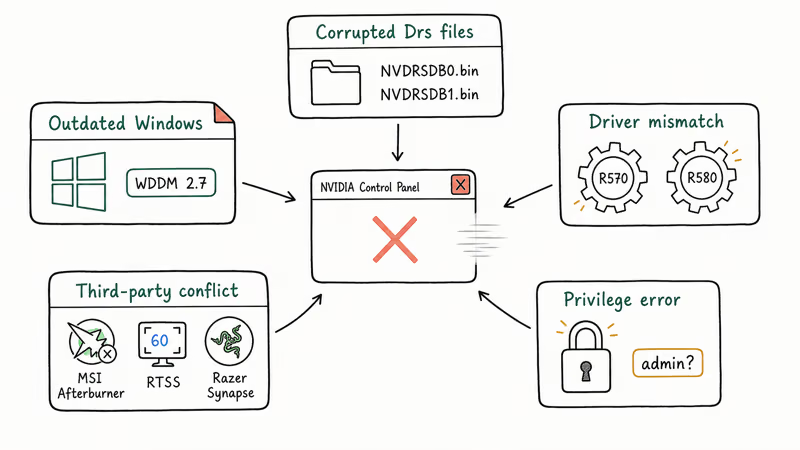
- Corrupted Drs configuration files. NVDRSDB0.bin (system-wide profiles) and NVDRSDB1.bin (per-application 3D settings) sit in
C:\ProgramData\NVIDIA Corporation\Drs. If a Windows update interrupts a write, the panel can’t parse them on next launch and bails out. - Driver mismatch after a Windows update. The panel version is tied to the driver version. Mismatched panel and driver versions are a common cause of the “panel opens then closes” report.
- Privilege error. Older
nvcplui.exebuilds need administrator rights to write intoProgramData. Standard user accounts crash on save. - Third-party GPU tool conflict. MSI Afterburner, RivaTuner Statistics Server, GeForce Experience overlay, Razer Synapse, and Steam’s in-game overlay all hook the NVIDIA driver. Two of them running at once frequently force the panel to terminate.
- Outdated Windows build. Windows 10 21H2 and earlier ship the WDDM 2.7 graphics stack, which has known compatibility gaps with R555+ NVIDIA drivers, according to Microsoft’s Windows release health documentation.
For a primer on the related background services that show up in Task Manager when the panel runs, see the walkthrough of NVDisplay.Container.exe and the NVIDIA backend process.
#Pre-Flight Checks Before You Try the Fixes
Run these three checks first. They take under five minutes and rule out the trivial causes that masquerade as a real crash.
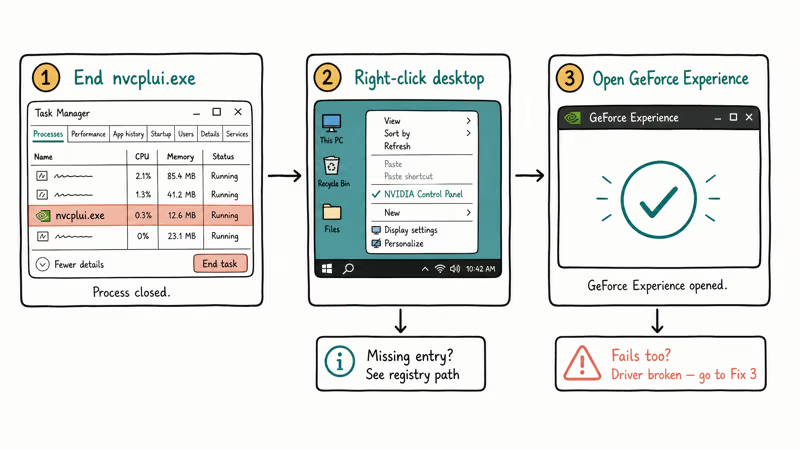
- Open Task Manager (Ctrl + Shift + Esc) and end every
nvcplui.exeprocess. A stuck instance from your last login can prevent the visible window from staying open. - Right-click your desktop and confirm “NVIDIA Control Panel” appears in the menu. If it’s missing, the issue is registry-related rather than a crash, and the guide on NVIDIA display settings are not available covers that path.
- Check whether GeForce Experience opens normally. If GFE also fails, the underlying driver is broken and you need fix 3 (driver reinstall) before the panel will start.
If a stuck nvcplui.exe process is holding the panel open in the background, ending that orphan process can clear the close-on-click symptom. If it comes back, move on to the Drs fix below.
#How Do You Fix the NVIDIA Control Panel That Keeps Closing?
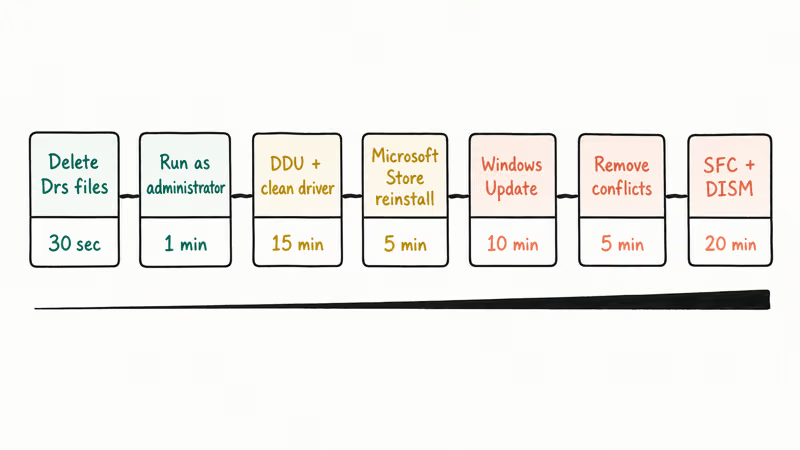
Work through the seven fixes in order. Each one targets a different root cause, and the early steps take seconds while the later steps reset the whole driver stack.
#1. Delete NVDRSDB0.bin and NVDRSDB1.bin
These two files store system-wide and per-app GPU profiles. Deleting them forces the panel to rebuild a clean copy on next launch. You’ll lose any custom 3D profiles, but the panel itself will start.
- Press Win + E to open File Explorer.
- Paste
C:\ProgramData\NVIDIA Corporation\Drsinto the address bar and press Enter. If theProgramDatafolder is hidden, enable View → Show → Hidden items first. - Delete
NVDRSDB0.binandNVDRSDB1.bin. - Reopen the NVIDIA Control Panel. The panel will recreate both files automatically.
If the Drs files are corrupted, this fix can resolve the crash without a reboot.
#2. Run NVIDIA Control Panel as Administrator
If the binary needs higher privileges to write its config, this is the cheapest test.
- Open File Explorer and go to
C:\Program Files\NVIDIA Corporation\Control Panel Client(orProgram Files (x86)on 32-bit setups, which are rare in 2026). - Right-click
nvcplui.exeand choose Run as administrator. - If the panel stays open, right-click the same file again, pick Properties → Compatibility, and tick Run this program as an administrator. Click Apply and OK.
This permanent flag survives reboots and Windows updates, so you only set it once.
#3. Reinstall the GeForce Driver Cleanly
If the panel and the driver have drifted out of sync, only a clean reinstall fixes it. Don’t just click “update” inside GeForce Experience because that path keeps the broken installation underneath.
- Download the latest Game Ready or Studio driver for your GPU from NVIDIA’s driver portal and save it to your desktop. Don’t install yet.
- Boot into Safe Mode by holding Shift while clicking Restart in the Start menu, then choose Troubleshoot → Advanced options → Startup Settings → Restart → 4.
- Run Display Driver Uninstaller (DDU) and select Clean and don’t restart. DDU strips every NVIDIA registry key, leftover service, and driver store entry.
- Reboot into normal Windows and run the driver installer you downloaded in step 1. Choose Custom (Advanced) → Perform a clean installation.
This path resets the driver stack more completely than an in-place update and is the right move when step 1 doesn’t hold.
#4. Reinstall NVIDIA Control Panel from the Microsoft Store
NVIDIA moved the control panel to the Microsoft Store starting with the R460 driver branch. The store version updates independently of the GPU driver and cleanly replaces a broken installation.
- Open Settings → Apps → Installed apps.
- Find NVIDIA Control Panel, click the three-dot menu, and choose Uninstall.
- Open the NVIDIA Control Panel listing on Microsoft Store and click Get.
- Reboot, then launch the panel from the Start menu or your desktop right-click menu.
If the Store version refuses to install with a 0x80073D02 error, your Microsoft Store cache is corrupted. Run wsreset.exe from the Run dialog and try again.
#Advanced Fixes for Stubborn Crashes
If the first four fixes didn’t clear the close-on-click crash, the cause is deeper in Windows itself or in third-party software running alongside the GPU driver. The next three fixes cover the OS, conflicts, and system-file repair.
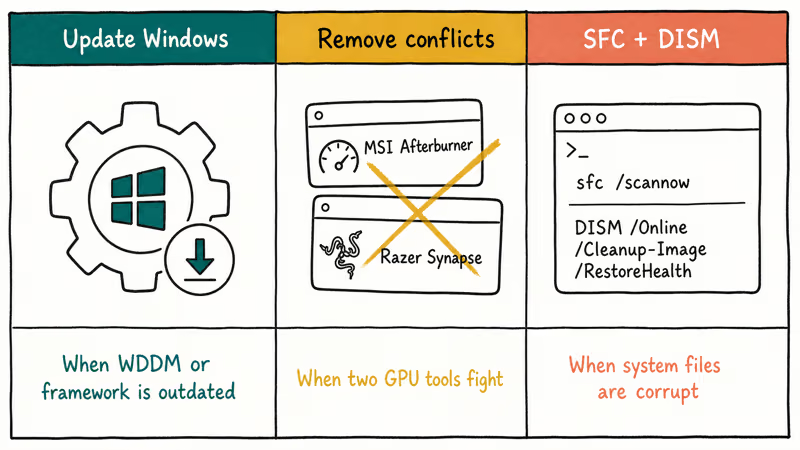
#5. Update Windows to the Latest Cumulative
A current Windows build ships current WDDM, DirectX, and graphics framework files that newer NVIDIA drivers depend on. Microsoft’s official Windows Update guide confirms that cumulative updates are the supported path for fixing display-related framework issues on both Windows 10 and 11.
- Press Win + I to open Settings.
- Go to Windows Update (Windows 11) or Update & Security → Windows Update (Windows 10).
- Click Check for updates and install everything pending, including optional driver updates.
- Reboot and reopen the NVIDIA Control Panel.
#6. Identify and Remove Conflicting Software
Two GPU tools touching the same driver hooks at once is a classic crash cause. Common repeat offenders include MSI Afterburner with RTSS, ASUS GPU Tweak III, and the Razer Synapse “Display” module. Steam’s in-game overlay is occasionally implicated.
- Press Win + R, type
appwiz.cpl, and press Enter to open Programs and Features. - Sort by Installed On and look at the last 30 days. The crash usually started within hours of the most recent install.
- Uninstall the suspect, reboot, and test the panel.
If removing it fixes the crash, you can usually reinstall the same tool with its overlay or hardware-monitoring module disabled in its own settings.
#7. Repair Corrupt System Files with SFC and DISM
If the crash survives all six earlier fixes, the underlying Windows install has corruption that’s leaking into the graphics stack. Run System File Checker followed by DISM in an elevated terminal:
sfc /scannow
DISM /Online /Cleanup-Image /RestoreHealth
The first command repairs Windows-protected files. The second one re-pulls a clean Windows component image from Microsoft’s update servers. Combined run time is around 20 minutes on an SSD. Reboot when both finish.
#When to Reinstall the GPU Driver Cleanly
Skip ahead to fix 3 (clean driver reinstall) right away if you’re seeing any of these signals:
- The panel was working last week and broke immediately after a Windows feature update or a GeForce Experience auto-update
- You see a black flash, screen artifacting, or a
Display driver stopped responding and has recoveredtoast in the system tray - Other graphics-related errors show up alongside the close-on-click crash, like the video scheduler internal error BSOD or a DPC watchdog violation
- DDU was last run more than a year ago, or you’ve upgraded GPUs without one
A clean reinstall sounds heavy but takes 15-20 minutes and prevents weeks of cascading driver weirdness.
#When Third-Party Driver Updaters Make the Crash Worse
Generally, third-party tools are not the answer here. NVIDIA’s own driver portal and GeForce Experience are the only two channels that pull the exact driver build NVIDIA tested for your card. Third-party updaters like Driver Booster, Slim Drivers, or Driver Easy can install the wrong branch (R570 instead of R580 ODE), miss the signed installer signature check, or push generic OEM drivers that strip features like NVENC and DLSS.
The exception is if you’re maintaining a fleet of machines with mixed AMD, Intel, and NVIDIA hardware where one GUI is useful. The Driver Talent review covers where third-party updaters help and where they hurt. For a single home gaming PC, stick with NVIDIA’s installer.
#Bottom Line
Start with deleting the two Drs configuration files because that fix takes 30 seconds and resolves the most common version of this crash. If the panel still closes, run it once with administrator privileges and set the permanent flag.
If both fail, schedule time for a Display Driver Uninstaller pass followed by a fresh Game Ready or Studio driver from NVIDIA’s portal. That sequence gives you a clean driver stack instead of layering another install over the broken one.
Reach for the Microsoft Store reinstall, Windows Update, conflict removal, and SFC/DISM only after the driver reset because those steps fix less common root causes.
#Frequently Asked Questions
What is the NVIDIA Control Panel used for?
The NVIDIA Control Panel is the dedicated configuration UI for GeForce, Studio, RTX, and Quadro graphics cards on Windows. It exposes settings the standard Windows Display panel can’t reach: 3D image quality, anti-aliasing, anisotropic filtering, G-Sync, refresh rate per display, color profile, NVIDIA HDR, PhysX processor selection, and per-application 3D profiles.
Why does the NVIDIA Control Panel close immediately on click?
Three causes explain almost every case. Corrupted profile files in C:\ProgramData\NVIDIA Corporation\Drs, a panel version that drifted out of sync with the installed GPU driver, or a background tool like MSI Afterburner or Razer Synapse hooking the NVIDIA driver. Delete the Drs files, run the panel as administrator, and reinstall the latest driver to clear the first two. End the third-party tool from Task Manager to test the third.
Can I reinstall NVIDIA Control Panel without reinstalling the driver?
Yes. Since the R460 driver branch, NVIDIA Control Panel is a separate Microsoft Store app. Open Settings, uninstall the panel, then reinstall it from the Microsoft Store listing. The GPU driver underneath is unaffected.
Does deleting NVDRSDB0.bin and NVDRSDB1.bin reset my game settings?
It resets your custom NVIDIA Control Panel 3D profiles, including any per-application overrides for image sharpening, V-Sync, low-latency mode, and texture filtering. In-game graphics settings stored by each game are not touched. If you’ve spent time tuning DLSS, frame generation, or G-Sync overrides for specific titles, screenshot the panel before deleting the files so you can rebuild your profiles.
Is the Microsoft Store version of NVIDIA Control Panel safer than the legacy installer?
The Microsoft Store version is the supported install path on Windows 11 starting with the R460 driver branch, and it auto-updates alongside the operating system. NVIDIA recommends it for new installs. The legacy installer still works on Windows 10 but no longer ships separately because the Store version is bundled with current driver downloads.
Do third-party driver updaters fix this issue?
No. Tools like Driver Booster, Slim Drivers, and Driver Easy frequently push generic OEM-branded NVIDIA drivers that strip features like NVENC encoding, DLSS, and frame generation. They also occasionally roll back signed installer signature checks, which Windows Defender will flag. Use NVIDIA’s own driver portal or GeForce Experience for any driver work on a card you actually game on.
How long does Display Driver Uninstaller take to run?
DDU itself runs in 60-90 seconds in Safe Mode. The full sequence including the Safe Mode reboot, DDU pass, normal-mode reboot, and fresh driver install takes 15-20 minutes on an SSD-equipped Windows 11 system. Plan for closer to 30 minutes on a hard drive or if you’re downloading the driver fresh from NVIDIA on a slow connection.
Will updating Windows fix the NVIDIA Control Panel crash by itself?
Sometimes, when the root cause is an outdated WDDM graphics framework or a Windows display kernel bug that Microsoft already patched in a cumulative update. A pending optional driver update from Windows Update can also clear some driver-panel conflicts without touching the NVIDIA installer. If you’re more than two cumulative updates behind, install them before reinstalling the GPU driver because the order saves time.

Best Laptop for Running LLMs in 2026: Memory Comes First
The best laptop for running LLMs is a memory purchase first. Compare MacBook unified memory against NVIDIA laptop VRAM, and see what each tier really runs.

How to Run a Local LLM on Windows: A 2026 Setup Guide
Run a local LLM on Windows with LM Studio or Ollama. Pick a model that fits your GPU memory, keep every prompt offline, and skip the monthly bill.

Bluetooth Not Working on Snapdragon X? Fixes for 2026
Bluetooth not working on your Snapdragon X Copilot+ PC? Generic audio, mice, and keyboards work, but vendor apps often lack an ARM build. Fixes inside.

Docker Desktop and WSL2 Not Working on Snapdragon X? Fix It
WSL2 runs fine on Snapdragon X, but Docker Desktop ARM is Early Access and throws WSL errors. Use WSL2 plus native ARM64 Ubuntu and Docker Engine.