How to Use Microsoft Copilot: A Complete Practical Guide
Learn how to use Microsoft Copilot across Windows, Edge, and Microsoft 365 apps. Covers drafting, summarizing, image generation, and free vs. paid plans.
Quick AnswerOpen Microsoft Copilot at copilot.microsoft.com or press Win + C on Windows 11. Type a prompt to draft text, summarize a webpage, or generate an image. A free account gives you generous daily limits; Copilot Pro and Microsoft 365 Copilot unlock the full suite inside Word, Excel, and Outlook.
Microsoft Copilot is Microsoft’s AI assistant, powered by OpenAI models, and it runs across more surfaces than most people realize. It shows up in Windows 11, the Edge sidebar, the web app, and the Microsoft 365 desktop apps, and this practical walkthrough covers each one.
- Copilot is free at copilot.microsoft.com with no account required, though signing in unlocks chat history and image generation.
- Press Win + C on Windows 11 to open Copilot directly from the taskbar without opening a browser.
- The Edge sidebar (Ctrl+Shift+.) lets you summarize any webpage or PDF without leaving the tab you’re already reading.
- Microsoft 365 Copilot inside Word, Excel, and Outlook requires a paid business subscription; Copilot Pro adds it to personal Microsoft 365 plans.
- Copilot generates images using DALL-E via the Designer tool, available in the free tier with daily limits and in paid plans with higher quotas.
#Where Do You Find Microsoft Copilot?
Copilot shows up in more places than ChatGPT does, which is both useful and a little confusing. Here’s where each version lives.
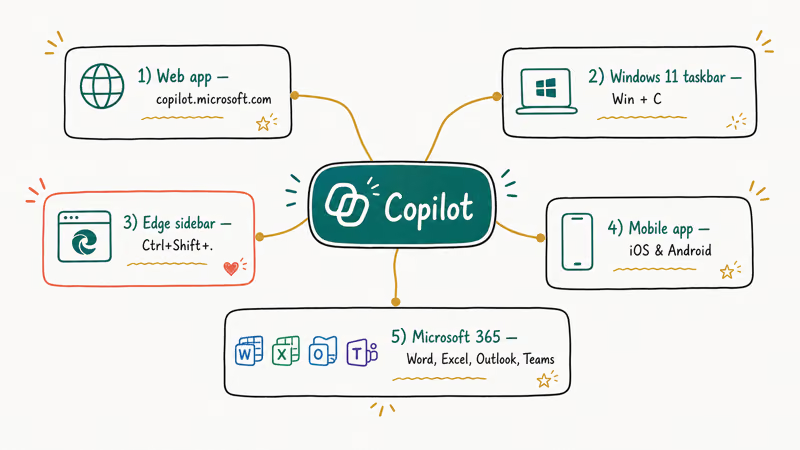
copilot.microsoft.com is the main web app. No installation needed. Sign in with a Microsoft account for chat history and image generation, or use it without signing in for basic Q&A.
Windows 11 taskbar: Press Win + C and Copilot opens as a sidebar on your desktop. It opens in a second or two and keeps Copilot alongside whatever app you’re already using. Microsoft’s Learn documentation confirms that the Win + C shortcut is the fastest access point for desktop users.
Many new PCs also ship a dedicated Copilot key next to the space bar; our guide to dedicated Copilot key remapping and disable options shows how to reassign or turn it off.
Microsoft Edge sidebar: Click the Copilot icon in the top-right corner of Edge, or press Ctrl+Shift+. to open it. This version is specifically designed to read the page you’re viewing, so you can ask questions about an article, summarize a PDF, or get definitions without switching tabs.
The Microsoft 365 Copilot mobile app: iOS and Android. Chat-first layout, redesigned in 2026.
Inside Word, Excel, Outlook, and Teams: This is Microsoft 365 Copilot, which is a separate, paid tier. We cover the differences in the plans section below.
#How to Start a Chat and Get Useful Answers
The basics work exactly like any other AI chat tool. Type a prompt, press Enter, and Copilot responds. The quality of the answer depends heavily on how specific your prompt is.
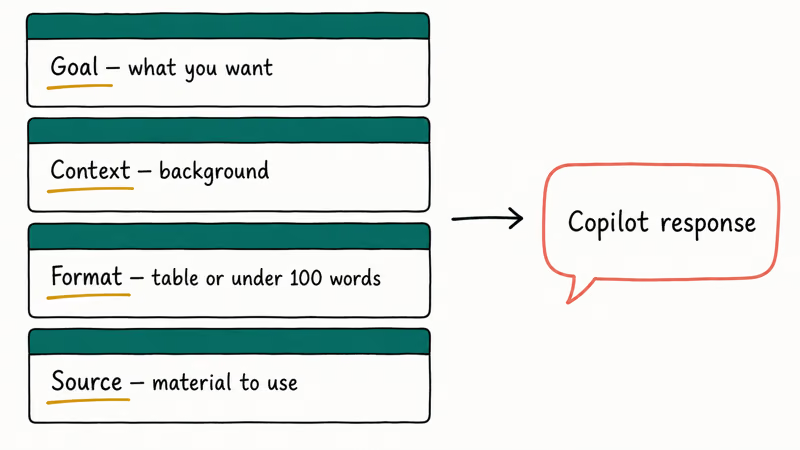
According to Microsoft’s prompt writing guidance, a strong prompt has four parts: goal, context, expected format, and source material. All four aren’t always necessary. But skipping context is the most common reason a first-pass response misses the mark, so even a sentence of background helps. The format instruction (“give me a table” or “keep it under 100 words”) is the other easy win.
For web search answers: Copilot cites its sources inline with numbered footnotes. Click any citation to see the source webpage. That visibility makes it more useful than raw ChatGPT for research tasks where you need to verify where information comes from, not just read a confident-sounding summary.
For conversational tasks like brainstorming, drafting, or explaining a concept: just describe what you need. Copilot holds context across multiple turns in a session, so you can refine the output with follow-up prompts like “make this shorter” or “write it in a more casual tone.”
With the follow-up flow, each refinement updates only the relevant section rather than regenerating the whole response, which saves time compared to starting over.
#How to Draft and Rewrite Text
Copilot’s text generation is where most people spend their time. Here are the practical workflows that actually save time.
Quick drafts: Type “Write a [type of content] about [topic] that is [tone/length].” For email drafts specifically, the more context you provide (recipient, relationship, goal), the less editing the output needs. A detailed prompt can turn a project update email that would take a few minutes to write into a near-final draft in well under a minute.
Rewriting existing text: Paste your draft, then ask Copilot to “rewrite this to be more concise,” “change the tone to professional,” or “simplify the language.” The rewrite shows up as a new block, so your original stays visible for comparison.
Copilot in Word (requires Microsoft 365 Copilot subscription): Select text or open the Copilot panel, type what you want. According to Microsoft’s support documentation for Word, providing a reference file such as an existing document or meeting notes lets Copilot generate drafts that match your organization’s terminology and structure. That’s a meaningful difference from a generic blank-slate draft.
For more on how AI writing tools compare, see our ChatGPT vs. Claude vs. Gemini comparison.
#How to Summarize Documents and Webpages
Summarization is one of Copilot’s strongest use cases, and the Edge integration makes it unusually convenient.
Summarizing a webpage in Edge: Open the page, press Ctrl+Shift+. to open the Copilot sidebar, and type “Summarize this page.” Copilot reads the current tab’s content and returns a structured summary with key points. On long-form articles, the summaries generally capture the main argument without inventing details that weren’t in the source.
Summarizing a PDF in Edge: Open the PDF in Edge, open the sidebar, and ask for a summary. Faster than copying text into a separate window.
Summarizing a Word document (Microsoft 365 Copilot): Open the document and Copilot can auto-generate a summary at the top. Microsoft’s documentation states that documents need at least 200 words for automatic summary generation, and the document must be saved in OneDrive or SharePoint for the feature to trigger.
In the web app: Paste a chunk of text and ask “What are the key points from this?” or “Summarize this in three bullet points.” Works for any content you can paste in.
#How to Generate Images with Copilot
Copilot generates images using DALL-E through the Designer integration. The free tier includes daily image generation credits; paid plans raise the limit.
To generate an image: Go to copilot.microsoft.com, click the image icon in the prompt bar (or type “Create an image of…”), describe what you want, and Copilot sends the request to Designer. You’ll get four variations to choose from.
Prompt tips that actually work: Be specific about style, subject, and mood. “A flat-vector illustration of a laptop with a glowing AI interface, dark background, teal accents” produces a more usable result than “an AI laptop picture.”
Adding a style directive (“in the style of a watercolor painting,” “photorealistic,” “minimal line drawing”) consistently improves output relevance.
The Designer tool at designer.microsoft.com offers more controls (canvas size, background removal, and editing tools) if you want to go beyond the basic generation flow. Image generation with Copilot is also available in the mobile app via the same prompt interface.
#Is Microsoft Copilot Free? Understanding the Plans
This is the part that trips most people up. The three tiers are actually quite different in what they include.
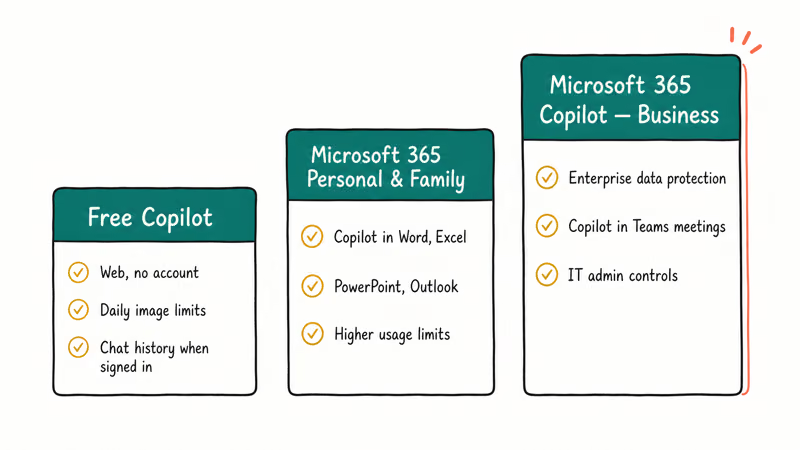
Free Copilot (copilot.microsoft.com): Available to anyone, no account needed for basic use. Sign in with a personal Microsoft account for chat history, image creation with daily limits, and voice interaction. This is the tier most personal users will start with.
Microsoft 365 Personal and Family: Adding a Microsoft 365 personal subscription gives higher usage limits on advanced Copilot features and adds Copilot to the desktop versions of Word, Excel, PowerPoint, and Outlook for the subscription owner. For a person who already pays for Microsoft 365 for Office apps, this is what unlocks the AI layer inside those apps.
Microsoft 365 Copilot (business): The enterprise tier for organizations. It adds enterprise data protection, Work IQ, Copilot in Teams meetings, and IT admin controls. Check Microsoft’s pricing page directly since per-user pricing changes.
The free tier works well for personal tasks, research, drafting, and image generation within daily limits. The paid tiers matter most when you need Copilot to work with your own files and calendar inside Microsoft 365 apps at scale.
For comparison with other AI subscriptions, see our piece on whether ChatGPT Plus is worth it.
#Copilot vs. ChatGPT: Key Differences
Both run on OpenAI models (Copilot uses GPT-4 and GPT-5 series under the hood), but the experience differs in meaningful ways.
Copilot connects directly to Microsoft’s ecosystem. A business account gives it access to your OneDrive, Outlook calendar, Teams transcripts, and SharePoint content, so answers draw from your actual work data rather than just the public web. ChatGPT doesn’t have that Microsoft 365 integration built in, though it does offer its own plugin and tool-use capabilities for other services.
Copilot returns cited web sources by default. Ask a factual question, and you get numbered footnotes to click. ChatGPT’s standard mode doesn’t show sources unless you specifically use the search feature, which isn’t turned on by default for all users and subscription tiers.
ChatGPT’s interface is arguably simpler for pure conversational AI tasks, and ChatGPT Projects lets you organize conversations with custom instructions per project. We cover that feature in depth in our guide on how to use ChatGPT Projects.
Image generation is free in Copilot.
If you’re picking the right tool for your workflow, our overview of how to use Gemini Gems covers Google’s competing feature.
#What Can Copilot Do in Microsoft 365 Apps?
If you have a Microsoft 365 Copilot subscription, here’s what Copilot does inside the apps you already use.
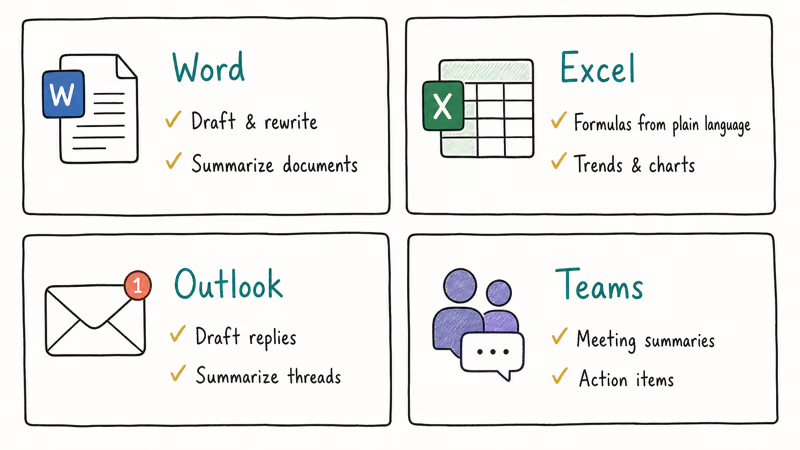
Word: Draft new documents from a prompt, rewrite selected sections, summarize long documents, and ask questions about the document’s content. The Legal Agent in Word introduced in 2026 handles contract review and redlining for legal workflows.
Excel: Generate formulas from plain-language descriptions, highlight trends in your data, create charts, and answer questions about what the numbers mean. On a data set with several hundred rows, asking Copilot “which category has the highest variance?” returns an answer along with the formula it used, not just a number.
Outlook: Draft email replies, summarize long email threads, and flag action items from a message. One of its biggest time-savers is condensing a long, sprawling email thread in a crowded inbox down to a few key points in seconds.
Teams: Copilot summarizes meeting transcripts, generates action items, and answers questions about what was discussed. It requires meeting transcription to be enabled.
For AI tools built specifically for technical work, see our guide to the best AI tools for coding.
#Bottom Line
Start with the free web app at copilot.microsoft.com if you want to try Copilot before committing to anything. The Edge sidebar is the fastest way to add AI to your existing browser workflow, and it works on any page you’re already reading.
If you’re already a Microsoft 365 subscriber, check whether your current plan includes Copilot access before buying a separate upgrade. Many users already have it and don’t know. The business tier makes sense when you need Copilot grounded in your organization’s actual files and communication, not just the web.
#Frequently Asked Questions
Is Microsoft Copilot free to use?
Yes. Copilot at copilot.microsoft.com is free with no account required. Signing in adds chat history and image generation. Microsoft 365 paid plans unlock Copilot inside Word, Excel, Outlook, and Teams.
How is Copilot different from just using ChatGPT?
Both use OpenAI’s models. The difference is Microsoft integration: a business Copilot account pulls from your OneDrive, Outlook, Teams, and SharePoint. ChatGPT doesn’t connect to Microsoft 365, and its standard mode doesn’t surface web citations by default.
Can I use Copilot without a Microsoft account?
You can use the basic chat at copilot.microsoft.com without signing in and get web-search answers right away. No account, no setup. Creating a free Microsoft account adds chat history and image generation. A paid Microsoft 365 subscription is required for Copilot inside Word, Excel, Outlook, and Teams.
How do I open Copilot on Windows 11?
Press Win + C to open Copilot on Windows 11. In Edge, use Ctrl+Shift+. for the browser sidebar.
What’s the difference between Copilot and Microsoft 365 Copilot?
The free Copilot works with public web information and general tasks. Microsoft 365 Copilot (the paid business tier) is grounded in your organization’s internal data, including your emails, meetings, documents, and SharePoint, and works inside the Microsoft 365 app suite. According to Microsoft’s support page on this difference, the key distinction is data access and enterprise protection controls.
Can Copilot generate images for free?
Yes. Image generation via Designer and DALL-E is available in the free tier with daily usage limits. Signed-in users get more generations per day than anonymous users. Paid plans under Microsoft 365 subscriptions increase the daily quota significantly.
Does Copilot work on iPhone and Android?
Yes. The Microsoft 365 Copilot mobile app is available for both iOS and Android. It uses a chat-first interface and mirrors the web app’s capabilities. The mobile app received a significant redesign in early 2026 for cleaner layout and easier response viewing.

Is This Bank App Real? Spot a Fake App on Your Home Screen
A bank app can land on your home screen from a web page with no install warning. Learn the checks that tell a real banking app from a phishing web app.
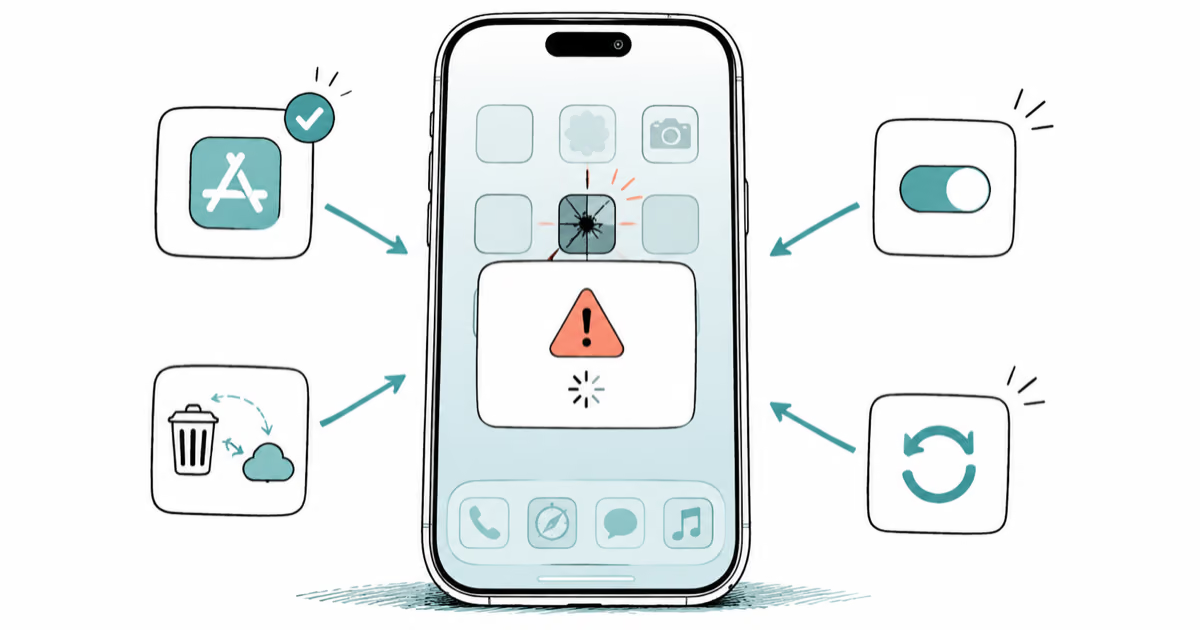
Apps Crashing After iOS 27 Update? Fix Order (2026)
Apps crashing after the iOS 27 update? Update the app in the App Store first, then offload and reinstall to clear stale cache, then restart. The fix order.
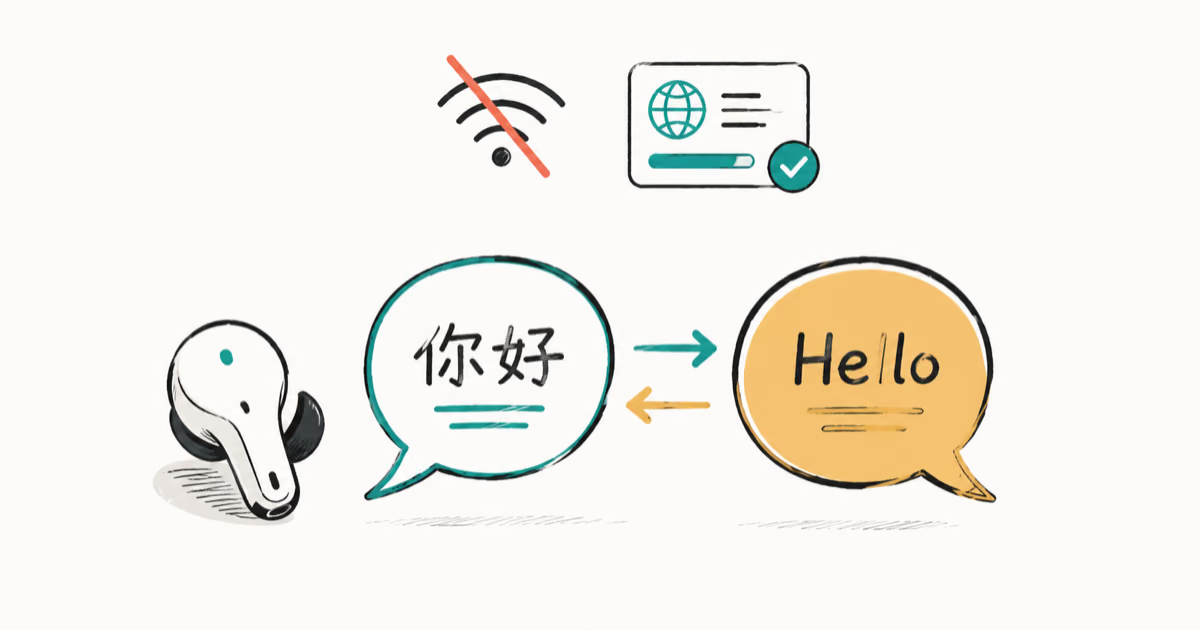
Do AI Translation Earbuds Work Offline? What to Know
Do AI translation earbuds work offline? A few do with downloaded language packs, but most need the cloud. Here's what works offline and what you give up.
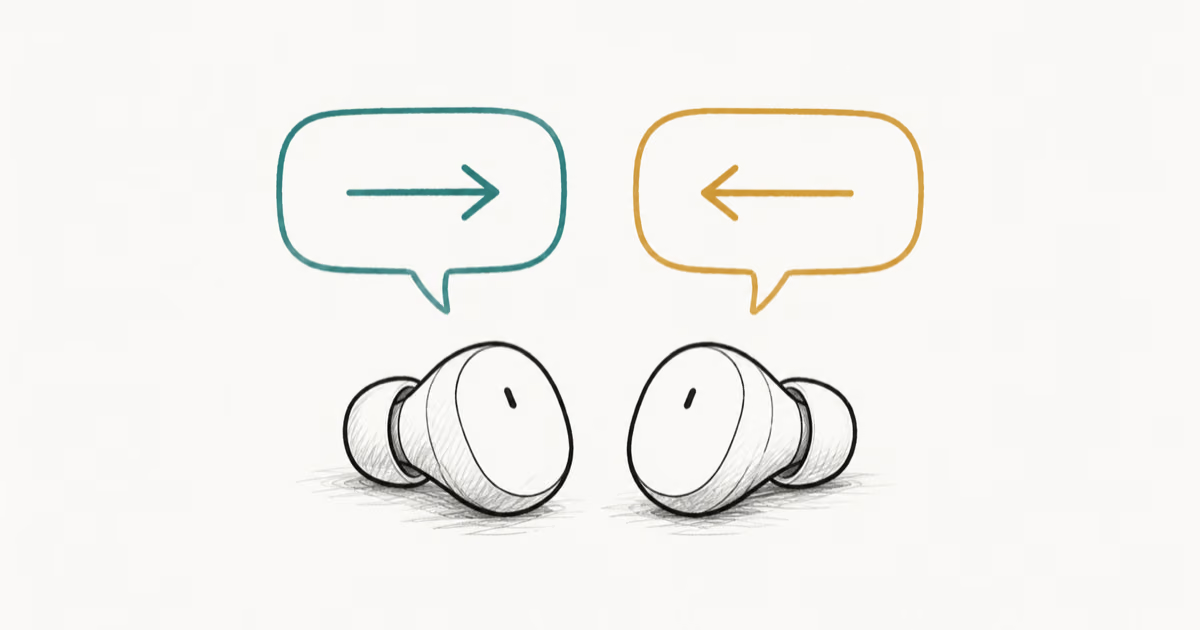
How to Set Up Translation Earbuds (Pairing and Modes)
How to set up translation earbuds: charge, install the app, pair over Bluetooth, pick two languages, and choose a mode. A step-by-step first-use guide.